A:Answer Macs only enable TRIM on Apple provided solid-state drives. If you upgrade your Mac with an aftermarket SSD, your Mac won’t use TRIM with it. This reduces the drive’s performance. Thanks to Mac OS X 10.10.4 it is now possible to enable TRIM on any SSD in your Mac with a simple command. You no longer have to disable OS X security features and modify your system to do this. To run trimforce, open a Terminal window (press Command + Space, type Terminal, and press Enter to launch a terminal via Spotlight). Type the following command into the terminal window and press Enter: sudo trimforce enable
Enter your user account’s password at the prompt. After you do, you’ll need to read a scary-sounding warning and agree by typing a (y).
Your Mac will immediately reboot after you agree to the second question with a (y). After it reboots, TRIM will be enabled for all SSDs connected to your Mac.
If you want to disable trimforce and only use TRIM for Apple’s OEM solid-state drives, open a Terminal window again and run the following command:
sudo trimforce disable
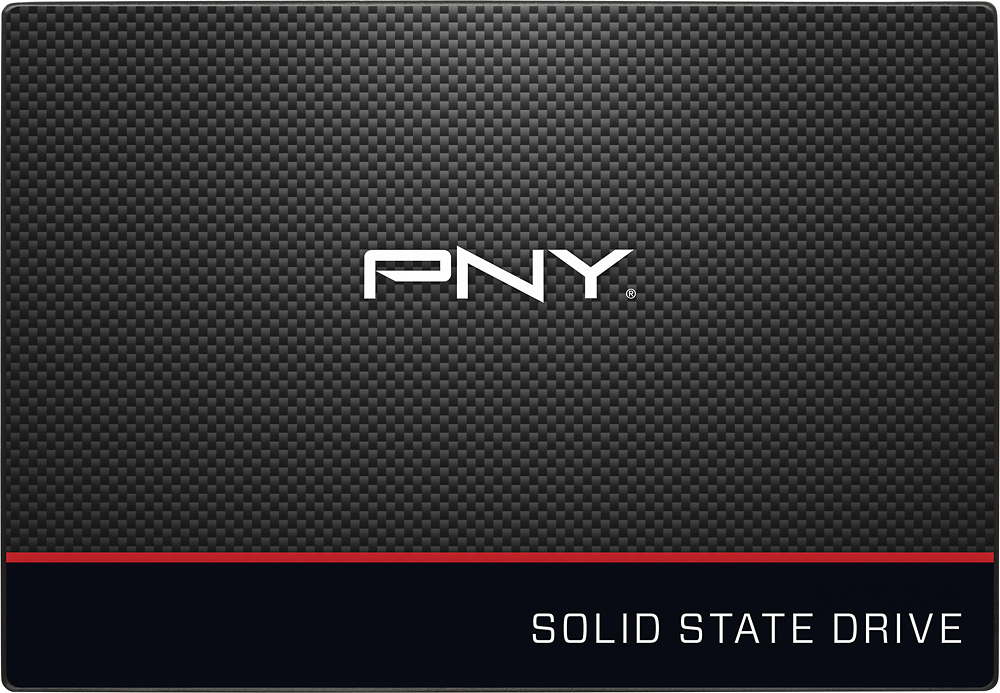
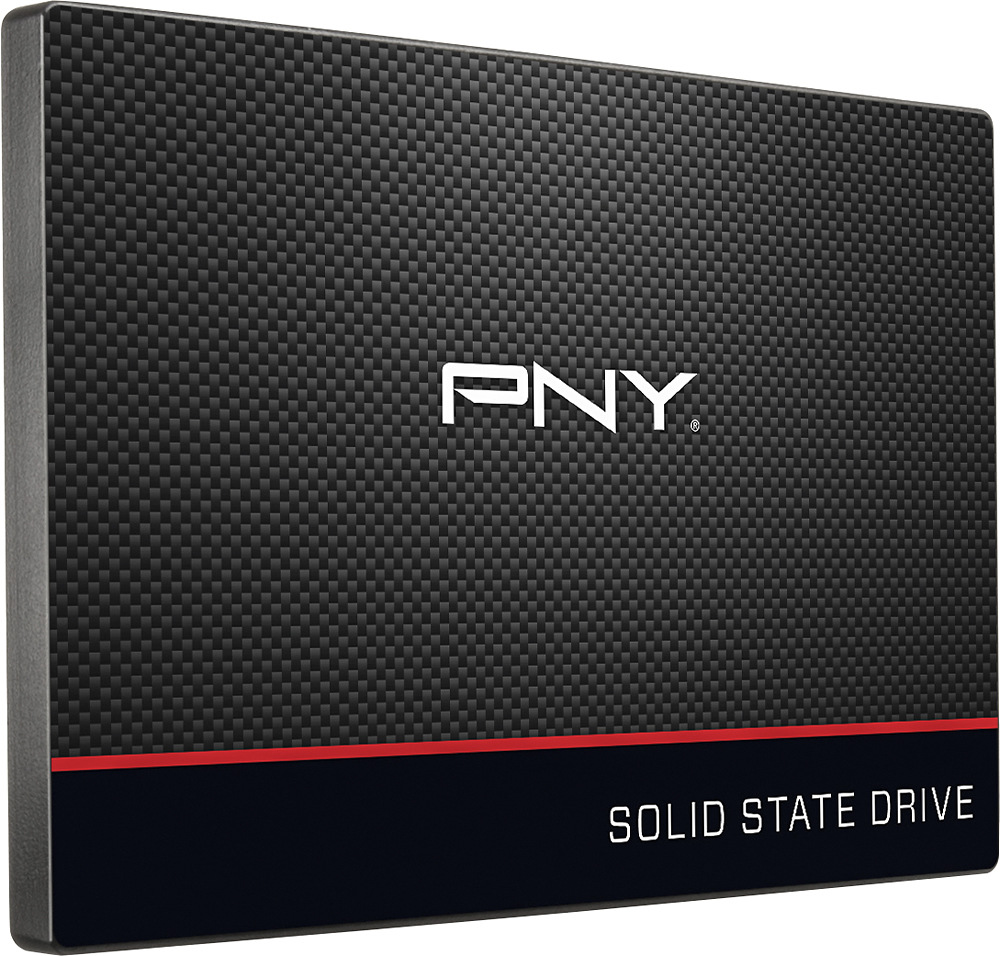
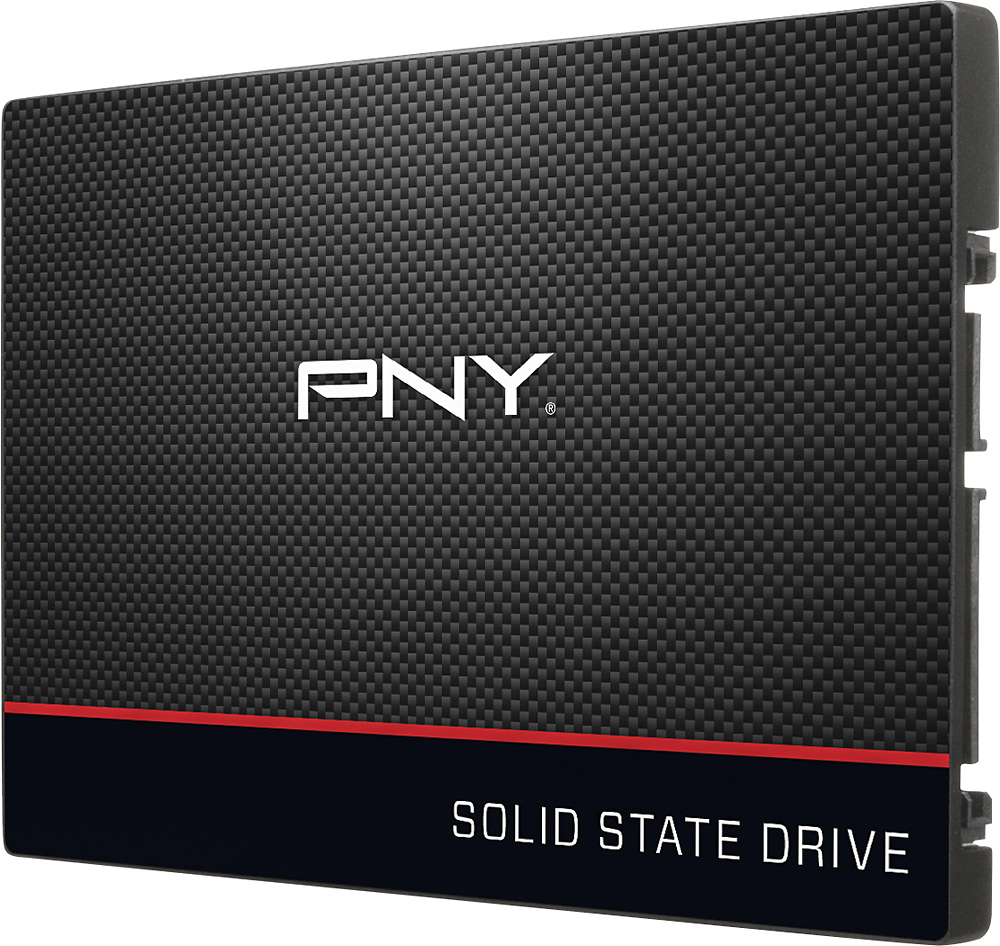
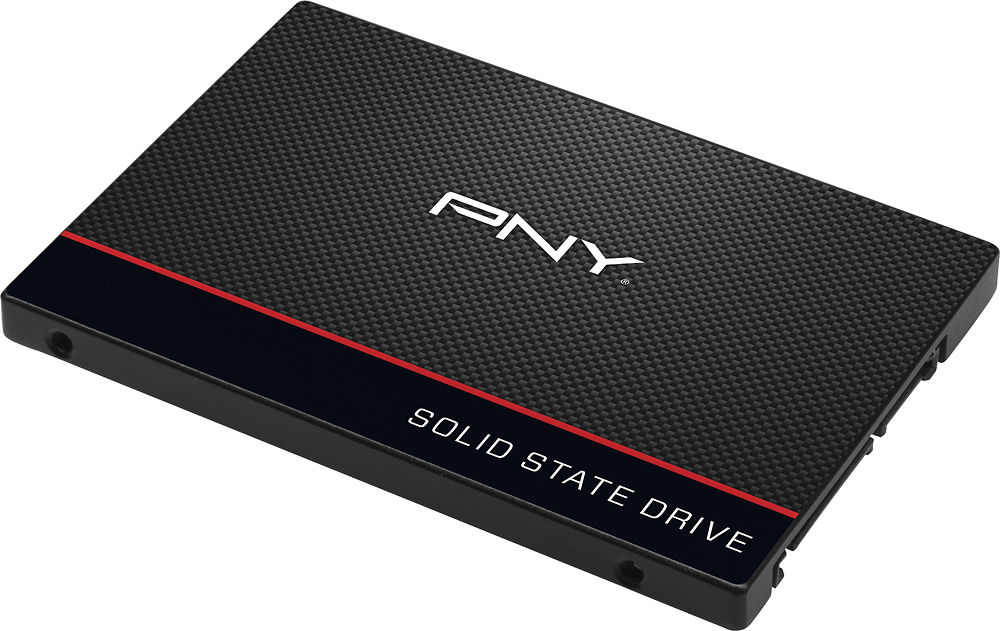
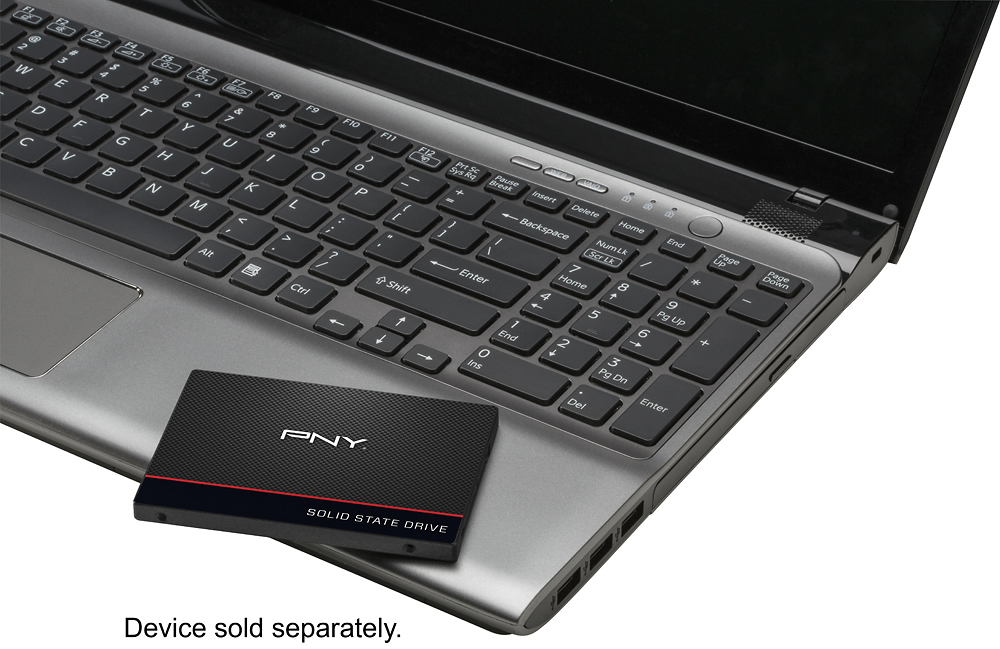
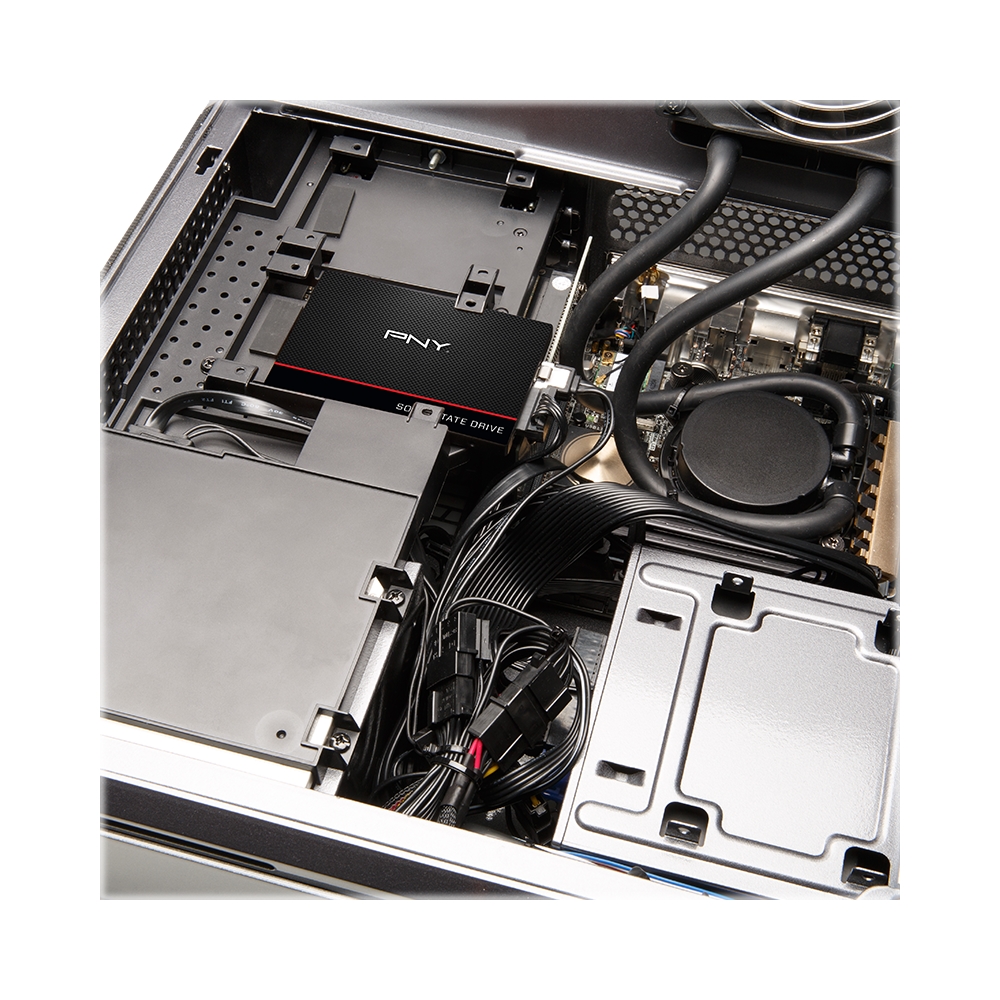
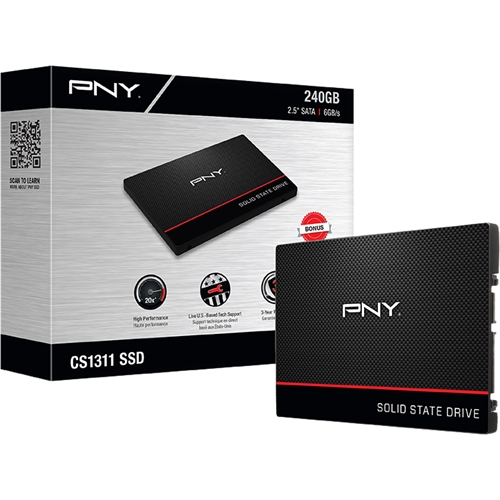
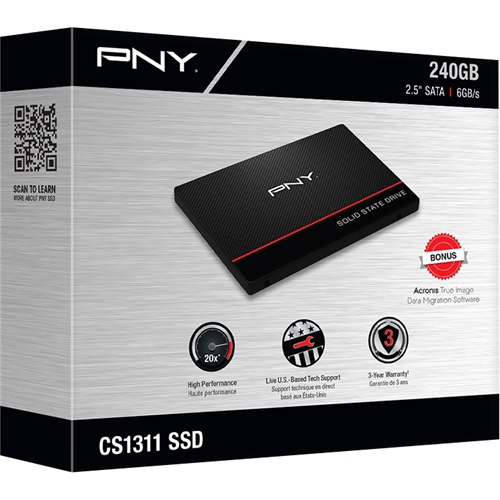
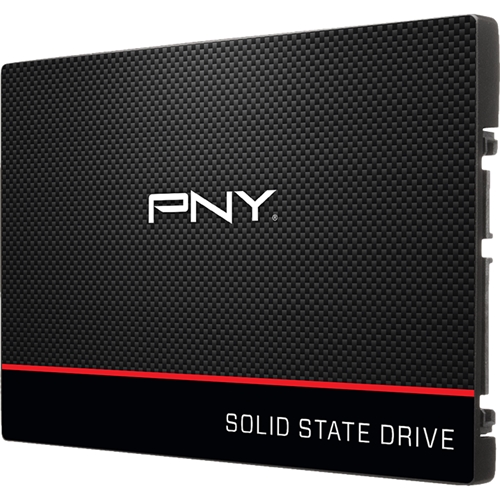
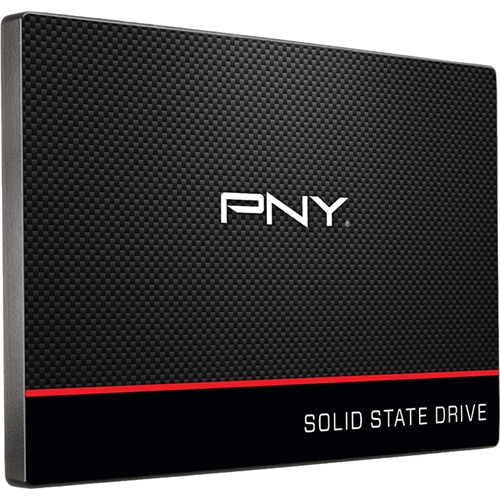
This should work properly with most SSD's as long as it's not one that's on the blacklist, which the PNY CS1311 is not on the list, so you should be fine.
To see what SSD's are on the blacklist so far check the link (https://github.com/torvalds/linux/blob/e64f638483a21105c7ce330d543fa1f1c35b5bc7/drivers/ata/libata-core.c#L4227)