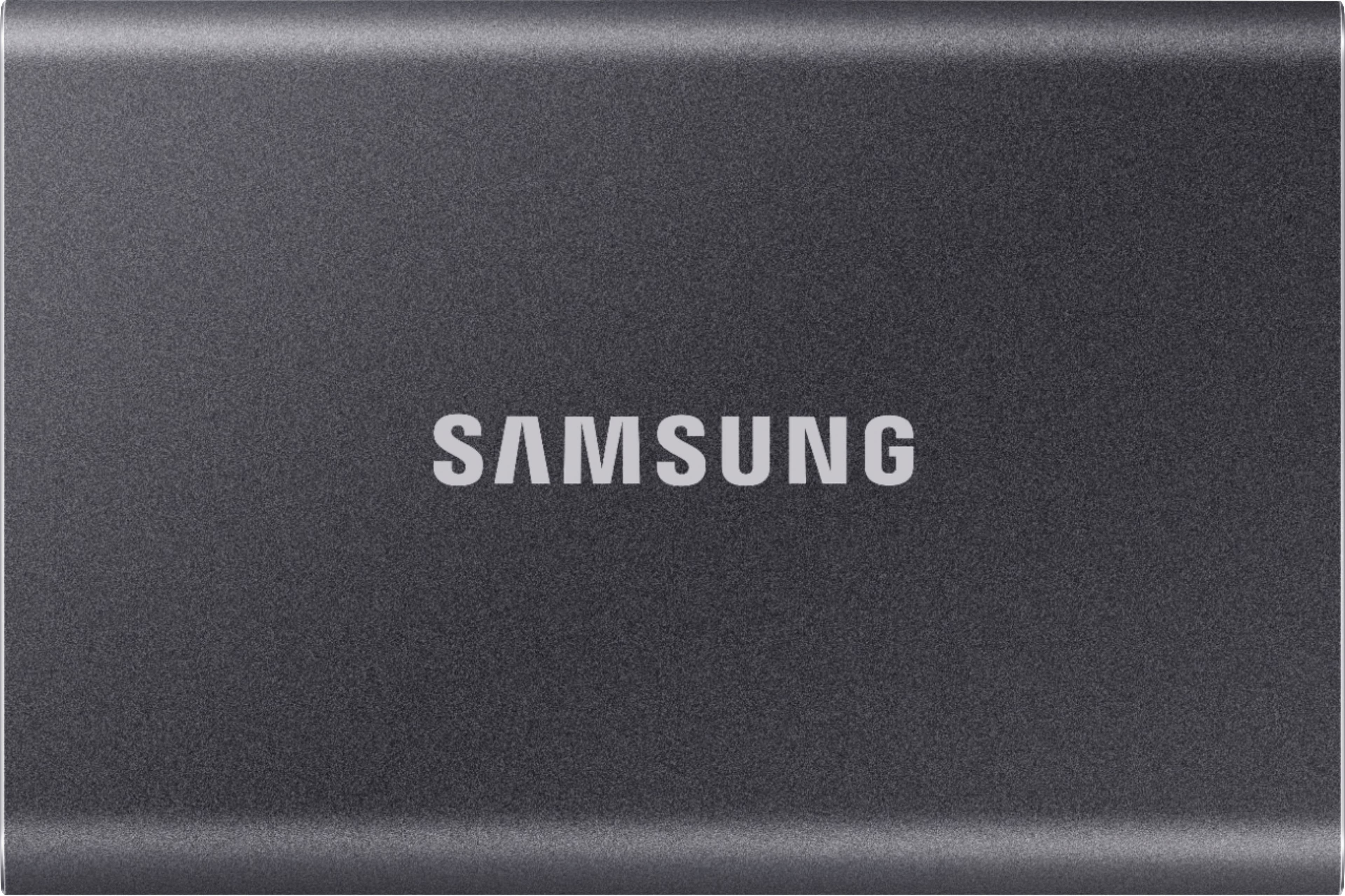
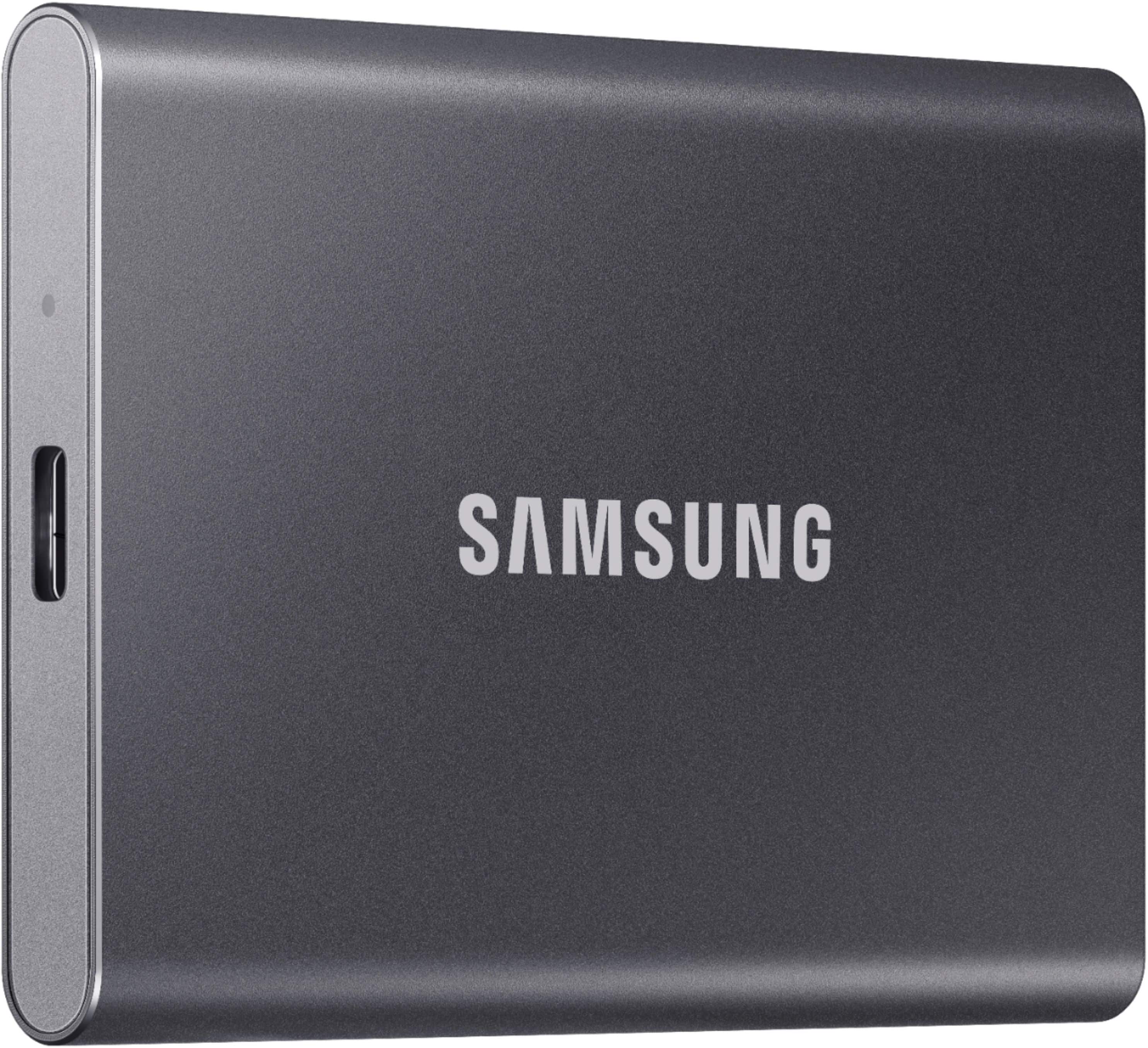
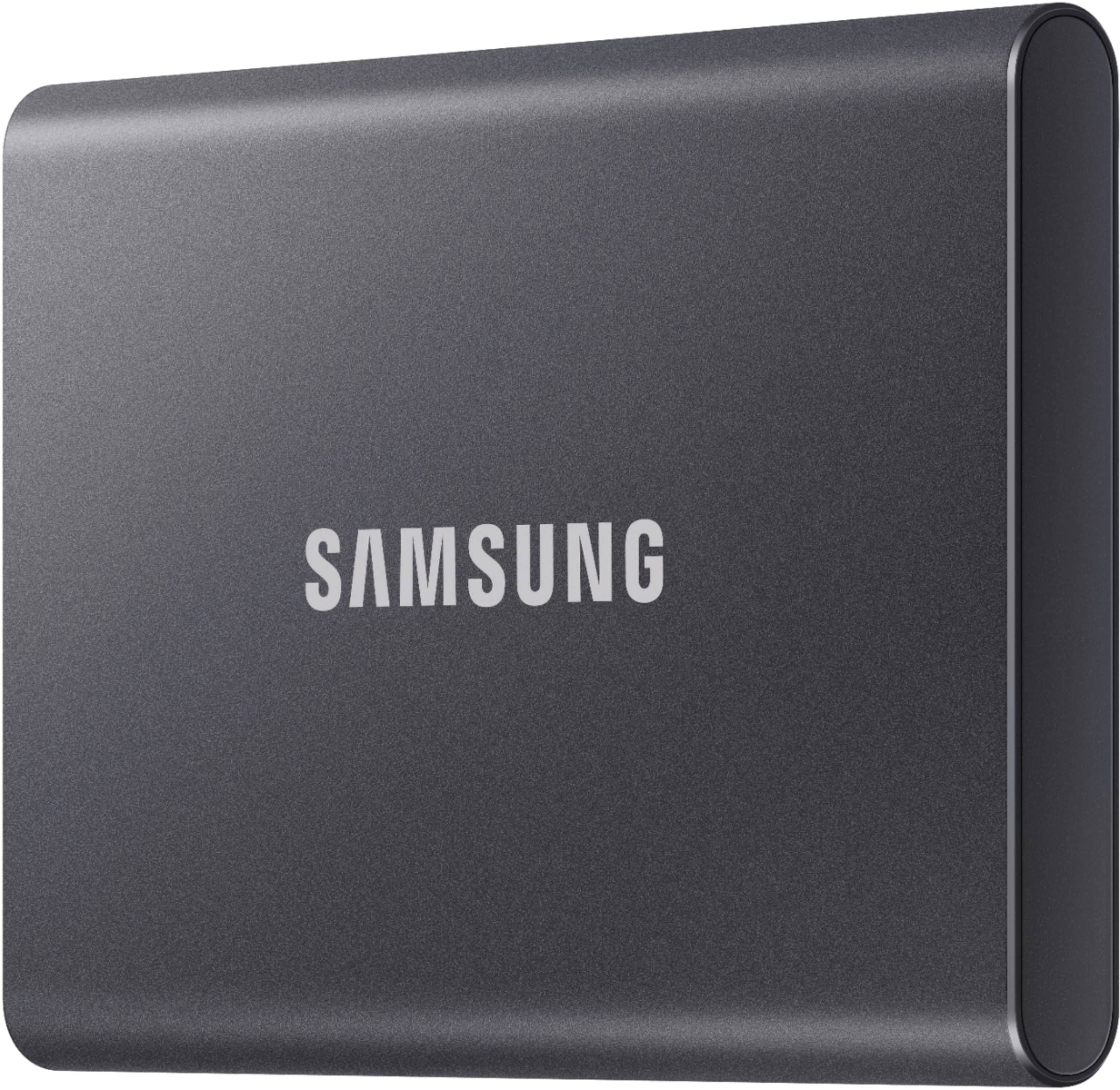
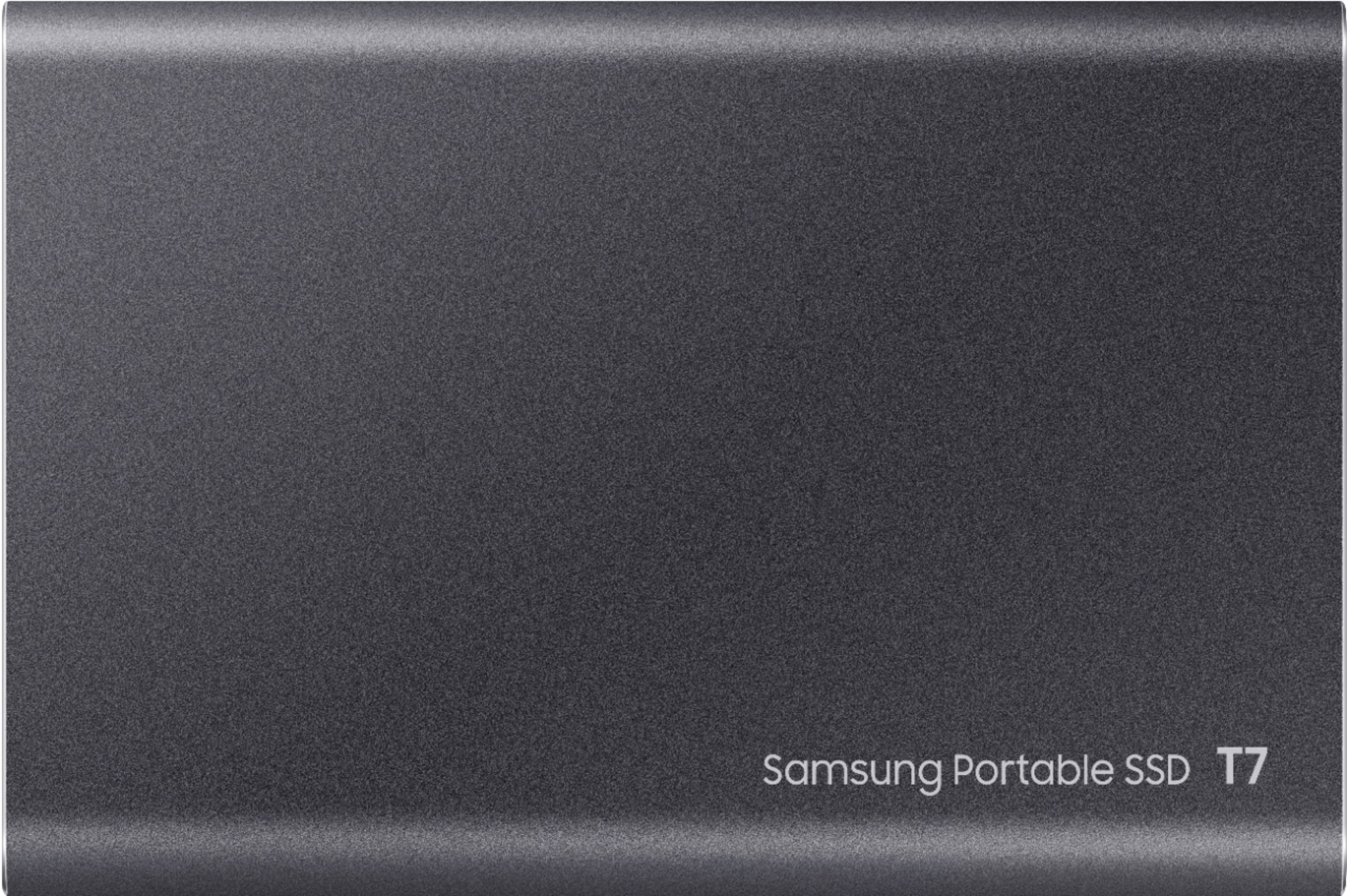
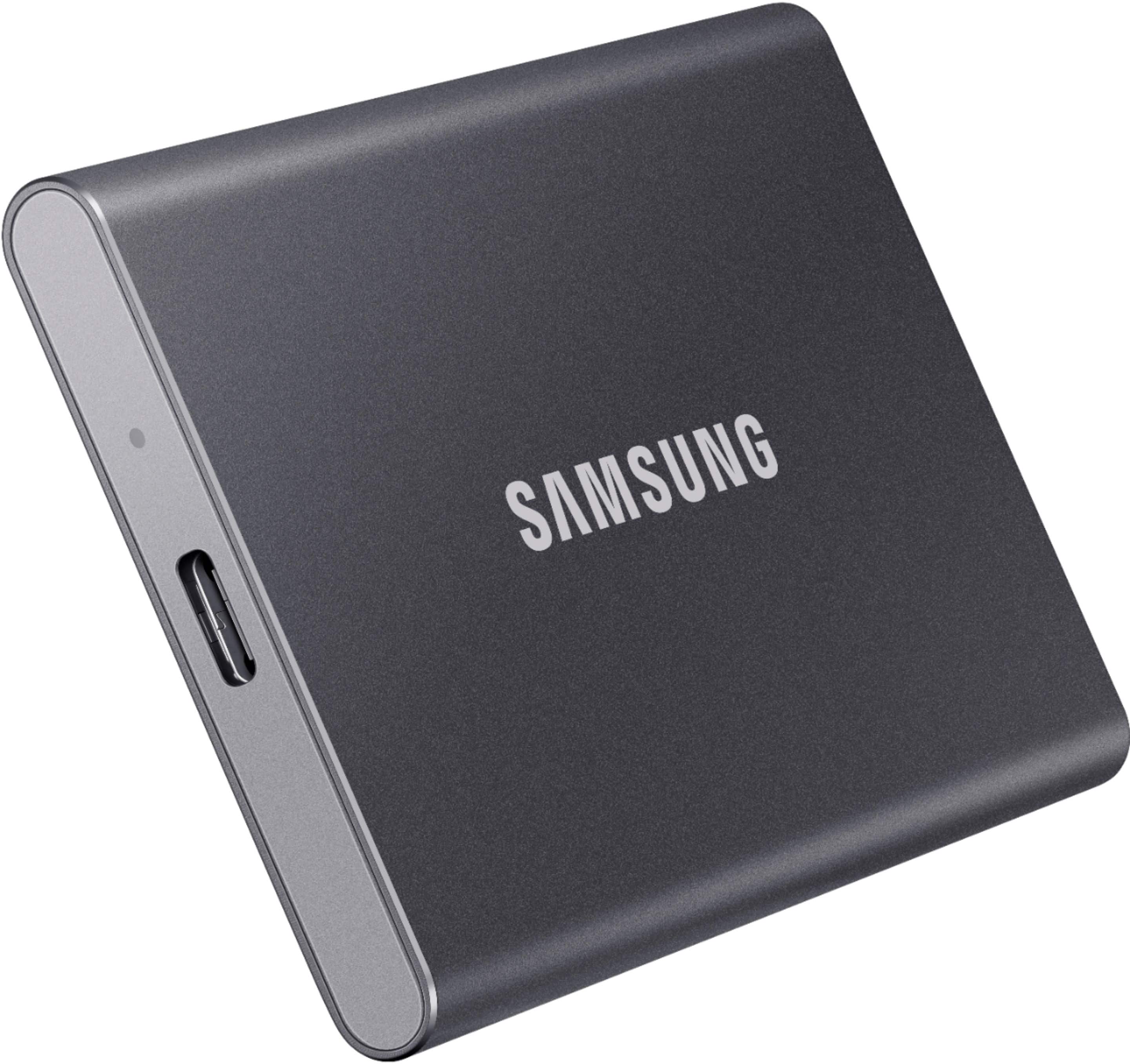
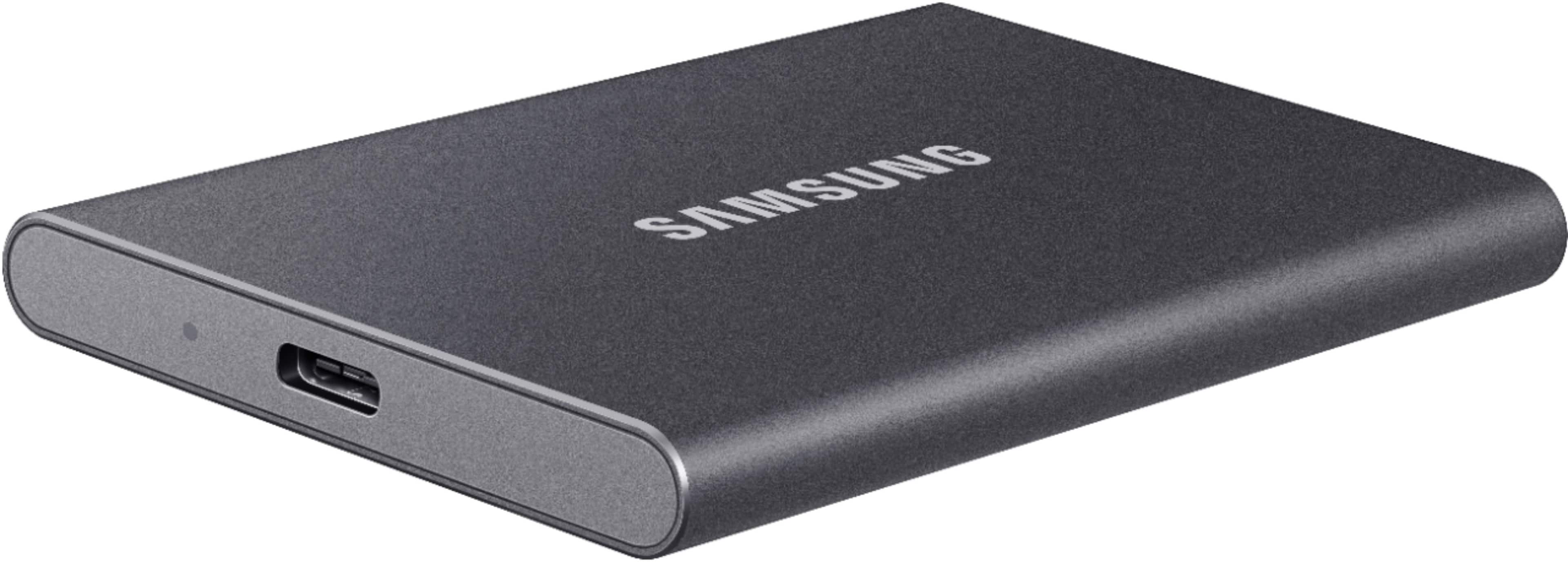
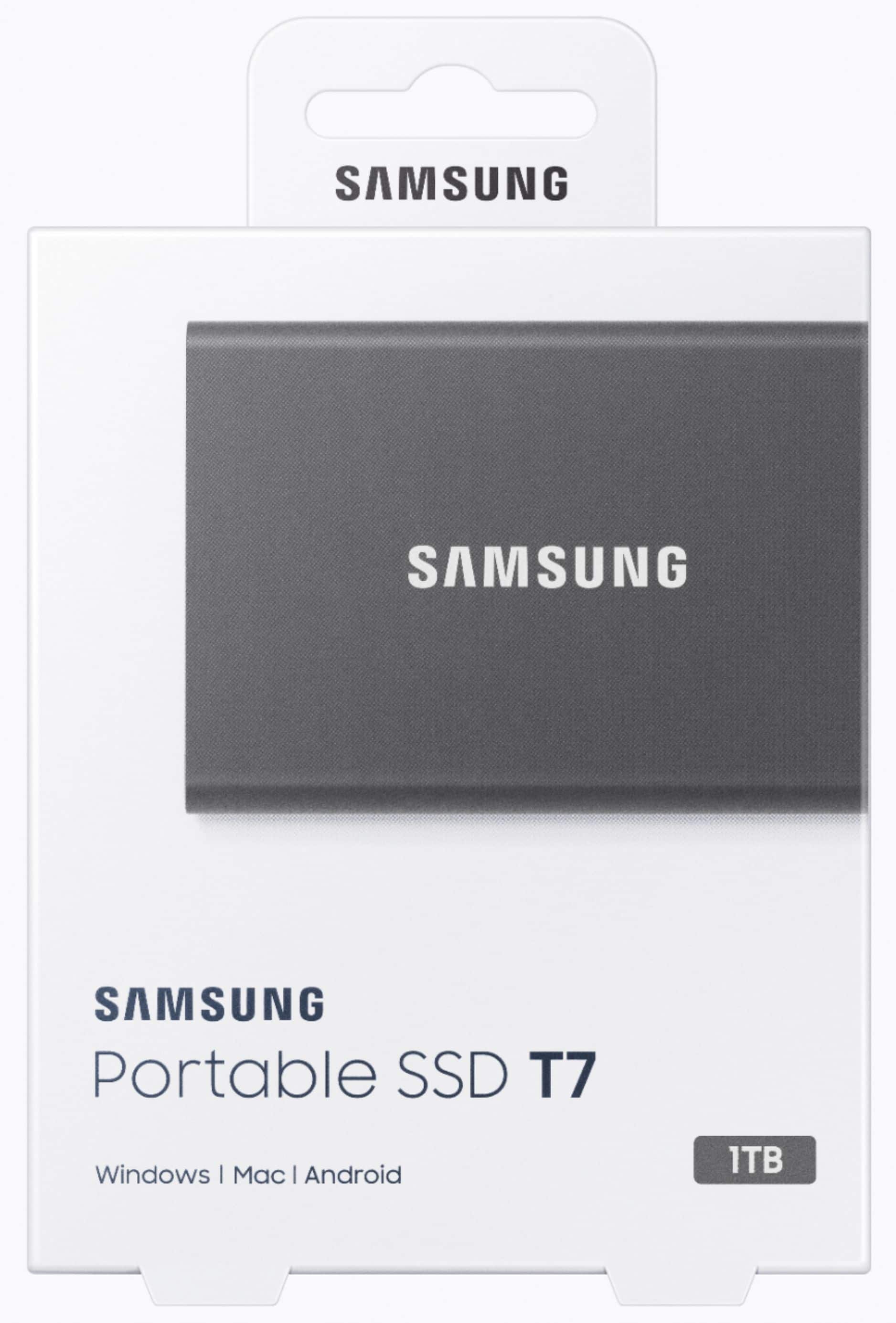
A:AnswerMAC or Windows it uses the exFAT file system which means no reformatting needed for each type of computer since it works seamlessly between them.
A:AnswerYou can’t do that directly but you can through a computer, I.e. the SSD does not connect directly to the iPhone but to the computer. You connect the iPhone to the computer, the SSD to the computer, and then transfer the files to the SSD just as if you were transferring to the computer’s internal hard drive.
A:AnswerYou may need Apple's Lightning-to-USB cable,
or Lightning-to-USB 3 camera adapter.
For more info on how to connect the drive to ipad read on here-
https://www.imore.com/how-use-external-hard-drives-your-iphone-or-ipad
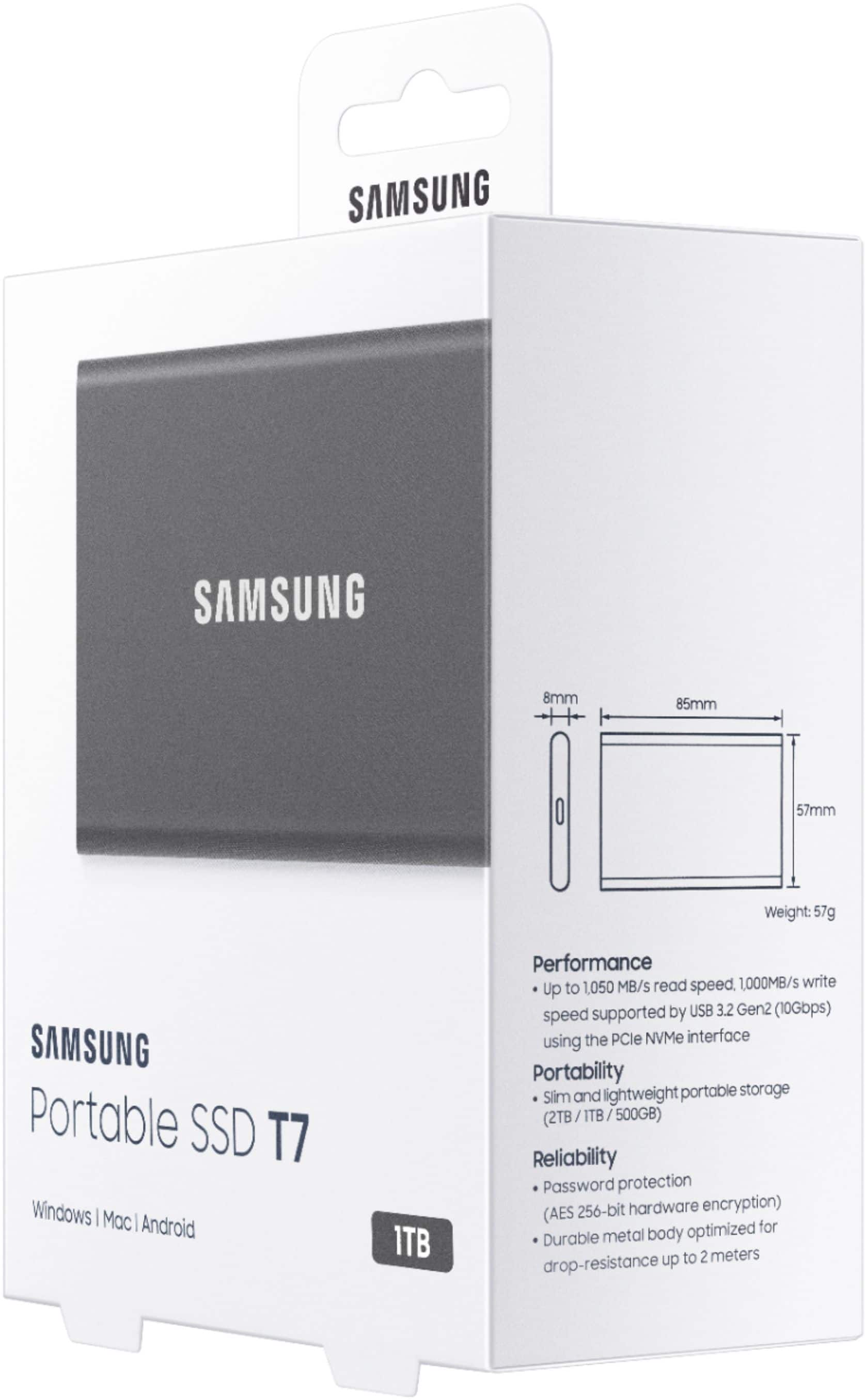
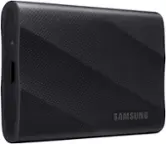
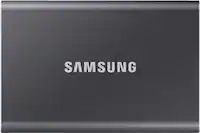
A:AnswerBob, the ports speeds between 3.0 vs 3.1 is 2X. So speeds will always be dependent on the port and the processor speeds of the device it's plugged into. The max read/write speeds of the Samsung T7 are 1,050/1,000MB/s, respectively. Hope this helps
A:AnswerYes it should work, watched a few others that bought it for the same purpose, which I can tell you that was te reason why I bought it. Really ease pug and play.
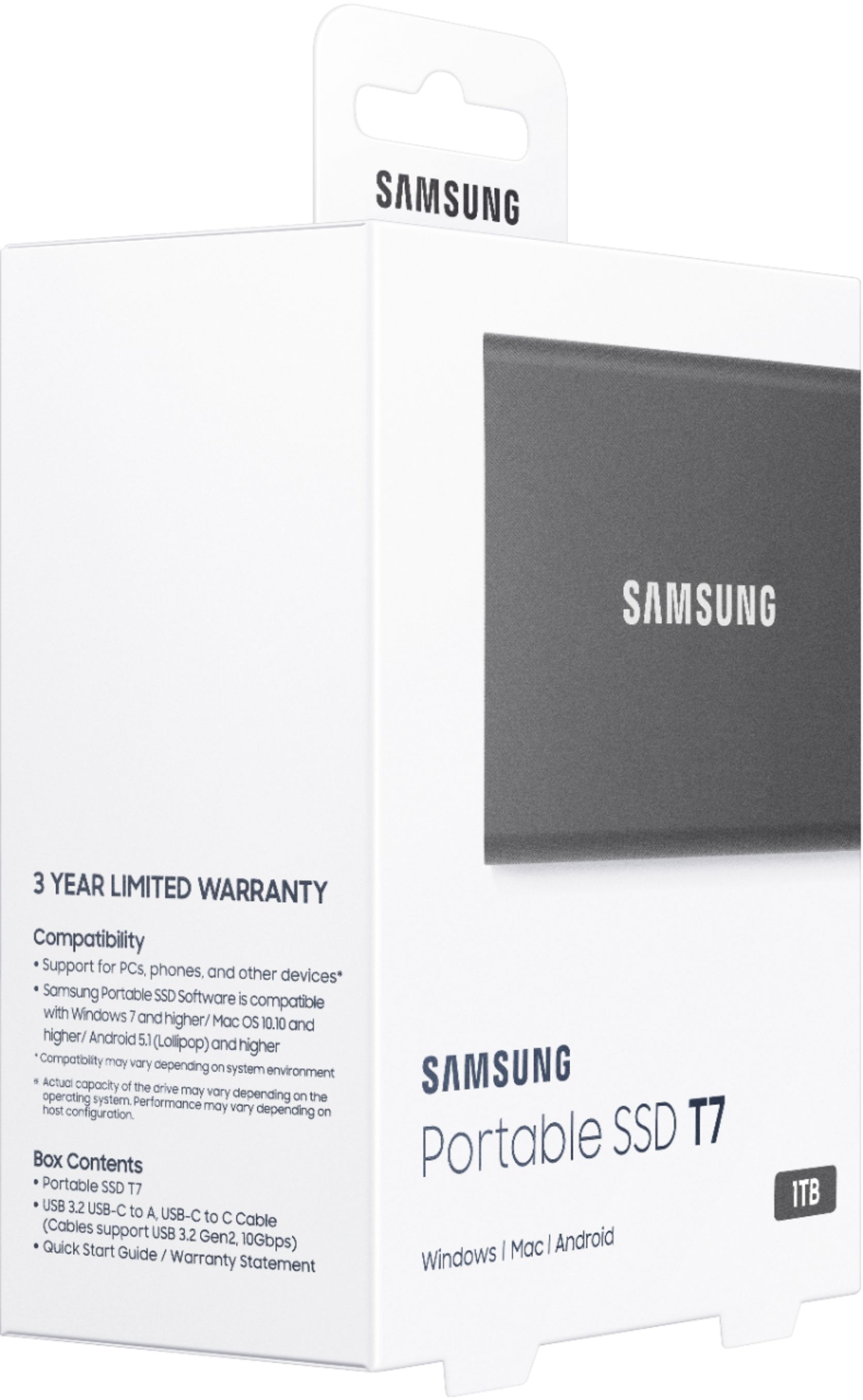
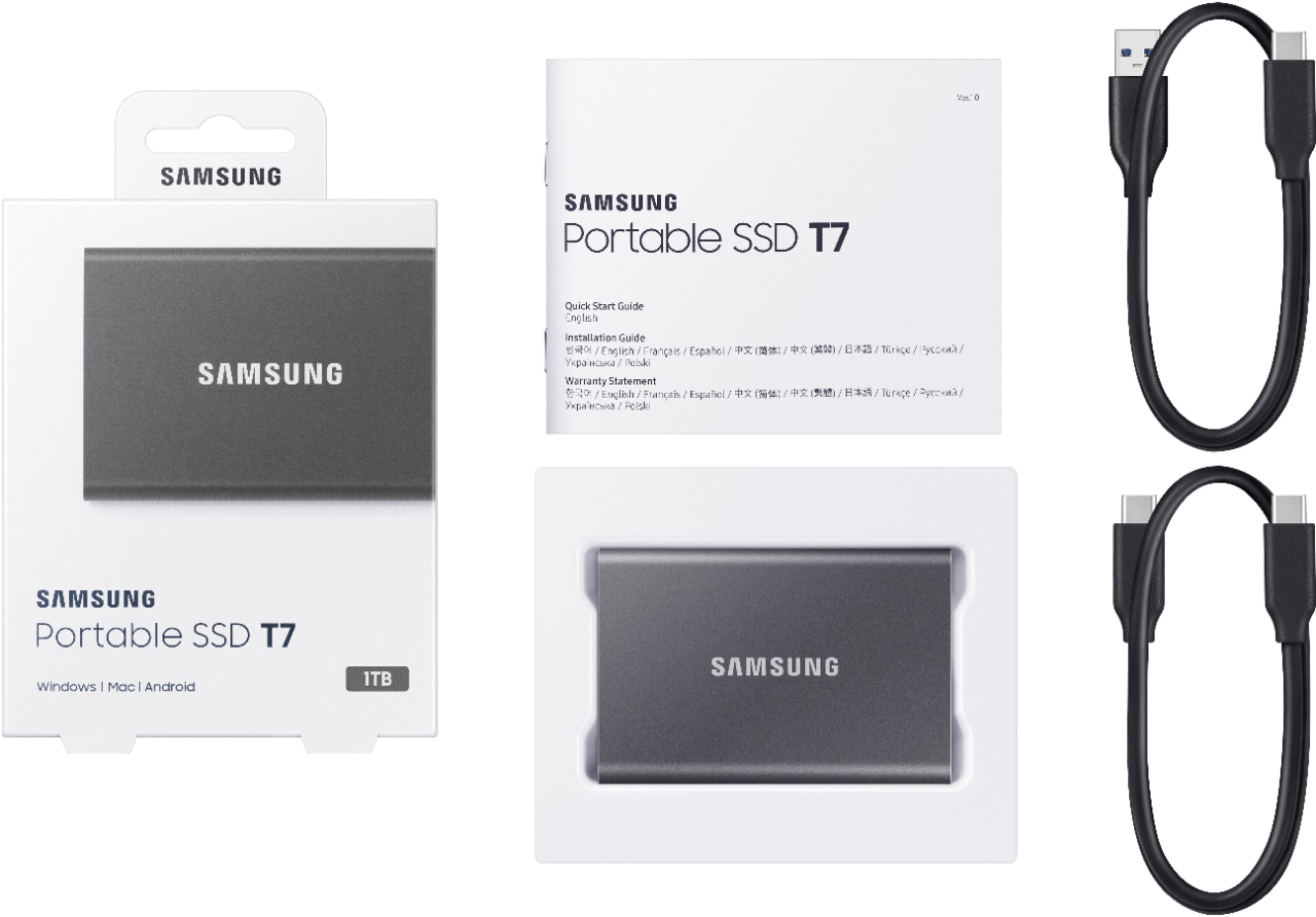
A:AnswerI have bought the 1tb and 500gb versions of the product. Both came with 2 cables. A Usb-A to Usb-C cable and a Usb-C to Usb-C cable. The length of both cables is approximately 14.5 inches.
A:AnswerI use the Samsung SSD T7 and T5 (1 and 2 TB models) drives to store and transfer data between a Mac Book Pro and ASUS and HP windows 10 laptops. I have had no issue. However, I do NOT encrypt the data.
A:AnswerYou most certainly can, and with ease, i create multiple folders to do that very thing, so i can cross modify and set temporary holds to know what and when I've transferred and edited.