A:AnswerHi Mcgreggr,
Thank you for considering Sony products!
We appreciate your question and are here to assist you. Yes, you can watch TV while using the WH-CH720N headphones, as long as your TV supports the A2DP Bluetooth protocol, which is needed to transmit sound to the headphones.
The Sony WH-CH720N headphones are compatible with the A2DP profile. To determine if your TV also supports this protocol, you can check the TV's specifications. If it does, you should be able to pair the headphones directly with your TV for wireless audio.
For instructions on how to put your headphones into pairing mode, please visit this page: https://helpguide.sony.net/mdr/2966/v1/en/contents/TP1000776852.html
Best regards,
-Fred
A:AnswerHi there,
The bass is strong and punchy by default, making the sound energetic.
To hear every detail (which can be a challenge with heavy bass), you should use the free Sony | Headphones Connect app to adjust the Equalizer (EQ). You can easily turn the bass down slightly and boost the high-end frequencies to get the perfect balance of bass and clarity for your songs.
Best regards,
Eliab
A:AnswerHello Daniel,
Thank you for choosing Sony!
We appreciate your question and are here to assist you. The Sony WH-CH720N headphones use Bluetooth and are designed to connect with any device that supports Bluetooth audio streaming (specifically, the A2DP profile).
Whether they will work with your Samsung UN43NU6900 TV depends on the TV itself. We strongly recommend that you check your TV's specifications to confirm it has the A2DP Bluetooth audio output required to transmit sound to the headphones.
You can learn how to put the unit into pairing mode to connect with any device supporting the A2DP profile by visiting the following link:
https://helpguide.sony.net/mdr/2966/v1/en/contents/TP1000776852.html?search=pairing
Best regards,
Fred
A:AnswerHi Deb! Thanks for your interest in our headphones. We can certainly assist you with that.
Yes, you can connect the WH-CH720N to your TV. These headphones use Bluetooth, so as long as your TV has a Bluetooth audio output feature, you should be able to connect them directly.
One quick thing to check: your TV needs to support a specific Bluetooth profile called A2DP (Advanced Audio Distribution Profile) for this to work. If you're not sure, you can always check your TV's user manual or give the TV manufacturer's support a call to confirm.
It's just a matter of putting your headphones into pairing mode and finding them in your TV's Bluetooth settings menu. If your TV doesn't have built-in Bluetooth, you can always use a separate Bluetooth transmitter plugged into the TV's audio output jack.
You can learn more about this on our site. We've added more helpful details at the following link: https://helpguide.sony.net/mdr/2966/v1/en/contents/TP1000776852.html
Thanks for considering Sony products!
Best regards,
Estefany
A:AnswerMost modern TV's have Bluetooth connectivity. Simply turn BT and enter pairing mode. The Sony' will connect. FYI most TV's disable internal speakers when bluetooth is enabled. Depending on why you're using headphones this may/or may not be exactly what you want. You can always turn speakers down, but if disabled, others in the room won't hear anything.
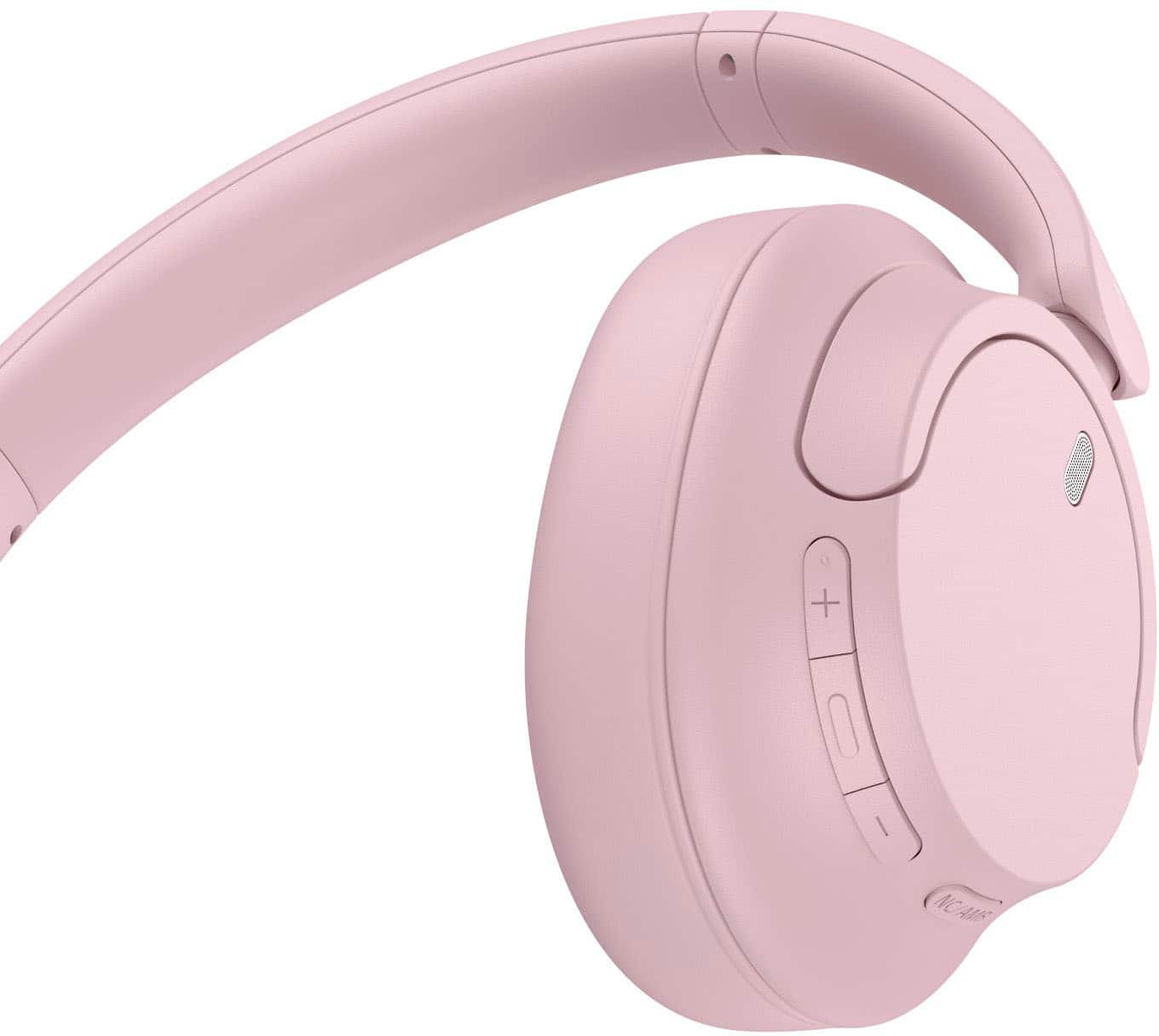
A:AnswerThere are buttons on the side. At first it takes some use to remember which button is which but now I am easily able to increase or decrease the sound using the headphones. You also can use your device volume to increase or decrease.
A:AnswerHello Jay,
Thanks for your question about the noise canceling on the WH-CH720N headphones. It's a great feature, and we're happy to provide some clarity on what you can expect.
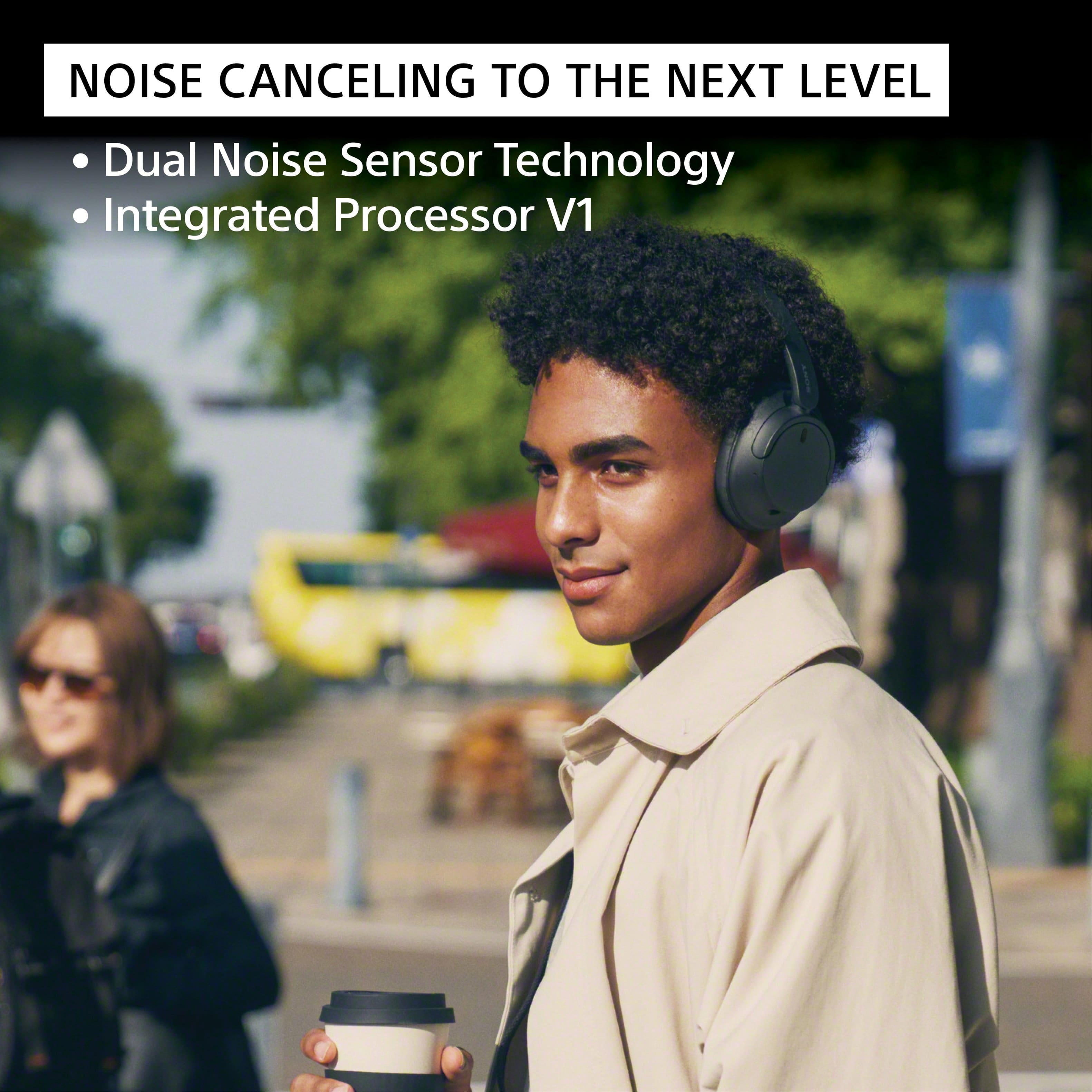
The WH-CH720N headphones are designed to effectively block out a significant amount of ambient noise,\ reducing low-frequency sounds, such as the hum of an air conditioner, the rumble of a train or bus, and airplane cabin noise. This allows you to immerse yourself more fully in your music or podcasts.
While they do an excellent job of dampening external sounds, they may be less effective at canceling out higher-frequency noises like human voices or sudden, sharp sounds.
For the best noise-canceling performance, we recommend using the Sony | Sound Connect app to ensure the noise-canceling feature is set to "ON" and not in Ambient Sound Mode. Additionally, keep your device's software up to date for a better performance.
Thanks for your interest in our Sony headphones!
Sincerely,
Jenn | Sony Social Media Team
A:AnswerHello TJ,
Thanks for your question!
You can absolutely use your Sony WH-CH720N headphones with plane entertainment systems!
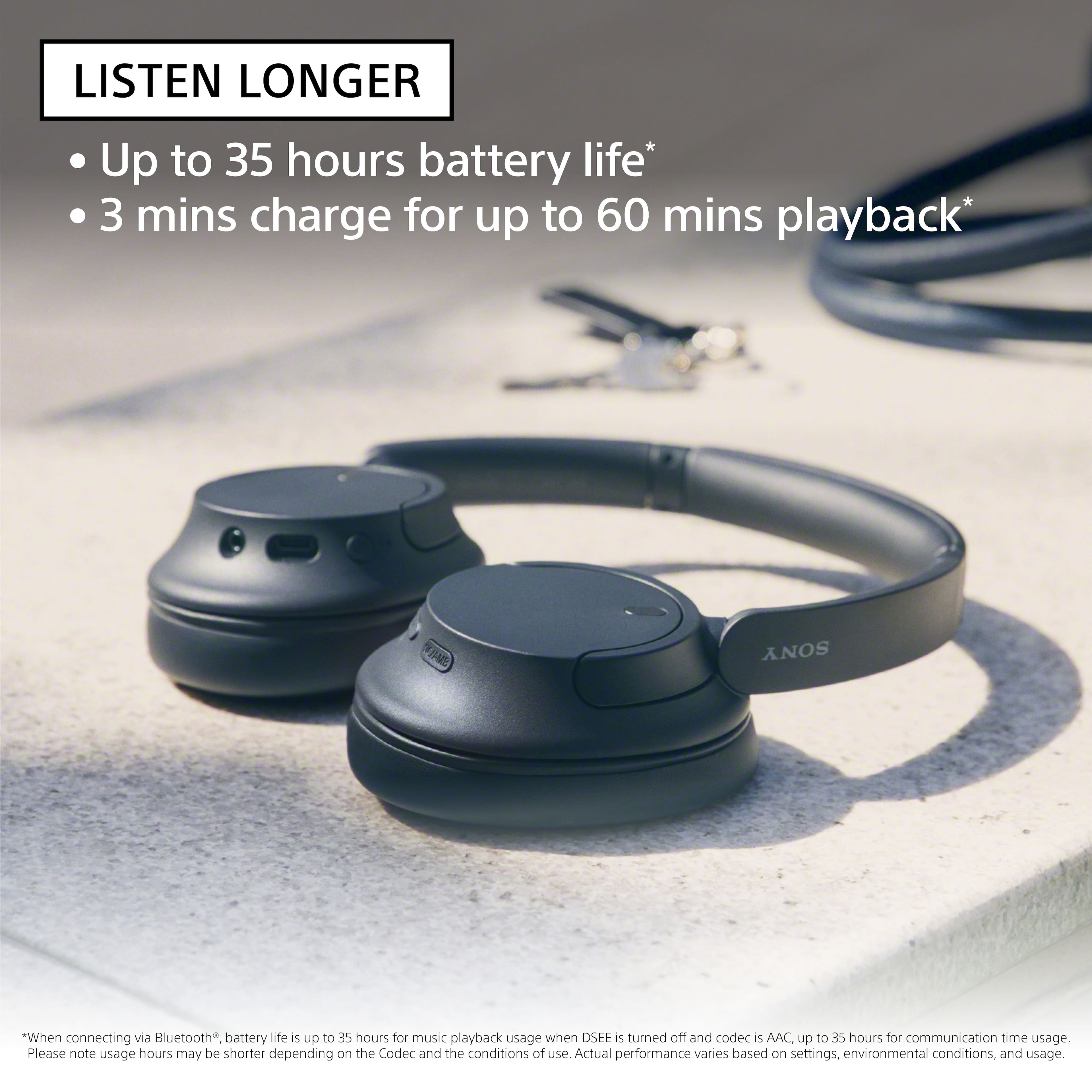
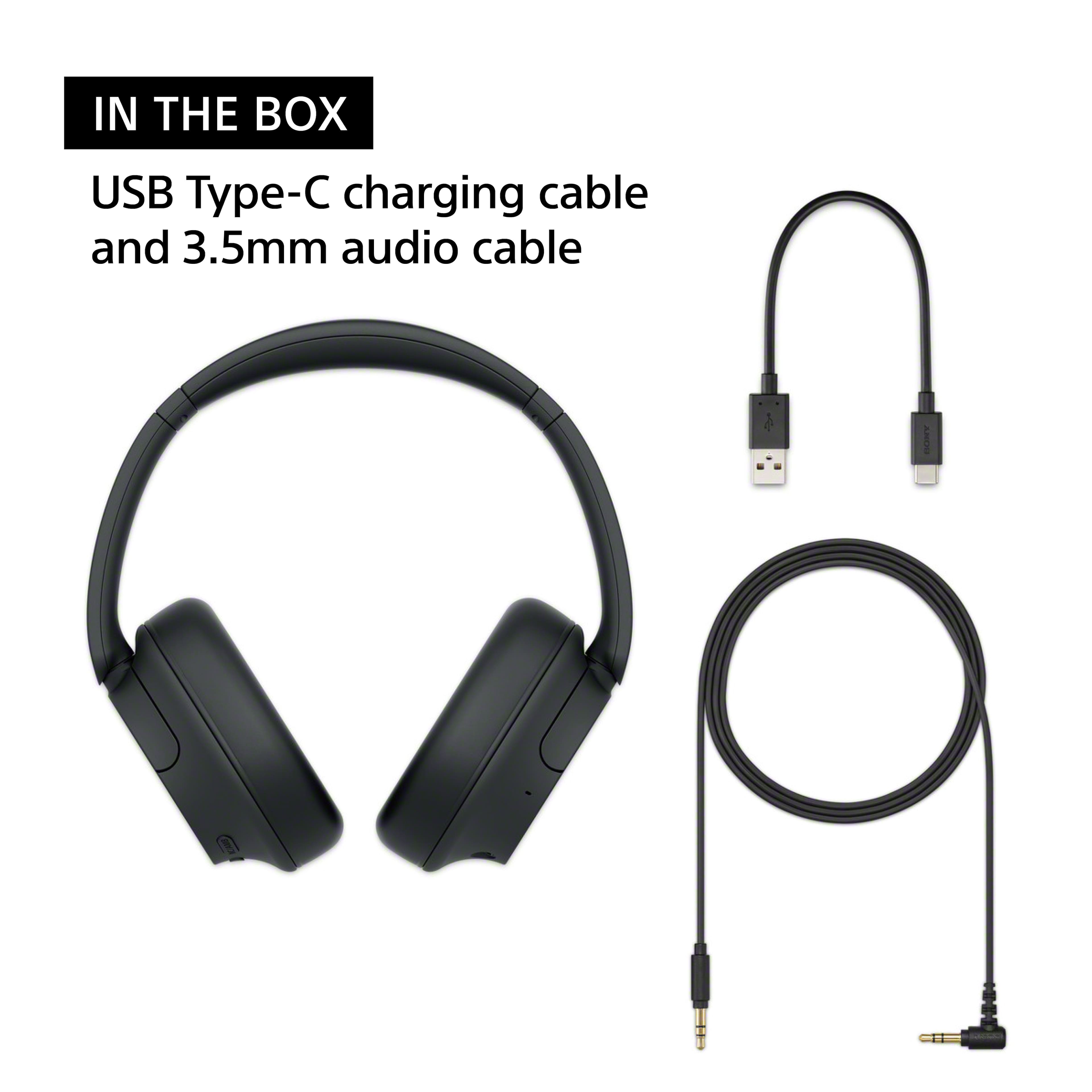
The WH-CH720N comes with a 3.5mm headphone cable. Most in-flight entertainment systems have a standard 3.5mm audio jack—and you can still use the Noise Cancelling feature when connected wired, as long as the headphones are turned on!
If you want to use your WH-CH720N wirelessly, you would need to purchase a separate Bluetooth audio transmitter as most airplane entertainment systems do not have Bluetooth capability. These transmitters plug into the plane's 3.5mm audio jack and then transmit the audio wirelessly to your Bluetooth headphones. Be aware that some older planes might have a dual-prong audio jack. If that's the case, you'll need a transmitter that either has a dual-prong connector or comes with an adapter for it.
Thanks for considering our Sony headphones!
Sincerely,
Jenn | Sony Social Media Team.
A:AnswerHi Sue! We are delighted to assist you in recommending the perfect headphones for your television.
Since your television is equipped with Bluetooth audio output, any of Sony's current or recent wireless noise-cancelling headphones should work. The WH-1000XM5 or WH-1000XM4 are highly recommended for the best overall experience, while the WH-CH720N offers a good balance of features and affordability.
We encourage you to visit our official website at https://electronics.sony.com/?srsltid=AfmBOop3LzLZ25Bn_dyUiruCxfOLDkCX3HzCgT8h5hQOjHjZgPPtr0E9 to explore the various specifications and features of each headphone model.
Thank you for considering Sony products!
Best regards,
Estefany
A:AnswerHello Trev, thanks for your question.
The WH-CH720N headphones can be paired and connected with an iPhone over Bluetooth for standard audio functions such as playing music and handling calls. However, If you want text messages or notifications read out loud on your iPhone while using the WH-CH720N headphones, you would need to set the iOS feature on your phone –Siri, for example, can announce (read aloud) incoming messages and notifications through compatible headphones, including the WH-CH720N headphones.
Hope this answers your concern. Thanks for choosing Sony!
Sincerely,
Jenn.
A:AnswerHi Al,
Yes, the WH-CH720N headphones can be connected to a TV via Bluetooth, provided that the TV supports the Advanced Audio Distribution Profile (A2DP).
Best regards,
Eliab
A:AnswerIf your just using them to listen I think they are a great choice the sound quality with music is 9/10
I didn’t give it a 10 because I would love for them to be just a little bit louder… Just my preference.. Definitely better than average headphones for listening only… Hope this helps
A:AnswerHello Dawood,
Thank you for your interest in the WH-CH720N headphones!
To answer your question briefly: if your TV supports the A2DP Bluetooth profile, you will be able to connect the headphones without any issues. We recommend checking the product specifications of your TV to confirm that it includes this profile.
Thank you once again for considering Sony products!
Best regards,
Gus
A:AnswerDownload the Roku app and connect the sound output to your headphones and you will be able to listen through the headphones instead of the tv speakers
A:AnswerHey Momo, that's an interesting question!
Basically, yes! You can set the automatic power off to the time you prefer, and it should be working fine!
For detailed information, you might check:
https://helpguide.sony.net/mdr/hpc/v1/en/contents/TP0002935917.html?search=auto%20power%20off
https://helpguide.sony.net/mdr/2966/v1/en/contents/TP1000776844.html
Thanks for considering Sony!
Gus
A:AnswerSet up your "sending" device (TV or phone) to recognize bluetooth first. Then just turn on the headphones. You'll hear them start up. Your sending device should now see your headphones which you can then accept/choose and everything should work.