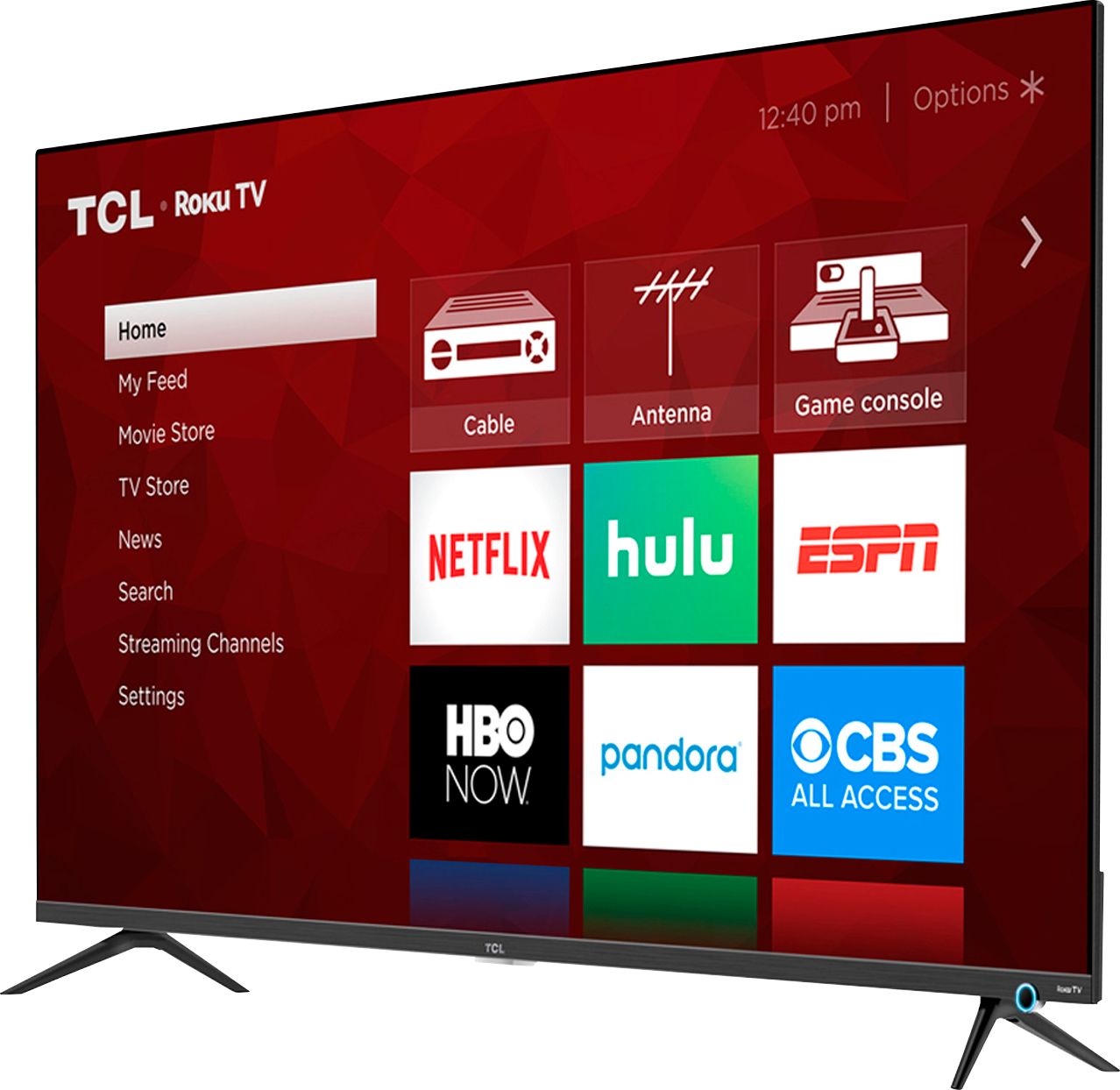
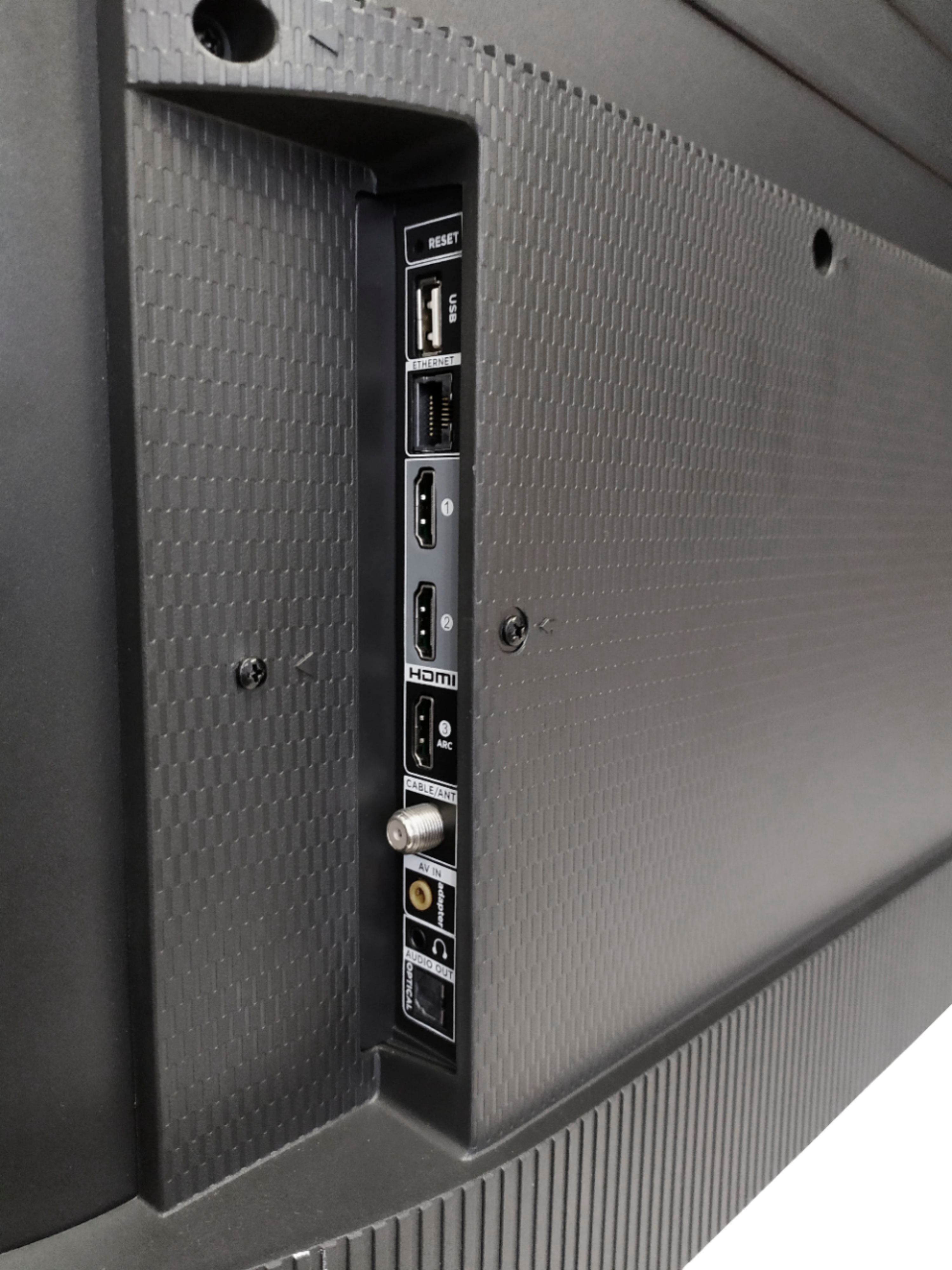
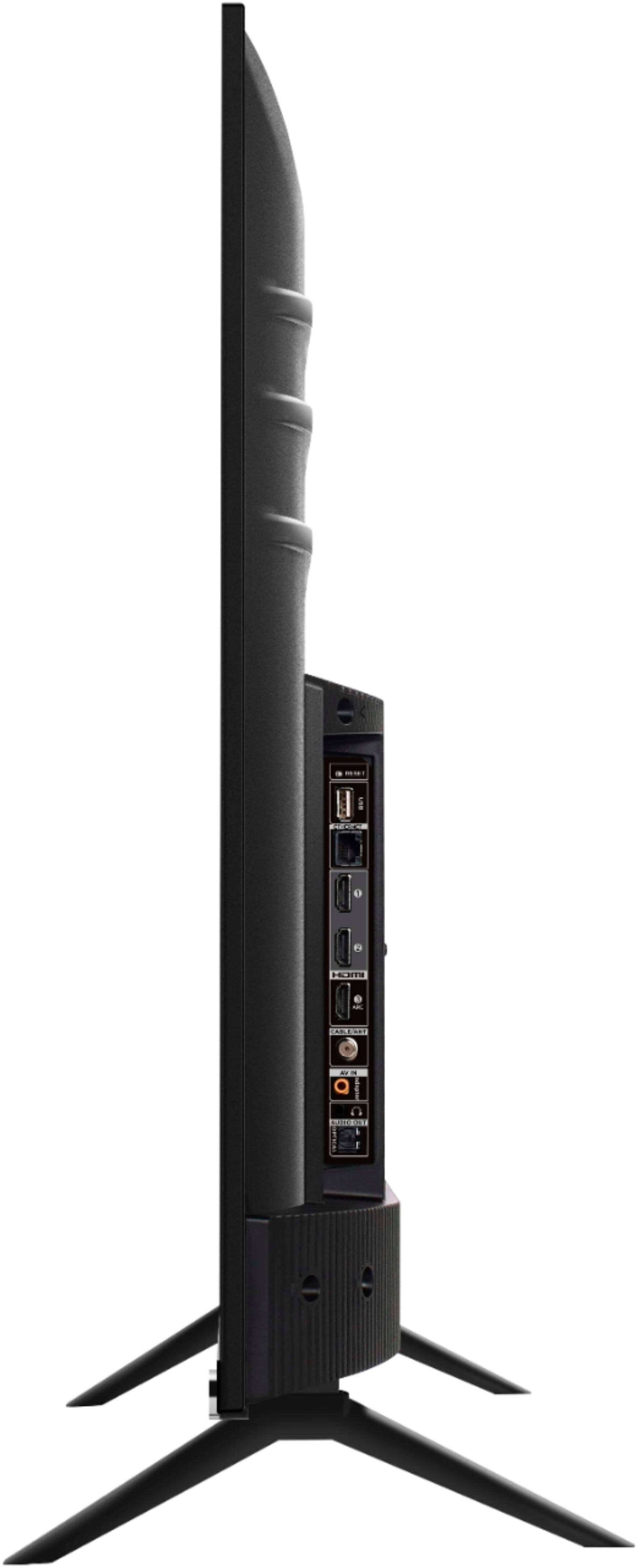
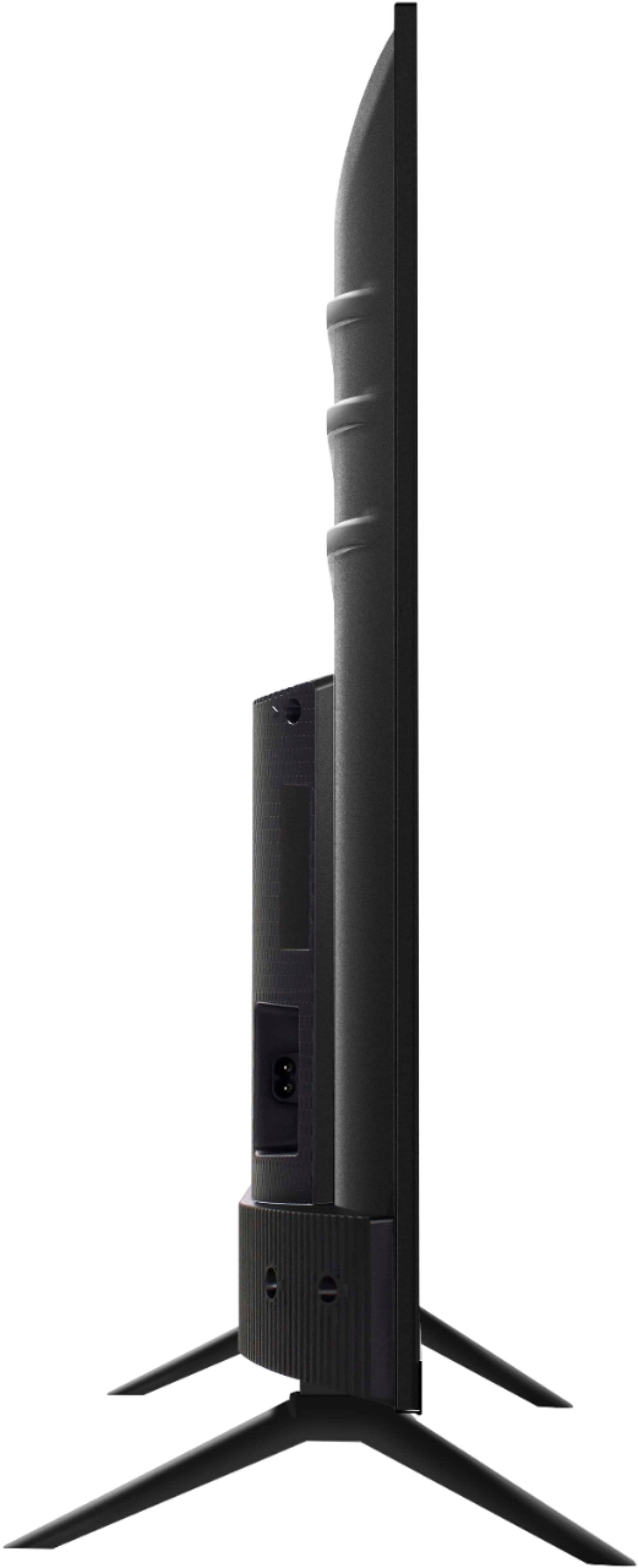
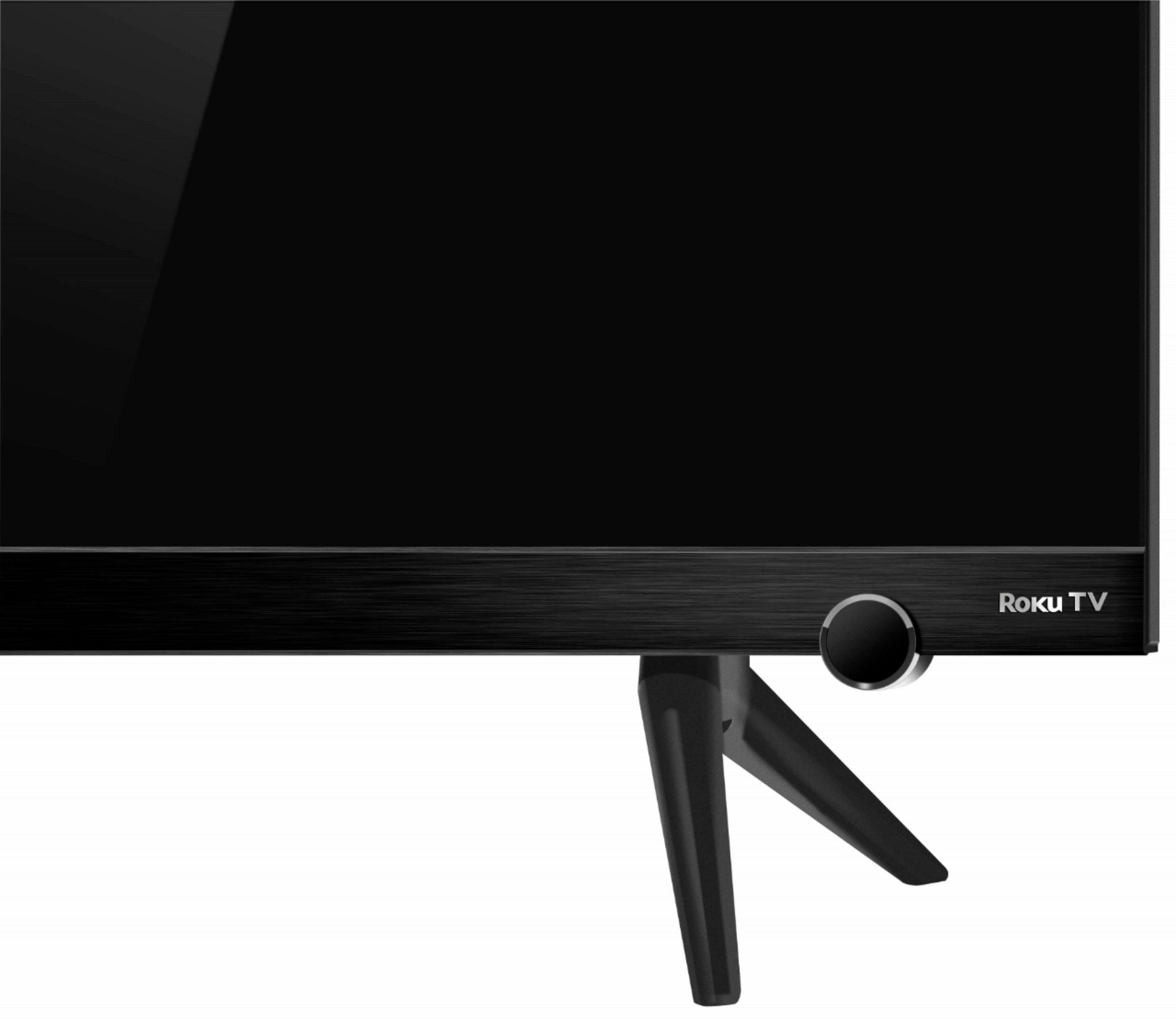
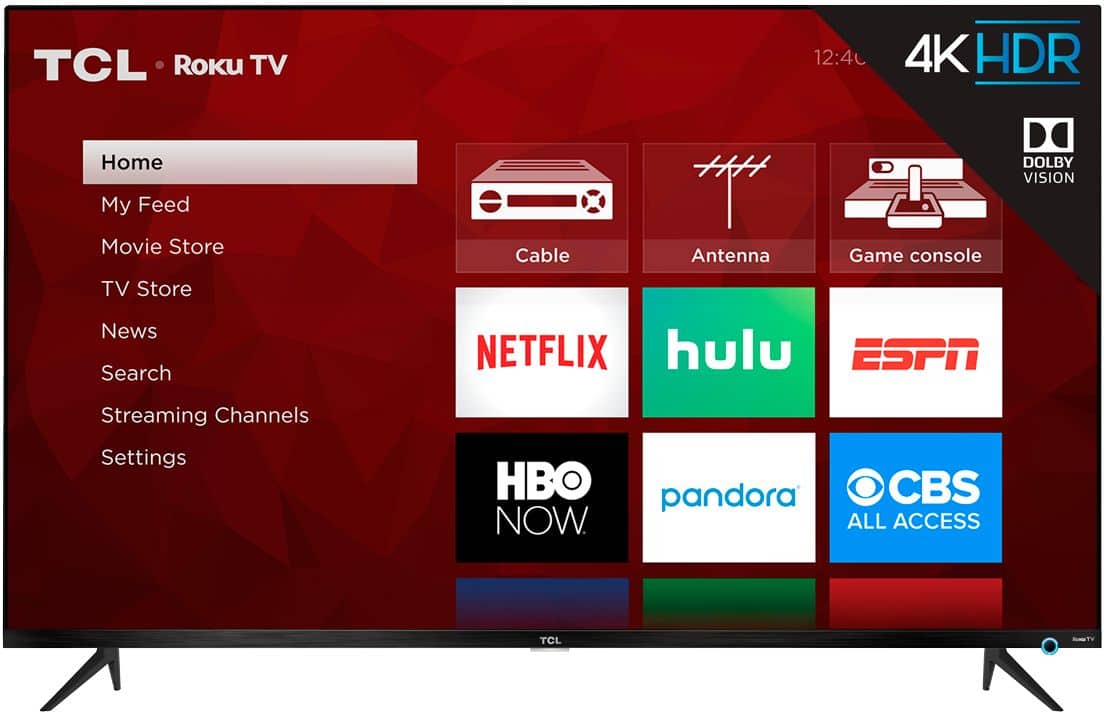
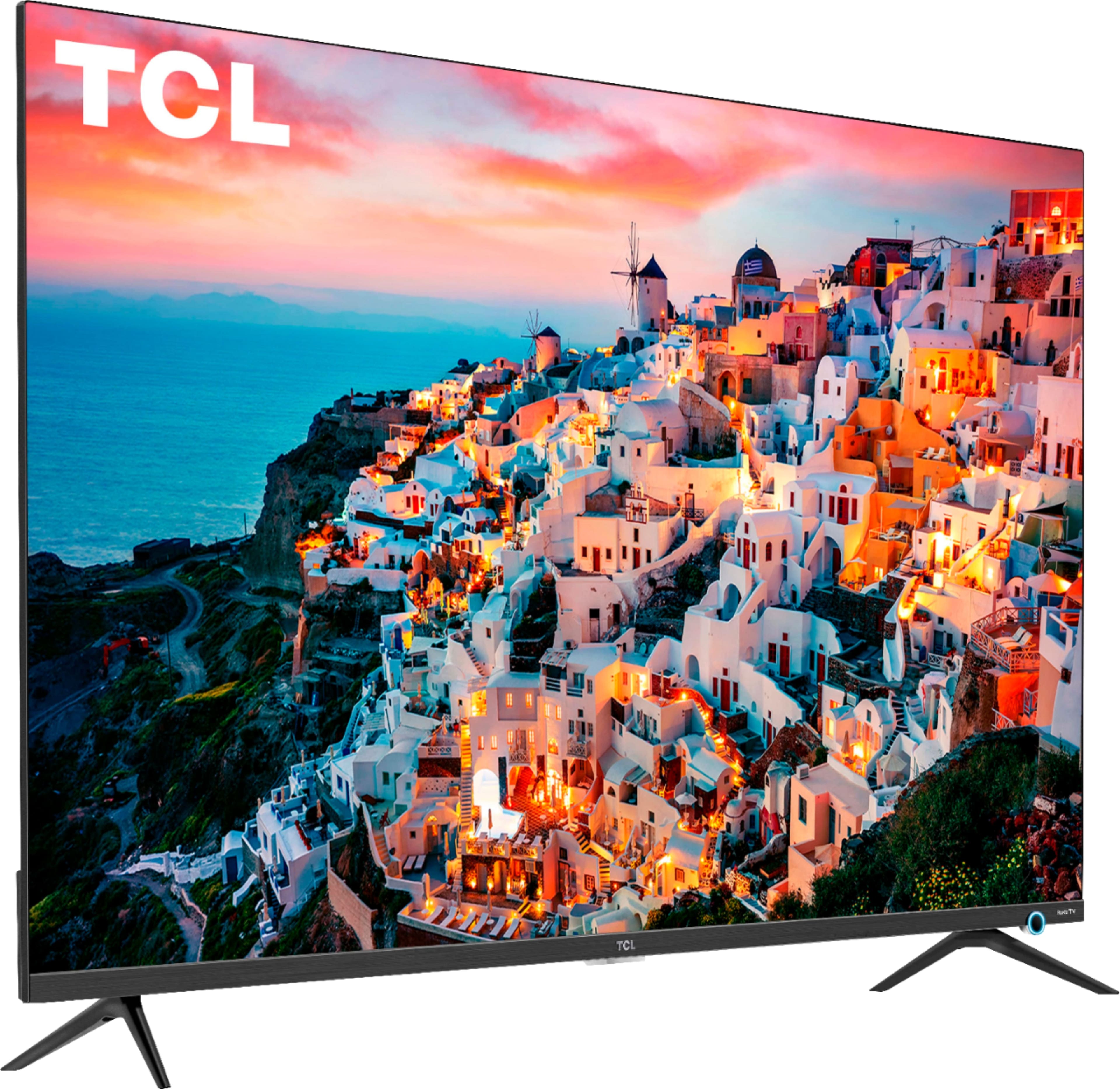
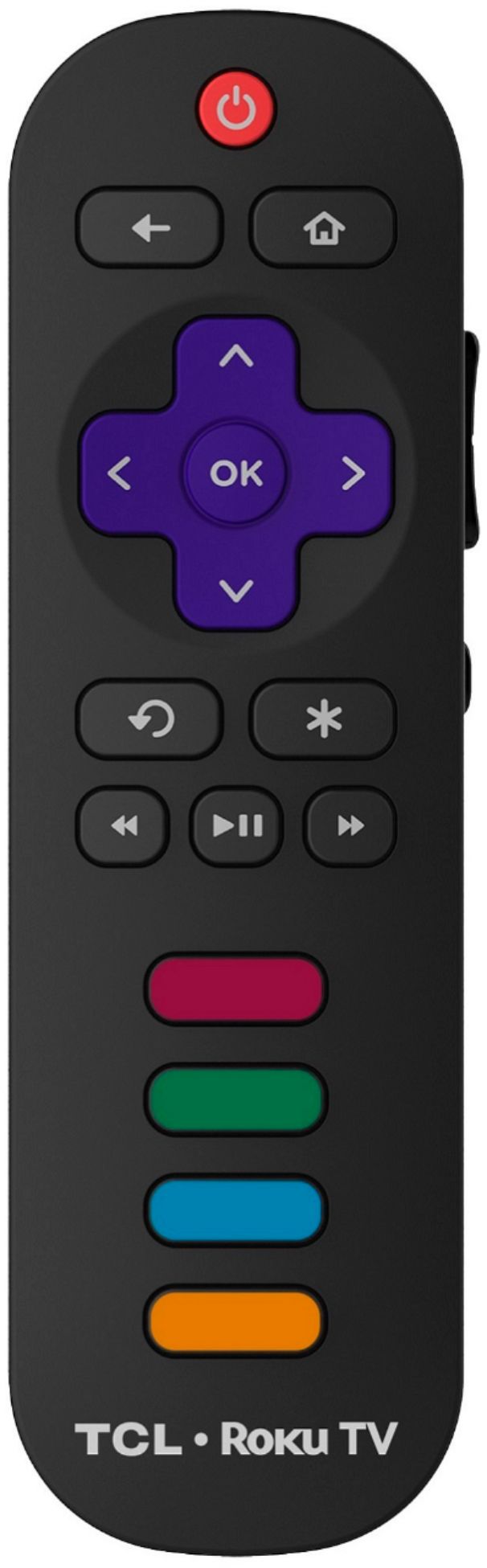
A:AnswerThis TCL Roku TV has various inputs that can be used to connect to external devices. This TV can be connect to external speakers via HDMI ARC, Optical Audio Out, or the headphone jack. Hope this helps! Thank you, TCL Customer Support
A:AnswerFrom your home screen go to Settings>System>Advanced system settings>Factory reset>Reset TV audio/picture settings. Follow the instructions for doing the reset to the TV's original default values for the picture and audio. Your Roku account and installed channels will be unaffected. If this doesn't work you may need warranty service from TCL if your TV is still under warranty. Good luck!
A:AnswerNot sure why you would be looking at a Roku tv if you don’t want Roku. Anyway, just do not connect to the internet if you don’t want Roku. The Roku app and others are already installed but cannot work is they are not connected.
A:AnswerAbsolutely! The AT&T TV streaming channel is one of the thousands of streaming channels offered through the Roku Channel Store. You can also visit www.roku.com/whats-on to see other streaming channels Roku offers. Hope this helps! Thank you, TCL Customer Support
A:AnswerSound bar screws will need to be 1/4-20 diameter screws and are necessary to mount a optional bracket to the sound bar
Sound bar bracket attaches to television mounting bracket....no instructions would be provided to attach sound bar mounting bracket to television mounting bracket .....your on your own...stacks of metal washers or plastic spacers provided with television mounting bracket will be necessary to facilitate attachment of sound bar bracket to the television bracket....save all spacers to provide a appropriate combination of spacing between the television, television mounting bracket, and sound bar bracket
A:AnswerTry using the keyboard entry or voice control on the Roku app on your phone. It’s quicker that using the physician cal remote to enter one number at a time.
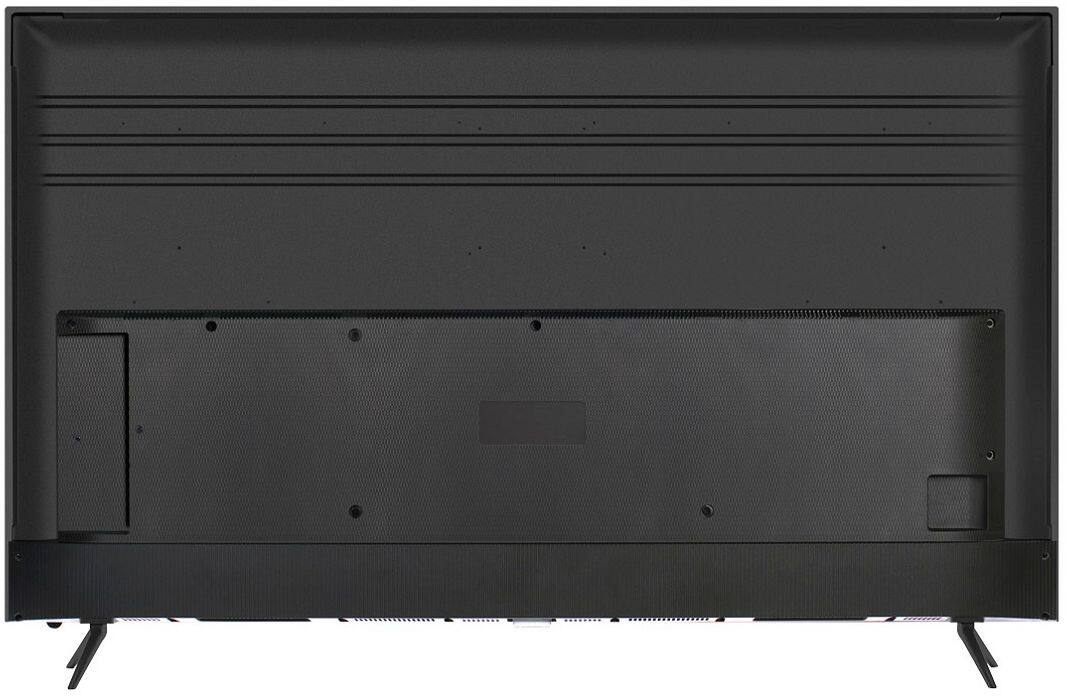
A:AnswerAll of our TCL Roku TVs can be wall mounted. However, different series and sizes support different VESA mounting patterns. The model where this question is posted, the 43S525, is compatible with most wall mounts that support a 100mm x 100mm VESA mounting pattern. Hope this helps! Thank you, TCL Customer Support
A:AnswerThat could be a iffy dission, it might work but your remote for the TV is centered under the name in the middle of the TV! To do that like I learned set it up to the sides and don't block your sensor in the middle of the TV!! I hope that helps you out!!!
A:AnswerOur TCL Roku TVs do not currently support Bluetooth. However, you can download the free Roku app on your smart phone or tablet to use voice search, voice control, and experience private listening. To enjoy private listening you simply click private listening in the app, and attach headphones to your smart phone or tablet. Or you can use the 3.5 mm headphone jack in the back of the TV to connect standard headphones. Hope this helps! Thank you, TCL Customer Support
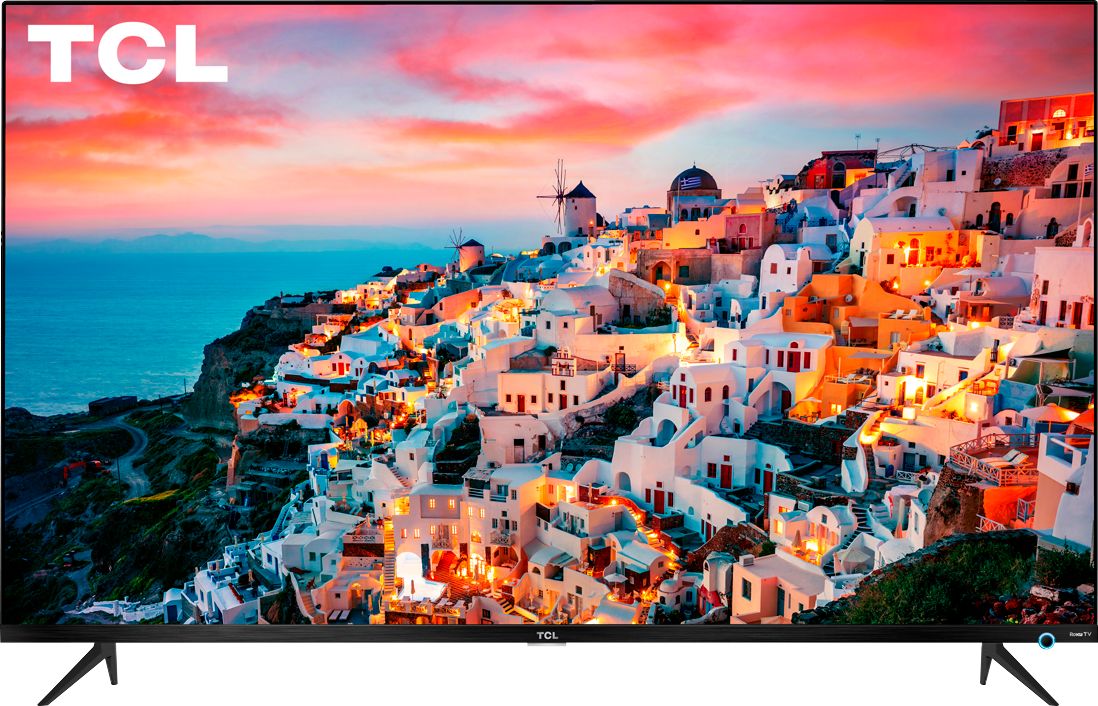
A:AnswerYes, you just have to connect your cable box to it like usual. The Xfinity remote will work once you pair it, but you will have to use the TCL remote to switch between cable & streaming.
A:AnswerThis is not a standard measurement that is documented on a TV. This TCL Roku TV is compatible with most wall mounts that support a 100mm x 100mm VESA mounting pattern. You can also visit https://support.tcl.com/setup-configuration/02-how-to-choose-the-correct-wall-mount for more information on mounting. Hope this helps! Thank you, TCL Customer Support
A:AnswerWhile we can't recommend any specific third-party products, this TV is compatible with most wall mounts that support a 100mm x 100mm VESA mounting pattern. Hope this helps! Thank you, TCL Customer Support