Customer Ratings & Reviews



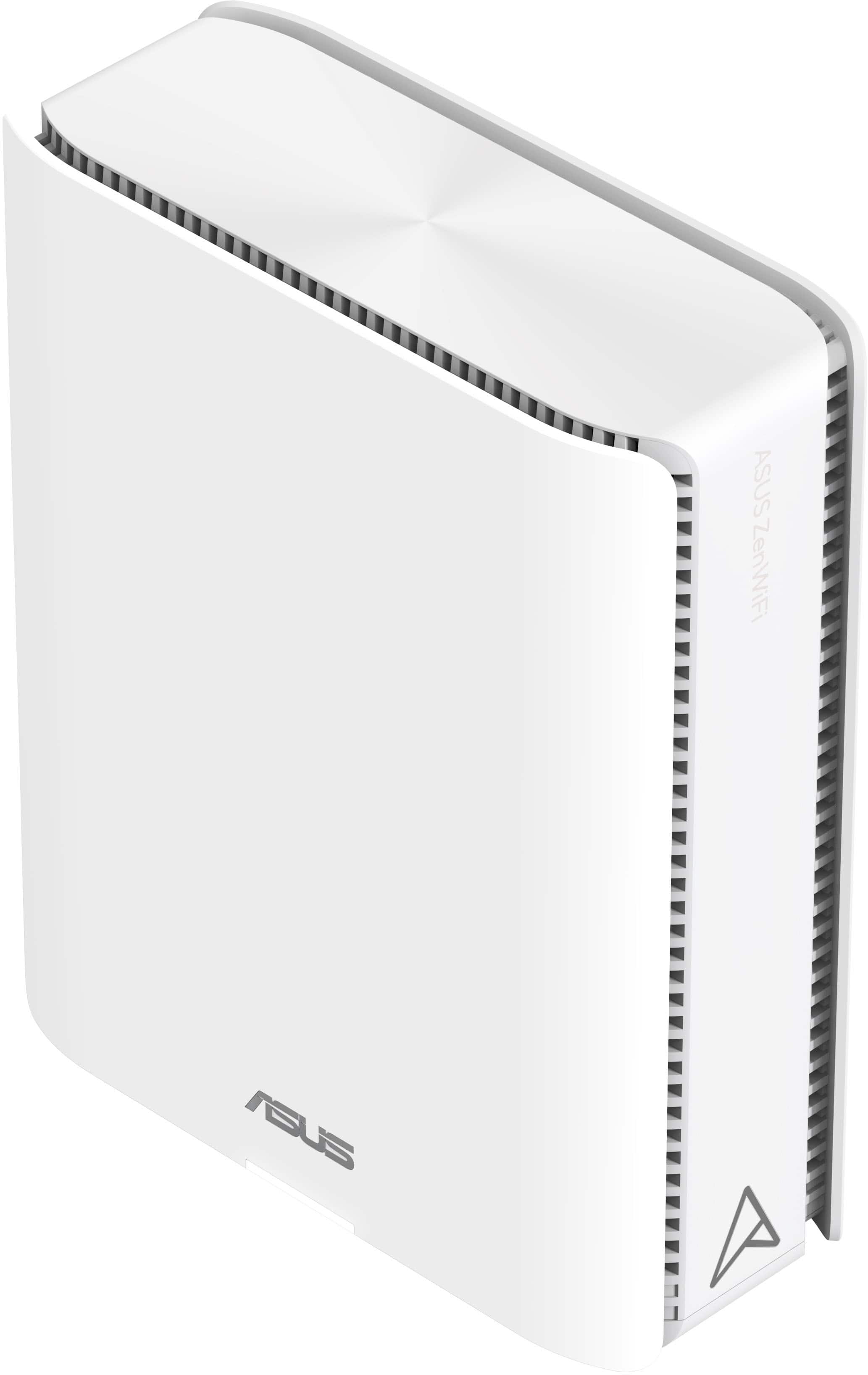
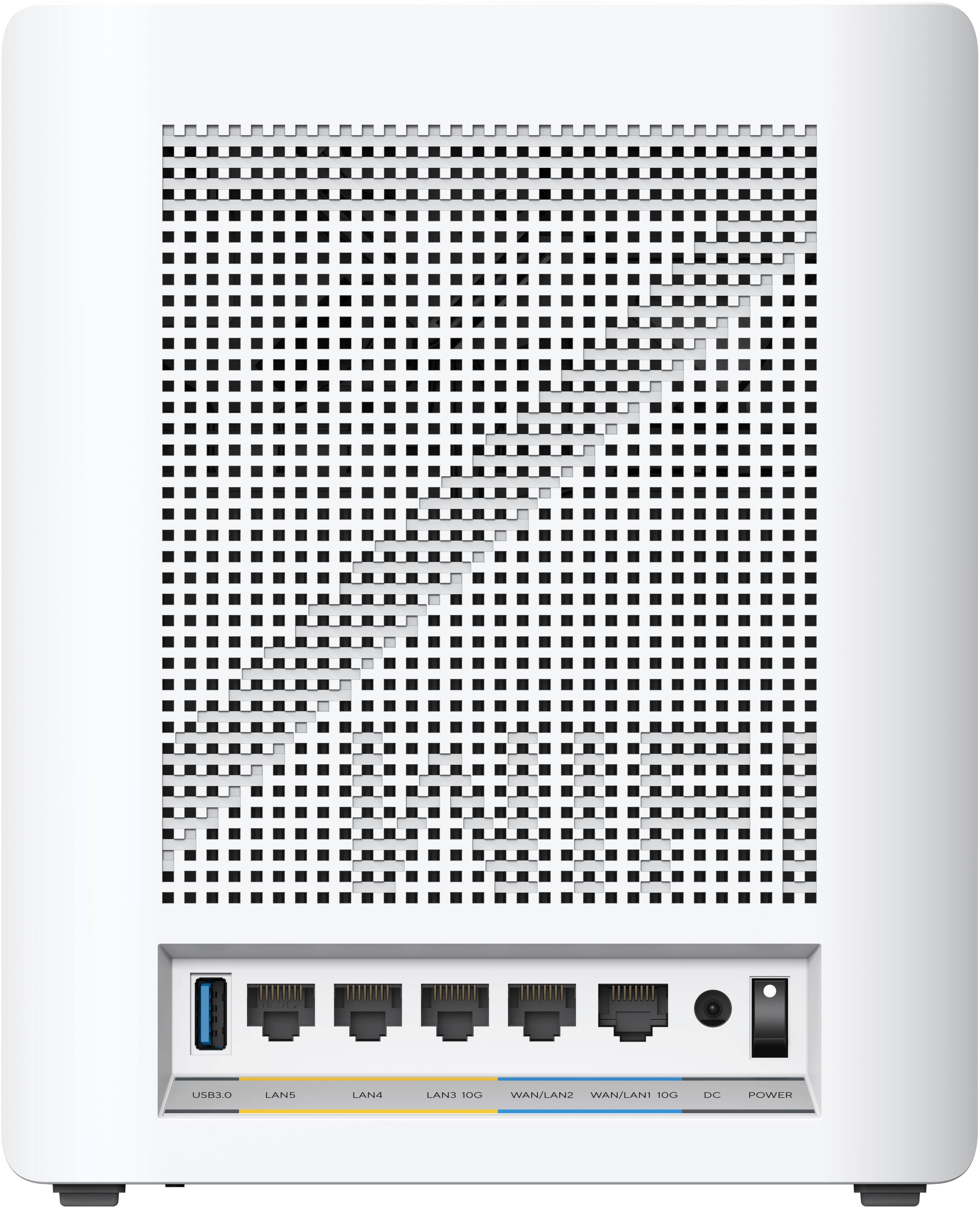
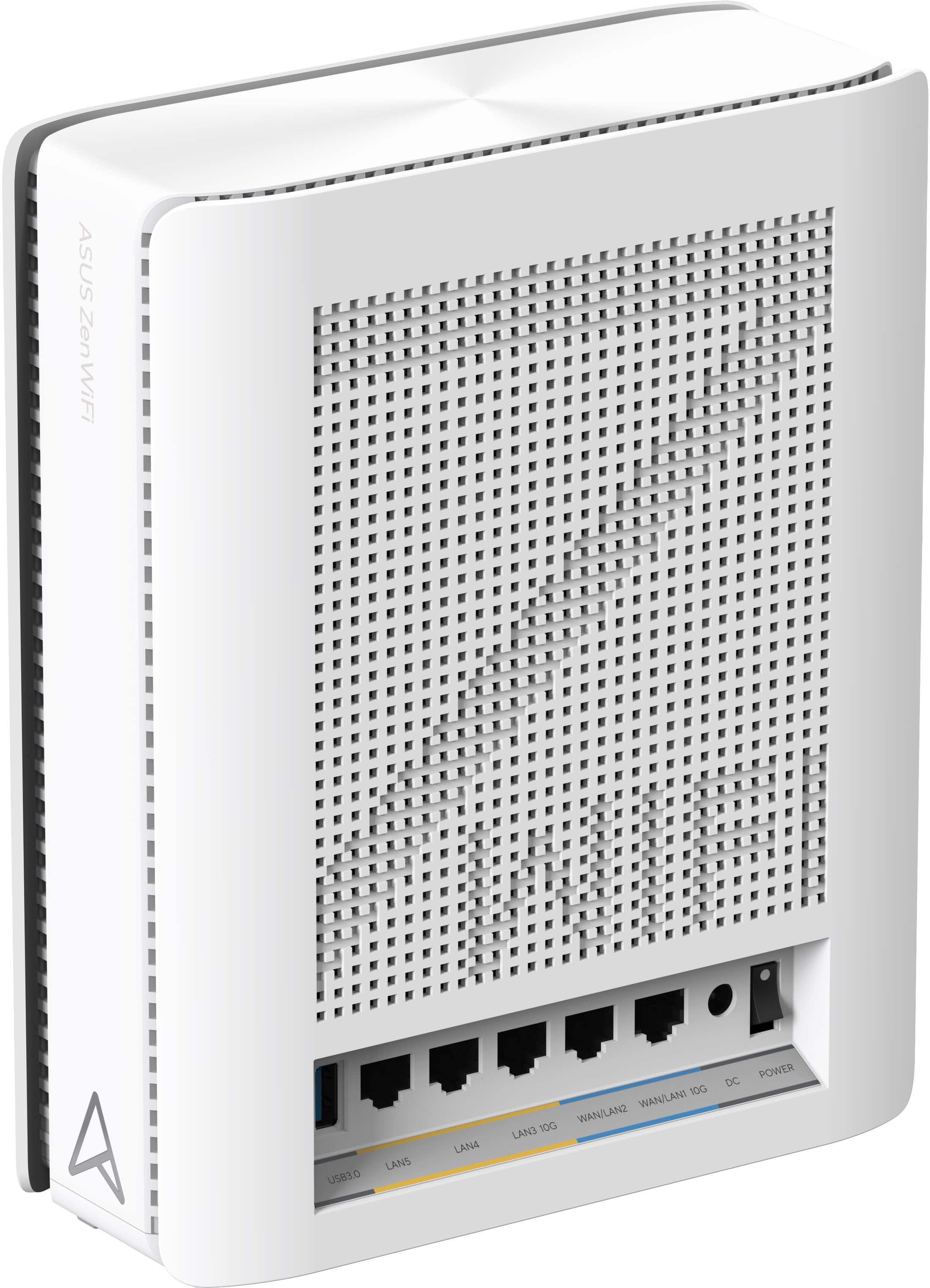
- Model:
- ZenWiFi BE30000
- SKU:
- 6578392
Rating by feature
- Setup
Rating 3.6 out of 5 stars
- Range
Rating 4.3 out of 5 stars
- Signal Strength
Rating 4.3 out of 5 stars
Customers are saying
Customers recognize the ZenWiFi BE30000 Quad-Band Mesh Wi-Fi 7 System for its fast wireless speeds, amazing coverage, and strong signal strength. Many appreciate its performance and future-proofing capabilities, along with its extensive app features and inclusion of multiple VPN clients and servers. However, some customers have experienced connectivity issues with the nodes, and have found the initial setup to be difficult. A few also noted concerns about the high price.
This summary was generated by AI based on customer reviews.
- Pros mentioned:Coverage, Signal strength, SpeedCons mentioned:Price
The Wi-Fi System of the Future!
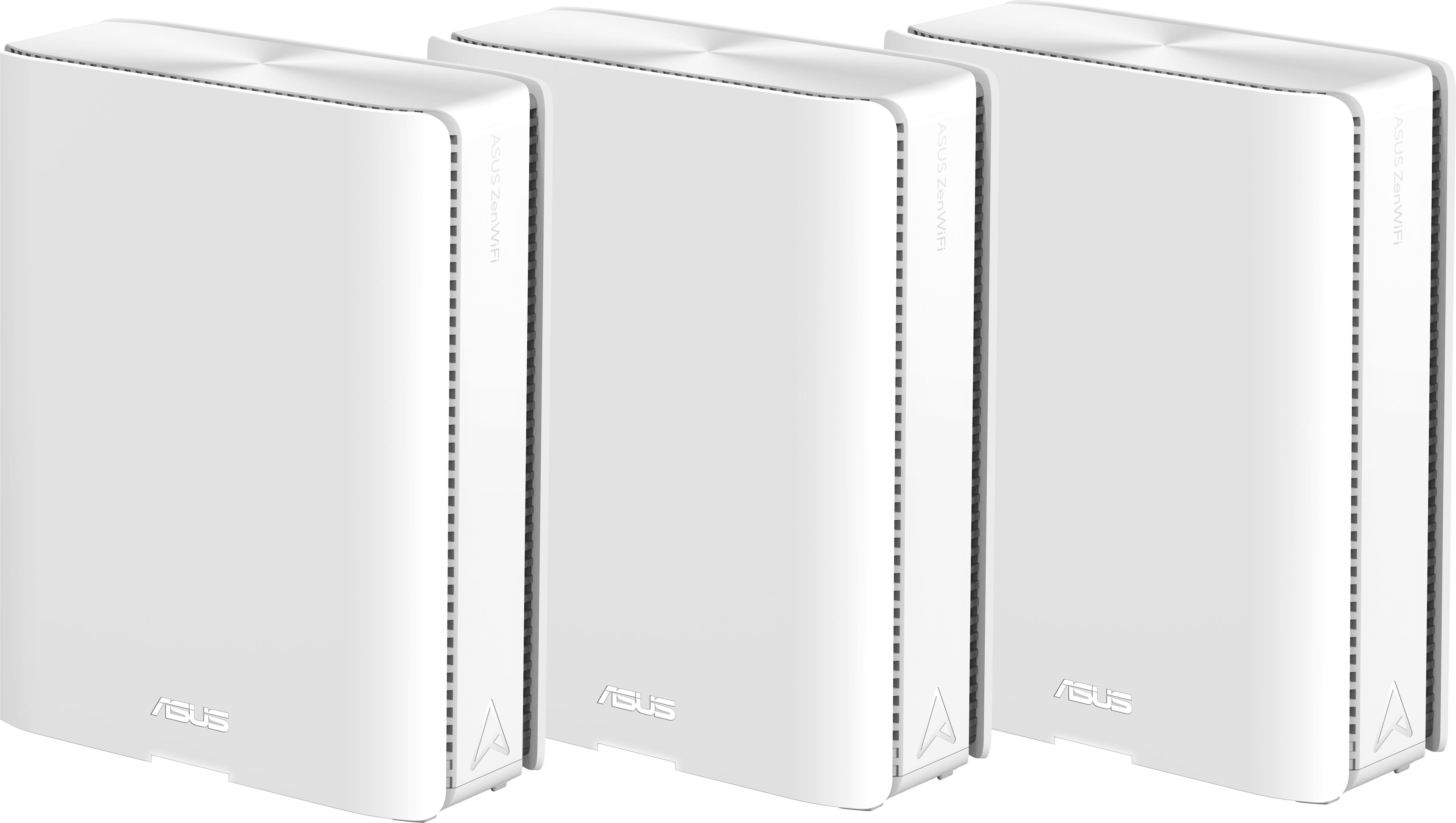
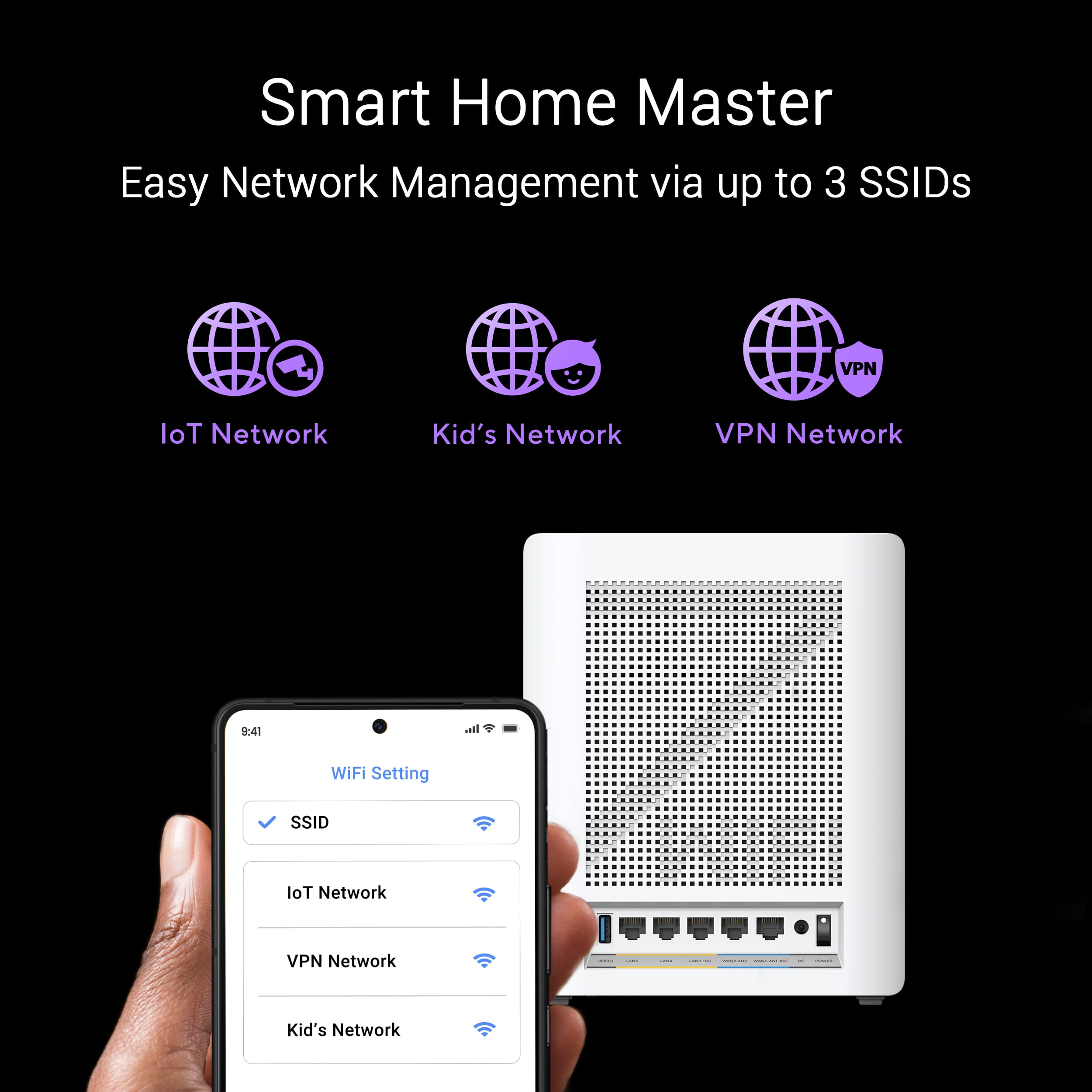
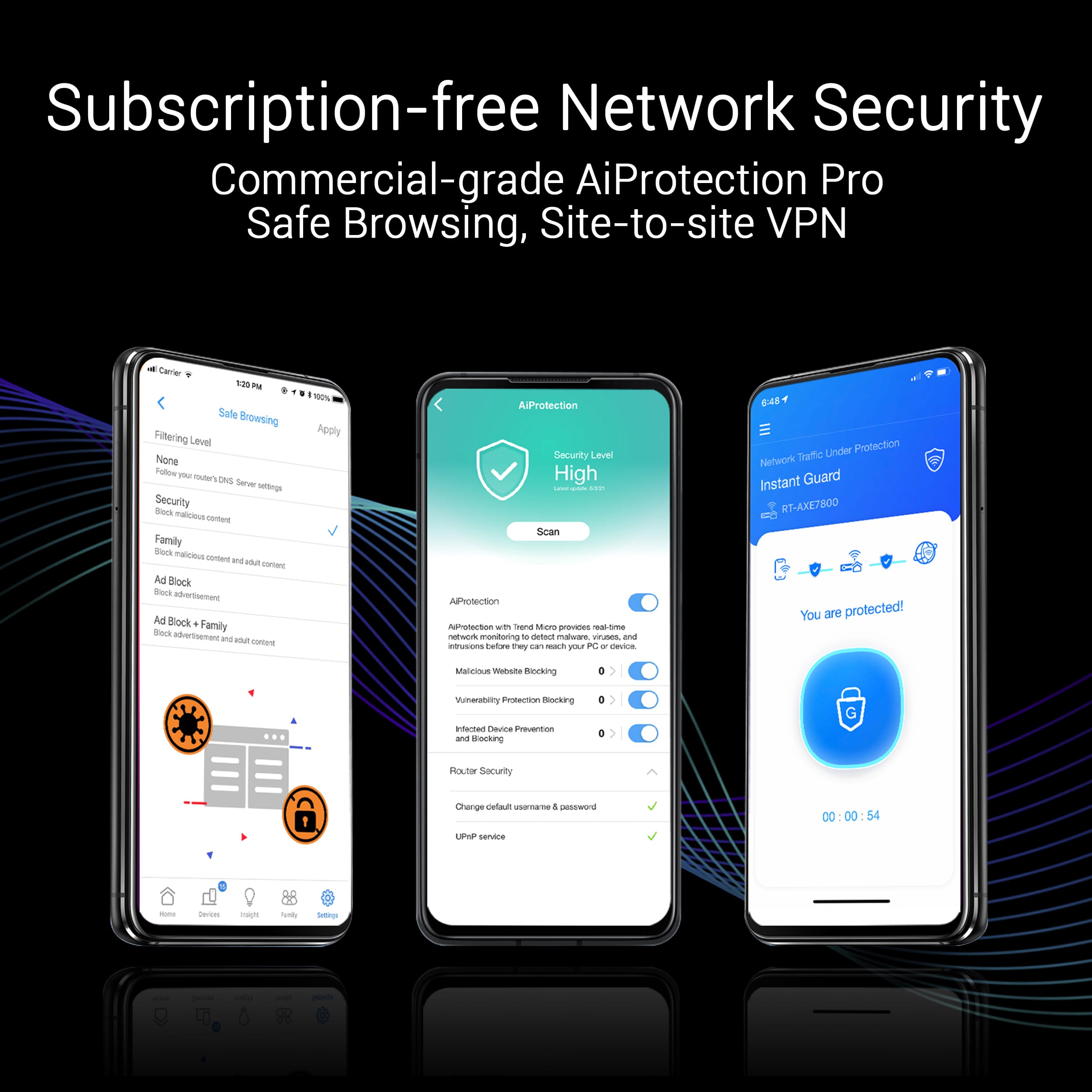
||Posted . Owned for 1 week when reviewed.This reviewer received promo considerations or sweepstakes entry for writing a review.Pros: Extremely fast speeds! Truly WiFi 7 Very wide coverage Simple setup process Plenty of customization options Cons: On the expensive side After reading many WiFi 7 router reviews, I have been wanting to experience the speed of WiFi 7! Although TP-Link released its WiFi 7 Mesh last year, I decided to wait for the ASUS one since I have been using ASUS routers for years with satisfying experiences. I finally got my hands on the BE30000 after waiting for over a year. It turns out the wait was worth it. I used the WebGUI for setup, and everything was as usual – I took the three BE30000 units out of the box, placed them at least one meter apart as instructed, and powered them on. I connected the unit labeled "main router" to the modem. Then I logged into the web interface and followed the on-screen instructions to complete the setup. The nodes' LEDs flashed blue during the process. Although it took a while, they eventually connected successfully, with all three BE30000 units showing solid white LEDs. After the basic setup, I moved the two nodes to the bedroom and near the kitchen, and the backhaul connection remained in MLO mode. By the way, the MLO feature in WiFi 7 was the most anticipated for me, so seeing "MLO" connected on the screen was incredibly exciting! One reason I really like ASUS is the wide range of customization options it provides. With the BE30000, ASUS has updated the Guest Network settings, allowing for easy network segmentation. I can set up different SSIDs for different purposes and manage devices separately. I found the VPN network most helpful for me. I no longer need to frequently switch VPN connections; I just connect to the VPN Network SSID. Additionally, the subscription-free security features are fantastic. The AiProtection Pro provides real-time network monitoring, automatic security updates, and protection against malicious websites and intrusions—all at no extra cost. It’s incredible that these comprehensive security features are offered for free. I was really impressed with how the ZenWiFi BE30000 covers every corner of my house. In the past, some areas only had one or two bars of WiFi signal, which was barely usable, but now I get three bars everywhere. Being able to use the internet smoothly everywhere is fantastic! I can now watch videos anywhere without being limited to areas with good signal because the signal is great everywhere. In conclusion, if you want to experience the speed boost brought by WiFi 7, the ZenWiFi BE30000 is definitely a great choice. Its sleek design, stable and high-speed network, and rich customization features make it highly recommended.
I would recommend this to a friend - Pros mentioned:Performance, SpeedCons mentioned:Connectivity, Firmware
Great once you get it setup/connected.
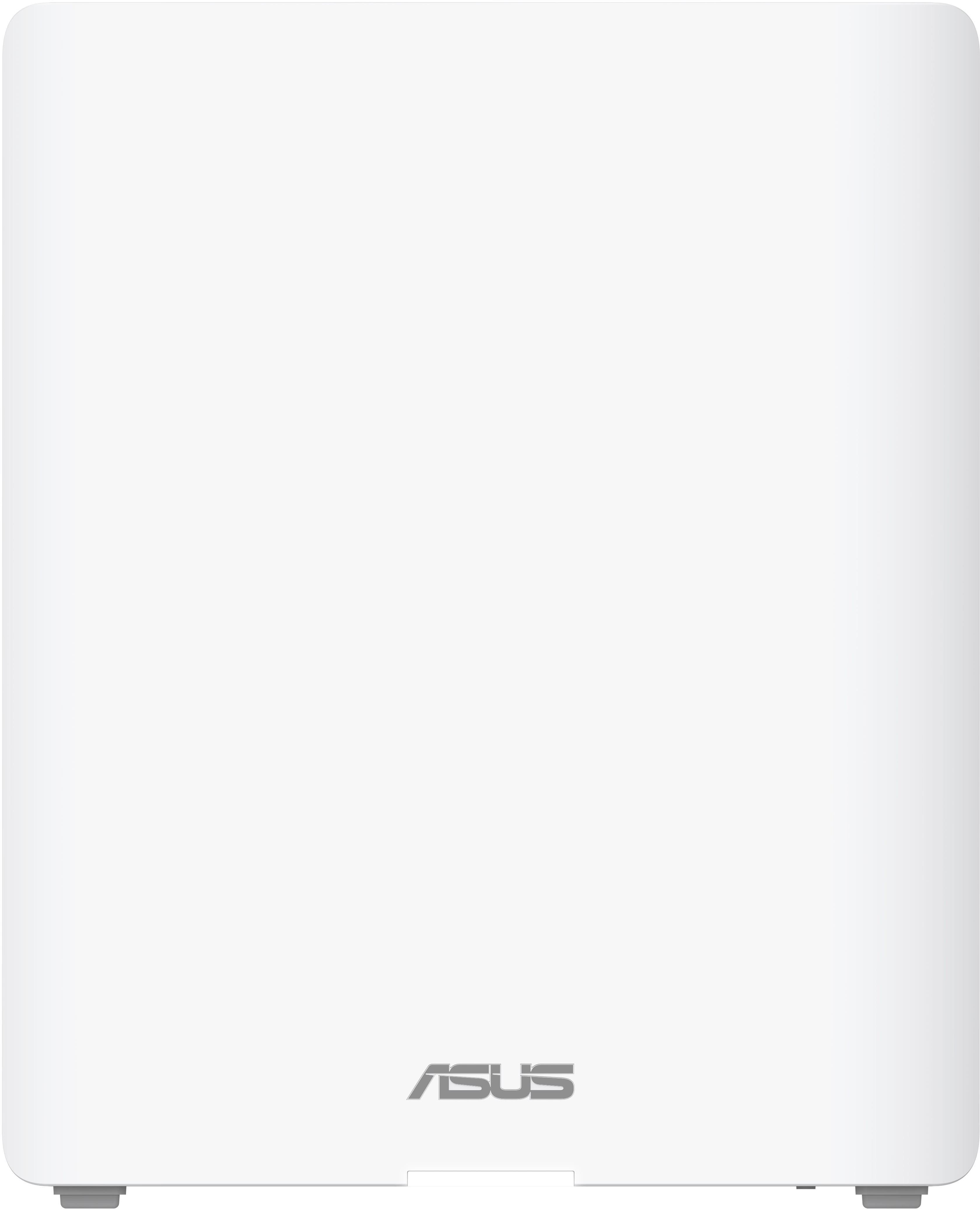
||Posted . Owned for 3 weeks when reviewed.This reviewer received promo considerations or sweepstakes entry for writing a review.I really like this mesh system now that I got it up and running. I did drop it from 5 to 4 stars as the firmware has some minor bugs still (They have come a long way in the last year though). Specifically, the router has issues obtaining the WAN IP address from the ISP modem. I had to power cycle both the modem and the router (left router off for several minutes after modem rebooted) and then it finally got the IP. But if you don't wait 5 minutes before powering up the router it will just sit there and say its "obtaining..." the IP address and never do it. Speed on wifi off these is insane! By the way, the white flat surface of the routers are just begging to have something on them...I personalized mine with some favorite characters by ordering vinyl stickers (see pics).
I would recommend this to a friend - Pros mentioned:Performance, Range
Finally Matured: The True Successor to the ET12
||Posted .This reviewer received promo considerations or sweepstakes entry for writing a review.I purchased this product when it was first released, and to be honest, it was subpar due to the immature firmware at the time, and I returned them. Now, over a year later, I decided to give this mesh system another shot, and I am incredibly impressed. I have tested over 30 different routers in the last two years, including the ZenWiFi ET12 (which was previously unbeatable). Nothing else I tested—from other brands or ASUS themselves—could replace the ET12 until now. This system has finally succeeded. Performance & Speed I am running a 2.5 Gbps down / 300 Mbps up Internet plan. With all three units connected via wired Ethernet backhaul, the performance is blazing fast. Real-World Speed: As seen in my screenshot, I am pulling 1809 Mbps down on my iPhone 17 Air. Wi-Fi 7 & MLO: I am utilizing the Multi-Link Operation (MLO) connection via Wi-Fi 7. I enabled MLO on the standard Wi-Fi network configuration, and it works perfectly for supported devices. Stability & Range Uptime: I have been running this setup for 3 days with zero issues. No disconnects, no drops. IoT Reliability: All my smart home (IoT) devices are solid. Roaming: The node steering is excellent; devices stay tied to the closest router and hand off seamlessly as I move through the house. Range: The coverage is superior to that of previous models I have tested. Features & Setup I really appreciate that ASUS still allows full access to a web interface, giving you granular control that many other mesh systems hide. Setup Tip: When setting this up, I wired the satellite nodes directly to the main router to ensure a smooth detection phase. I highly recommend doing this for a smooth installation. Verdict: The firmware has officially matured. If you are looking for a high-performance Wi-Fi 7 system that actually delivers on its promises, these routers are a strong buy. Keep up the good work, ASUS.
I would recommend this to a friend - Pros mentioned:Performance
Almost Perfect
||Posted .This reviewer received promo considerations or sweepstakes entry for writing a review.Very close to 5 stars, but my Kasa light switches occasionally disconnect unless I reboot the router. I set it to auto-reboot weekly and that has prevented the issue so far. I also had to create a separate IoT network for them, which I expected. Compared to my returned Orbi 970, though, this Asus system is far better. No annoying subscription upsells, security features are included, setup is faster, reboots are quicker, and overall performance is noticeably stronger. I also prefer both the web interface and the app. I love that it has two 10 Gbps ports, which should future-proof it for a while. I do wish the other ports were at least 2.5 Gbps, but I run the second 10 Gbps port into a 2.5 Gbps switch to get around that limitation. If I ever get 10 Gbps fiber, I’ll just need a new switch (and probably new cabling, but that’s a problem for another day). I run 30 IP cameras with reserved IPs and they work flawlessly. With 2.5 Gbps fiber, I get around 1870 Mbps download from 10 feet away—something the Orbi never came close to. The mesh handoff also works perfectly as I move around the house. The Orbi always seemed to keep me on whatever satellite I originally connected to, which obviously hurt performance. Aside from the Kasa switches, everything else (Hue lights, hubs, robot vacuums, air purifiers, doorbell cam, etc.) works perfectly. I did a lot of research on multi-gig routers and found that none of them are rated particularly well, but for me this is a solid 4-star product that feels more like a 4.6. The Black Friday price sealed the deal. Great router overall, and much better than its older reviews suggest.
I would recommend this to a friend - Pros mentioned:Speed
High Performance and Easy Setup
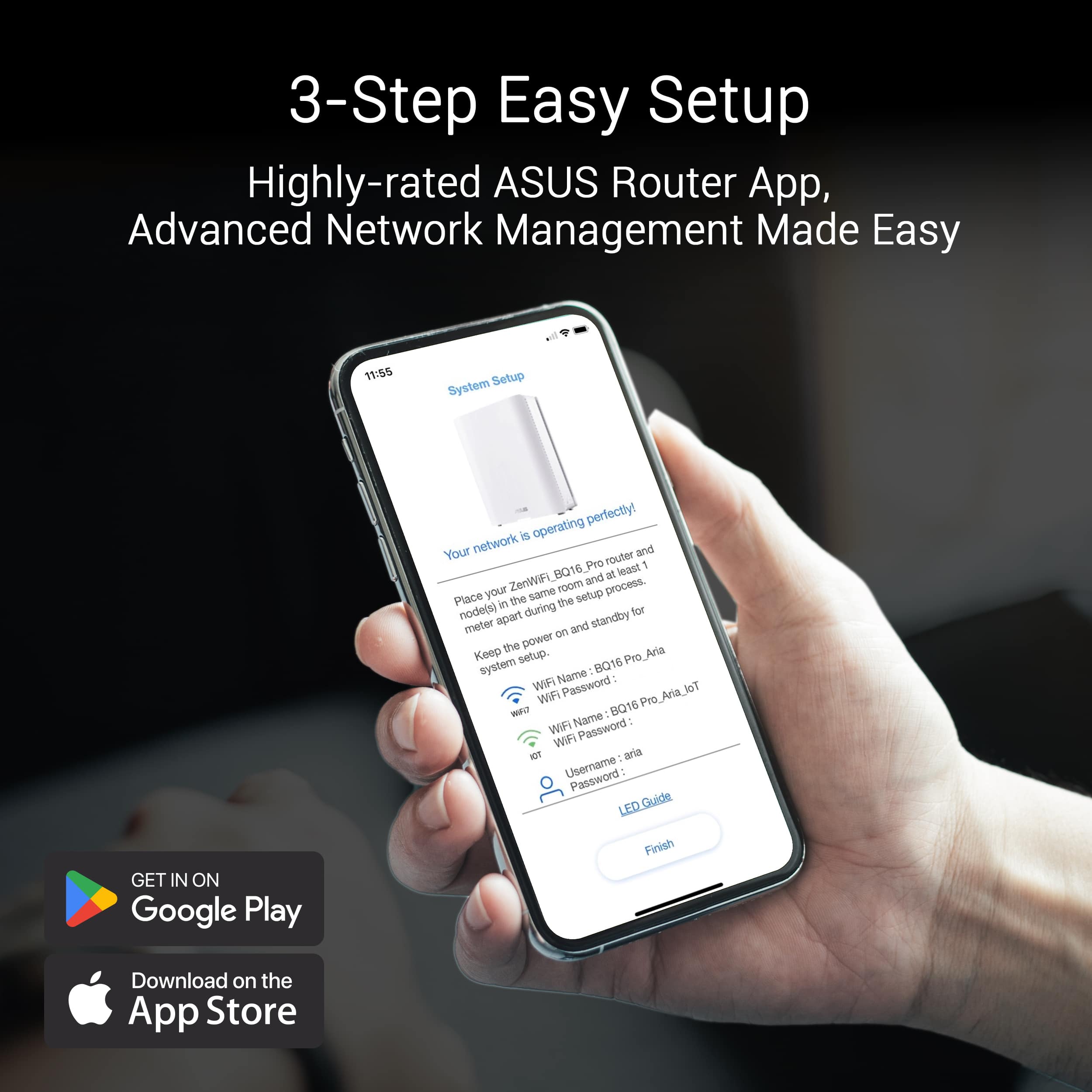
||Posted . Owned for 1 week when reviewed.This reviewer received promo considerations or sweepstakes entry for writing a review.Considering my work-from-home needs, I often need to transfer large files and hold video conferences. I also have many devices at home that require internet connectivity. The WiFi system I was using seemed outdated and overloaded: File transfers were slow, and video conferences were often lagging, so I decided to find a replacement, hoping it would improve network stability and provide faster speeds to meet my home office needs. On the recommendation of a friend familiar with router products, I purchased the BE30000. Initially, I was worried that the setup would be time-consuming after reading some reviews, but following the app's instructions, the setup was very easy. The app interface is very intuitive, with clear and simple steps. From connecting the main router to adding nodes and setting up the Wi-Fi name and password, the entire process was seamless. After completing the setup, I noticed there was a firmware available for update, so I immediately updated to the latest version. The process was very simple; just press "update," and the system automatically completes everything. The advanced settings in the app let me adjust network configurations as needed, such as setting up a kid’s network and IoT network. It's very convenient for device management. Now I can change the settings of the main network without the trouble of reconnecting my home devices. I've been using it for a few days now, and everything is working great. I'm very satisfied. The Wi-Fi signal is very stable and has wide coverage. The speed tests met my expectations, and there were no lags during conference calls. Additionally, file transfer speeds have increased significantly, saving me a lot of time, and improving my mood!
I would recommend this to a friend - Pros mentioned:Performance, Speed
Cat Talk
||Posted .This reviewer received promo considerations or sweepstakes entry for writing a review.Great ASUS WiFi Mesh system that works as well as the gaming routers! Was able to connect everything smoothly. Speeds are as indicated and so far so good and happy with this device. I have a 3,800 sq. ft., single story home with over 80 devices connected both indoors and outdoors.
I would recommend this to a friend - Pros mentioned:Speed
A High-Speed and Reliable Network Solution
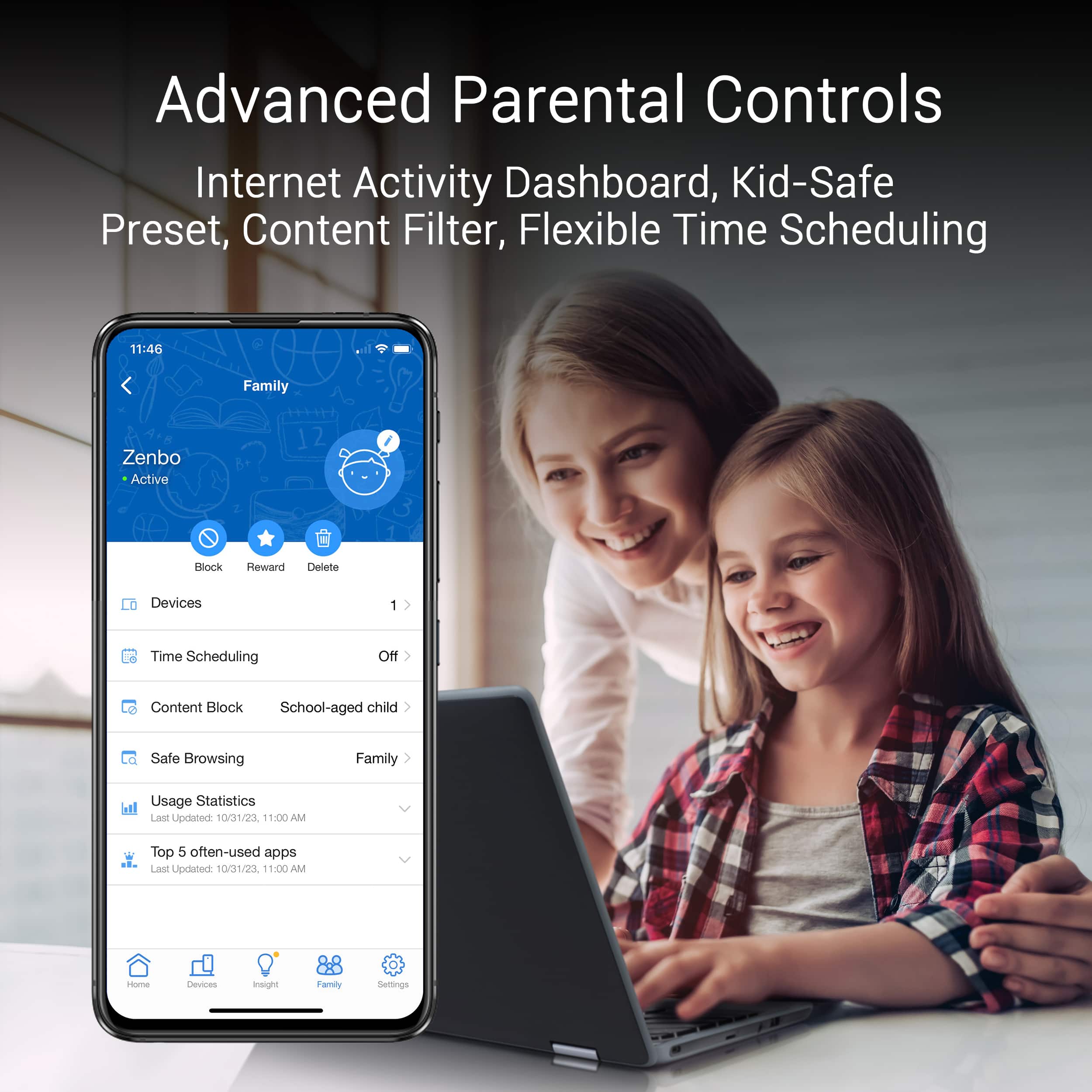
||Posted . Owned for 2 weeks when reviewed.This reviewer received promo considerations or sweepstakes entry for writing a review.I was reading all other reviews mentioning connection issues, but after completing the setup and updating the firmware to the latest version, the connections have been very stable, and speeds have improved compared to my previous router TP wifi 6 router. The ZenWiFi BE30000 has excellent signal coverage, with strong signals throughout the house. Speed tests showed very good results, with stable signals on all 3 floors. Especially during streaming and online gaming, the system maintained speeds with no lag or delay, very important to me, my roommate is a heavy gamer, can't sacrifice any minute with no internet. The Asus Router app is also very convenient and intuitive, allowing easy network management and monitoring of connected devices. The app provides a wealth of management tools and configuration options, such as setting up guest networks, parental controls, and QoS settings, allowing flexible network adjustments according to needs. I definitely will recommend this model to all my friends and families.
I would recommend this to a friend Excellent so far...
||Posted . Owned for 2 weeks when reviewed.This reviewer received promo considerations or sweepstakes entry for writing a review.I switched from the top-tier Netgear Orbi 970, or whatever it’s called, which I now consider overpriced junk. After dealing with two Netgear mesh systems that suffered hardware failures and disappointing customer support, I started searching for a reliable WiFi 7 mesh system. After extensive research, I landed on this product. Not only is it significantly cheaper than the Orbi, but it’s also far superior. Setting up and upgrading the nodes was a bit of a hassle, but once configured, this system is a powerhouse. My WiFi and wired speeds have never been better! I was so impressed that I went ahead and purchased a fourth node for $600. It’s incredible, and I have no major complaints. I’m still learning about the devices, app, and settings, but my entire smart home, with hundreds of devices, connects seamlessly with minimal lag or interruptions. Choose this instead of any Netgear product any day of the week. This isn't ideal for beginners—if you're not very knowledgeable or tech-savvy, you might want to consider an Eero or another simpler option.
I would recommend this to a friendMy ASUS ZenWIFI BE30000 Experience
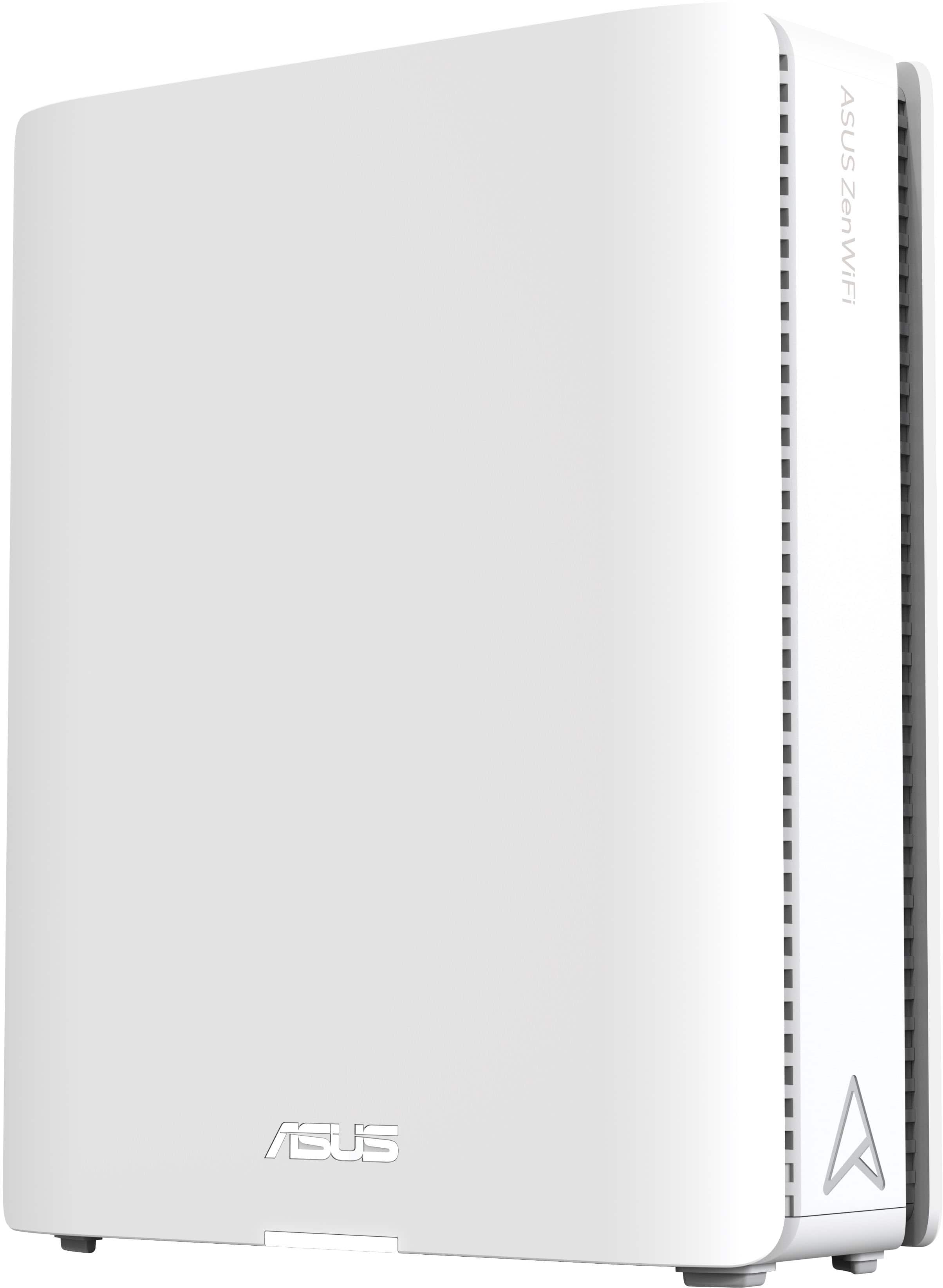
||Posted . Owned for 2 weeks when reviewed.This reviewer received promo considerations or sweepstakes entry for writing a review.I live in a large two-story house packed with wireless devices like outdoor cameras, TVs, gaming consoles, and cell phones. My family and I also often stream media or play online games. My old mesh system constantly disconnected our devices which is annoying to say the least. I decided to buy the ASUS ZenWIFI BE30000, hoping for stable connections and better coverage. Below is my experience and review since buying the product. Setup BE30000 comes with three units that are a bit heavy but feel well-made (I like the silver triangular symbol on the side). One unit is marked with "Main Unit" sticker, so I knew to start with that one. I used the router app, which gives the option to connect WIFI manually OR scan QR code to start the process. I didn't have any problems during setup like some of the other reviews mentioned. By following the app's instruction, I finished everything in ten minutes. The instructions are step by step; from connecting the main router and nodes to setting up the WIFI name and password. The whole process was smooth and easy, even for a non-tech user like me. Coverage BE30000 offers excellent signal coverage. Placing the 3 units in my living room, bedroom, and basement ensured stable connections throughout my entire house (both on 1st and 2nd floor). All devices connect easily without drops or weak signals, even from my yard! App The ASUS router app is straightforward to use. It allows me to manage the network, monitor connected devices, and even block devices. I particularly appreciate being able to check the usage of ports directly from the app. This feature allows me to monitor each port's usage without needing to physically check the nodes. Conclusion The BE30000 is easy to set up, offers stable performance, and has wide signal coverage, making it for me a highly recommended mesh system. Whether for the home office, entertainment, or everyday use, it provides a stable and high-speed connection. If you're looking for a reliable network solution, this product is an excellent choice!
I would recommend this to a friend- Pros mentioned:Performance
Wow better than I expected
||Posted .This reviewer received promo considerations or sweepstakes entry for writing a review.It's really good if you have a 2 Gbps internet speed. I am running wired backhaul, so really helps. It's definitely a step up from the TP-Link BE16000. Also Just make sure you take your time setting it up. The app is very easy to use.
I would recommend this to a friend Being Optimistic
||Posted .This reviewer received promo considerations or sweepstakes entry for writing a review.Very good router and easy setup through the app. Still has some time getting strong signal through walls and floors which is why for the price it gets 4 out of 5 stars.
No, I would not recommend this to a friend- Pros mentioned:Coverage, Performance, Range

Fast, Feature Packed, Range - Still Needs Tweaks
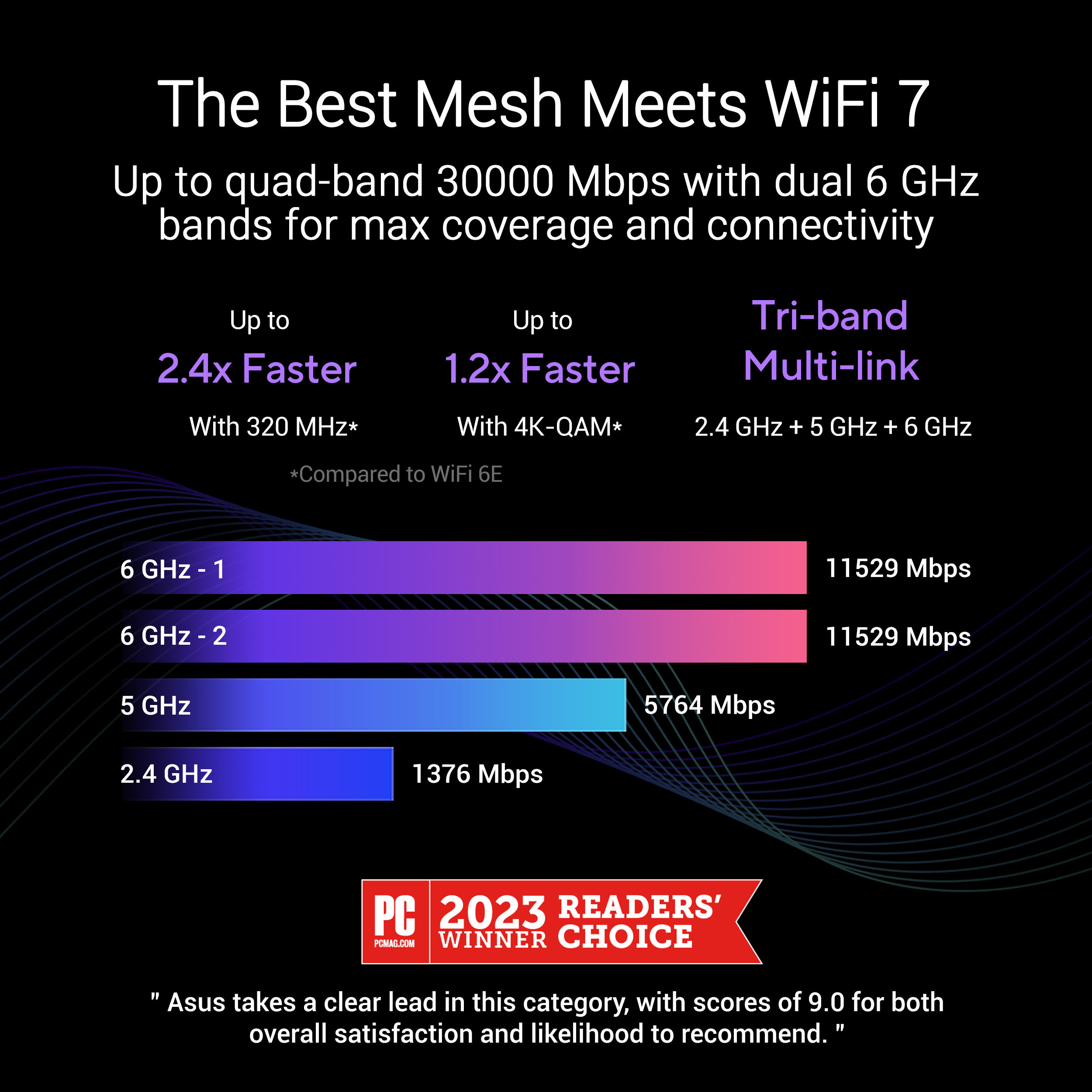
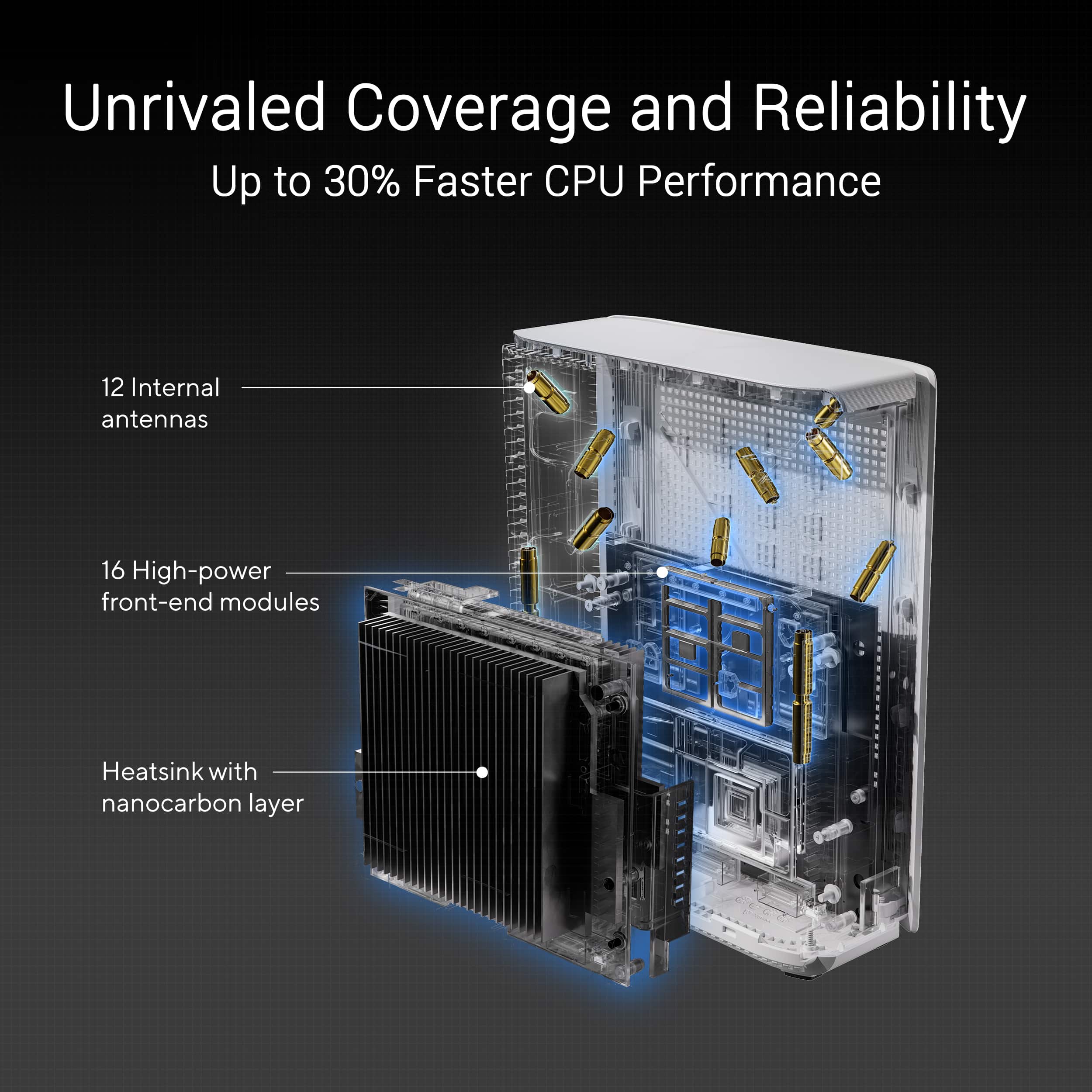
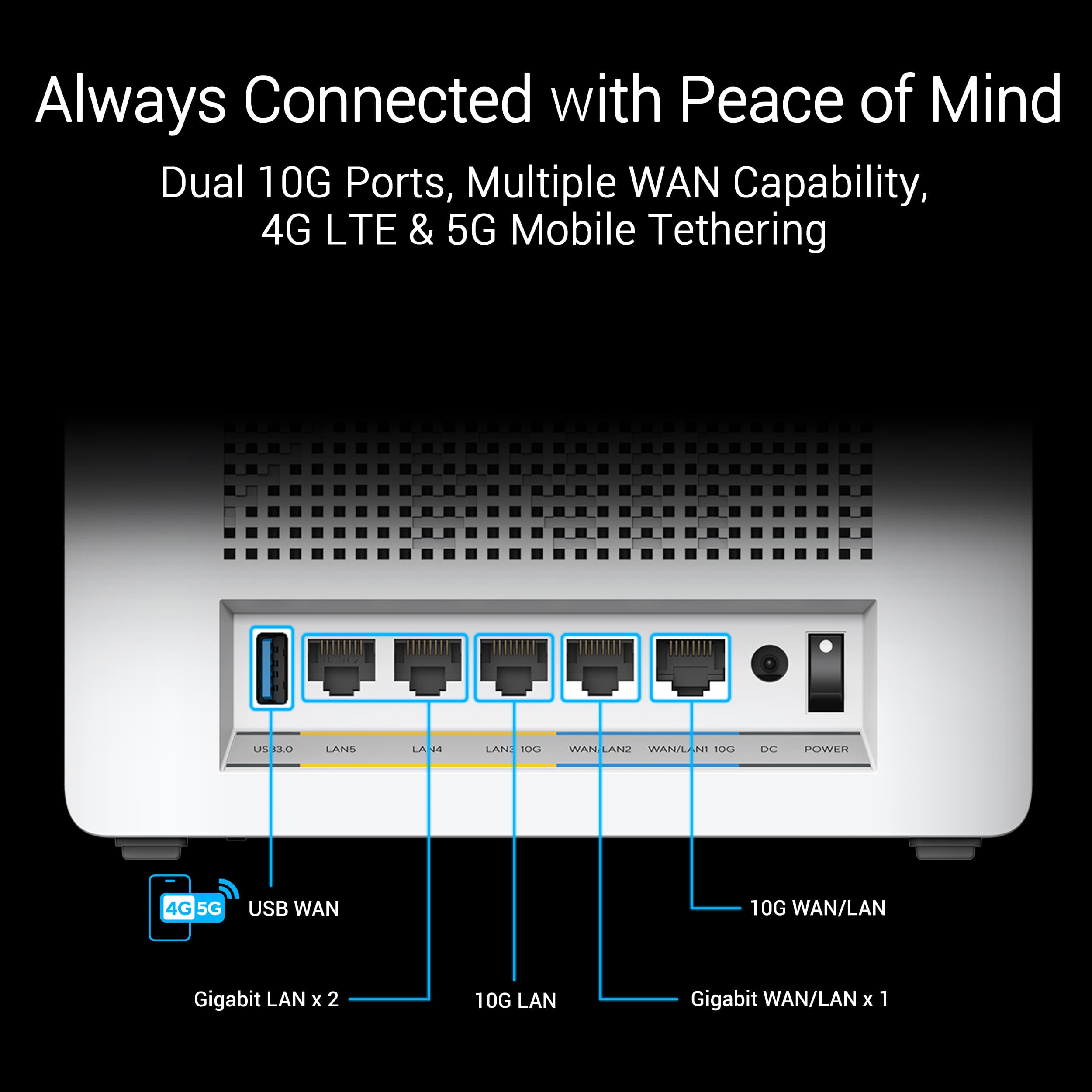
|Posted .This reviewer received promo considerations or sweepstakes entry for writing a review.I've been using the ASUS BE30000 Quad Band Mesh system for the last few weeks. This is a 3-pack system that boasts WiFi 7 support, huge range, and multi-gig LAN ports. My home sits below the square footage support as a 1700sqft residence, but I do have outdoor devices that are helped by the extended range support. I have had both positive (blazing performance, feature loaded, wide coverage) and negative experiences (device compatibility, disconnects) with this router setup. The ASUS BE30000 WiFi 7 Quad Band Mesh System The BE30000 is a 3-unit quad band mesh router system. Each unit is identical so this isn’t a main + satellite AP system. The supported bands are: 2 bands of 11,529Mbps @ 6GHz, 1 band of 5,764Mbps @ 5Ghz, 1 band of 1,376Mbps @ 2.4Ghz. The routers support simultaneous quad-band radios, 20/40/80/160/320MHz channel bandwidths, MU-MIMO, OFDMA, MLO, and 4K QAM. There are also 12 internal antennas. The router has 2 ports that can be used for WAN or connections – 1 is a 10gigabit port while the other is 1 gigabit. There are 3 additional LAN ports – 1 is a 10 gigabit port while the other 2 are 1 gigabit ports. There is also a USB 3.0 port for a networked printer or a storage solution. A single CAT6 ethernet cable is included. Performance My overall thoughts on the router performance - it is FAST. Blazing fast on wired and wireless connections. I was getting similar wireless speeds from the street in front of my house that I was getting from the previous router system inside my house. WiFi 7 does make a difference, but 6E compatible devices still see a good bump in speed. Wired throughput is excellent and is really a game changer if you have PC’s or clients with 2.5/5/10Gbps NICs. I tested the performance of the BE30000 like I have tested my previous networks. I have a mix of wired and wireless (WiFi 6 & 6E) devices to test. I only have 1 WiFi 7 device at my disposal, which is my partner’s Pixel 9 Pro phone. I used my Pixel 7 Pro (6E) and her 9 Pro to compare the the 2 WiFi generations, but stuck with the 6E PC’s for network transfer tests. I have fiber internet with 600Mbps up/down. I headed on over to SpeedTest and checked my network speeds. On my wired PC I am getting 595/598 up/down, which is on par with my other router system and right at my advertised speed. Walking around my house with the phones I didn’t have a spot drop below 550(7)/500(6E), and it took walking outside of my house and into the street before the speeds were cut in half. Testing between the phones saw about 10% improvement on WiFi 7. The speeds were a bit faster than I have seen on any other system I have used. The signal reached down to the bottom of my property (200ft from nearest node) without any issue. I could easily put a remote camera down there and still have plenty of signal/bandwidth to carry the video. I tested out inter-network traffic with LAN Speed test from Totusoft. I use this to simulate network throughput, and is a good way to gauge cross-network speeds in a real world scenario. To reduce variables the machines all have Gen 4 NVME drives with similar R/W speeds, and WiFi 6E support. 1 machine has a 2.5Gb port while the others are just gigabit. The software sends dummy file transfers between machines – I set the file transfer sizes to 5MB, 300MB, and 1GB. The small file transfer size simulates bursts of network traffic while the larger sizes would represent network streaming or large file transfers. Here’s all the ways I configured the transfers – 1. Both wired to the main node (10gb, 1gb port) – 550/630Mbps (5MB); 582/770 (300MB); 620/785 (1GB) 2. 1 wired to the main and 1 wireless to the main – 240/385; 244/600; 250/630 3. 1 wired to the main and 1 wireless to a mesh node – 166/293, 145/535; 145/425 4. 1 wired to the main and 1 wired to a node – 300/610; 334/822; 326/822 5. both wireless to the main – 220/350; 200/750; 215/680 6. both wireless to a node – 85/314; 180/506; 172/502 Setup and Reliability Setup of the router system is easy - pull them out of the box and plug them in. 1 router has a sticker that says it’s the main node and should be plugged into the modem. Otherwise, all 3 nodes are identical to each other. For setup you can do it 2 ways – fully wireless system or with wired backhauls. I have my home setup with CAT6a cabling so I could do wired, but I opted to do wireless for now. You do need to download the ASUS router app to do the setup. Plugging the nodes in and powering them on is the first step, and then from there the app takes over. It was a pretty easy setup all things considered – all nodes were discovered and I was able to assign the SSID. I did run into an issue right after setup where the router would not access the internet. It showed I had the cables connected and the lights on my modem indicated they were connected but the router was not getting an IP address. I power cycled the router and modem several times and even fully reset the router to no avail. I plugged my old router to confirm I had internet, and it worked right away. I ended up plugging things back in, and went outside to do yardwork. After an hour or 2 I noticed I was getting camera notifications again, which meant the router finally made a connection to the internet. I have no idea why it behaved like this, and its not something I have experienced before. I have used Mesh routers in the past and they are not without their quirks. Whenever I swap out a router I keep the same SSID and password so I don’t have to reconnect everything. I have eschewed setting up an IOT network in the past to avoid resetting all my devices’ WiFi settings - never caused an issue. This held true with the last 6 or 7 router systems, which included WiFi 6E and 7 systems. When I booted up this system for the first time my Lockly smart lock, Ecobee thermostat, Kasa switches, and wireless printers (Brother and HP) did not reconnect. I had to go in and reset their WiFi info to get them onto the network. Unfortunately my Kasa switches would not reconnect. Even creating a 2.4GHz IOT network couldn’t get them online. I don’t have a ton of time to sit and dig through settings these days, so it took me awhile to find a solution. I eventually did get them working after adjusting a setting in the web interface. The web interface is on 192.168.50.1 and the setting is under Advanced>Wireless>Professional (tab)>2.4GHz (drop down)>Modulation Scheme, which needs to be changed to “Up to MCS 7 (802.11n).” How is your average user supposed to find this, and why does this router system stumble here when others don’t? For this mesh system it has been somewhat iffy on reliability. I have read that people have dropped down to 1 router and things immediately stabilized, so it could be an issue with the mesh interface itself. I have several Google Home devices including Nest home mini speakers, a Nest display hub, and Nest cameras. I also have devices from Lockly, Kasa, Ecobee, and Wyze. The only devices to not experience any issues have been my Wyze cameras (Gen 2,3, & 4). The Ecobee and Lockly only had the initial connection issue. The Kasa devices have seen good uptime once I implemented the fix. The holdout has been the Google devices, which disconnect daily, and sometimes require power cycling to correct. I use my Google home speakers to control my devices, and I rely on my Nest cameras to monitor my home while I am at work. To have these devices drop out for no reason is frustrating. I have them split up between the IOT network and the main network – no real difference in the frequency of drops. These are some of the most widely used devices in any smart home, so why are they the only ones with consistent issues? Interface There are 2 ways to access the router – through an app (ASUS Router) or through a browser page (192.168.50.1). I downloaded the app to do the initial setup, which worked just fine. The app works well and I have not come across any issues with it. The only thing to keep in mind is if you make changes to the router settings the WiFi will disconnect and take a minute before it comes back up. The web interface doesn’t have this limitation as long as you are on a wired connection. The app has a lot of control over the router operations, but several of the controls are buried down different function paths. It is hard to describe, but I seem to find a new control toggle every time I go into the app. The interface allows you to create rules, group devices, limit access through family controls, pause access to a device, and more. 1 setting I found useful was the ability to bind devices to a specific node, which helped when doing my speed testing. I can see this being useful if you have a device that sort of straddles coverage zones. Aside from the drilling down for settings I still feel the interface is well laid out. I think it’s a toss up between “settings overload” if they were all in one place, and how it is currently organized. For the most part novice users will be able to navigate the app and get the router system going. The struggles I had with getting legacy devices up and running is not well explained, and there should be some sort of guide/walkthrough for configuring the router to play nice with them. Overall my time with the BE30000 system has been good, but frustrating. When the system is stable everything works well, speeds are topnotch, and range is crazy good. The disconnects and drops make for a less than ideal experience. I am still going to tweak some settings, and I will likely switch over to a wired backhaul to see if that helps things any. I do hold out hope that these issues will be ironed out with firmware tweaks and improved documentation. The 6E router I had been using started out this way as well, but eventually became very reliable. I don’t think I would recommend this to your average consumer, but rather to someone with a good tech background and a willingness to put the time in to fiddle with things.
I would recommend this to a friendBrand response from ASUS Answers
Posted .Dear DaveW
Thank you for your comment.
We appreciate your feedback. Information coming from valuable customers, like you, will continuously help us improve our future product offering and services. If connections drops or unstable, place the routers in the center of the area you want to cover, avoid placing the router near metal objects, electronic devices or direct sunlight, position the router on a flat, hard surface and halfway between the floor and ceiling. Additionally, dense building materials, such as gypsum, concrete walls and planks can affect Wi-Fi signal penetration. If some of your devices are legacy devices, they may not work properly with WIFI-6e and WIFI-7, please check updates for these devices. Also, try connecting this manually to either 2.4GHz or 5GHz. Furthermore, we recommend updating the Mesh router firmware if it is running with an older version. Firmware is available for download at: https://www.asus.com/us/networking-iot-servers/whole-home-mesh-wifi-system/zenwifi-wifi-systems/asus-zenwifi-be30000/helpdesk_bios?model2Name=ASUS-ZenWiFi-BE30000.
Should you need further assistance with the product, please email me at cl-rodel@asus.com and I would be more than happy to help. Or you are most welcome to call Product Support Hotline at: 1(888) 678-3688. Also, you can chat with an ASUS live support agent from the link: https://www.asus.com/us/support/article/1135/.
Thank you for choosing an ASUS product.
Regards,
Rodel
ASUS Customer Loyalty
- Pros mentioned:SpeedCons mentioned:Price
Amazing hardware and speed. Frustrating firmware.
|Posted .This reviewer received promo considerations or sweepstakes entry for writing a review.First, let’s get the obvious out of the way. This router is EXPENSIVE. Most people should avoid this just because of the cost. This is intended for a very select group of people. If you are not sure if this is right for you, then it probably isn’t. This is for people who want more than 1 Gb/s mesh networking, who know something about configuring networks, and who are willing to pay for this insane speed. *** The Good *** The units are completely FANLESS! Yes, they are silent, and no fan bearings to eventually wear out, and it will not suck dust into its innards. There are a total of FIVE RJ45 jacks on the back, and two of them are 10 Gb/s, and the remaining three are gigabit. Some other companies have gone to “app only” configurations where you NEED a smartphone in order to set it up. However, this unit is easily configurable just by going to the main unit’s web page. I absolutely love that “feature,” as I can configure it on any device, and not just a tiny screen without a keyboard. The final thing to love is that every feature is available. No subscriptions to buy for any feature or service that this router supports. Parental control, VPN, AI security? All included forever. The speed is amazing. I needed this because I upgraded my home service to 2 Gb/s fiber, and didn’t want to run CAT 7 under my floorboards. I can happily report that the mesh system easily keeps up. I have the main router going into the ONT, and my main computer is plugged into one of the satellite units. I can get over 2 Gb/s on my computer, which is seriously impressive. The router claims that it has a 5 Gb/s link between this satellite and the main unit, and the other satellite claims 4 Gb/s. I can only test to 2 Gb/s as that is the fastest connection that I have, but even that speed is impressive for wireless. Note that turning on any type of QOS reduces my maximum speed, so I leave that off. In theory, it should not have affected my speed, since the network was otherwise being unused. Still, I have bandwidth to spare, so leaving it off was a no-brainer. This router also runs a version of OpenWRT, and it has almost every feature that you can think of. The only minor disadvantage is that I could not find a way to add the usual OpenWRT plugins, but this already includes every feature that the vast majority of people could possibly need, so this is not much of a drawback. First, the wireless performance is great. Even WiFi 6 clients can get the maximum speed that they are capable of. Multiple WiFi networks, each on its own VLAN is also easily supported, and each separate WiFi network can have its own settings as far as which bands are allowed. This is great, for example, for setting up an IOT network where the older 2.4GHz devices might be confused by newer standards. Multiple VPN clients and servers are included. I performed the easiest setup of a WireGuard server that I have ever done, and it only took a couple of minutes. It even shows a QR code for reading by mobile devices, or allows a download of the configuration file. It also supports PPTP, IPSed, and OpenVPN servers, but I didn’t test these. It can also function as a VPN client, and can serve this connection over a separate WiFi connection, which allows the usage of VPNs with smart TV’s and streaming devices. Very impressive. Each unit also has a USB port, and this supports NAS functionality if you add a storage device! It can run a Samba server, which works well, even if somewhat slower than I expected. I was only getting around 40 MB/s when connected to a portable hard drive, which I know can transfer data faster than that. But I consider the NAS server to be a bonus, and am happy that it is there. An FTP server, an iTunes server, and a UPnP media server are also present, but I did not test those features. Of note is that there is also an optional download manager that allows the background downloading of data. I can confirm that it handles Torrent files easily, and even if it takes three days to download an obscure torrent with few peers, it gets the job done without leaving your main computer on. There is also the Asus proprietary AiDisk that allows access to your files while away from home, but that can also be accomplished via Samba and WireGuard without installing extra software. The USB port also has other functionality, as it can be used as a print server, or for tethering to a cell network through your phone or other 3G or 4G modem. It even claims to support Apple Time Machine functionality, but I can’t test this as I have no Apple computers. Of note is that all three units have a USB port, but the usual web GUI only easily allows the setup of the USB port on the main unit connected to your modem. But the USB ports on the other two units ARE still accessible, but unfortunately hard to find. In order to use the other USB ports, from the web GUI, select “AiMesh” on the left. Then click on the satellite unit in the middle pane, and finally click on the “Management” button on the right. Looking below you will find a “USB Application” button that will let you log into the satellite unit to configure the USB port, after you re-enter your username and password. I wish that this were easier to get to, but at least it is there, so I am happy. Among the other features is dual WAN functionality, for load balancing or failover, but while the main port is 10 Gb/s, the secondary port is only 1 Gb/s. Still, having failover at all is a very nice feature for those who have two connections, so this is a nice touch. One final bonus is that you can have a DHCP reservation OUTSIDE of the DHCP address pool. This means that you can (in my example), have random devices get an IP address starting at 100, and then have DHCP reservations saved for IP addresses below 100. This is wonderful, and a lot of routers don’t support this. I like to have separate address ranges for my servers and the other devices, but not have to bother with static addresses on the servers. *** The Bad *** Everything is not all sunshine and roses, however. Despite the amazing performance and features, this has been one of the most frustrating experiences that I have had with a router. First, the documentation. Except that it doesn’t officially exist. You CANNOT get a manual for this model. However, this is apparently the same as the “BQ16 Pro,” except that this model comes in a box of three, while the BQ16 Pro only has two in the package. So, you can find the BQ16 Pro manual. It is helpful, but it never lists the meaning of the LED indicator on the bottom. To know what the various colors mean, you can only get that information from the phone app. Plus, when looking up how to work the NAS, I wanted to know what file system were supported. The link in the manual goes to a web page that simply does not exist. So clearly some work needs to be done on the manual, but this is not a deal-breaker, as you can generally figure things out. The WiFi turned out to be VERY problematic out-of-the-box. I have several Roku Streaming Sticks in my house that have remote controls that connect via Bluetooth. Well, these units completely clobbered Bluetooth, causing MUCH frustration among my family who only want to watch TV. Well, there is a “Bluetooth Coexistence” mode hidden in the “Wireless” - “Professional” - “2.4 GHz” menu setting, but it defaults to “Disable.” Really? Asus thought that disrupting Bluetooth in the house is a good idea? At least I was able to fix the problem, but it is a problem that never should have happened in the first place. But now for the biggest problem of them all: mesh networking. This is the reason that this box exists, and it is amazing when it works, but frustrating when it doesn’t. While my network is stable now, it took a lot of pain to get to this point. When I first configured my network, everything seemed to be working. But then I noticed that the satellite unit that I put in the basement wouldn’t connect. The LED would flash blue, which apparently means that it was trying to connect. I eventually moved it into the SAME ROOM as the master unit, and it would still not connect. I tried resetting the satellite, removing it from the configuration, and then re-adding it. Nothing would work. OK, pull all the units, factory reset all of them, and try again. Well, this time another satellite that I have on my work desk would connect (white LED), then go back to trying to connect (flashing blue LED), and then connect again after 30 seconds or so, say connected for a minute or two, and then back to flashing blue. When it WAS connected, the web GUI reported the signal strength as “great.” So, let’s try ANOTHER factory reset and reconfigure. Finally everything seems to be working great, and I am happy now. Another thing to mention is that configuring everything takes an extreme amount of patience. I mentioned DHCP flexibility as a bonus. But changing the DHCP address range? Everything disconnects and it takes several minutes to reconnect. I *STRONGLY* recommend waiting for both satellite units to be connected before making config changes, and this takes a while Adding a DHCP reservation? Yup, a disconnect and waiting. Turning on the “Bluetooth Coexistence” feature? Another disconnect. Creating a new WiFi network? You guessed it. And I have four separate WiFi networks configured. And due to the mesh networking problems, I had to go through this pain THREE TIMES! Another note is that, while a wired backhaul is supported, it is an all-or-nothing situation. Either EVERY unit is wired together or none of them are. You apparently can’t wire two together and have the third be wireless. This is probably not an issue for most people, as if you had a wireless backhaul, then you could use this and just get cheaper WiFi 6 access points. But I thought that I should point it out. *** The Summary *** So, overall, if you
I would recommend this to a friend - Cons mentioned:Firmware
Very Unstable
||Posted . Owned for less than 1 week when reviewed.This reviewer received promo considerations or sweepstakes entry for writing a review.Thetes a lot to love and hate. Ultimately ill be returnibed these today after this review. Was oroginally goinf to purchase bt16 pro got excited that best uy had a 3 pack b30000. For the first 12 hours everything seem fine but then i saw the issues. 90 devices connected to main, 2 connected to one dat, 0 connected to other. Ipad woild get 900mbos doenloads then woikd gey into a crawl of 10mbps. Login into web portal is easy unstable. It will hang and skmetimes ask you to login miltiple times. I made sure inhad latest firmware but at the end these ate not ready fron primetime. Theres no ai mesh in my mind. My atlas 6E units peformandes better. Was looking to get something that had higher throughout ports as i do have wired backhaul but these are not it. Night try tplink and see if have better success.
No, I would not recommend this to a friendBrand response from ASUS Answers
Posted .Dear Kupoo69,
We sincerely apologize for the connectivity and performance issue you've faced with the ASUS ZenWiFi BE30000 Mesh Router and for the inconvenience caused. What you've experienced was not intentional. We are committed to providing our customers with the highest-quality products and we will forward your review to our Product team for review.
Although you have returned the device, we stand behind our products and we continuously strive to improve our products and processes to achieve customer service excellence. If you require any further assistance, please send us an email at customerloyalty@asus.com and include the case number "N2405039106-0018" as a reference. We will do our best to resolve your case quickly. Your feedback is very important to us, and it enables us to improve our support channels. Thank you for choosing ASUS.
Best Regards,
Chantae
ASUS Customer Loyalty US Support
Great wifi
||Posted . Owned for 1 month when reviewed.This reviewer received promo considerations or sweepstakes entry for writing a review.Works great, way less outages. With the old system we had to do too many resets.
I would recommend this to a friend- Pros mentioned:Coverage, Signal strength, SpeedCons mentioned:Connectivity
Mesh System Beast
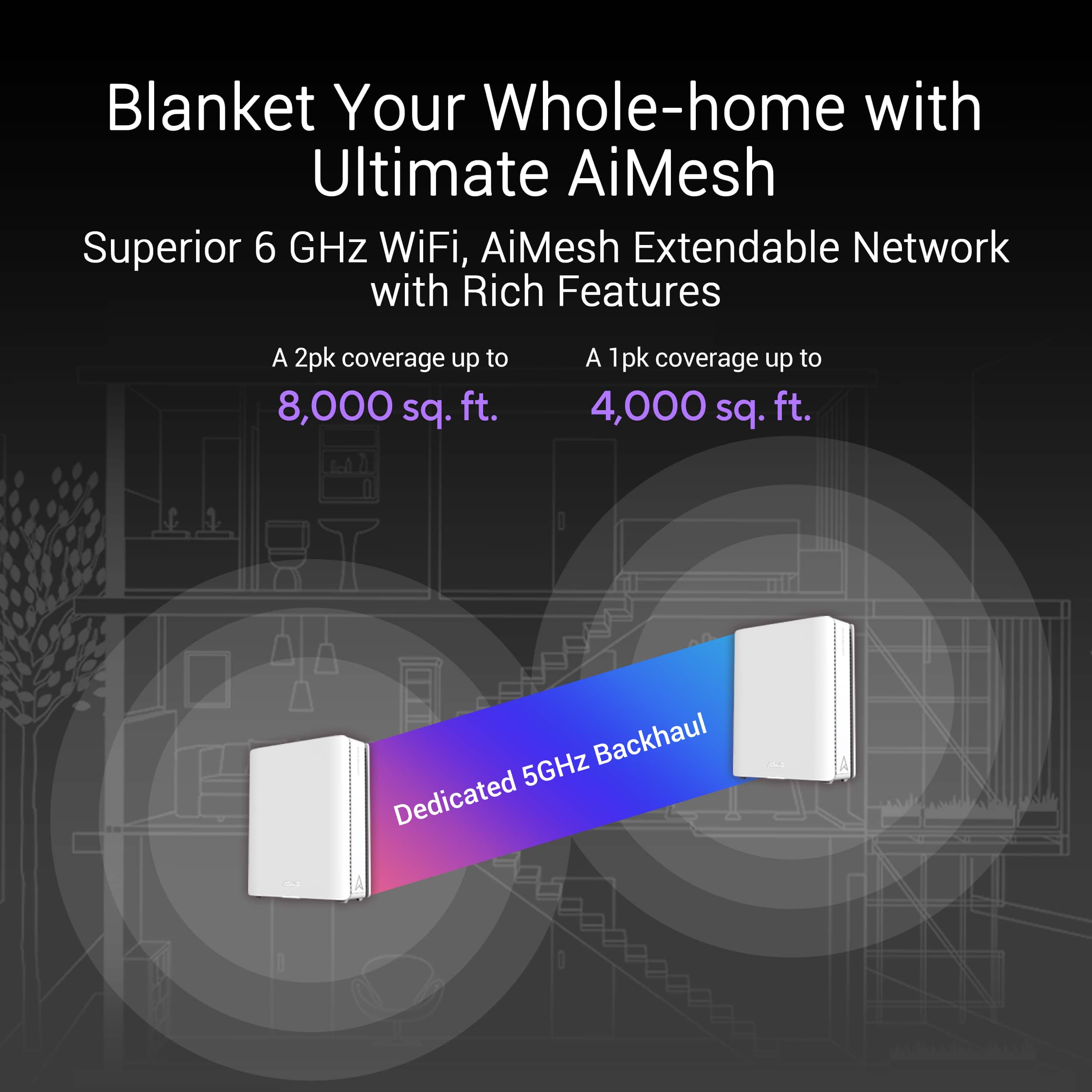
|Posted .This reviewer received promo considerations or sweepstakes entry for writing a review.The ASUS - ZenWiFi BE30000 WiFi 7 Quad-band Mesh Router is a high tech piece of technology that will bring the speeds you are looking for. I was excited to test this out because my home needs would greatly benefit from the speeds and technology ASUS says this mesh system will deliver. Why is a mesh system good? It covers more area and allows for devices to have the ability to seamlessly transition for devices. This worked really well for my laptop when moving around the house and didn't notice any impact on speeds and connectivity. Setup: I have a 2900 sq ft house that's made of stucco and has large open areas along withe walled rooms. My main station has to be placed on one side of the house due to where the internet comes in at. While this isn't ideal, the mesh system affords me the opportunity to have best internet throughout the house. The rating on this system goes up to an absurd 11K sq ft, but in my real world testing with my house walls and layout I can get solid coverage of at least 25% signal strength at the edge of my 1/2 acre lot. Setting up the system was rather easy as I was able to follow the intuitive app and had it set up and running in 5 minutes. I used the same network name I had before and password in the app and all my devices reconnected automatically. The "Ultimate AiMesh" that ASUS coined actually works rather well scales the system when under load and you can see in the app how the device load is being balanced. Note: Once all 3 stations were in place the firmware updated the devices and was back in business and had very stable and fast speeds. Testing: I have Ring Devices outside the home, 6 TVs, 5 game consoles and 4 desktops all connected via the Wi-Fi system. Toss in the tablets and phones and my speeds on laptop were blazing fast with everything going and online gaming happening. I achieved 850+ Mbps Down and 37.8 Mbps down on ( 1GiG up and 40 Mbps down). Playing online games I never lost connection or when we were streaming Netflix in 4K had any buffering. Sunday Ticket was crystal clear and streamed perfectly. My Ring devices outside no longer lose connection and have great signal strength and even the backyard pool camera is crystal clear streaming mode now. Overall, This system has been very stable and pushes the speeds consistently and hasn't had any drops or down time. The wide coverage this system affords users is astonishing and it still delivers peak speeds. The options to optimize the system based on its usage is a nice addition, especially if you need to prioritize your gaming session bandwidth or streaming. I only have two desktops and two phones that are Wifi & compatible and they run flawless on the system. My Gaming Desktop has zero issues with the Wifi-7 aspect and makes this system a top contender for me and my family.
I would recommend this to a friend - Pros mentioned:Coverage, Performance, RangeCons mentioned:Price
Best Mesh Routers
|Posted .This reviewer received promo considerations or sweepstakes entry for writing a review.I've been using the ASUS ZenWiFi BE30000 mesh router for about two weeks now, connecting over 40 different devices to it, and so far, I've had no issues with drops or connectivity interruptions. Here’s my experience: Setup and Design Setting up the ZenWiFi BE30000 was surprisingly easy, thanks to the ASUS app and web interface options, which made connecting the nodes straightforward. I’ve used other mesh networks before, and setup was often long and frustrating, with nodes frequently disconnecting. This router, though, offers smooth node connections and lets you set up dual SSIDs, which I love. Having two separate networks is perfect—one for work and entertainment devices, and another just for smart home gadgets. The nodes are sleek and unobtrusive, so they blend right in when placed on each floor. Coverage and Range In my two-story house, other routers have struggled to maintain a connection between nodes, but the ZenWiFi BE30000’s mesh setup has solved that. Now I get a strong, stable signal in every room, even in former dead zones. Moving between floors doesn’t affect connectivity, and I haven’t experienced any of the annoying drop-offs I used to get. For streaming and video calls, this reliable coverage has been a huge plus—no buffering or connection dips to worry about. Performance with Multiple Devices With 40 devices connected (phones, laptops, smart lights, cameras, and more), I was worried the network might get overloaded. But the ZenWiFi BE30000 handles it all smoothly. Even when the whole household is streaming 4K content, gaming, or using smart gadgets, there’s rarely any noticeable lag or buffering. I do have a couple of laptops that support Wi-Fi 7, and while it’s hard to tell the difference from Wi-Fi 6 yet, the connection feels faster and more consistent overall. Daily Experience This router has no trouble meeting my household’s heavy demands. Streaming, gaming, and video calls all run smoothly. The dual SSID setup keeps smart home devices from interfering with high-priority activities, and setup was very straightforward. Another feature I appreciate is the ability to assign specific devices to particular nodes—details like these make network management so much easier. Network Management and Security The ASUS app and web interface offer plenty of features for adjusting settings. Parental controls are easy to use, and the traffic analyzer helps me keep track of network activity. Plus, each node has LAN ports and a USB port, which has been helpful. For example, I connected my Epson printer via Ethernet since its Wi-Fi card failed, and it works perfectly alongside the rest of the network. Cons The only downside is the price. It’s a big investment, and for smaller homes or setups with fewer devices, it might be more than necessary. Also, the benefits of Wi-Fi 7 are limited to compatible devices, so if most of your devices are Wi-Fi 5 or Wi-Fi 6, you may not yet fully realize the router’s potential. However, if future-proofing is your goal, this is an excellent choice. Conclusion The ASUS ZenWiFi BE30000 is ideal for households with heavy internet demands and many connected devices. It’s handled 40 devices across two floors effortlessly, and having dual SSIDs has made managing traffic much simpler. With strong coverage, high performance, and Wi-Fi 7 compatibility, this router can handle all my connected home needs. For anyone with a smart home setup, large household, or high internet usage, the ZenWiFi BE30000 is absolutely worth the investment.
I would recommend this to a friend Amazing product
||Posted .This reviewer received promo considerations or sweepstakes entry for writing a review.Amazing product, so easy to install, highly recommend it.
I would recommend this to a friend- Pros mentioned:Coverage, Speed
Extra
|Posted .This reviewer received promo considerations or sweepstakes entry for writing a review.The Asus WiFi BE3000 Mesh router is feature packed Wi-Fi router with prioritizing software, VPN, MLO, WiFi 7, backhaul on 6 GHz. You can see all these features in the description, what I want to discuss is how all of these features work in the real world. The set up was a breeze and I had no issues at all, all the three devices connected to each other and the walk through creating a WiFi network was a breeze. I have a house which is 3,400 square feet and there were no dead spots anywhere, all locations had perfect WiFi signal. I currently have twenty devices connected to my WiFi and that includes two NAS devices which are accessed by others for photo editing and music request for DJ’ing, the NAS devices are connected via ethernet port (1 Gig). The Asus handled all devices on my network with ease ( I stress tested it by using 5 laptops and two 4K TVs and streaming/gaming across them) and there was no noticeable slowdown, I evenly distributed the devices across all 3 nodes. I was impressed with how FAST this router was, accessing videos from my NAS devices was 5 times faster than my previous router when at home. Asus has also included Ai protection through the router, which scans traffic to make sure no device is infected and if one device is it will not infect all devices on your network. This is great since certain devices do not get security updates and your network is only as safe as your weakest device. This feature is also great if you have kids or people that aren’t as tech inclined. The router has 4 different bands along with dedicated bands for guest users, this is great as the router automatically distributes the clients online to make sure there is no congestion. I work from home and there was never a time that my VPN disconnected or anyone complained that they couldn’t hear/see me during my meetings. The guest account does not use the 6 Ghz band so its also great for IOT devices. Asus has done a great job with the app and you can see and adjust anything you want. The app shows you how many devices are connected and to what node, real time traffic data to show how much data is being used, previous devices that were connected and so much more. Any changes you make through the browser you can do on the app which is great. Overall I have not had any issues with the router, the speeds are consistently good and the coverage is excellent. This router is future proof and the 10 Gig ports WiFi 7 and so much more , although overkill for most everyone, all of these features are great even if they are extra. Asus has given this router the best of everything for a casual consumer/small business. If you get this you can rest assured that you wont have to worry about your WiFi at least for the next 5 years and it is hands down better than what you have from your internet provider currently.
I would recommend this to a friend - Cons mentioned:Connectivity, Price
Frustrating set up issues, connection difficulties
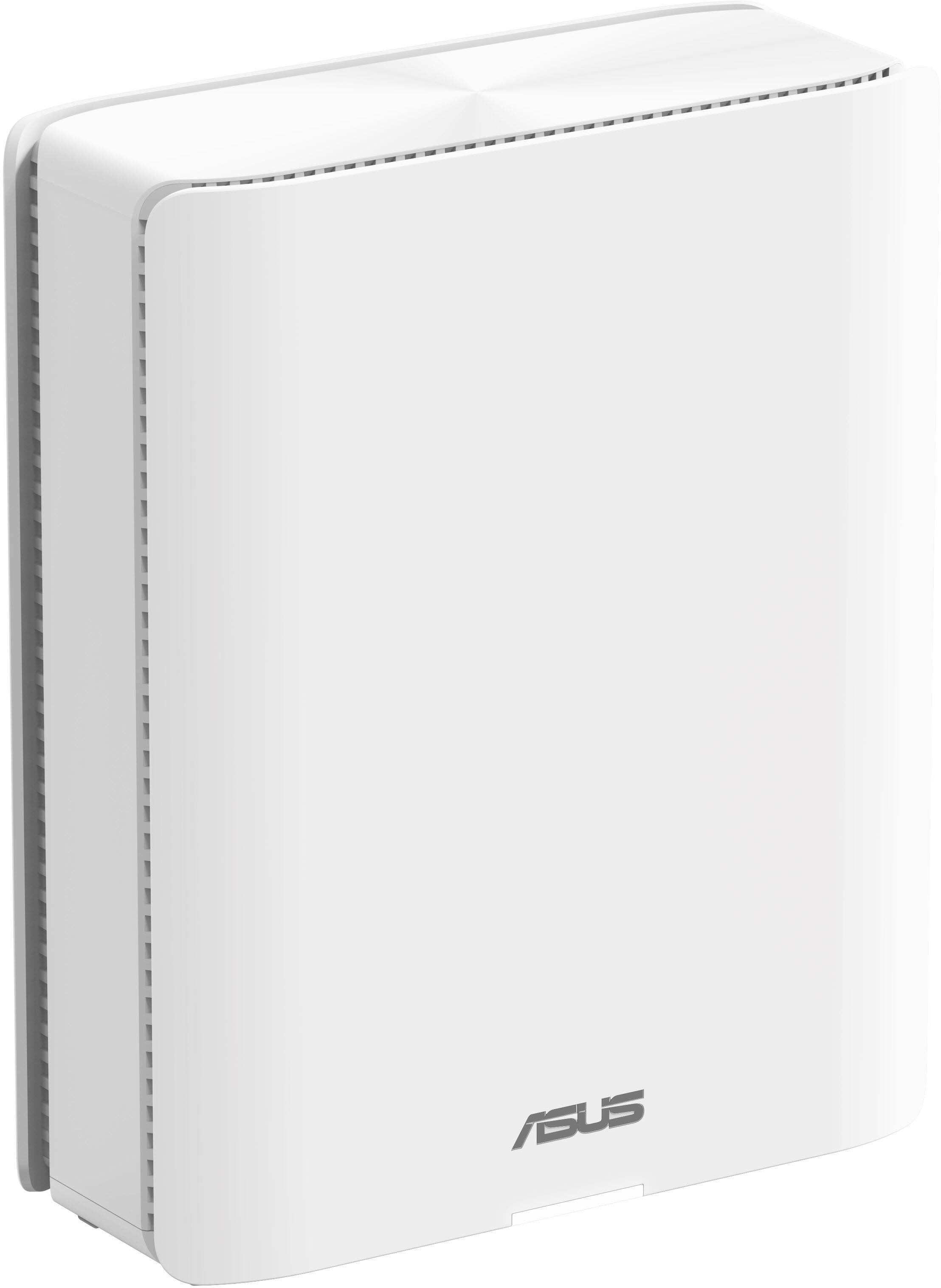
|Posted .This reviewer received promo considerations or sweepstakes entry for writing a review.I have had the BE30000 for a week or so now, and it has been one of the most frustrating and challenging networking components I have had to deal with. I’m including my experience here and what ultimately worked for me, although I didn’t really care for the solution I had to come up with. As an introduction, I have a 3,000 square foot, 2-story home. I have a large amount of electronic wireless devices, including cameras mounted outside the home in several spots, multiple TVs and gaming consoles, and laptops/cell phones. The previous mesh system I owned, made by another manufacturer, was quite expensive (compared to what I had owned before) and required constant reboots. I hoped that picking up a top-of-the-line mesh system such as the BE30000 would solved my issues. About the BE30000: Connectivity - Wow, connectivity is amazing! Multiple LAN ports on both the router and the nodes make for great flexibility. I have a network drive with Ethernet, an Ethernet pool controller, and a couple of other wired devices located in a separate room. The BE30000 node allowed me to keep those in the other room and connect them and control them just like they had been connected to the router. The BE30000 has standard 2.4 and 5 GHZ WiFi connection, as well as two 6 GHZ bands (one is intended for backhaul). The user can choose to use an Ethernet connection for backhaul instead of wireless, I’ll have more on the later. Ergonomics - The BE30000 is a nice looking bit of kit. The router and nodes are identical and have a nice, small foot print. They do get warm in use, but most electronics do. App - I liked the app. Easy to use, on both the Android and on the OS device I was using. I really liked the Web access though, accessed by typing in www.asusrouter.com. That really lets you delve into some of the advanced settings. Set up - Initial set up was rather simple. Connect the main router to the modem. Have the nodes in the same room. Power it all up, follow the instructions on the app. I ended up factory resetting the BE30000 multiple times during my time with it (more on that below), and found that the OS device I had on hand (an old iPad) was easier to use than my Android phone. Unfortunately, it was at the end of the setup process that I started running into problems. After the initial setup, the AIMesh nodes struggled to stay connected to the main router, which then led to issues with connectivity among my wireless devices. The main router would end up with 30+ devices connected to it, with nothing connected to the two nodes. Wireless devices on the other side of the house dropped off or had poor connectivity. The AIMesh nodes have LED lights in the base that inform you about the state they are in. A blue flashing light means that the node is trying to connect to the main router, a yellow light means that the connection between the main router and the nodes is poor, and a white light means that the connection is perfect. For the last week, those LED lights frustratingly switched from yellow to flashing blue. Every once in a while I would get a brief white light, but it only lasted for seconds before turning yellow. This would happen over and over again, resulting in the loss of connectivity I described above. It didn’t matter what settings I tried to change, how many web searches and solutions I tried to follow, how many times I power cycled everything, how many hours I waited to see if the flashing blue light would finally stop blinking, nor the 10 factory resets of the whole mesh system to start over; nothing fixed the poor connectivity between the nodes and the router. It didn’t matter if the nodes were 6 feet away from each other in the same room, all I could get after start up was a yellow LED that turned into a never-ending blinking blue. I almost gave up, put the BE30000 in a box, and sent it back. I even reached out to ASUS technical support to ask them what they could tell me about the issues I was having. No response from them. I stumbled across an old web post from someone who had an older ASUS mesh system. They said that what finally fixed their connectivity issues was to tie in Ethernet cables between the main router and the nodes. I had avoided doing this because I didn’t want to have to run extra wires to get a mesh system to work. But I gave in and did so. With all three components in the same room, I connected two Ethernet cables from the LAN outputs of the main router and into the WAN inputs of each node (both had blinking blue lights at the time). I waited a few minutes. Both nodes showed a flashing green light for a moment, then a yellow light, then flashing blue. I was about to throw my hands in the air and say never mind, I’m done, but then the LED lights went white. And stayed white! I checked the AIMesh map in the app, and sure enough, wireless devices throughout the house were disconnecting from the router and were now connecting to the nodes. Problem solved, right? Yes, but, unfortunately, it was only solved after a hardwired connection between the nodes and the main router. This wasn’t optimal for me because I don’t have an Ethernet wired house, and there is no way I can run (or want to run) Ethernet through the house. Fortunately, I had three Ethernet over power line adapters. I moved the router and the three nodes to their spots in the house, connected the Ethernet cables to the power line adaptors, and turned everything on. After booting up, I got good connection LEDs (white) around the house. Everything works perfectly now. Connections are super solid around the house. Outdoor cameras stream without an issue. No buffering on any of the streaming devices I have. Time will tell if there is a need to constantly reboot the system or not. I was hoping for so much more when I received the BE30000. But a nightmare setup, no response from the manufacturer when I asked for assistance, a very high price tag, and the inability to connect the main router successfully to the nodes without having to use Ethernet makes the BE30000 a poor choice in a mesh network for me.
No, I would not recommend this to a friendBrand response from ASUS Answers
Posted .Dear Derek,
Thank you for your comment and for sharing your experience with the Mesh router.
We do understand your frustrations, disappointment and the inconvenience this may have caused if you are experiencing wireless connection issues with the router using WIFI 7. Legacy devices, not supporting WIFI 7, may not work properly. If the router is running with an older firmware version, please install the latest version posted at: https://www.asus.com/us/networking-iot-servers/whole-home-mesh-wifi-system/zenwifi-wifi-systems/asus-zenwifi-be30000/helpdesk_bios?model2Name=ASUS-ZenWiFi-BE30000. If you need further assistance, please email me at cl-rodel@asus.com and I would be happy to help. Or, you are most welcome to call Product Support Hotline at: 1(888) 678-3688. Also, you can chat with an ASUS live support agent from the link: https://www.asus.com/us/support/article/1135/.
Thank you for choosing an ASUS product.
Regards,
Rodel
ASUS Customer Loyalty