Customer Ratings & Reviews
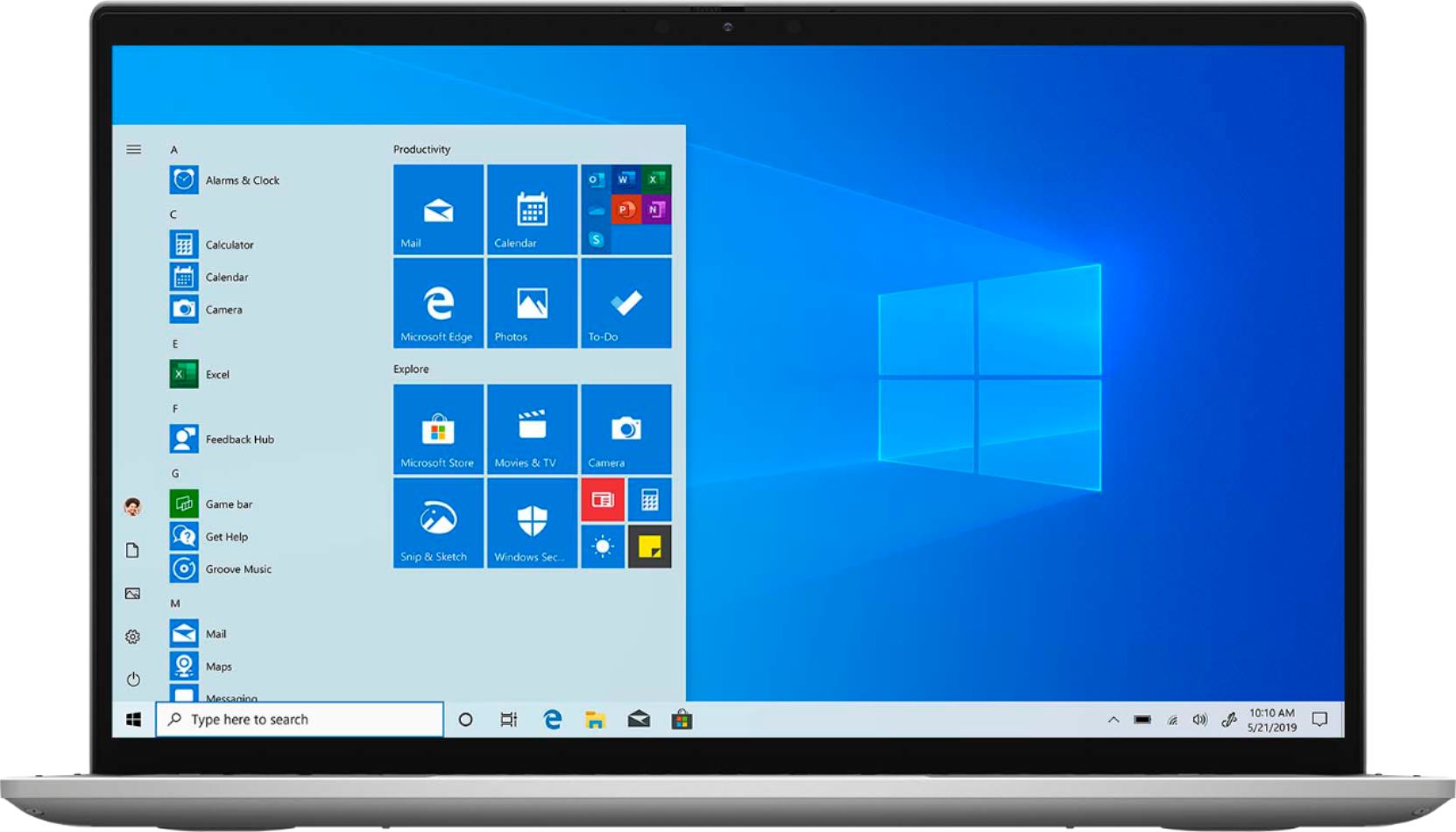
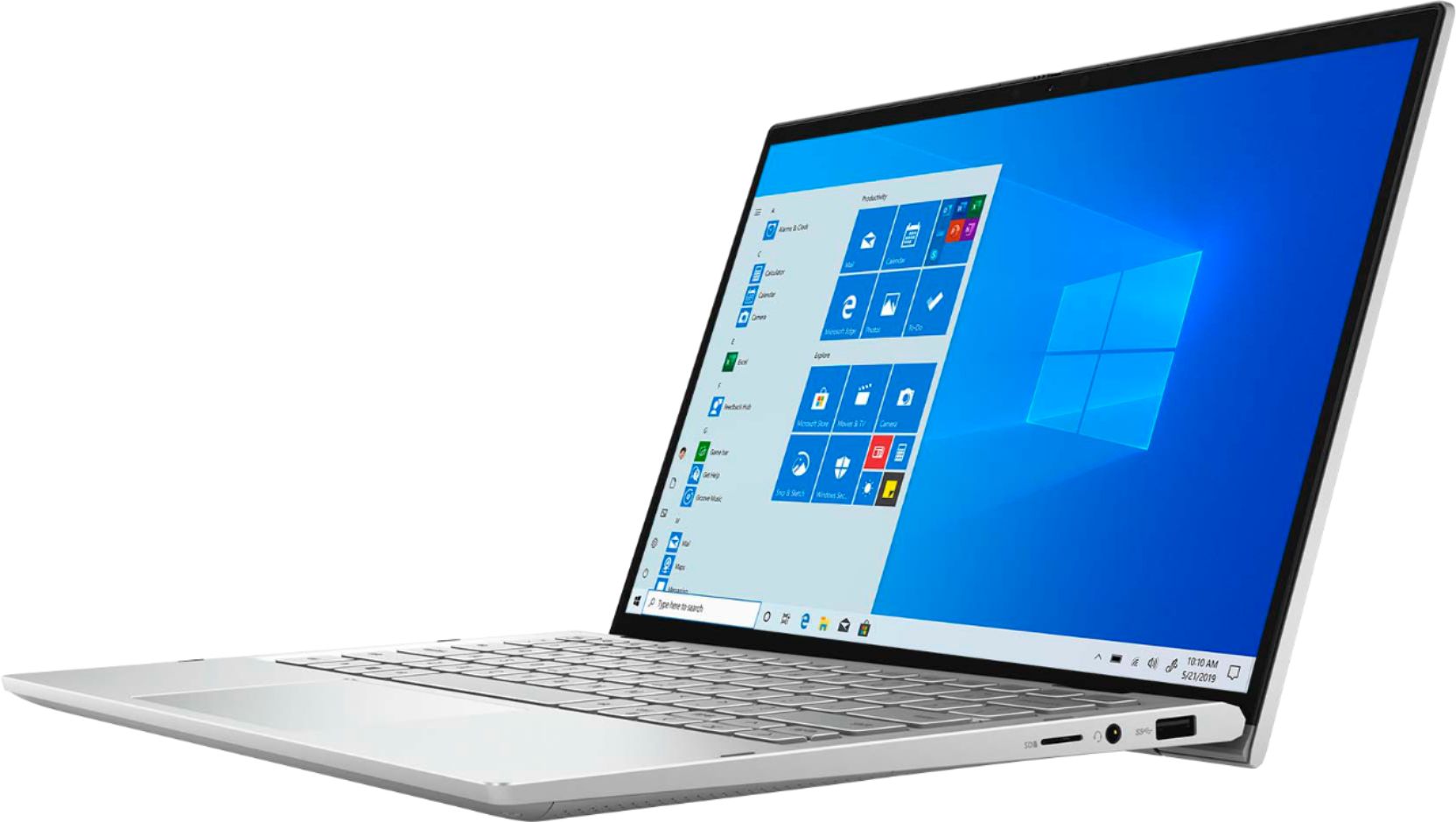
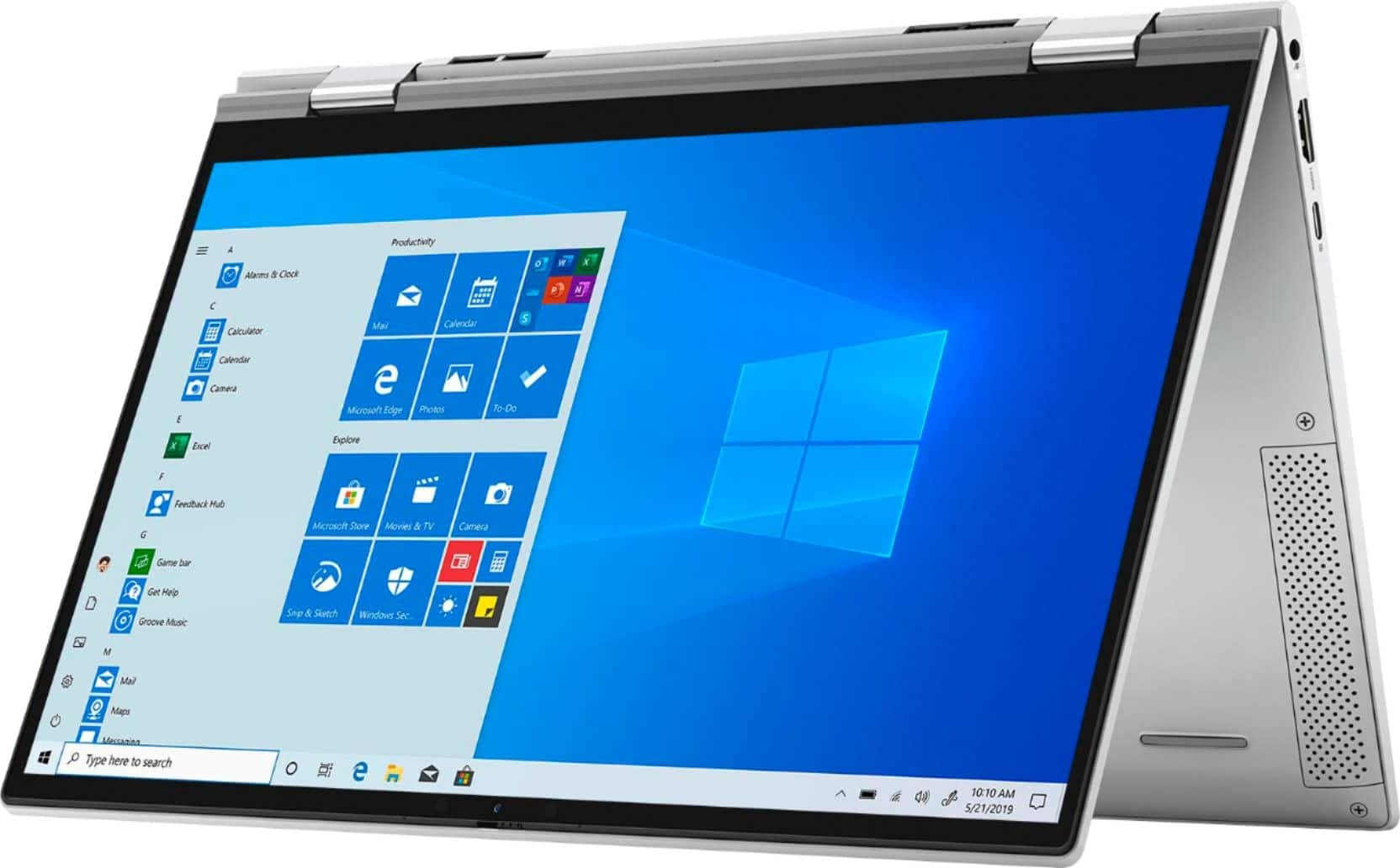
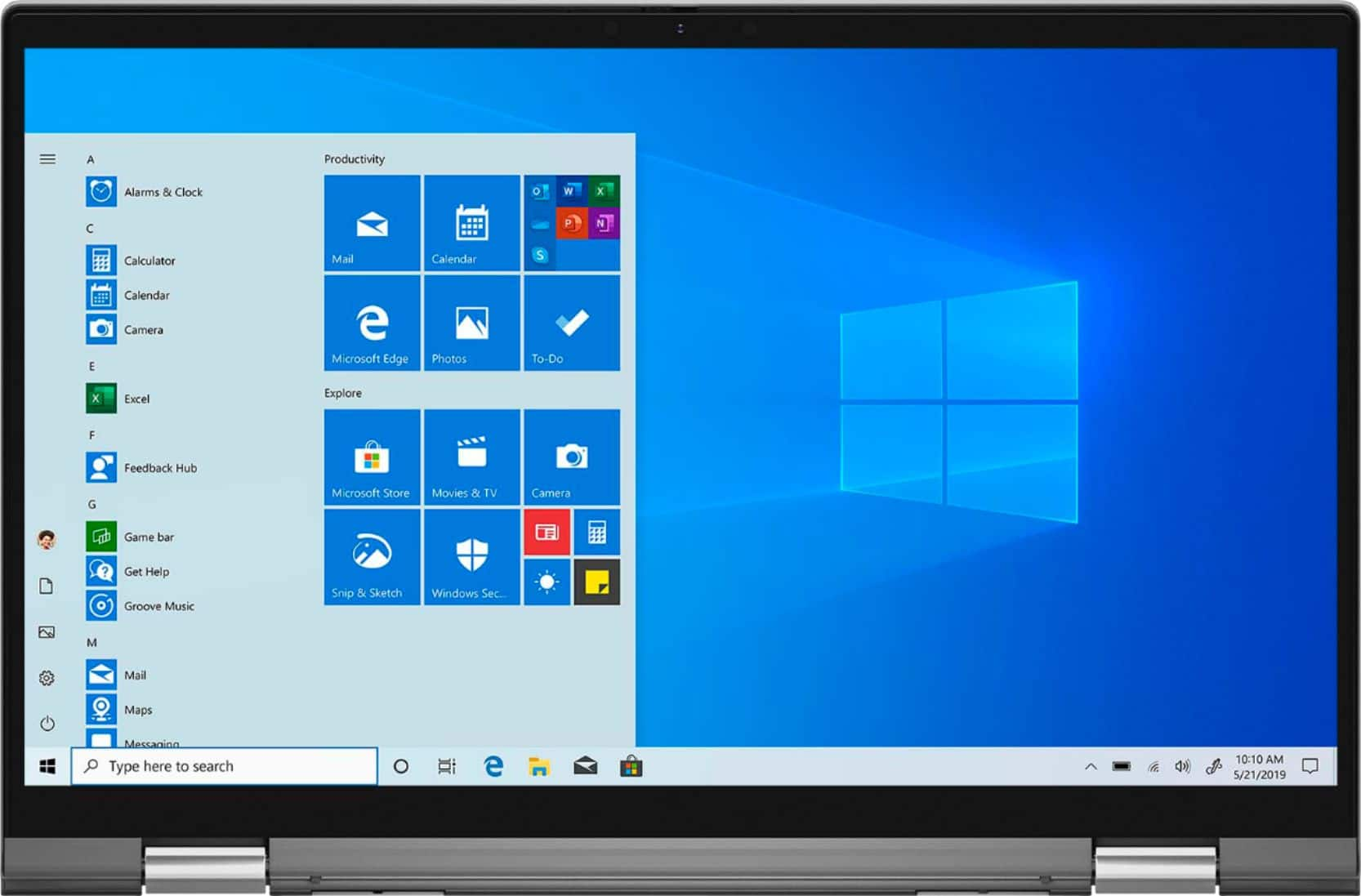





- Model:
- i7300-5395SLV-PUS
- SKU:
- 6409064
Rating by feature
- Battery Life
Rating 4.4 out of 5 stars
- Speed
Rating 4.4 out of 5 stars
- Display
Rating 4.6 out of 5 stars
Customers are saying
Customers are enthusiastic about the Inspiron 13 7000 2-in-1 laptop's portability, touch screen, speed, and lightweight design. They appreciate its compact size, fast performance, and reasonable price. However, some customers have concerns about its battery life, overheating issues, limited number of USB ports, and its unsuitability for gaming.
This summary was generated by AI based on customer reviews.
Bought it and returned it
||Posted . Owned for 1 week when reviewed.This reviewer received promo considerations or sweepstakes entry for writing a review.I bought this laptop because I wanted a 2 in 1 PC to use for my online courses but had to return it because the touch-pad was loose and made noise whenever using it and overall I felt it was of mediocre quality.
No, I would not recommend this to a friendWifi issues
||Posted . Owned for 3 months when reviewed.This reviewer received promo considerations or sweepstakes entry for writing a review.It is good for basic use when when trying to use a software, it lags and it has issues connecting to wifi consistently. Updating the laptop isn't straight forward,
No, I would not recommend this to a friendBrand response from YourDellTeam
Posted .Spride,
Thanks for your review and we're sorry to hear about the issues that you've been having with your new computer. We'd recommend the following tips to help with your connectivity:
1. Download and install the latest Wireless Card driver. (https://dell.to/2th3Tpe) After updating the driver, re-establish the connection with the Wireless Access Point and check the wireless performance.
2. If the issue persists, proceed to step 3.
3. Power-cycle the local network. Shut down the Dell system, the Wireless Access Point/Router and the Modem. Wait a minimum of 60 seconds before powering up the components in the following order:
4. Power ON the Modem, and wait for it to boot fully.
5. Power ON the Wireless Access Point/Router, and wait for it to boot fully.
6. Power ON the Dell system.
7. Open Network and Sharing Center
8. In the left side navigation pane, click on Change Adapter Settings
9. Right click on the wireless connection icon and select Properties followed by the Configure button
10. Under Wireless Options, select the Wireless N mode
11. For Windows 8 or later systems click the Advanced tab and look for 802.11n Mode on the right you will be given the option to Enable or Disable. If the mode is not visible you may need to update your drivers and firmware.
12. From the drop-down menu, choose Disable followed by Ok
13. This should restore the wireless download and upload speed. Internet speed can be tested at http://speedtest.net.
If you need help updating your computer we'd recommend running the Dell SupportAssist App on your computer to make sure that all of your drivers and software are up to date.
Best,
Bryan@Dell
If you require further assistance, you can contact Dell directly with the information below
Chat or Call:
https://bit.ly/DellSupportTeam
Phone number to Dell: 1-800-624-9896
Dell - Inspiron 13 7000 2-in-1 - 13.3" Touch-Scree
||Posted . Owned for 2 months when reviewed.This reviewer received promo considerations or sweepstakes entry for writing a review.Dell - Inspiron 13 7000 2-in-1 - 13.3" Touch-Screen Laptop - Intel Core i5 - 8GB Memory - 512GB SSD + 32GB Optane - silver found heating up and hanging and returned..
No, I would not recommend this to a friendBrand response from YourDellTeam
Posted .Joji,
Thanks for your review and we're sorry to hear about the overheating that you experienced with your computer. We're sorry to hear that you returned your computer but in the future here are some tips to help your computer operate at a cooler temperature:
Tips for Proper Usage:
1. Dell does not recommend placing portable systems directly on your lap. Due to reductions in the thickness of modern portable systems, heat transfer can be an issue.
2. Using a portable system (Laptop) on a hard, flat, non-cloth surface will increase airflow and reduce heat from underneath and inside the system.
Using the portable system on a blanket, pillow, or other types of cloth will cover up the fan cause the computer to overheat and can cause permanent damage.
3. It is recommended to use the portable system in a Room temperature of 0°C to 35°C (32°F to 95°F) with a Humidity level no greater than 90%.
4. Use compressed air to clean the vents on a regular basis.
5. Using a cooling pad can decrease heat and increase performance.
6. If you want to know the temperature limitations for your system, go to the Dell Support Website, look up your system model then open the user guide under the manuals link.
You can read the full article here - http://dell.to/2uJ8AdG.
Best,
Bryan
1-800-624-9896
- Cons mentioned:Battery life
Mr
||Posted . Owned for 8 months when reviewed.This reviewer received promo considerations or sweepstakes entry for writing a review.Doesn’t work well very disappointed Battery doesn’t keep its charge
No, I would not recommend this to a friendBrand response from YourDellTeam
Posted .Mahomed,
Thanks for your review and we're sorry that your computer is not performing as well as you hoped it would. If you'd like to increase your battery's runtime we'd suggest the following tips:
Change the Power Plan:
1. On the notification area of the taskbar, right-click the Battery icon.
2. On the options list, click Power Options.
3. Select a power plan on the battery meter, such as Power Saver or Balanced. Windows 10 has a built in 'Battery Saver' mode that can be activated to extend your system's battery life. The Battery Saver mode will monitor and limit background activity and other features such as push notifications. You do have the option to enable or disable this mode within settings or within advanced Battery Saver settings, you can customize the mode to best suit your needs.
a) Click on the Action Center icon in the taskbar and select the tile for Battery Saver.
b) If running Cortana then type Battery Saver into the search box and select from the results.
Within the Battery Saver settings page, you will be able to turn on and off the feature and customize the feature to best meet your needs.
c) Turn Battery Saver On or Off.
d) Additional settings available via the Battery use and Battery saver settings links.
e) Battery use shows further info on apps and their power usage.
f) Battery Saver Settings screen allows you to customize further Battery Saver feature.
You can read the full article here - http://dell.to/2vfXWf4.
Best,
Bryan@Dell
If you require further assistance, you can contact Dell directly with the information below
Chat or Call:
https://bit.ly/DellSupportTeam
Phone number to Dell: 1-800-624-9896
DELL
||Posted . Owned for 7 months when reviewed.This reviewer received promo considerations or sweepstakes entry for writing a review.DO NOT BUY FROM DELL! THEY WILL NO LONGER STAND BEHIND THEIR PRODUCTS! FOR A SYSTEM LESS THAN 8 MONTHS OLD THAT IS FALLING APART EVERY TIME YOU TRY TO OPEN OR CLOSE IT, THEY WILL NOT COVER IT AND ASK FOR MORE MONEY. STAY AWAY!
No, I would not recommend this to a friendBrand response from YourDellTeam
Posted .Hello,
Thank you for your review. We apologize for the issues you have come across with your Inspiron. We really do appreciate your feedback and will use it to help improve our current and future products. We strongly encourage you to visit the support page of your product to explore coverage options under your warranty: https://dell.to/3aRGlxo.
Best regards,
Wendy C.
For further assistance, you can contact Dell directly with the information below Chat or Call:
https://bit.ly/DellSupportTeam.
Phone number to Dell: 1-800-264-9896.
Don’t buy
||Posted . Owned for 1 month when reviewed.This reviewer received promo considerations or sweepstakes entry for writing a review.Screen cracked while safely stored in protective sleeve. I watched my husband slide it in, and store it away and then retrieve it this evening. As he opened it up we saw crack. Looks like it starts near hinge.
No, I would not recommend this to a friendBrand response from YourDellTeam
Posted .Sadnerd,
We're sorry to hear that the screen cracked on your new computer. If you have any technical questions about your computer you can always check our Product Support Page here: https://dell.to/2EnNQyT.
Best,
Bryan
1-800-624-9896
Screen Problem
||Posted . Owned for 1 month when reviewed.This reviewer received promo considerations or sweepstakes entry for writing a review.I bought this nov 27. I worked good till yesterday i.e, Jan 16 2021.Now the Screen got wierd lines poping up on the screen. I tried rebooting several times but the problem still persists.
No, I would not recommend this to a friendBrand response from YourDellTeam
Posted .Tharun,
Thanks for your review. We're sorry to hear about the lines that you're seeing on your screen. Here is a guide for you to reference Dell's Pixel Guidelines: https://dell.to/2lCLW0I.
Best,
Bryan
1-800-624-9896
Terrible laptop
||Posted . Owned for 10 months when reviewed.This reviewer received promo considerations or sweepstakes entry for writing a review.Terrible laptop. Issues after issues. Dell keeps "fixing" and it only gets worse. I wish I could get my money back :( I only have a couple of days left under warranty.
No, I would not recommend this to a friendBrand response from YourDellTeam
Posted .Dear Valued Customer,
We're sorry to hear about the issues that you're having with your computer. We'd recommend checking the Support Assist App on your computer to make sure that all of your drivers and software are up to date.
Best,
Bryan@Dell
If you require further assistance, you can contact Dell directly with the information below
Chat or Call:
https://bit.ly/DellSupportTeam
Phone number to Dell: 1-800-624-9896
Broke the first day
||Posted . Owned for 1 week when reviewed.This reviewer received promo considerations or sweepstakes entry for writing a review.Screen shattered and the cursor started moving on its own the first day. I had to take it right to Geek Squad where it will take up to a month to get fixed. Don’t waste your time or money
No, I would not recommend this to a friendBrand response from YourDellTeam
Posted .Momof3,
We're sorry to hear about the issues that you've had with your computer so far. We're glad that you were able to take your computer to Geek Squad to look at it for you. If you'd like to re-calibrate your touchpad when you get it back please follow these steps:
Some Notebooks and Tablets with Keyboards have added gesture features to the touchpad hardware and drivers. A few of these features are two or three finger scrolling, pinch zoom, circle zoom, rotate and swiping. These new features may be the reason for the erratic cursor movement since most are turned on by default. You can disable or modify the way the features work in the touchpad driver properties. Here are some tips to modify these settings:
1. In the Search box, type main.cpl.
2. Touch or click main.cpl in the list of programs.
3. Touch or click the Dell Touchpad tab.
4. Touch or click on the picture of the touchpad.
5. Touch or click Gestures (depending on your computer there may not be a Gestures option).
6. Change the options as preferred.
7. Touch or click Save.
8. Touch or click the X in the upper-right corner to close the Dell Touchpad Utility.
9. Touch or click OK on the Mouse Properties window.
10. If the touchpad still does not work after following the preceding steps, refer to Dell Knowledge Base article - http://dell.to/2iaiujA.
You can read the full article here - http://dell.to/2tqmS02.
Best,
Bryan
1-800-624-9896
Screen went bad, ghosting a glitches, unusable
||Posted . Owned for 6 months when reviewed.This reviewer received promo considerations or sweepstakes entry for writing a review.Screen went bad in 5 months, hardware failure, no drops, just flimsy screen frame, and intermittent screen internals, child can't go to school...... Not happy.
No, I would not recommend this to a friendBrand response from YourDellTeam
Posted .EngineeringDad,
Thanks for your review. We're sorry that your computer's build quality did not meet your needs. If you'd like to diagnose your screen issues you can use the steps on this page: https://dell.to/2NSyqI4.
Best,
Bryan
1-800-624-9896
Very disappointed
||Posted . Owned for 4 months when reviewed.This reviewer received promo considerations or sweepstakes entry for writing a review.Honestly, I’m very disappointed with this computer it’s super slow for a new computer, now it won’t connect to my wifi and I can even open some apps.
No, I would not recommend this to a friendBrand response from YourDellTeam
Posted .Hello Sara,
Thank you for your review. We are sorry to hear you are experiencing an issue with the performance of your PC. We recommend limiting your start-up programs and uninstalling any unwanted applications. I have provided steps on how to do both below. I have provided a link at the bottom to resolve the Wi-Fi issue you are experiencing.
Limit startup programs:
1. Close all open windows.
2. Press CTRL + Shift + ESC key together on the keyboard.
3. In the Task Manager window, click the Startup tab.
4. Select the program or application that you want to disable from loading during startup.
5. Right-click and select Disable.
6. Repeat Steps 4 & 5 for all the programs or applications that you want to disable from loading during startup.
7. Restart your PC.
Uninstalling or removing software or applications that you do not use or do not need from your PC can help speed up your PC. Applications may include background processes, system services, context menu entries, and other things that can slow down your PC. Uninstall applications you no longer need using Programs and Features (previously called Add/Remove Programs). Unnecessary applications occupy space on your hard disk drive. I have provided the steps on how to uninstall applications below.
1. Press the Windows logo key + R on the keyboard.
2. In the Run dialog box, type appwiz.CPL and press the Enter key.
3. In the list, select a program and click Uninstall.
Additional Performance Troubleshooting: http://dell.to/2tSulGV
Wi-Fi: https://dell.to/2RefLVN
For additional support, please call Dell directly at 1-800-624-9896
Best,
Lexy@Dell
Chat or Call:
https://bit.ly/DellSupportTeam
Weak frame
||Posted . Owned for 3 months when reviewed.This reviewer received promo considerations or sweepstakes entry for writing a review.The body is very fragile. This thing snaps like a twig at the hinges. It would have been great if it weren’t for that. Hopefully the warranty is good.
No, I would not recommend this to a friendBrand response from YourDellTeam
Posted .Jray,
We're sorry that the build quality of your new computer is not meeting your expectations. You can review Dell's One Year Limited Warranty terms here: https://dell.to/39iwZuX.
Best,
Bryan
1-800-624-9896
Totally disappointed
||Posted . Owned for less than 1 week when reviewed.This reviewer received promo considerations or sweepstakes entry for writing a review.the computer came with a manufacturer damage. Turn to hot when on. I had to return.
No, I would not recommend this to a friendPoor Quality Product
||Posted . Owned for 6 months when reviewed.This reviewer received promo considerations or sweepstakes entry for writing a review.Not happy with the quality. Did not even last a year and I am already facing hardware issues from 2in 1 use.
No, I would not recommend this to a friendBrand response from YourDellTeam
Posted .Hello Quality,
Thank you for your review. We are sorry about the trouble you have encountered with your laptop. We really do appreciate your feedback and will use it to help improve our current and future products. We have provided below some steps to to help diagnose the issue:
1. Restart your computer regularly.
2. Run the automated tools provided in the SupportAssist Tool.
3. Run a complete hardware diagnostic test.
4. Scan your computer for malware.
5. Restore your Dell computer using Windows System Restore.
6. Reinstall Microsoft Windows.
With the latest firmware installed, you should expect the most stable up-to-date experience. If the issue persists, this article https://dell.to/32wo0Ss contains further details that can help with your issue.
Best Regards,
Wendy C.
Dell Inspiron bad product
||Posted . Owned for 8 months when reviewed.This reviewer received promo considerations or sweepstakes entry for writing a review.I dont recommend this product the display supports crash my display
No, I would not recommend this to a friendReturned
||Posted . Owned for 1 month when reviewed.This reviewer received promo considerations or sweepstakes entry for writing a review.This item was returned because it kept freezing after using 2 days
No, I would not recommend this to a friend- Pros mentioned:Fast
No regrets
Posted .This reviewer received promo considerations or sweepstakes entry for writing a review.Best purchase ever! I've owned many laptops but not like this one. Very efficient, fast enough and never any issue with software or hardware.
I would recommend this to a friend PERFECTION !!!
Posted .This reviewer received promo considerations or sweepstakes entry for writing a review.Is everything you could want in a laptop and more !!! Screen is perfect size for students to teachers and everyone in between.
I would recommend this to a friendWould Recommend
Posted .This reviewer received promo considerations or sweepstakes entry for writing a review.Good laptop and just what my son needed to complete his schoolwork.
I would recommend this to a friendHas issues probably due to Optane Tech being buggy
Posted .This reviewer received promo considerations or sweepstakes entry for writing a review.Would be a great portable laptop for personal use if it didn't have power management issues. The problem is that it sometimes crashes when you want to wake it from standby. If you search the web, you'll see that this is unfortunately a common issue and I suspect it is due to the Optane technology. So I do not recommend Inspiron laptops specially with Optane. I initially thought it was a software issue and will most probably get fixed in an update, and therefore I didn't return it. I also trusted that Dell will eventually solve the issue since this is obviously a manufacturing defect. Big mistake. It never got fixed, and when I contacted Dell, they evaded their responsibility saying the warranty period is over. I strongly believe when there is a defect in a product before it is sold (as opposed to a defect that happens after the sale), the manufacturer is responsible to fix it regardless of the time, since they have basically not fulfilled their side of the bargain at the time of sale. So I'm disappointed at Dell.
No, I would not recommend this to a friend