Customer Ratings & Reviews
- Model:
- 10GBE9901
- SKU:
- 10731892
Rating by feature
- Value
Rating 4.5 out of 5 stars
- Quality
Rating 4.7 out of 5 stars
- Ease of Use
Rating 4.5 out of 5 stars
Amazing!
||Posted . Owned for 1 month when reviewed.This reviewer received promo considerations or sweepstakes entry for writing a review.Very useful for streaming. I was able to stream my Nintendo switch gameplay onto my pc so my viewers can watch. The audio had me a little confused setting up but after a video I was able to get it together.
I would recommend this to a friendBEST GAME CAPTURE!
||Posted . Owned for 3 months when reviewed.This reviewer received promo considerations or sweepstakes entry for writing a review.GREAT QUALITY IN VIDEOS! MONEY WELL SPENT! DEFINITELY RECOMMENDED!
I would recommend this to a friendMy favorite Capture card yet!
||Posted . Owned for less than 1 week when reviewed.This reviewer received promo considerations or sweepstakes entry for writing a review.Passed VRR for my Gaming live streams! And the HDR tonemapping Is fantastic! Love It!
I would recommend this to a friendElgato
||Posted . Owned for 3 weeks when reviewed.This reviewer received promo considerations or sweepstakes entry for writing a review.I like this one because easy to set up and use for stream ❤️
I would recommend this to a friendAmazing quality
||Posted . Owned for 1 month when reviewed.This reviewer received promo considerations or sweepstakes entry for writing a review.Every time I use it it works so well on all of my consoles
I would recommend this to a friendStreamer on YT
||Posted . Owned for 2 weeks when reviewed.This reviewer received promo considerations or sweepstakes entry for writing a review.Works great! Mac OS /PS5 Find me @ AJCoReTV on YT for further help
I would recommend this to a friendAmazing
||Posted . Owned for 2 months when reviewed.This reviewer received promo considerations or sweepstakes entry for writing a review.This capture card is a major upgrade from the HD60. The instant playback alone is enough to convince anyone in their right mind to purchase. 10/10
I would recommend this to a friend
Elgato Capturing my Heart and Sim Racing
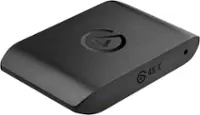
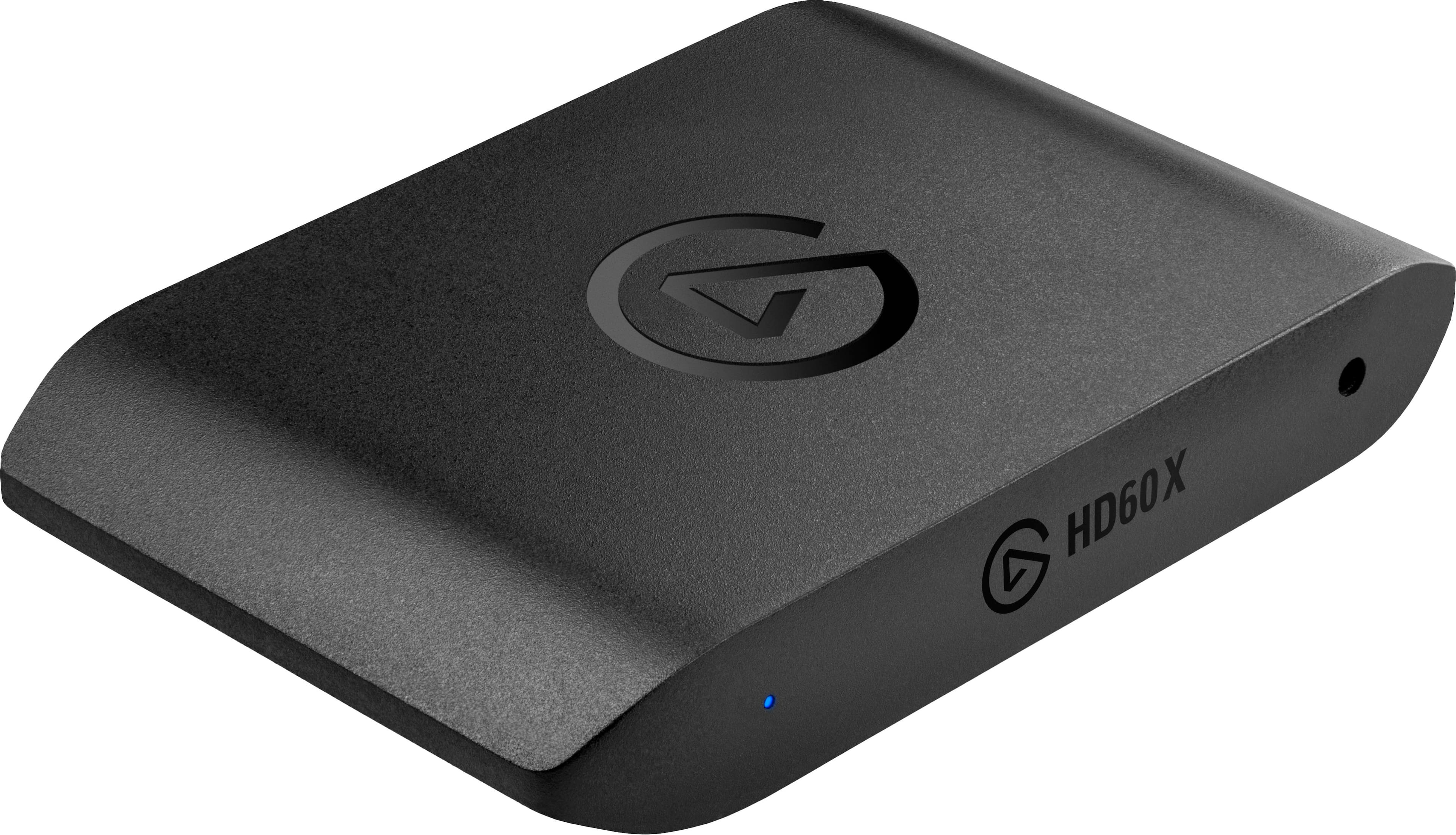
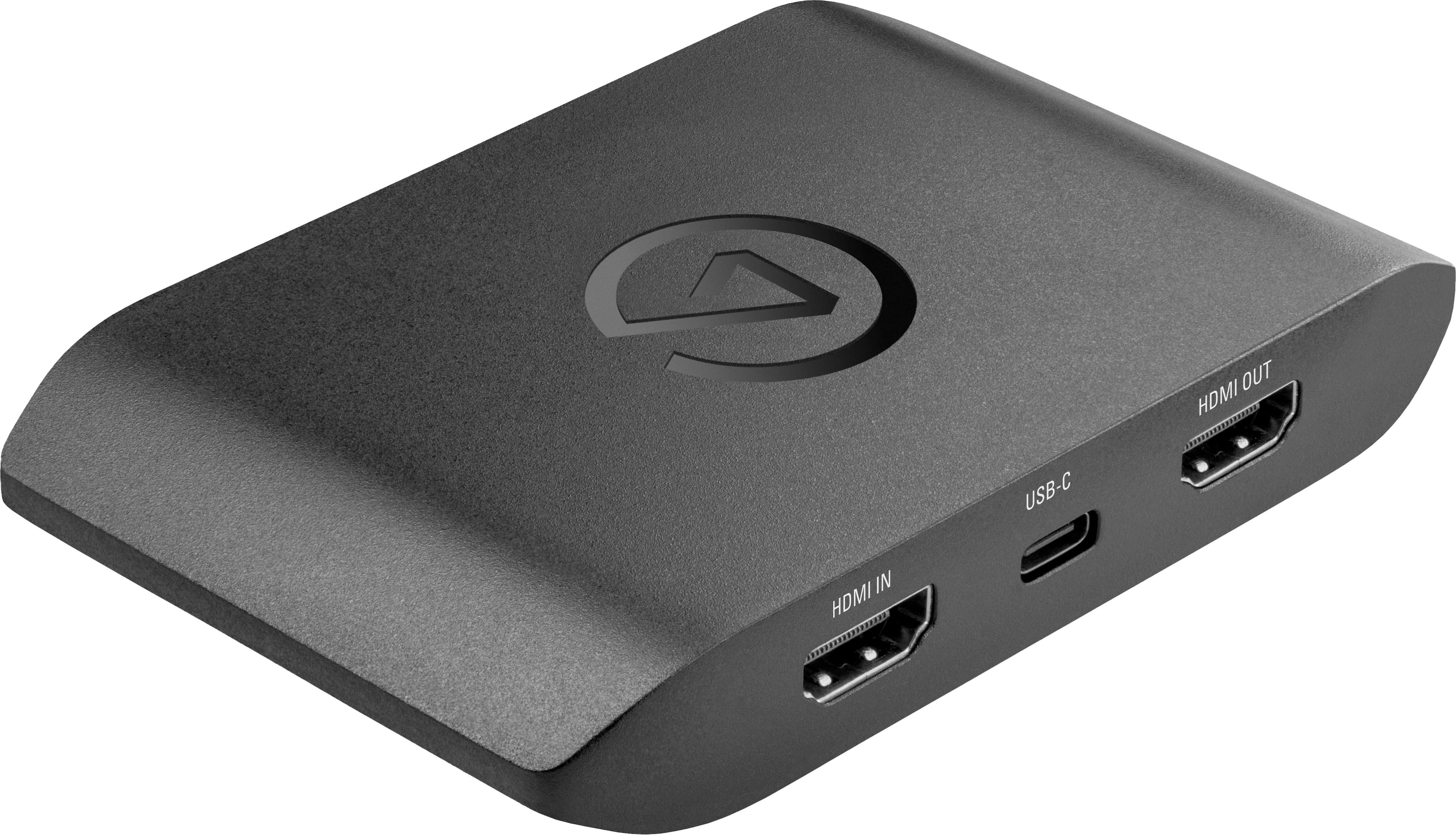
|Posted .This reviewer received promo considerations or sweepstakes entry for writing a review.Guess what consumer searching through Best Buy for a capture card, you can stop right here, no more searching needed, you have found what you are looking for, I promise. The Elgato HD60X is an updated version of the HD60S, replacing it at the same price point with with a much better design and more features packed into a great product. The HD60X is an entire new case design, which looks much more up to date with todays gaming systems and computer builds, it just plain looks great on my desk. The HDMI input and Outputs are on the back of the unit again helping for a clean desk setup and look making your work/gaming area look more professional especially if you are a streamer and the camera shows your desk area. The HDMI is a lag-free passthrough design according to Elgato with up to 2160p60, 1440p120, or 1080p240 signal, also adding VRR, and HDR(including HDR10) to the mix. I personally run a 1080p120 setup for Sim Racing and it never skipped a beat. I tried 1440p120 but my graphics card could not handle it as I only have a 3060ti, I am looking to upgrade to a 3090ti once I can afford it. The HD60X captures in the following per Elgato and I can confirm all but 2160p30. I was able to confirm 1440p60, 1080p60, 1080p30, 1080i, 720p60, 576p, and 480p with my 3060ti and not have any lag issues. My GPU does not give good results for 2160p at all anyways, so I did not test as I would not be able to give a truthful opinion on it. The Elgato HD60X also works great with the Elgato 4K Capture Utility. I did have one issue with OBS and the 4K CU software at first until I changed OBS Scene settings and boom, that was fixed. The 4K CU software is very simple to use and will make it so easy to get your gaming recorded in a timely fashion. I tested my Xbox X and S with great results but my PC is what I wanted to use the most with it. The Software does not play nice with Windows 11 at first, you have to download the Sound Capture for your main PC to make headphones work easily. I found Windows 10 does not have this issue, so I cannot blame Elgato or the HD60X for the issues, there is multiple sound issues with Windows 11 already. The Sound Capture work around was done so I could use my headphones off my main gaming PC yet get the secondary sound output through the HD60X into my recording laptop. The HD60X uses a USB-C output and includes a cable that is USB-C to USB-A for any PC connection making it standard. I did buy a C to C cable to test if C is any better since USB-C is known for higher speed. Honestly, it did make a positive difference in the recording at higher resolution and frame rates. If your PC has USB-C inputs, Best Buy sells a high end, thick C to C cable for under $20 in store and I highly recommend purchasing one. I fully understand and knock Elgato zero points on my review for not including a USB-C to C cable, it is not the standard yet, go with the norm on a corporate level is the correct move so everyone can hook theirs up the minute they get home with it. The Elgato HD60X does have an analog audio input and works just fine, but, utilizing the Dolby sound output through the HDMI makes for amazing sound capture. I was able to enjoy watching back my sim racing with amazing sound detail which makes hearing my throttle mistakes much easier for improving my races in the future. Flashback recording is pretty neat, I found it very useful because I found I needed to backup and start recording multiple times a lap or 2 back to catch other racers making mistakes or trying to cause a wreck to benefit off of it instead of racing clean. This is a great feature so you can go back up to 1 hour and hit record, making mistakes that you forgot to hit record, now it is not too late. Stream link is another awesome feature but you MUST have a complimenting high end computer to utilize it to the fullest. My Laptop is not a cheapo setup, it has a 3070ti with a Ryzen 9 processor, it handles it just fine and works great with OBS. I was able to record through the 4K CU while streaming live to Facebook via OBS through the Stream Link. It was very easy to setup and use, all the info is in the manual and takes minutes to have working. Also, one really amazing thing I was excited about was how much better my Stream Deck works with the HD60X over the other capture card I was using. I setup start and stop recording, audio changes and fading that work so much easier while recording that post processing. It took me a minute to figure out how to use them together but once I did, they are seamless and they should be since they are the same company. I am very excited to keep using this and will be going live much more while recording sim racing for my TikTok videos and for my racing club. I now can go into my chat groups and post some sick videos after I have time to edit them. I highly recommend the Elgato HD60X and their entire product line, I have many and will continue to keep switching over to the Elgato family of products.
I would recommend this to a friendAmazing product
||Posted . Owned for 1 month when reviewed.This reviewer received promo considerations or sweepstakes entry for writing a review.Amazing product if you are into streaming on YouTube or on Twitch I'll recommend it 10 out of 10
I would recommend this to a friendEssential to console and mobile gamers.
||Posted . Owned for 1 week when reviewed.This reviewer received promo considerations or sweepstakes entry for writing a review.Overall an amazing capture card works great for my gaming captures with any console I have and great framerates.
I would recommend this to a friendNice review
||Posted . Owned for 3 weeks when reviewed.This reviewer received promo considerations or sweepstakes entry for writing a review.This is my second one, the first one was broke in that box the product is really good for Xbox x not for PS5
I would recommend this to a friendA phenomenal product
||Posted . Owned for 7 months when reviewed.This reviewer received promo considerations or sweepstakes entry for writing a review.A very professional product with many functionalities
I would recommend this to a friendIt works
||Posted . Owned for 1 month when reviewed.This reviewer received promo considerations or sweepstakes entry for writing a review.It does its job there are small issue but those issue can be fix by a quick reset
I would recommend this to a friendReview
||Posted . Owned for 3 weeks when reviewed.This reviewer received promo considerations or sweepstakes entry for writing a review.Cuts in & out on HDMI. Constantly have to switch ports.
No, I would not recommend this to a friendOverpriced and nonfunctional
||Posted . Owned for less than 1 week when reviewed.This reviewer received promo considerations or sweepstakes entry for writing a review.This device does not come with an instruction booklet. It instead has an infographic of just plugging everything together. I shrugged, plugged the usb to my desktop and the hdmi to my switch, and nothing happened. I went and installed the special program from their website. It opened a window off my screen so I couldn't actually see it, and by the time I got it visible, the tiny corner of my switch screen I had been able to see had been replaced with a message informing me that my device was in use by another program. There was no other program. I called their tech support line. They don't open until 1pm EST, try again later. This device is difficult to use, poorly supported, and badly implemented in every way. When did hardware that needs software to run it stop coming with install discs? Why would a window insist on opening offscreen? For as much as they charge and the excellence they try to claim, Elgato should have a much more functional product. I am loathe to give a product which outright does not function even one star, but I cannot rate it lower.
No, I would not recommend this to a friendBrand response from Corsair
Posted .Hello,
This connects to the switch hub and not the switch, only for use while docked.
-Art
Excellent product
||Posted . Owned for 3 weeks when reviewed.This reviewer received promo considerations or sweepstakes entry for writing a review.Excellent product to make your stream easy to setup and play
I would recommend this to a friendWOULDN’T RECOMMEND
||Posted . Owned for 3 months when reviewed.This reviewer received promo considerations or sweepstakes entry for writing a review.WOULDN’T RECOMMEND!!!! Worked great for the first 3 months then all the issues started happening. I used this as an external capture card so I didn’t have to impact my GPU’s performance on in game FPS. Four Days after the three month mark of usage the device decided to take a vacation. Video throughput wouldn’t send signal if I had ANY other devices plugged into my computer. AND EVEN IF I disconnected EVERYTHING from my computer in order to get video output on my monitor it would religiously black screen periodically multiple times in a minute creating it unusable. Be weary of this product if you want reliability, because Elgato doesn’t know the definition of the word. -Usage: Asus GA503QS, Ryzen 5900HS, RTX 3080, 32GB Ram, external monitor ASUS TUF VG27AQ
No, I would not recommend this to a friendBrand response from Corsair
Posted .Hello,
Unfortunate you had this issue. Please know you can contact our team for assistance, right on our site.
-Art
The absolute best USB Capture Card for next-gen
|Posted .This reviewer received promo considerations or sweepstakes entry for writing a review.With the release of newer consoles capable of 4K resolution, and the Elgato PCIe capture cards keeping up with 4K pass-through, it’s nice to see a USB plug-in option that allows for a better user experience overall. In the box you’ll find the Elgato HD60X, a USB-C to USB-A cable, an HDMI cable for your device or monitor use, an Elgato sticker, and a basic safety guide. Installation is simple, just plug your existing output HDMI from your console (or HDMI device) into the input port, and use the included HDMI cable as the output to your Monitor or TV for pass-through. This has essentially become the top of the line USB external capture card, with all of the outputs/inputs now located on the back of the device for cleaner desk placement, and a 3.5mm audio jack in the front to allow for chat audio capture for those that want to use it. You can use the Elgato software to export the video to your OBS software of choice. You can capture resolution in 2160p at 30 FPS (frames per second), 1440p at 60 FPS, 1080P at 60 FPS, 1080P at 30 FPS, 1080i, 720P 60 FPS, 576P, or 480P (SD). You can also capture HDR content, but it will require using of the Elgato 4K Utility, which can be downloaded from their website. This offers similar options as the PCI-e capture cards offered by Elgato, in a small external form factor. This also offers Variable Refresh Rate for the first time, allowing for smoother capture from compatible consoles (Xbox Series X). The various options for capturing and exporting resolutions offered for streaming are various. For instance, you can play games on your console at full 4K HDR, while capturing at 1080P at 60 FPS with HDR or SDR, or even capturing at 4K at 30 FPS. If you want faster frame rate capture, you’ll get the have the option to capture 1080P at 120 FPS. During use, I didn’t notice any latency issues to my Monitor with my Xbox Series X at 60 FPS, allowing for fast gaming without worry of loss in picture. I primarily used the Elgato software to allow for the easiest setup and capture, paired with a Windows 11 PC. Viewing the footage was done with any compatible viewing software. Overall, if you’re looking to capture gaming content on your next-gen console with the best picture possible, this is a SOLID choice. Keep in mind there is no onboard memory on the device, so you will need to be tethered to a PC or Laptop, and will have the best experience using the 4K utility to perform the capture. If you’re gaming on the go, with a laptop, this packs up easily into your backpack or go-bag. I can’t say enough about how great the Elgato HD60X capture card is over their previous line-up, but I can confidently say this is best one on the market.
I would recommend this to a friendConstant freezing and audio issues
||Posted . Owned for less than 1 week when reviewed.This reviewer received promo considerations or sweepstakes entry for writing a review.Visually looks great, however it cant go more than 5 minutes without freezing or killing the audio. Very disappointing.
No, I would not recommend this to a friendBrand response from Corsair
Posted .Hi,
Sorry to hear about your experience. I suggest making sure your HD60 X' firmware is up-to-date via our 4K Capture Utility software: (help.elgato.com/hc/en-us/articles/5406375649933-Elgato-Game-Capture-HD60-X-Firmware-Update). If you have any questions or encounter any additional issues, please reach out - we'd appreciate the opportunity to assist: help.elgato.com
-Albert
GREAT 4K (+1080P HDR) USB3 CAPTURE and PASSTHROUGH
|Posted .This reviewer received promo considerations or sweepstakes entry for writing a review.ELGATO - HD60 X 1080P60 HDR10 EXTERNAL CAPTURE CARD FOR PS5, PS4/PRO, XBOX SERIES X/S, XBOX ONE X/S, PC, AND MAC - BLACK MODEL:10GBE9901 Best Buy Tech Insider Network GREAT WORKING 4K (or 1080P HDR) USB3 CAPTURE W/HDMI PASSTHROUGH OVERALL The ELGATO - HD60 X is really attractive (not some clunky box), well made, and high quality. You will find all you need in the box to get started capturing audio and video from a variety of sources. With VRR support the ELGATO - HD60 X targets capture from gaming consoles. It works great from PC sources as well. One important feature is HDMI PASSTHROUGH so you can “play” from a real screen without worrying what is happening on your capture system. If you are new to capturing (as I was), there is a little bit of a learning curve to use either Elgato’s 4K capture utility or shareware software like OBS. Stick with it. It took me maybe 8 hours to sort out audio and video settings in the various platforms to make everything work how I wished. Once I understood the software basics, the ELGATO - HD60 X worked well, and met my expectations. The resulting videos were great quality, which is mostly what matters to me. SOME TIPS: CABLES - Make sure you have modern 4K HDMI cables, especially if in intend to capture 4K or HDR. I would suggest a minimum of an HDMI 2.0 certified cable, but 2.1 is even better. 4K SETTINGS – Set your output source to 30Hz refresh rate. Ideally your capture system should also be 4K, although not required, it will make your life easier. Turn off HDR if you are trying to record 4K. GAME SETTINGS – Don’t forget to make parallel settings in your games, so the game does not change your video settings. AUDIO SETTINGS – Disable all the input/output audio sources on your source and target systems and only enable the ones you are using for your recording / streaming session. Also make sure all your input/output are matched to the same quality setting, such as 16bit 44Hz. VIDEO SETTINGS – Do some experimentation with different recording/streaming profiles to find what settings produce the best results. Especially for high refresh rates or resolution, you are going to want a decent graphics card on your capture pc, and change the settings to use “hardware acceleration”. HUBS – Try to avoid the use of hubs for video streams. Use a native 3.0 port when possible. DRIVERS – Take some time on all systems involved and make sure all your drivers are up to date, especially VIDEO, AUDIO, and USB drivers. I would even go as far as to recommend a 3rd party driver scanner/updater to find those hard to locate USB and Audio Drivers, that Windows Update will ignore. SET UP and PHYSICAL STUFF: Physically, setting up the ELGATO - HD60 X is as easy as it gets. Install an HDMI cable from your source device to the HD60X, then install an HDMI cable from the HD60X to your monitor. Next connect the USB port on the HD60X to your capture PC. Once the HD60X is powered on, the image will pass through from your source system to your monitor. Next on your recording target system install the software you want to use, either the Elgato 4K Capture Utility, or third party software like OBS. From there you have to add your audio and video source, choose your layout and the rest of the settings. I found both software products a little hard to use, and often crashed on my system, requiring a reboot to start over. Eventually once I stopped changing 20 things at the same time, the systems stabilized. My biggest problem was finding a place for all the cables. In my everyday gaming use, I am using Display Port Cables or USB-C cables for video. So, it took me a while to re-wire all my devices for 4K HDMI. I liked that the ELGATO - HD60 X ports are all on the back of the unit. I can leave the HD60X in place on my desk it looks attractive with all the cables out of the way. CONCLUSION / RECOMMENDATION There are lots of capture cards on the market, so it is important to choose a “card” that has a good company behind it for long term support. It is important to find devices that support current and emerging standards. Beyond the basics, if you want to actually record in 4K very few cards will do that. If you want to record in HDR even fewer cards support that. Finally, if you want true VRR support, I’m not sure there are any other cards in this range that support VRR. Fortunately, the HD60X does it all along with HDMI passthrough. I recommend the ELGATO - HD60 X for great and flexible 4K captures.
I would recommend this to a friend