Customer Ratings & Reviews
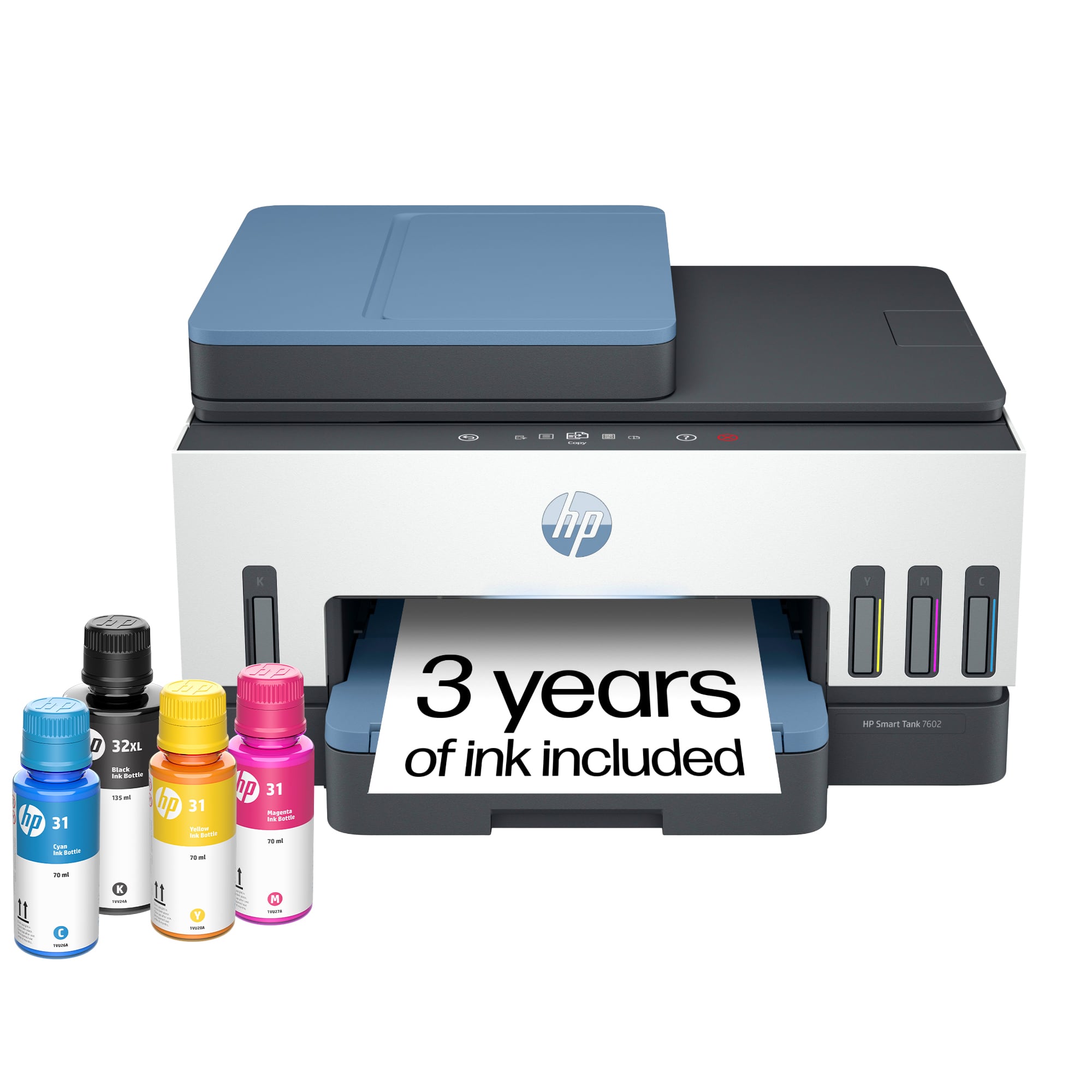





- Model:
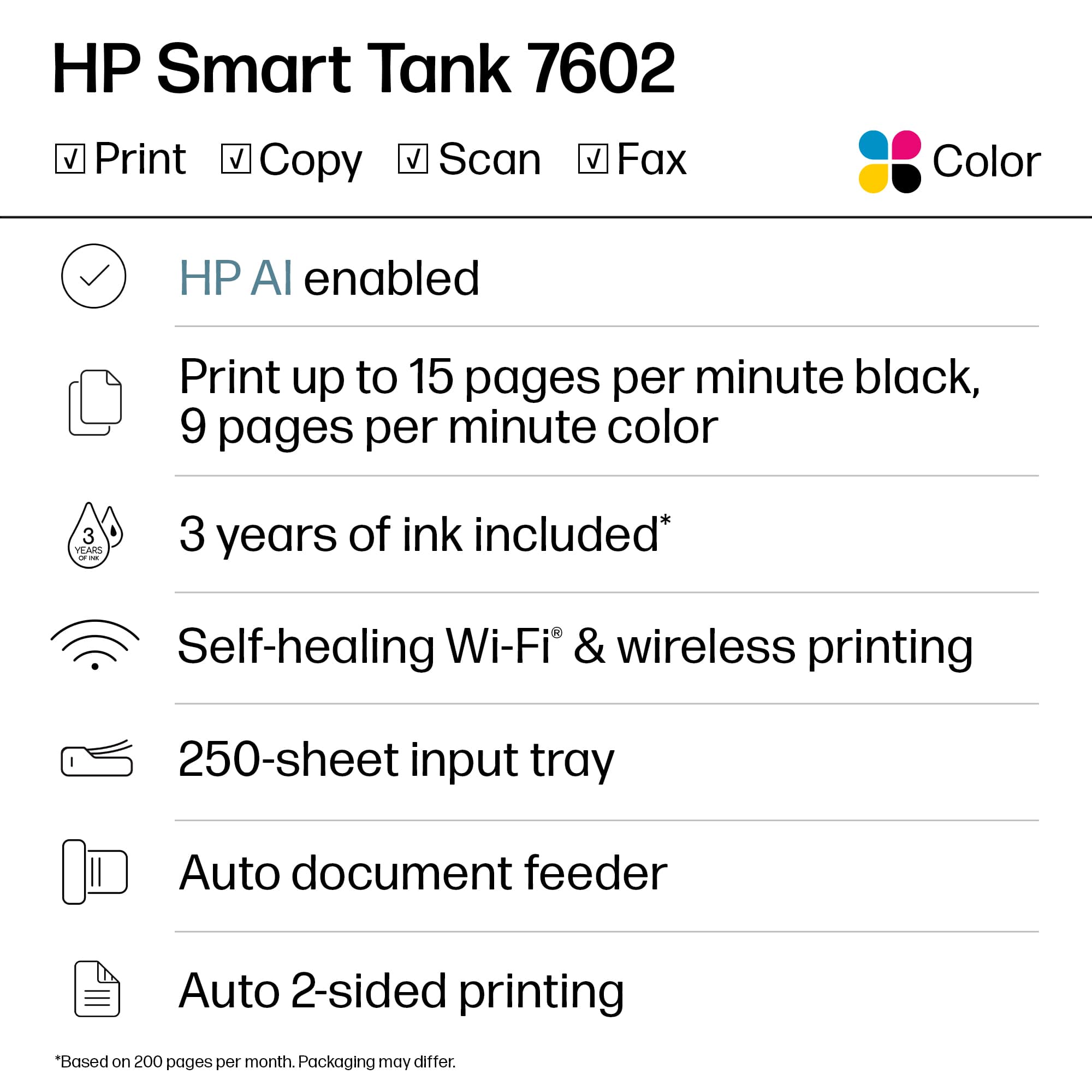
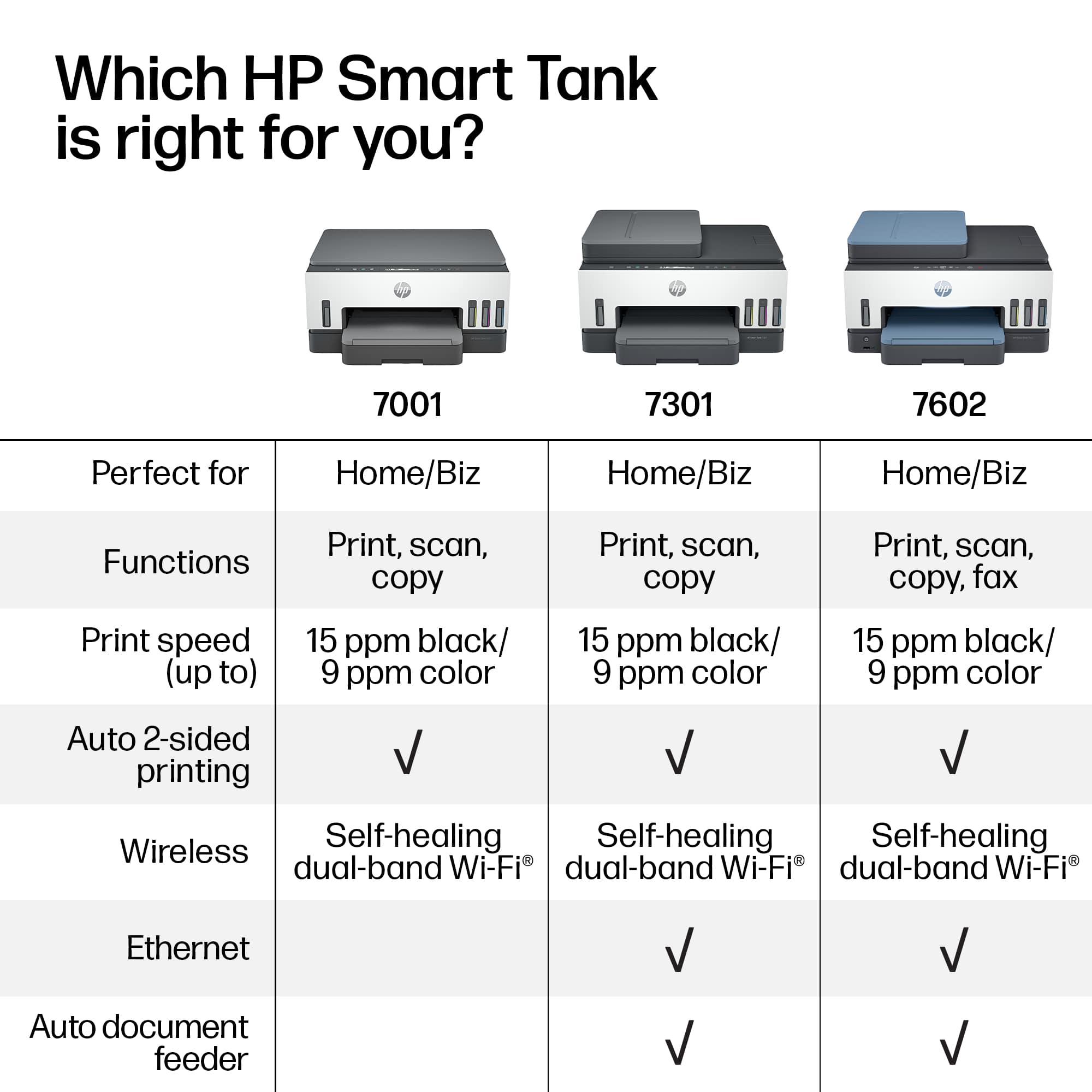
- HP SMART TANK 7602/28B98A#B1H
- SKU:
- 11232760
Rating by feature
- Value
Rating 4.4 out of 5 stars
- Quality
Rating 4.5 out of 5 stars
- Ease of Use
Rating 4.4 out of 5 stars
Smart tank printer
||Posted . Owned for 1 month when reviewed.This reviewer received promo considerations or sweepstakes entry for writing a review.Works great glad not to have to worry about ink anymore.
I would recommend this to a friend- Pros mentioned:Print quality

Quiet and Quick For Both Setup and Use
|Posted .This reviewer received promo considerations or sweepstakes entry for writing a review.Setting up a printer can be daunting. Fortunately setting this printer up was a breeze! I installed all of the inks before setting it up for wireless on my network. HP's software was simple and direct; it walked me through each and every step quite easily. My household has two separate networks; one 2.4ghz and a 5ghz. Devices for content consumption and work are on the 5ghz band, and my IoT devices utilize the 2.4ghz. Thus, I opted for setting the printer up on the 5ghz band and it was incredibly simple. For my Chromebook, the printer has to be on the same network band. Printing from a phone? Easy. Desktop? Easy. This is my first printer that uses separate inks as well as cartridges. Filling the ink reservoirs was easy! This printer replaces an HP that is now nearly a decade old. This one is much quieter and better looking. This printer does double-sided and collates! My only nitpick is that the opening hinges and their stops feel a bit weak. Pros: Quiet; easy to set up; sleeps/idles; prints double sided; large ink reservoirs; honestly a nice unboxing process. Cons: It uses more than 1w during sleep (This is still Energy Star rated); the hinges feel a bit cheap.
Worst printer
||Posted . Owned for 2 months when reviewed.This reviewer received promo considerations or sweepstakes entry for writing a review.Constantly dissconnects and freezes up have so much trouble trying to print will return
No, I would not recommend this to a friendPrinter broke
||Posted . Owned for 1 year when reviewed.This reviewer received promo considerations or sweepstakes entry for writing a review.Stopped working a while ago, paper jams frequently now stopped completely
No, I would not recommend this to a friendGet It Together
||Posted . Owned for 2 weeks when reviewed.This reviewer received promo considerations or sweepstakes entry for writing a review.No review; no one from the Geek Squad has yet to come to my house to set up my computer or printer/scanner.
No, I would not recommend this to a friendSmart tank 7602 allin one
||Posted . Owned for 1 month when reviewed.This reviewer received promo considerations or sweepstakes entry for writing a review.The updated printer was suppose to connect to the computer and cell phones easy. Wrong. Very frustrating!
No, I would not recommend this to a friendThey dont make them like they used too
||Posted . Owned for 3 months when reviewed.This reviewer received promo considerations or sweepstakes entry for writing a review.Dont buy this unless you get the replacement plan. I didn't and it lasted only 4 months
No, I would not recommend this to a friendNot worth the money
||Posted . Owned for 1 month when reviewed.This reviewer received promo considerations or sweepstakes entry for writing a review.More than one issue. Printer head issue and Wifi connection issue. Printed fine for maybe first couple weeks. Not staying connected and the printer head issue.
No, I would not recommend this to a friendPrinter
||Posted . Owned for 11 months when reviewed.This reviewer received promo considerations or sweepstakes entry for writing a review.Not a fan due to not using printers often so ink runs out. Also doesn’t have features I wanted in printer such as automatic double sided printing
No, I would not recommend this to a friendCrap Printer
||Posted . Owned for 2 weeks when reviewed.This reviewer received promo considerations or sweepstakes entry for writing a review.Do not buy, piece of crap! will not hook up to internet/router poor quality!!
No, I would not recommend this to a friendI want a replacement
||Posted . Owned for 9 months when reviewed.This reviewer received promo considerations or sweepstakes entry for writing a review.HP Junk with no resolution from tech support- error: this printer is no longer available
No, I would not recommend this to a friendGOOD BUT SLOWER
||Posted . Owned for 1 month when reviewed.This reviewer received promo considerations or sweepstakes entry for writing a review.SMART TANK PRINTER ARE NOT AS GOOD AS THE JETLASER PRINTERS, THEY ARE SLOWER AND NOT FAST ENOUGH PRINTING, THIS IS TRUE OF ALL PRINTER WE HAVE TESTED IF YOU DO NOT HAVE A HIGH VOLUME, THESE PRINTERS SHOULD WORK.
I would recommend this to a friendHorrible experience
||Posted . Owned for 3 weeks when reviewed.This reviewer received promo considerations or sweepstakes entry for writing a review.Printer says the print drivers failed 3 weeks after purchase. What a joke. Ho and Best Buy help lines are ill equipped to assist customers
No, I would not recommend this to a friendBuy something else
||Posted . Owned for 3 weeks when reviewed.This reviewer received promo considerations or sweepstakes entry for writing a review.Difficult set up. Stopped printing in color. Slower than advertised. Waste of money except as a door stop.
No, I would not recommend this to a friendNo thank you.
||Posted . Owned for 1 week when reviewed.This reviewer received promo considerations or sweepstakes entry for writing a review.Hated it. Returned it. That is all that needs be said. The item was a shocking disappointment.
No, I would not recommend this to a friendInk issues
||Posted . Owned for 3 months when reviewed.This reviewer received promo considerations or sweepstakes entry for writing a review.The ink gets smuggled all over the paper when printing
No, I would not recommend this to a friend- Pros mentioned:Print quality
A Great All-Around Printer for the Office or Dorm
|Posted .This reviewer received promo considerations or sweepstakes entry for writing a review.Likes: Packaged well. Easy to unpack and set up. Everything was laid out well and easy to find. Once plugged in, set up was easy and I was connected within minutes. I connected to my WiFi network and was up and running. I used WB Mason paper for my tests. Ink was easy to install and mess free. With the amount of ink included, I hope I can easily get a year or more without running out. I printed out various documents that included text and images. The text was clear and images were crips and colors were well saturated and looked pretty realistic. Printing speed was excellent and I had zero jams in printing out around 80 pages or so. The printer was not too loud and fine for any office or dorm room. Besides printing directly from my PC, I also printed out documents via my iPhone. Through the HP App, printing directly from your phone is easy. I was able to select the printer directly from my phone and within seconds my documents were printing. I printed out about 5 photos so far using regular paper. Pictures were decent and satisfactory. I cannot say colors burst off the paper, but would do for most uses. I tried a few photos with photo paper and the results were much better. Photos were clear. The only think I noticed were some colors did not match the colors from my phone, but I know that can happen. Colors did not bleed and looked crisp. Dislikes: I cannot complain about anything major with this printer. Yes, it takes up some desk space, but that is expected from a printer that does it all. Bottom Line: This is a printer that should serve well for any home office, small work space, or the aspiring student in a dorm room. The machine seems well built compared to other printers and I expect it to hold up for many years of service. Note - I find you need to use a printer at least once every few weeks or more to keep the nozzles from drying out. This has been pretty par with all the HP printers I have owned. Bottom line is that I recommend this printer. It does everything as advertised and does it well!
I would recommend this to a friend Don't buy if an iOS user!
||Posted . Owned for 3 weeks when reviewed.This reviewer received promo considerations or sweepstakes entry for writing a review.It will not print in color from my MAC. B&W is fine but the color just won't work.
No, I would not recommend this to a friend- Pros mentioned:Print quality
Great Printer
|Posted .This reviewer received promo considerations or sweepstakes entry for writing a review.This is a nice printer. I prefer HP printers but I have never had one with tanks for the liquid ink. I don’t do well with liquids and I tend to spill the contents but these were well designed. The printer was bigger than I thought it would be but it fits OK on my desk. I followed the instructions in the app & the instructions are very well done. Setting up printers is not my favorite thing to do but this app has some animation and it made it super easy for me to get the printer up & running. I had a rag ready for in case I spilled the 4 ink bottles but only got a few drops on my hands. This ink is suppose to last for a couple of years but this printer lives in the hot southwest of the US so evaporation does worry me so I will need to see how this works at this location. I had a little trouble connecting to my computer but I think it is because I don’t know where to find things on my new computer. I was able to print & scan to my desktop computer but I have not figured out how to scan & email documents. As with most HP printers, the print quality is excellent and I am very happy with this printer.
I would recommend this to a friend Practical and Economical Option for Home Office
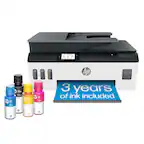
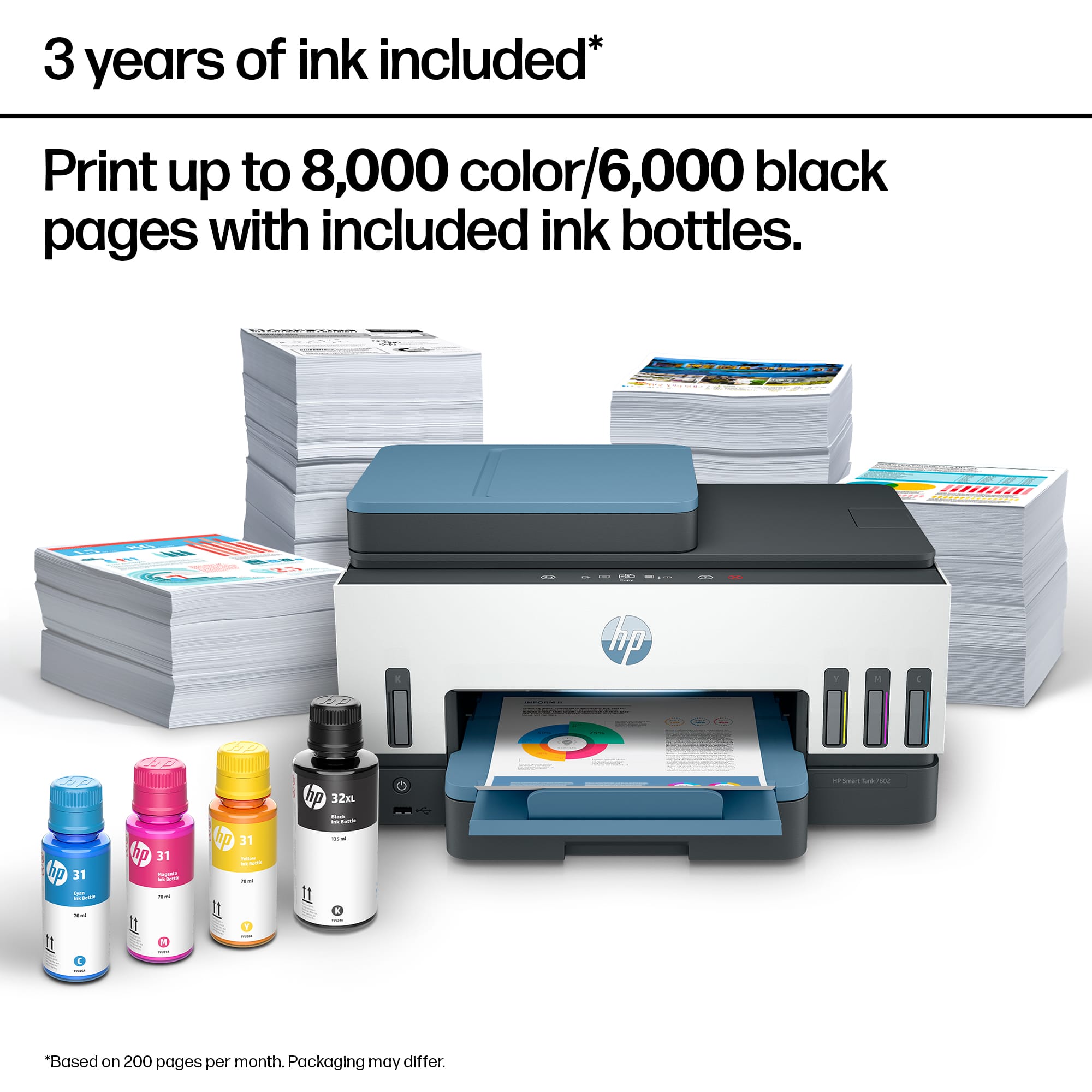
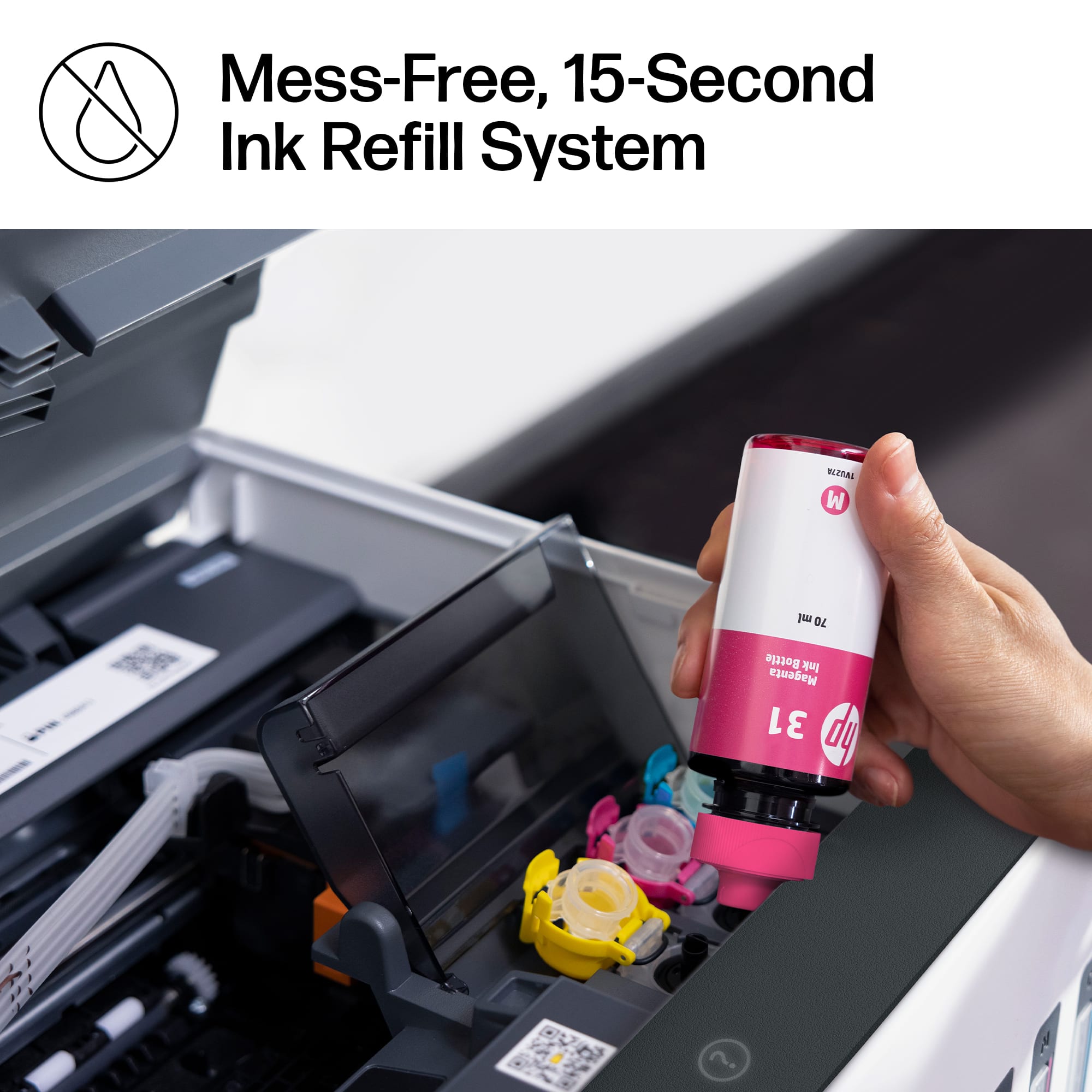
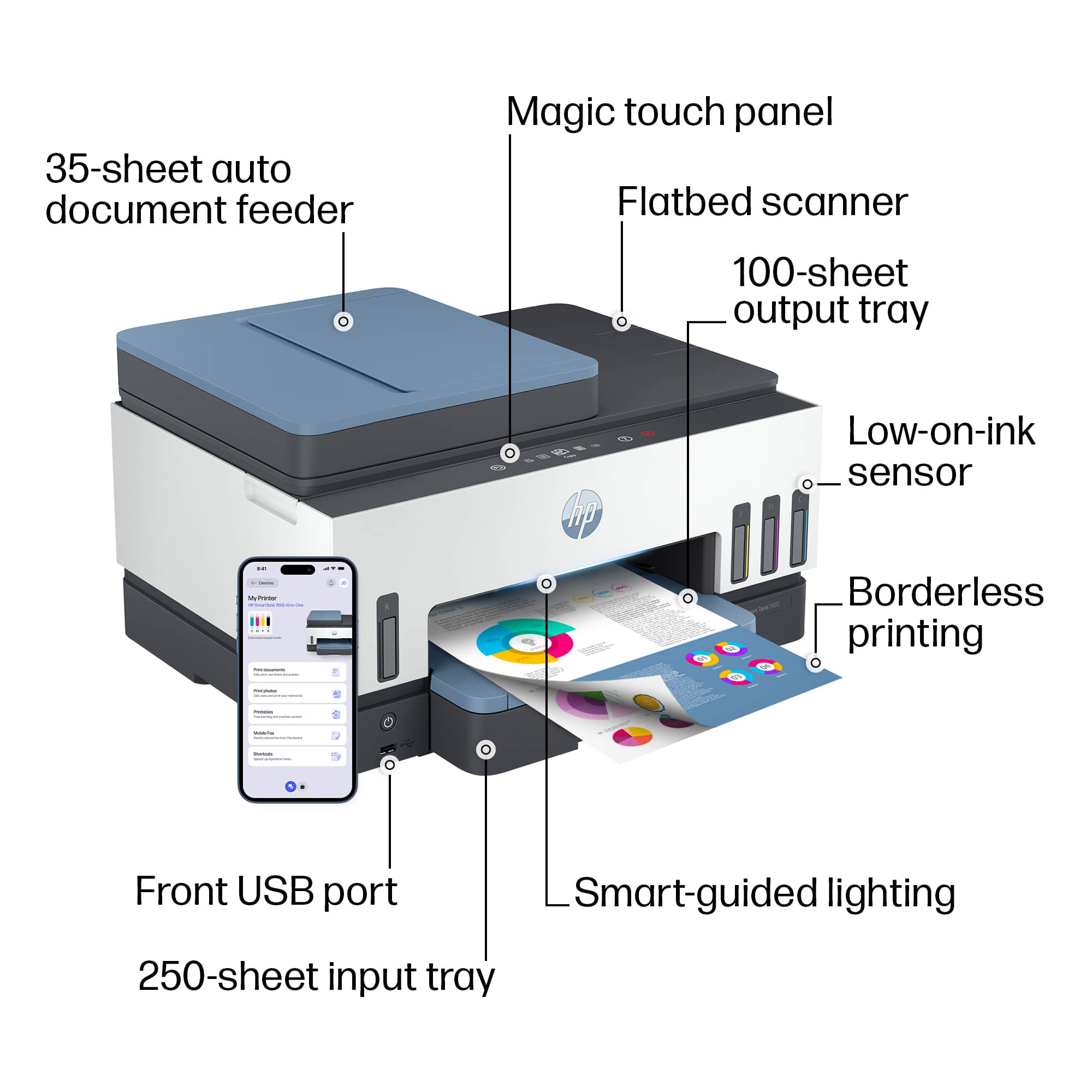
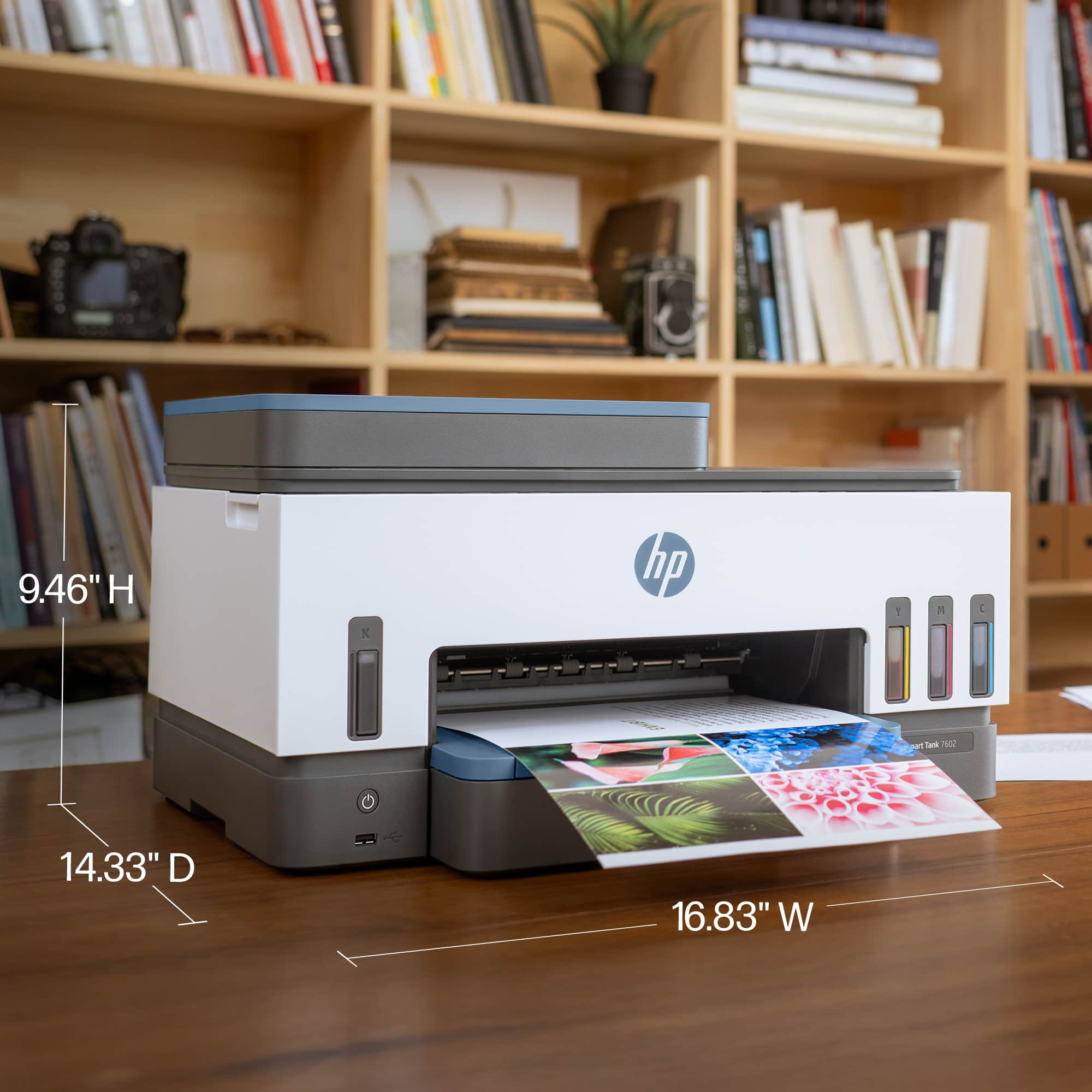
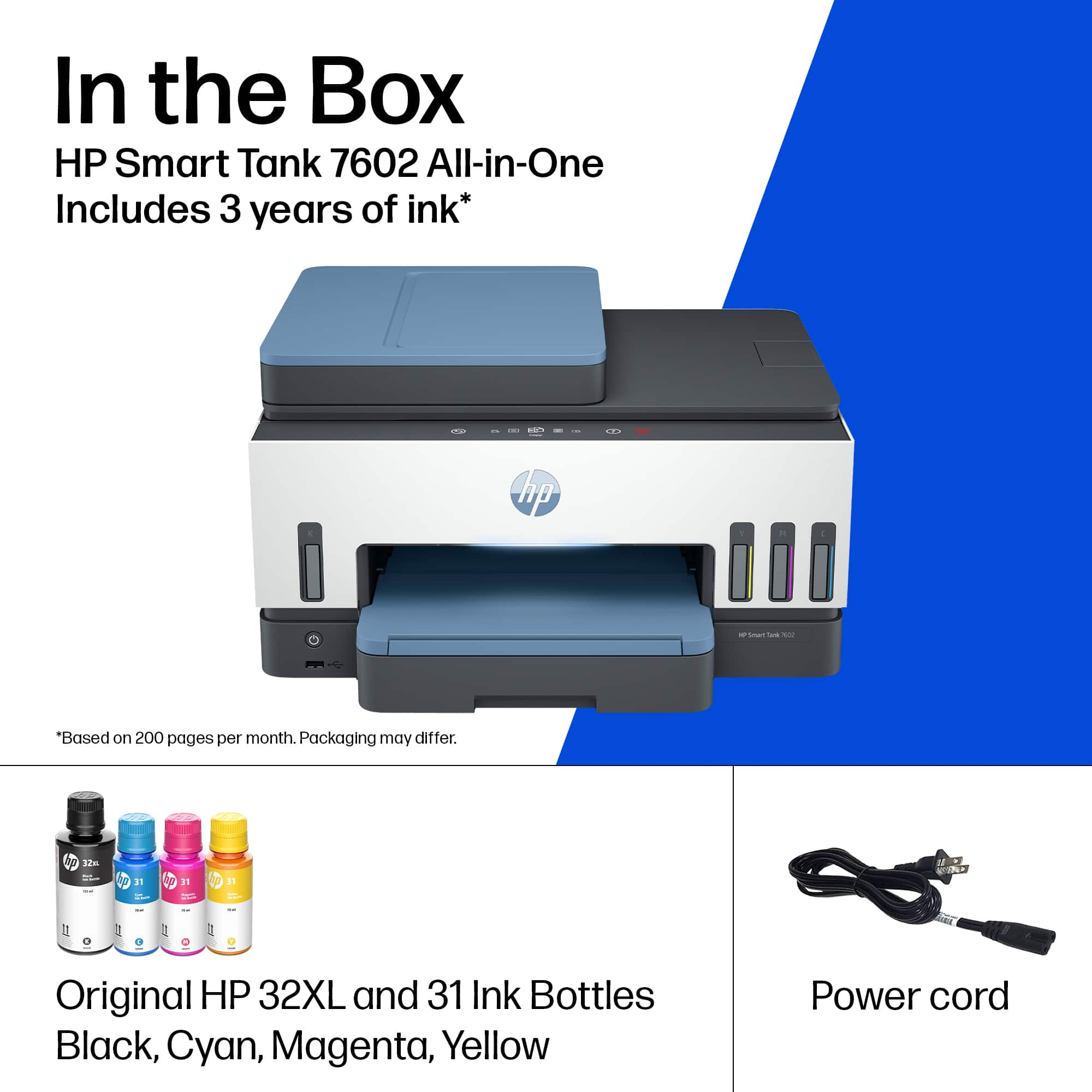
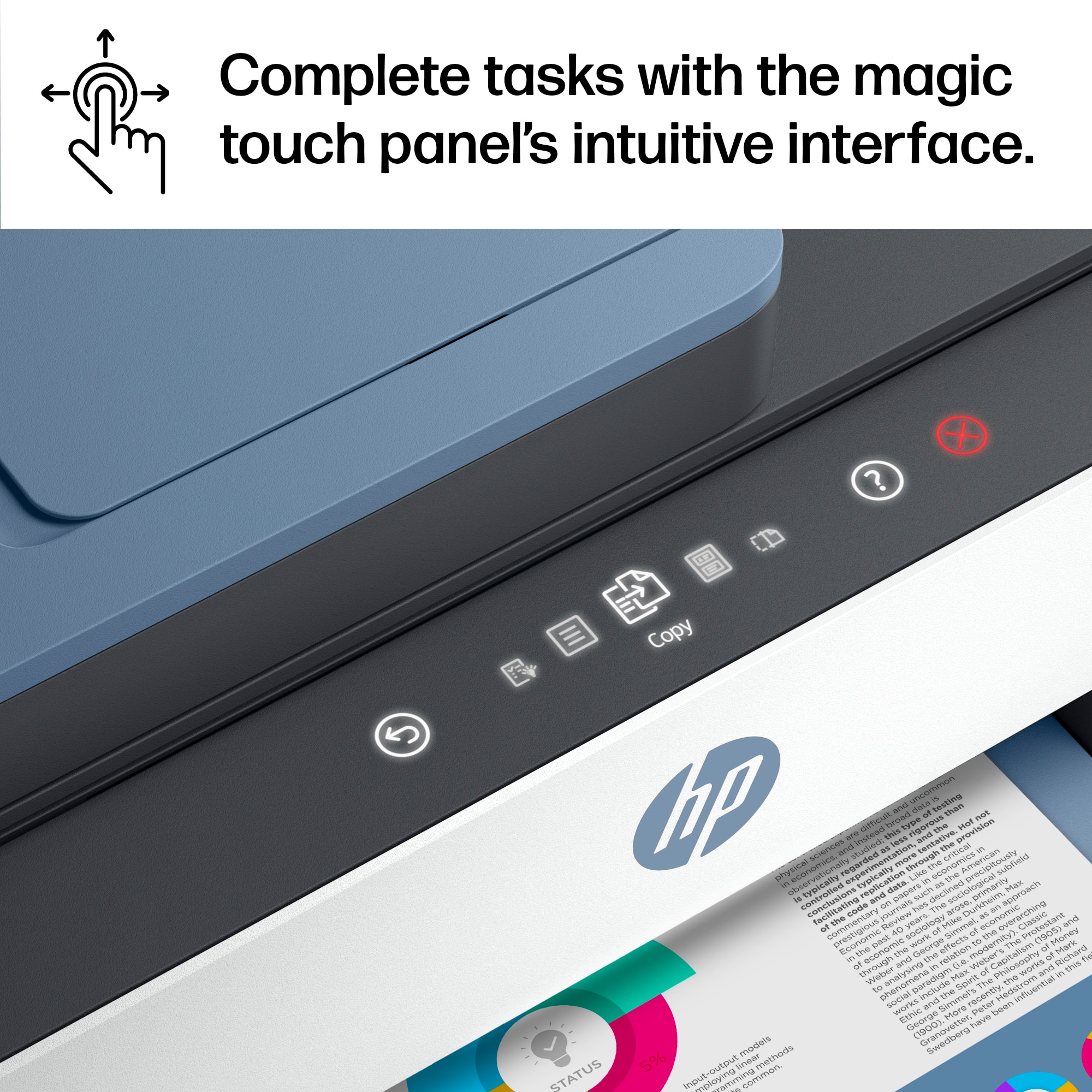
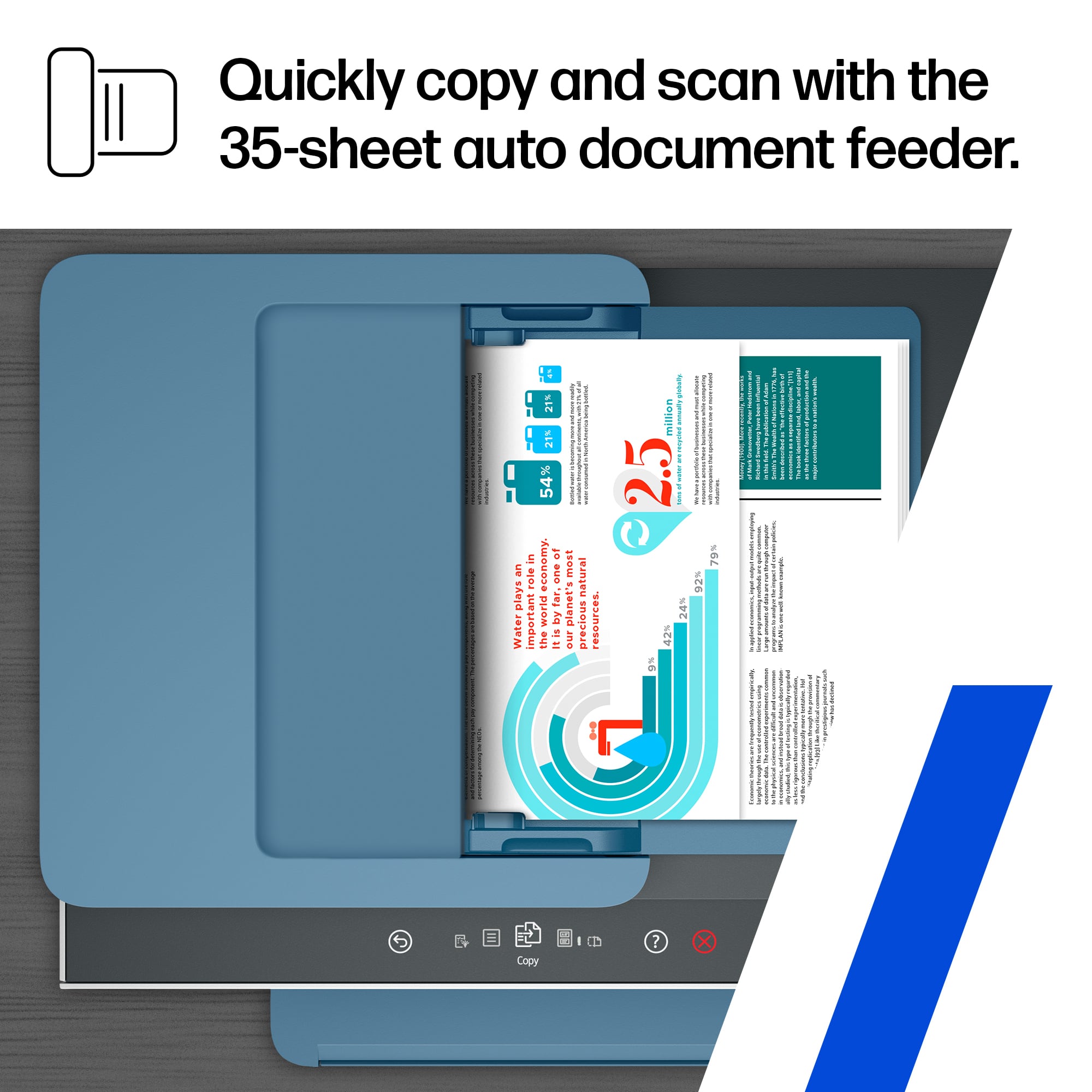
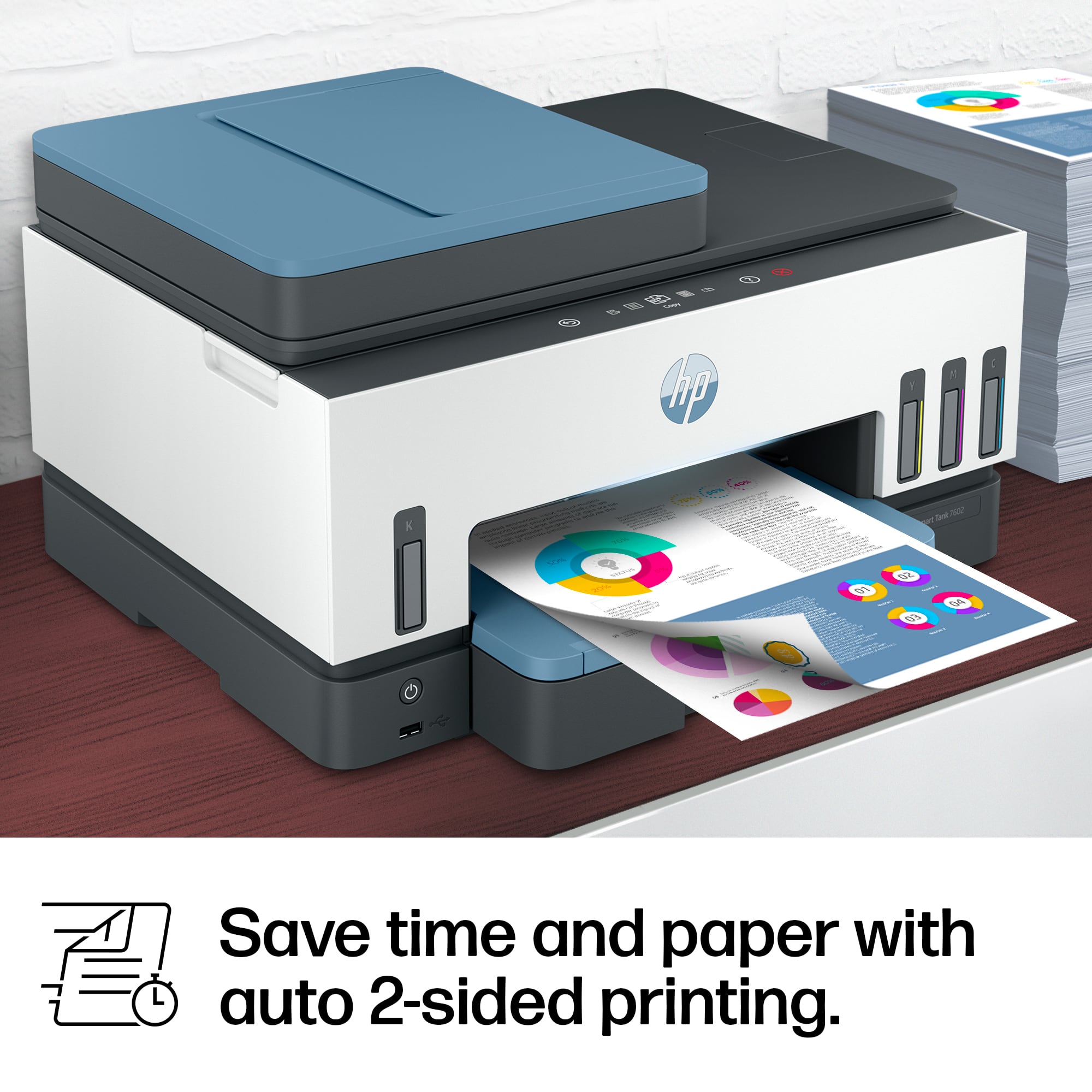
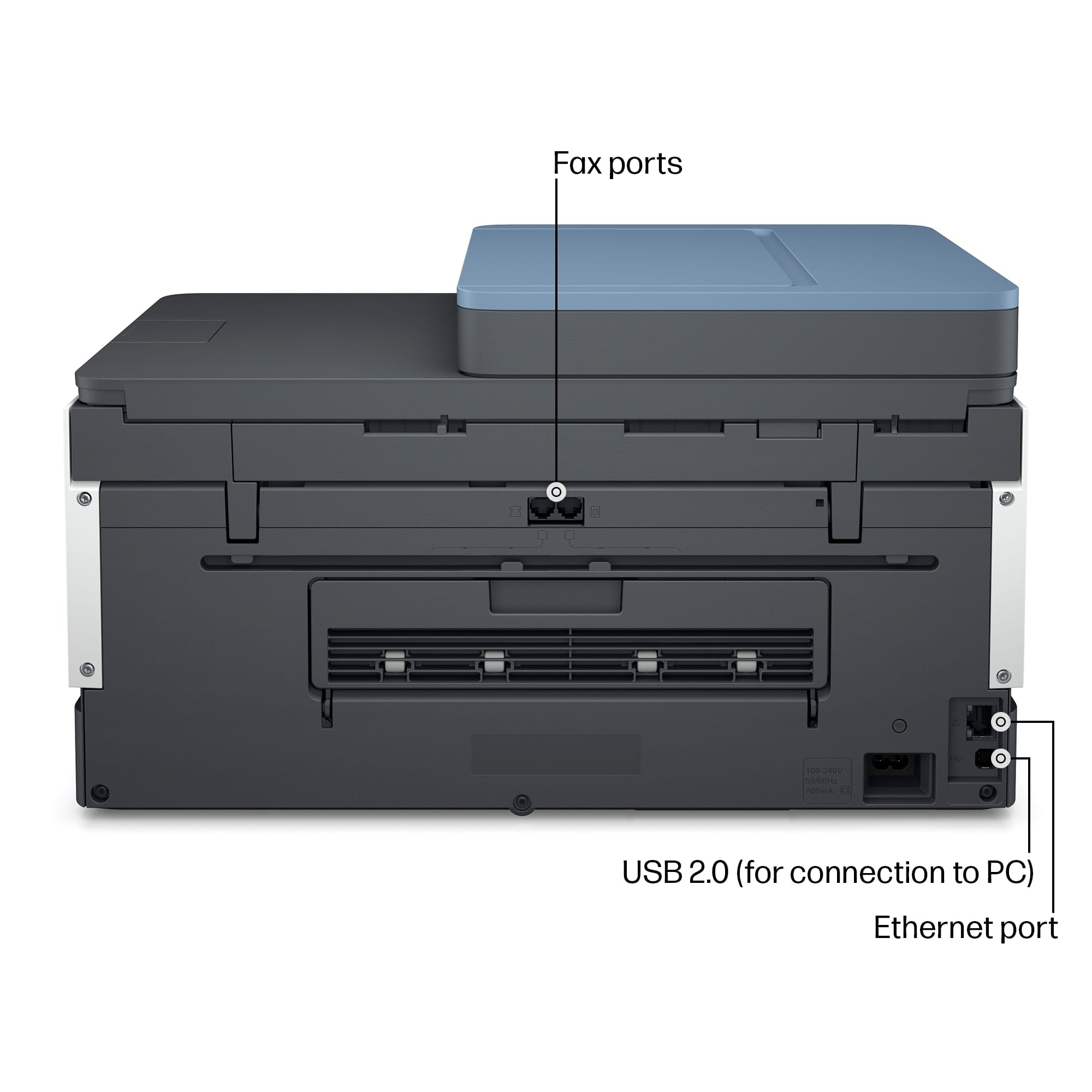
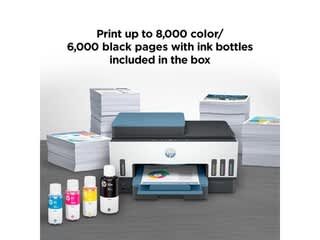
|Posted .This reviewer received promo considerations or sweepstakes entry for writing a review.If you are looking for a full-featured all-in-one color-capable device for your home/small office the HP Smart Tank 7602 is a good choice. The upfront price is high, but thanks to the Smart Tank system and its advertised 6-8K page prints per refill I expect its total “cost of ownership,” to be lower than similar less pricey cartridge-based ink jet or color laser devices. In addition to these cost savings over time, the need for less frequent refills is a real productivity boost with drastically fewer dreaded “low ink” notifications – usually minutes before a key meeting. And speaking of “low ink” notices, the Smart Tank 7602 has visible ink windows so there is never a Surprise! when you are out of ink. Initial set up of the Smart Tank 7602 to your computer or tablet requires the free HP Smart app, which is available for Mac, Windows, iOS and Android, and guides you through the set up. The printer’s control panel even displays a QR code to take you directly to the download for your platform. Personally, I first set up the printer one Wi-Fi with my Mac (MacOS 12). Easy and smooth process. Later I installed the iPad OS app on my iPad Air 5. Once installed I could use the printer and scanner from my Mac with or without the HP Smart app, and my iPad also recognized the Smart Tank 7602 with AirPrint. (More about the features in the HP Smart app later.) While the Smart Tank 7602 has Wi-Fi connectivity, you can also connect it to your computer with a USB cable (not included). The physical set up of the printer is easy too, though, a tad more time consuming than traditional inkjet printers. The printer comes with two empty printheads – black and color, and four bottles of ink. The ink bottles are no-spill; just screw off the cap, remove the seal, put the cap back on, and attach the bottle to the corresponding color tank. Repeat for all bottles and done. Then just pop in the printheads and you are essentially ready to use your new printer. Expect the entire set up process to take about 20 min. Using the Smart Tank 7602 is mostly intuitive, as an all-in-one device should be, but often is not. One unique feature of the Smart Tank 7602 is its touch screen control panel rather than traditional hard buttons. It gives it a smooth modern look and feel. Functionally, I found it to be a mixed bag. It does make drilling down menus quicker and more natural. But by that same token, the loss of direct function buttons like “two-sided copy” makes those tasks a bit more work. The screen scroll speed is also a tad too fast. I think adding haptic feedback could help here. On whole, the touch screen is a plus and it will certainly make cleaning the device easier since dust can’t fall in button crevices. The printer speed for documents is fast for an inkjet, around 15 pages per minute. It also can print two-side (“duplex”) also. The quality rivals laser printers. The paper tray holds 250 sheets and can hold up to legal size paper. Photo printing, on proper photo paper, compares to “one-hour photo quality”, though I’m unsure of the archival quality of the Smart Tank ink. For general business use though, yes, you can print photos for a presentation and be proud of them while also saving time (and money) by having your photos in minutes, not hours. As previously mentioned, the Smart Tank 7602 has with AirPrint compatibility so printing directly from your iPhone or iPad is easy. On whole, printing is a good experience. The one Achilles’ heel here is that there is no manual paper feed that I have found mentioned in the manual. So, to print a single envelope or small photo or any other one-off, the paper tray must be unloaded and then re-loaded with a single envelope or photo paper, then place your regular print paper back in. Earlier I mentioned the HP Smart app. In addition to using it for initial set up, this app has loads of useful features including scanning and faxing capabilities. I found the app excellent for mobile use (iPhone/iPad), but less useful on my Mac because I already use more business-grade PDF and photo scanning software on that platform. The good news is that my 3rd party software works great with the Smart Tank 7602 and recognizes it every time. I write this because I’ve had scanners in the past whose drivers were less than reliable and did not play well with non-bundled software. Even if you don’t use 3rd party scanning apps but also still don’t want to use HP Smart to manage your scans, you can make basic scans directly from the MacOS’s “Printers & Scanners” control panel or Image Capture app. On the hardware end of the equation, the Smart Tank 7602’s scanner has a 35-page document feeder to make capturing moderate size documents less painful. Scan speed is neither fast nor slow. Faster speed would be nicer, but clearly missing here is the ability to scan two-sided documents. If that is a feature you rely on this is not the all-in-one for you. Also, unlike the printer function, the scanner bed cannot accommodate legal-size documents. The mobile version of the HP Smart app is quite handy as a “one stop shop” for all the device’s capabilities. This is especially true if you use an iPad as your laptop because it acts as a virtual control panel. My favorite feature of the apps is the ability to scan documents with my iPad to save or send directly to the printer. It works by using the device’s camera as a scanner. Available save options include editable Microsoft Word files, searchable PDFs, JPEGs, HEIF, and a few others. You can save direct to your device or to a cloud drive service. Another business feature of the Smart Tank 7602 is its built-in fax. I don’t have a land line in my home office so I didn’t get to test this out, but I’m sure it works as any fax machine does. The back of the printer has phone jacks for “in” and “out”. HP seems to understand that land lines are on the wane though so it also incorporated mobile fax into the HP Smart app. The app sends your fax to HP’s cloud and forwards to the receiving fax machine. HP’s FAQ says it’s HIPPA (health records) compliant, so it clearly has security built into this process which is a necessity for business papers. This feature is apparently in “trial,” and is free during this period. It seems once this feature is officially released there will be a fee or subscription required. Even still, for infrequently faxes, it’s a time saver, and probably more secure, than going to a store to send a fax. The bottom line here is the Smart Tank 7602 is a smartly featured color all-in-one inkjet for moderate monthly use in a home or small office setting. The star here is the Smart Tank which keeps the “per print” cost down while also extending the time between needing to refill ink. For color I don’t think there is a lower “cost of ownership” option. Both traditional cartridge inkjet and color laser printers can be bought for less, but the ink for those will make their “per use” cost much higher. Functionally, the Smart Tank 7602 has all the basic features a home office needs: print, scan, fax, copy. However, while it can print two-sided, it can’t scan two-sided documents. It also can’t scan legal size documents. Depending on your activity, that may or may not be a deal killer, but it’s important to know before buying to avoid frustration. The addition of the HP Smart app for mobile devices is also a value-added and convenience for those who use their iPad as a “laptop,” since it puts all the Smart Tank 7602’s feature in one place.
I would recommend this to a friend