Customer Ratings & Reviews
- Model:
- B0CG2VS5FD
- SKU:
- 11911768
Rating by feature
- Value
Rating 4.8 out of 5 stars
- Quality
Rating 4.8 out of 5 stars
- Ease of Use
Rating 4.8 out of 5 stars
EZ
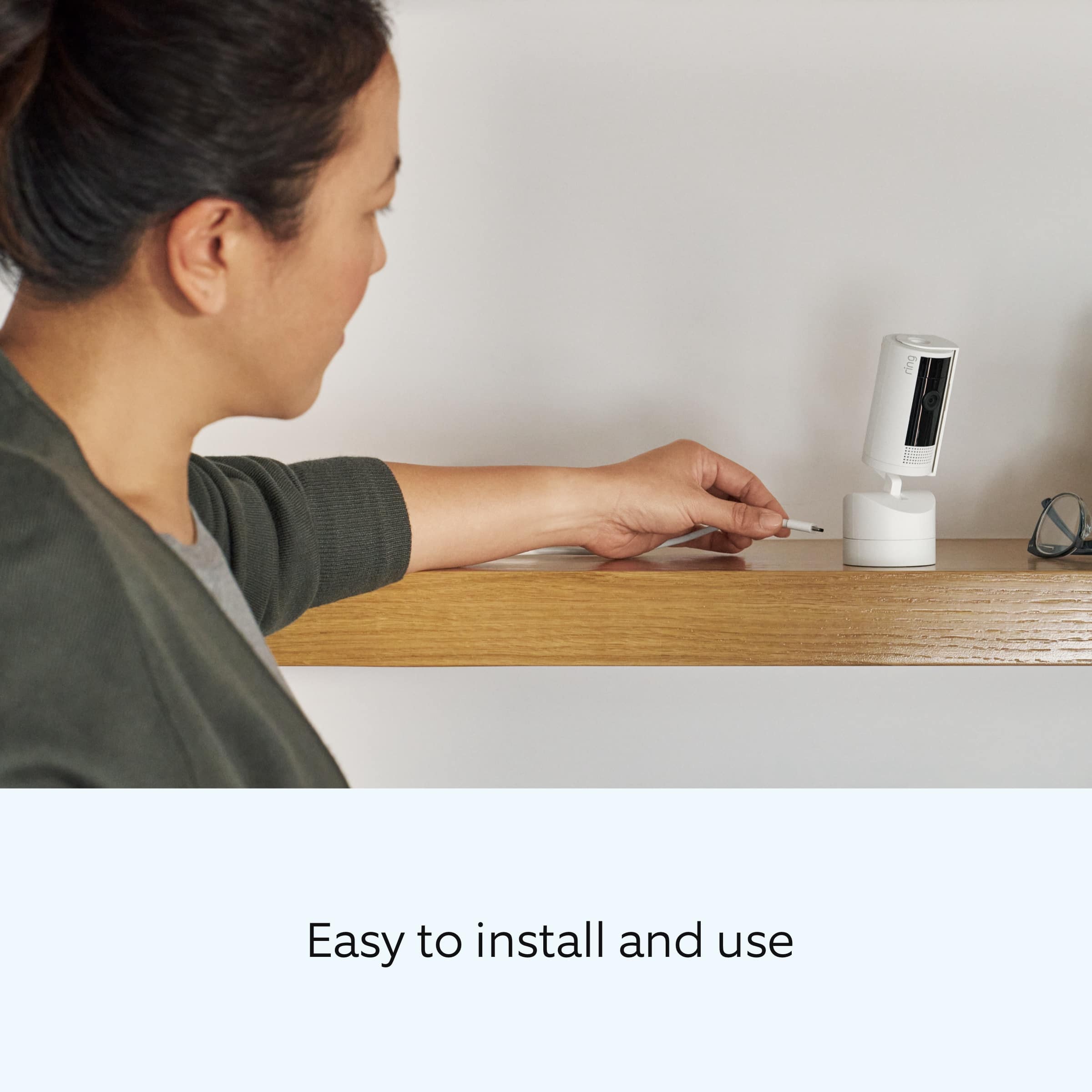
||Posted . Owned for 3 weeks when reviewed.This reviewer received promo considerations or sweepstakes entry for writing a review.If you use a Ring device, this is an easy set up and use for your home.
I would recommend this to a friendWorks for what I need
||Posted . Owned for less than 1 week when reviewed.This reviewer received promo considerations or sweepstakes entry for writing a review.Finally able to get on sale wouldn't pay full price. Decent product.
I would recommend this to a friendRing indoor camera
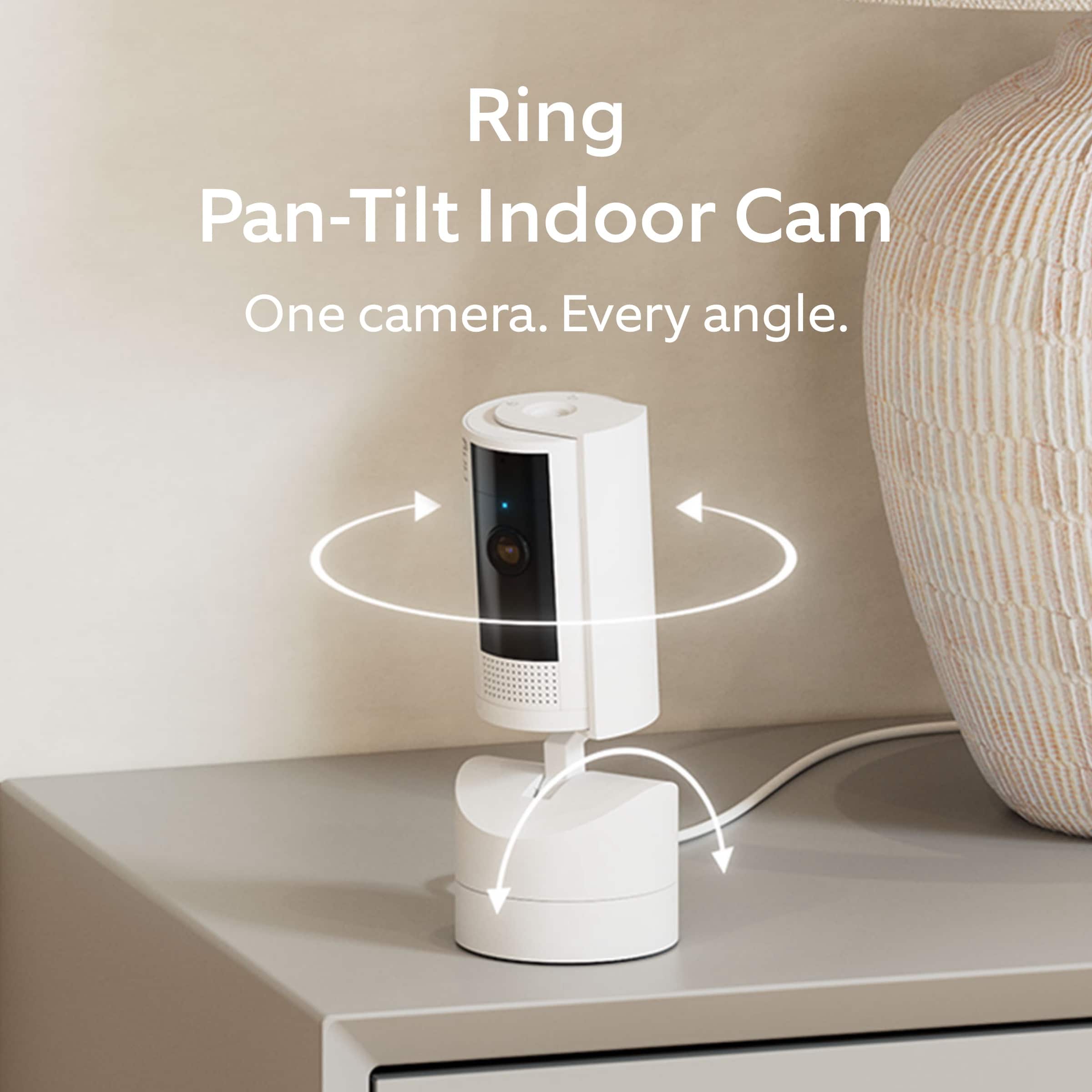
||Posted . Owned for 1 week when reviewed.This reviewer received promo considerations or sweepstakes entry for writing a review.Perfect camera which can be moved to different locations depending upon where you want it to focus on!
I would recommend this to a friendAwesome camera
||Posted . Owned for 1 month when reviewed.This reviewer received promo considerations or sweepstakes entry for writing a review.Green pant camera is awesome for viewing any angle view
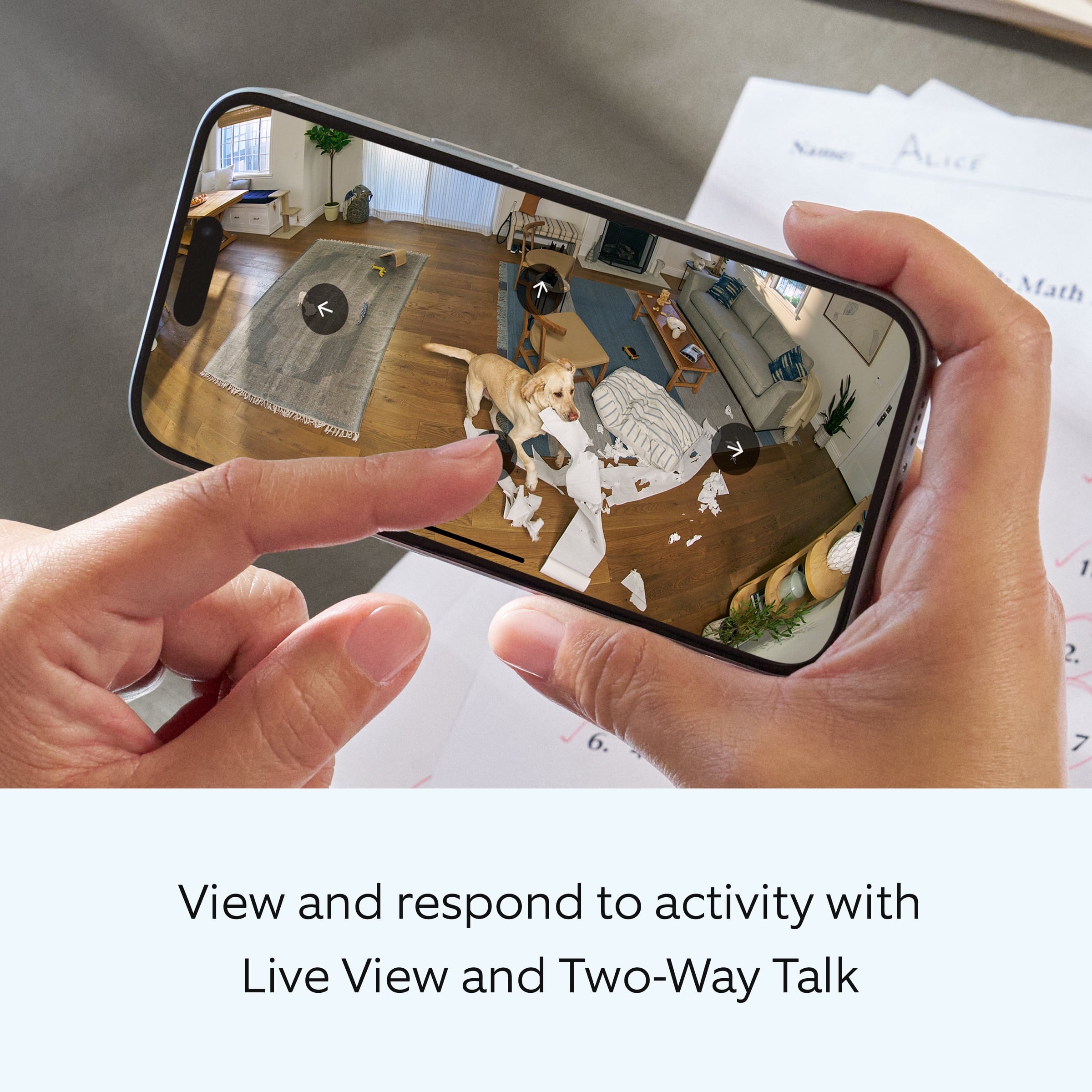
I would recommend this to a friendGreat for dogs and kids
||Posted . Owned for 3 weeks when reviewed.This reviewer received promo considerations or sweepstakes entry for writing a review.I love it so much. Works like a charrrrm!!!! Worth every penny
I would recommend this to a friendGreat product
||Posted . Owned for 1 week when reviewed.This reviewer received promo considerations or sweepstakes entry for writing a review.Great product and setup was pretty simple. Just make sure your power supply is near by
I would recommend this to a friendGreat quality
||Posted . Owned for 3 weeks when reviewed.This reviewer received promo considerations or sweepstakes entry for writing a review.Works great! Good quality highly recommend. Sleek look.
I would recommend this to a friendGreat little security camera.
||Posted . Owned for 1 week when reviewed.This reviewer received promo considerations or sweepstakes entry for writing a review.Easy set up and the tilt and pan feature is a lot more impressive than I thought.
I would recommend this to a friendLiving room camera
||Posted . Owned for 1 week when reviewed.This reviewer received promo considerations or sweepstakes entry for writing a review.I love this camera, its a Crystal clear view and I would recommend it to you.
I would recommend this to a friendRing camera
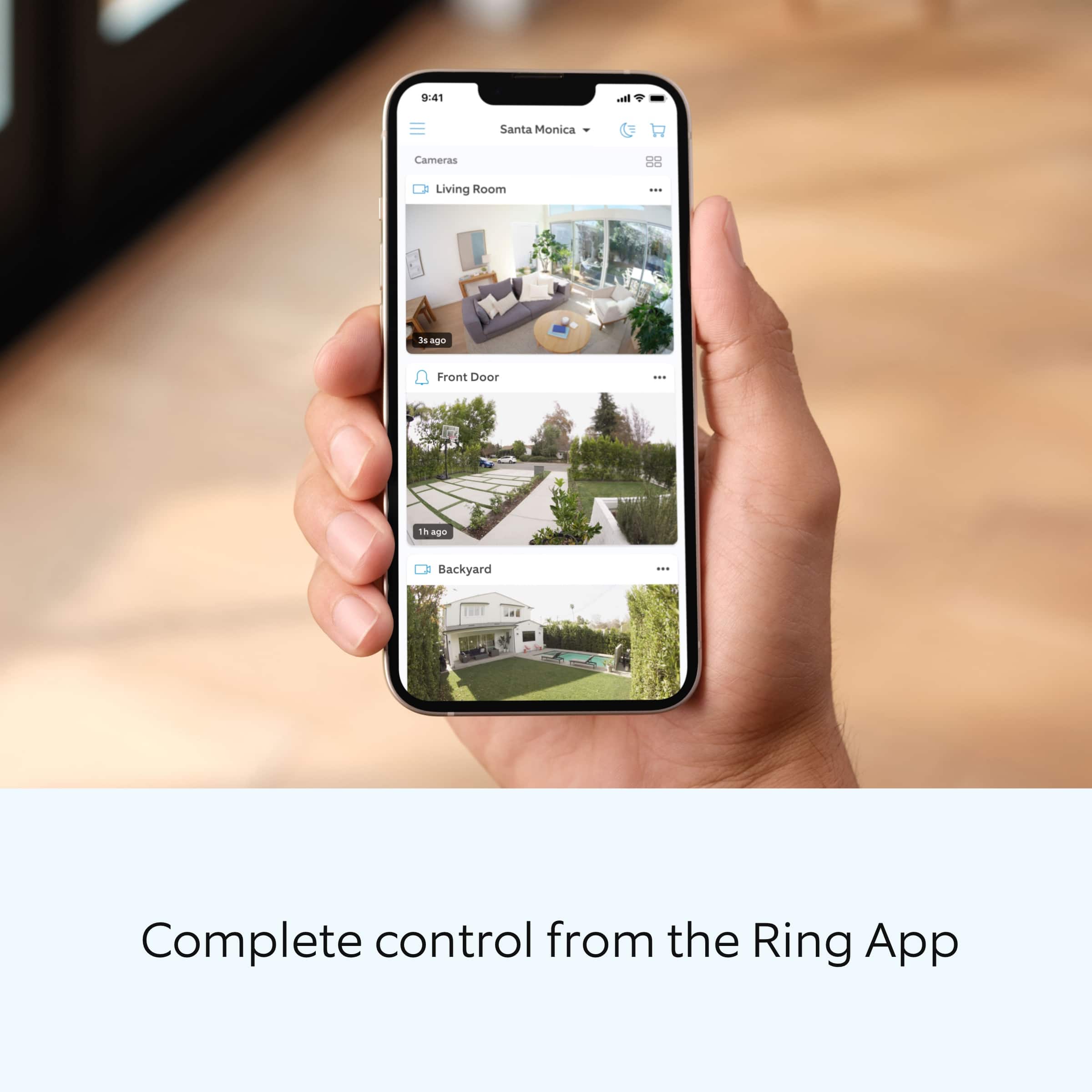
||Posted . Owned for 1 week when reviewed.This reviewer received promo considerations or sweepstakes entry for writing a review.great item, good size and great black colour! Do need app to use with
I would recommend this to a friendCool feature
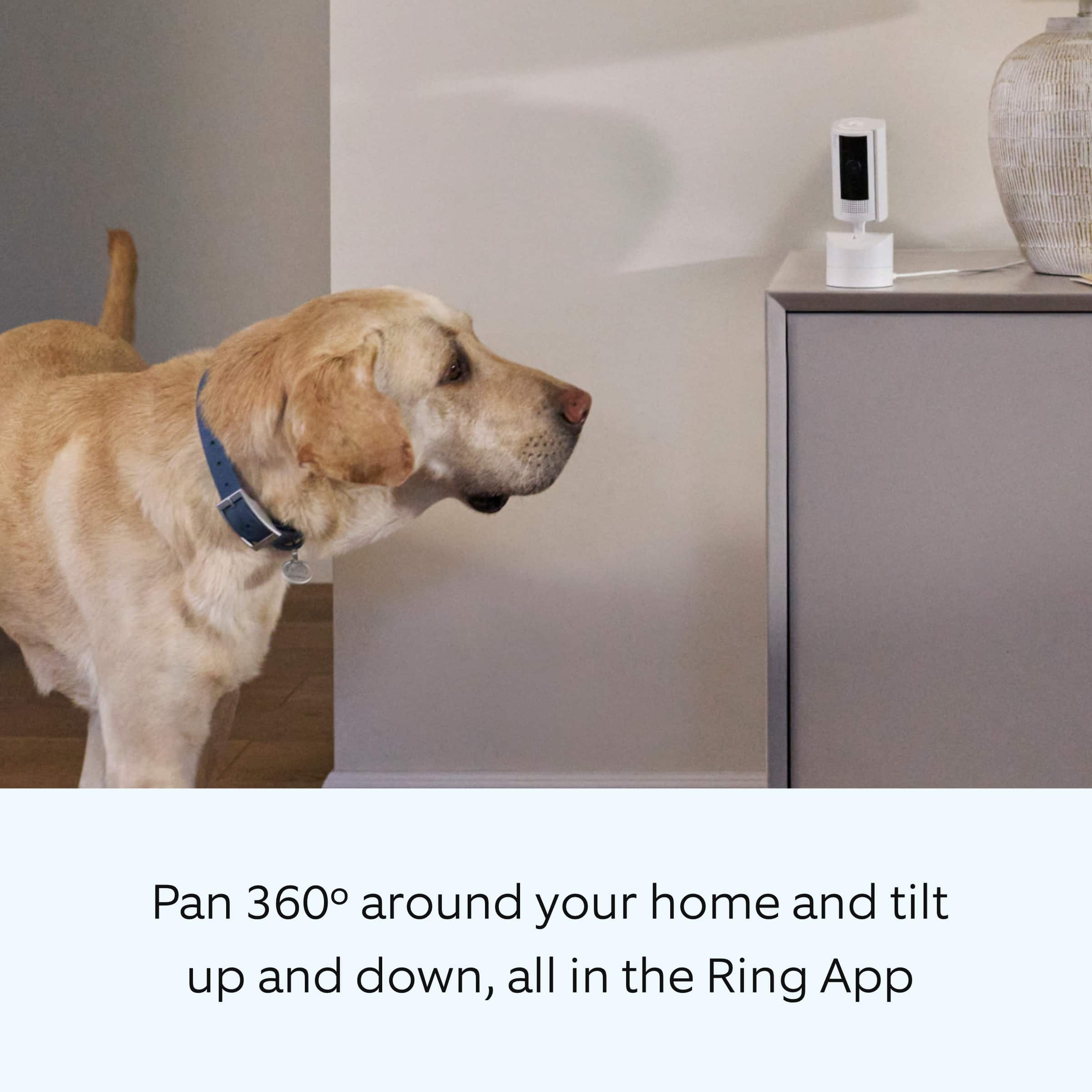
||Posted . Owned for 1 month when reviewed.This reviewer received promo considerations or sweepstakes entry for writing a review.Great that I can move the angle when checking on my foster pets from afar.
I would recommend this to a friendRing camera
||Posted . Owned for less than 1 week when reviewed.This reviewer received promo considerations or sweepstakes entry for writing a review.Works well but not easy to set up with the app. Good for watching the puppy.
I would recommend this to a friendBrand response from Ring
Posted .Hi MarianD.
Thank you for taking the time to share your feedback with us. We are always looking for ways to improve our neighbor's experience, and your feedback is an invaluable part of this process. That is why we are dedicated to offering devices that help you safeguard what is most important at home, while also allowing you to connect with your neighbors from anywhere. We’re glad to read that you are finding the provided features useful.
To set up your Ring Pan-Tilt Indoor Cam, you can scan the QR code on your Ring device or product packaging via the Ring app. Follow these instructions in the Ring app:
Tap the three lines (≡) on the left side of your dashboard in the Ring app.
Tap "Set up a Device" and select the type of your device.
Tap "I’m Ready to Scan."
Point your smartphone’s camera at the QR code on your Ring device or product packaging. (Note: If you don’t see the QR code, please remove your video doorbell’s faceplate).
Center the code in the phone camera’s view at the bottom half of the screen.
When the code is recognized, a green square will appear and a pop-up with your device image detected.
If you experience issues scanning the QR code, please follow these steps:
Move your camera closer or further from the QR code to help it focus.
Once your camera finds focus, hold it steady for a few seconds.
If your camera won’t focus, clean your camera lens, move to a well-lit area, and try again.
If you continue to experience issues, please follow these additional steps:
Tap "Other Options" below the scanner.
Select Can’t Scan the QR code.
Confirm by selecting "Enter code manually" (this corresponds to PIN code digits underneath the QR code).
Find your device in the list.
Enter your five digit PIN which can be found below the QR code.
For more information on your Ring Pan-Tilt Indoor Cam, we invite you to reach out to our community. Ring Community is our first peer-to-peer community forum, giving our customers the ability to help one another and share their personal feedback and experiences with Ring. We look forward to hearing from you if we can be of any further assistance!
Thank you,
Miyuki from Ring.
Great Product!!
||Posted . Owned for 1 week when reviewed.This reviewer received promo considerations or sweepstakes entry for writing a review.Very good quality product with amazing quality and great features
I would recommend this to a friendRING Pan-tilt Camera
||Posted . Owned for 1 week when reviewed.This reviewer received promo considerations or sweepstakes entry for writing a review.Excellent! Would highly recommend this camera. It is EASY to use.
I would recommend this to a friendGreat product.
||Posted . Owned for less than 1 week when reviewed.This reviewer received promo considerations or sweepstakes entry for writing a review.Would buy again also received great service from store clerk.
I would recommend this to a friendWorks Great
||Posted . Owned for 2 weeks when reviewed.This reviewer received promo considerations or sweepstakes entry for writing a review.Works as advertised and is a great addition to my other 5 Ring devices.
I would recommend this to a friendring
||Posted . Owned for 3 weeks when reviewed.This reviewer received promo considerations or sweepstakes entry for writing a review.perfect for the application. to add to the existing 2 already on site
I would recommend this to a friendTilt camera
||Posted . Owned for less than 1 week when reviewed.This reviewer received promo considerations or sweepstakes entry for writing a review.I have had other ring devices and this tilt 360 hands down is the best
I would recommend this to a friendAmazing
||Posted . Owned for 2 weeks when reviewed.This reviewer received promo considerations or sweepstakes entry for writing a review.Great product and quality. The panoramic feature is wonderful.
I would recommend this to a friendPanel shut
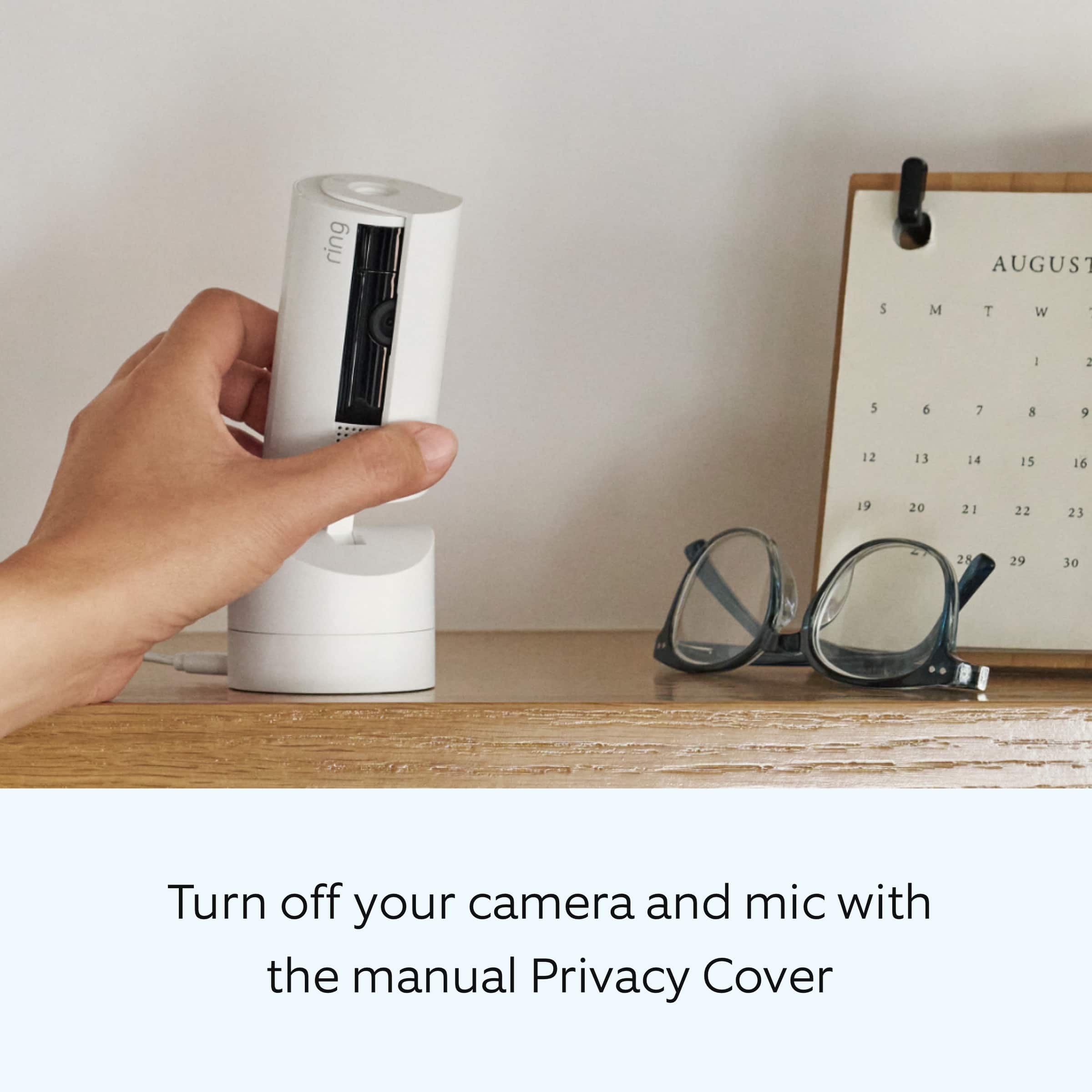
||Posted . Owned for 1 week when reviewed.This reviewer received promo considerations or sweepstakes entry for writing a review.Love the shut panel from open and close whenever needed
I would recommend this to a friend