Customer Ratings & Reviews

- Model:
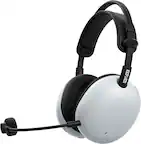
- WHG900N/B
- SKU:
- 10904762
Rating by feature
- Value
Rating 4.2 out of 5 stars
- Quality
Rating 4.6 out of 5 stars
- Ease of Use
Rating 4.6 out of 5 stars
Great gift
Posted .This reviewer received promo considerations or sweepstakes entry for writing a review.Great gift for any person who enjoys gaming. Headset is comfortable and sounds great.
I would recommend this to a friendBrand response from SonyListens
Posted .Hi user187397,
That's awesome! We're glad to hear you like the comfortable design and sound of the headphones. We appreciate the recommendation and thank you for choosing Sony!
-David
Great Product
Posted .This reviewer received promo considerations or sweepstakes entry for writing a review.Great Product, definitely worth buying. Really like the way that audio acoustics turn out when I use this.
I would recommend this to a friendBrand response from SonyListens
Posted .Hi pkompally, Thanks for the feedback! We're glad you like your new gaming headset. Enjoy and thanks for choosing Sony. -Craig
InZone 7 ????
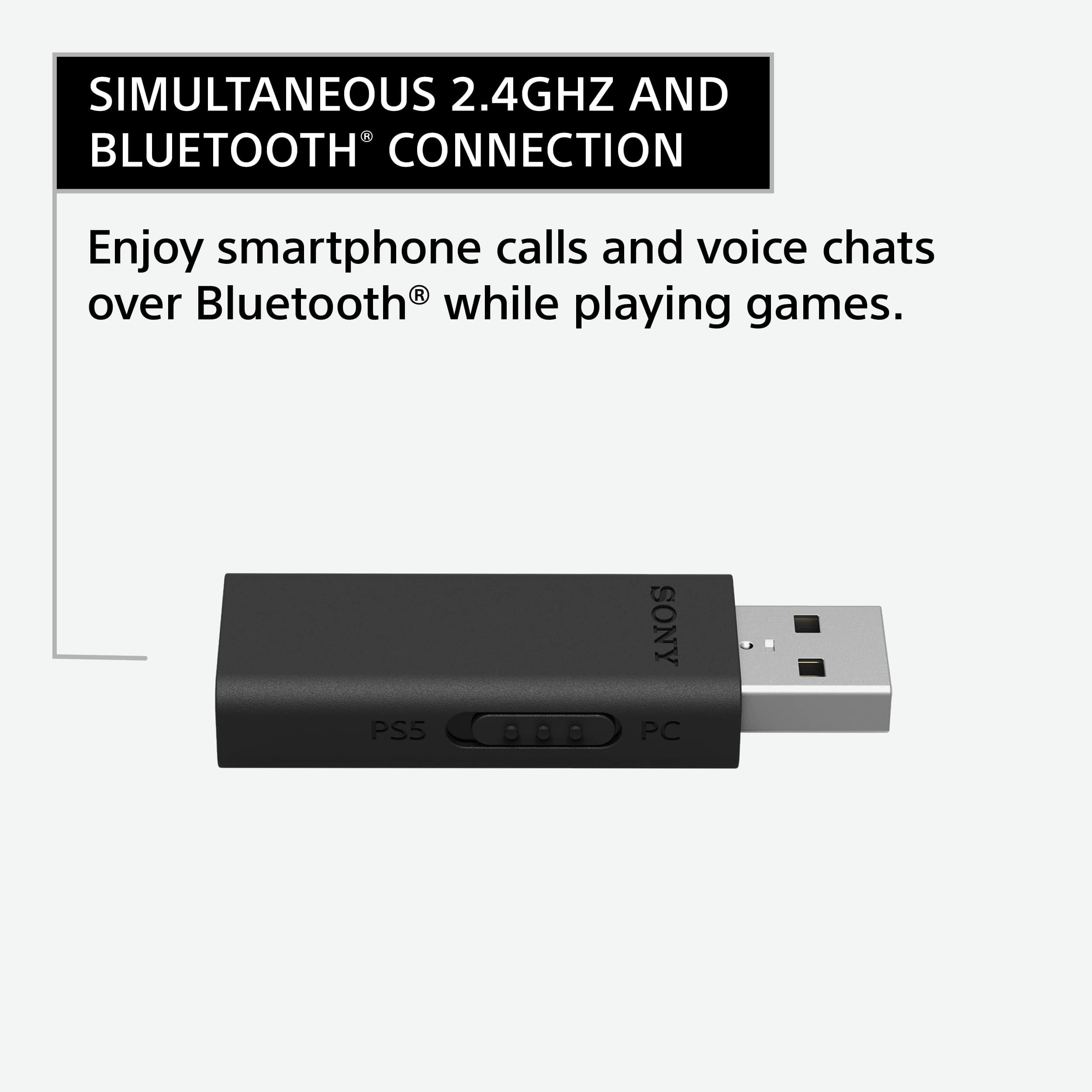
Posted .This reviewer received promo considerations or sweepstakes entry for writing a review.Idk why but my headset got disconneted from the USB adapter now it wont turn on or connect to the usbAdapter any idea on what to do its a nice headset but 1st time it happen to mee since ps4 :/
I would recommend this to a friendBrand response from SonyListens
Posted .Hi ROK3,
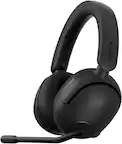
We're sorry to hear that you're having issues with your INZONE H9. We'd love to help you troubleshoot your problem and turn this into a better experience. After you connect the USB transceiver to a USB port on the PC or Gaming console, press and hold the (connect) button on the USB transceiver for about five seconds, then kindly check that the USB transceiver indicator is repeatedly flashing twice in white.
If it does not light up or won't pair to the INZONE gaming headset, follow the instructions below to troubleshoot and resolve this issue.
• Disconnect the USB transceiver, and connect it to a different computer or gaming console port.
• Move any device or cable supporting USB 3.0 away from the USB transceiver.
• Remove all other USB devices and USB cables from the computer, if possible.
• Move any metal objects away from the USB transceiver.
• Restart the connected computer or PS5, and pair it with the headset again.
If the headset cannot be connected to the USB transceiver connected to the computer or PS5, follow the procedure on this link: https://helpguide.sony.net/mdr/295960/v1/en/contents/TP1000670450.html
For more details on "Pairing the USB transceiver to the INZONE gaming headset", please visit this link: https://www.sony.com/electronics/support/headphones-gaming-headphones/inzone-h9/articles/00287618
If you're unable to resolve your concern, you can email us at [email protected] with the following details:
Name:
Best Buy Username:
Model Number:
Issue:
Telephone Number:
We are sorry for the inconvenience and hope to speak to you to resolve this matter.
Sincerely,
-Craig
Swag
Posted .This reviewer received promo considerations or sweepstakes entry for writing a review.Swaggering swagtastic swagging swag swag swag swag
I would recommend this to a friendBrand response from SonyListens
Posted .Hi user751855,
You made the right choice with the Sony INZONE H9! Sharpen your senses and prepare for action. Our INZONE H9 gaming headset immerses you in the zone with spatial sound and noise canceling for supercharged hearing and super sharp reflexes. Take performance beyond your best, detecting opponents before they see you. Thank you for choosing Sony!
-Ralph