Top Rated External HD for Mac
Finding the best external HD for your Mac starts with choosing enough space for your files and backups. Compare external hard drives by storage capacity and connection type, and check compatibility with your Mac’s ports and macOS version. If you plan to use Time Machine, confirm compatibility and any formatting requirements before choosing a drive.
What to look for in an external hard drive for Mac
The best external hard drive for your Mac depends on your storage needs, available ports and how you plan to access or back up your files.
1. Mac Compatibility and Formatting
2. Storage Capacity and Backup Needs
3. Connections and Transfer Speed
4. Portability and Power
-
1
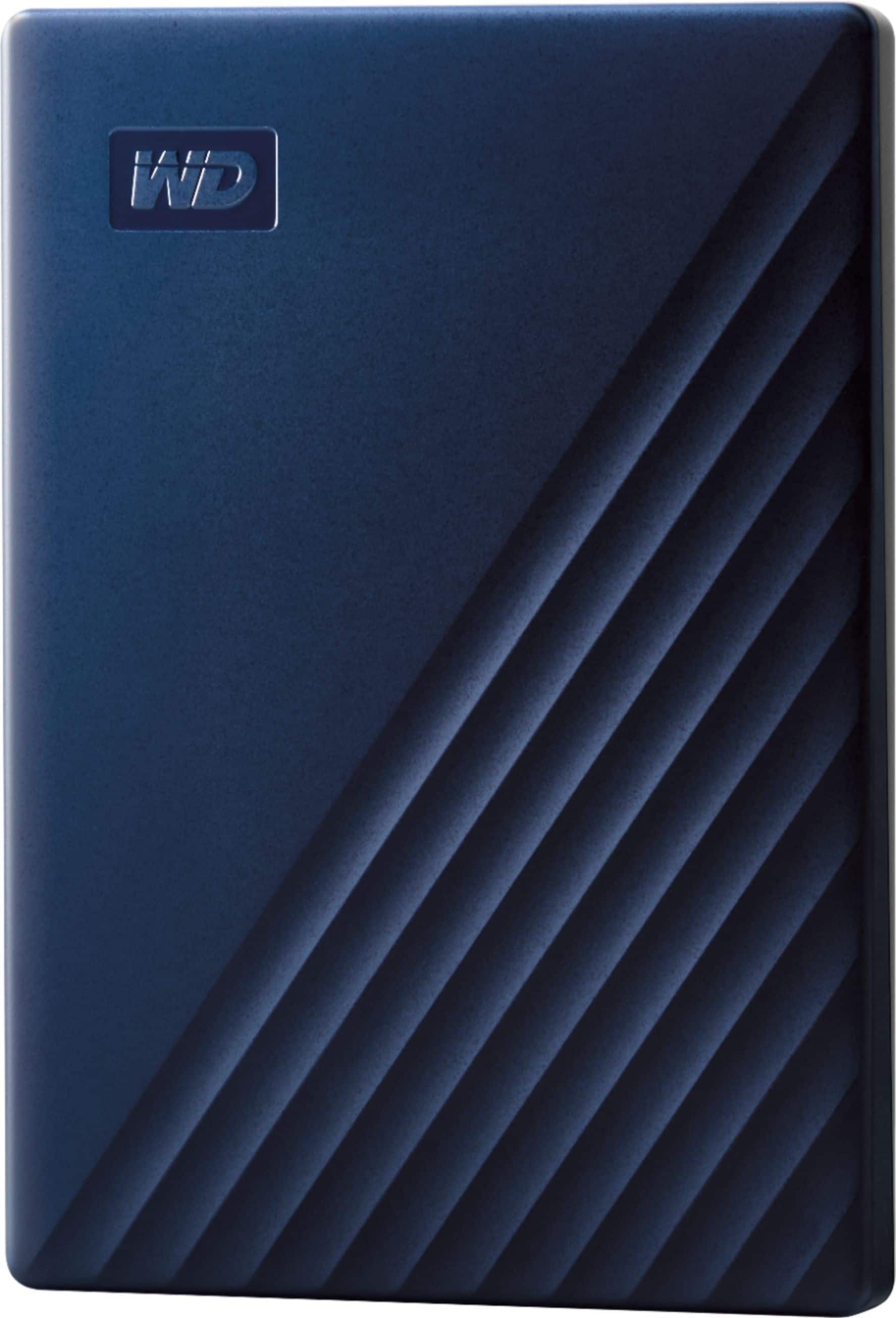
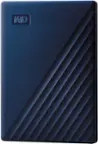
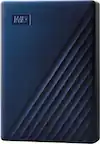
WD - My Passport for Mac 2TB External USB 3.0 Portable Hard Drive - Blue
About this product
A blue portable external hard drive for Mac with 2TB storage, USB 3.0 connectivity, and password protection.
What customers like
(1,400)$174.99 Your price for this item is $174.99 -
2
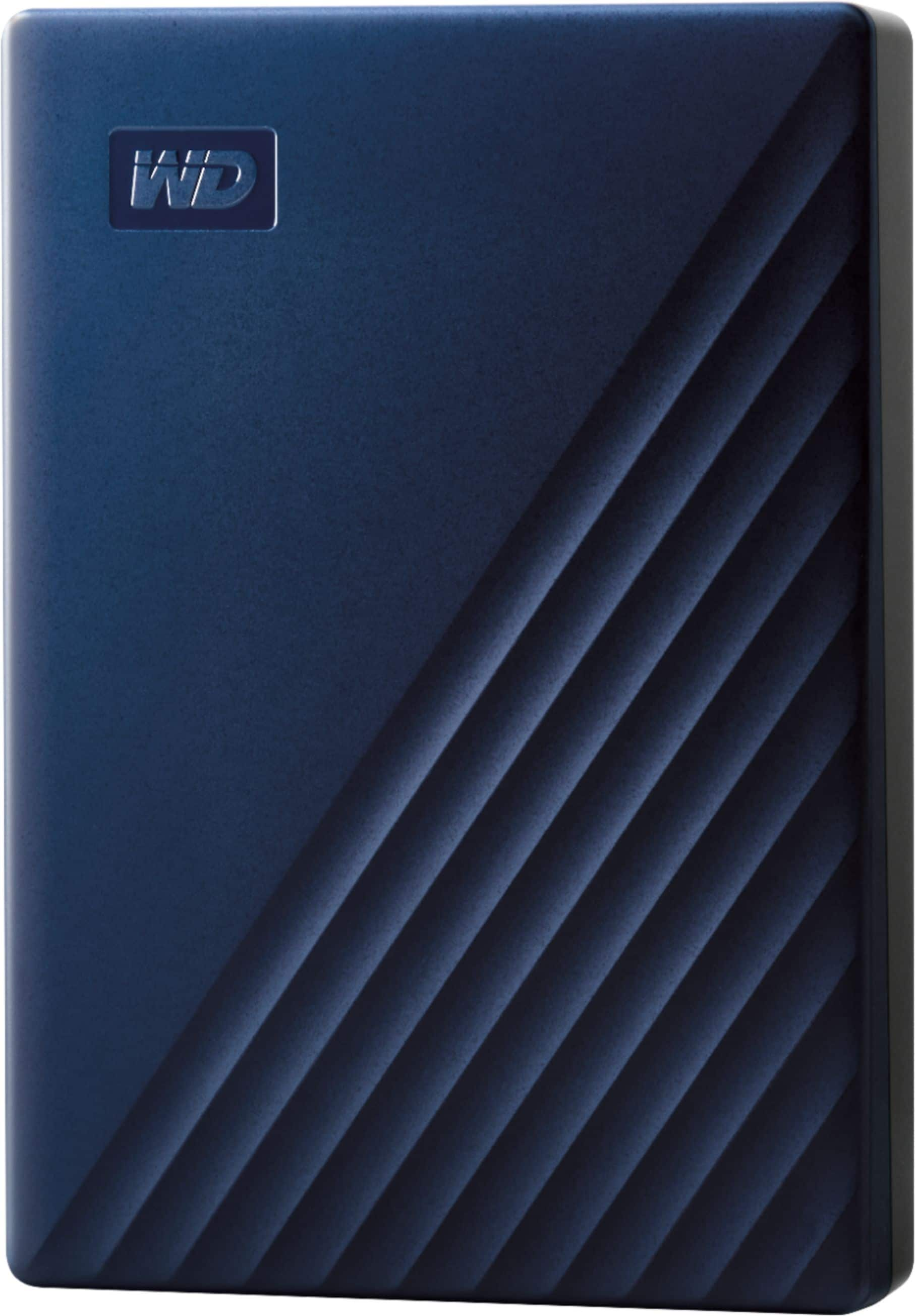
WD - My Passport for Mac 4TB External USB 3.0 Portable Hard Drive - Blue
About this product
A blue portable external hard drive offering 4TB storage, USB 3.0 connectivity, and password protection.
What customers like
(615)$229.99Your price for this item is $229.99SAVE $25.00 -
3
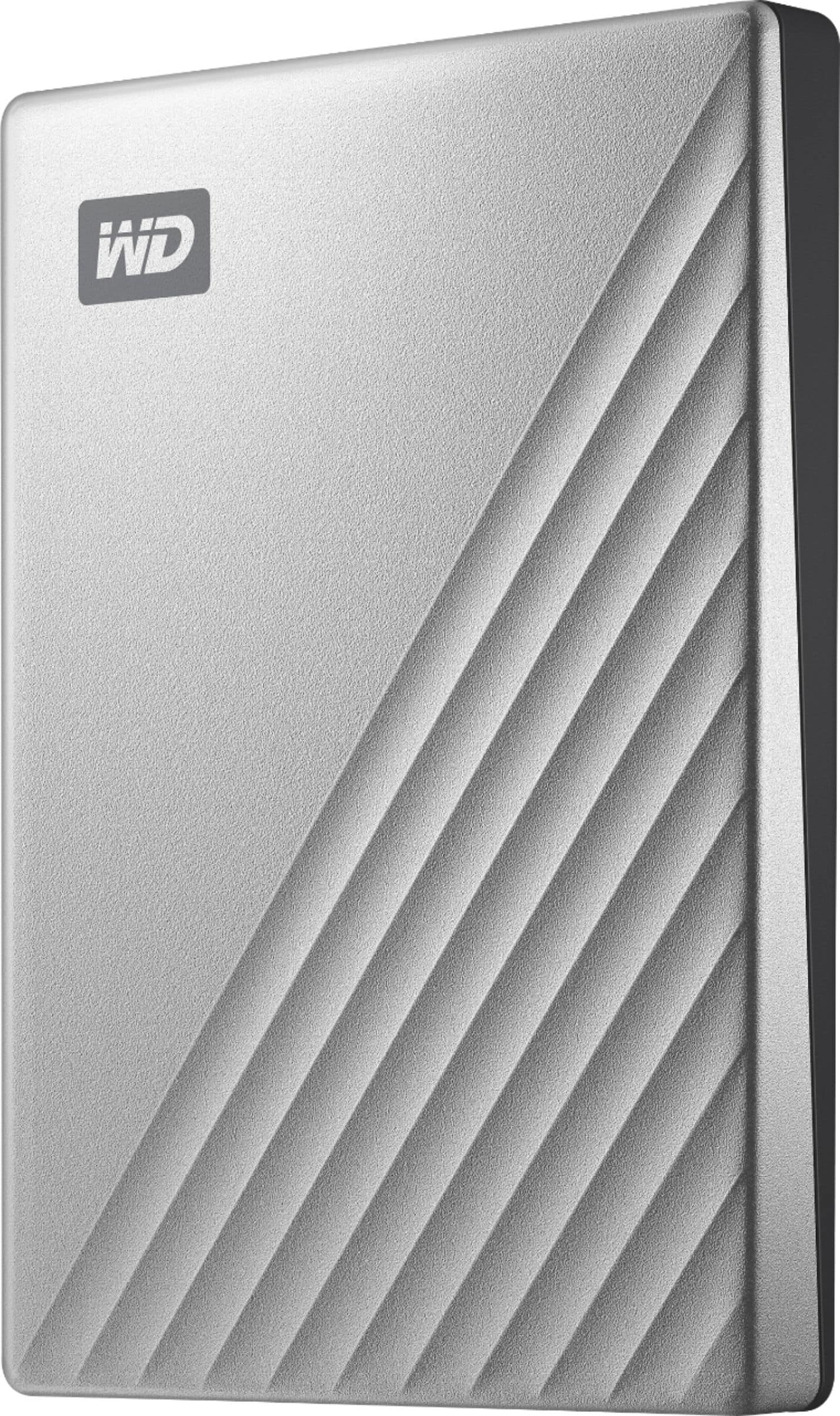
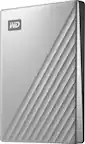
WD - My Passport Ultra for Mac 2TB External USB 3.0 Portable Hard Drive - Silver
About this product
A sleek silver portable hard drive offering 2TB storage, fast USB 3.0 connectivity, and built-in encryption.
What customers like
(766)$161.99Your price for this item is $161.99SAVE $18.00 -
4
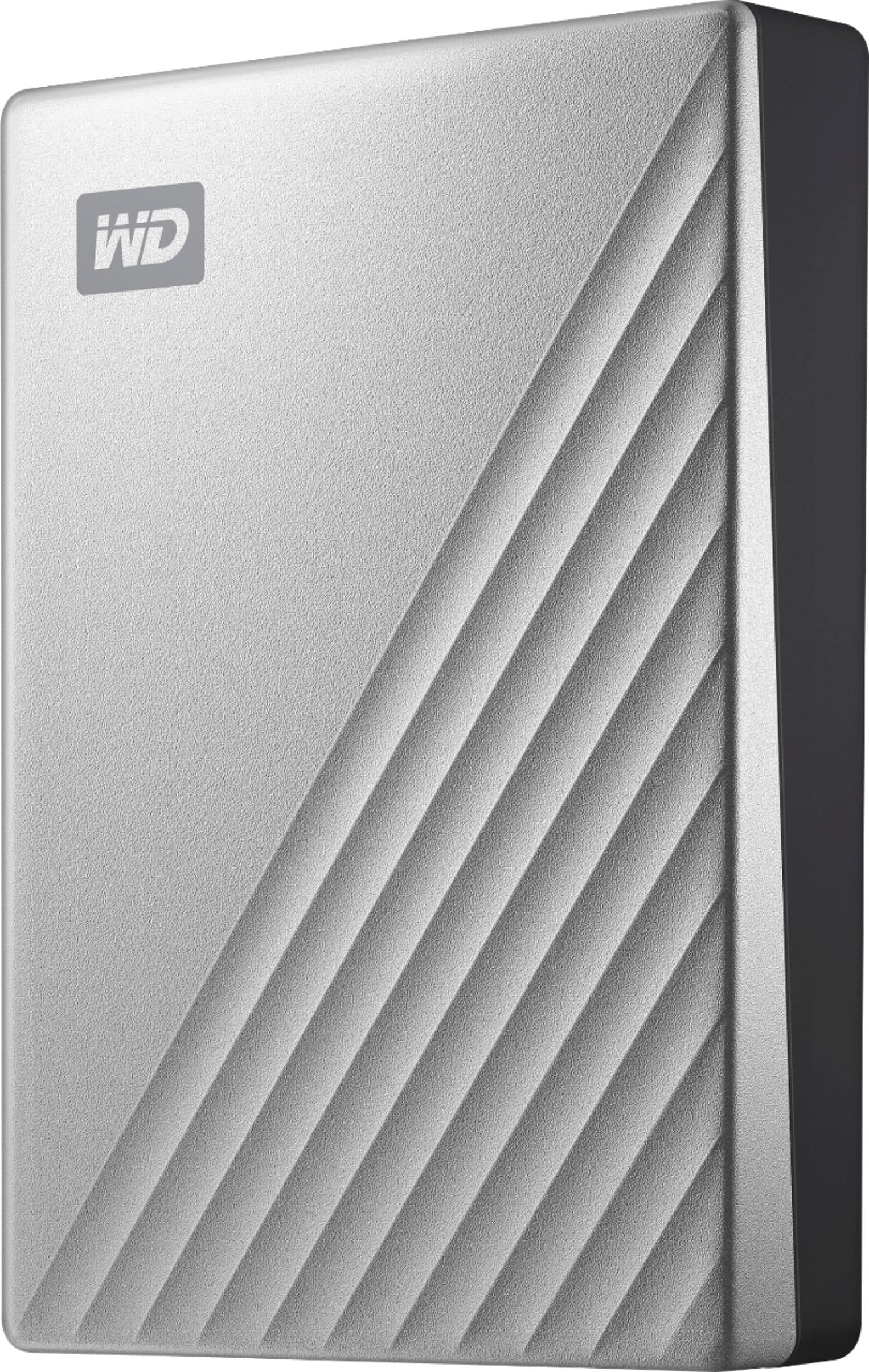
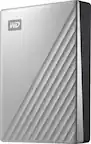
WD - My Passport Ultra for Mac 4TB External USB 3.0 Portable Hard Drive - Silver
About this product
A sleek silver portable hard drive offering 4TB storage, USB 3.0 connectivity, and built-in data encryption.
What customers like
(562)$299.67 Your price for this item is $299.67 -
5
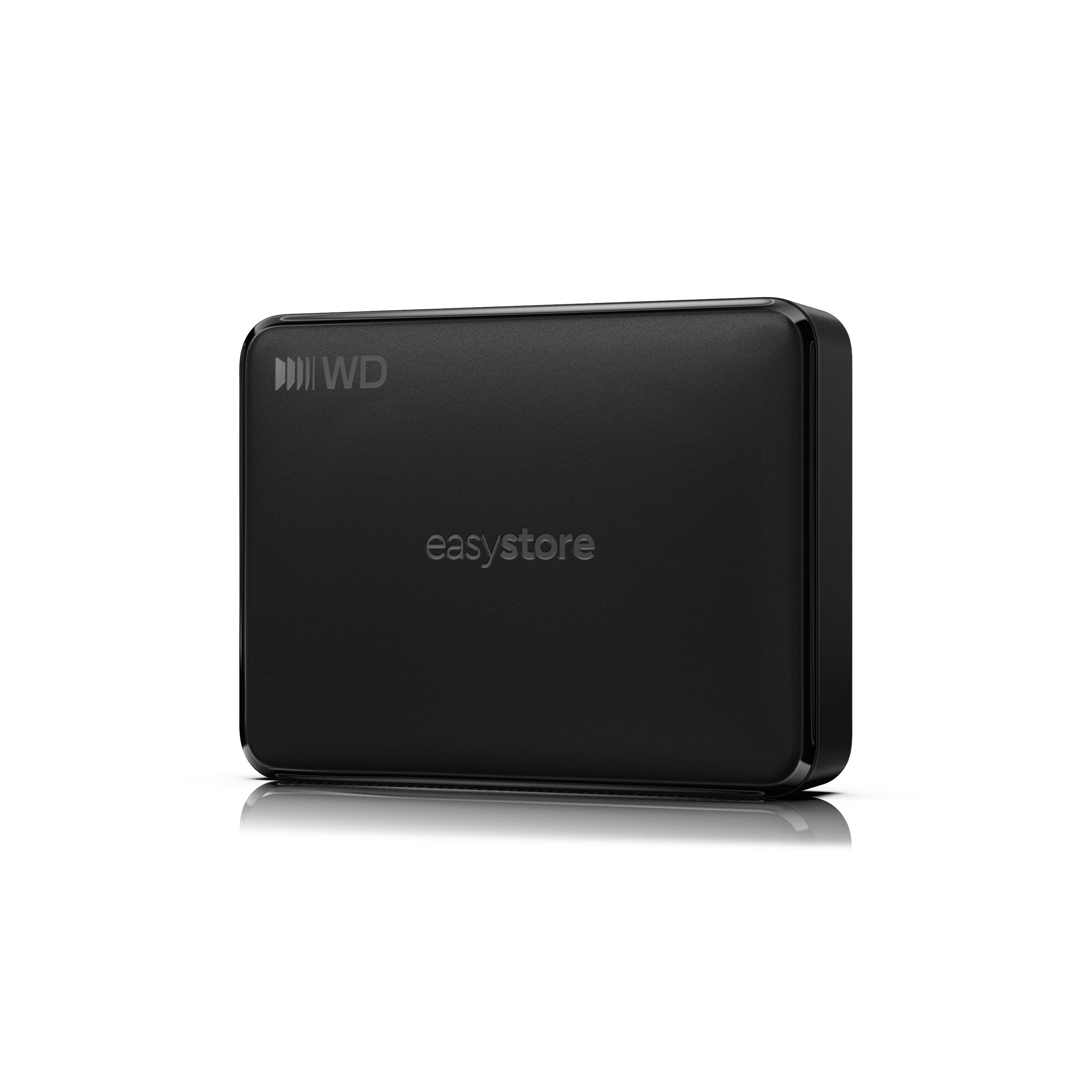
WD - 6TB easystore Portable HDD for Windows, Mac and compatible devices - Black
About this product
A black external hard drive offering USB-C plug-and-play storage across Windows, Mac, Android, and iOS.
(1)$329.99 Your price for this item is $329.99 -
6
WD - 5TB easystore Portable HDD for Windows, Mac and compatible devices - Black
About this product
A black portable external HDD with USB-C connectivity, plug-and-play compatibility, and file backup across multiple devices.
(2)$284.99 Your price for this item is $284.99 -
7
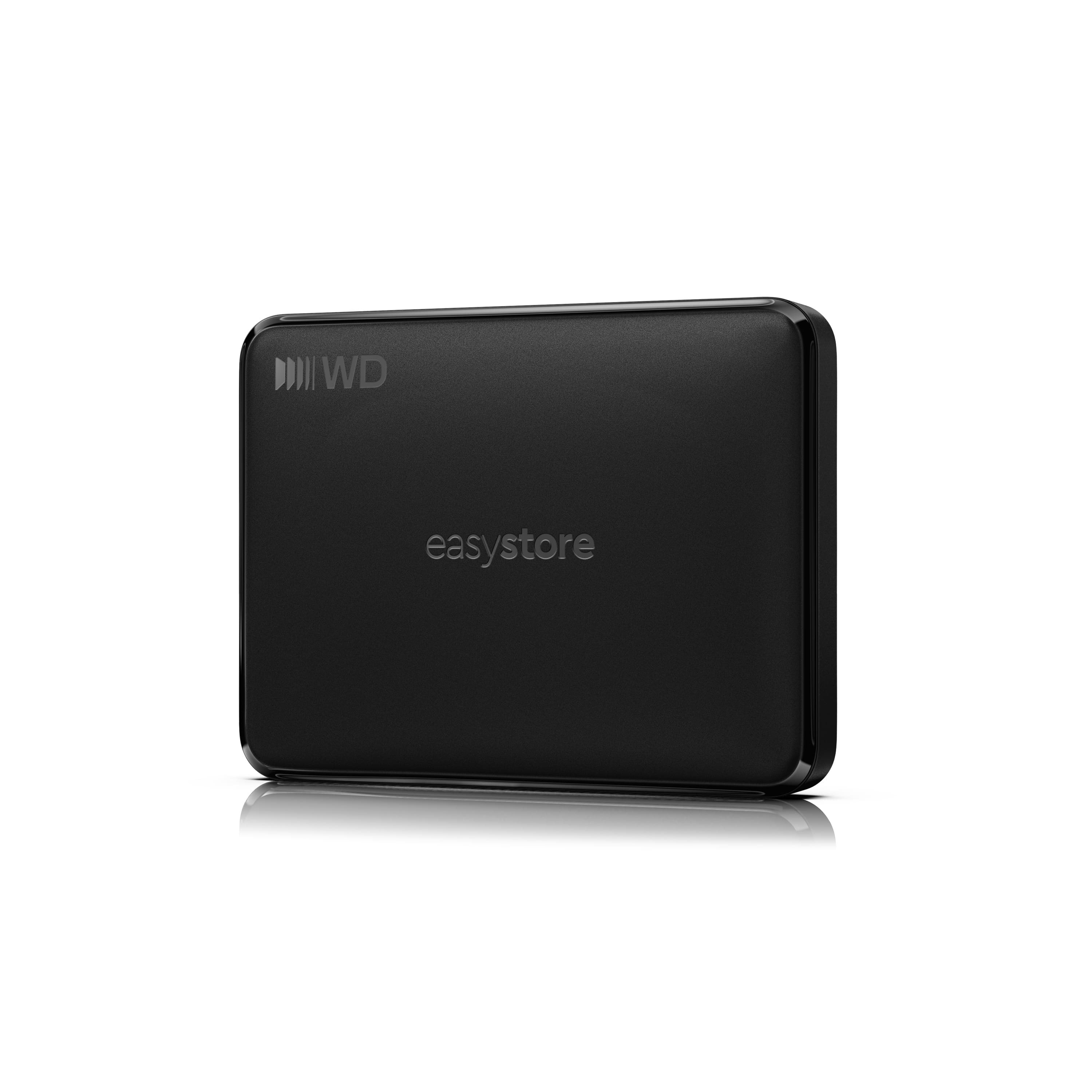
WD - 2TB easystore Portable HDD for Windows, Mac and compatible devices - Black
About this product
A black 2TB external hard drive with USB-C connectivity and plug-and-play Windows and Mac compatibility.
(3)$169.99 Your price for this item is $169.99 -
8
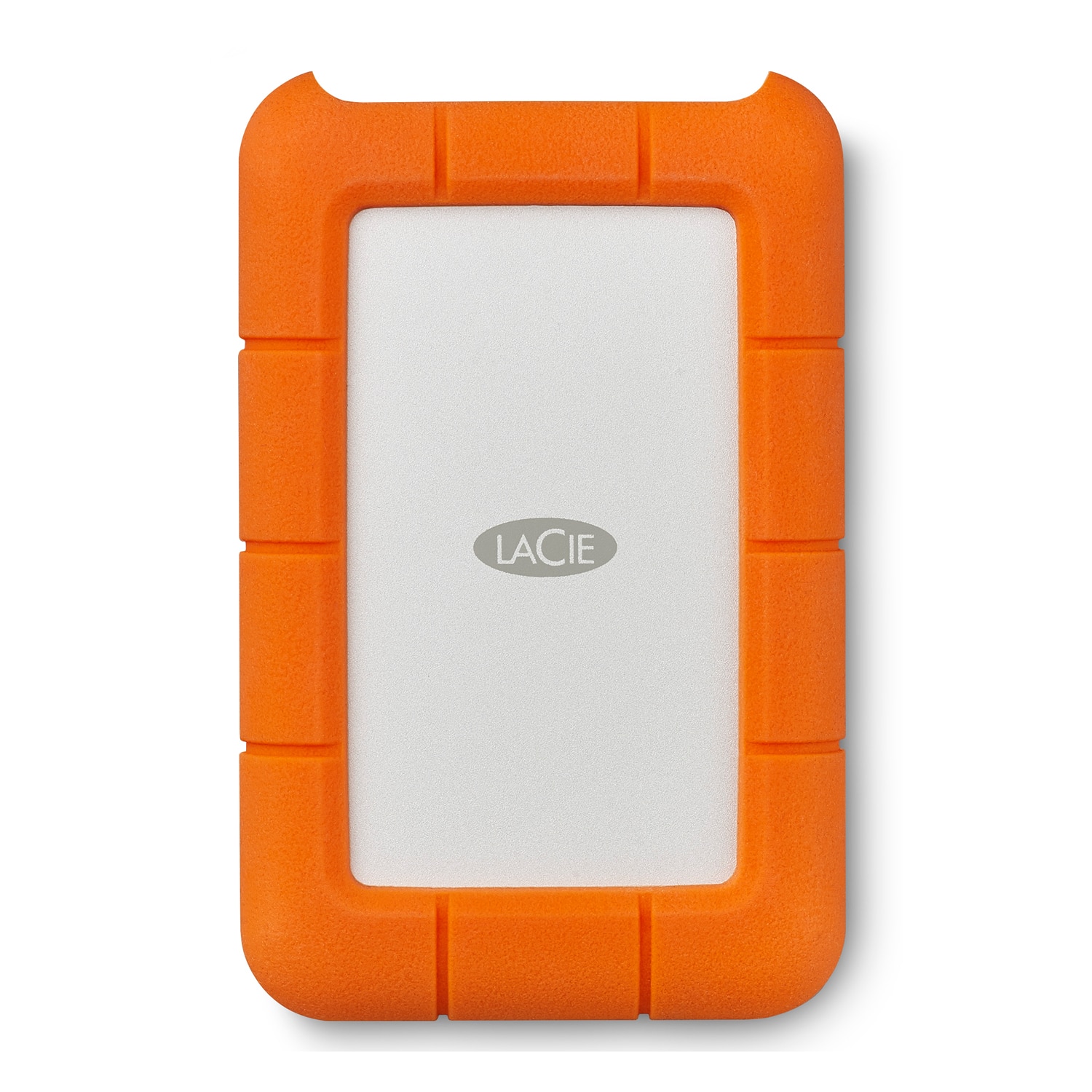
LaCie - Rugged USB-C 2TB HDD AES Encryption Drop Crush/Resistant STFR2000800 - Orange/Silver
About this product
An orange-and-silver 2TB external hard drive with USB-C, encryption, password protection, and military-grade drop resistance.
What customers like
(1,052)$149.99 Your price for this item is $149.99 -
9
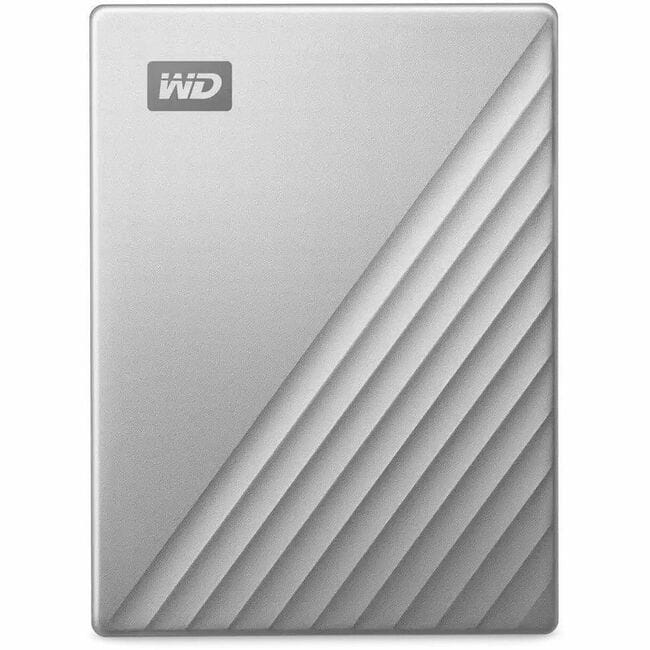
Western Digital - WD My Passport Ultra WDBGKC0060BSL-WESN 6 TB Portable Hard Drive - 2.5" External - MAC Device Supported - USB - Silver
About this product
A sleek silver external hard drive offering 6TB of portable USB-C storage designed for Mac users.
(0)$381.44Your price for this item is $381.44SAVE $7.45 -
10
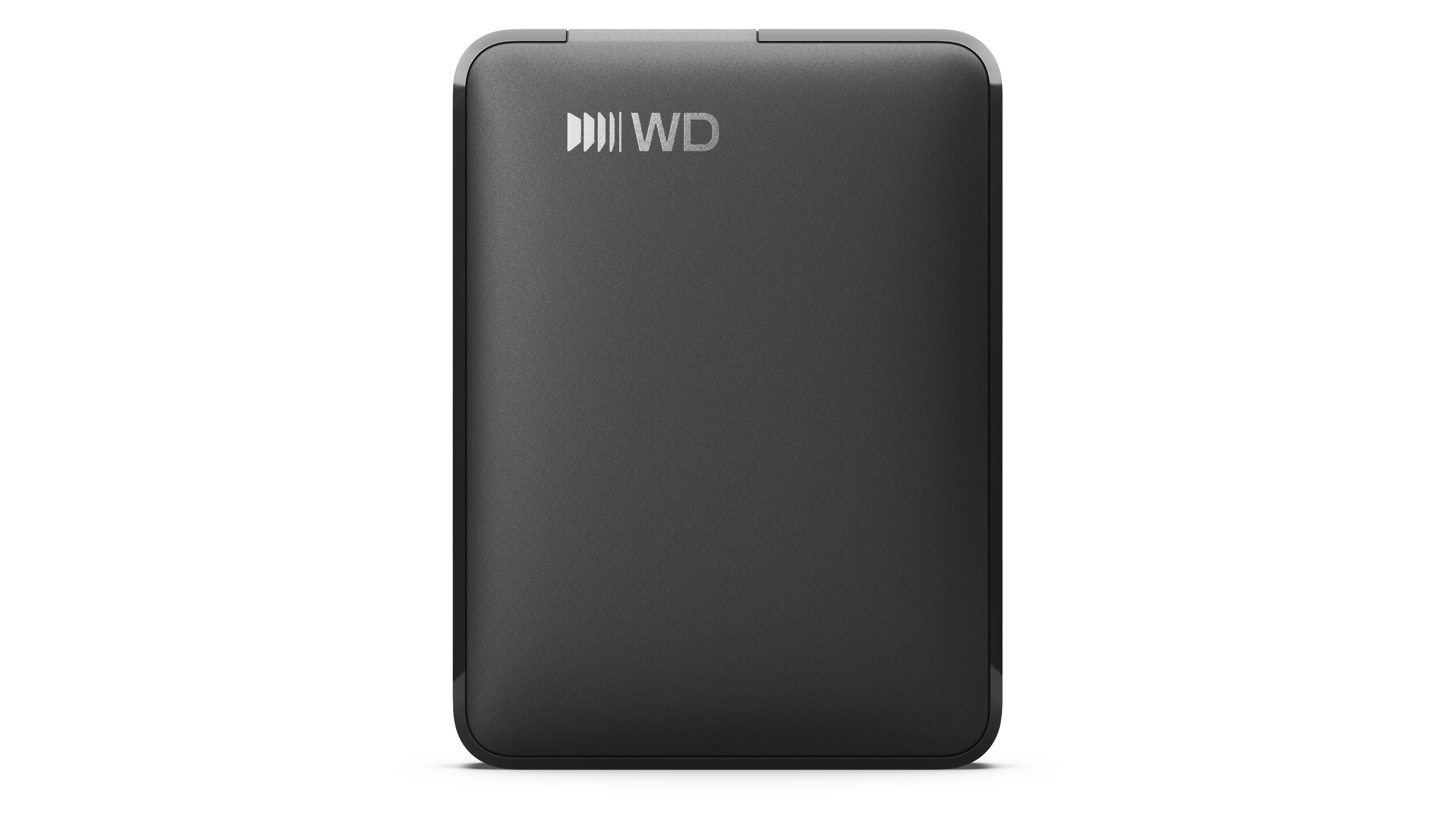
1TB WD Elements® Portable Hard Drive for Windows, Mac and compatible devices - Black
About this product
A portable black external hard drive offering 1TB storage with USB-C connectivity for multiple devices.
(0)$149.99 Your price for this item is $149.99
Top Rated External HD for Mac
FAQs
External hard drives commonly connect through USB, while some use Thunderbolt. Check your Mac’s ports and the drive’s connection requirements before choosing a cable or adapter. A USB-C connector alone does not indicate whether a drive supports Thunderbolt.
APFS is a common choice for drives used with macOS High Sierra or later. Mac OS Extended (Journaled) may be appropriate when compatibility with older macOS versions is needed. You can check or change a drive’s format using Disk Utility, but reformatting erases its existing contents.
Yes. Formatting an external hard drive as exFAT allows both macOS and Windows to read and write files without additional file-system software. A drive formatted as NTFS can generally be read by macOS, but writing to it typically requires additional software or reformatting.
Connect the drive, open System Settings, select General, then choose Time Machine and Add Backup Disk. Follow the prompts to select and prepare your drive. Time Machine may require erasing the drive, so copy any existing files elsewhere before proceeding.
Most external hard drives do not need additional software for basic file storage when they use a format supported by macOS. You can manage files in Finder and format drives in Disk Utility. Manufacturer software may be available for optional features or firmware updates.