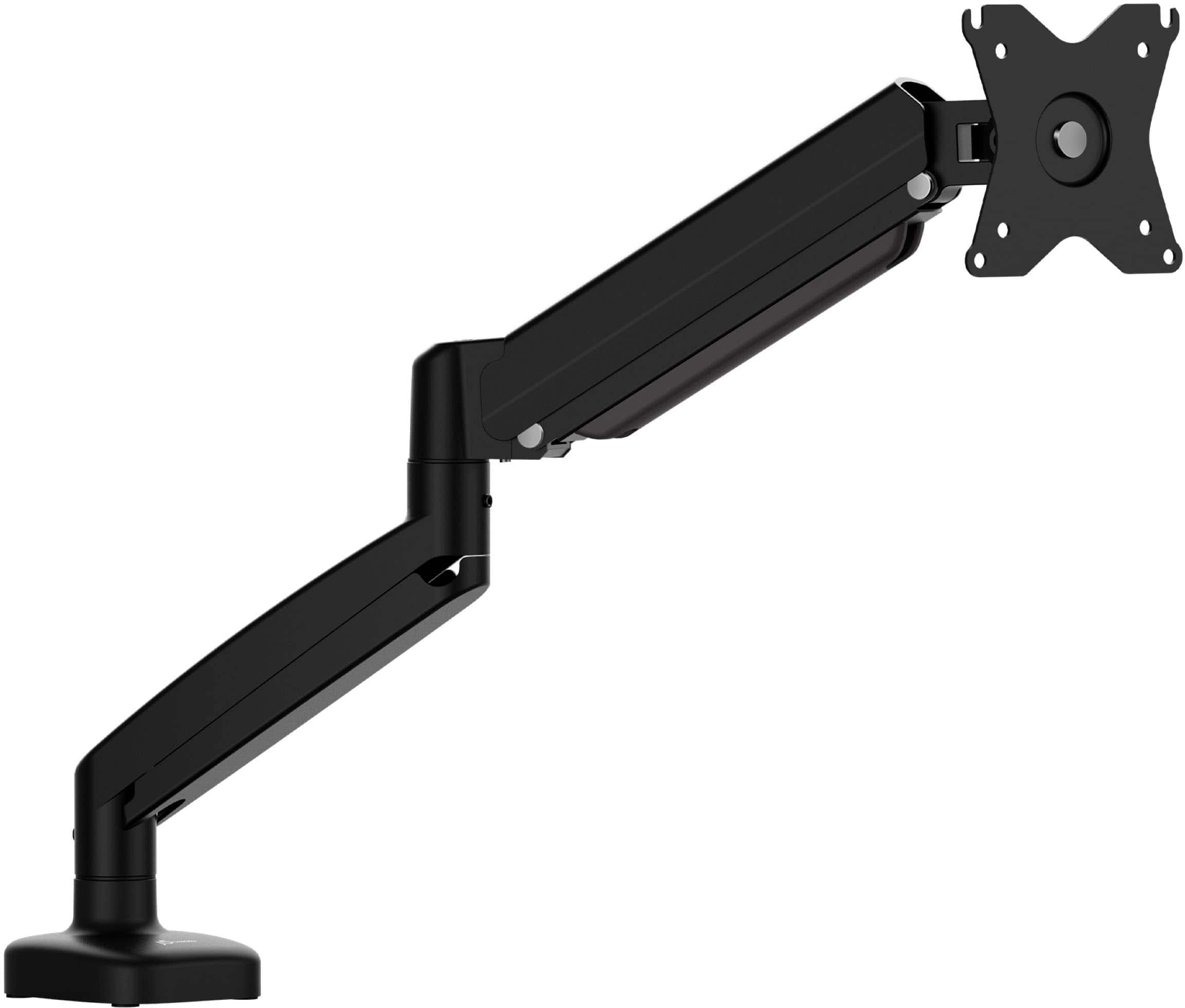
Vertical Monitor
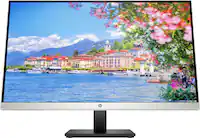
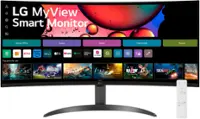
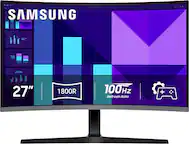
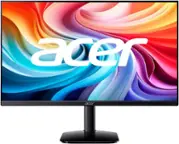
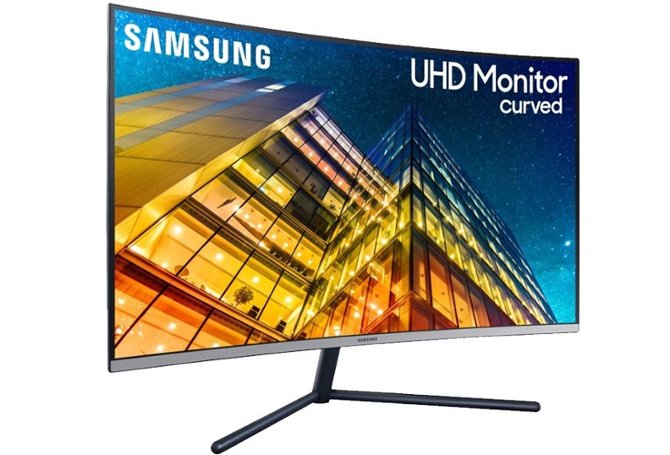
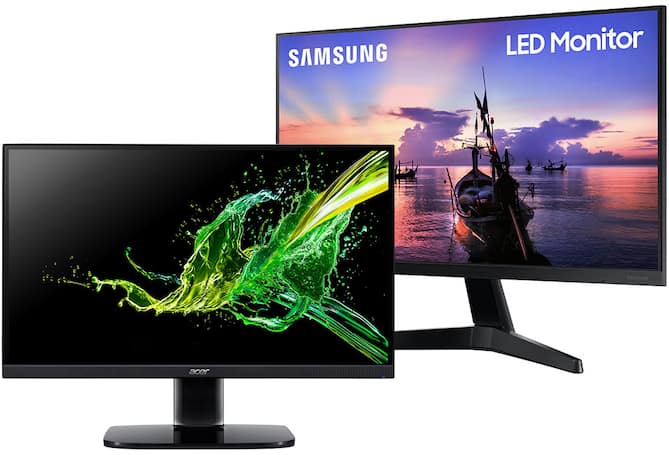
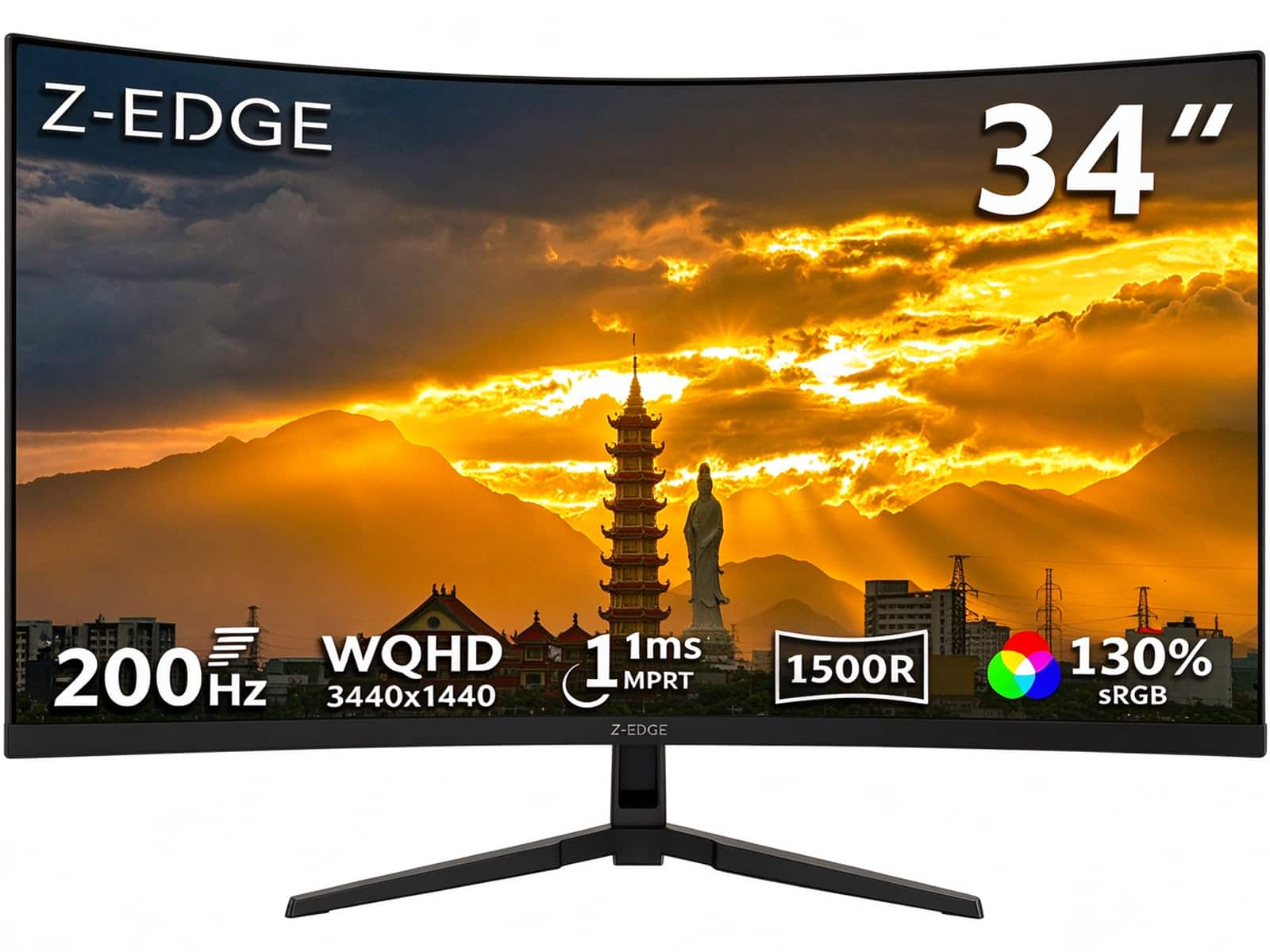
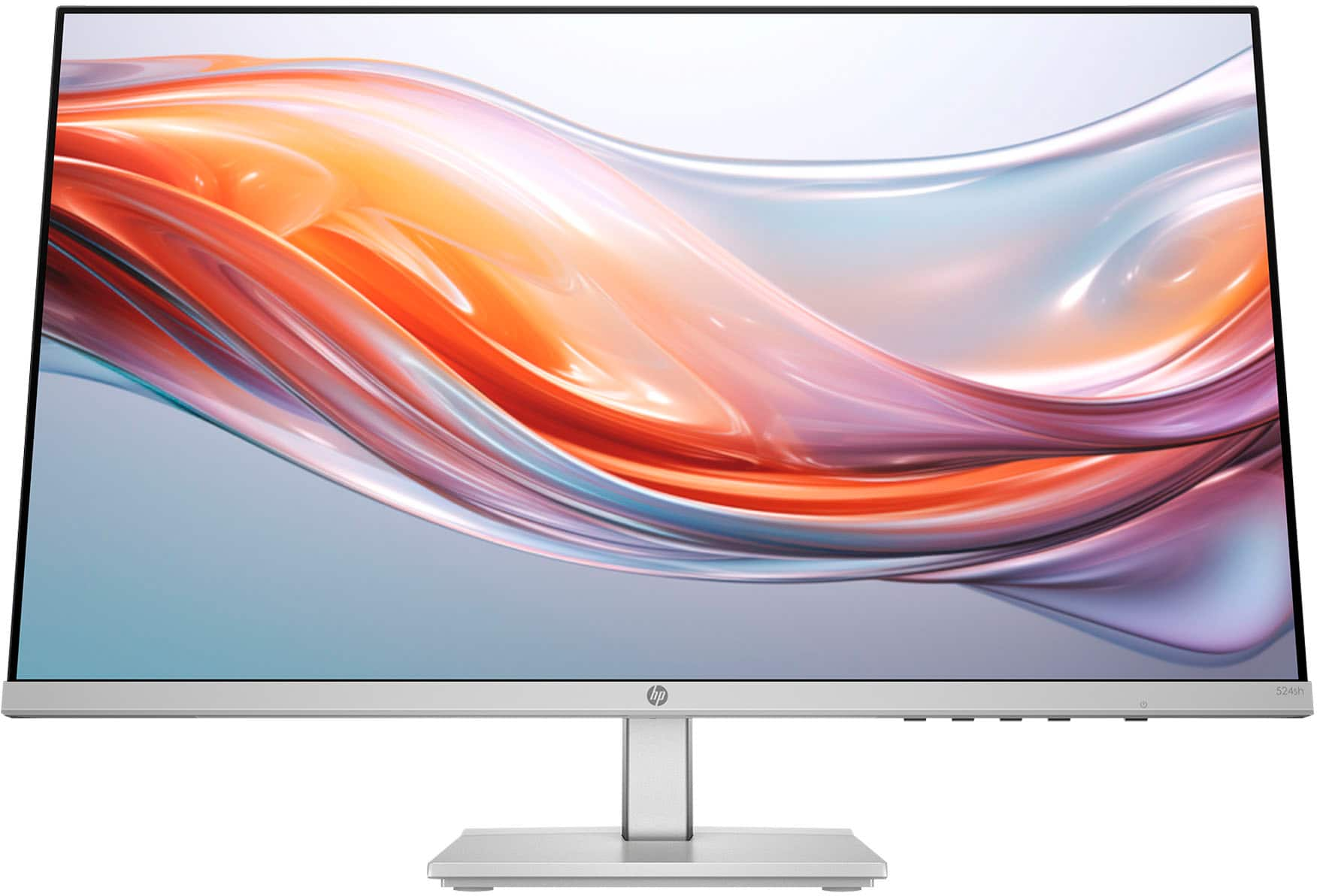
A vertical monitor setup can make it easier to read long documents, write code, or keep reference material beside your main screen. Compare monitors by screen size, resolution, and available connections, and check whether each display can rotate into portrait orientation with its included stand or requires a compatible monitor mount.


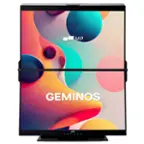


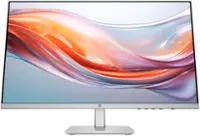

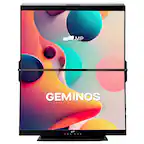

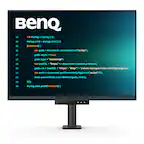
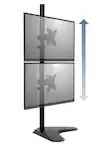



Vertical Monitor
FAQs
A vertical monitor is a display used in portrait orientation rather than landscape orientation. Many monitors can be positioned vertically with a rotating stand or compatible monitor arm, then configured in the computer’s display settings so content appears upright.
If your monitor’s stand or mount supports portrait rotation, rotate the screen and update your computer’s display settings. In Windows, select the monitor under Settings > System > Display and change Display orientation. On a Mac, look for the Rotation option in System Settings > Displays, when supported.
Look for a stand with a pivot feature that explicitly supports portrait orientation. Tilt, swivel, and height adjustment are separate features and do not necessarily allow portrait rotation. If you plan to use a monitor arm, check compatibility with the monitor’s mounting interface and confirm that the arm supports portrait positioning.
A vertical monitor can use common display connections such as HDMI, DisplayPort, or USB-C, depending on the monitor and computer. Portrait orientation does not require a special video cable. For USB-C connections, confirm that the ports and cable support video, since USB-C capabilities vary.
Yes. A multi-monitor setup can combine portrait and landscape displays when the computer supports multiple monitors. Choose extended desktop mode, set each screen’s orientation individually, and arrange the display icons in your operating system’s settings to match their physical placement.