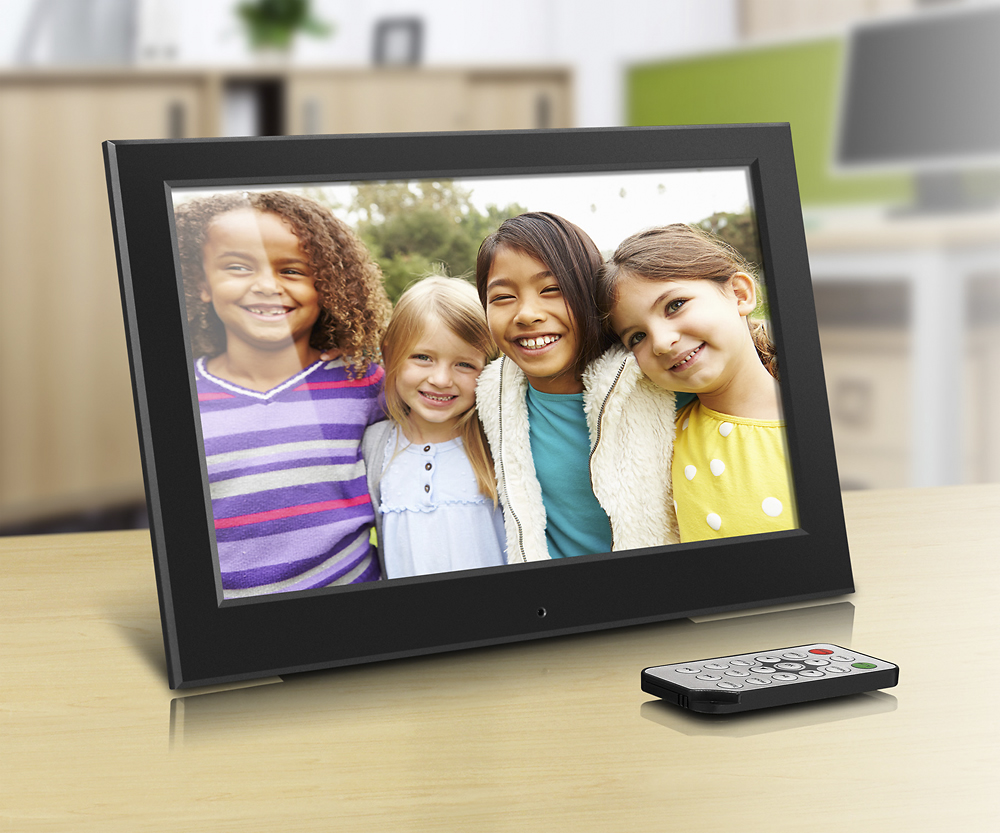
A:AnswerYou can adjust the amount of time each picture stays visible. It goes from picture to picture based on the time you set. 5 seconds to over an hour. It's up to you.
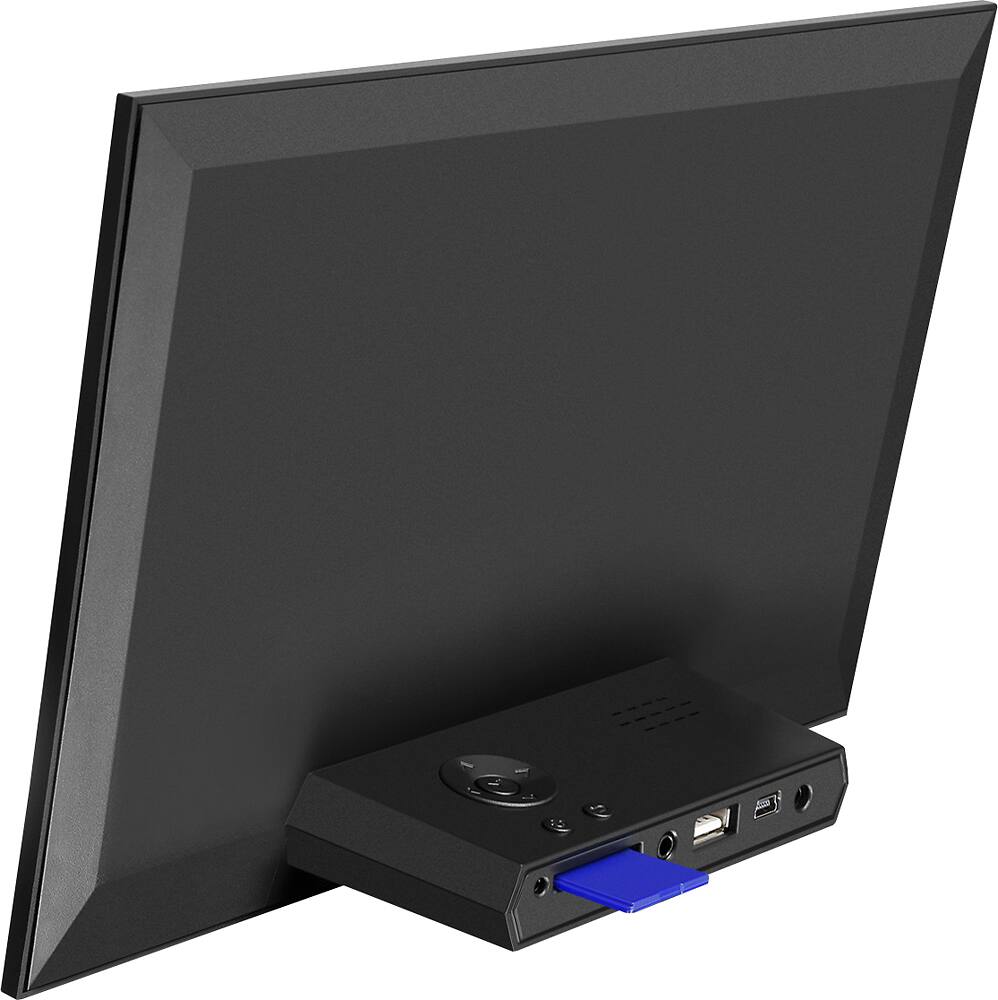
A:AnswerYou cannot add photos wirelessly. We added ours using the cord supplied that connected the digital frame to our PC. You can also download photos from a thumb drive.
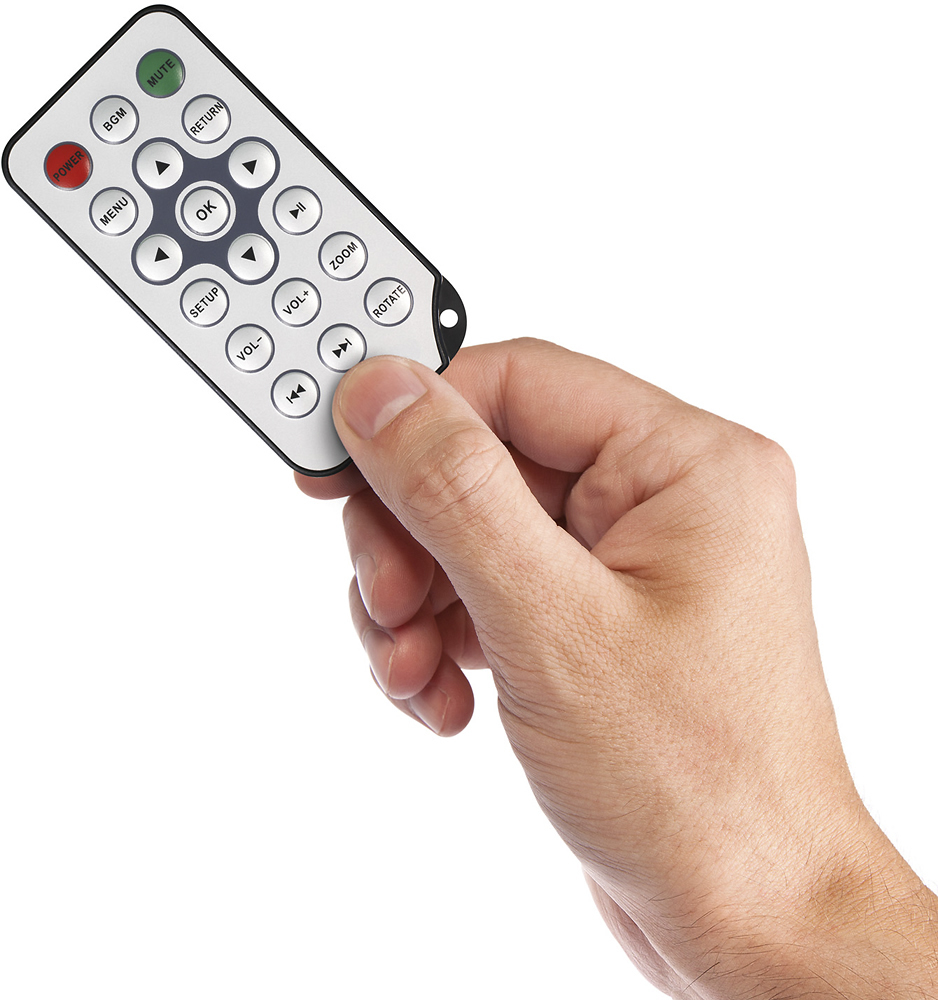
A:AnswerIf the frame is plugged in to a working outlet it should power on. Also check to make sure the power button is turned on if that model frame has a power button feature. If it is still not powering on please contact Aluratek support at 866-580-1978 and we will be happy to help you review your options for a replacement.
A:AnswerYou can connect the frame to your computers USB port (Mac or PC) using the included USB cable. The frame will appear as a removable storage device in which you can delete the file you do not want.
A:AnswerYou can not transfer pictures from your iphone to the frame directly. You will need to transfer to a SD card or computer first then you can transfer to the frame. We do have wifi frame that you can transfer pictures directly from your phone. With all of our frames, the pictures can display as a single picture or a slideshow.
A:AnswerYou will need to copy pictures to your computer first. You can then connect the frame to the computer so you can transfer the picture to the internal memory or you can copy the pictures to a SD card to use with the frame.