A:AnswerHi jen! The Echo Show 8 is a wired device that needs to be plugged into a wall outlet. I would recommend an Amazon tablet for a better on-the-go solution for you. Hope this helps! Have a great day!
A:AnswerHi BBJ1! Apps like Sirius XM and Spotify can't be directly installed on the Echo Show 8 like you would on a tablet. However, you can use these services through Alexa skills or by connecting your accounts.
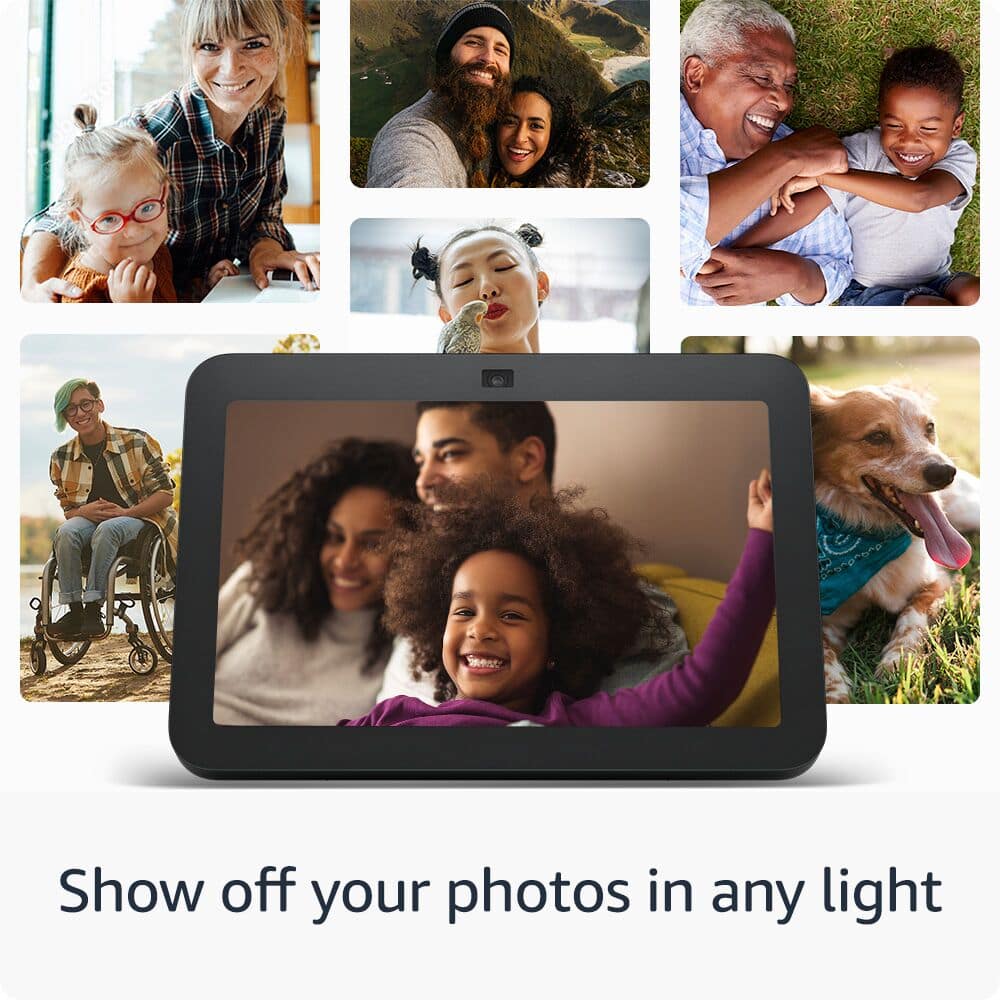
Yes, photos can be uploaded to the Echo Show 8. You can add photos using the Alexa app, Amazon Photos. Hope this helps! Have a great day!
A:AnswerHi Joh! You can use the Echo Show 8 to view any cameras that you have set up on a connected Blink account using the Blink Alexa Skill. To add the Blink Skill: Open the Alexa app. Open More and select Skills & Games. Search for the Alexa skill you want to enable. Select Enable Skill and log in using your Blink account. Once you've done that, you may need to give Alexa a moment to discover your cameras. At this point, all you need to do is say "Alexa, show me ____" replacing the blank with whatever you named the camera you'd like to see. I hope that helps, have a great rest of your day!
A:AnswerHello, if your Unitron hearing aids are Bluetooth then you can connect them to the Amazon Echo Show 8. On the Echo Show you will swipe down from the top and select Settings and navigate to Bluetooth.
Have a great day!
A:AnswerHello gavin and thank you for your question! The Amazon echo show 8 can display Blink cameras.
To display your Blink camera on an Echo Show, you can link your Blink camera to your Echo Show using the Amazon app:
Open the Amazon app on your phone or tablet
Select More in the bottom right corner
Select Skills and Games
Select the magnifying glass and search for Blink
Select the Blink Smart Home skill and press Enable to Use
Sign into your Blink account
Select Discover Devices
Wait for your device to be found
Once your Blink camera is linked to your Echo Show, you can view your camera or ask Alexa. Hope this helps! Have a great day!
A:AnswerHello Janice! If your Echo Show 3rd Gen stops playing music intermittently, a few potential reasons could be causing this:
- Wi-Fi Connectivity Issues: Echo devices rely on a strong, stable Wi-Fi connection to stream music. If the connection drops or fluctuates, it can cause interruptions.
• Fix: Restart your router or ensure your Echo Show is connected to a stable network. You might also move it closer to the router.
- Streaming Service Issues: If you are using a music streaming service (like Amazon Music, Spotify, etc.), there could be service outages or account issues.
• Fix: Check if the streaming service is down or if your subscription/account is active.
- Device Software Update: Sometimes, outdated firmware or software bugs can cause performance issues.
• Fix: Check for and install the latest software updates for your Echo Show.
- Multiple Device Interference: If you have multiple Alexa-enabled devices nearby, commands can be confused, and music may stop unexpectedly.
• Fix: Ensure the Echo Show is the only device responding to your voice command, or name the devices differently.
- Power or Resource Overload: Running multiple tasks or having a lot of background processes (like video feeds or other apps) could cause music to stop unexpectedly.
• Fix: Restart the Echo Show to clear any temporary issues or memory overload.
- Bluetooth or External Device Issues: If your Echo Show is connected to an external Bluetooth speaker, issues with the speaker could cause playback interruptions.
• Fix: Try disconnecting and reconnecting the speaker, or play the music directly through the Echo Show's speakers.
If none of these seem to resolve the issue, performing a factory reset could help identify or fix any deeper hardware or software problems. Have a great day!
A:AnswerHello Mo, Thank you for your question. I am not 100% sure of your issue, but you can always command the device to go back to Home screen by saying: "Alexa, go home". Hope this helps. Have a great day!
A:AnswerHi Tony27! The Echo Show 8, and other Echo devices with ultrasound motion detection, only emit ultrasound when a routine or feature requires it. If you'd like to test out the motion detection, a simple occupancy routine could be set up to announce when the Show 8 detects someone in the room. To try it out open your Alexa app and find Routines under "More" at the bottom right of the app. Create a new routine by tapping the "+" button at the top right. For 'When' tap add an event, then Smart Home, then select the Echo Show 8 and choose "Occupancy" followed by 'People are detected.' Then under Alexa Will: tap Alexa Says and choose something for Alexa to say following detecting occupancy. Finally save your routine and give it a shot! If you are still not seeing any motion detection, I would reach out to Amazon's customer service. I hope that helps, have a great rest of your day!
A:AnswerHi John, thanks for reaching out. You can use your Echo Show 8 to show up to 4 compatible cameras at once, by saying "Alexa, show me my cameras." For more than 4 devices, you will want to create customized groups in the Alexa app. Hopefully this helps. Have a great day!
A:AnswerH dmorrison, thank you for reaching out. If you do not already have one, you will need to create an Amazon.com account in order to register the Echo Show 8. From there, you will be able to complete set up, and pair any of your devices that are "Works With Alexa" compatible. Hope this information helps. Have a great day!