A:AnswerAs a general rule, a quality inkjet printer does a slightly better job than a color laser, but it all depends on the quality of both. You pays your money, you takes your chances...
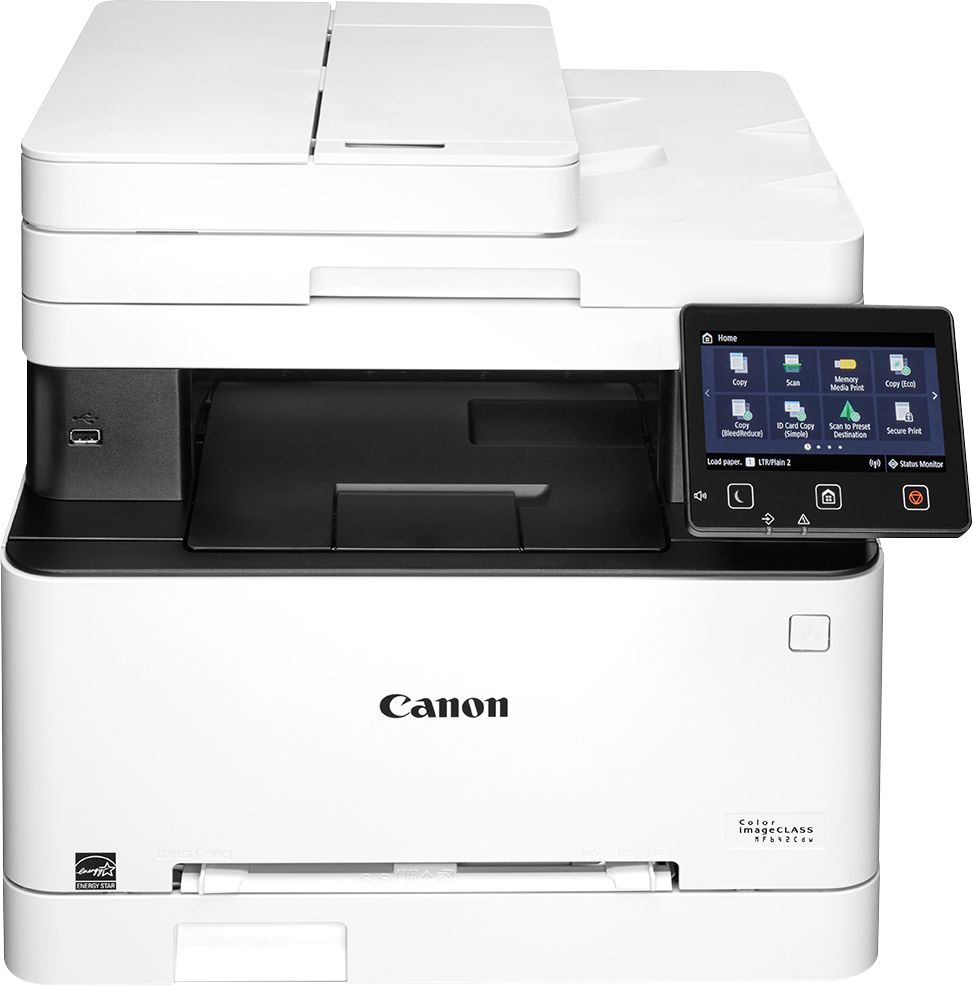
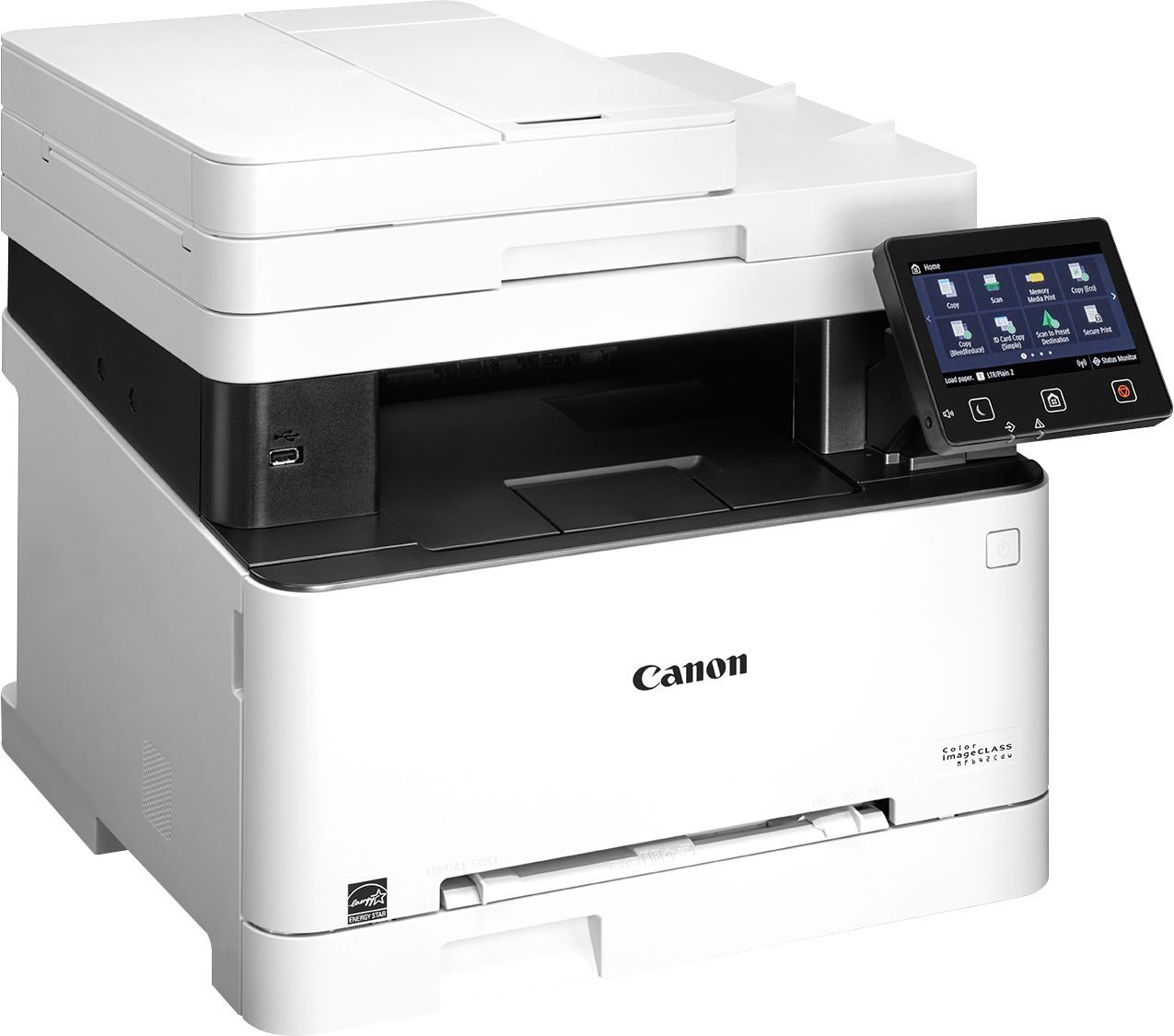
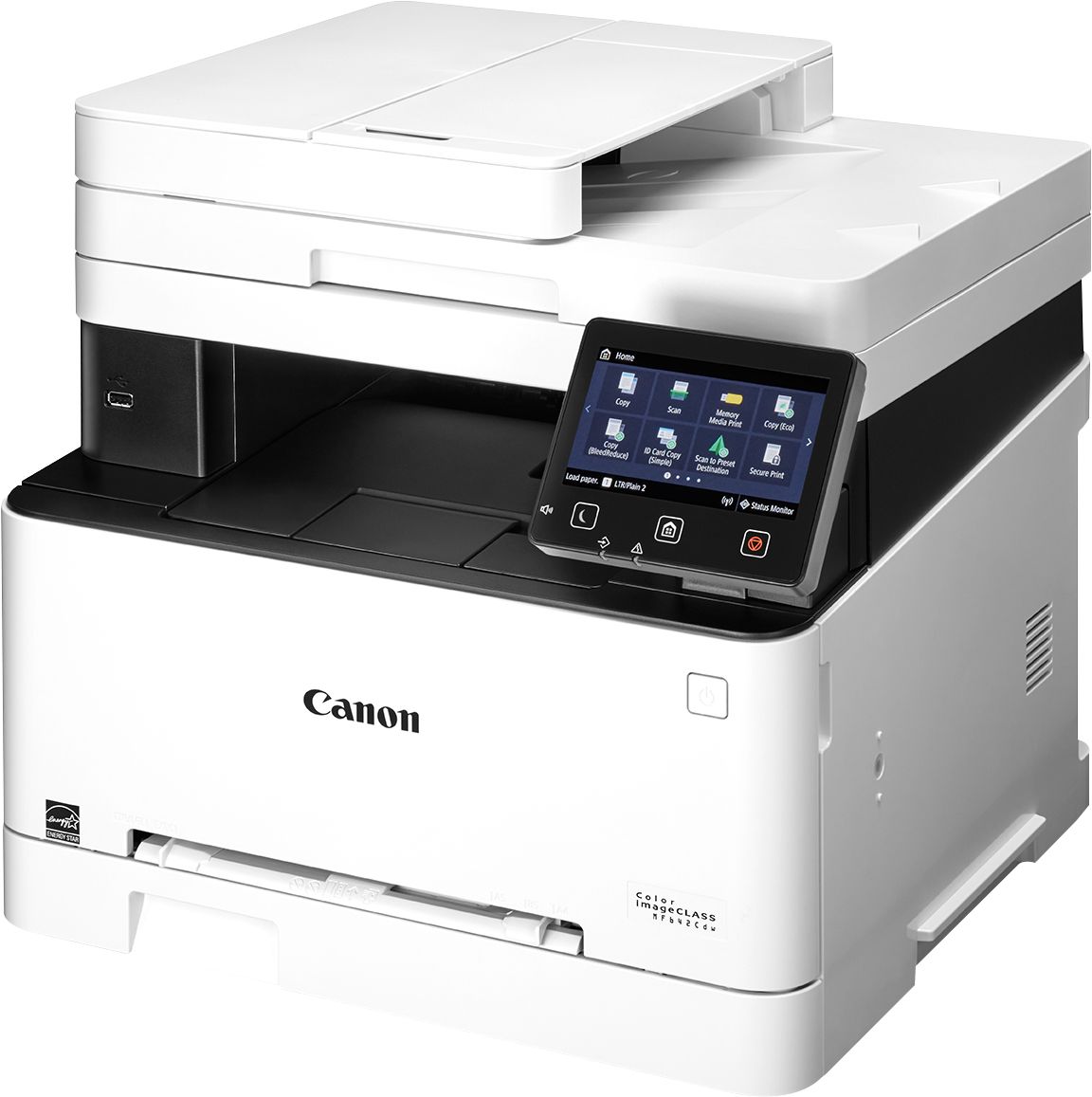
A:AnswerFrom application-based to cloud-based to device native, the imageCLASS MF642Cdw model offers a variety of methods for printing from a mobile phone or tablet across iOS and Android devices. The Canon PRINT Business application, which supports both platforms, offers access to additional device settings as well as the ability to scan from the printer to most mobile phone or tablet.
A:AnswerIf you consider printing from a Windows PC over Wifi, as using a non Apple product, then the answer is you can print over Wifi. I have both an Apple laptop and Windows 10 desktop and printing via Wifi works great on both platforms. Sorry I can't answer the FAX question.
A:AnswerI ran across this issue, it is in the settings of which tray it is pulling paper. Somehow it changed mine to attempting the self feed feature. A separate app instead of the printer listing with model number I had to change to the name including UFRILL at the end.
A:AnswerJust figured out that this model (642) only does single-sided scanning. Scans fast - I did about 7 pages single-sided in 40 seconds. But you have to flip the docs and scan in order to get the other side. I have a Mac so I just use Preview to make the pages duplex correctly. Still a great price.
A:AnswerThis printer has a "bypass" feeder for a single sheet, or the guides can be adjusted for a single envelope. Possibly the best feature of this printer.
No reason that you couldn't feed a single check or an 8.5 x 11 sheet of business checks.
Note: some people print the routing #, account # and check # across the bottom... I don't know if the toner is rated for that function.
A:AnswerHello, I had the same issue with my printer, so I ended up calling customer support at 800-652-2666. They answer fast and took care of my issue with in 2 minutes.
A:AnswerHow to Replace Toner Cartridges
09R7-0F2
Read the precautions in Maintenance and Inspections and Consumables before replacing the toner cartridges.
1
Open the front cover.
2
Pull out the cartridge tray.
MF8580Cdw
MF8280Cw
3
Pull the toner cartridge straight up and out of the machine.
4
Remove the replacement toner cartridge from the protective bag.
5
Shake the toner cartridge 5 or 6 times as shown below to evenly distribute the toner inside the cartridge, and then place it on a flat surface.
In this step, do not remove the drum protective cover ().
6
Pull the sealing tape straight out.
The full length of the sealing tape is approximately 19 3/4" (50 cm).
IMPORTANT:
When pulling out the sealing tape
If the sealing tape remains inside the toner cartridge, the quality of printouts, including faxes, may deteriorate. Also note that it will not be possible to reprint a fax because the fax function automatically deletes data once it is printed.
Do not pull out the sealing tape at an angle or sideways. If the tape breaks, you may not be able to pull it out completely.
If the sealing tape becomes stuck when pulling it out, keep pulling until it is completely removed.
7
Remove the drum protective cover.
8
Install the toner cartridge.
Each toner cartridge color has its own slot in the toner cartridge tray, and this tray is indicated with a corresponding color label (). Place the toner cartridge into the slot that corresponds to its color.
Make sure that the drum avoids contact with the frame of the toner cartridge tray because the bottom surface of the cartridge is exposed.
9
Push the toner cartridge tray back in, and close the front cover.
Immediately after the front cover is closed, the quick adjustment (Quick Adjust) starts. To perform adjustment for higher quality, perform full adjustment (Full Adjust).
A:AnswerWe printed labels, envelopes, and cards this year. Just be sure to set the printer with the suggested weight settings that are recommended with the stock you purchased.
A:AnswerI don't know the exact cost per page but have had laser printer for 8 years and they are much cheaper to operate. If you don't use an inkjet often, the ink dries. Lasers use a dry power and do not dry out and print several times more pages per cartridge. I strongly recommend lasers over inkjets