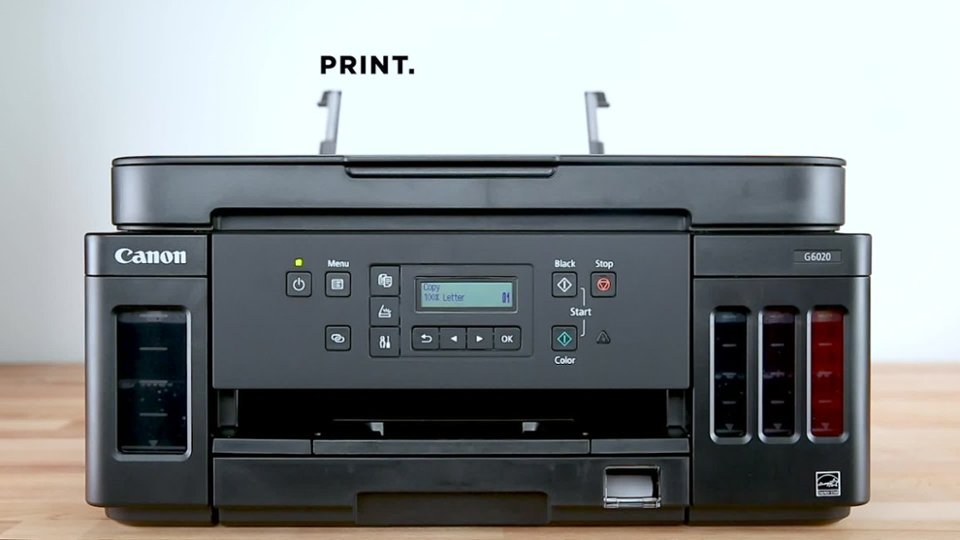
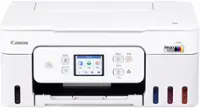
A:AnswerOpen to the Canon IJ Printer Assistant Tool in the Canon Utilities folder. Click on "Auto Power Options." Disable "Auto Power On' and "Auto Power Off."
The printer should stay turned on until you power it off with the power button on the front of the printer.
A:AnswerIt should. It works with 12.5 and I doubt seriously they'd cut off 12.4.
According to this: https://www.usa.canon.com/internet/portal/us/home/products/details/printers/megatank-inkjet-printers/all-megatank-inkjet-printers/pixma-g6020#Z7_MQH8HIC0L88RB0AMD0F1Q42OR1
It does support it. Says:
For full compatibility macOS v10.12.1 or later is recommended.
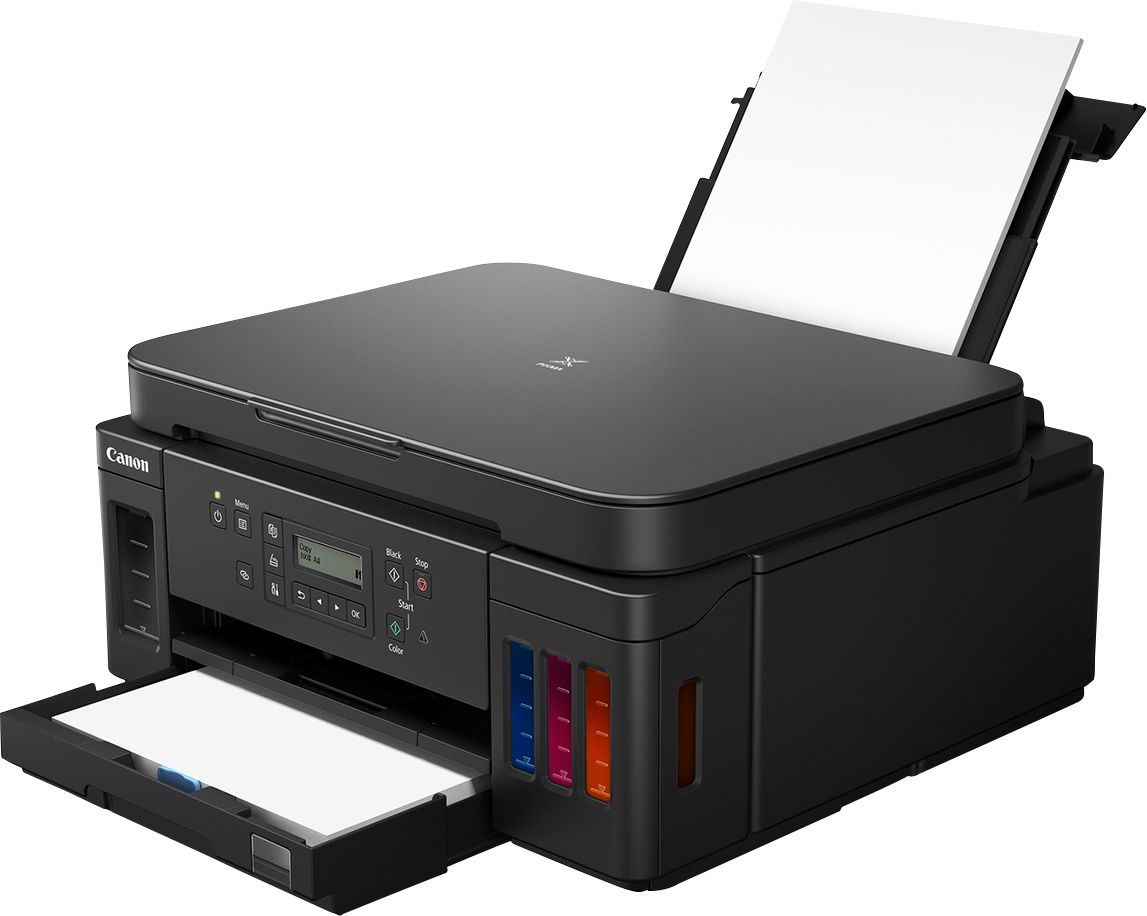
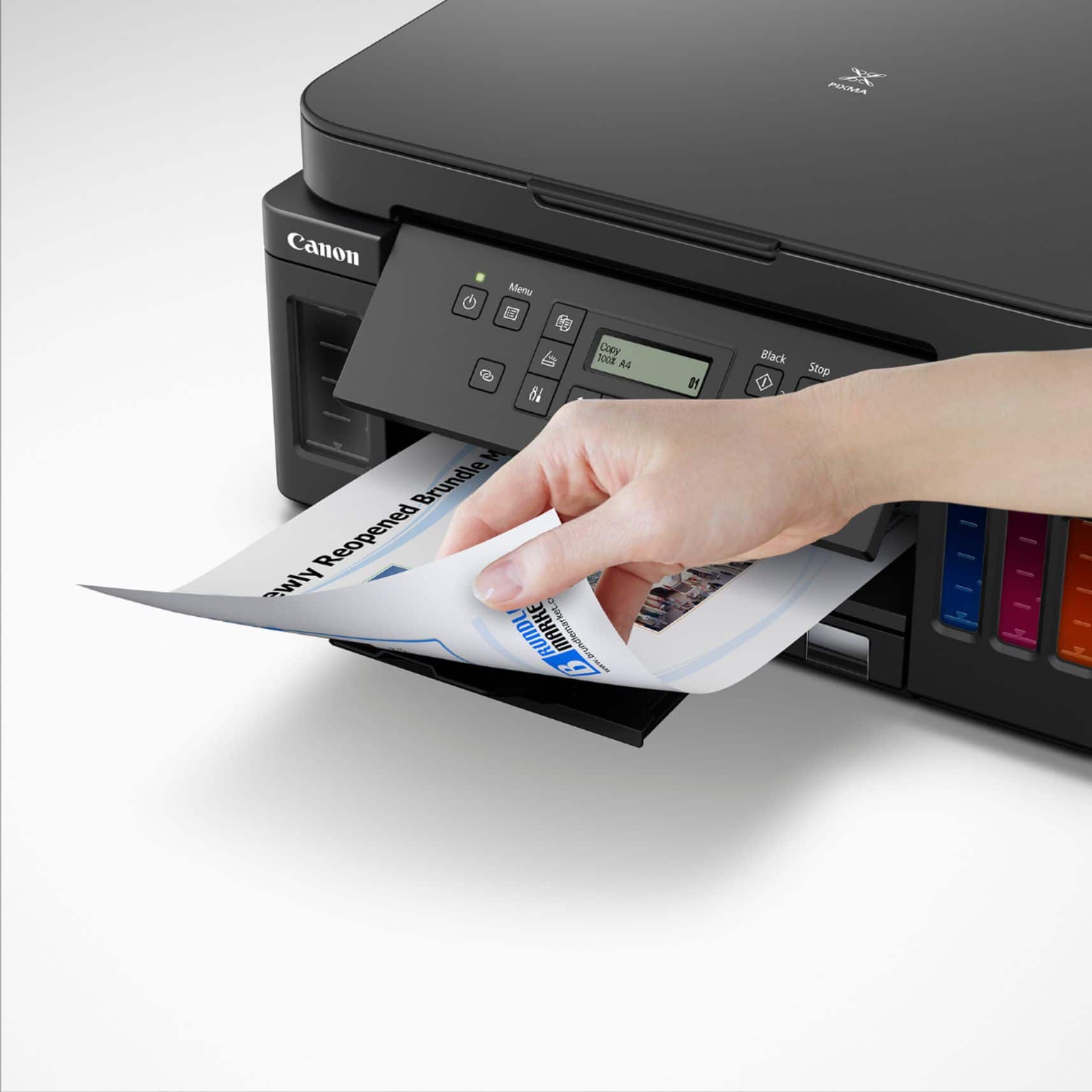
A:AnswerYou have to put it in the back slot ( a little hidden) and! Make sure you adjust the little bar on each side. Also, make sure if your using glossy paper, you have it away from you going in. Glossy smears however - make sure it’s dry before handling… I ruined a couple sheets.
It seemed a little blurry to me - verdict is still out if I like this printer- which I’m using for office and hone. Brother printer was a disaster- they don’t sell it anymore or the ink -I got it last July.
A:AnswerIt has a USB connection but I do not know its function since the wireless setup and function is easy and works fine. I assume it functions bidirectionally for printing and scanning by wire.