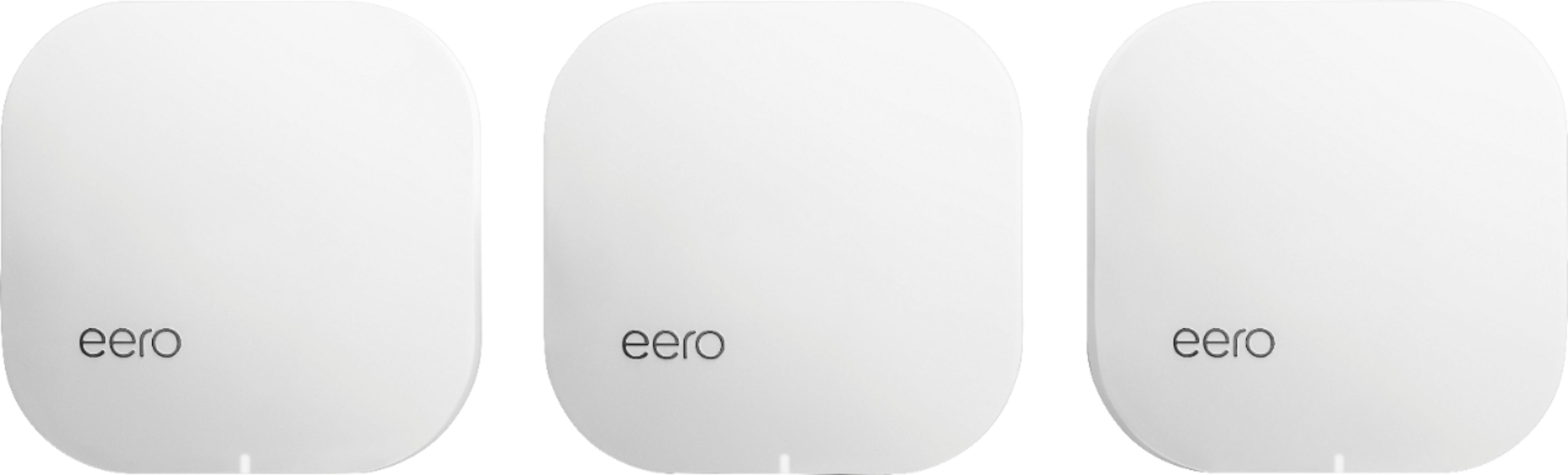
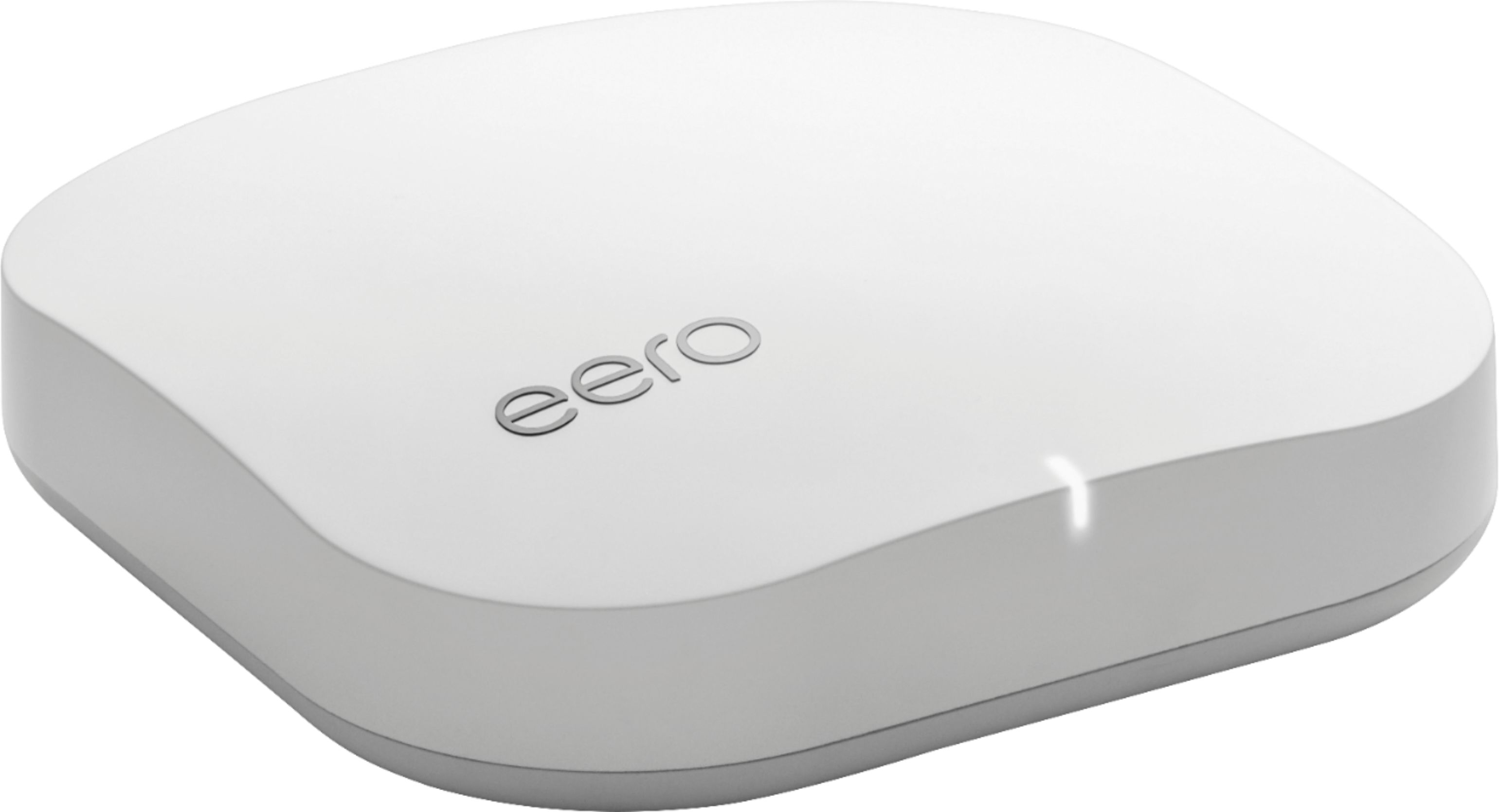
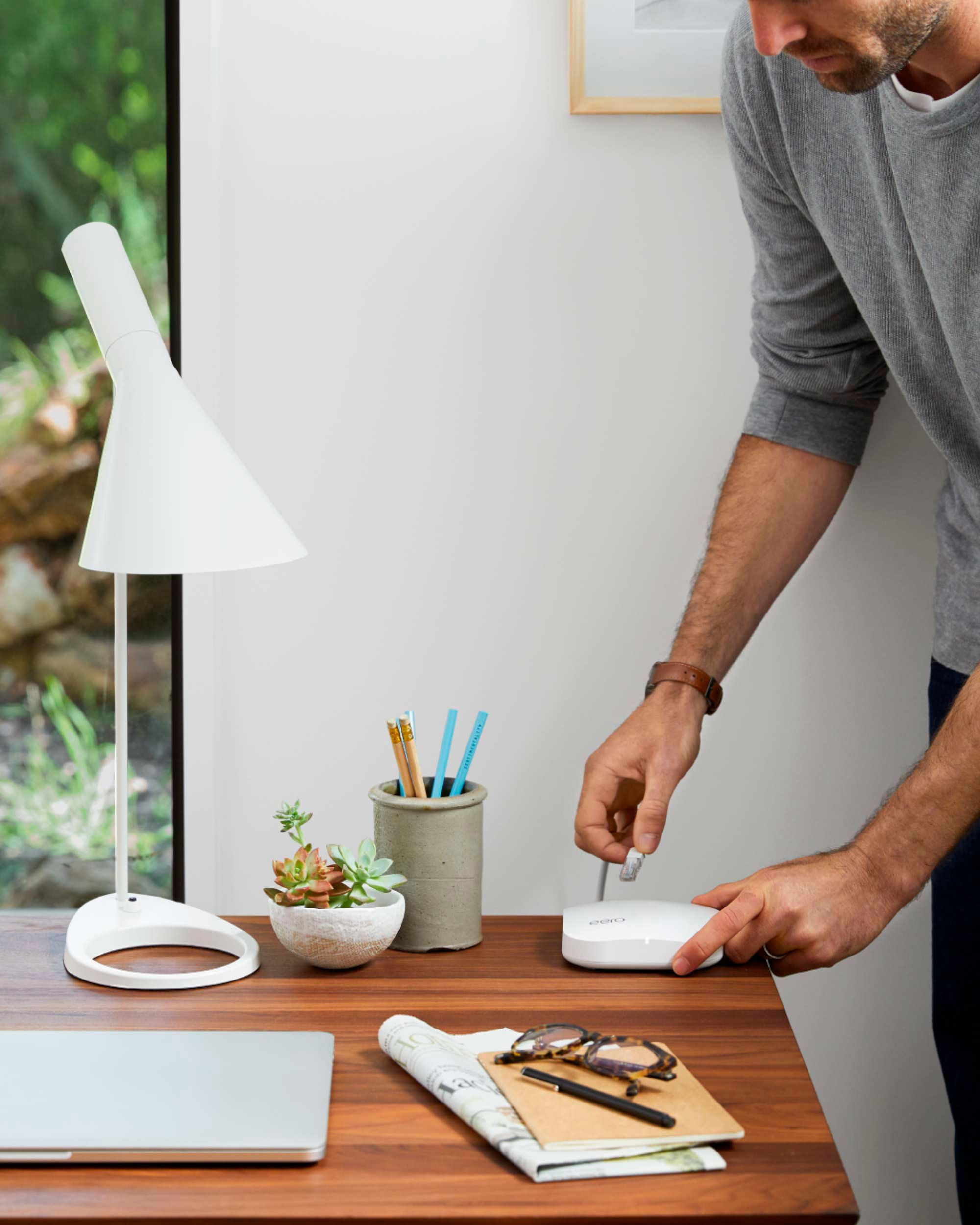
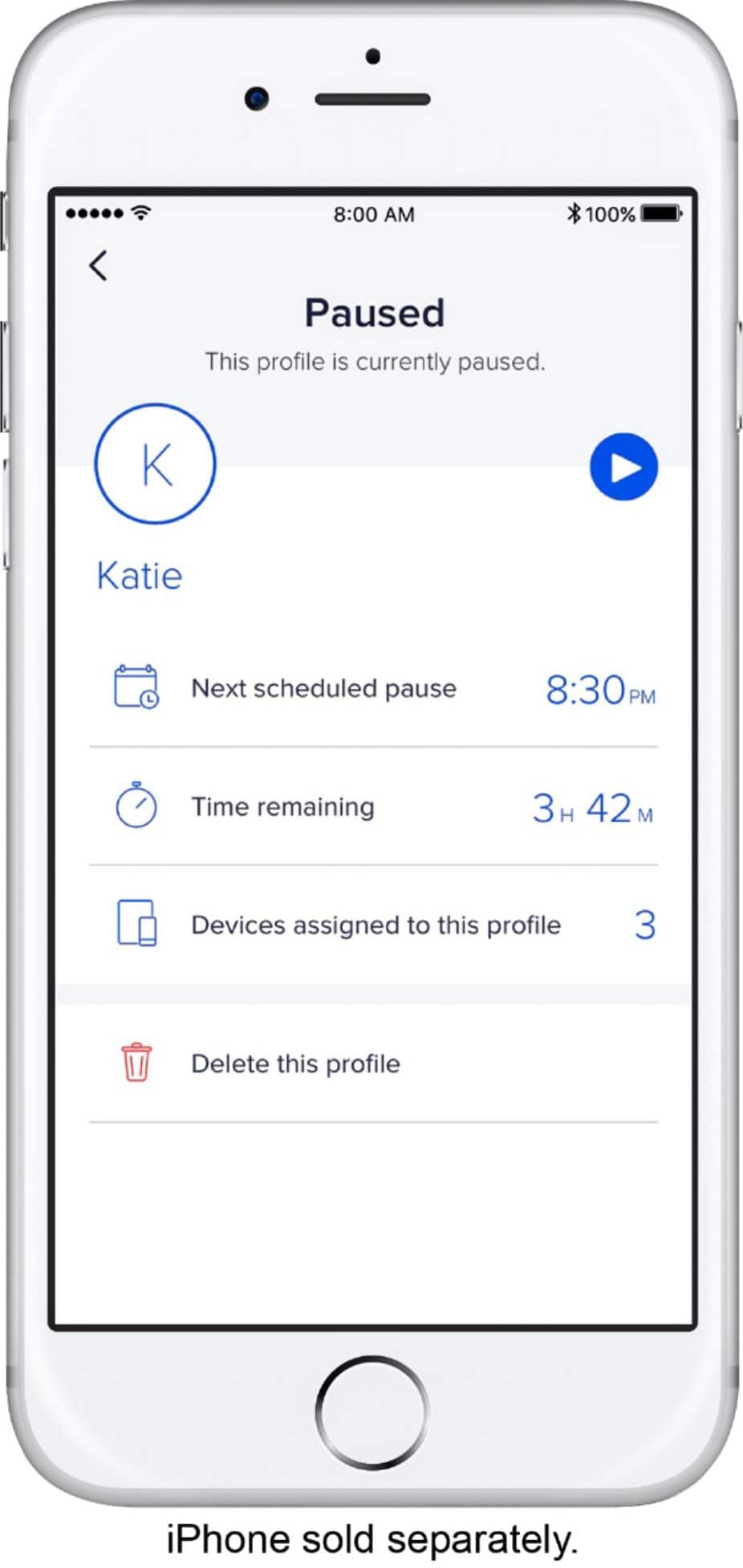
A:AnswerThe EERO Pro, like the EERO Home Wifi System, both transmits and receives over WiFi -- no Ethernet or Powerline adapters necessary...essentially, your "main" unit (with Eero gen 1 or Pro, it can be ANY unit) connects as the "main" router to your modem...every Eero Gen 1 and Pro comes with two ports which can be used as incoming, or outgoing. With the beacon system, the main router is the non-beacon.
You can then add on Eero Gen 1s, Pros, or Beacons to your network...any (logical) number of Eeros can be set up in tandem and, furthermore, a box of three EEROs is NOT a married pair. I've installed anywhere from 1 to 9 in a single home, depending on your needs...if you get a 3-pack and only need 2, the third can be used at an entirely different location as a single unit or added onto a different set (I.E. - 1-EERO studio or 4-EERO office)
They all communicate over WIFI, however, in pre-run wired homes, each one can be plugged into the ethernet network. Albeit, this is unnecessary. Likewise, PCs, TVs and other devices can be plugged into an EERO (satellite or main) and will act as if it is on LAN. Think of satellite EEROs as range extenders / access points, HOWEVER, due to their smart appliance nature and chipset, there is essentially no handoff delay and your entire network is seamless. Furthermore, they adapt to their unique install environment to best utilize each device.
Tips:
1-Make sure that you ping the install locations and each unit has a strong connection to one another.
2-Don't cheap out and install less than is necessary
3-Likewise, don't overdue it and add too many, as this will cause interference.
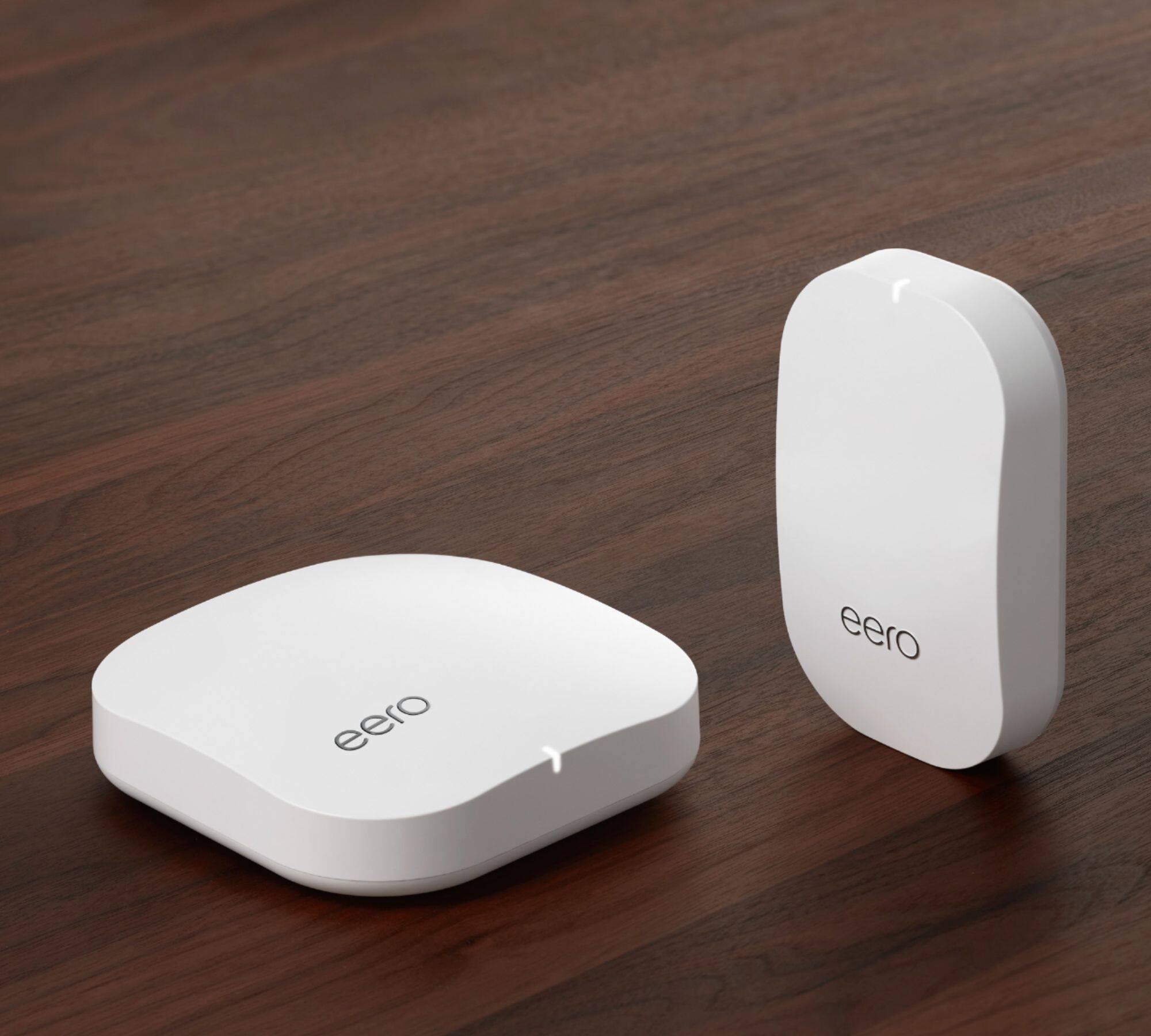
4-The Gen 1 or Pro system is, in my professional opinion, far better than the beacons in terms of versatility -- the beacons are designed almost exclusively for hallways / staircases.
5-You can add multiple powerline adapters onto an eero network if you really need to....only in cases of metallic flooring / walls or a concrete basement was this necessary.
Expereince
*5+ years of in-home and business technical support, smart home, AV, security and network installations in the LA / OC California area.
A:AnswerFrom my understanding they are all compatible across all their products so you could even go and just buy a beacon with an addition eero and pair it with your current system.
A:AnswerYes, the Eero Pro's do a great job of making WIFI available throughout my house, which is 2700 sq. ft. The 3 Eero Pro system will supposedly cover up to 5400 sq. ft., but I can't confirm that.
Where the Eero's shine is in setup. It's SUPER easy and automated once you setup the first one. I will say that it did tell me once that one of my Eero's needed better placement, which didn't make sense to me, so I left it as it was, and told it to try again, and it said I "placed like a pro". My only point there is that there might a little lag when they are setting up and so if it tells you the placement needs to be better, you might try again before moving.
A:AnswerI also have Frontier. I was having a problems getting a good single at the other end of the house with Frontier, but when we purchased a smart tv and got Netflix we had a lot of buffering and where the modem was we could not hard wire and ethernet cable. I also could not get my phone on home network from the back of house it was always on LTE. We purchased the Pro WiFi System (3 eeros), 2nd Generation and had geek squad set it up. They enable bridge mode on the modem device. I also use the Ethernet connection for my tv with one of the erros (the erro has and ethernet port the beacons do not). So far it works great. I'm not a tech person that is why geek squad set it up.
A:AnswerThe cable company did not want to drill any more holes and install more cable to our home because it was so expensive. They recommended a more suitable wi-fi product at Best Buy’s that had more signal reliability and they saved us a lot of money by selecting the”eero” which worked beautifully.
A:AnswerI attached an ethernet switch to my eero pros (gateway and 'satellite') and then can have as many ethernet ports as needed.
I used the NETGEAR 8-port Gigabit Unmanaged Switch, Cable Management, Plug-and-Play, Desktop, Stylish design, Fanless (GS908) for locations where it is visible.
Other locations I used the Netgear GS605NA or GS608NA.
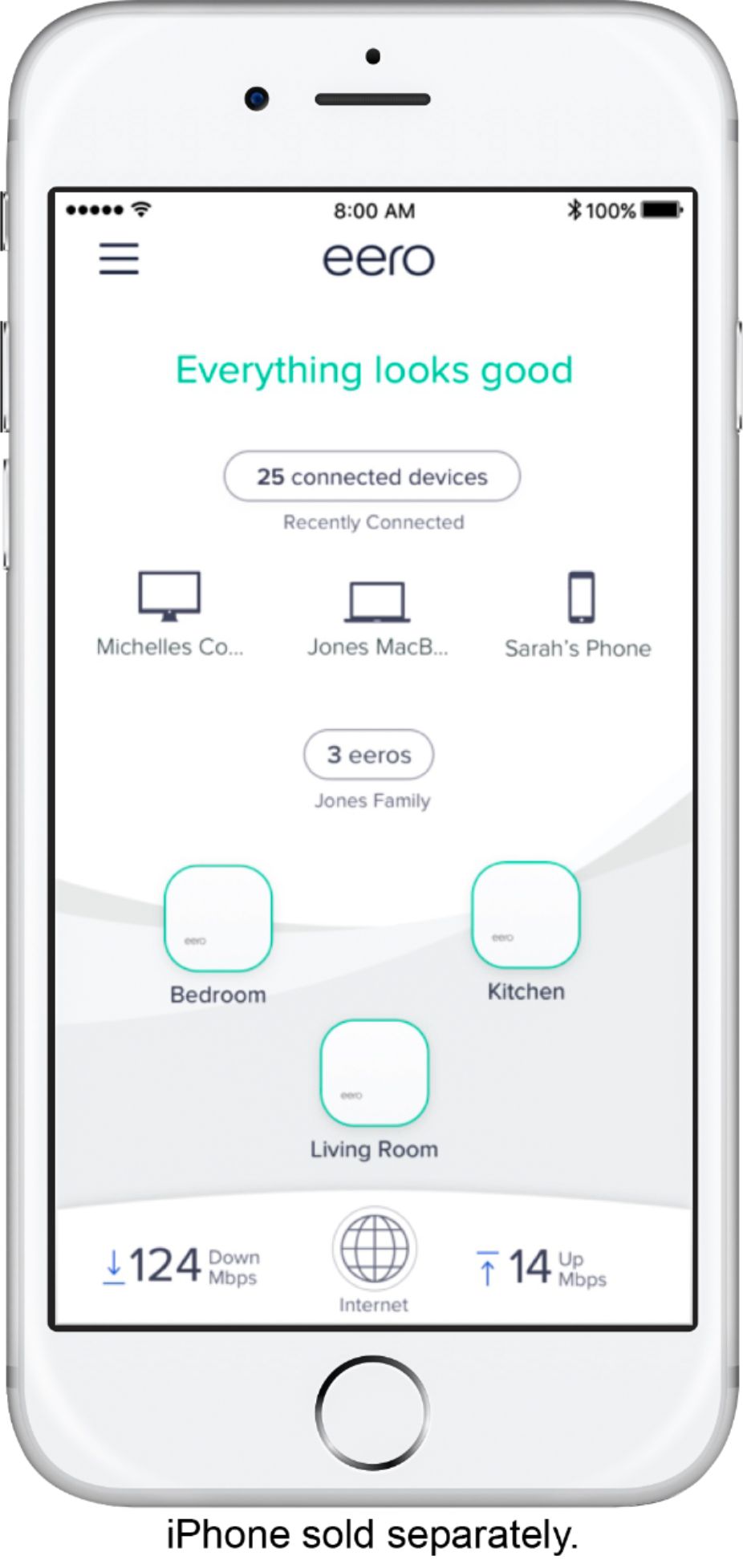
A:AnswerThey will connect in series. The smartphone app used to set up your system will also verify the signal strength between beacons to help you verify coverage.
A:AnswerI would recommend hard wiring your Eero pro to just your modem rather than another existing router, however you can do it the way that you’re trying (you would just have multiple networks). You just need one Eero pro to be hard wired to the internet. After you set up that first hard wired Eero pro with the Eero app, you can place your second Eero pro somewhere else in your home and set it up to expand your wifi coverage.
A:AnswerI purchased the eero pro because I wanted to have ethernet (wired) connections for the "backhaul" to the gateway eero.
Also, I believe the beacons don't have ethernet ports and I needed these in multiple locations.
A:AnswerNothing transmits well through a steel wall, nothing to do with 1st or 2nd generation, more to do with WiFi signals being stopped by the dense metal. The only practical way to overcome this is a wired Ethernet connection to the inside of the garage. Or maybe if the garage has a window place the eero in front of the window instead of the steel wall.
A:AnswerDo you plan to connect these together with wireless mesh, wired, or a combination?
I would say if you wireless and you optimally place the eero you should achieve the 1Gbps. If you’re wired you’ll definitely get it.
The eero have 1Gbps Ethernet ports and have 2.4Ghz, 5.2Ghz, and 5.8Ghz wireless bands.
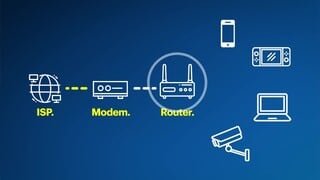
A:AnswerYou will need to keep a Modem as the Eero system is a Wi-Fi router that extends your Wi-Fi throughout your home. The beauty of the Mesh system is now you will only have 1 SSID (Router name) in every corner of your home. The Eero is a Tri-Band system that switches automatically to the best frequency ( 2.4 or 5 Ghz ) based on conditions it detects in your home. Also, remember that the 3rd band is strictly for what is called "Back-haul". This is the method the router uses to communicate to the other Modules. Another great feature of this system is each module has 2 Ethernet ports that can be used for directly connecting other devices. Botton Line: You can now get rid of 1 of the routers that you currently have connected.
A:AnswerMy house is a 2 story with 2800 sq ft. I wanted the second eero not only for the second level and sq ft, but to be able to hard wire my Xbox. If you don't have as much sq ft the eero and beacon should work great. Wifi coverage and speeds increased significantly with this system. I'm very happy with this purchase.
A:AnswerUnfortunately no, Hughes net is sending you the speed they can send. Creating another new wifi network will still be just as bad or worse since you now would have two networks. Im sorry.