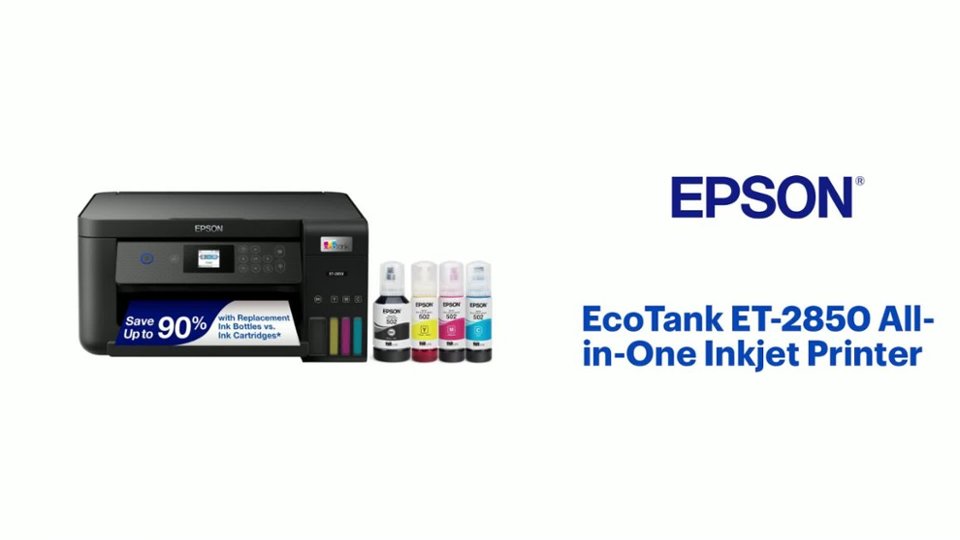
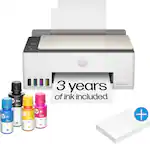
A:AnswerHello Ash. Yes, you can enable Wi-Fi Direct Mode on the ET-2850 to act as a network access point for up to 8 devices. This will allow you to connect your phone directly to the printer without having internet. Regards, Kevin - The Epson Team.
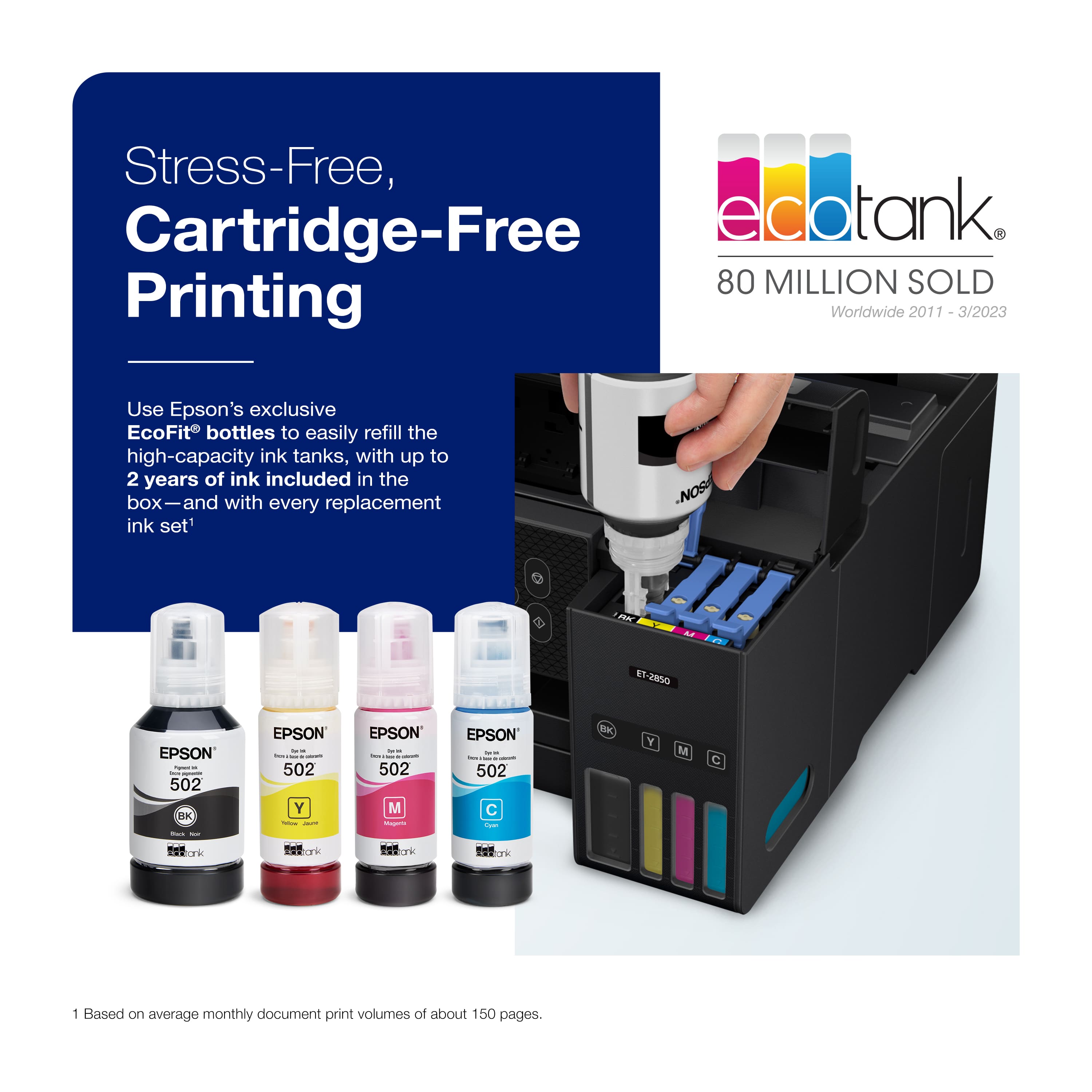
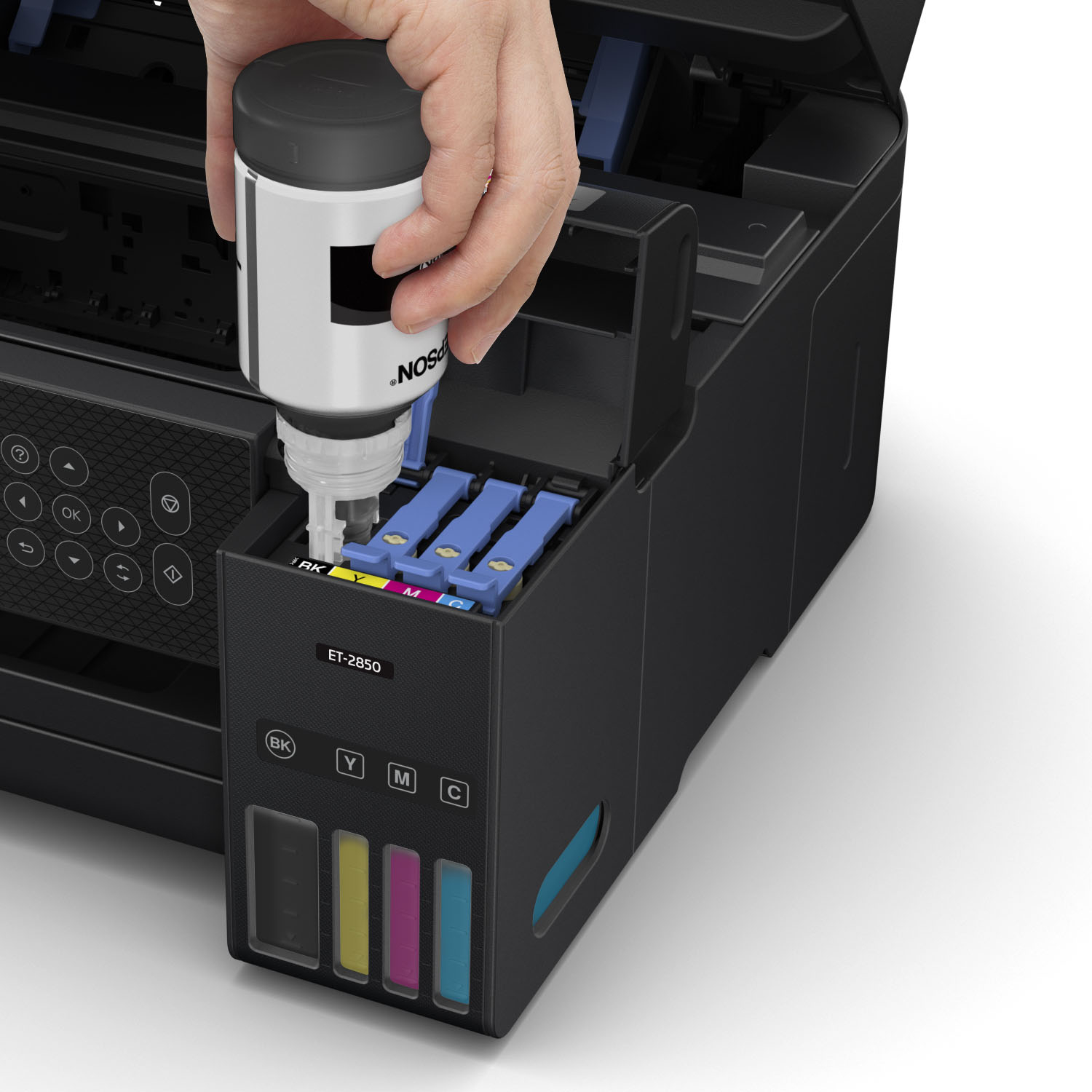
A:AnswerHello Rosie. Turn on your ET-2850 and close the document cover if it is open. Lift up the scanner unit with both hands until it locks and open the ink tank cover. Read the precautions on the screen and then proceed to the next screen. Open the cap for the ink tank you are going to fill. Hold the ink bottle upright and slowly turn the bottle cap to remove it. Wait for the ink to fill the tank. Do not squeeze the bottle. Ink flows into the tank and stops automatically when the ink is filled to the upper line. When the ink tank is full, remove the ink bottle and securely close the ink bottle cap & ink tank cap. Close the ink tank cover, then close the scanner unit using both hands. Press the home button to display the Home screen, then select Maintenance > Set Ink Level. Follow the on-screen instructions to reset the ink level for the colors you refilled. Regards, Kevin - The Epson Team.
A:AnswerHello cm94. The ET-2850 can print on card stock. However, the thickest paper we have tested on the machine is Epson Premium Photo Paper Glossy, which weighs 79 lb. For cardstock, we have tested similar Epson paper that weighs around 44 lb. Please be aware that these recommendations are for Epson paper only. You can try a cardstock that falls in that range, but your results can vary when using other brands and heavier paper. Regards, Kevin - The Epson Team
A:AnswerHello Watergirl. Unfortunately, the ET-2850 does not have an option to temporarily print in black ink only when other colors are empty. Regards, Kevin - The Epson Team.
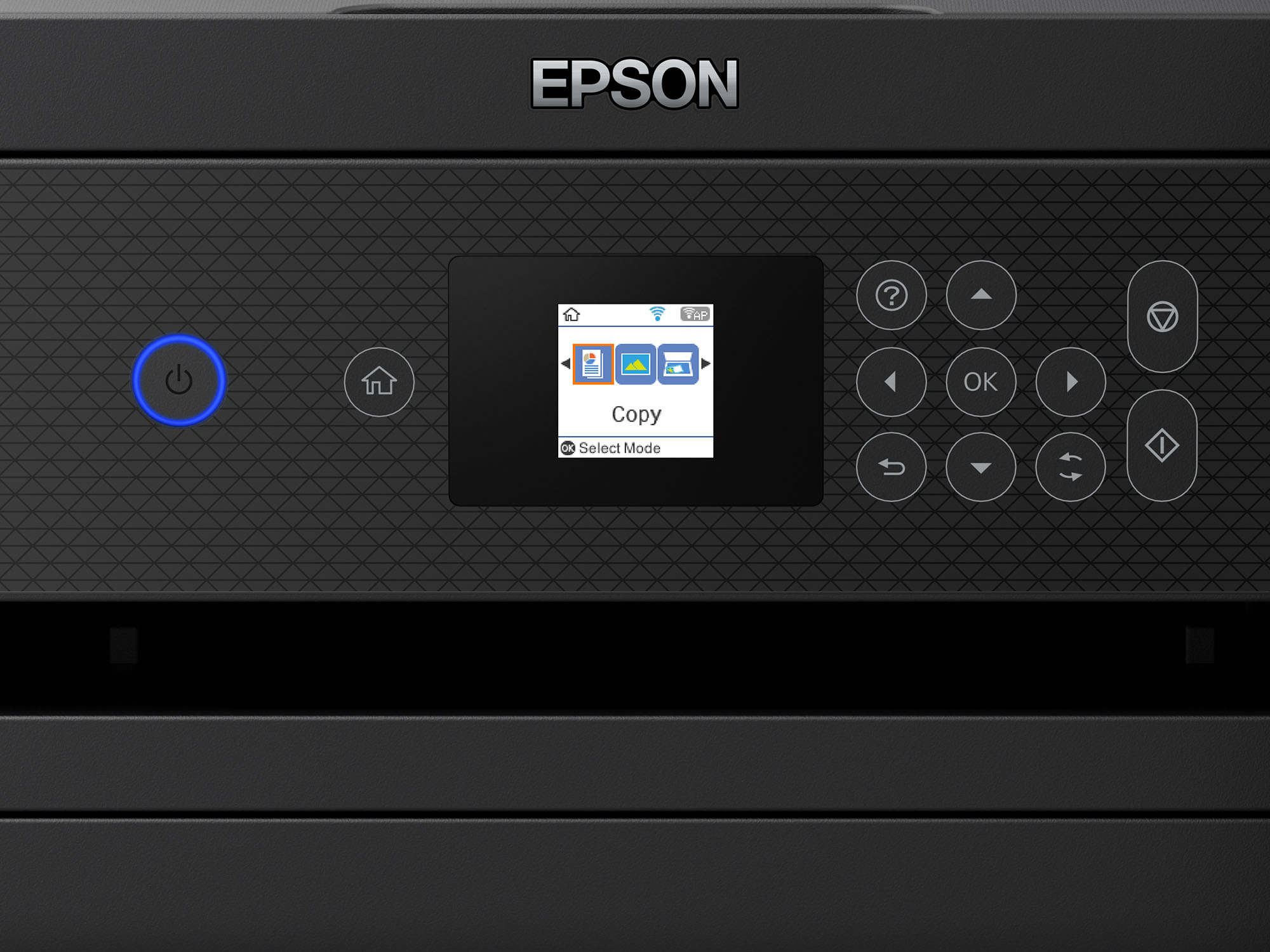
A:AnswerHello Alana. We recommend restarting your printer. If the buttons are still greyed out, try resetting your copy settings by going into the Menu > Settings > Restore Default Settings > Copy Settings. Hopefully this resolves your issue, if you still need assistance, please contact our Technical Support team by phone. Regards, Kevin - The Epson Team.
A:AnswerHello. The ET-2850 should work with your computer as long as it is running a version of Microsoft Windows 7 - 11. If so, you can download the print driver from our official Epson Support page. Regards, Kevin - The Epson Team.
A:AnswerHello. The ET-2850 supports paper sizes ranging from 3.5" x 5" to 8.5" x 47.2". Unfortunately, 11" x 17" paper is not supported on this model. We recommend looking at our All-in-One wide format printers. Regards, Kevin - The Epson Team.
A:AnswerHello potterlady. Yes, the ET-2850 includes automatic 2-sided printing. You can enable or disable the option from the print settings on your Mac computer. Regards, Kevin - The Epson Team.
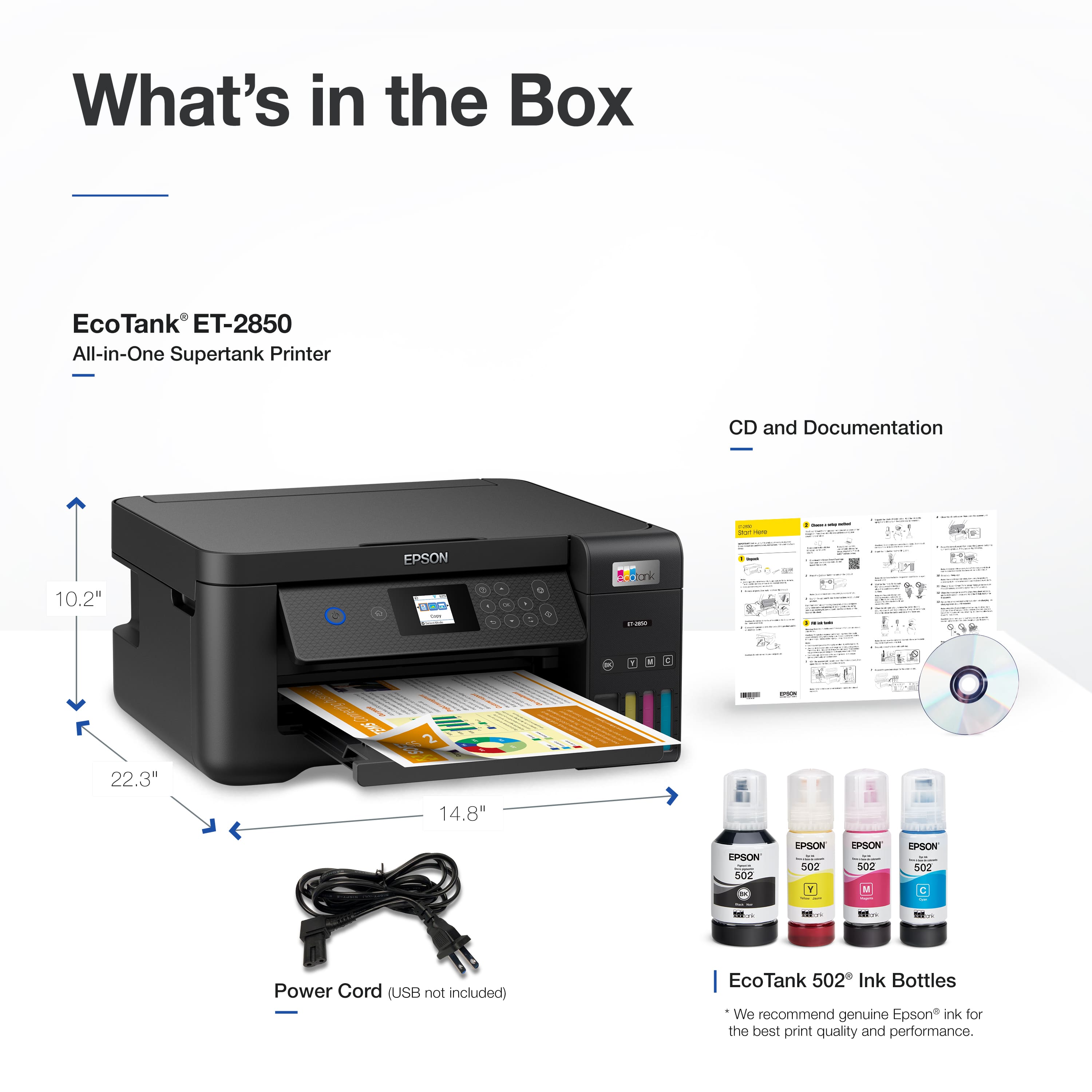
A:AnswerIt includes one full fill of ink and the power cable. If you want a USB cable to connect to the computer, you’ll need to buy one of those separately.