A:AnswerYou can use the usb that it comes with for mouse and any wireless keyboard should come with one as well! Just plug it in and the system does the rest!
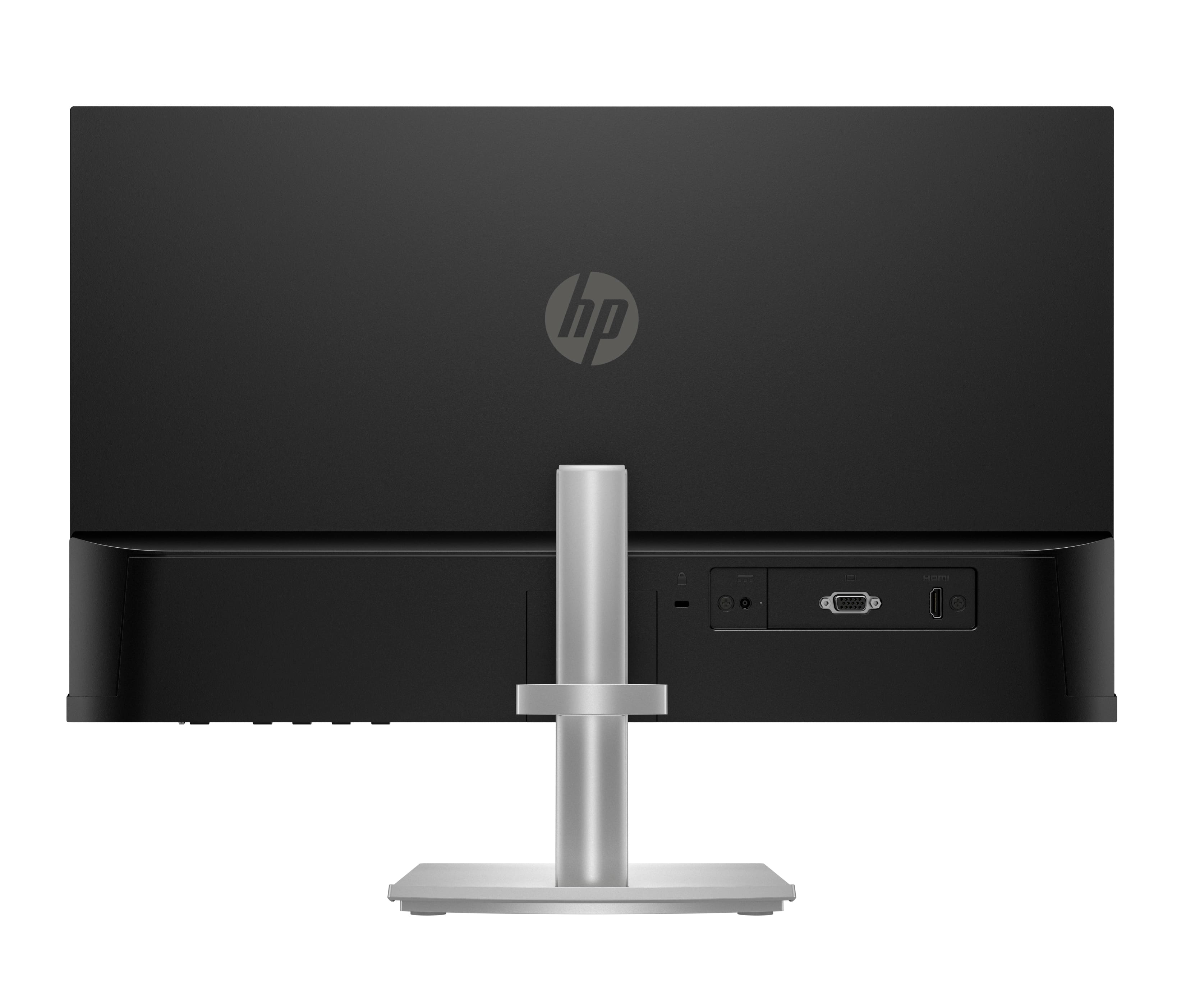
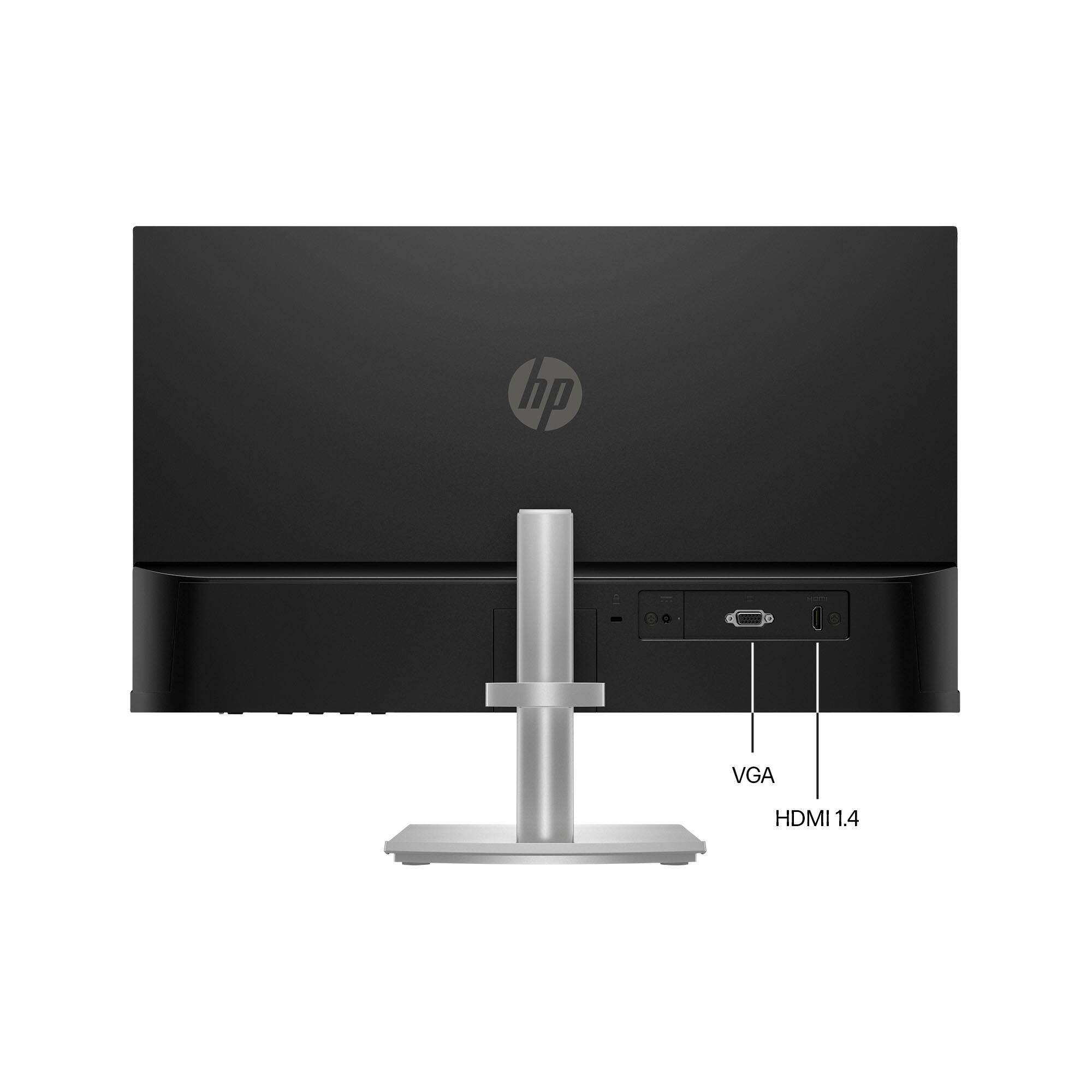
A:AnswerThank you for the question. You'll need two HDMI ports into which you'll connect the cables supplied with the monitor. You can use a USB-to-HDMI adapter with just one HDMI port on your PC.
A:AnswerI'm not sure what you mean be "mirror the laptop". if you mean to show exactly what you're seeing on the monitor, I don't believe there's a way to do that.
A:AnswerThank you for the question. Use settings (HP monitor software and Mac settings) to adjust the colors and see if you have a Mac or 3rd party nightlight app. If so, be sure it's disabled. Fuzzy text can be fixed by adjusting your display's resolution.
A:AnswerThank you for the question. The M24h monitor is compatible with the ZBook G5 Workstation. Yes, a dock connected to the Thunderbolt port should support HDMI.
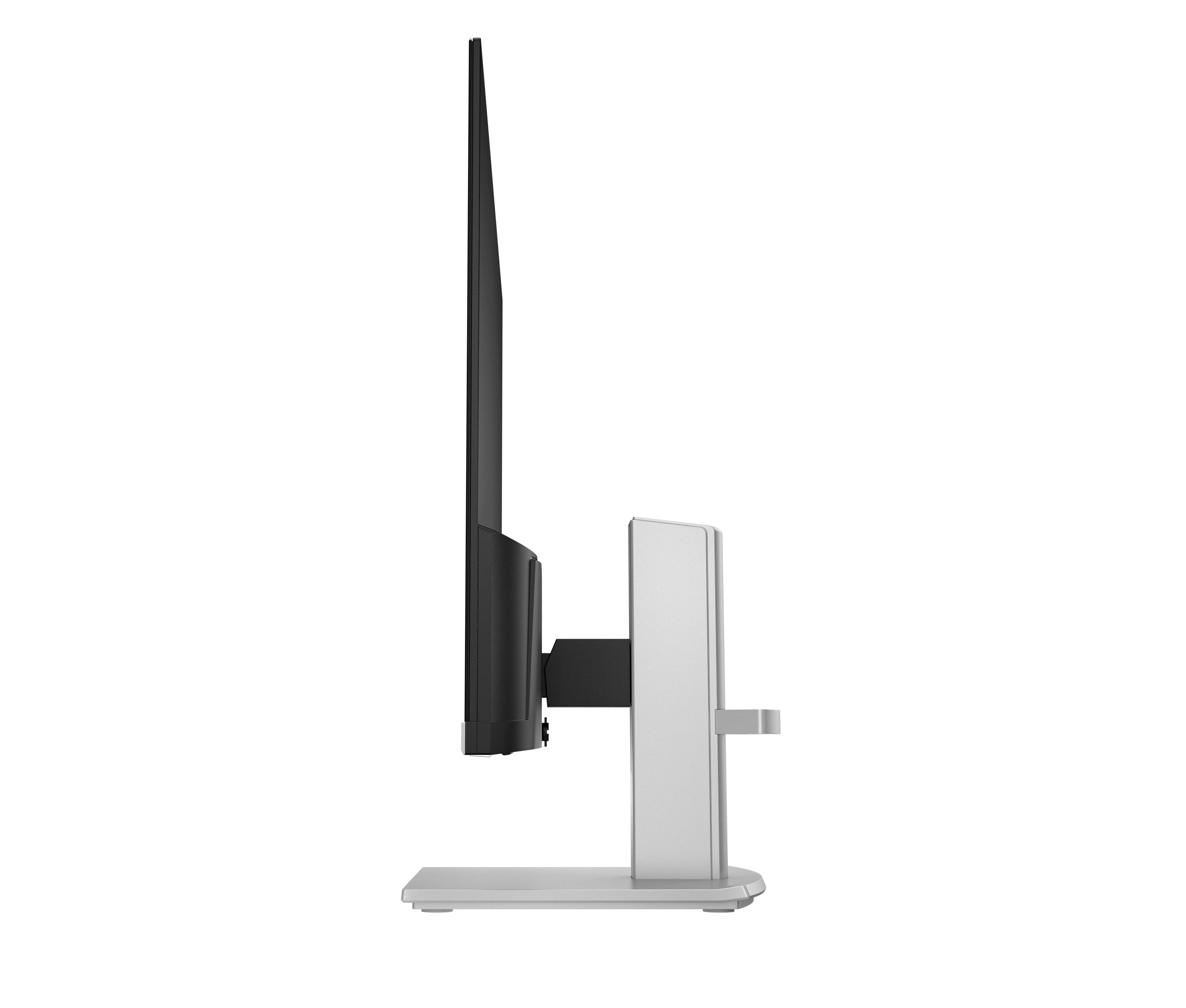
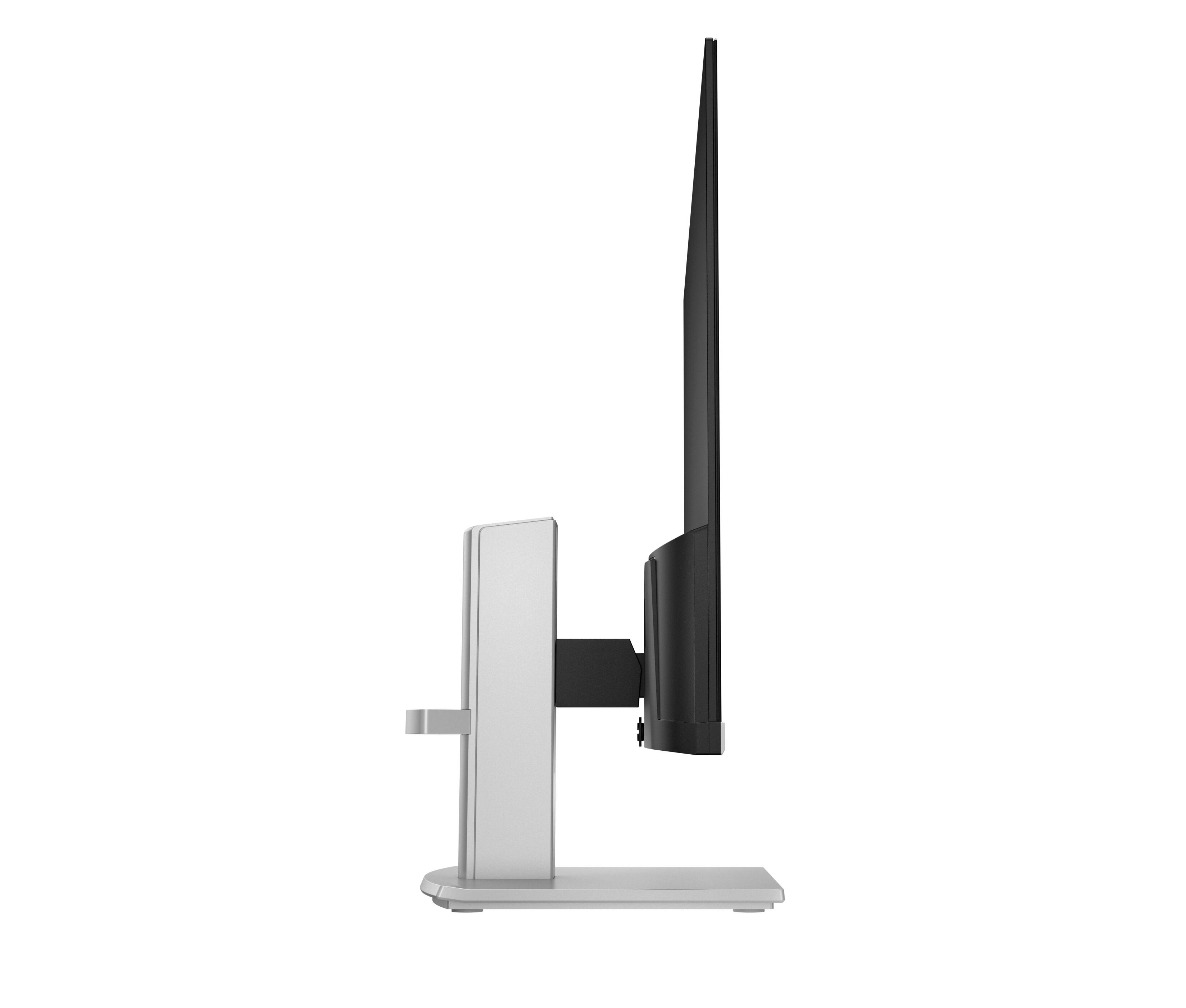
A:AnswerHello, CWSmith! This monitor does not rotate, and there is not a separately purchasable stand that would allow it to do so. I would recommend looking for an HP monitor that is VESA mount compatible so that you can set it up vertically. Thank you for your question!
A:AnswerThank you for the question. This model comes with an HDMI cable. One end connects to the monitor, the other to the HDMI port on the computer. No other cables are required.