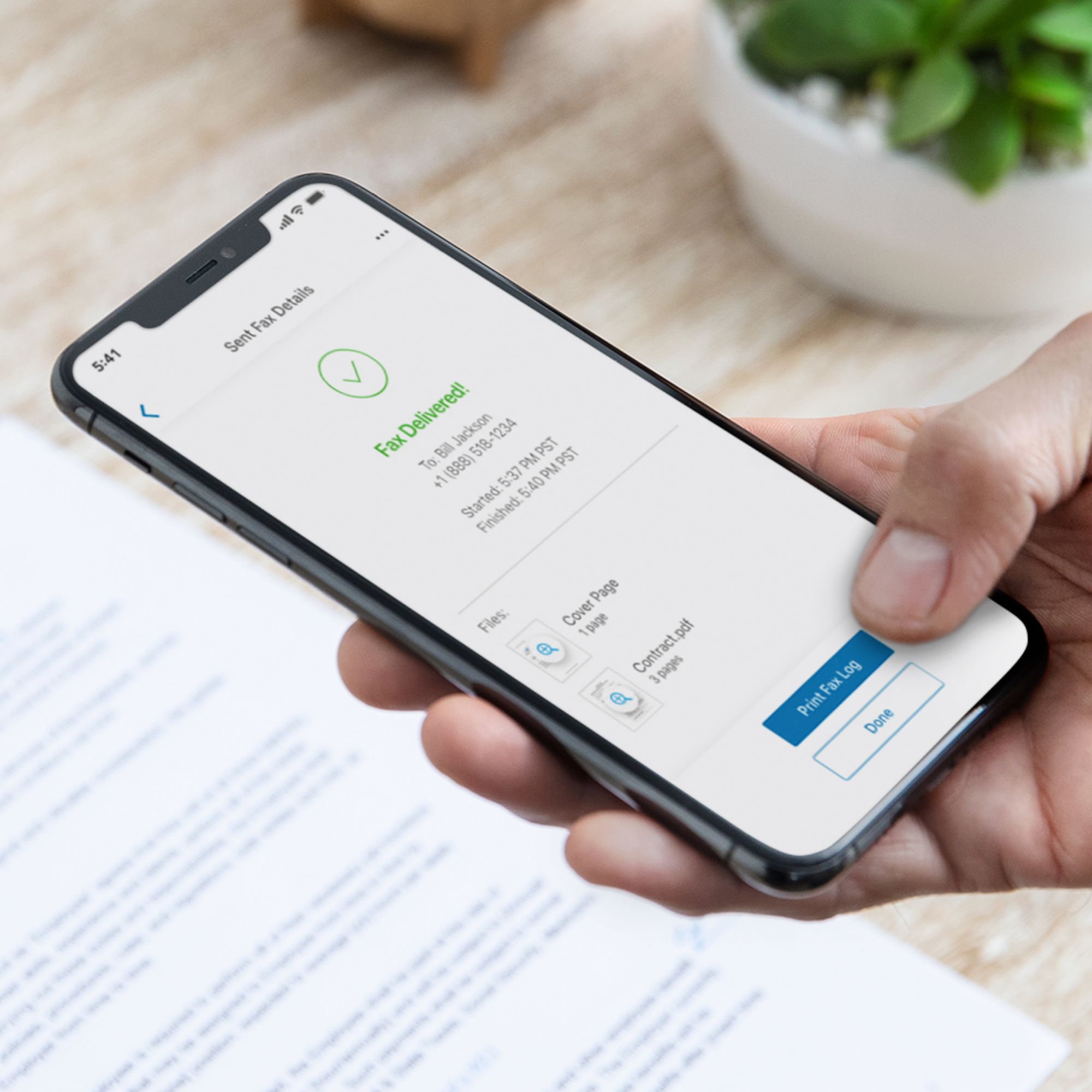
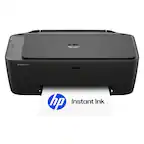
A:AnswerHere are some instructions and how to use the mobile fax option on the HP smart app with this printer. This printer does not have the capability to send faxes over a landline. Here are the instructions: https://support.hp.com/us-en/document/c06432978
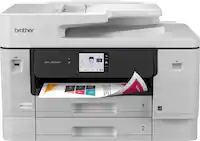
A:AnswerCompatible network operating systems:
MacOS Sierra v10.12 (previously OS X), macOS High Sierra
v10.13, macOS Mojave v10.14, macOS Catalina v10.15
A:AnswerNo, it is not. The HP OfficeJet Pro 8025 would be compatible with it. Here is a link to the 8025:
https://www.bestbuy.com/site/hp-officejet-pro-8025-wireless-all-in-one-instant-ink-ready-inkjet-printer-gray-white/6335311.p?skuId=6335311
A:AnswerNo. You would need to turn over the paper manually. If you want a printer that can scan both sides automatically, we recommend looking at the HP Officejet Pro 9015 or 9025 printers.
A:AnswerGo into the software and change the settings from black and white only to color. I set mine on black and white when printing letters and when color is not needed.
A:AnswerThank you for the question. If you don't have a wireless connection, you can connect the printer directly to the computer with a USB cable. You can also use the HP Smart App and your Smartphone, however, the printer and the phone must be on the same network.