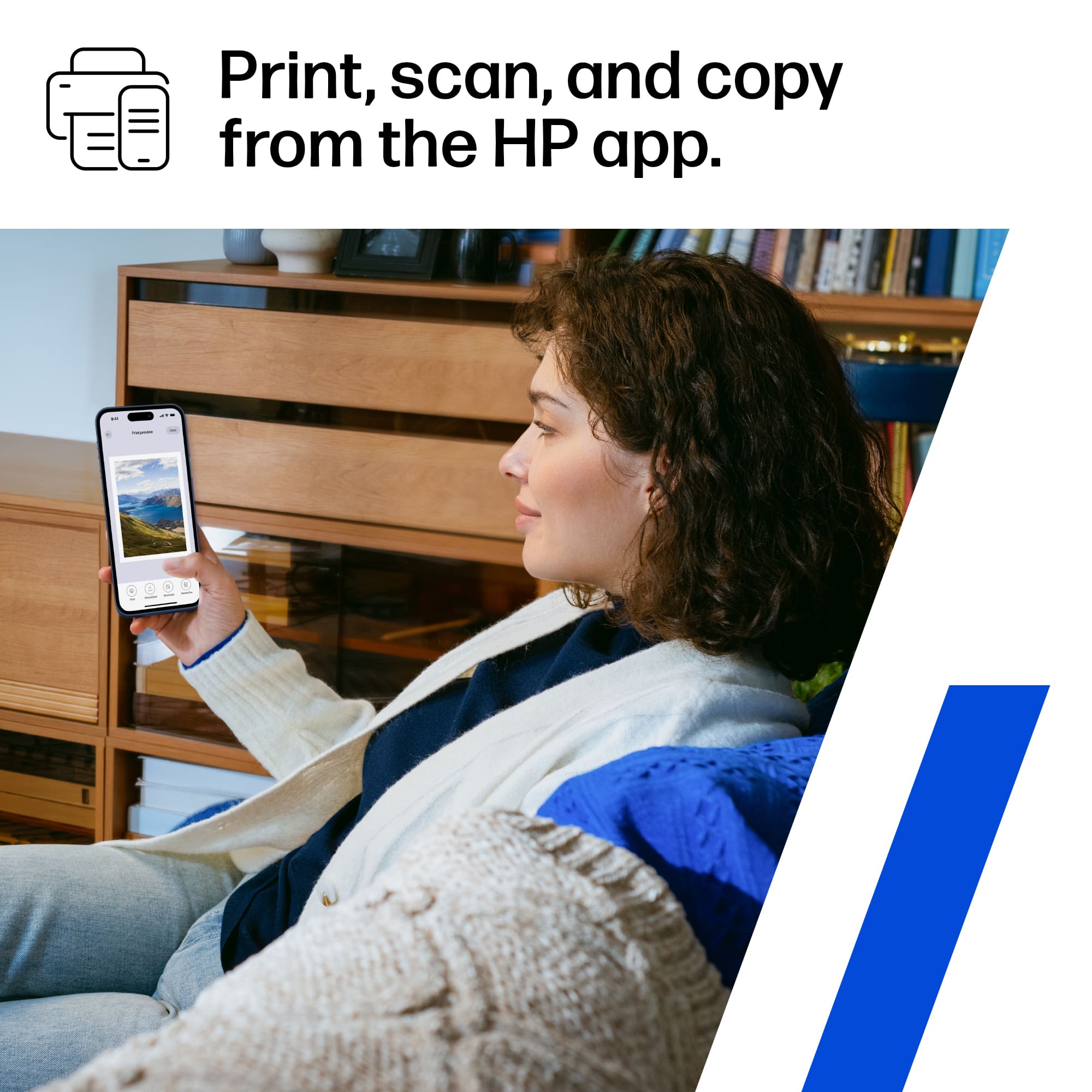
A:AnswerHello Pat and thank you for your question! This HP DeskJet 4255e does have the ability to send faxes via the free HP Smart app if you opt into HP+
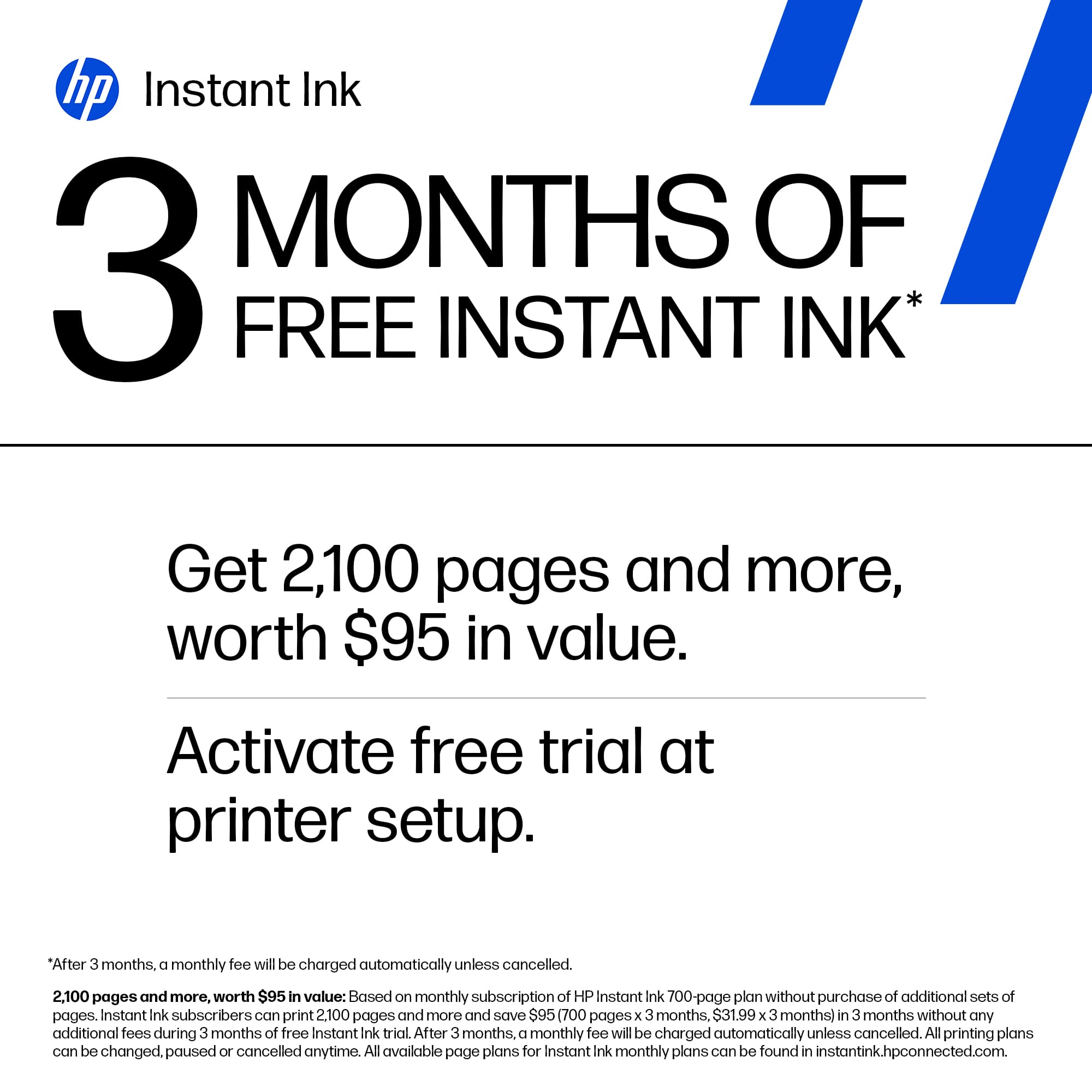
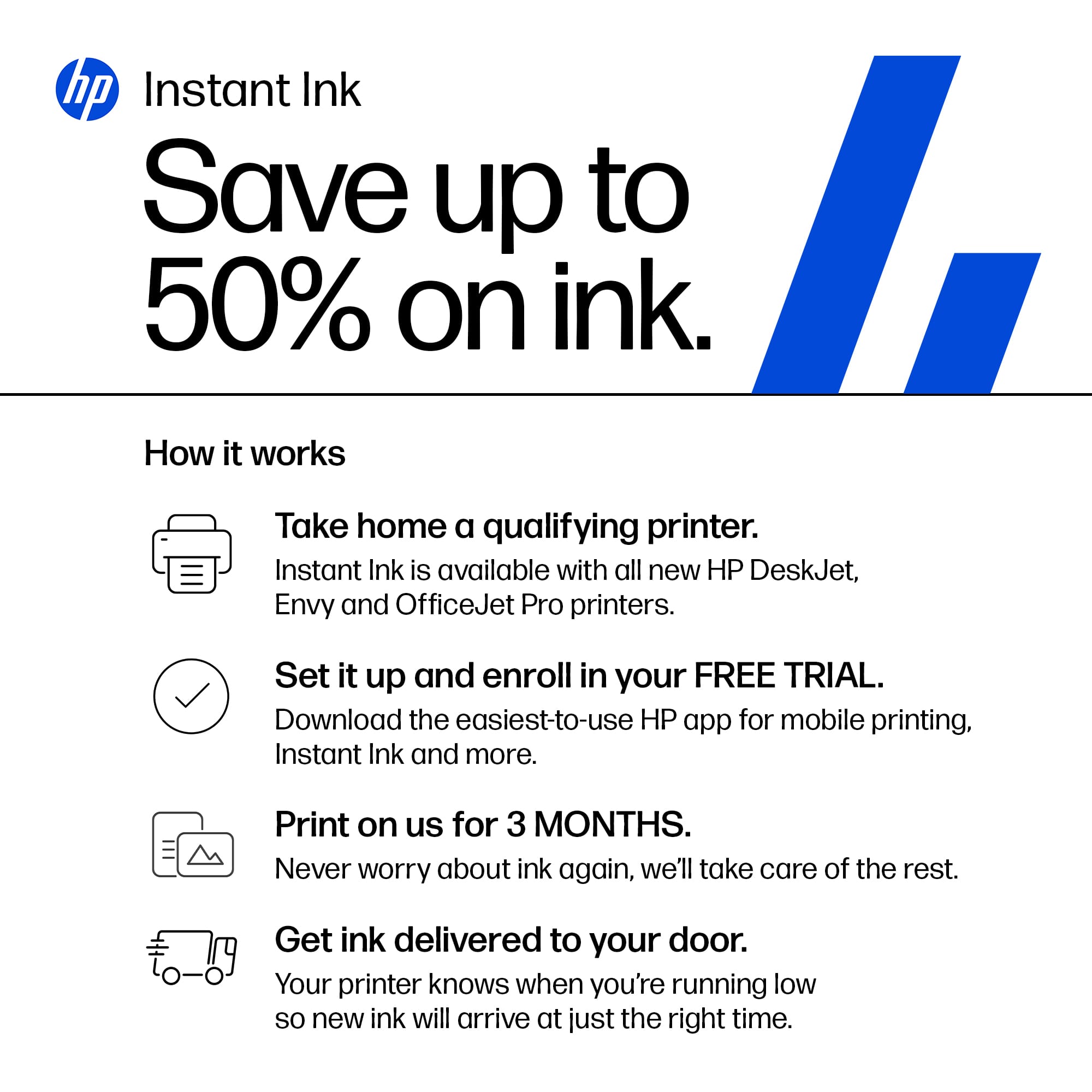
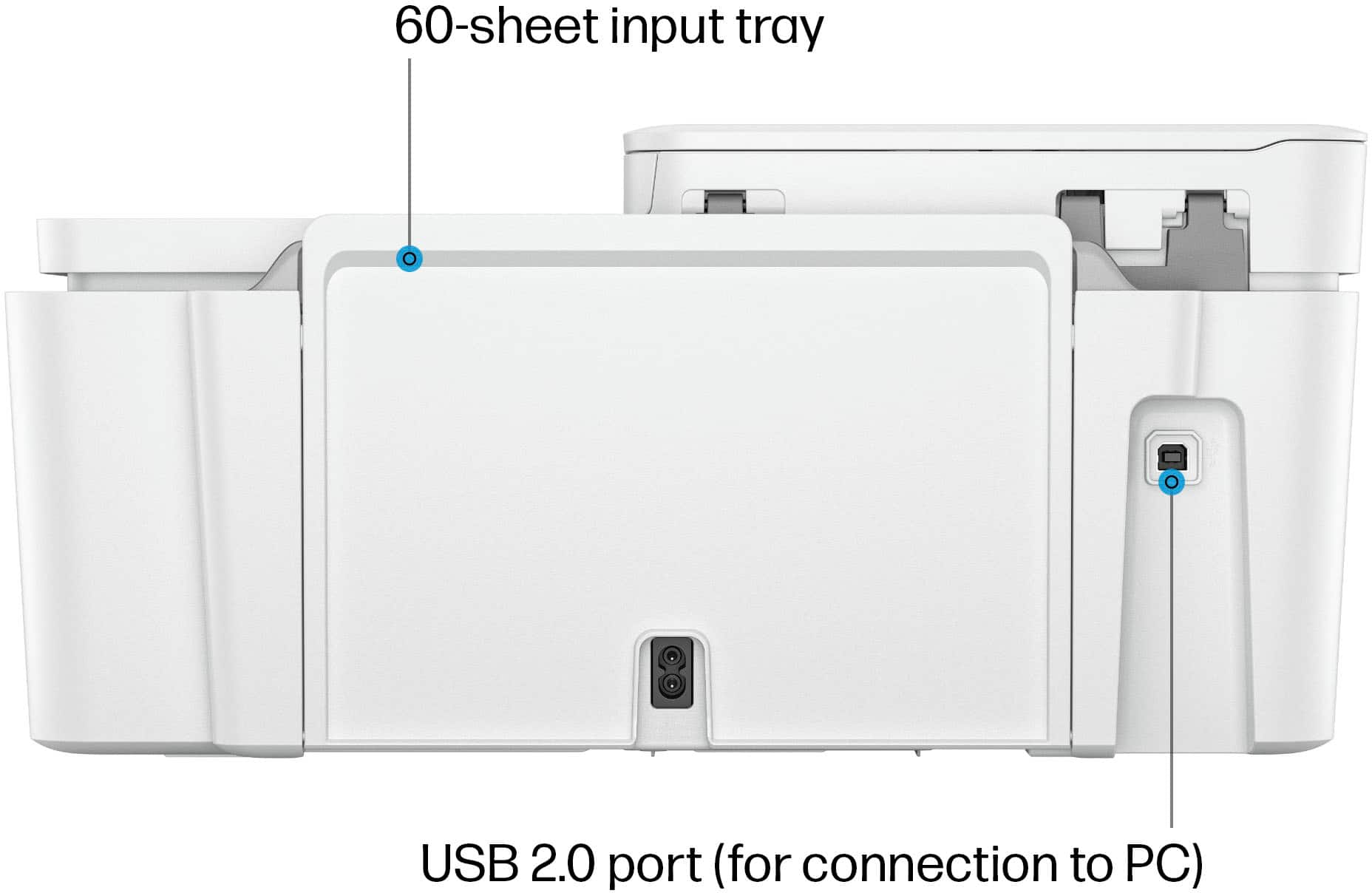
A:AnswerThank you for the question. Yes, you can use the DeskJet 4255e without Wi-Fi, (connected to the computer with USB) but you will not be able to avail yourself of the free ink offer, HP+ or printing with your smartphone. These features require that the printer be connected to the internet 24/7.
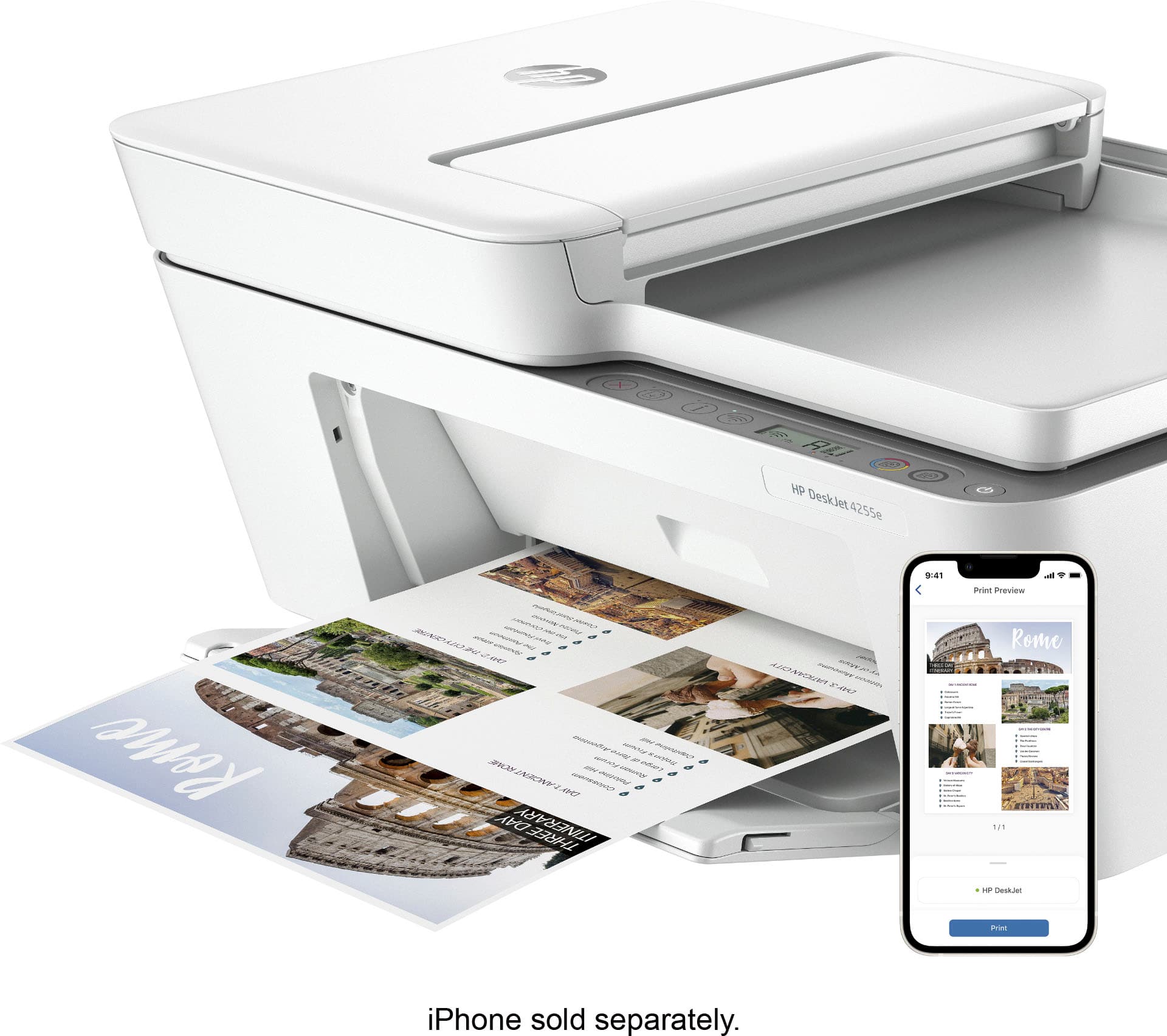
A:AnswerThank you for the question. Yes, once it's set up from home, the DeskJet 4255e will be able to print from anywhere using the free HP Smart App.
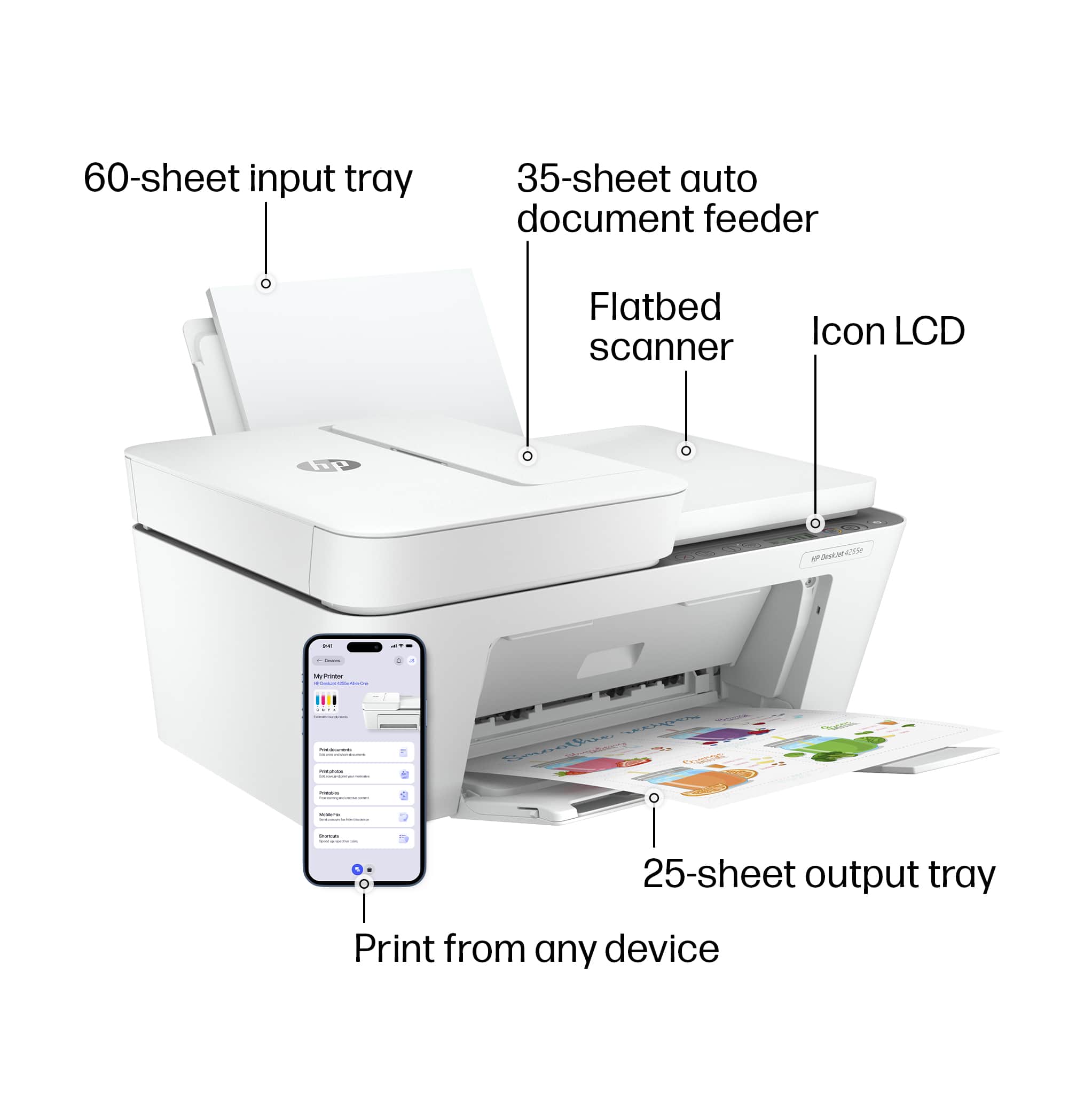
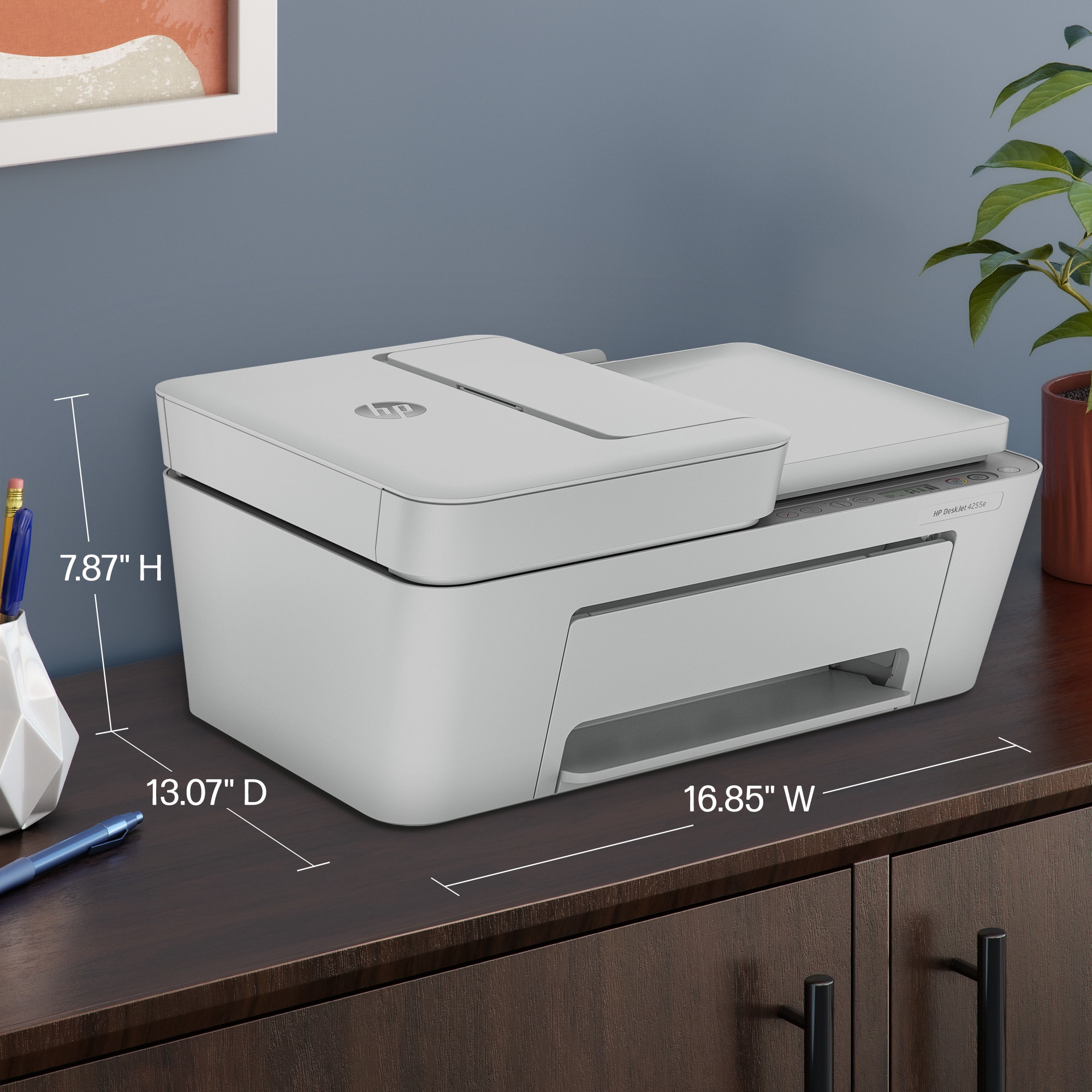
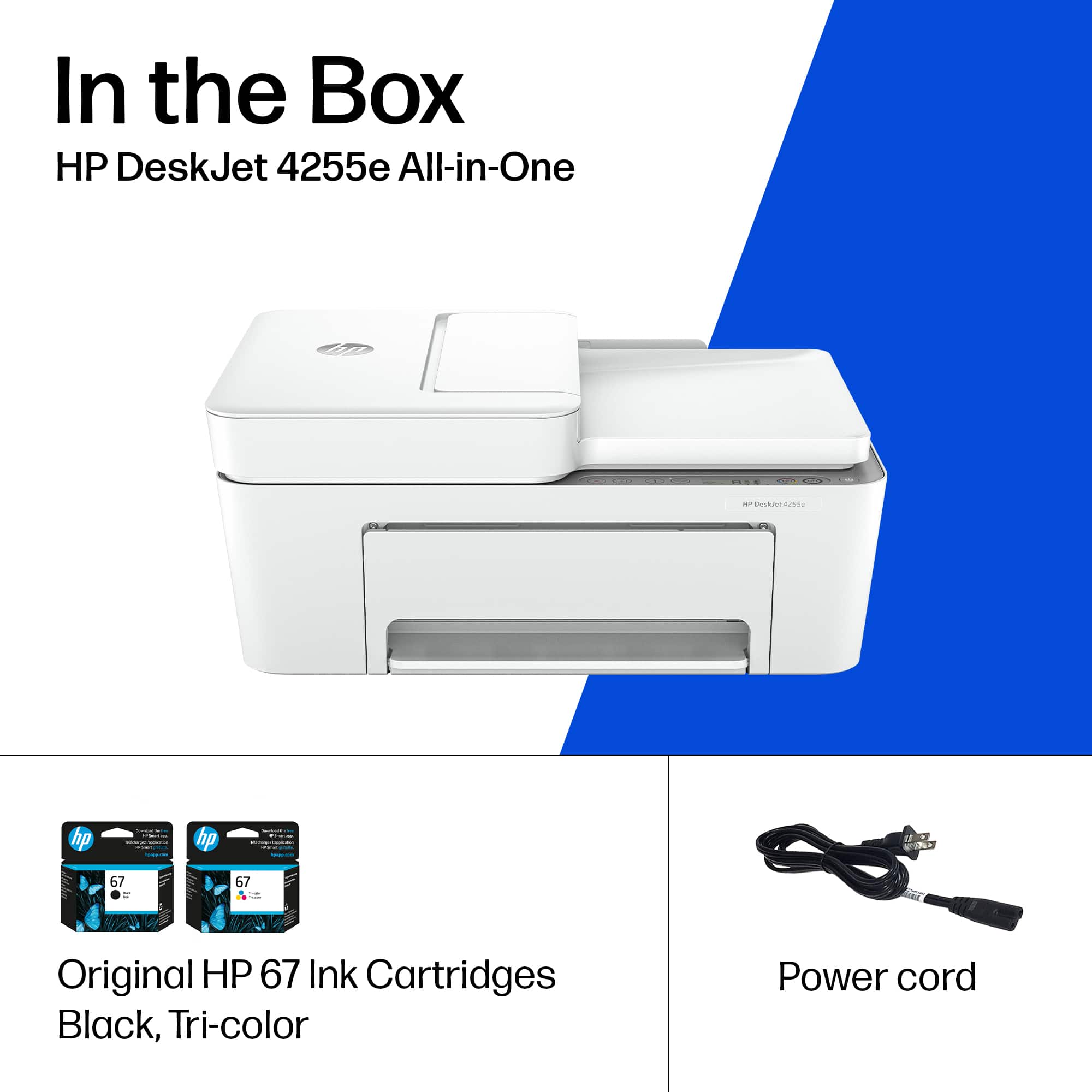
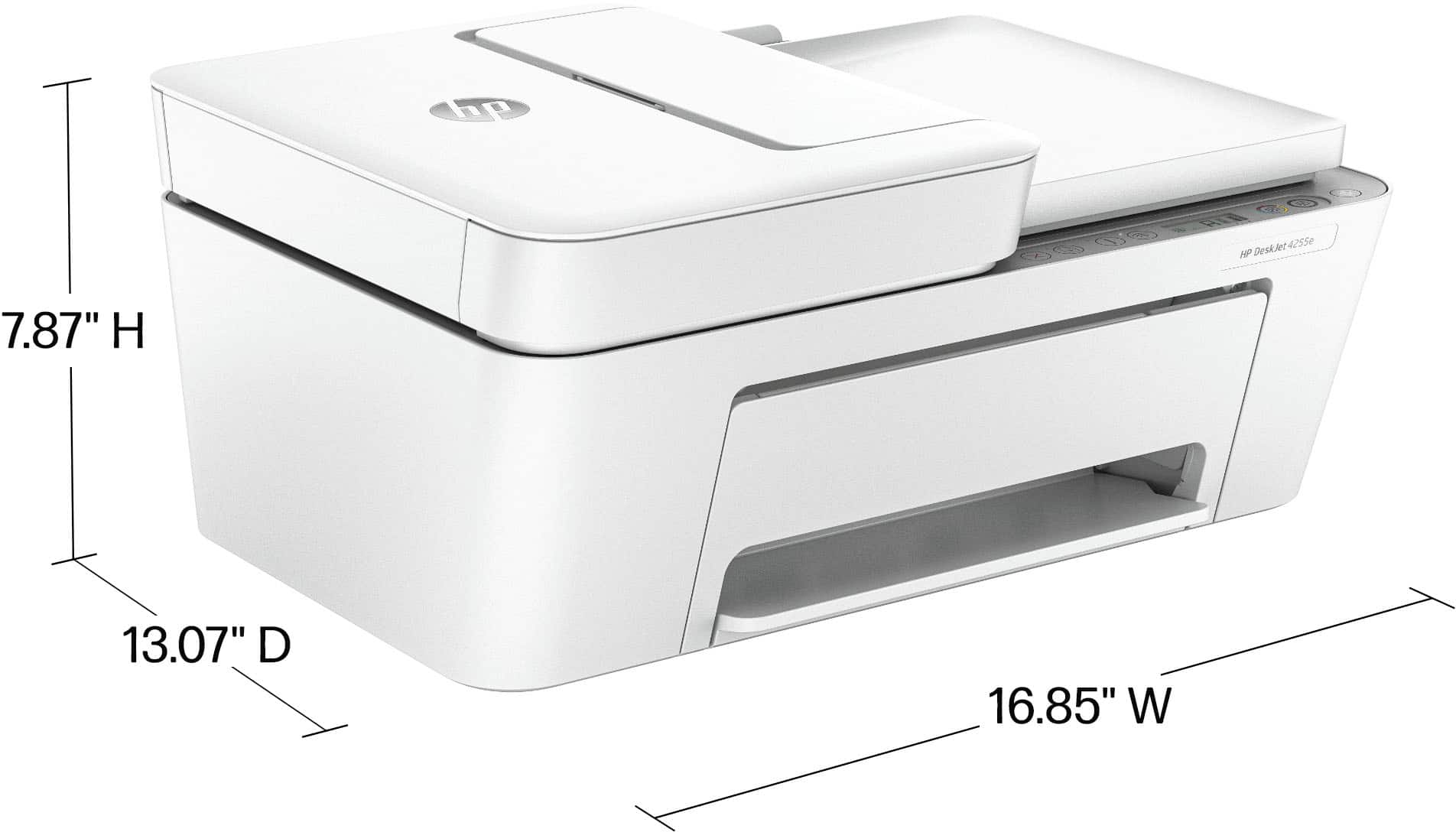
A:AnswerHi Rick, thanks for your question. Here are both the minimum and max dimensions of the HP Deskjet 4255e. W x D x H: 16.85 x 13.07 x 7.87 in. Maximum: 16.8 x 22.8 x 10.3 in (Output Extension Fully Out).
A:AnswerThank you for the question. You can reduce/enlarge output using the HP Smart App on your PC or smartphone, or using the HP scan software available for downloading from the HP site.
A:AnswerThank you for the question. Windows in S mode is a version of Windows that prioritizes security and performance by limiting the apps you can install and how you can browse the web. The DeskJet 4255e will work with or without S Mode.
A:AnswerThank you for your purchase of this HP DeskJet printer! HP has support available to look into set up issues like this. If you're a Geek Squad member, you can also contact Geek Squad support for assistance.
A:AnswerThanks for your question! This HP DeskJet 4255e is compatible with computers running ChromeOS, Windows 10 and newer, as well as MacOS Mojave 10.14 and newer.
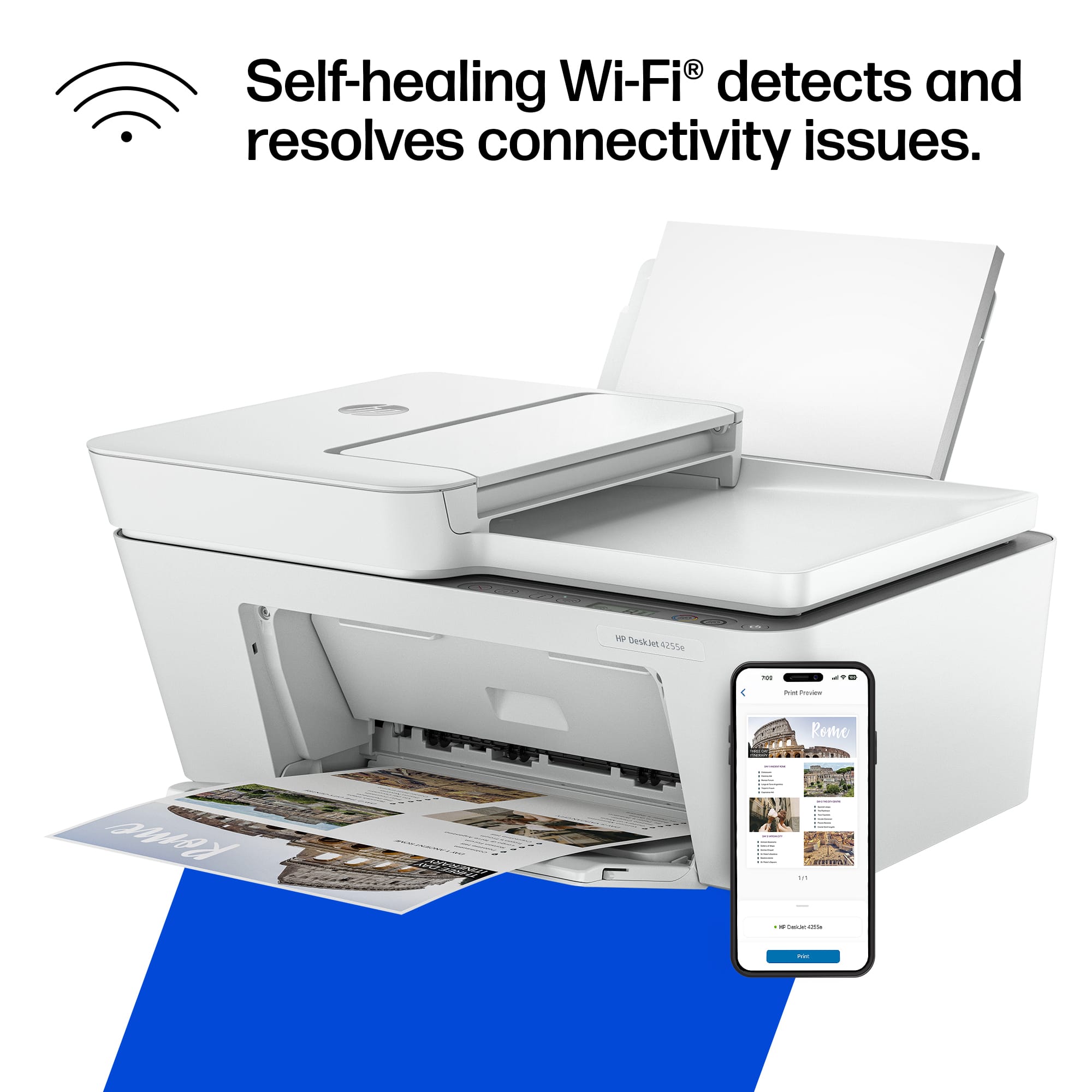
A:AnswerHello and thank you for your question. A telephone line is not necessary to connect the HP DeskJet 4255e wirelessly. We recommend using the free HP Smart app to connect your printer wirelessly via WiFi or WiFi direct.
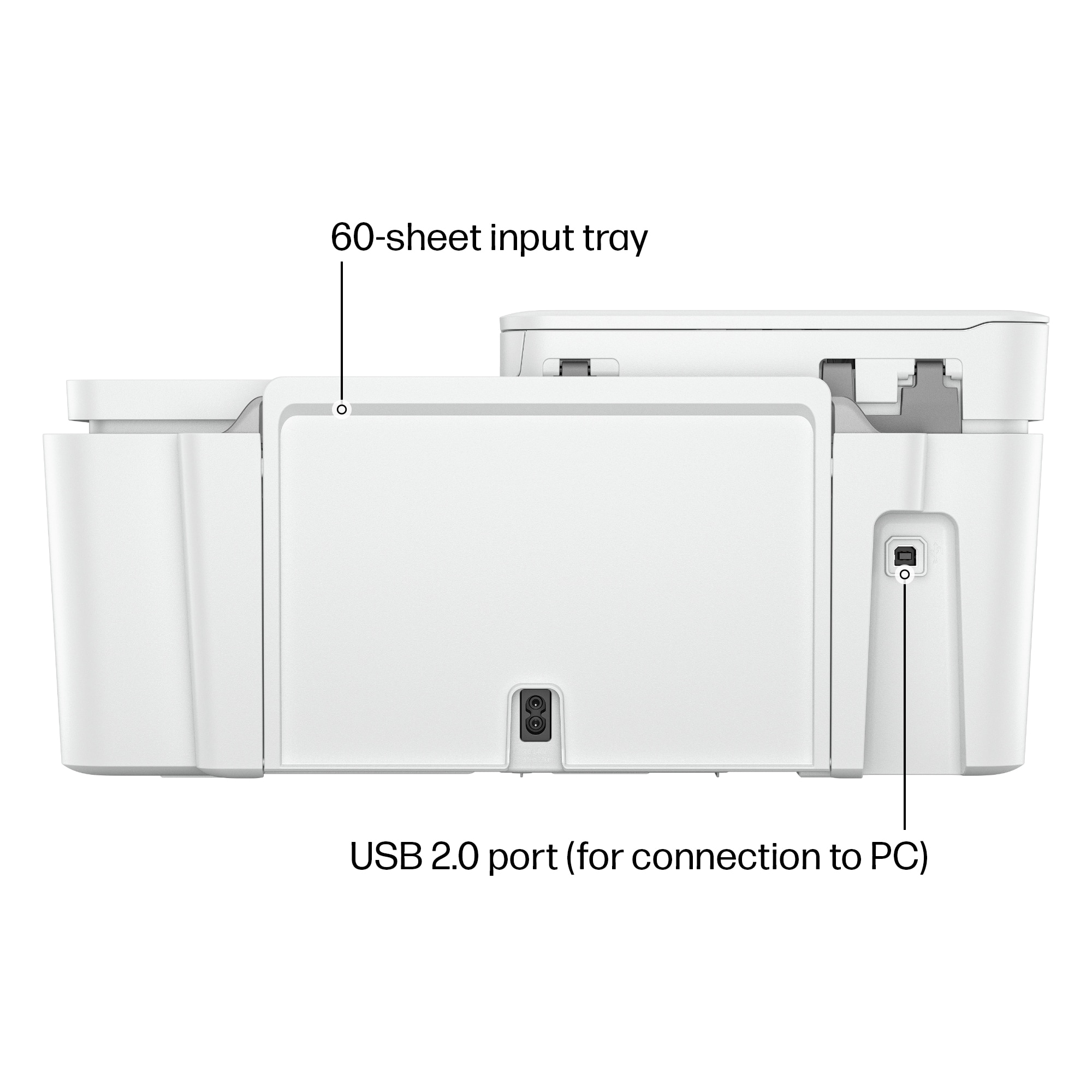
A:AnswerHello Dave, thank you for your question. You can set up the HP DeskJet 4255e printer using a USB connection instead of wireless. However, note that a USB A to B 2.0 cable is not included, so you will need to purchase one separately if needed. A wireless connection is required for HP+ or HP Instant Ink benefits.
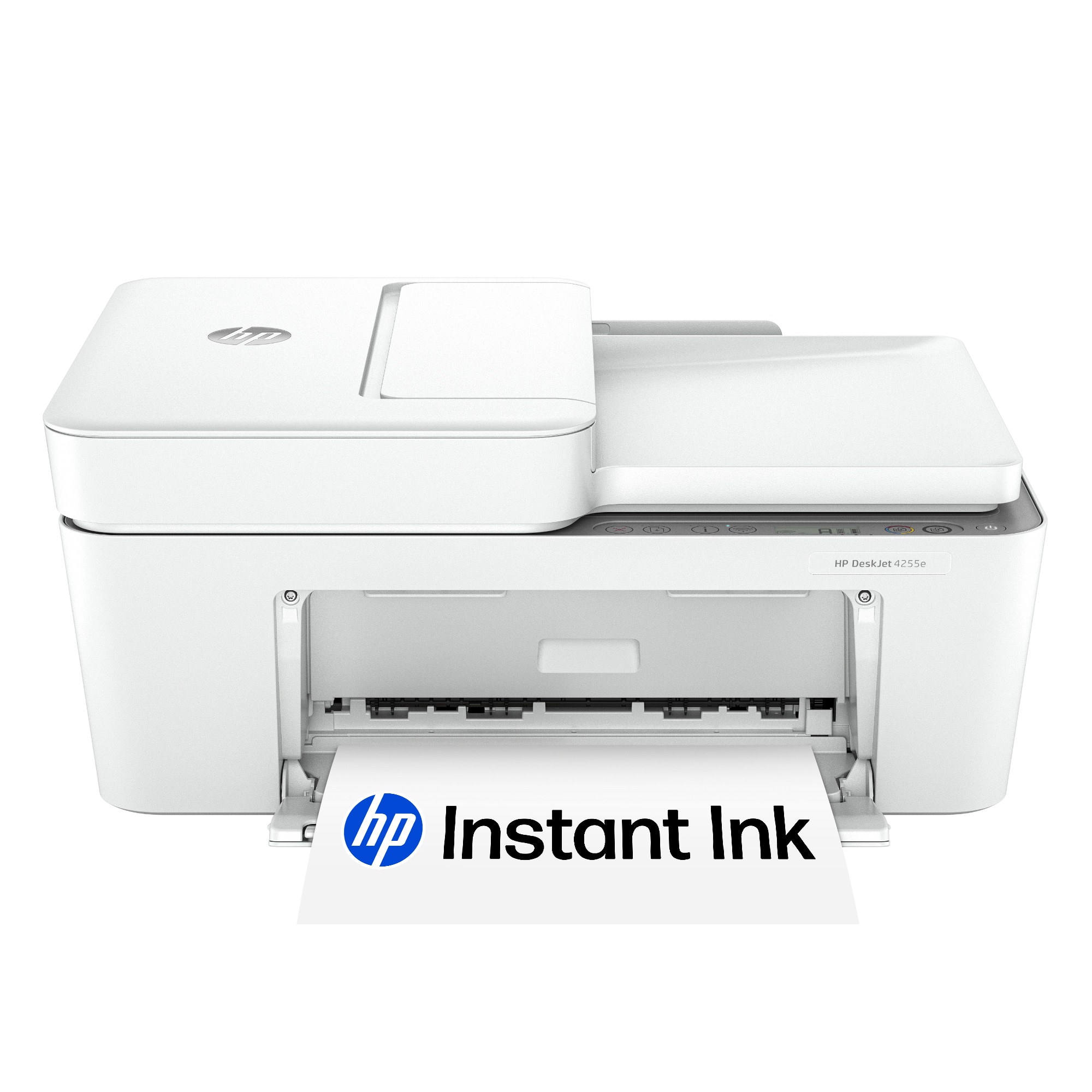
A:AnswerThanks for shopping at Best Buy. The HP DeskJet 4255e is compatible with your iPad Pro and can connect wirelessly. We recommend using the HP Smart app to set up the printer on your iPad Pro.
A:AnswerThank you for your question on this HP DeskJet printer! You can find the serial number on the ink access door as well as when viewing the printer using the HP Smart app.
A:AnswerKelli, I am sorry to hear about your challenges. You can print without the app. We recommend reaching out to HP Support for further assistance.
A:AnswerUpon setting up your HP DeskJet 4255e printer via the free HP Smart app, you would opt into HP+ for free and then get those free months of the HP Instant Ink service. Thank you for your question!