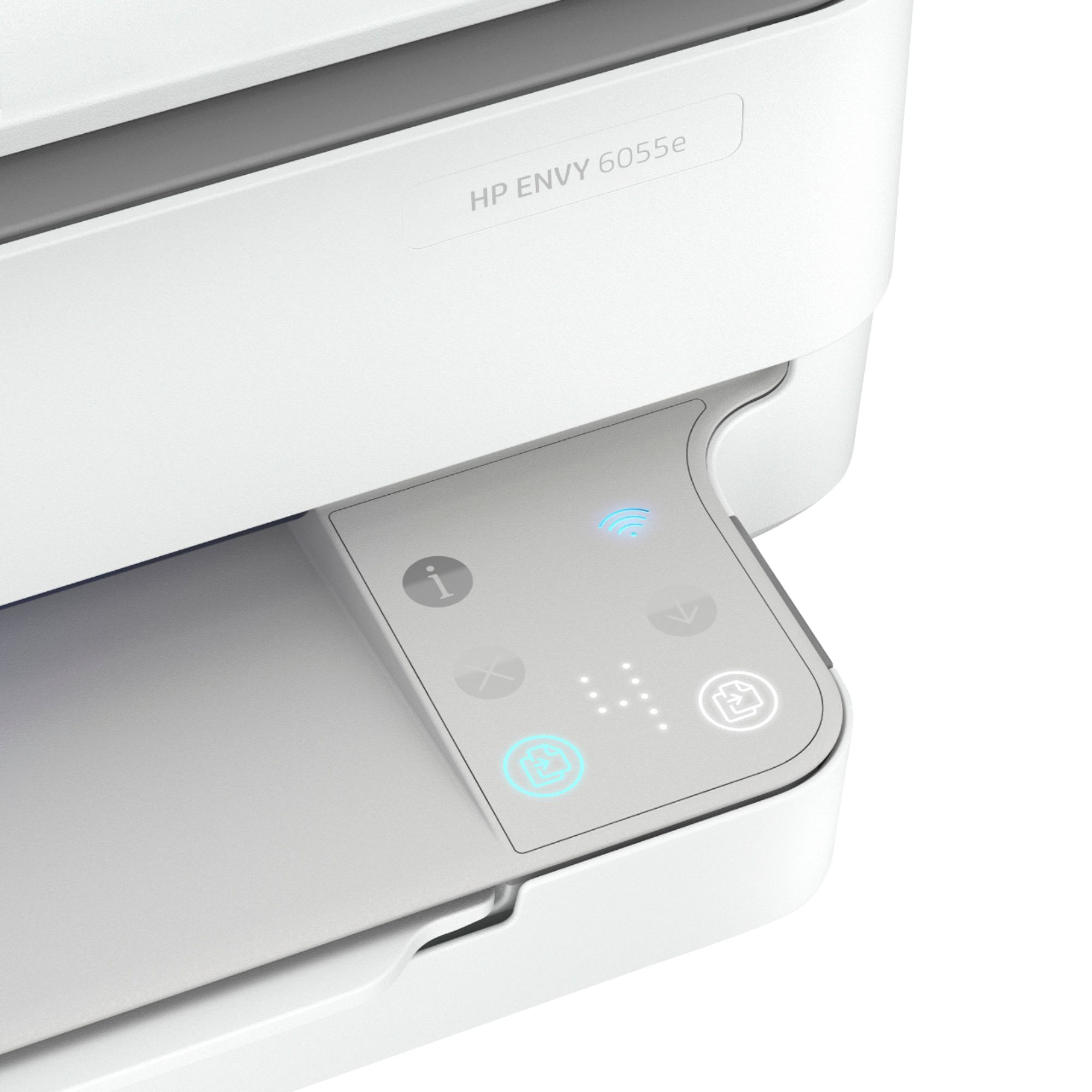
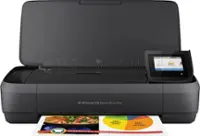
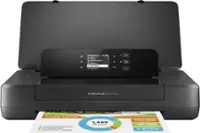
A:AnswerHello taffy1, to Copy directly from the printer please follow these instructions:
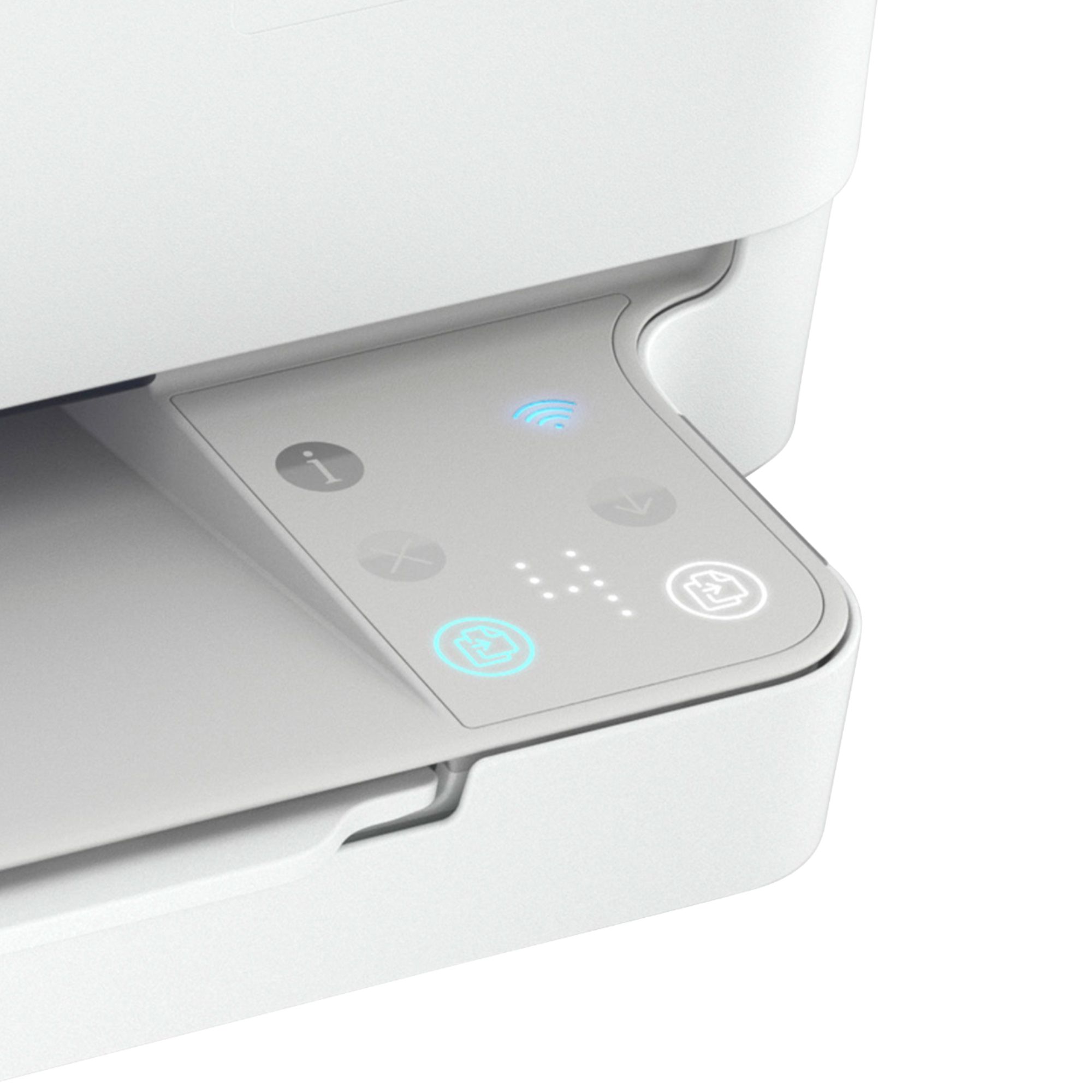
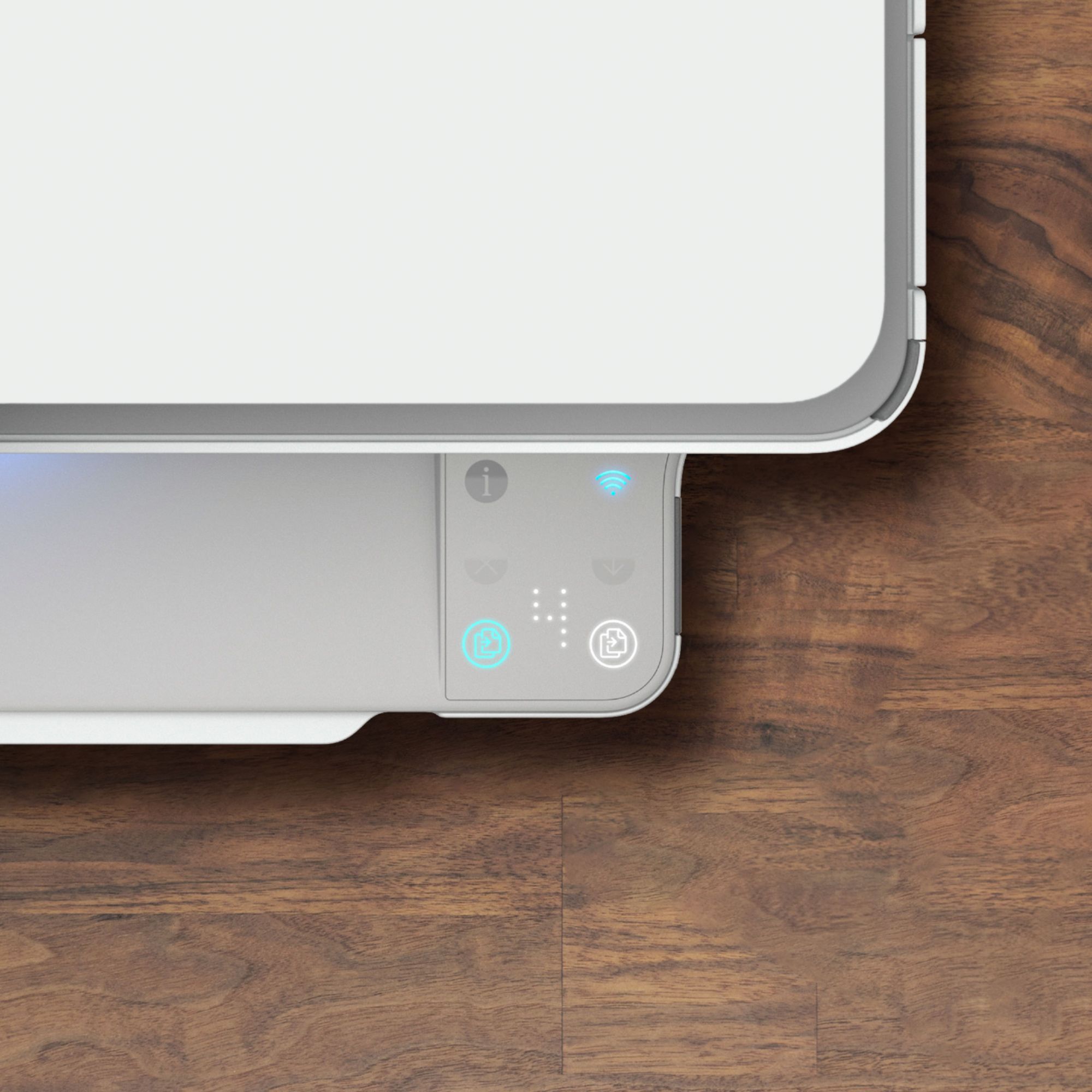
The Copy button on the printer display allows you to easily select number of copies and color or black and white
for copying on plain paper.
From the scanner glass
1. Load paper in the paper tray.
For information about how to load paper, see Load media on page 18.
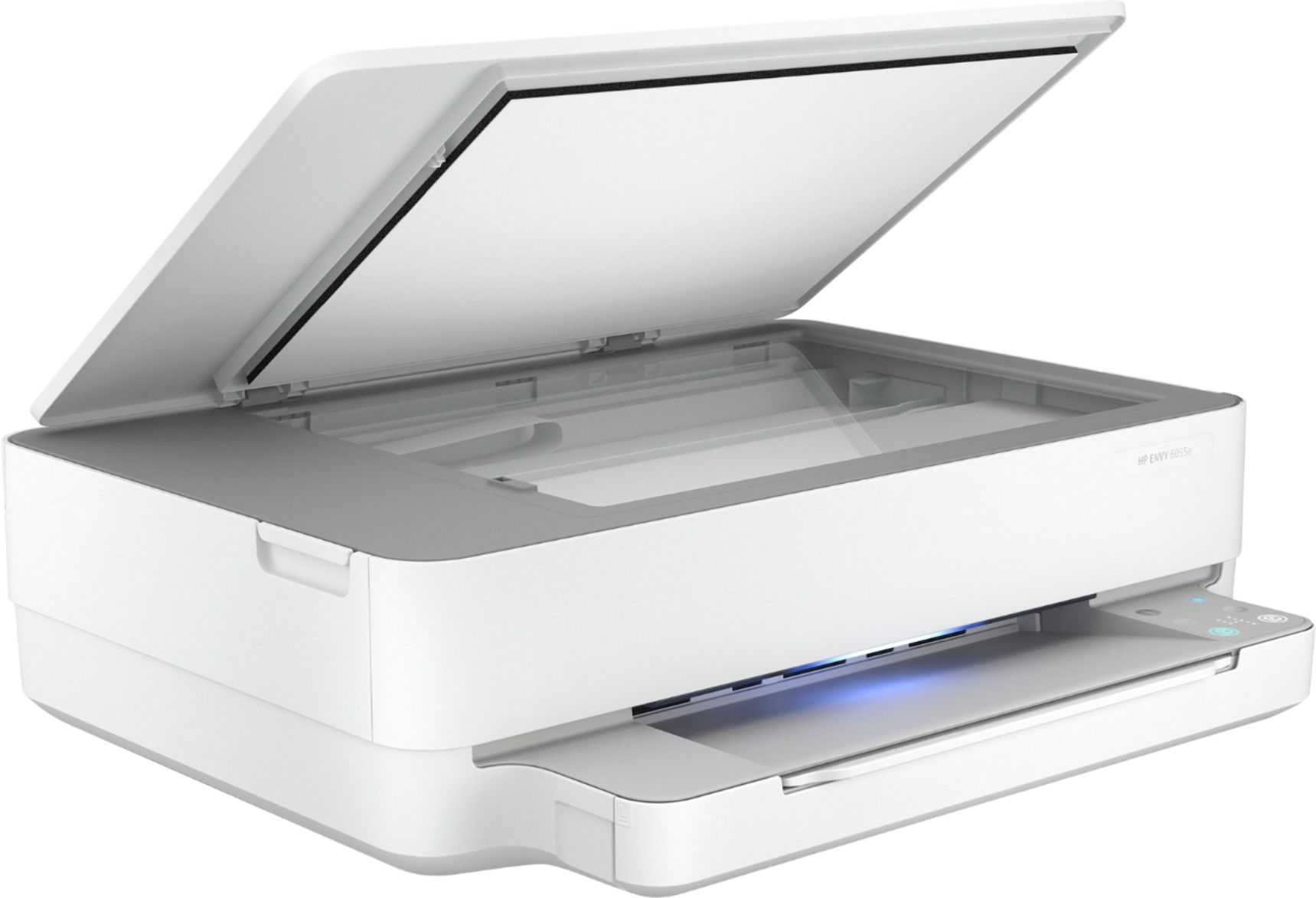
2. Load the original, print-side down, on the scanner glass, aligned with the top-left corner.
For more information, see Load original on page 21.
3. Press either the Start Copy Black button ( ) or the Start Copy Color button ( ) to make a copy.
Copying will start two seconds after the last button press.
TIP: You can increase the number of copies by pressing the button multiple times.
If this is not successful please go to HP Smart App and the HP Print and Scan Doctor download as the HP Diagnostics can detect your printer and find recommended solutions. Thank you for being an HP customer!
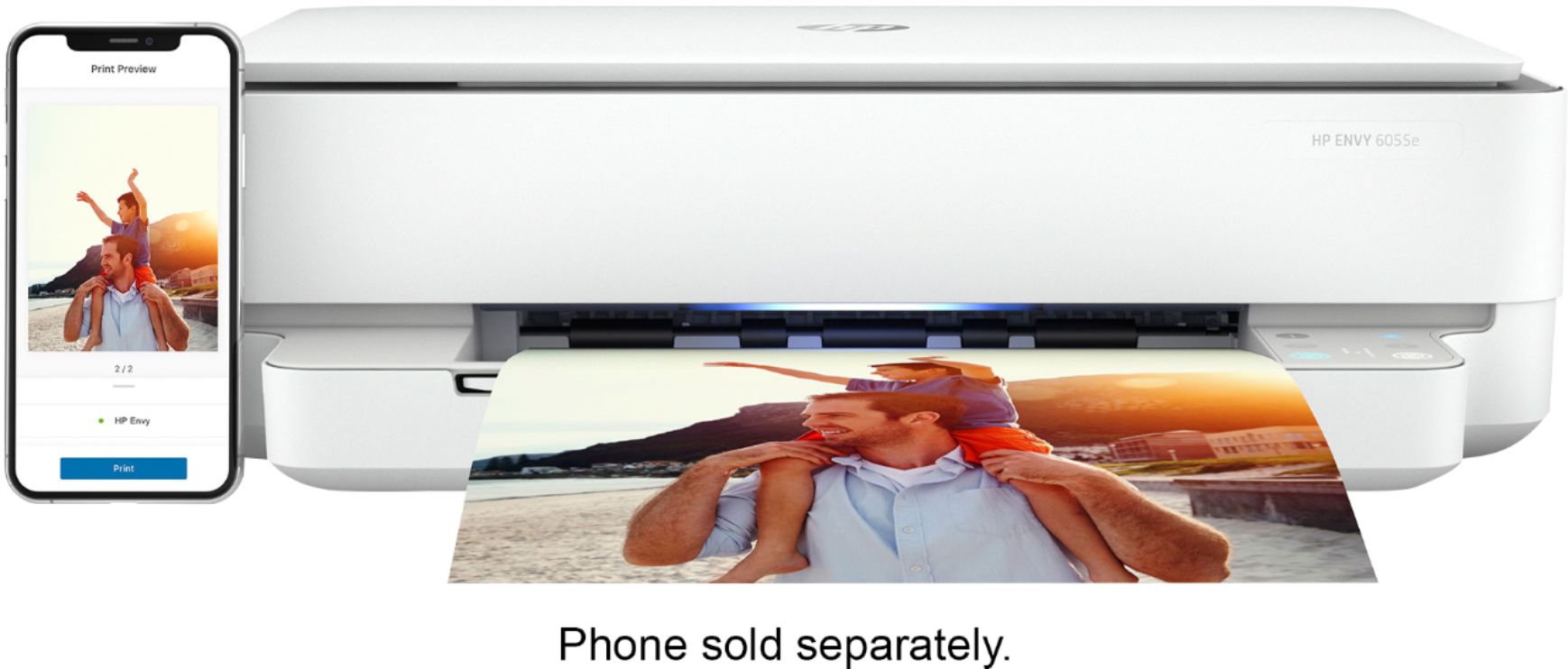
A:AnswerHello. Thanks for your question. Yes, your Samsung S20 smartphone will work with this printer. Just be sure the smartphone is on the same wireless network as the printer.
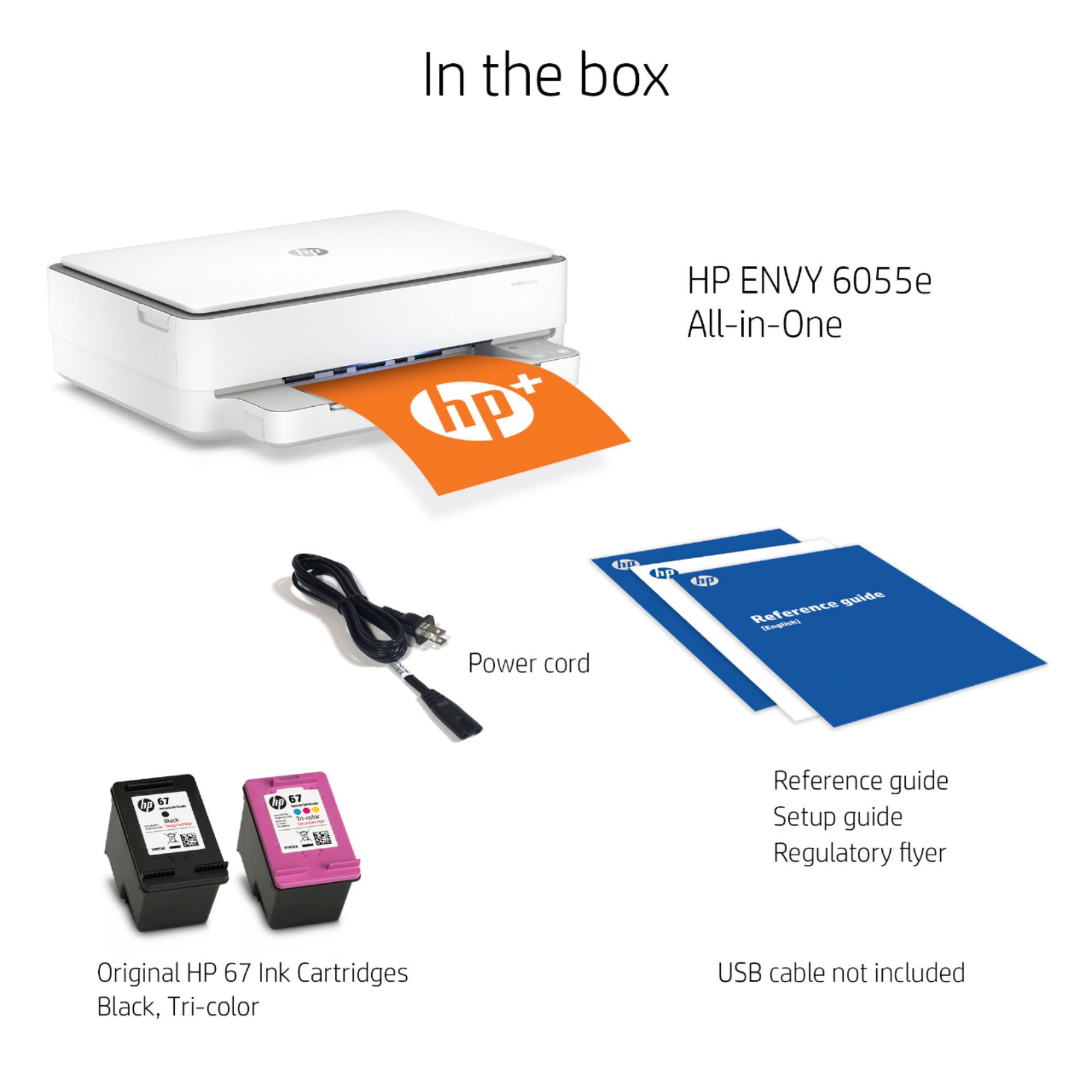
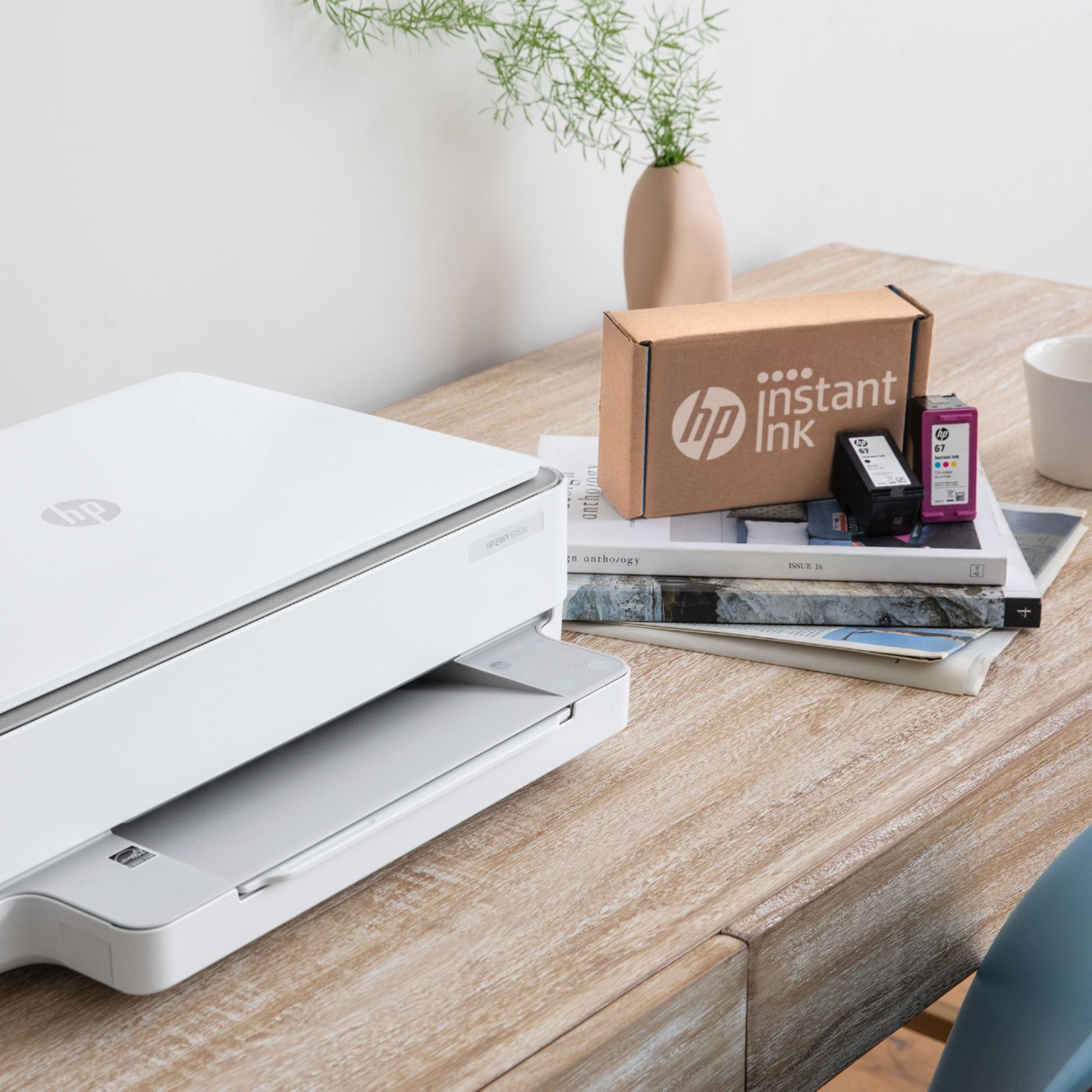
A:AnswerHello Rusty, thank you for taking interest in our Envy line of printers. The Envy 6055 can accept the standard 67 and 67XL black and tricolor cartridges. I do recommend going with XL as this offers the best value for your printing solution.
A:AnswerHi Hank, thank you for the question. With the HP printer software for your Envy 6055 loaded onto your Mac, you'll click the HP icon to bring up the menu and select your task from there. You can also use the HP Smart App. Open the App on your computer or SmartPhone for quick and efficient completion of your task.
A:AnswerHi, thank you for the question. The product specification for the Envy 6055 indicates the following minimum system requirements for Macintosh: macOS Sierra v10.12 (previously OS X), macOS High Sierra v10.13, macOS Mojave v10.14, macOS Catalina. Drivers are updated regularly at 123.hp.com.
A:AnswerThe Envy 6055 is compatible with the following Mac operating systems: MacOS Sierra v10.12 (previously OS X), macOS High Sierra v10.13, macOS Mojave v10.14, macOS Catalina v10.15.
A:AnswerHi Richard and thanks for your question! The HP Envy 6055 will work with a Chromebook! We recommend visiting our HP Support Page if you have any problems.
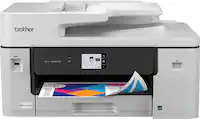
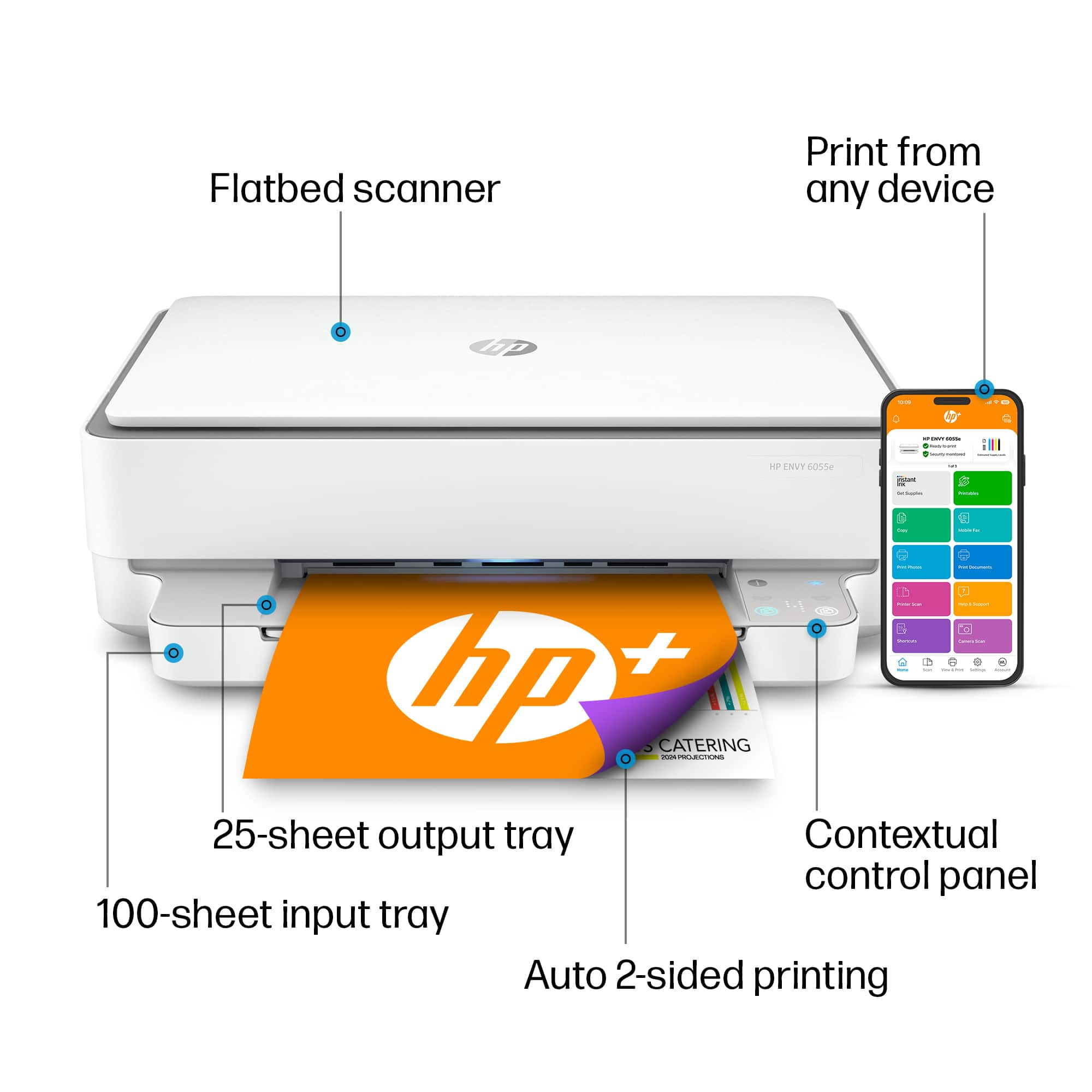
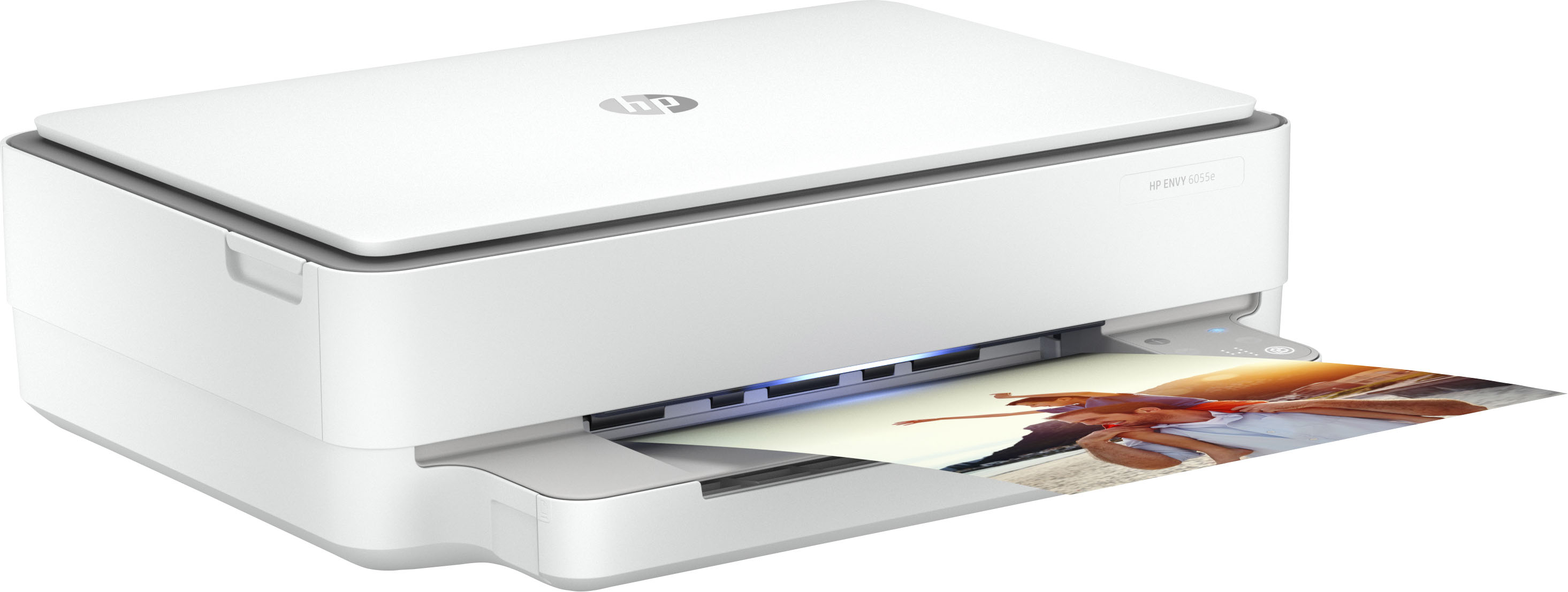
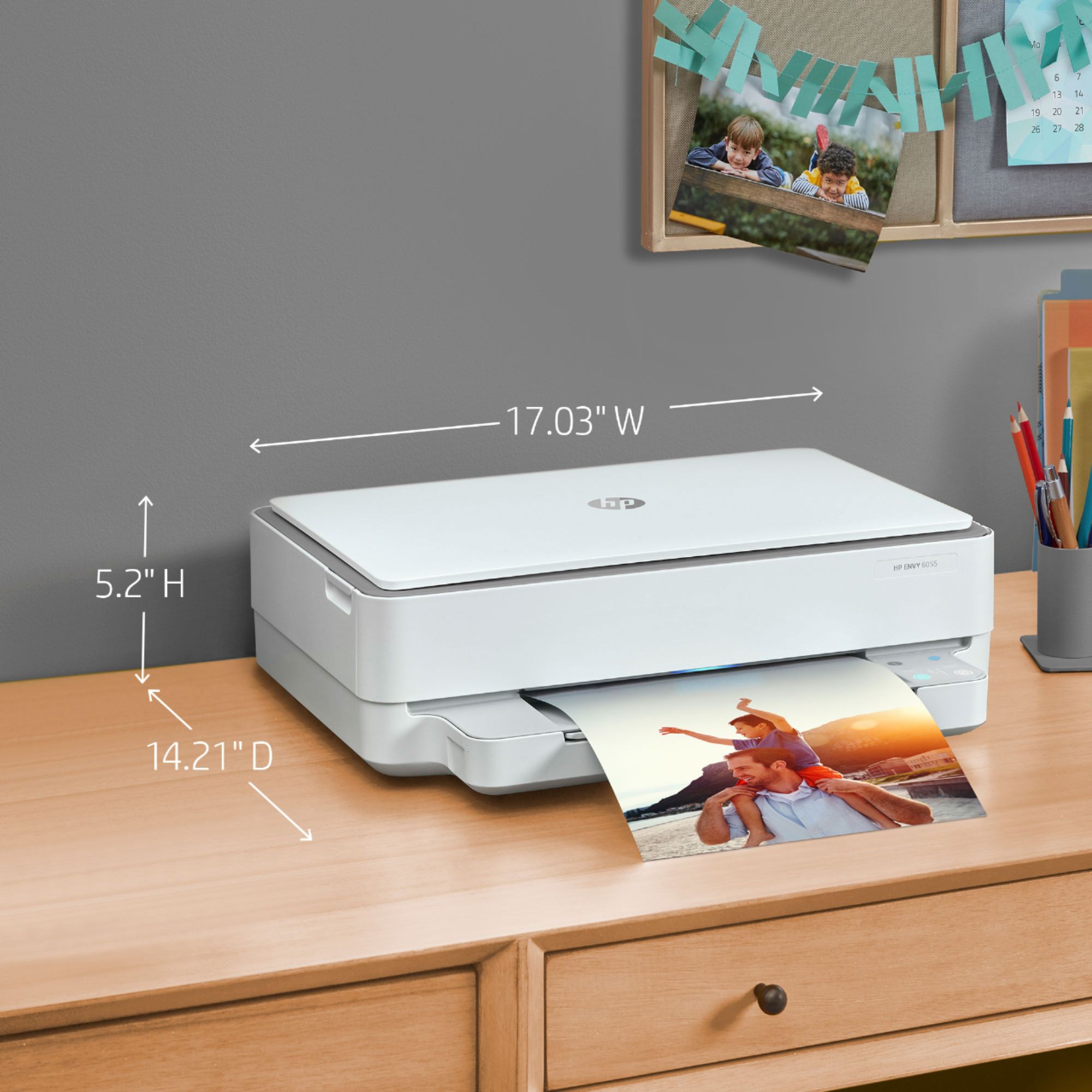
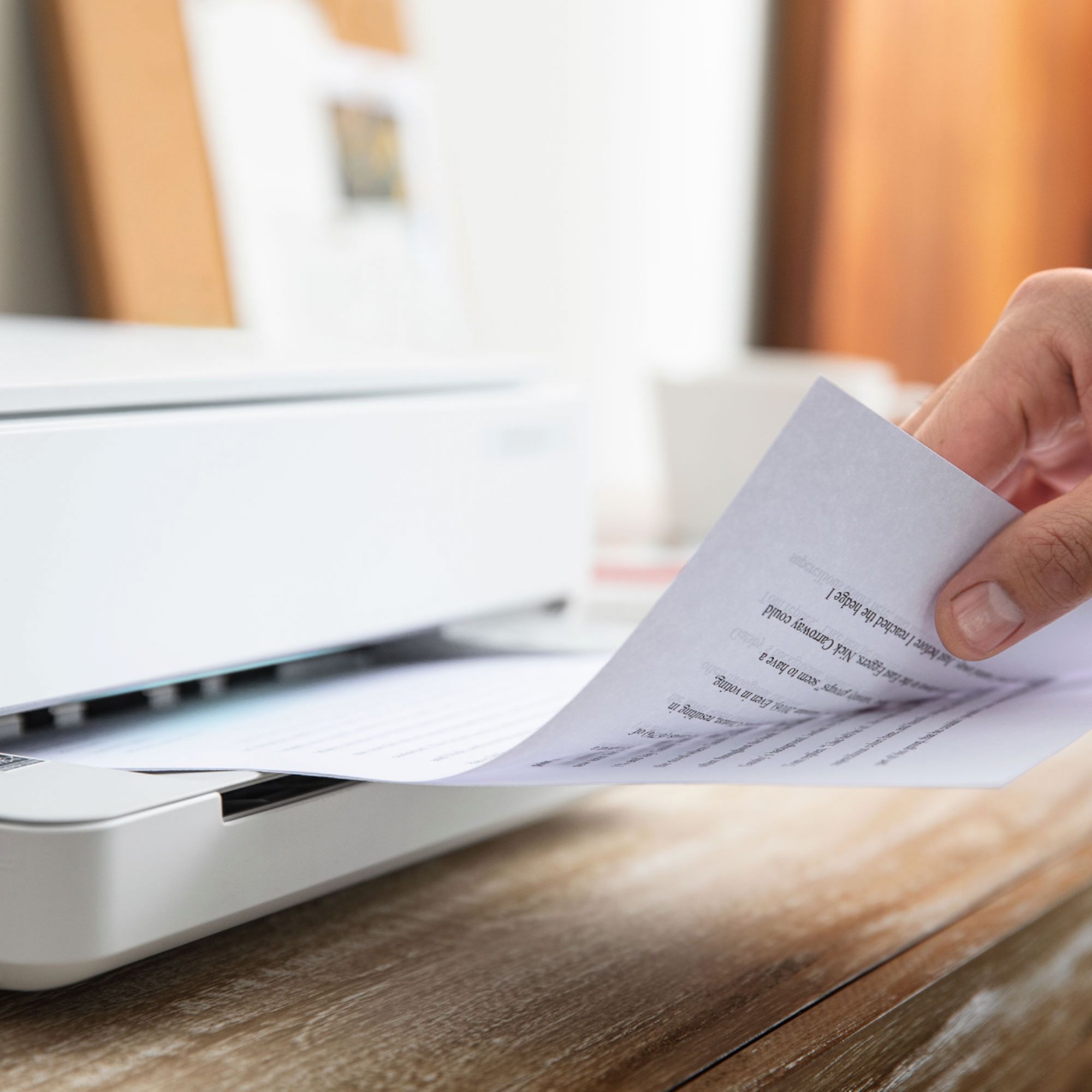
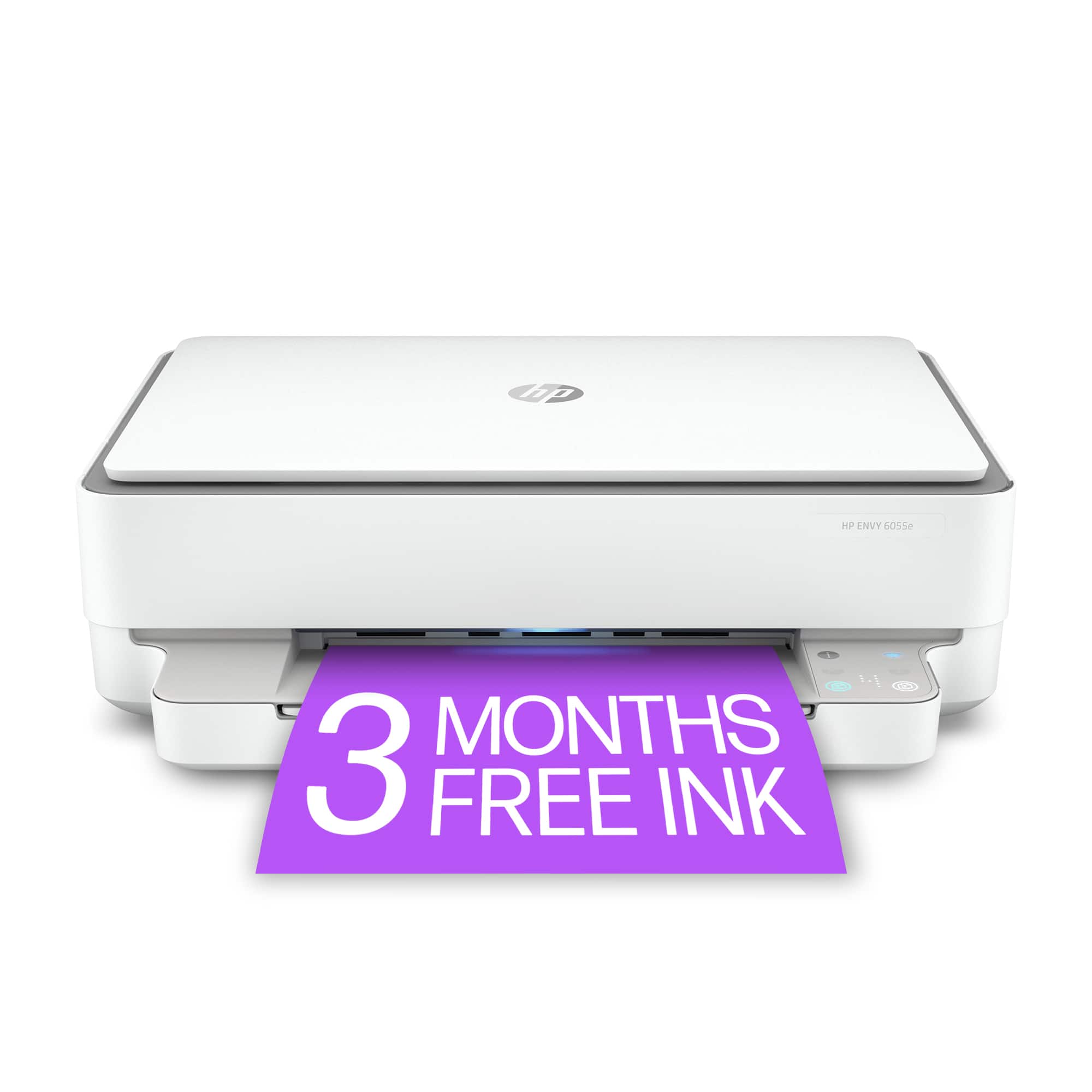
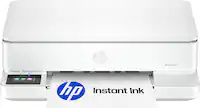
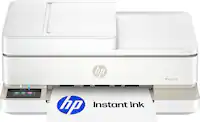
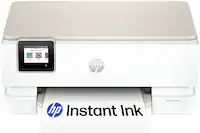
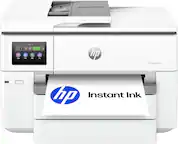
A:AnswerThe paper loads in the same location on this printer. On the image on the Best Buy page, it's a little hard to see, but the tray is right under the photo that you see coming out of the printer.
A:AnswerHi Nick and thank you for your question! Just download our free HP Smart App from your Samsung App store and you will be able to print directly from your tablet!
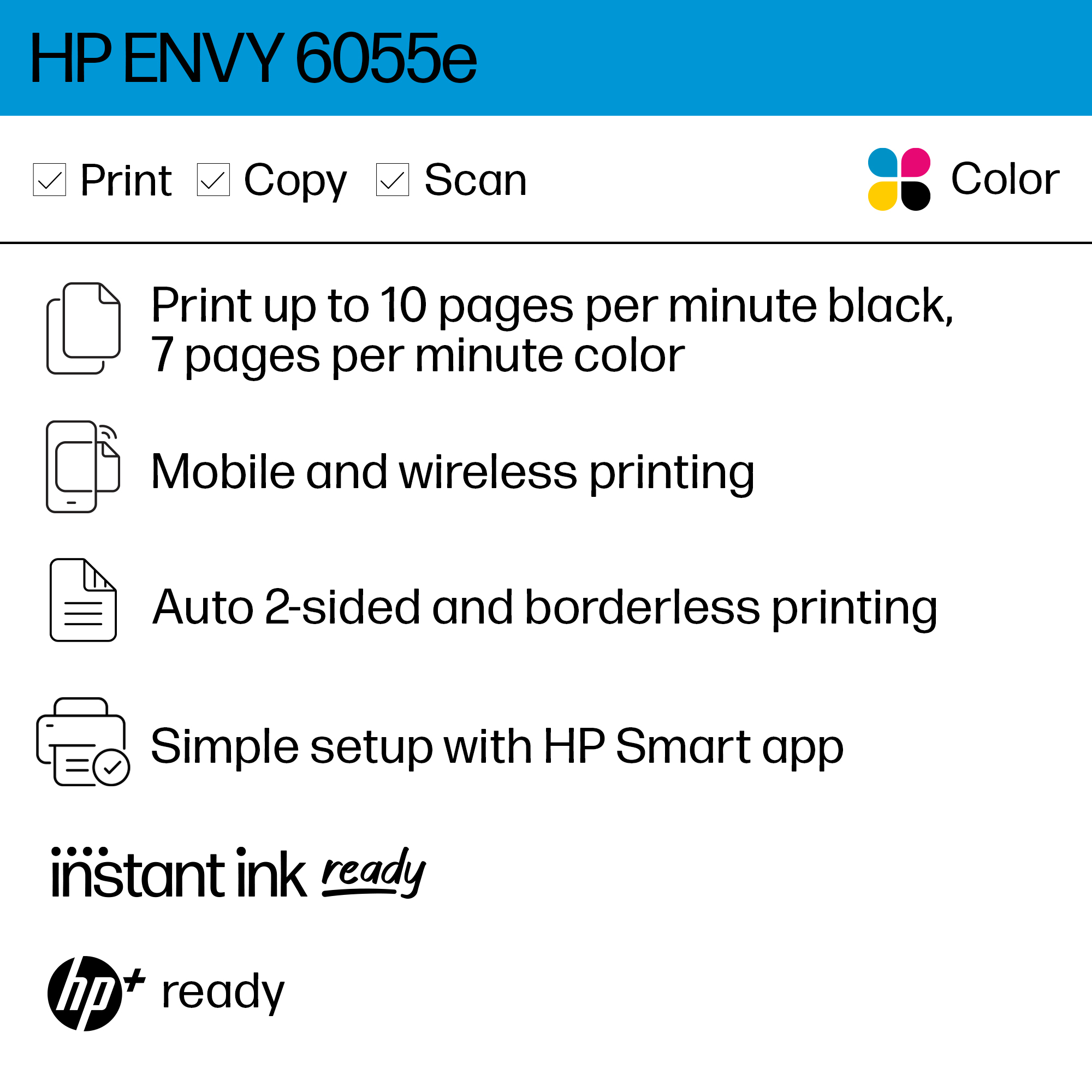
A:AnswerPrint Resolution: Black (best): Up to 1200 x 1200 rendered dpi
(when printing from a computer); Color (best): Up to 4800 x
1200 optimized dpi color (when printing from a computer on
selected HP photo papers and 1200 input dpi).