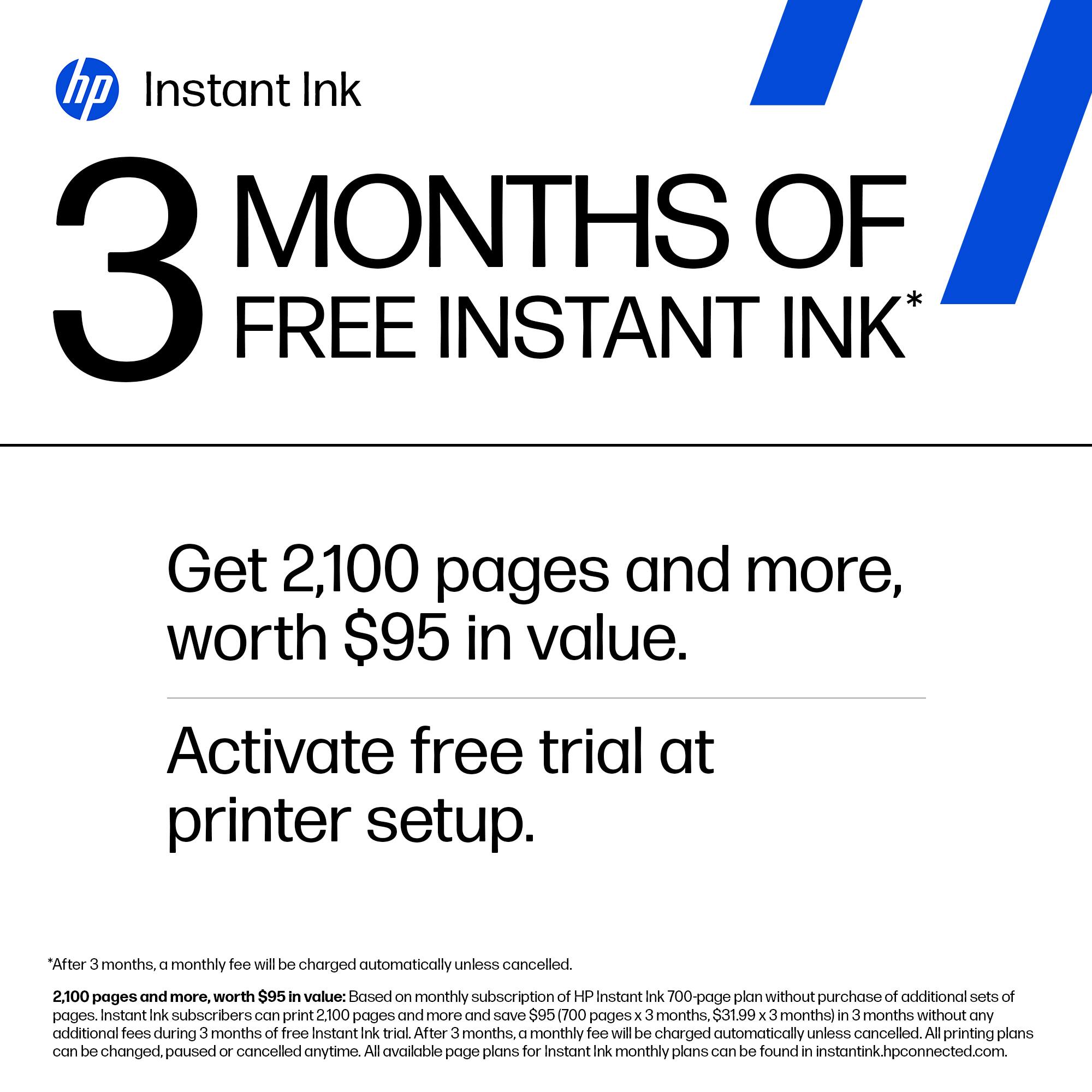
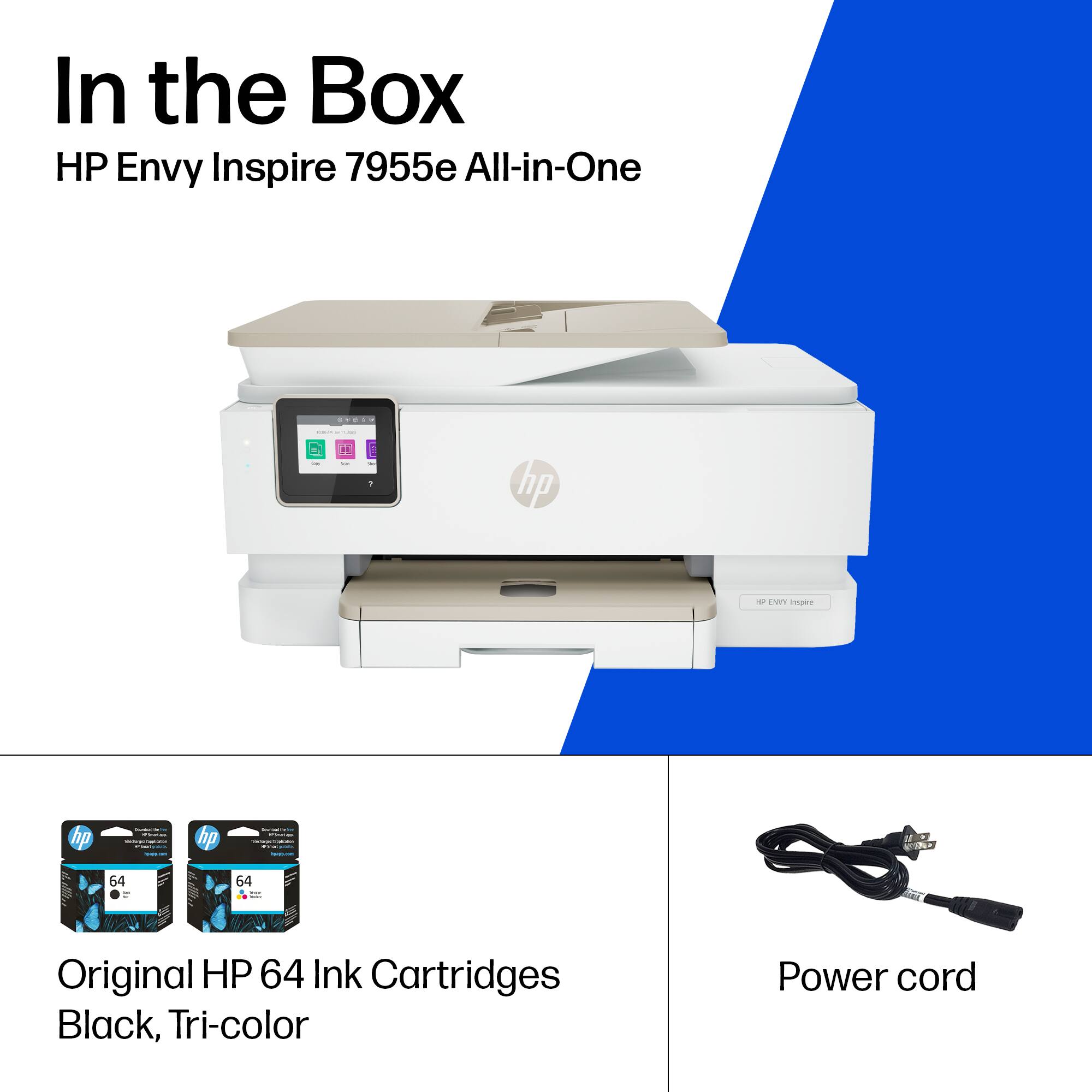
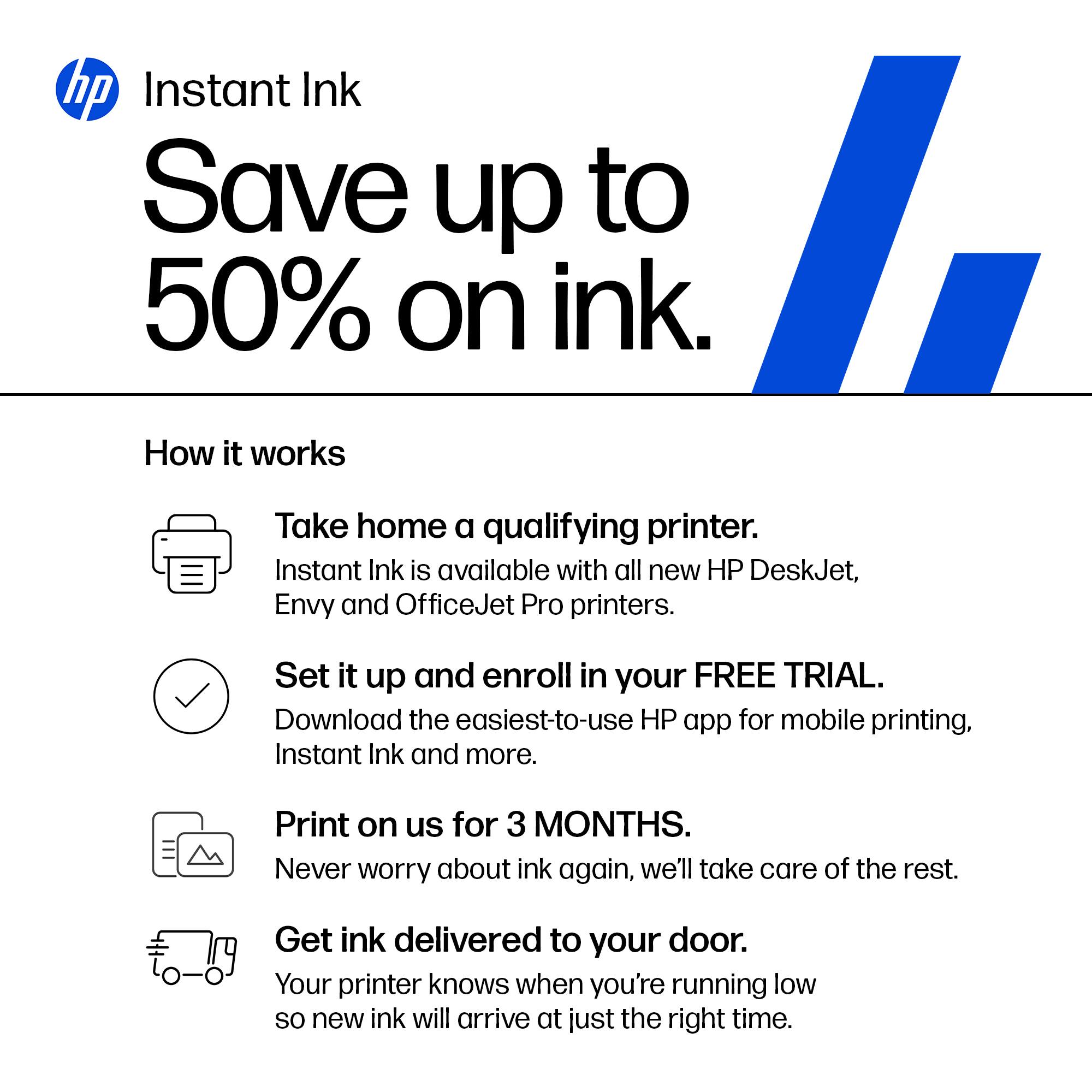
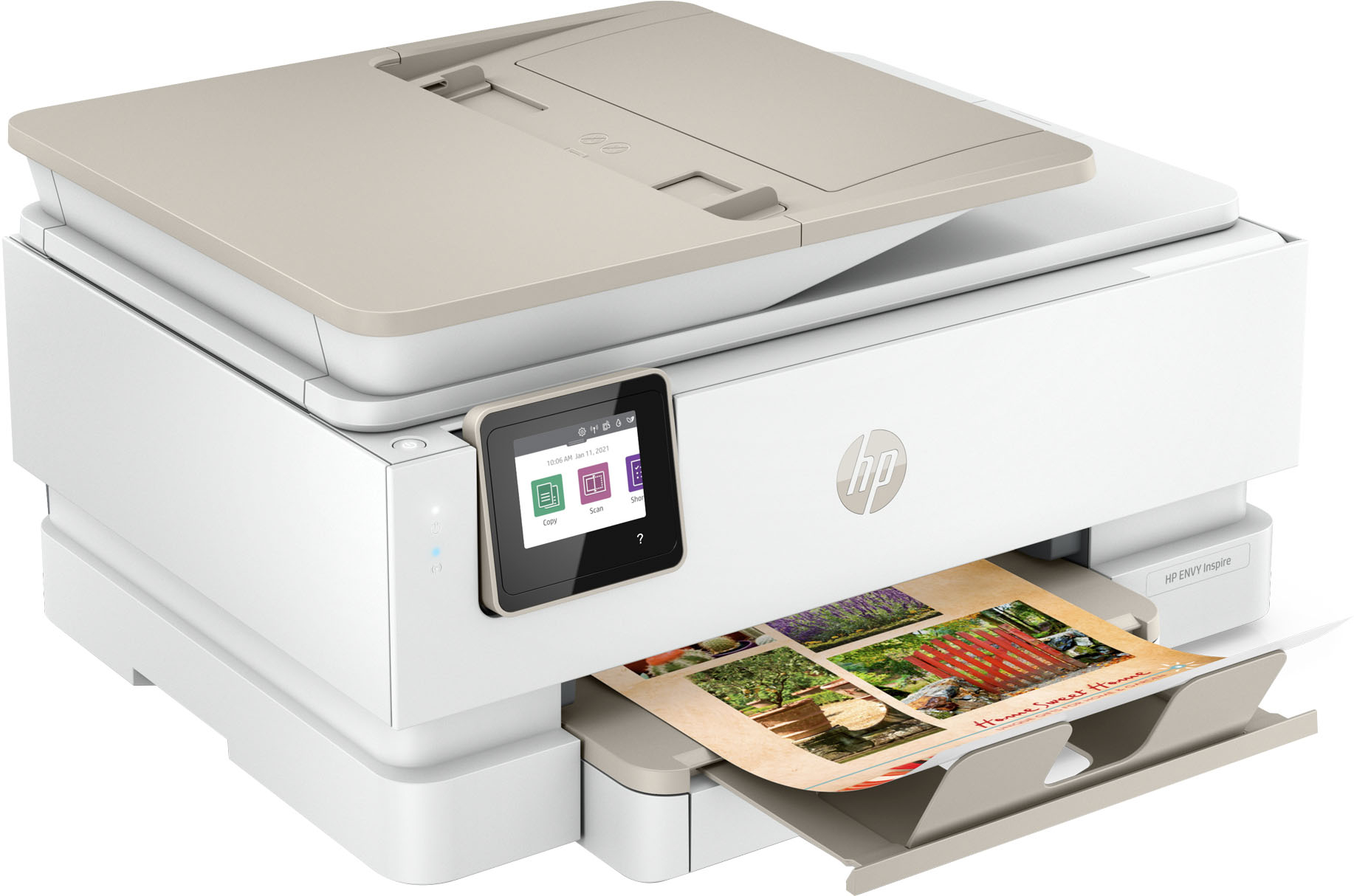
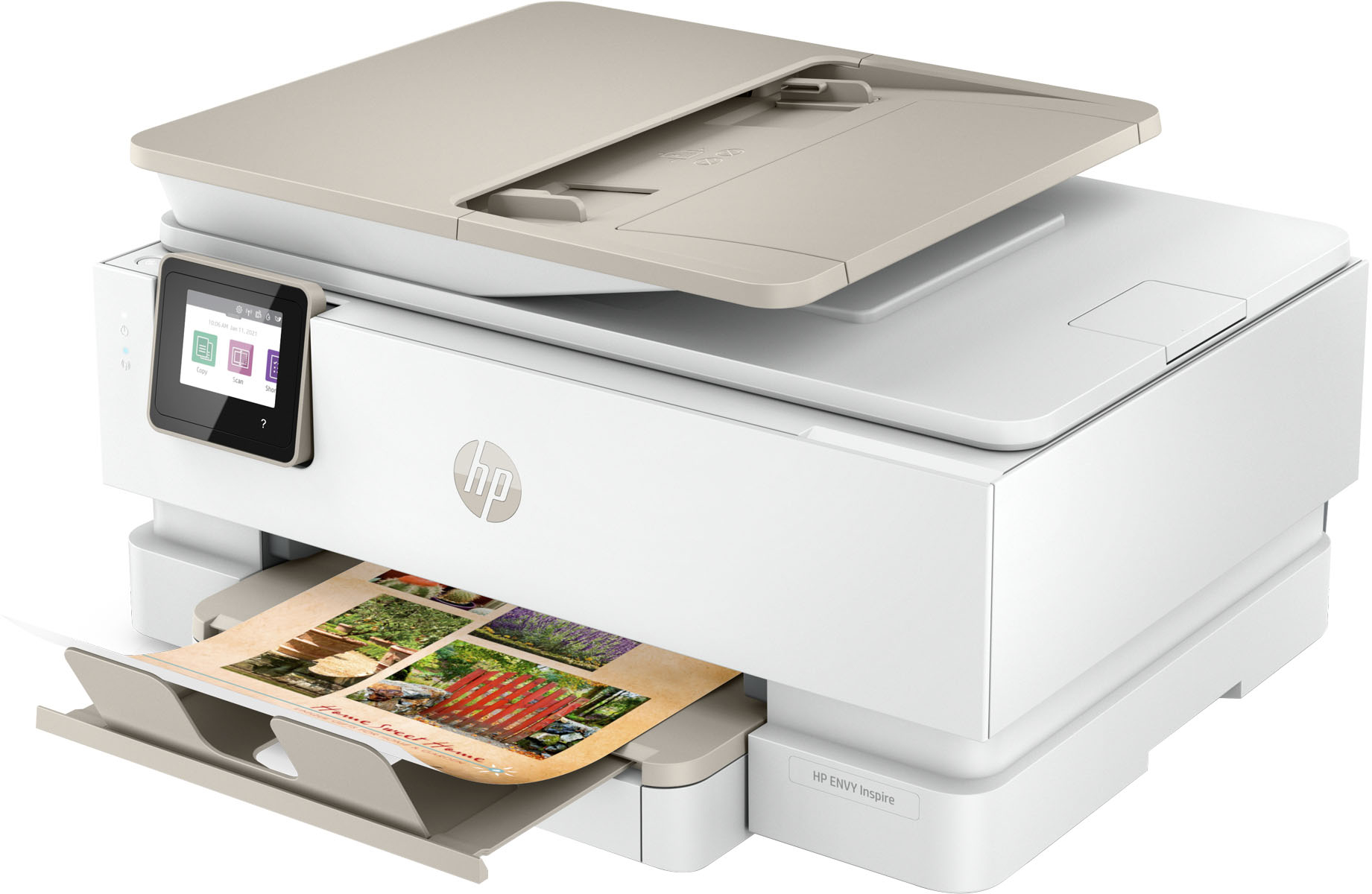
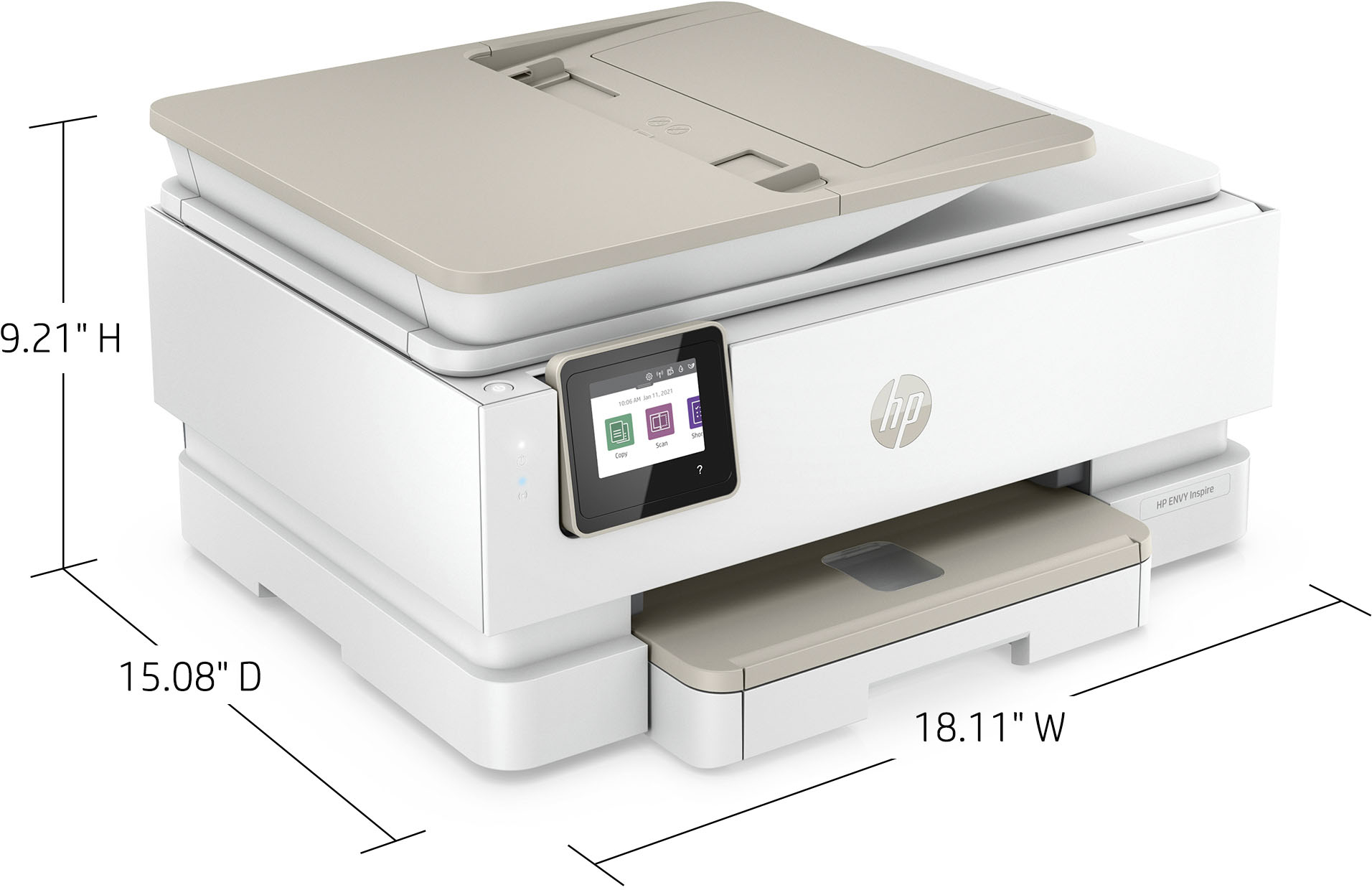
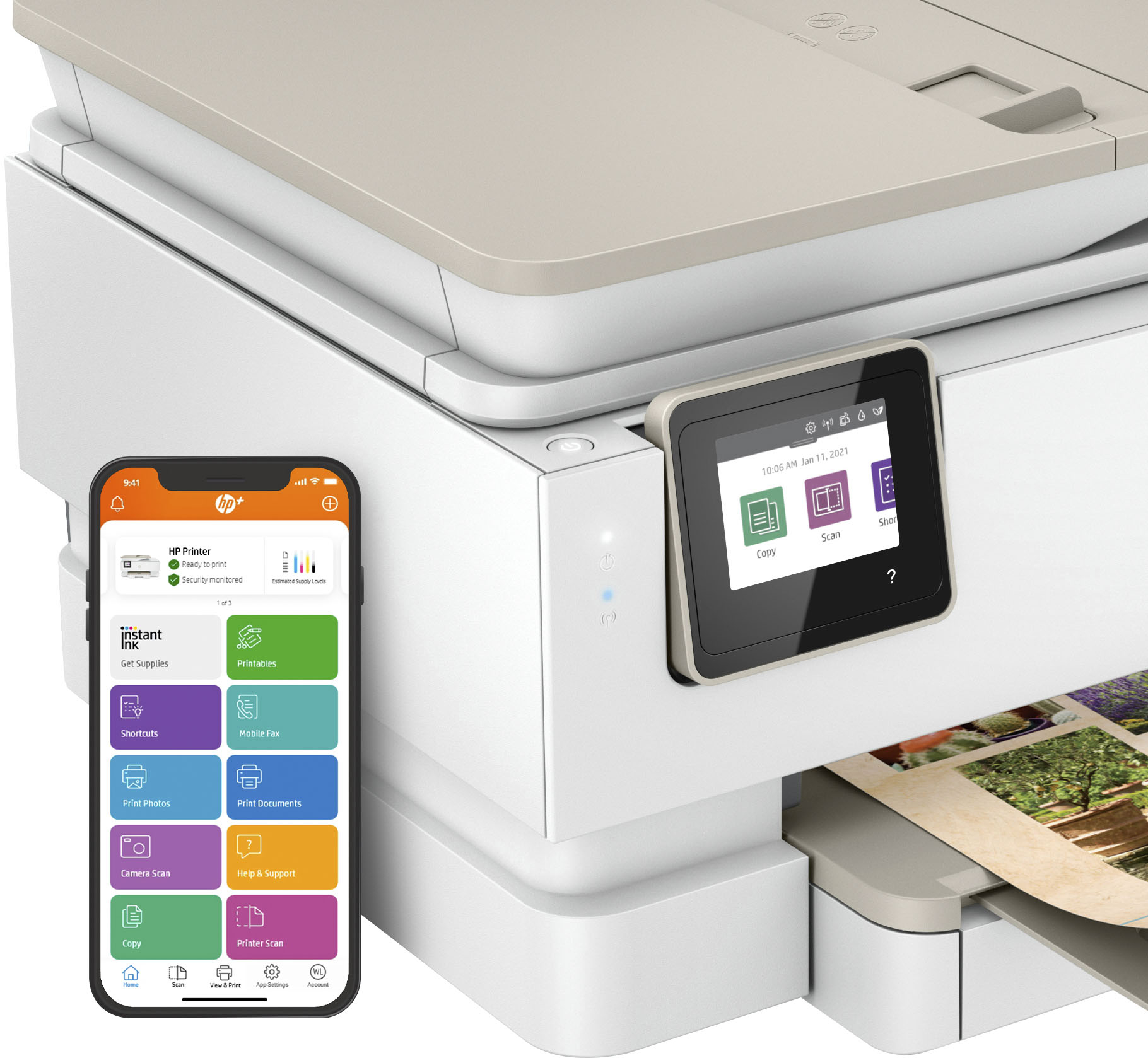
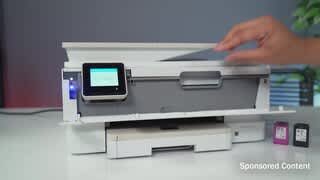
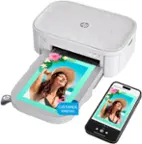
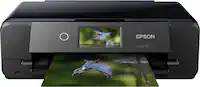
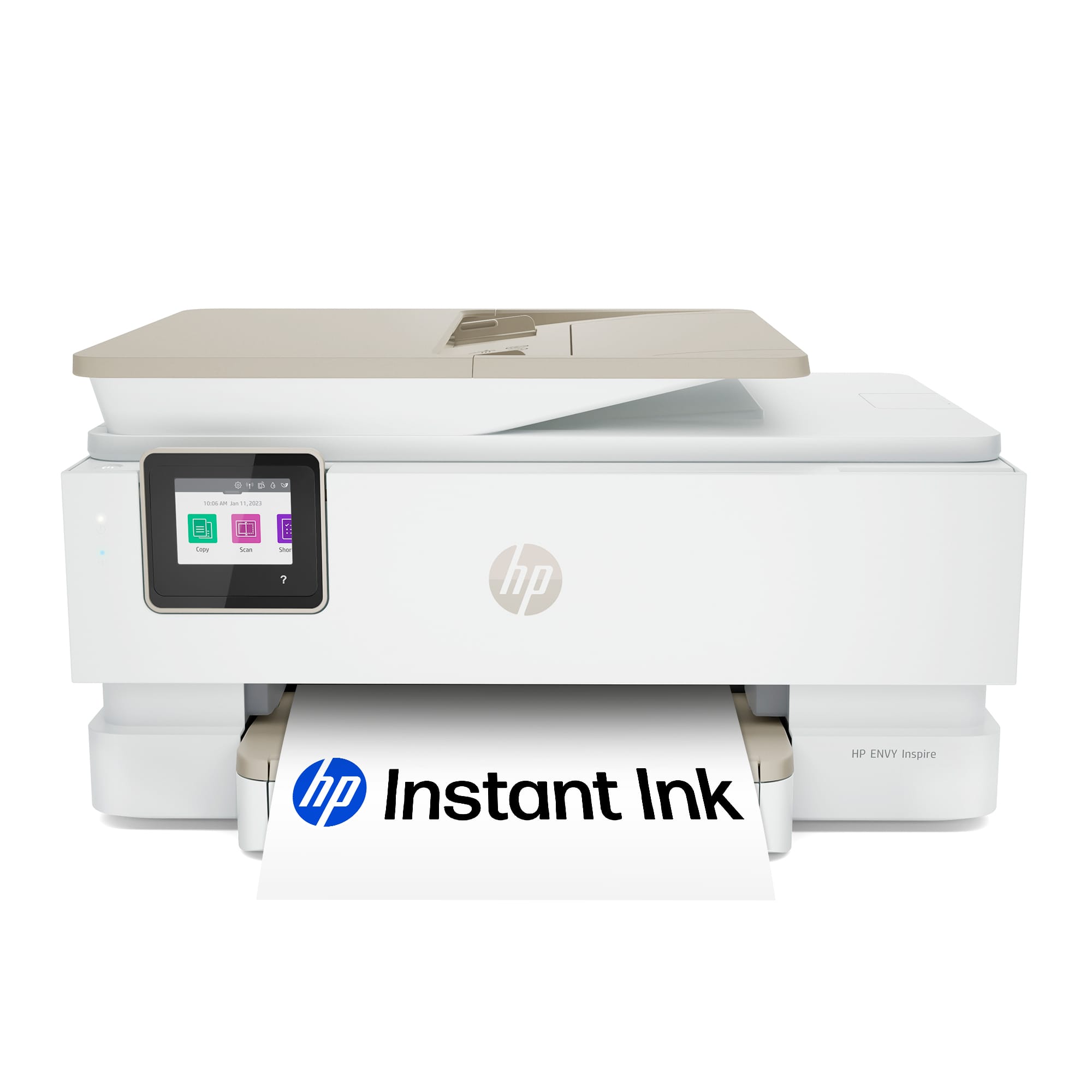
A:AnswerThank you for the question. You'll receive set-up cartridges (yielding up to 170 pages from black and up to 120 pages from colors) with the Envy Inspire 7955e printer. You'll redeem the free ink offer when you set up the printer, indicating how much you are likely to print per month. (You must redeem the offer within 7 days of setting up the printer). Your first cartridges will arrive in about 7-10 days. Thereafter, HP Instant Ink sends replacement cartridges whenever the printer signals a low ink level. You will not run out of ink. You can continue the program after six months once you've seen the benefits. Learn more here, including Q and A's : https://www.hp.com/us-en/printers/hp-plus.html
A:AnswerYes, it can. In fact, once the color runs out you can pull the cartridge and the printer will switch to "single cartridge mode" and will continue to print without reminding you that you have an empty tri-color cartridge in the printer.
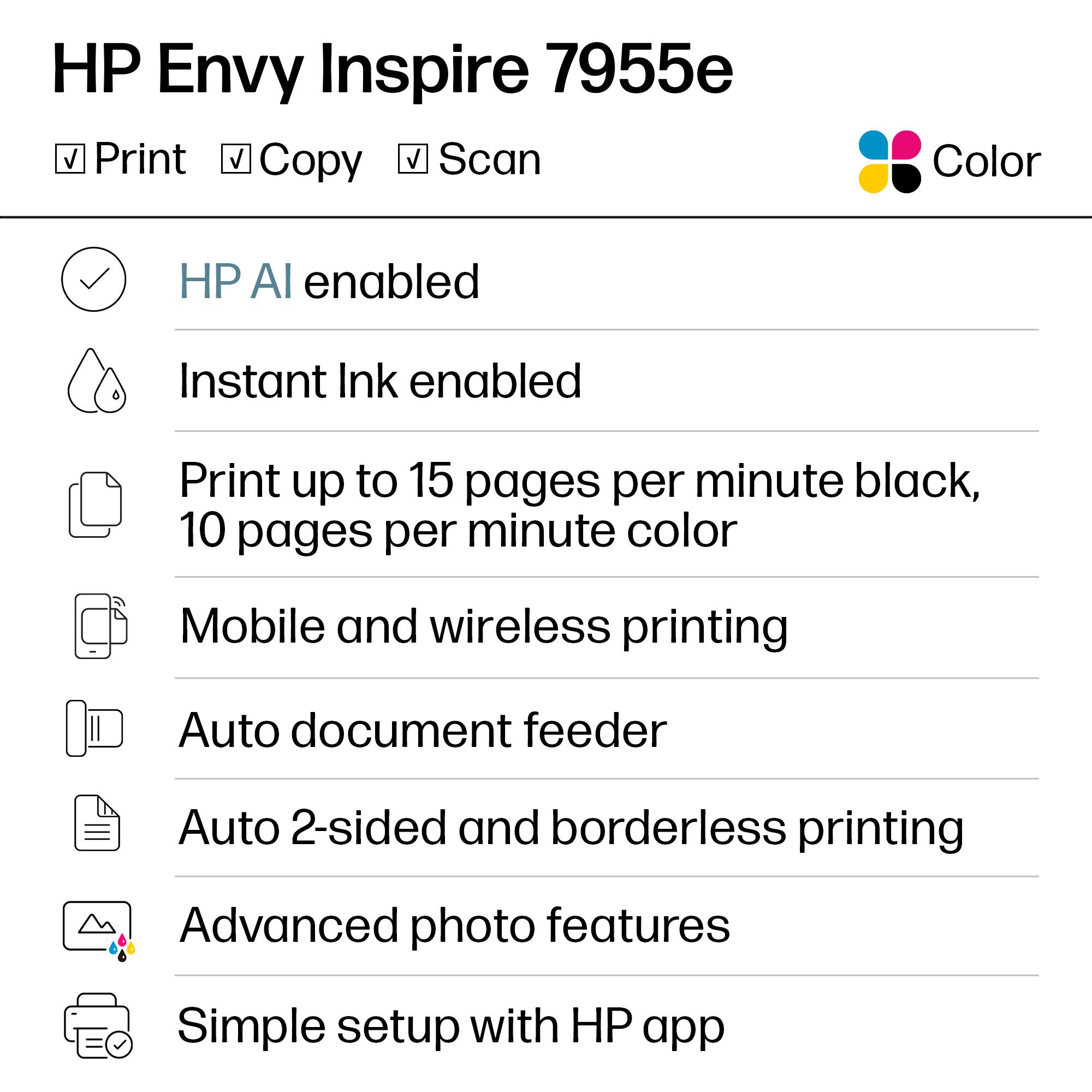
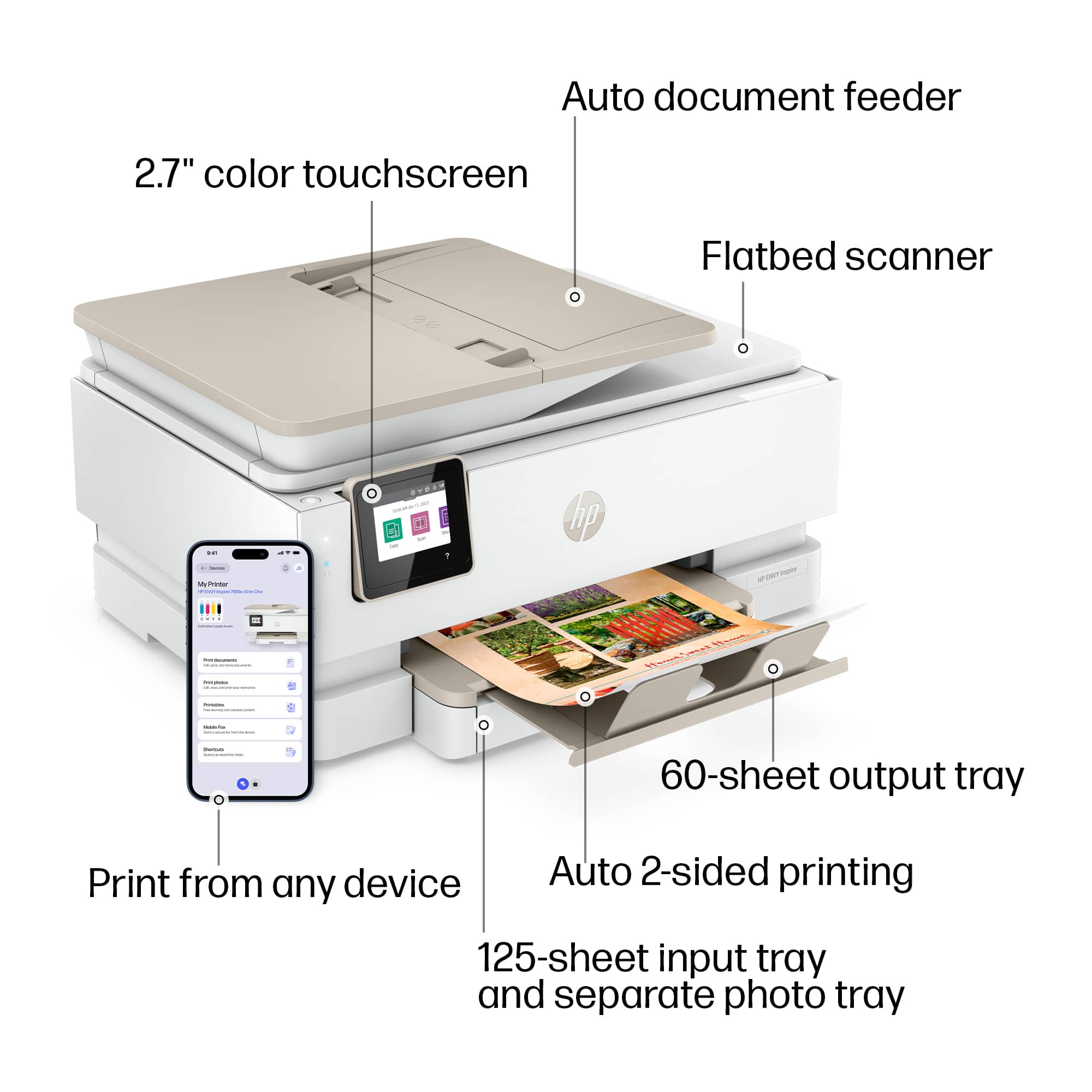
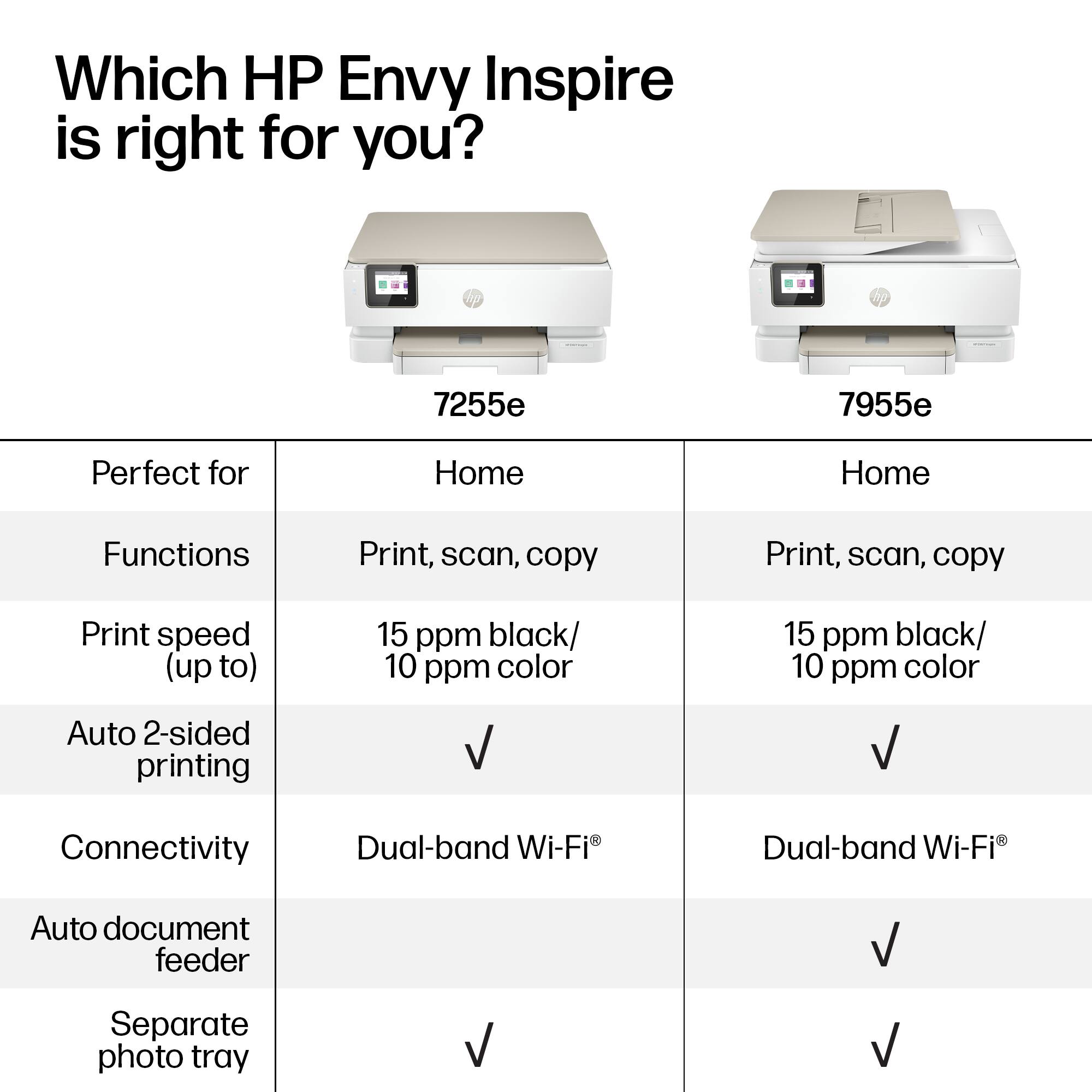
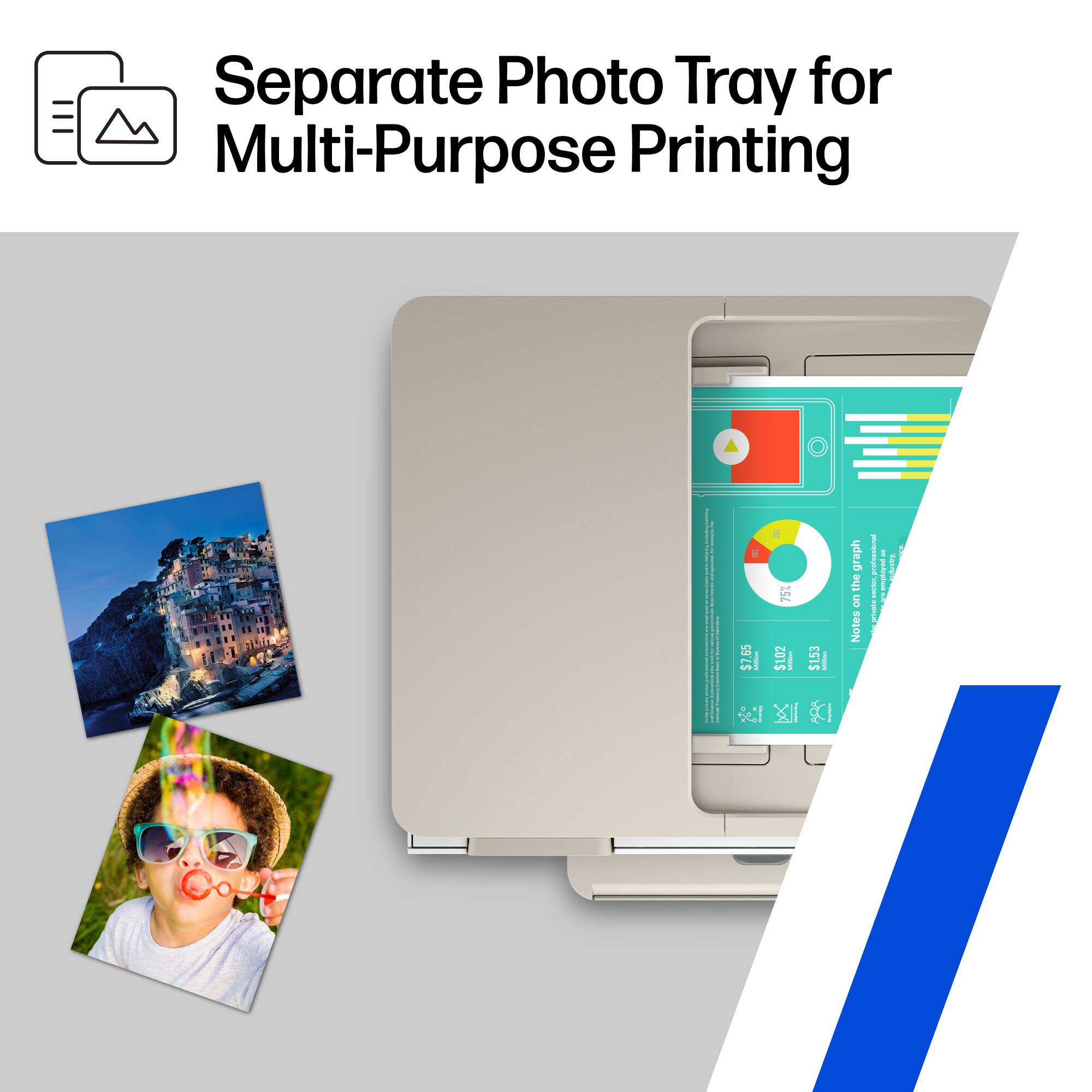
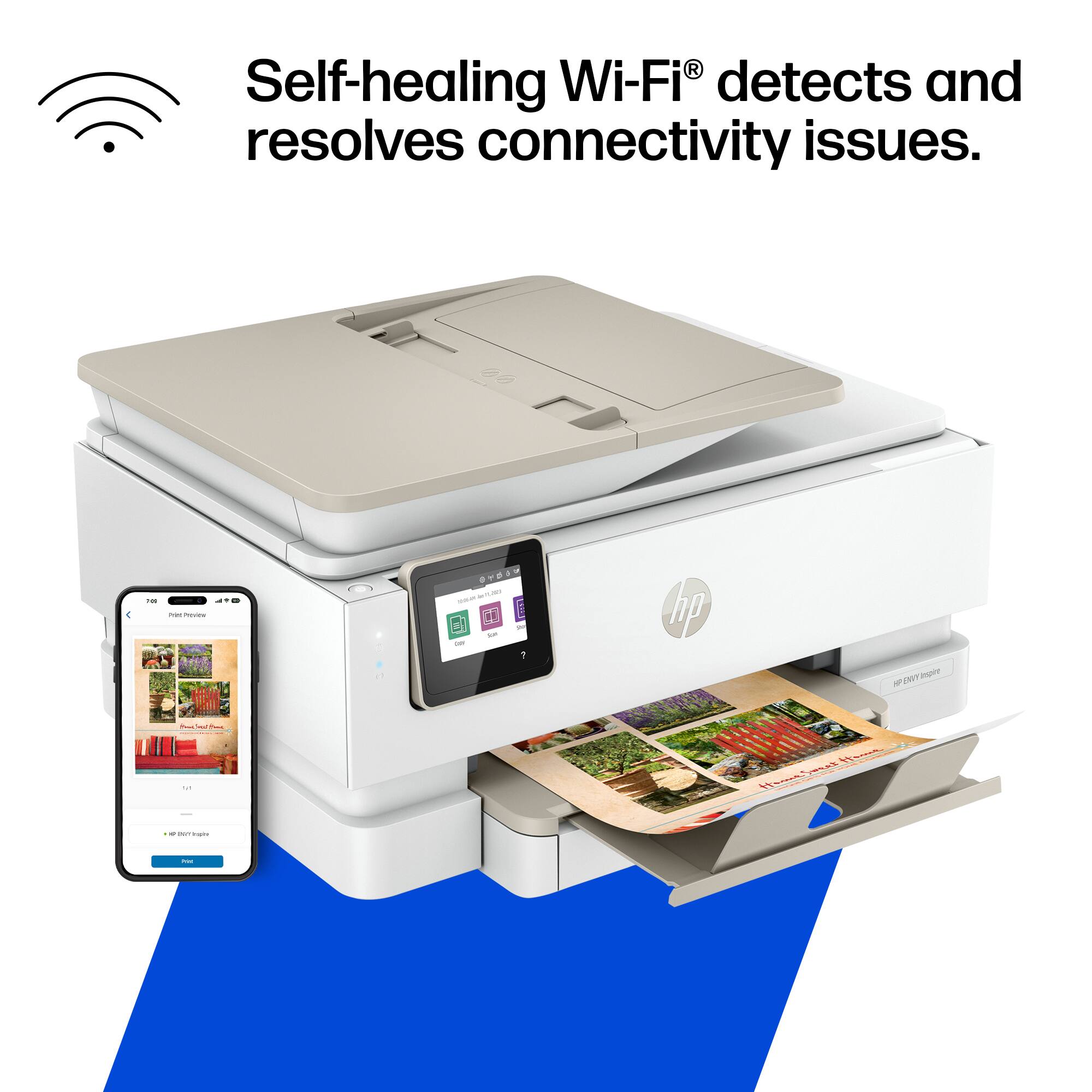
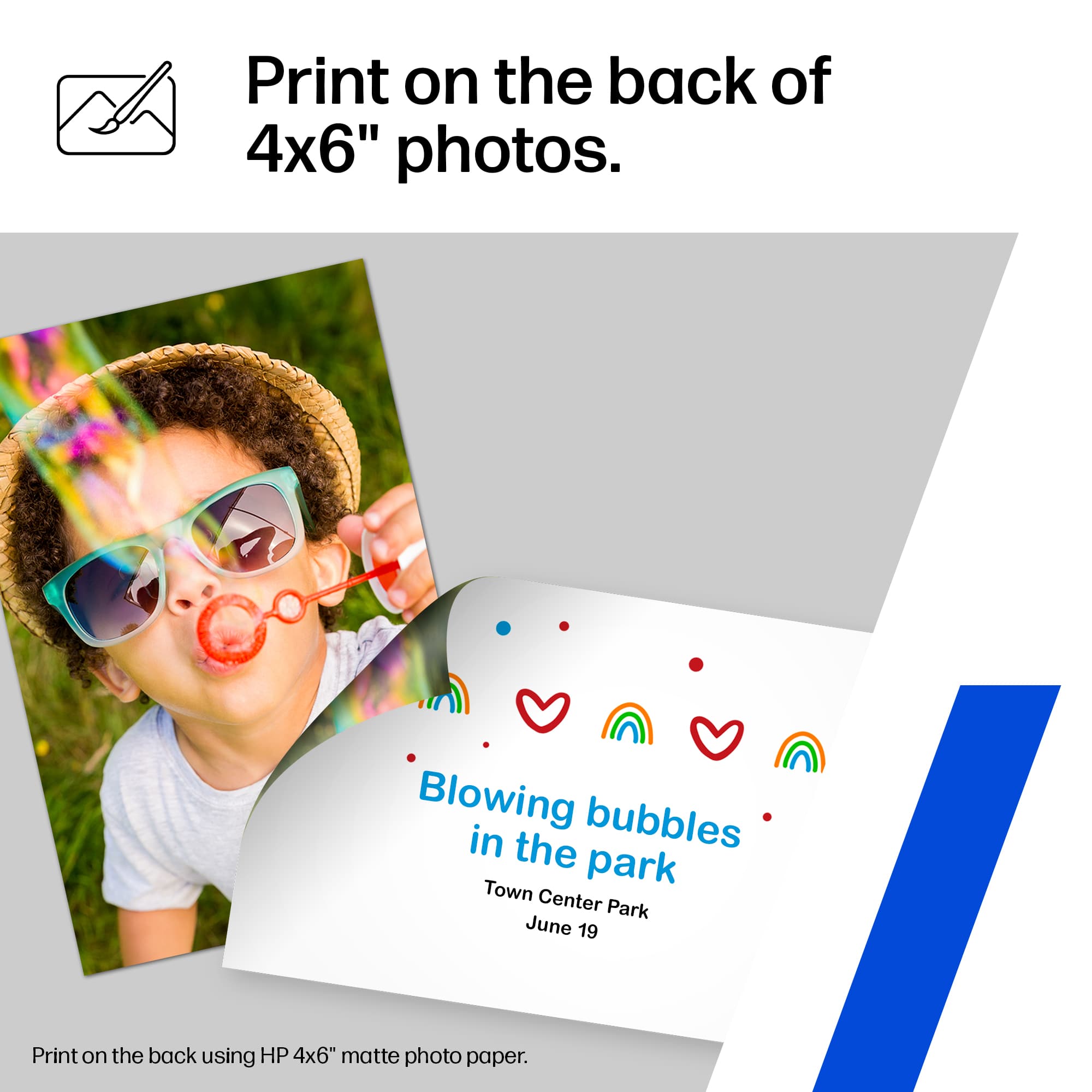
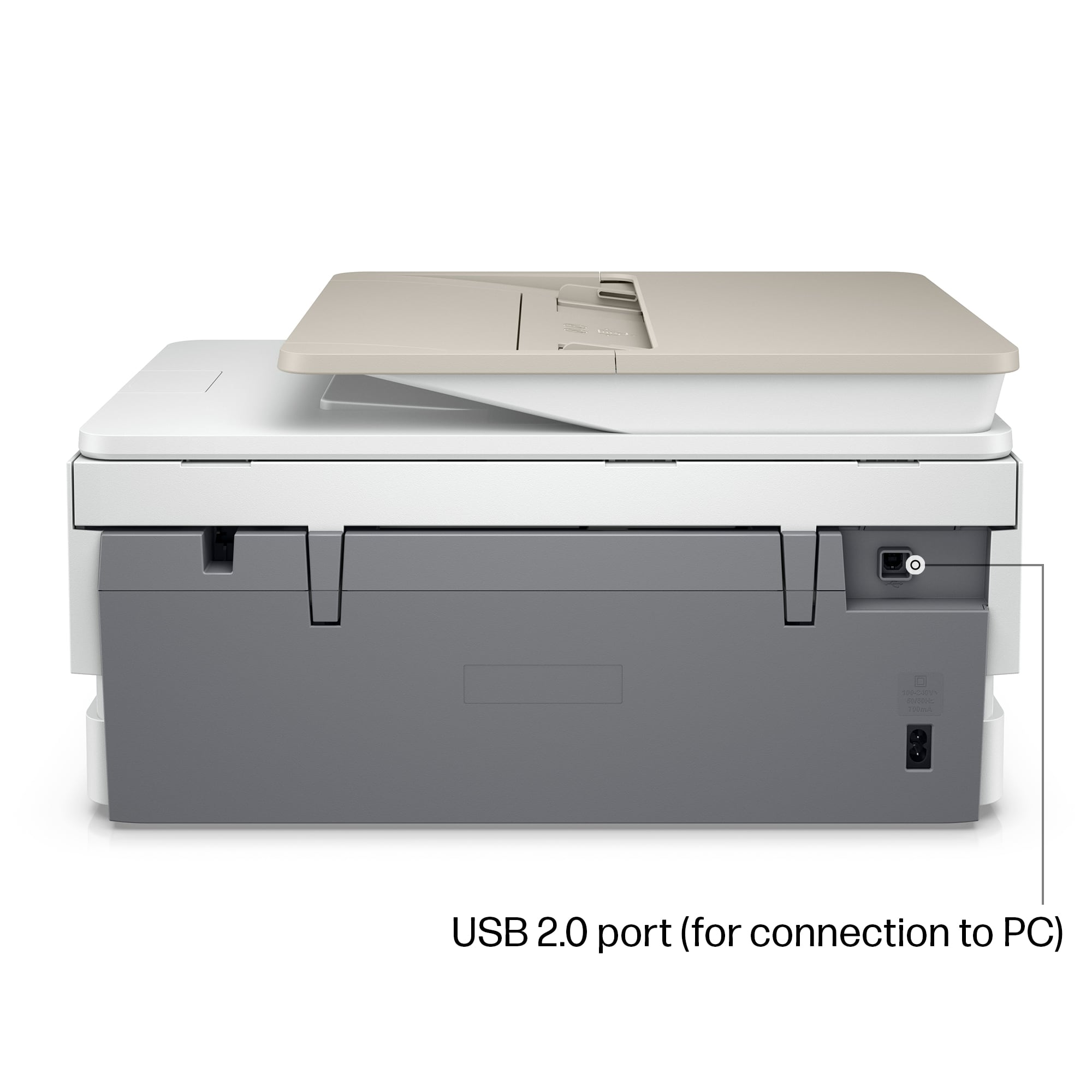
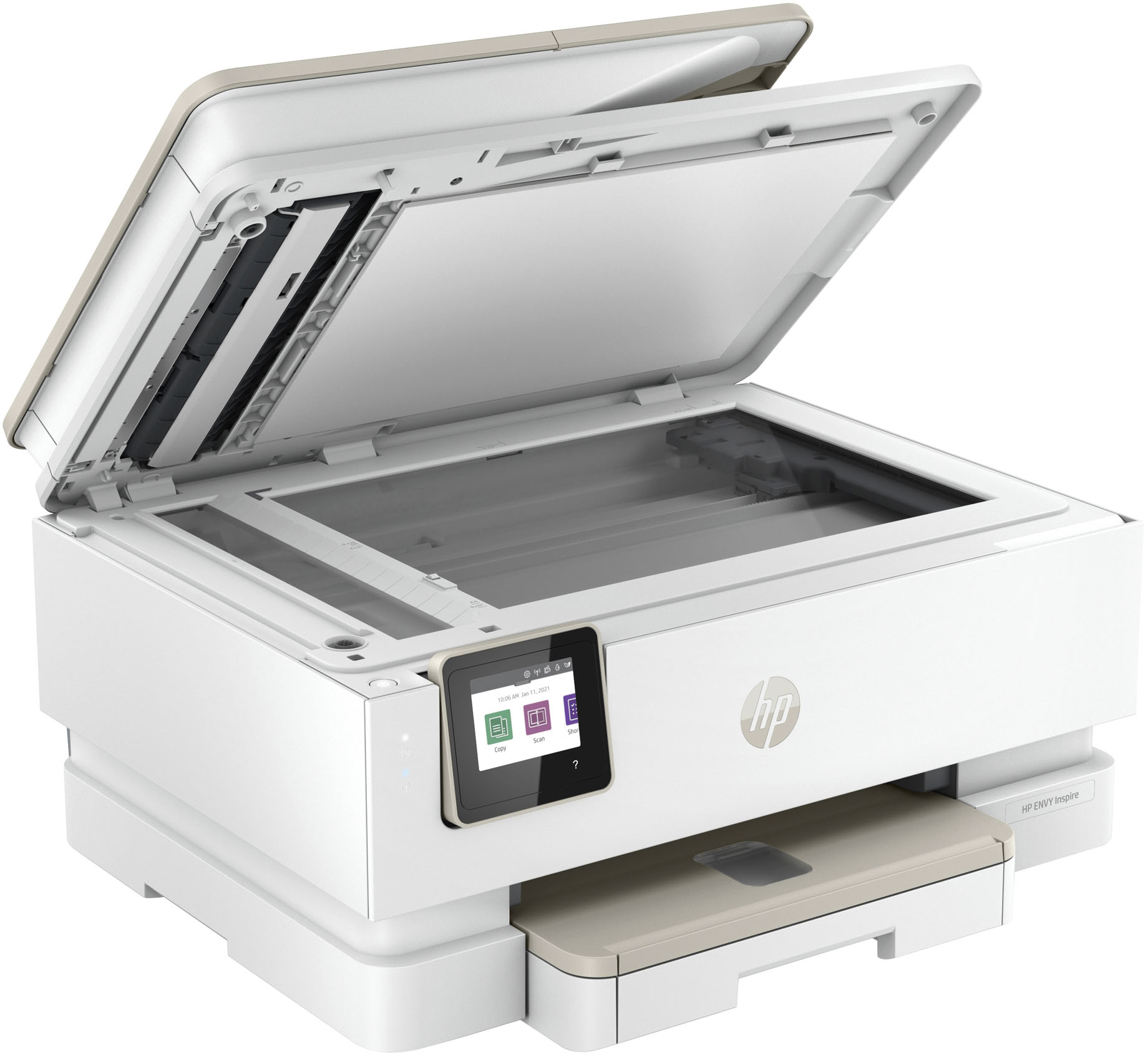
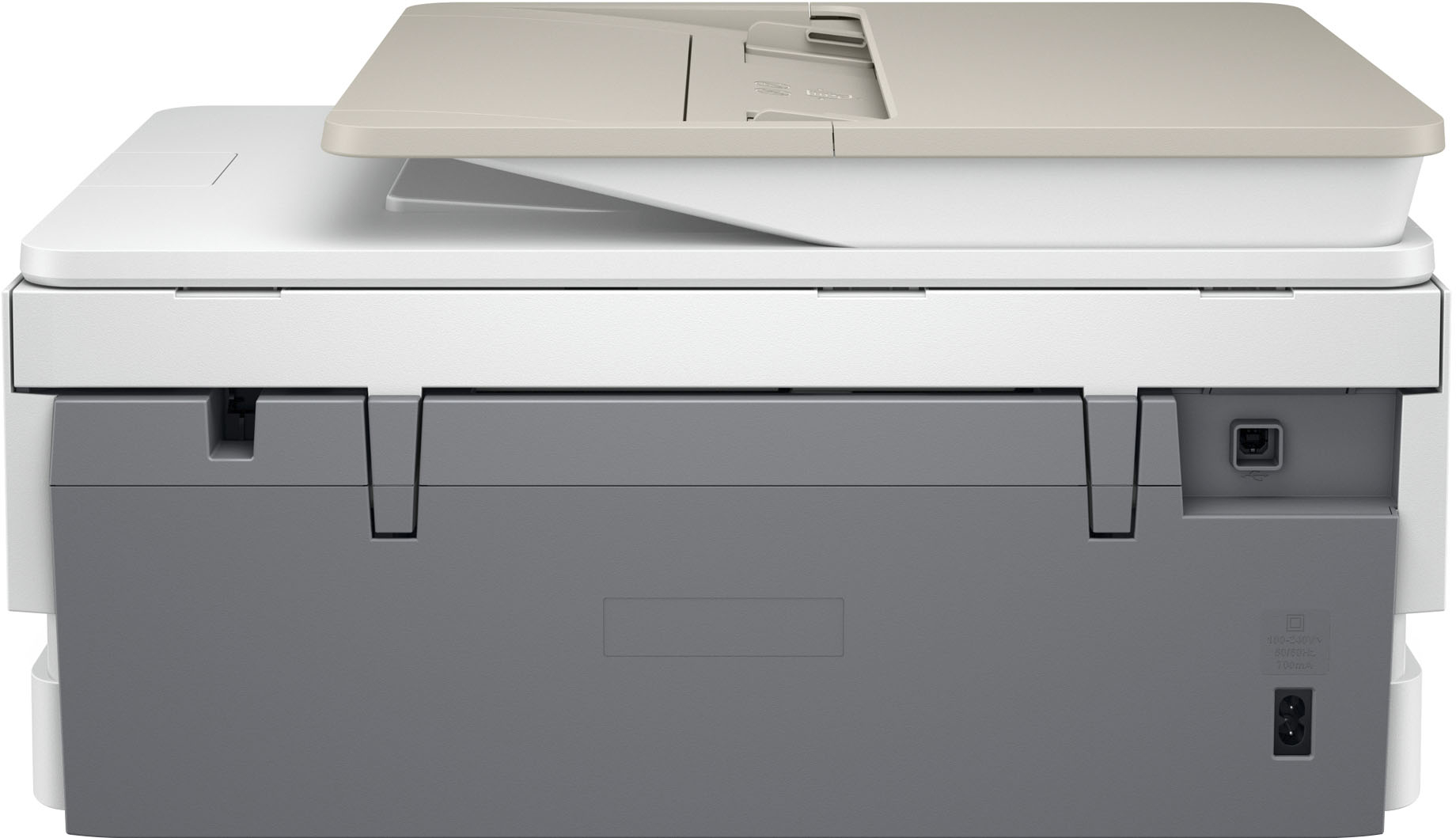
A:AnswerThank you for asking. Both printers have a 125-sheet paper tray and a separate photo tray. There are a few differences between the two, though. The Envy Inspire 7955e does not have landline fax capability. It doesn't have an SD card slot or USB port for a thumb drive. The Envy Inspire can print custom messages on the back of photos, and copy resolution (black) is higher at 600 x 600 dpi, vs. 300 x 300 dpi with the 7858. Both printers are Instant Ink capable, but the Envy Inspire 7955e comes with free ink coverage for six months as well as a free second year of product warranty. It also has dual-band self-healing WIFI.
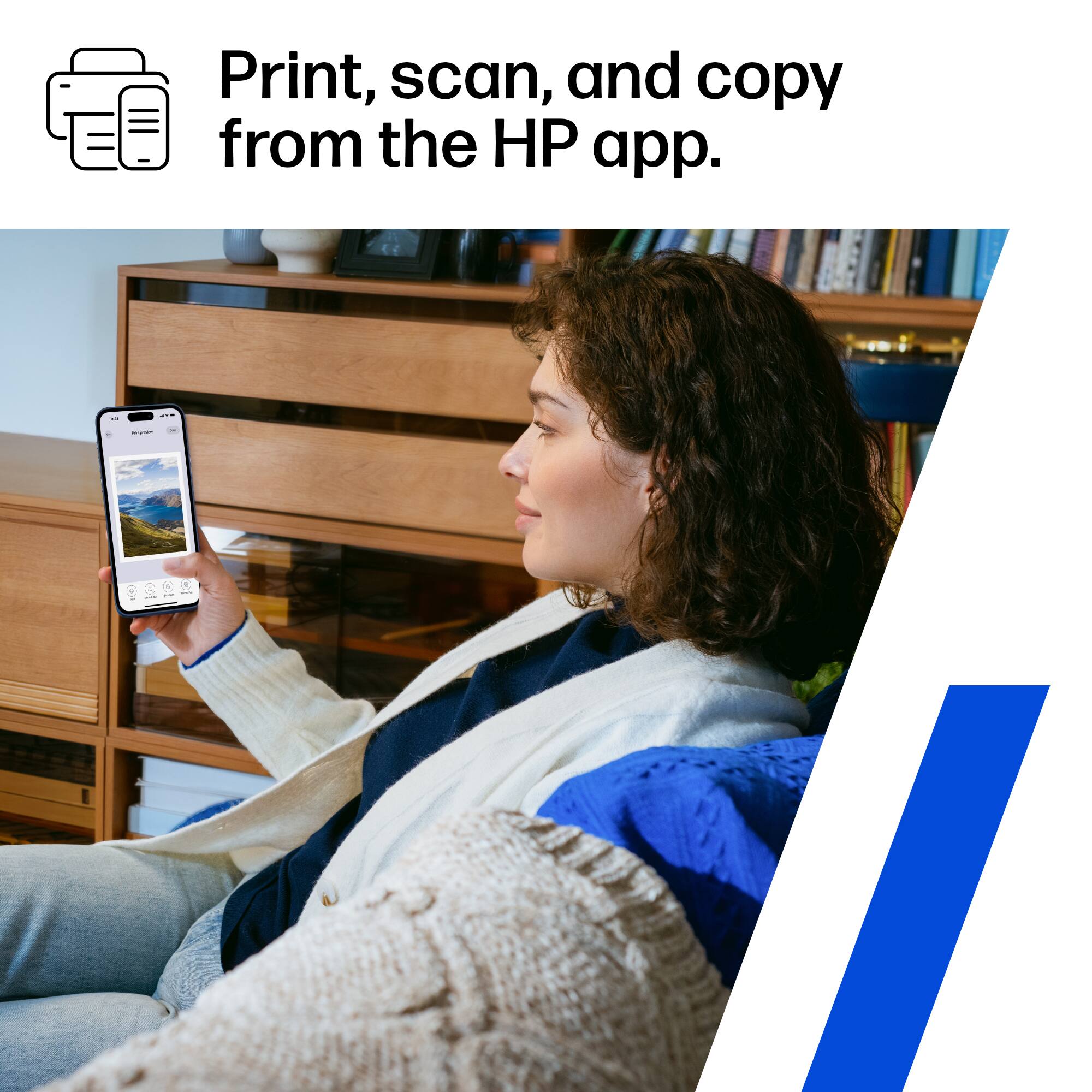
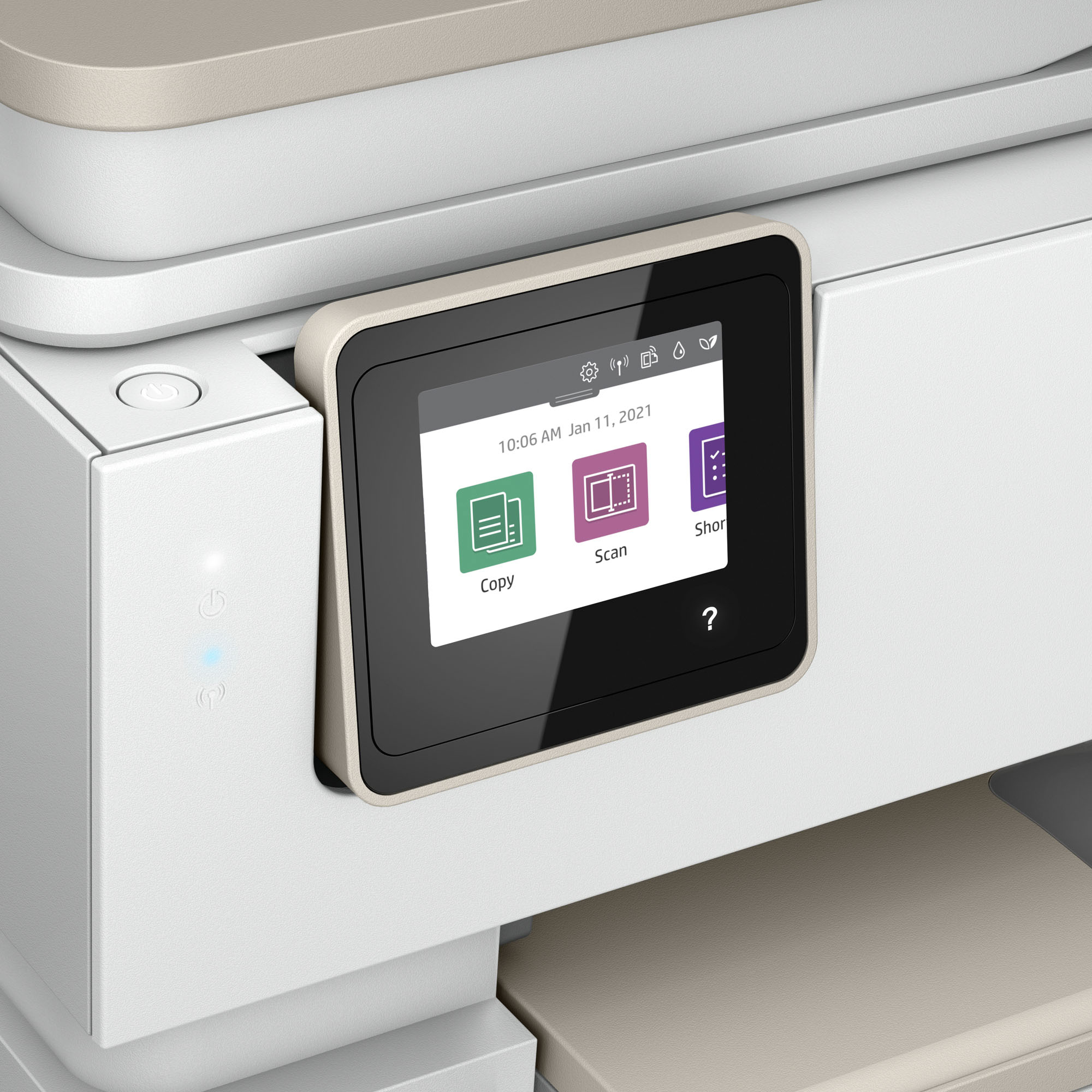
A:AnswerYes you must, at least initially. From the screen on the printer, hit scan, then computer, if you haven’t downloaded the 123 HP software, or HP smart app. it prompts you to do it. I have a MacBook Air 2020M1 and I use it, even though on my own printer it says it’s not available, I think it’s only not available for the scan from scanner to comp on Mac OS. I know I‘ve printed from it a bunch. Scanning might be problematic with Mac OS, I’ve done it but I used the smart app.
A:AnswerThe smallest size photo paper it can handle is 4x6 inches, so you'd either need to put several photos on a 4x6 sheet and separate them, or print a single photo on that 4x6 paper and trim it to the size you want.