A:AnswerIf on an iPhone or iPad, after switching your wifi to the insignia wifi network, and returning to the app, do not select a wifi network like it asks you. Select Done instead.
A:AnswerIf your concerned with power consumption, you'd be better off with the version of this product that has the metering built in. that one will show you how much power is used at all times. You pay more for that option, but if that is your end goal, you can quickly tell how much power each device is using to budget accordingly.
A:AnswerYou might have to reset the plugs( press and hold power switch for 15 seconds) and start setup again. Use the insignia connect app to connect, then use google home to setup control.
A:AnswerThis device connects to your home's Wi-Fi, so you can set the power to be on a timer or to turn the power outlet on and off remotely. I wish I had this is college. I had a roommate that liked to turn the electric stove on in our apartment and would fall asleep. It would have been nice to have had an option to cut the power to it remotely.
A:AnswerYes it can. All you will need is to download the insignia app to a smartphone(apple or android) and set the schedule on what ur preference is. It is very simple.
A:AnswerI don't think so. I have Vivint for my security alarm and they said they may think about having their smart plug become compatable but had no plans to.
A:AnswerHello dmroden23, you can delete it by pressing and holding the screen over the location you want to erase for a few seconds and the delete option will appear. Omar S. - Insignia Support.
A:AnswerI did a few tests and the smart plug remembers the last state it was in. Unfortunately, when the power resumes and the smart plug re-activates, it does not appear to be considering an active schedule that may have otherwise altered its state.
A:AnswerI don't know if there is an upper limit. We have installed 15 of these plugs, and we have the app on two iPhones and 4 iPads. One great feature of the app on Apple products is that you can add a new plug or schedule on one of your iPhones or iPads, and the next time you open the app on one of the other devices, the new plug or schedule is there. In other words, you don't need to add the plug to each device separately.
I know there have been complaints about the app losing contact with the plugs. While I have had this occur, it has been no big deal. I have found that when that happens, I just close the app on that device, and then re-open it. When the app re-opens, all the plugs and schedules are there again. I guess it just reloads the information from either the Best Buy cloud storage or from our own iCloud storage. At any rate, it is no problem.
Also, I have many of the plugs on a timer schedule. When time changed from daylight savings time to standard time, all I needed to do was to create the new schedule and tell it to add the desired plugs. The only wrinkle is that there can be no plugs checked on the old schedule. It doesn't seem sufficient to just turn that old schedule off. You must uncheck all the plugs that used that old schedule.
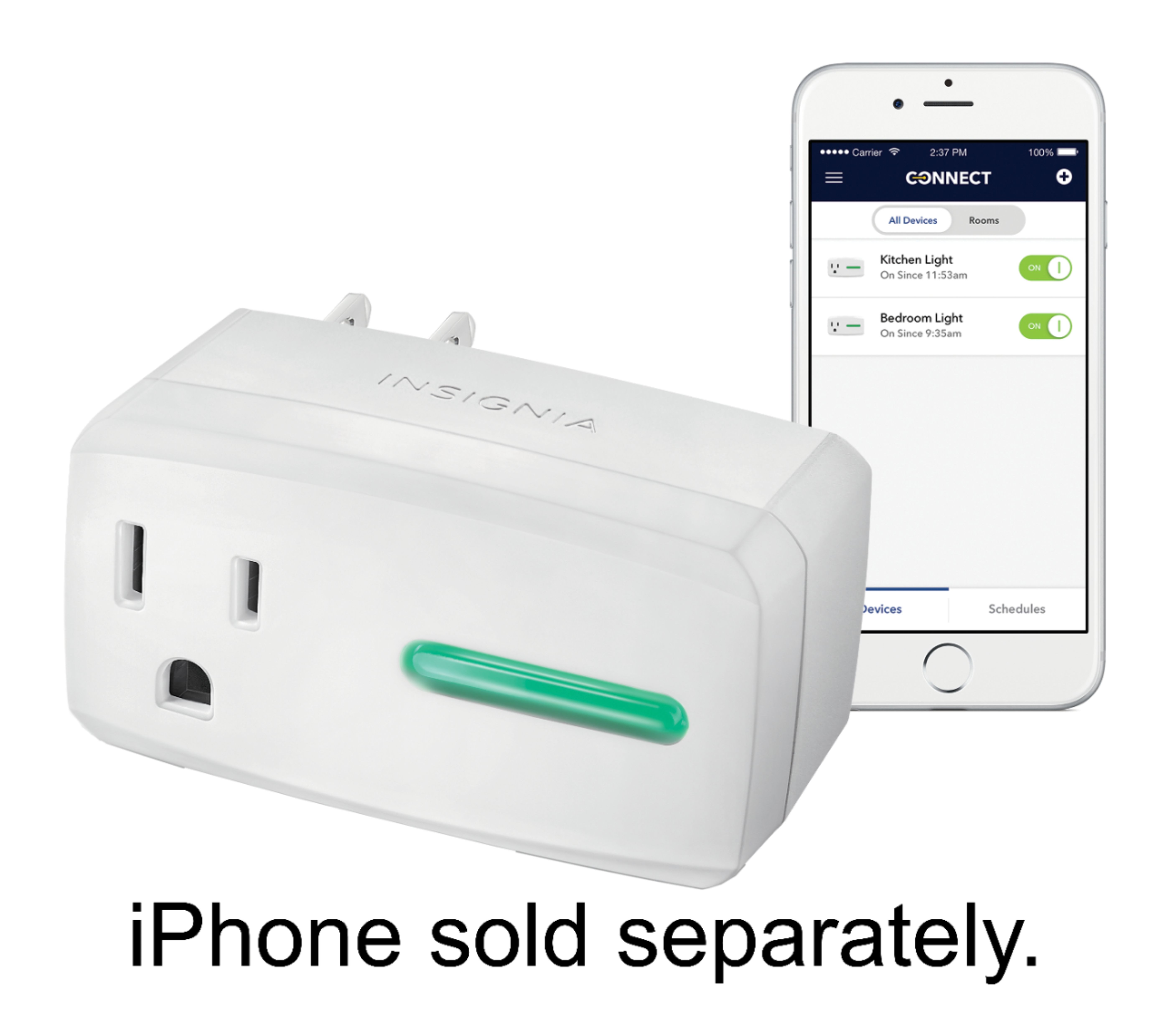
A:AnswerPlug it off. Press the LED button while plugging it back on power, after ~4 secs you will hear a "click". Release the LED button and do all the setup.
A:AnswerHere’s something to try if you’re connecting to your wifi router with your smartphone on a 5.8GHz network. I have found that setup worked best if I start off and complete setup of this outlet while only using a 2.4GHz wifi network. Once the device is setup (can be turned on/off from the app) then you can connect your smartphone back to your 5.8Ghz wifi again.