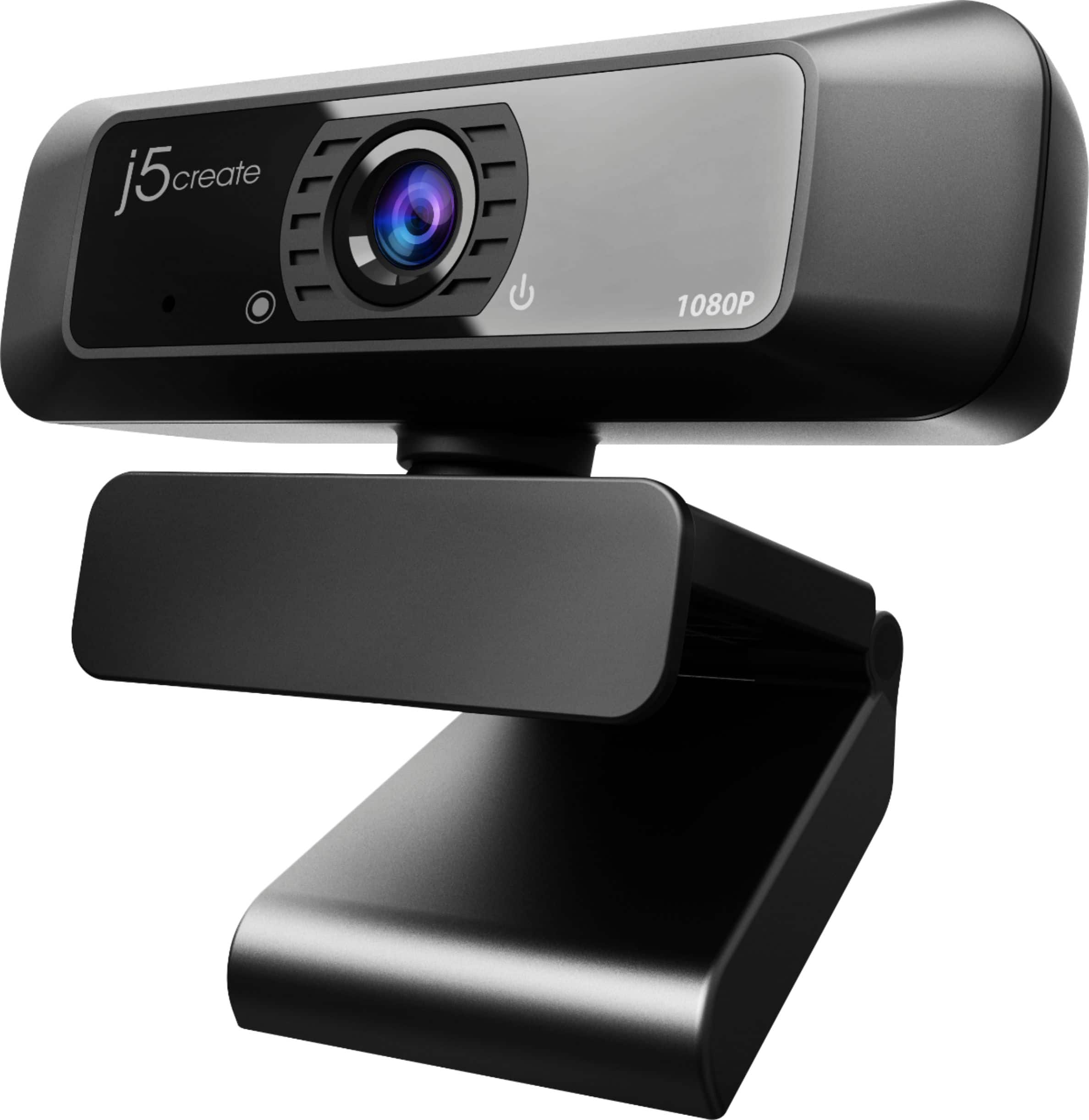
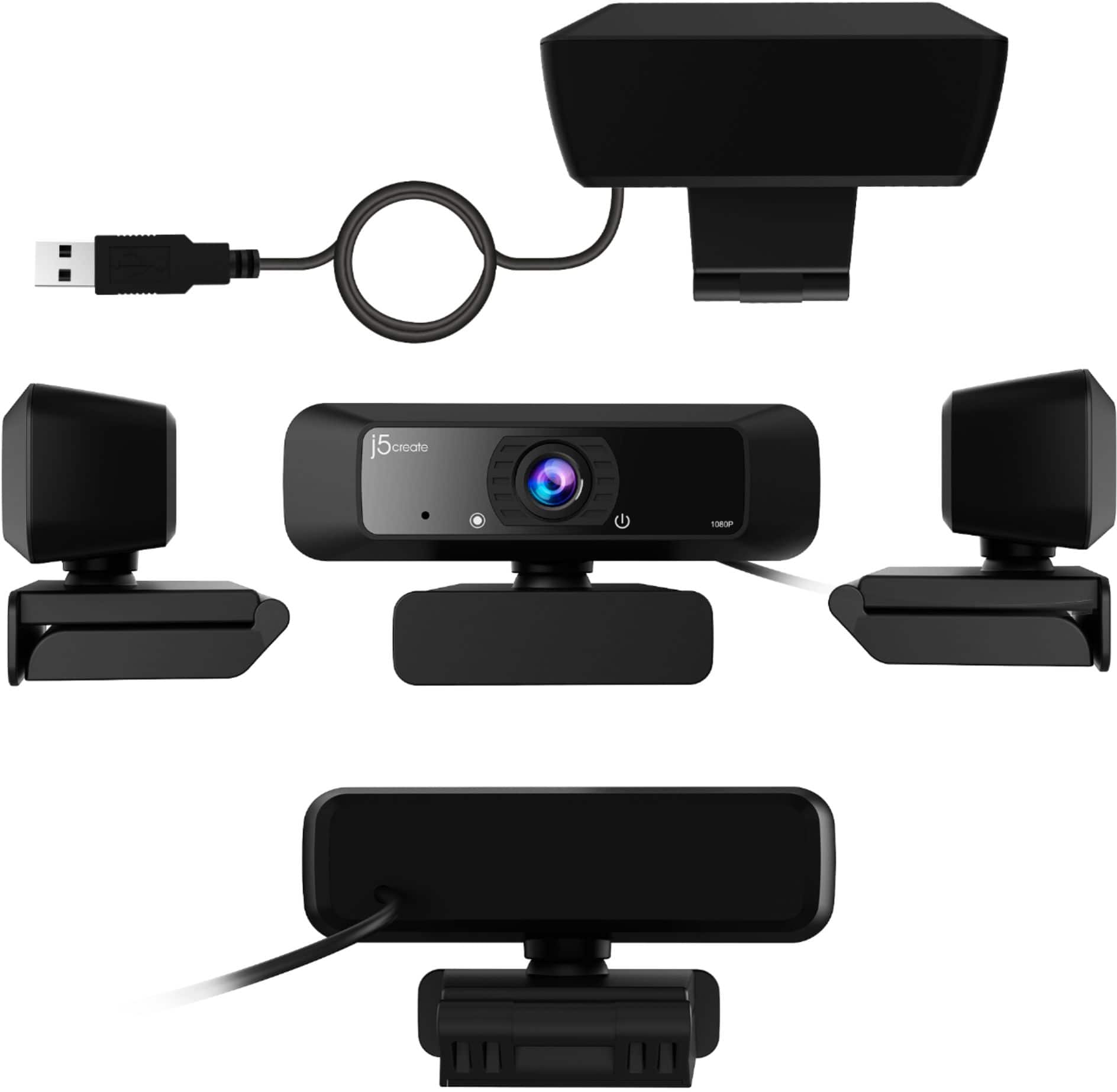
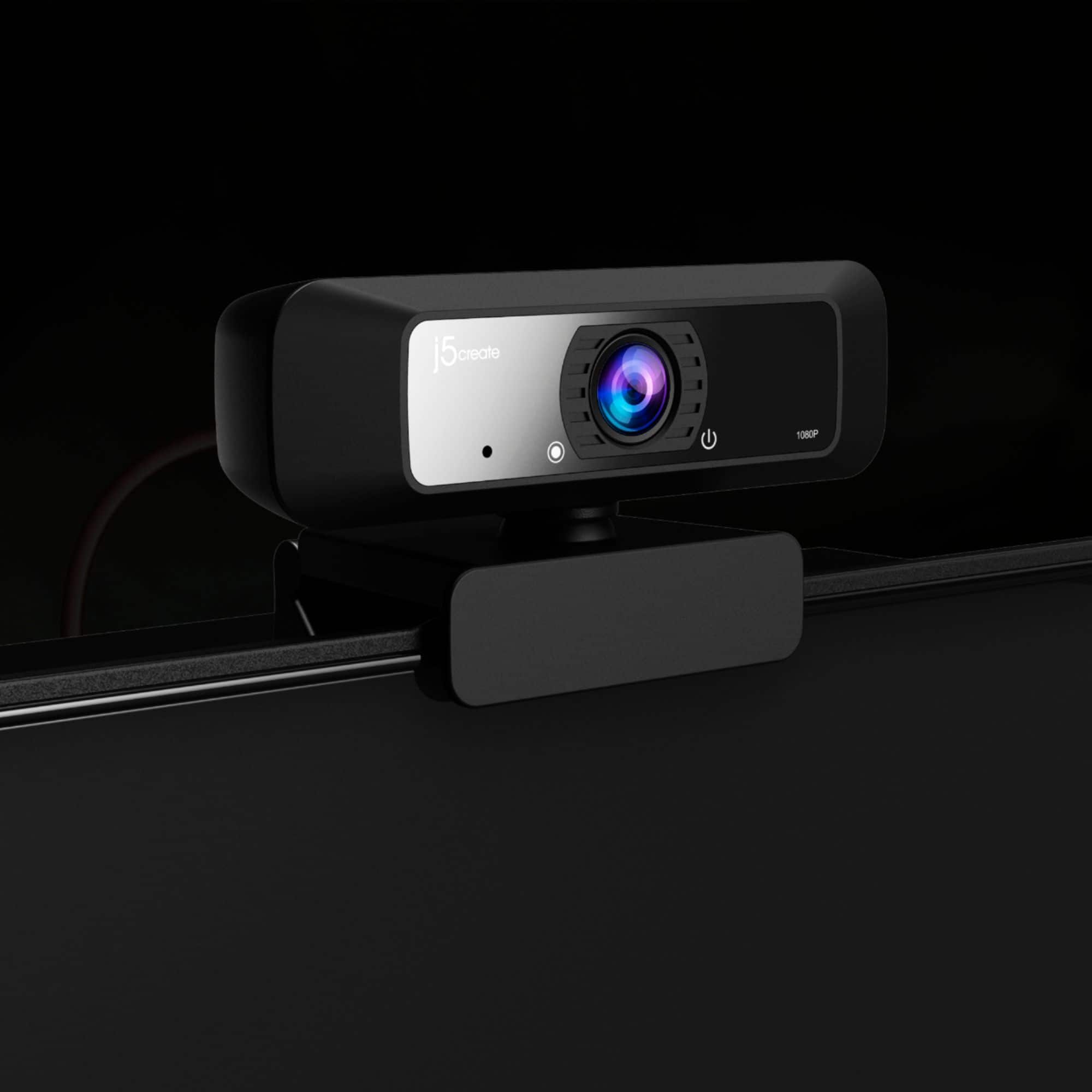
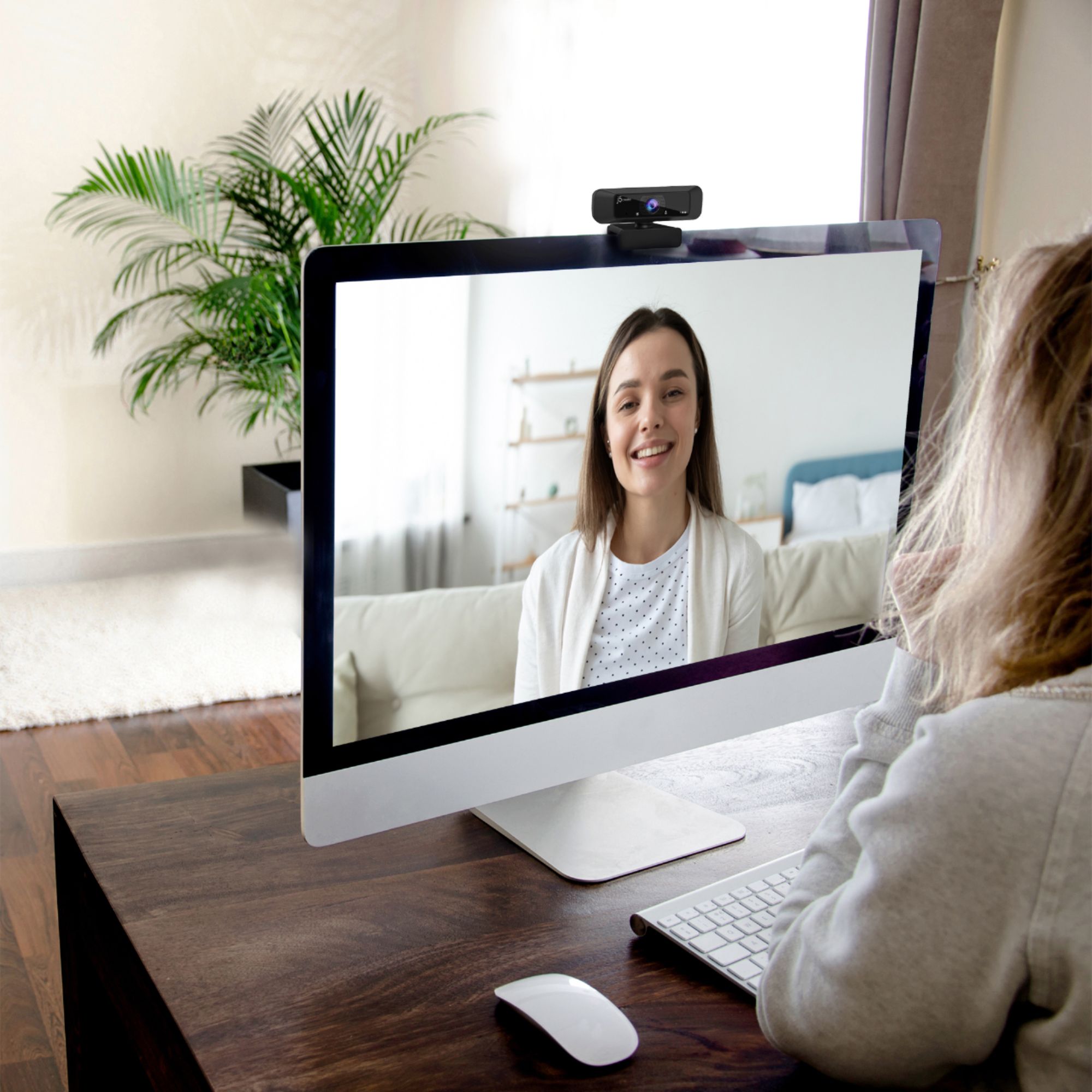
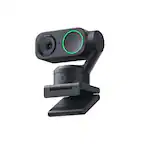
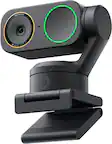
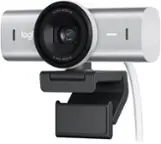
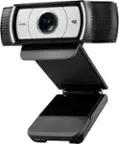
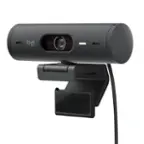
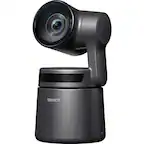
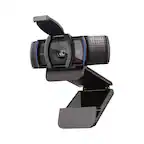
A:AnswerI put a little ball of tacky poster sticky stuff under mine and sort of squashed it down. The cam sits solidly on top of my monitor but I can still adjust it up or down as needed. The poster tacky stuff is sort of like putty. It is removable and reusable so it doesn’t create a problem by being a permanent adhesive.
A:AnswerI had a similar problem at first too. To get it to work I just pulled its cord out of the USB port and reinserted it. I have to do this every time I need to use it but it works. I hope this helps.
A:AnswerDepending on the TVs specs. In order to provide a more accurate response, we recommend contacting support on the casing to speak with a rep and they will be able to look up the specifications for the TV and determine compatibility.
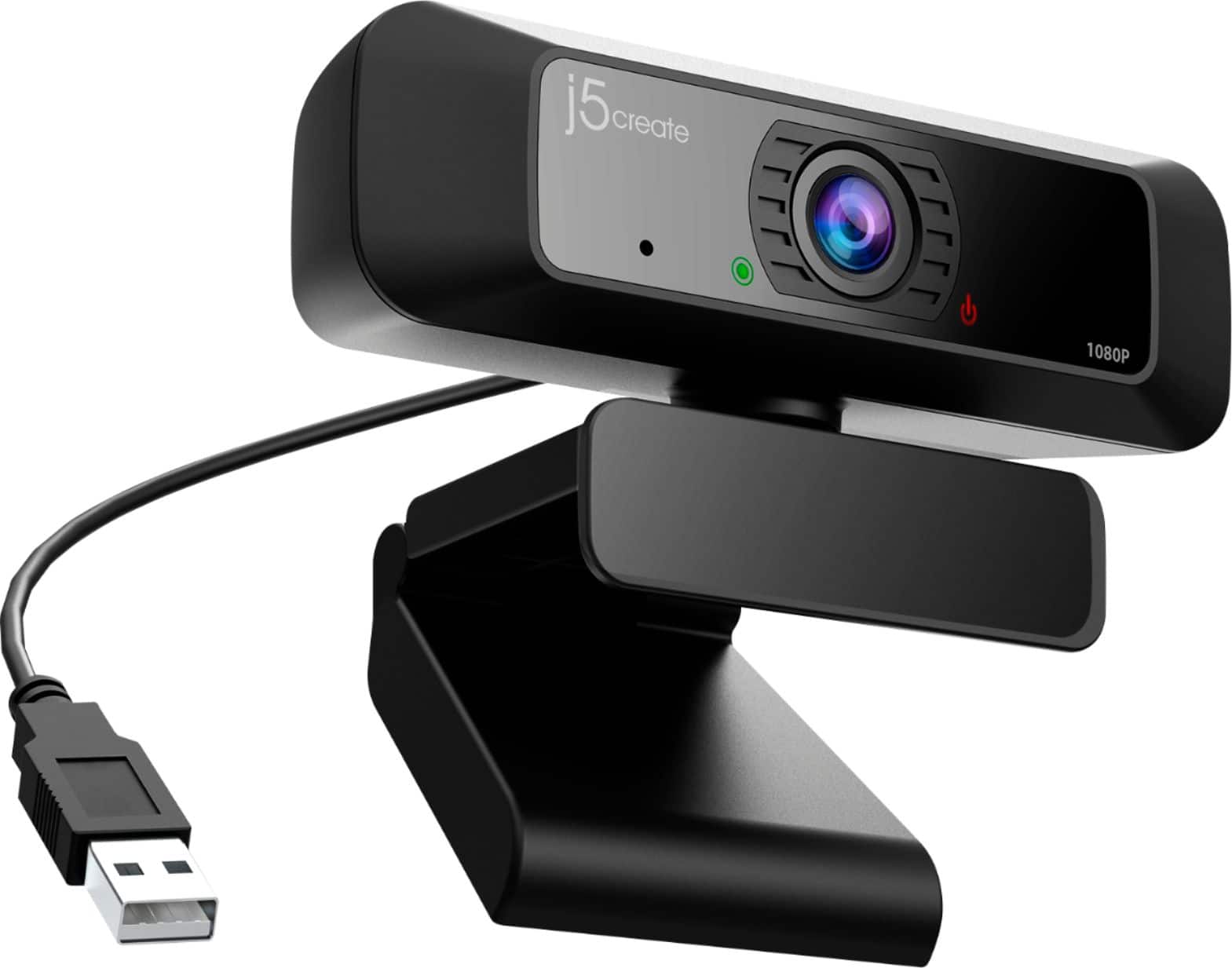
A:AnswerIt does remain green when plugged into usb Once you get on zoom it will remain red until you are added to meeting there should be a camera icon at lower part of screen click the camera and your picture should show
A:AnswerNo, the JVCU100 is backwards compatible and therefore works with both USB 2.0 and 3.0. We do recommend plugging into USB 3.0 ports for faster performance.
A:AnswerYes, the JVCU100 does have a built in microphone. Ensure to allow the microphone in the privacy settings as well.
** Feel free to contact the Technical Support team on the packaging for further assistance or if you have any other questions and someone will be glad to assist you.
A:AnswerYes, as long as you are running a supported operating system, it will work without issue. It is attached by plugging in the USB-A cable to an available port on the PC.