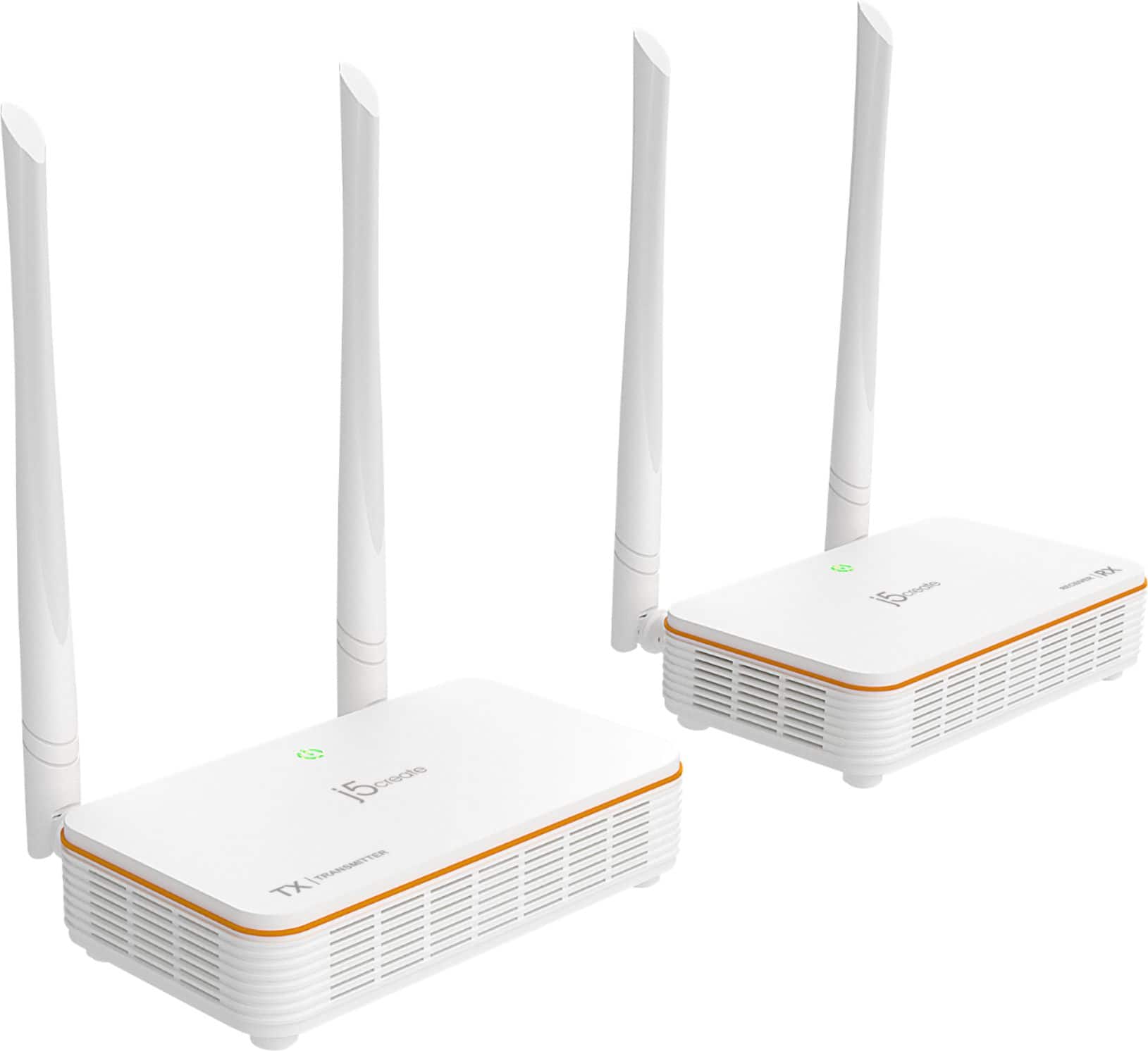
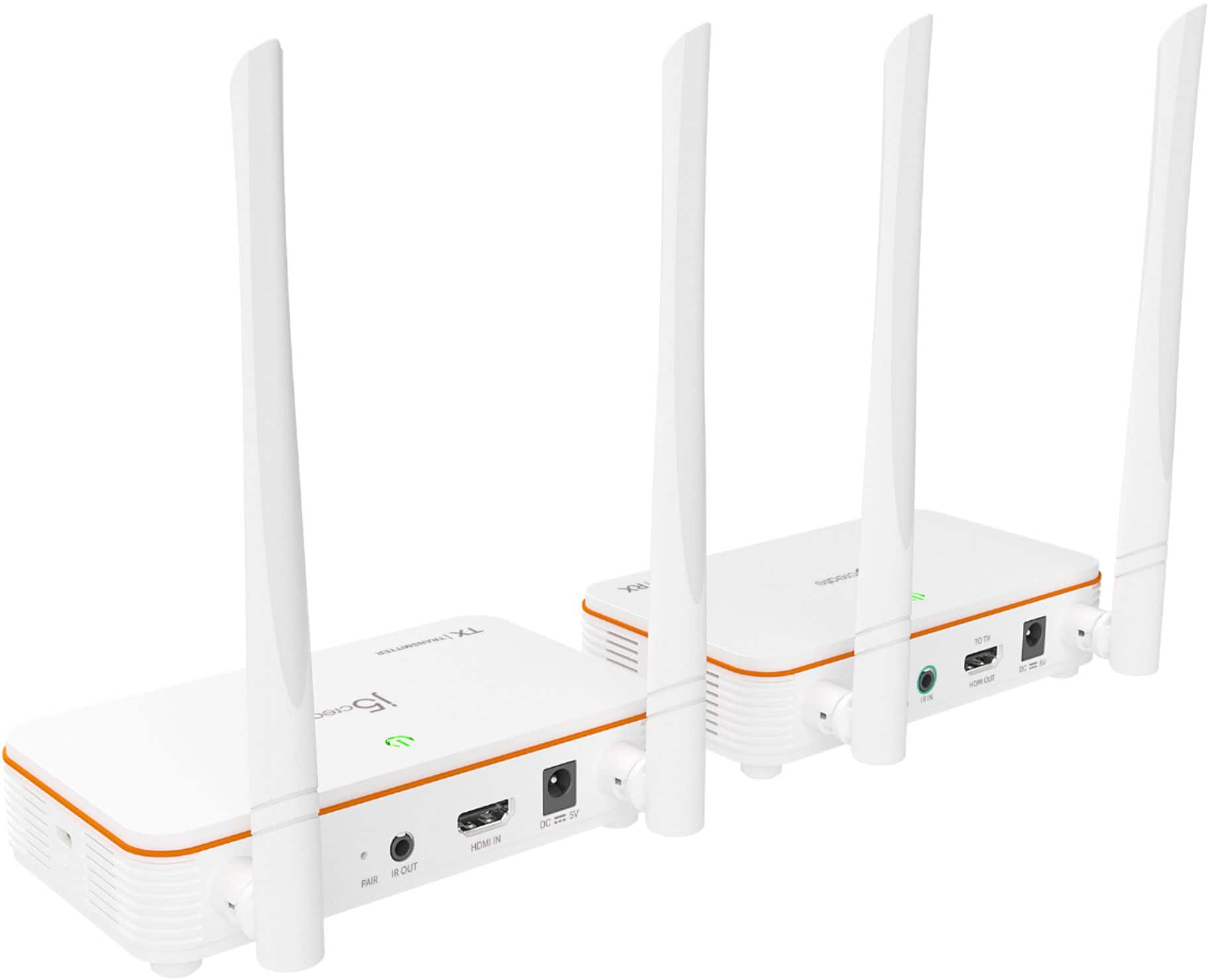
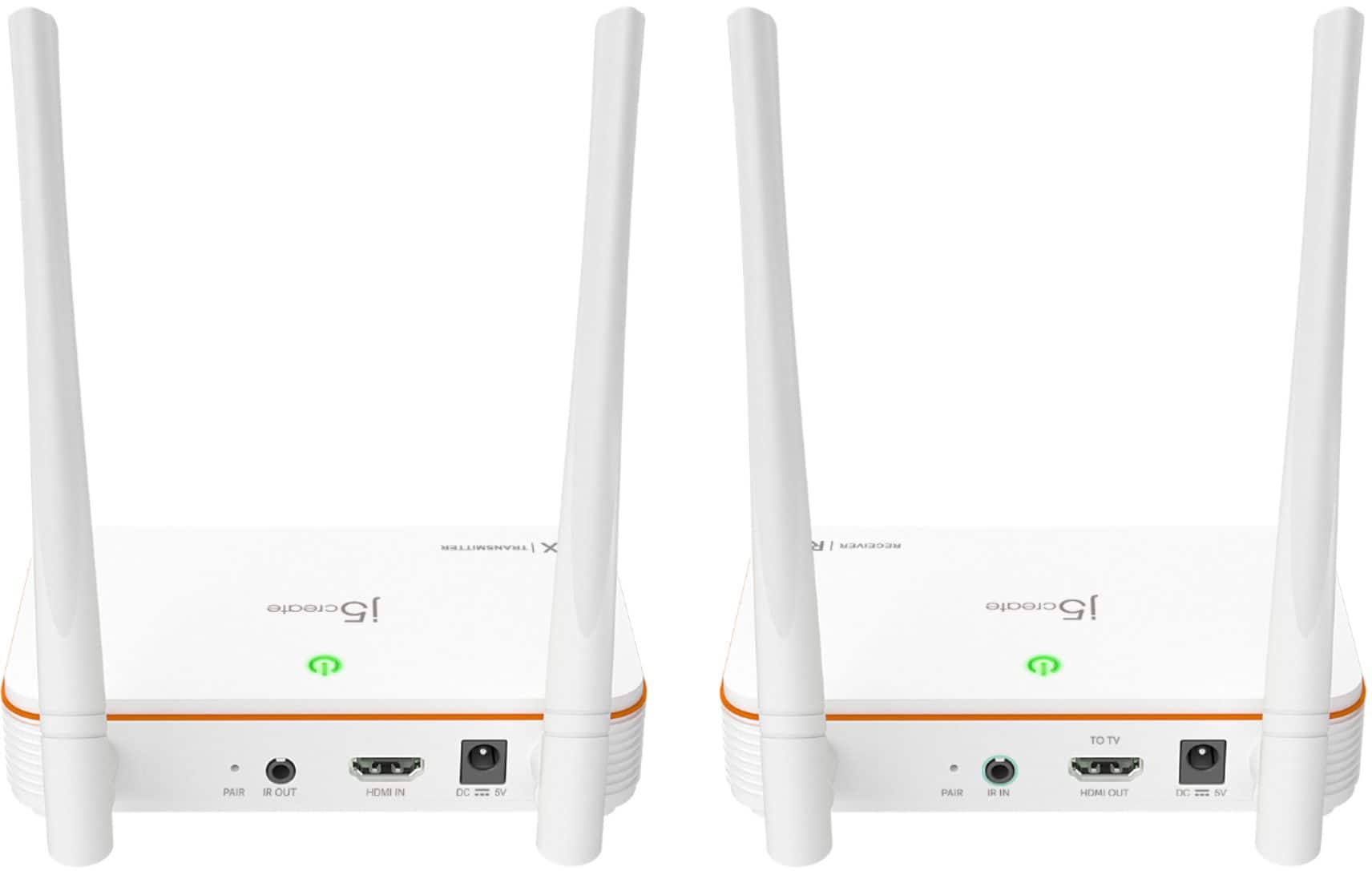
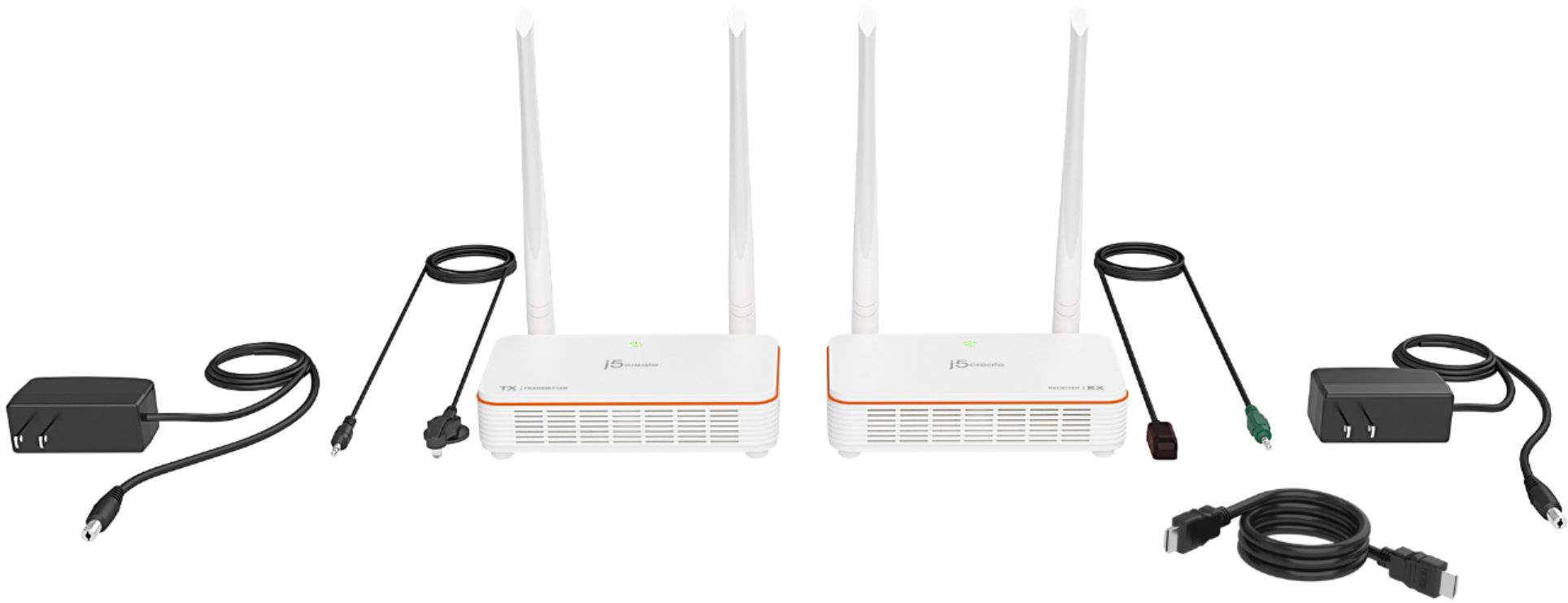
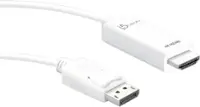
A:AnswerThe Wireless Display HDMI Extender is designed to send video/audio wirelessly from a device with an HDMI source (like a cable box, Blu-ray player, or PC) to a display with an HDMI input. It cannot connect TV to TV directly, since TVs are displays and don’t act as HDMI “senders.” The JVAW53 needs a source device plugged into its transmitter HDMI port.
A:AnswerThe Wireless Display HDMI Extender supports IR pass-through, which means you can use your Dish remote at the TV location to control your Dish receiver at the source. Make sure your Dish remote is set to IR mode (not just RF or Bluetooth).
A:AnswerA green line along the bottom of your TV picture when using the Wireless Display HDMI Extender is not normal. It could be caused by signal interference or resolution mismatches.
Unplug and replug both HDMI cables (transmitter and receiver).
Try using different HDMI ports on your TV.
If you're using Wi-Fi near the transmitter, it might cause interference. Try moving Wi-Fi devices away.
If possible, connect the receiver to another display to see if the green line persists.
If it doesn’t appear on another TV, the issue might be with your TV's HDMI processing.
A:AnswerWhile this device is designed to transmit HDMI signals wirelessly over significant distances and is commonly used for media and presentations, it has not specifically been tested with NVRs or security camera systems.
However, if your NVR has an HDMI output and is compatible with standard HDMI transmission, it may work well for your setup. Please keep in mind that streaming live footage may introduce a slight delay, as is common with most wireless extenders. If real-time video with minimal lag is essential, this could affect performance.
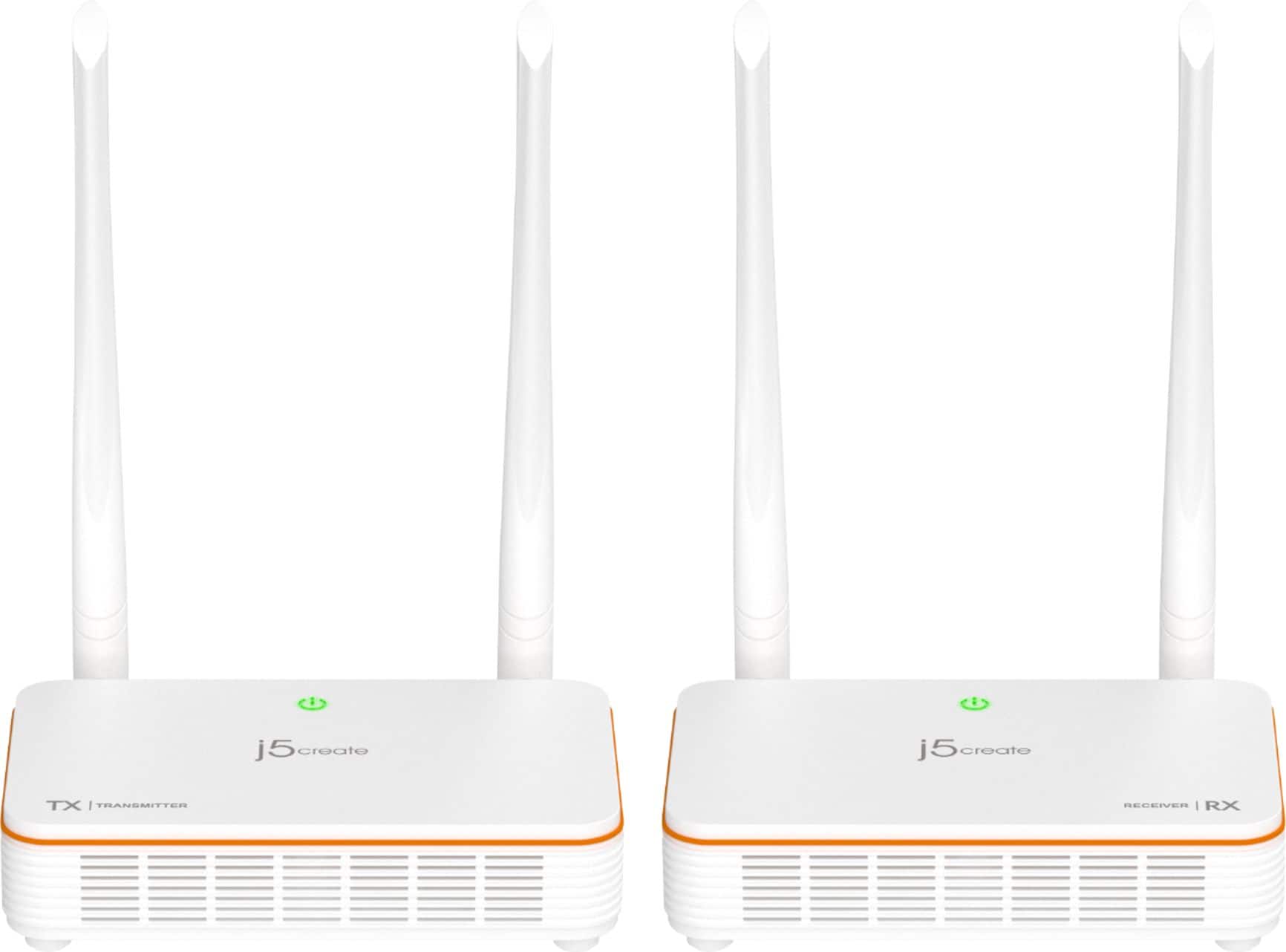
A:AnswerHello, the Wireless Display HDMI Extender has a range of up to 60 meters / 196 feet, please ensure that the transmitter and receiver are within this range for the best experience. Thick walls can reduce the range at which the transmitter and receiver can operate with each other. Thank you.
A:AnswerUnfortunately the Wireless Display HDMI Extender has not been tested with splitters, therefore there is no guarantee that splitting the connection will work. If you have any other questions please contact our customer support team by visiting the j5create website and click on the "SUPPORT" tab at the top right of the webpage.
A:AnswerThe Wireless Display HDMI Extender does not use Wi-Fi signals, nor do they connect to the internet. These units use there antennas to connect to each other with-in 200ft. Just connect the TX unit to your console and RX unit to a display. Make sure they are pair first.
Here are the steps to pair:
Connect both units to a power adapter and have both units close to each other. This is because they use NFC (Near-Field Communication) to pair. Once both units are on, press and hold the pair button on the back of the device (you may need a needle to push the button that is inside the hole) until both units’ lights are blinking. They will both flash red or orange, and finally green when they have been paired.
A:AnswerIt depends if the MacBook Pro has an available built-in HDMI port for the Transmitter to connect to. Please refer to the manufacturer of your hardware for more information on your device. Thank you.
A:AnswerThe Wireless Display HDMI Extender is meant to be used by connecting the TX, for an example, to a laptop equipped with a HDMI port and the RX to your TV. Will not work with 2 TV's.
A:AnswerThe Wireless Display HDMI Extender can connect to a Cable Box (U-verse, Xfinity) via the Transmitter and the Receiver to a TV. However, will not work with multiple TV's if you have a HDMI splitter.
A:AnswerThe Wireless Display HDMI Extender is intended to connect to a laptop via transmitter and to a TV via receiver with HDMI connections. Will not work if you have a HDMI splitter to mirror another TV.
A:AnswerThe Wireless Display HDMI Extender will not work for a iPad Pro. The iPad Pro does not support an available HDMI video port. It works with laptop, DVD player, game console, or cable/satellite box with an equipped HDMI connection.
A:AnswerBoth units would need to be right next to each other to pair. This is because they use NFC (Near-Field Communication) to pair. Once both units are on, press and hold the pair button on the back of the device (you may need a needle to push the button that is inside the hole) until both units’ lights are blinking. They will both flash red or orange, and finally green when they have been paired. Also, make sure there aren't any solid objects between the two units and no Interference from other electrical/electronic devices or cables. ** Feel free to contact j5create Technical Support if you require further assistance. Their information can be found on our website under the "Support" tab. Thank you.