A:AnswerThis is not a complaint board you whiner. If you want something that has more options then spend the money for a high end keyboard ya cheapskate!
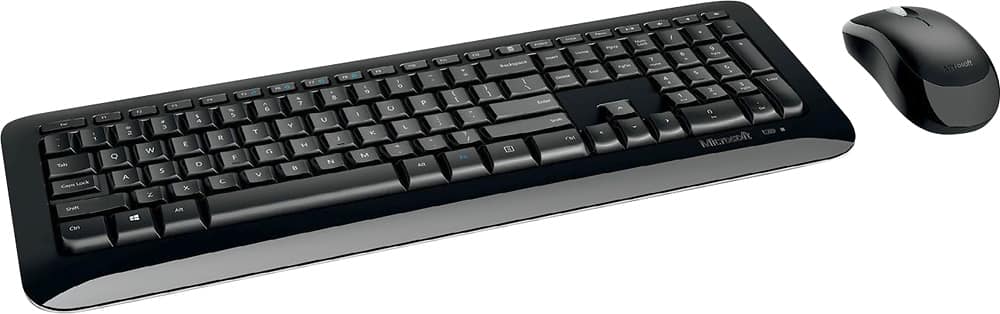
A:AnswerI am not sure what you mean by sensitivity. You can make some changes in the Windows controls to adjust several things. Type keyboard into the Win 10 search box and you should get the Keyboard Properties box. You have the option to set Repeat delay and Repeat rate. You might solve your problems with adjusting these two attributes. This keyboard was not too sensitive for me with the default settings as shown in the attached screen shot.
A:AnswerYeah. I'll control it on my TV from the kitchen all the time. (Lossless music). 15 ft shouldn't be an issue. I'd guess 25 is where you would maybe have issues depending on interference. But if ur that far away your giving a lecture on a huge screen or something.
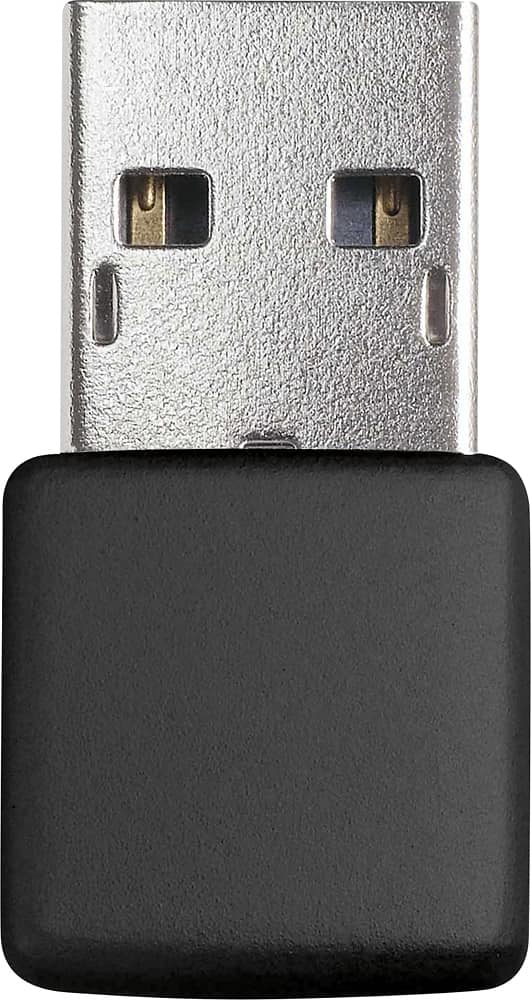
A:AnswerI believe the mouse is coded to work with the Wifi attachment. That said, you can use the Wifi plug that comes with the mouse, putting that piece into another port and use a different mouse than what came with the keyboard.
A:AnswerI don't think so. This comes with a connecting USB receiver. Without ability to plug it in, well, it's just not worth the trouble tbh. Could PROBABLY do it. But you'd spend more time in forums figuring it out than just shopping for the right product for your needs.