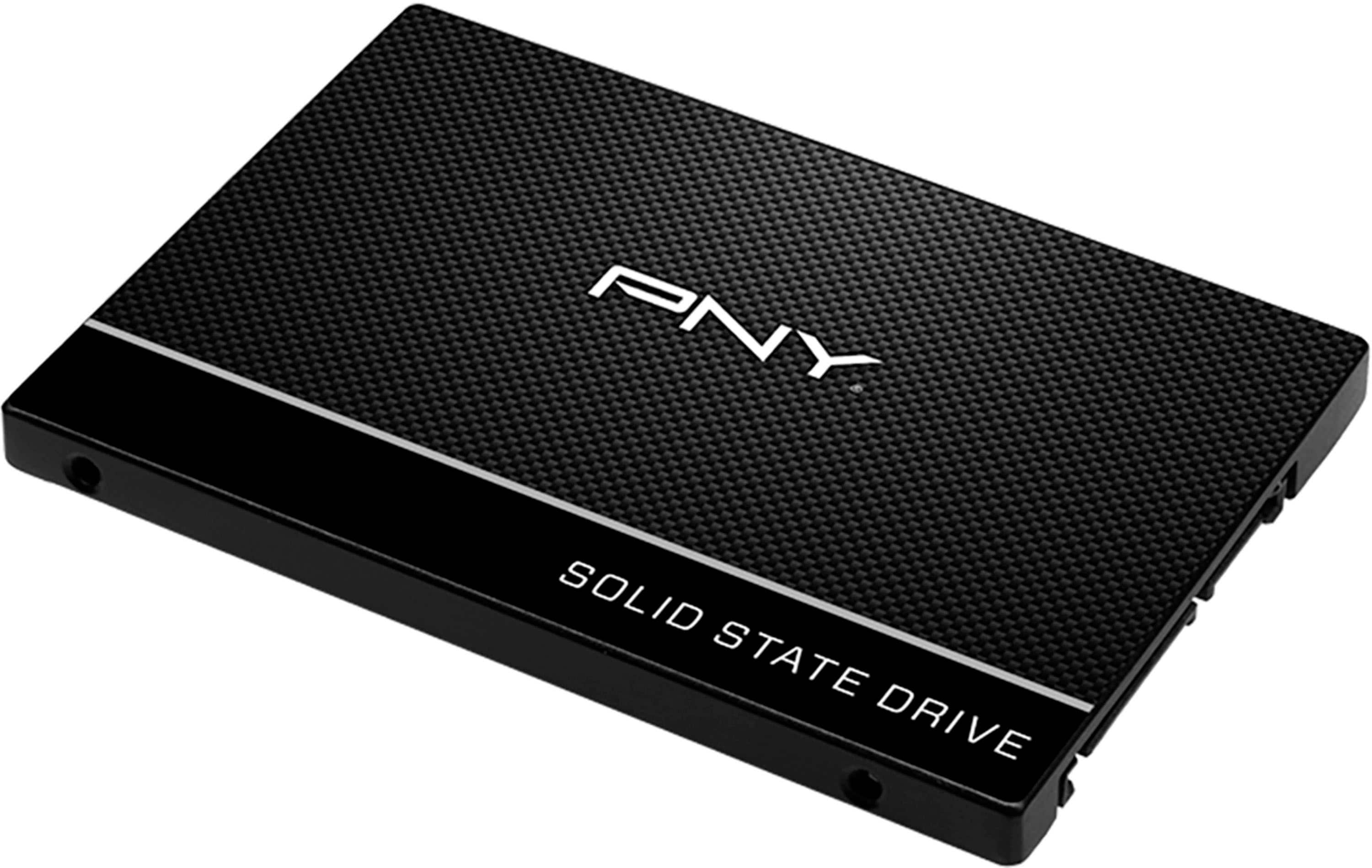
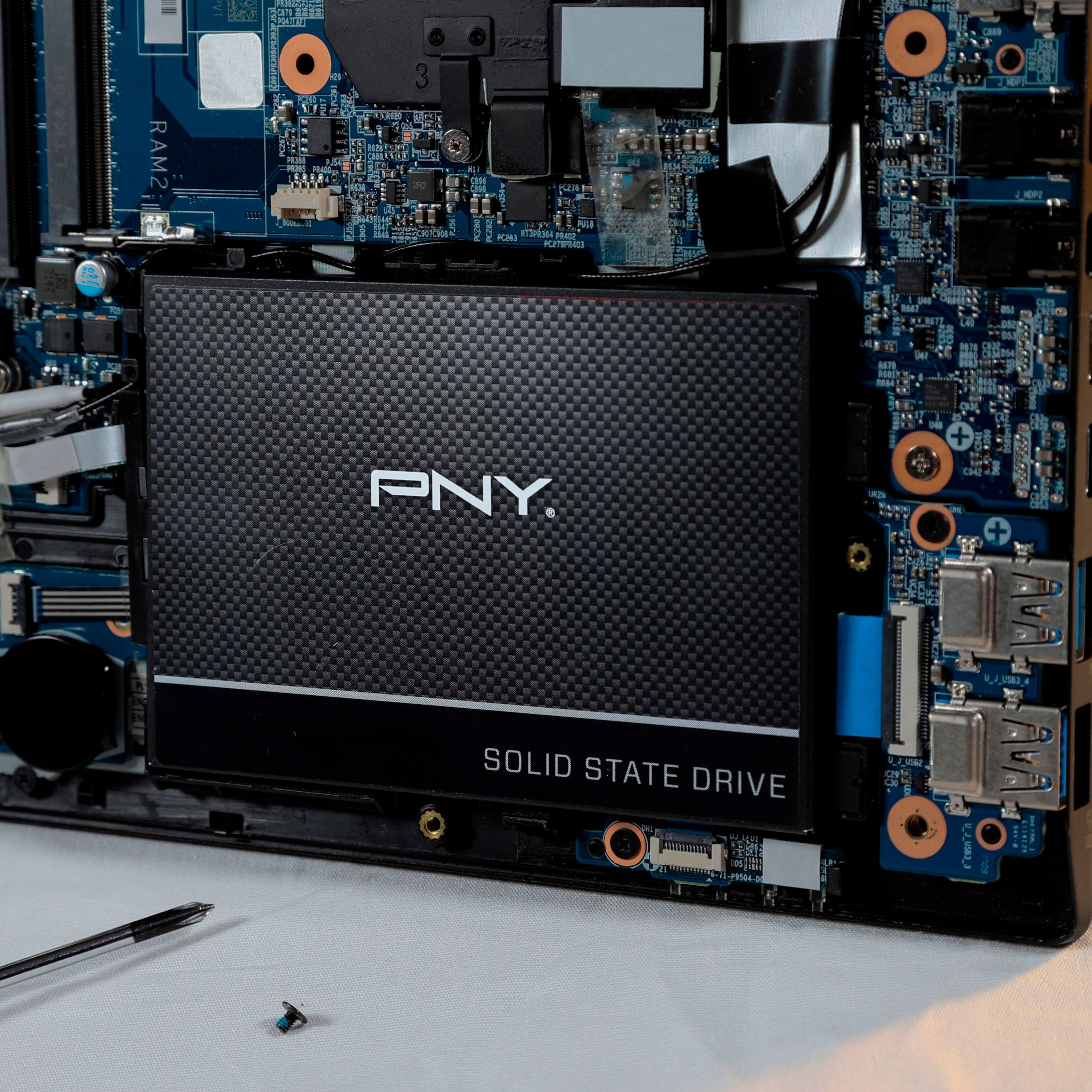
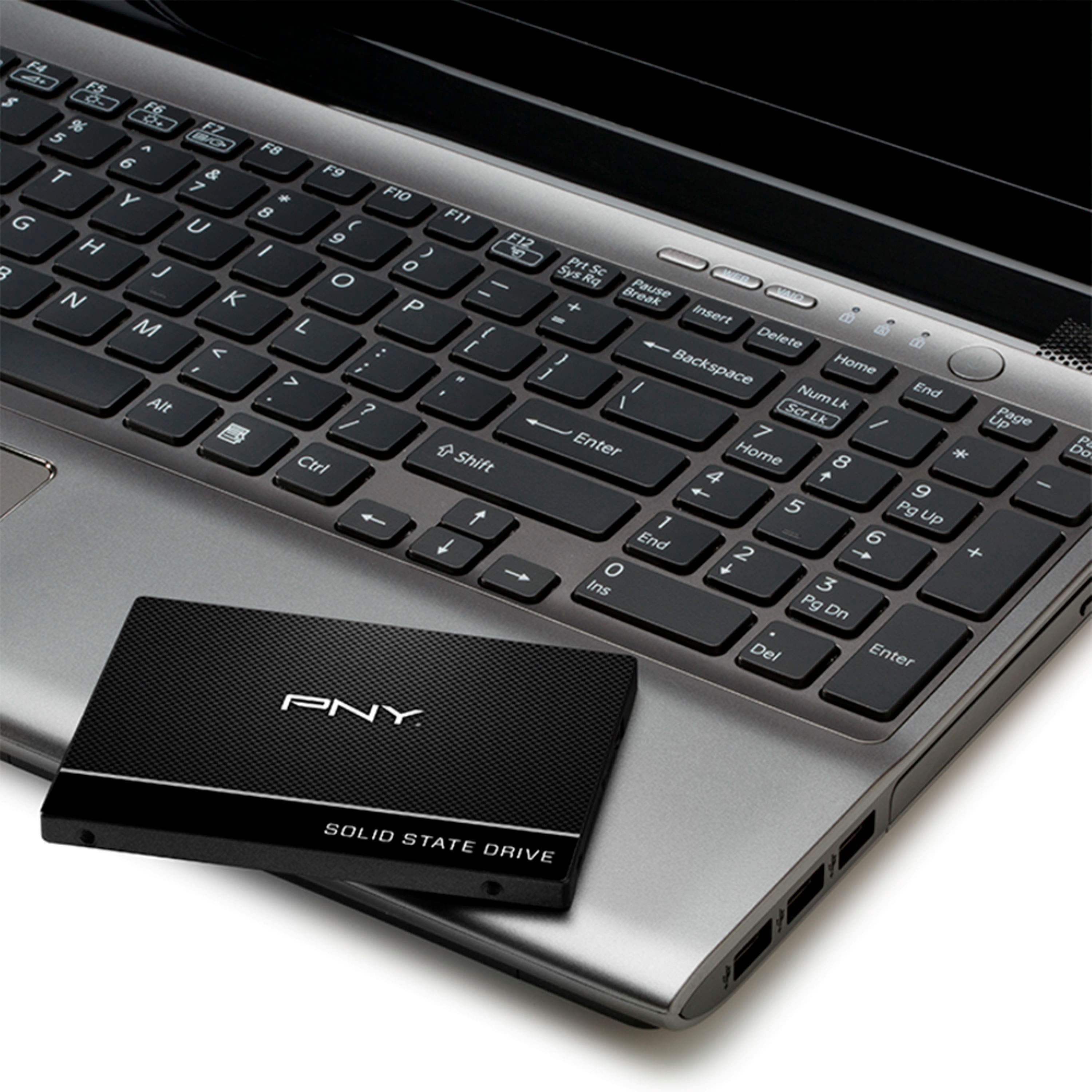
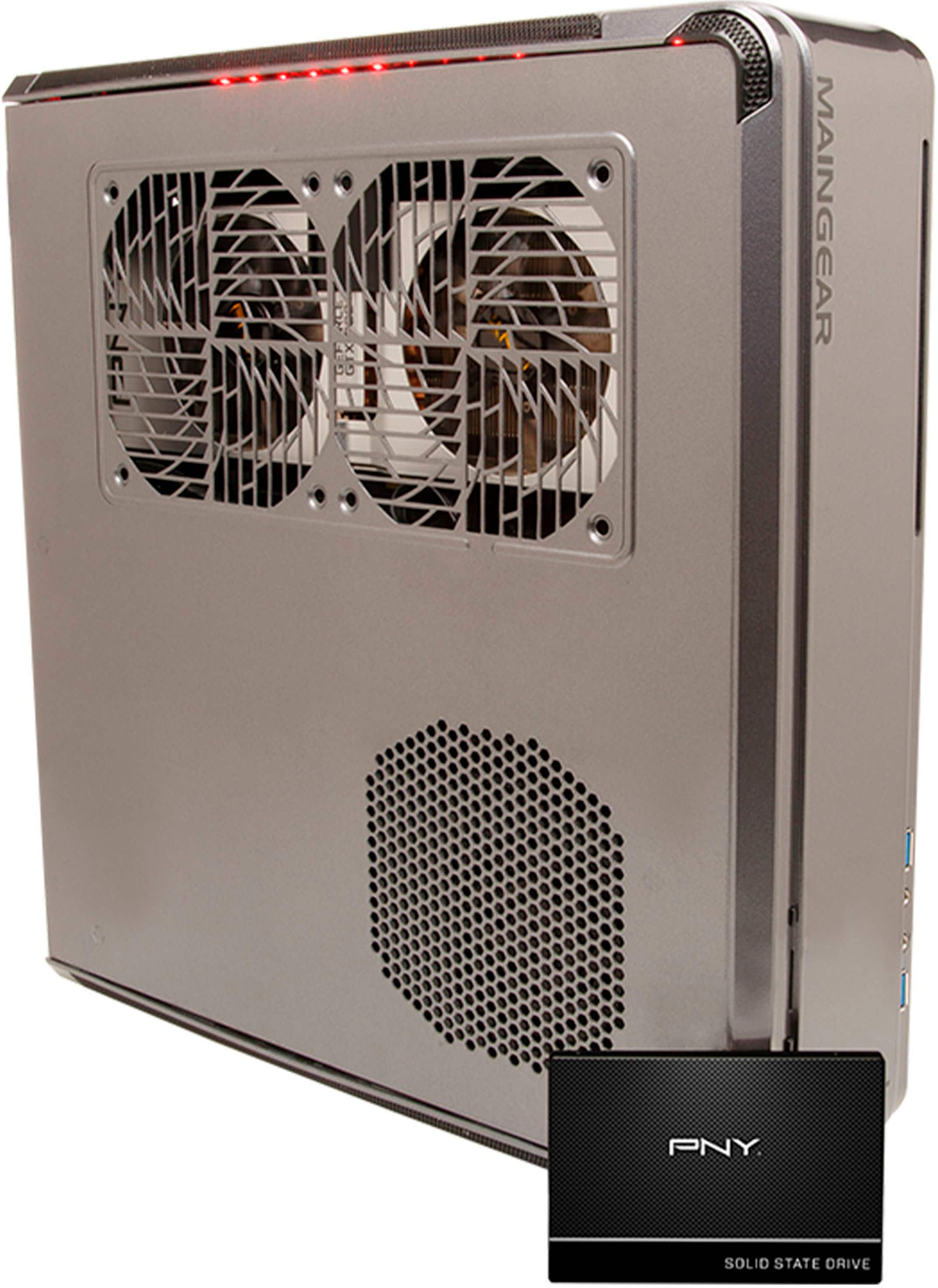
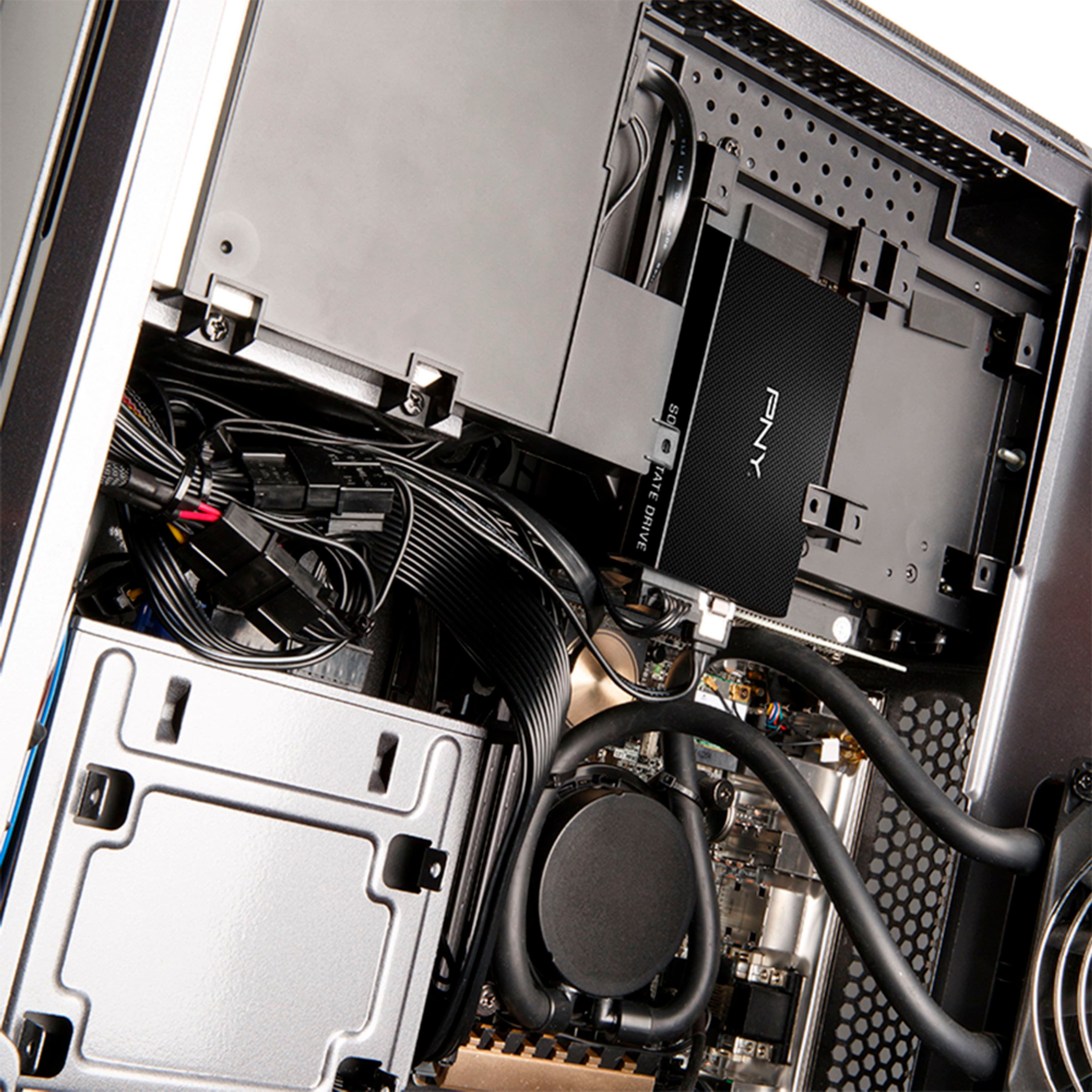
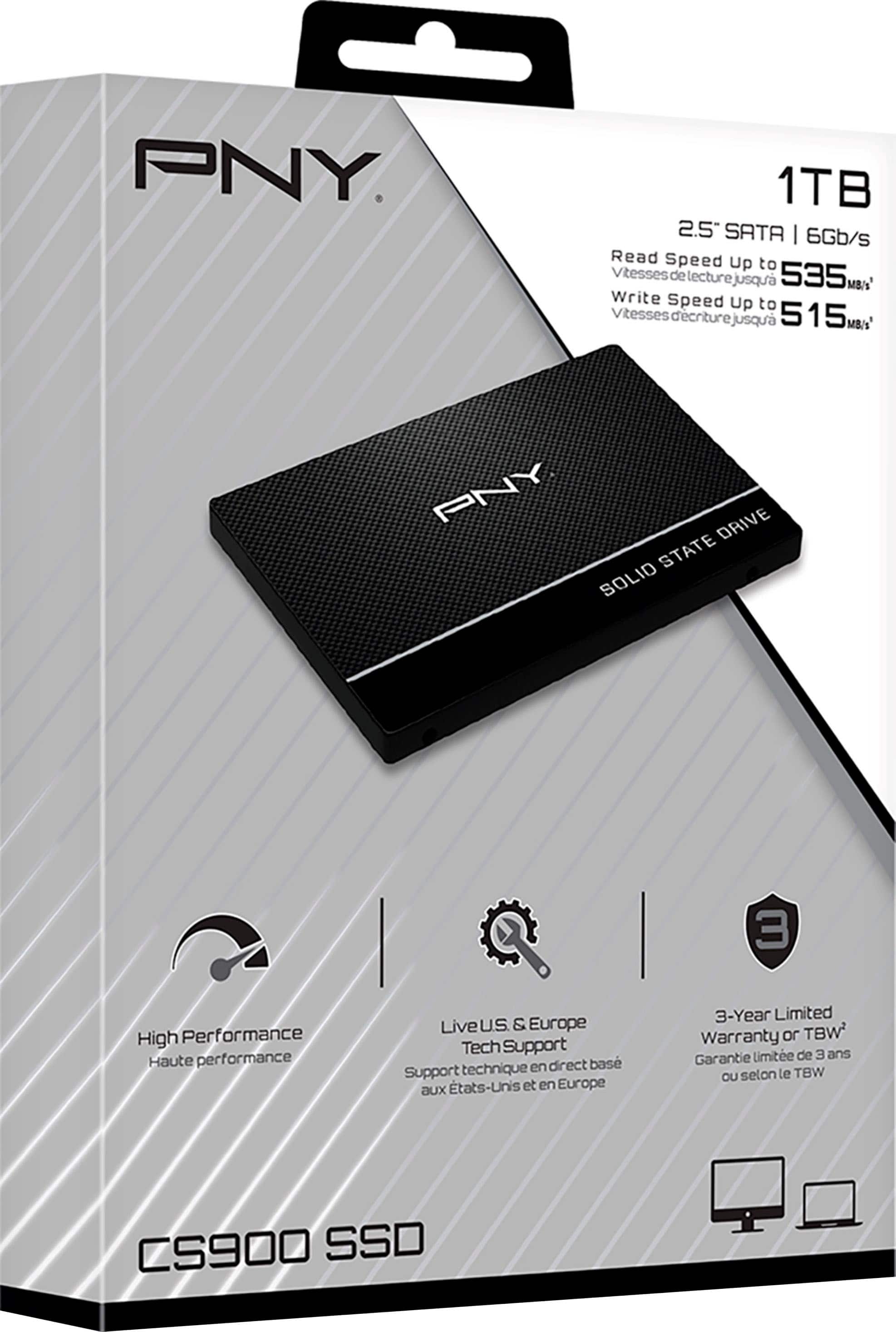
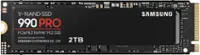
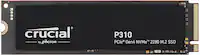
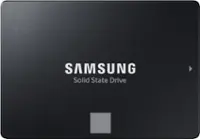
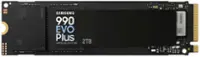
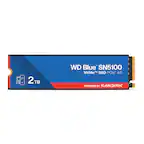
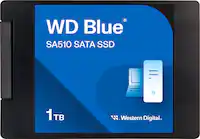
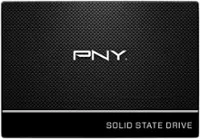
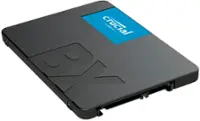
A:AnswerYou might want to make sure your laptop uses a 2.5" SSD and not a NVMe SSD drive (manufacturers often use 'Solid State Drive' to refer to both..) but if your laptop uses a standard 2.5" SSD drive you should be able to replace/upgrade with this drive.
A:AnswerNot 100 certain if it has a SSD slot since all I could find from Hps website is that it only has a Hard drive slot so my best guess would be unlikely
A:AnswerAccording to the manufacturers website (something you should visit) it states {A dual-storage design with up to a 1 TB PCIe® SSD and a 1 TB HDD} which would suggest it can be configured with an NVMe drive and a standard 2.5" drive. Which one of those your laptop already has will require you to check. Most laptops are not easily upgraded buy the user however, so it might be a good idea to take your laptop to BestBuy and have the Geeks see what your options are for adding which type of storage upgrade.
A:AnswerAny SSD drive will greatly improve performance over any standard mechanical hard drive. I have resurrected some older computers simply by upgrading to an SSD.
A:AnswerNeed mountind adapter 2.5" to 3.5", system must accept SATA III drive and work with 1 TB or larger drive.
You may also need power adapter, mounting and connectors intended for laptop.
A:AnswerNo, but if you want to take advantage of the clone/ copy function, it needs to be the same or larger.
If you use a smaller drive you would need to reload the OS from scratch.
A:AnswerSSD refers to Solid State Drive, it’s internal components no longer have a spinning disk. The Sata interface is the cable connection. That is likely what you are asking. And yes Sata is Sata. It will work.