A:AnswerOn your remote control click on "Smart Hub" button then go to "featured" then choose "samsung apps" this will take you to the apps menu and you should be able to browse and add apps.
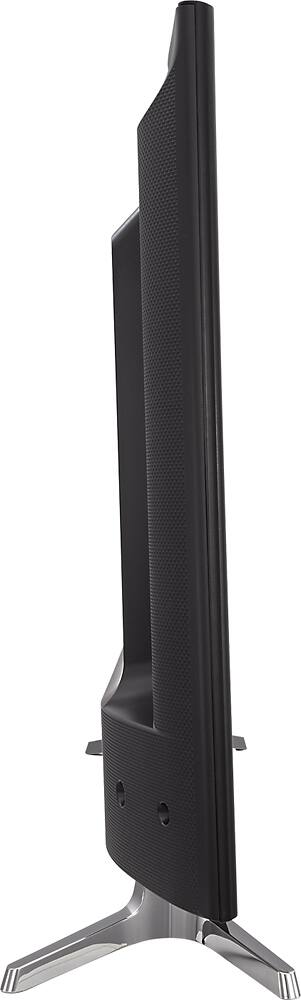
A:AnswerThe speakers are behind the TV so sound goes behind it instead of in front of the TV where you'll be sitting to view. Unless I'm missing something, I'm figuring out that I have to spend extra now to buy speakers that will face front.
A:AnswerThere is a multipurpose power button on the bottom on the TV.. Can be used to turn on/off but you can also scroll through other options including volume control, channel selection, and getting to the Source screen all by pressing the same button. Once on the desired option you can hold it down to change volume or channels.
A:AnswerThis specific TV does not have Bluetooth but I also bought a 40" 4k Samsung which allows everything Bluetooth (keyboard, mouse, headphones). Good luck
A:AnswerI do not work for Samsung but have owned a lot of their products. Settings may help a little - Its unfortunate to say - but in my experience the quality of sound out of the tv itself has been greatly reduced. I had a LCD that put out more sound than the LED. My best guess is they did this to push you to get a sound bar. I recently got a sound bar for my LED, does make a huge difference. Keep an eye on open box items for really good deals if you decide to go for a sound bar.
A:AnswerYes it does via remote.
1. Select Menu button
2. Select System
3. Select Time and there you can use timer features. I use it to turn off the TV at midnight every night so I don't have to go through the sleep timer process every night. You would be able to set the "time on" feature to use as a alarm clock and also set up the days you want to use it.
A:AnswerThe only time my remote causes a problem is if two TVs are in direct range of the remote. (example - a Samsung TV in two separate rooms with the door open and the remote aiming at both TVs) . If you change a channel, it could change it on both TVs. If you aim the remote away from the TV in the other room, there is no problem.
A:AnswerTo minimize this effect on an HDTV, use settings that "soften" the picture (or make it less sharp, or reduce the frequency response.) Using "Movie" mode will help with this. Avoid modes called "Dynamic" or"Vivid" or "Sports", which will make your VHS movie look worse (noise artifacts more visible.) You can also turn down "Sharpness" in your picture settings. (Movie mode does this for you.) Also look in your menu for picture settings such as "Digital Clean View" or"Noise Reduction". Turning these on may help.
Here is why:
The problem is that an HDTV has a native resolution that about twice that of your standard definition VCR, both horizontally and vertically. So, in other words, the HDTV is displaying about 4 times as much information (or 4 times as many "dots") on the screen as your VCR is providing. The TV has to create information to fill in between the "dots" to be able to fill the screen.
Different HDTVs have different methods for creating this extra information. The simplest method is interpolation - basically creating something that is an "average" of what is on either side - or "connecting the dots." Some TV manufacturers have more sophisticated algorithms to determine what to create to fill in. For very sharp, high-quality standard definition source material (such as from a DVD), these can work well - and yield a picture that looks almost HD. But, if the source material is low resolution or noisy, this does not necessarily give a good picture. The noise can trick the TV into filling in something that doesn't look good. Pre-recorded movies on VHS may not be too bad, but something recorded from poor quality analog cable TV will be noisy, and if it was recorded at a slow speed (4, 6, or 8 hour speed) the quality will be even worse.
Other suggestions:
Assuming that your VHS movies are 4:3 aspect ratio (not widescreen), you might try setting your TV to display them in 4:3 (black bars on the side.) Otherwise, it will stretch them horizontally to fill the screen, which can make things look worse.
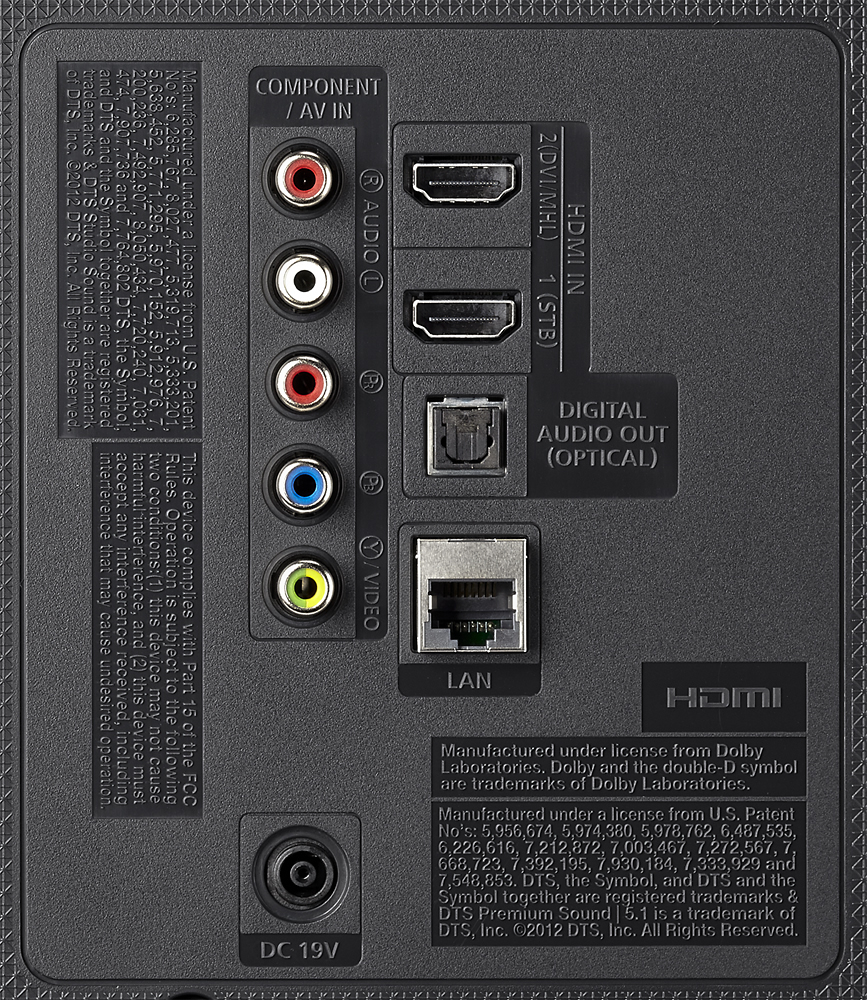
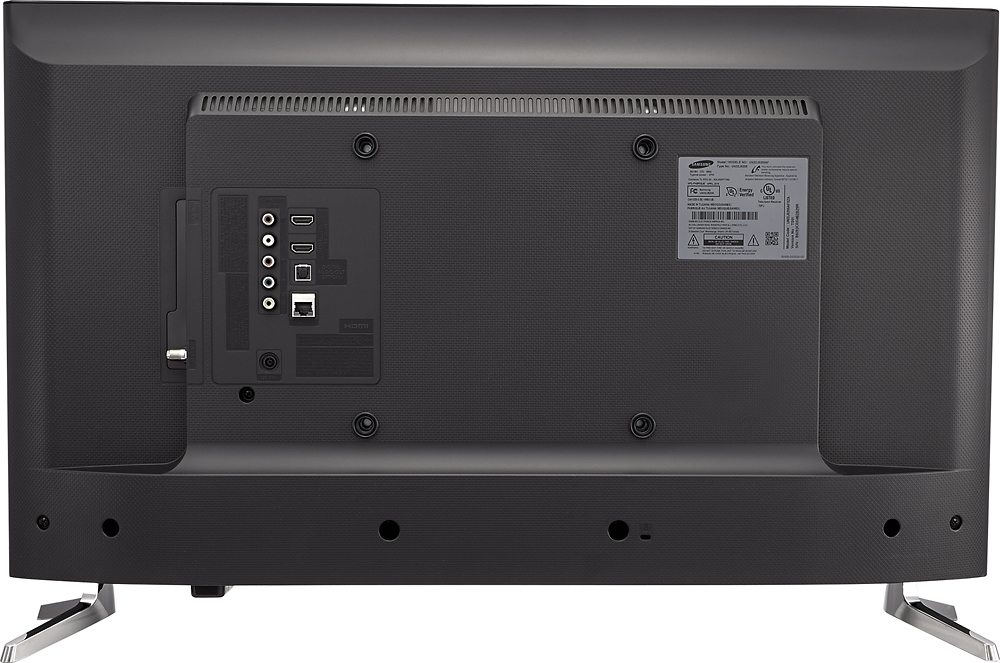
Also, your picture will be better (more detail, less noisy) if you connect the VCR to the TV using the video & audio (yellow, white, and red) connectors rather than the RF (cable TV type connector on channel 3 or 4.)
Even with the suggestions above, it still may not look ideal, but it should at least look somewhat better than it would otherwise. I hope this is helpful.
A:AnswerThe 5500 has a faster processor. I asked the exact same question to the sales guy. I wish I would have paid the additional $$ for the 5500. The 5205 has some serious lag time.