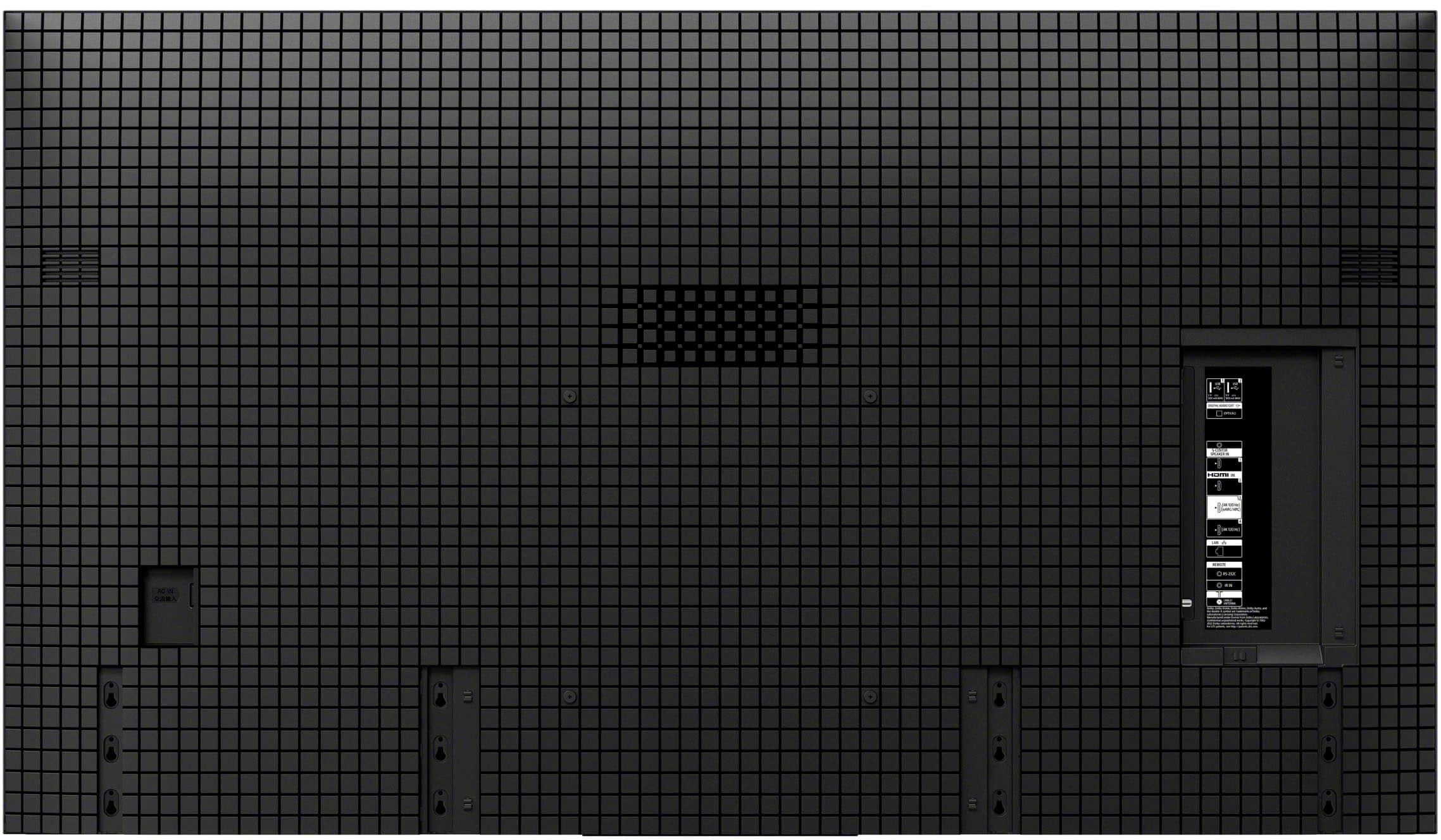
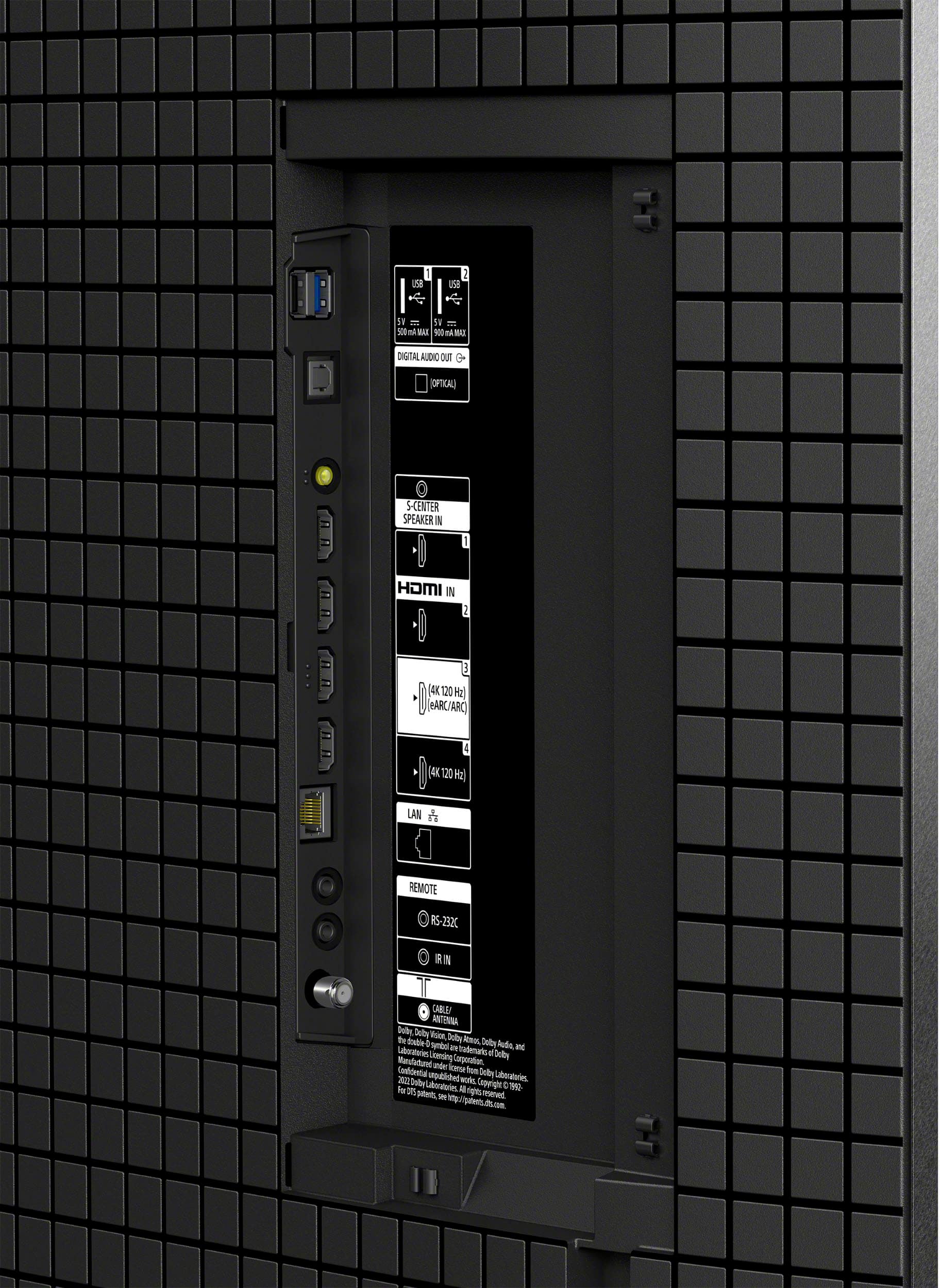
A:AnswerHi Vidman, Thank you for the inquiry! The Sony BRAVIA 8 has 4 HDMI IN ports and 2 USB ports. Hope this helps!
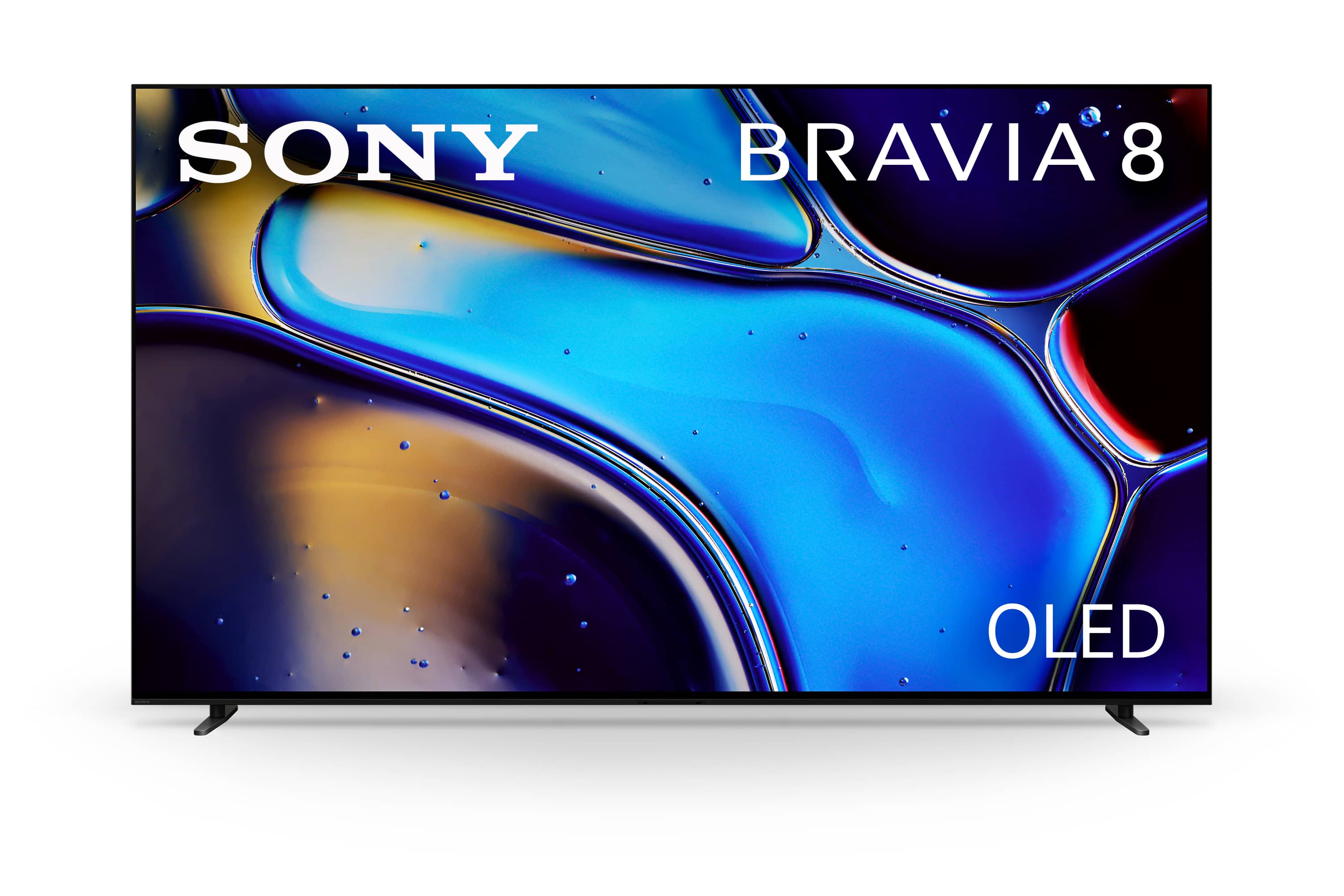
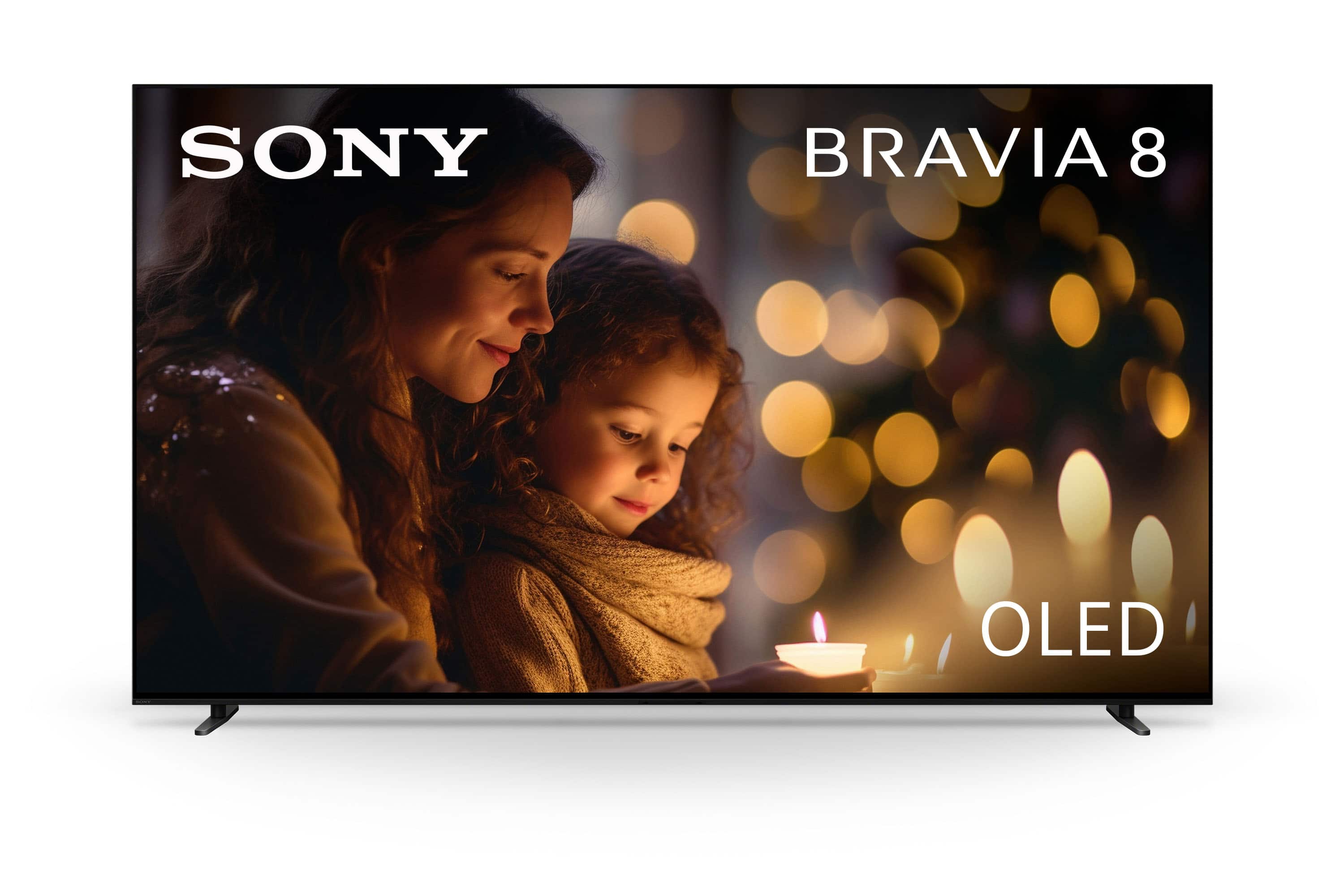
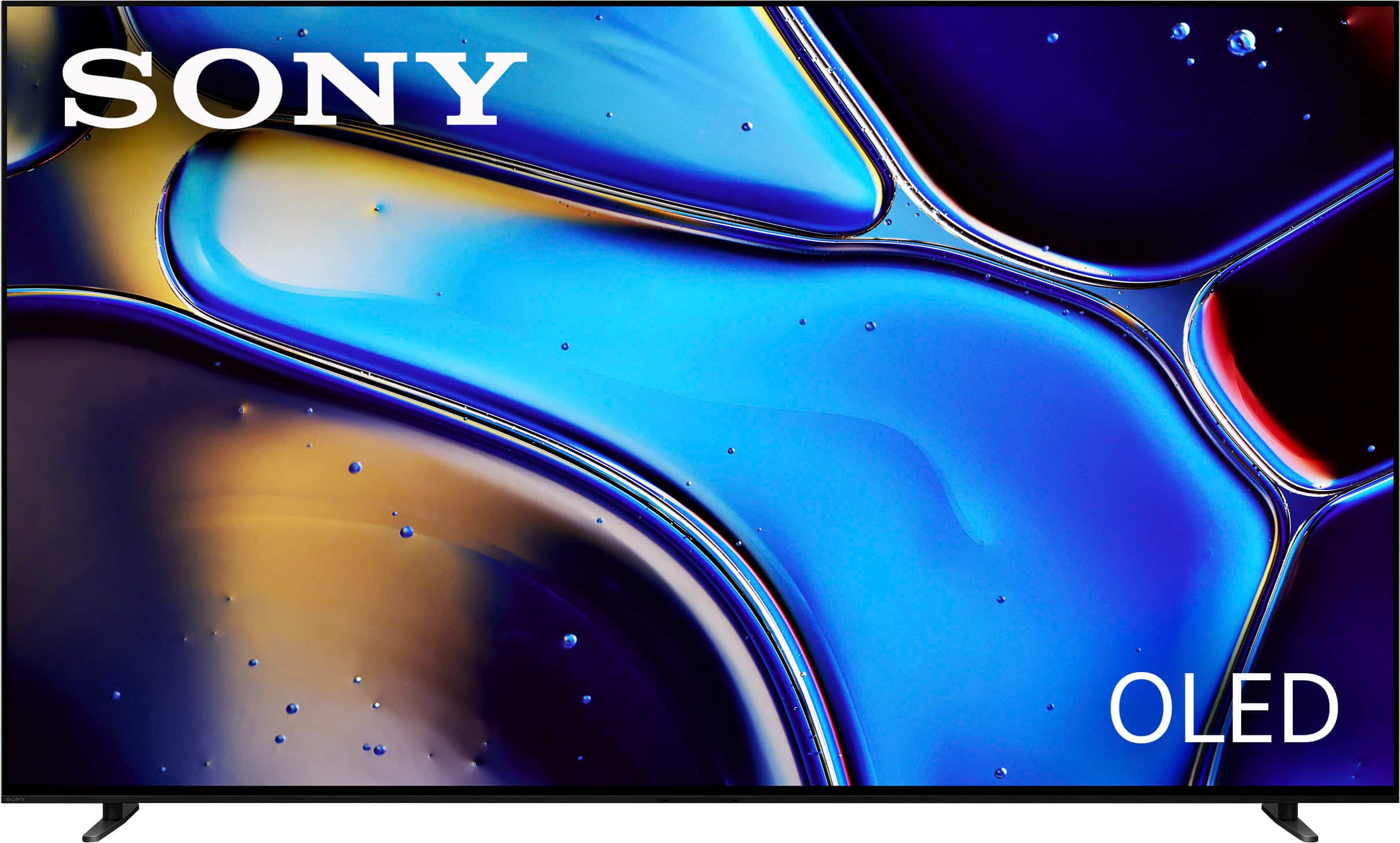
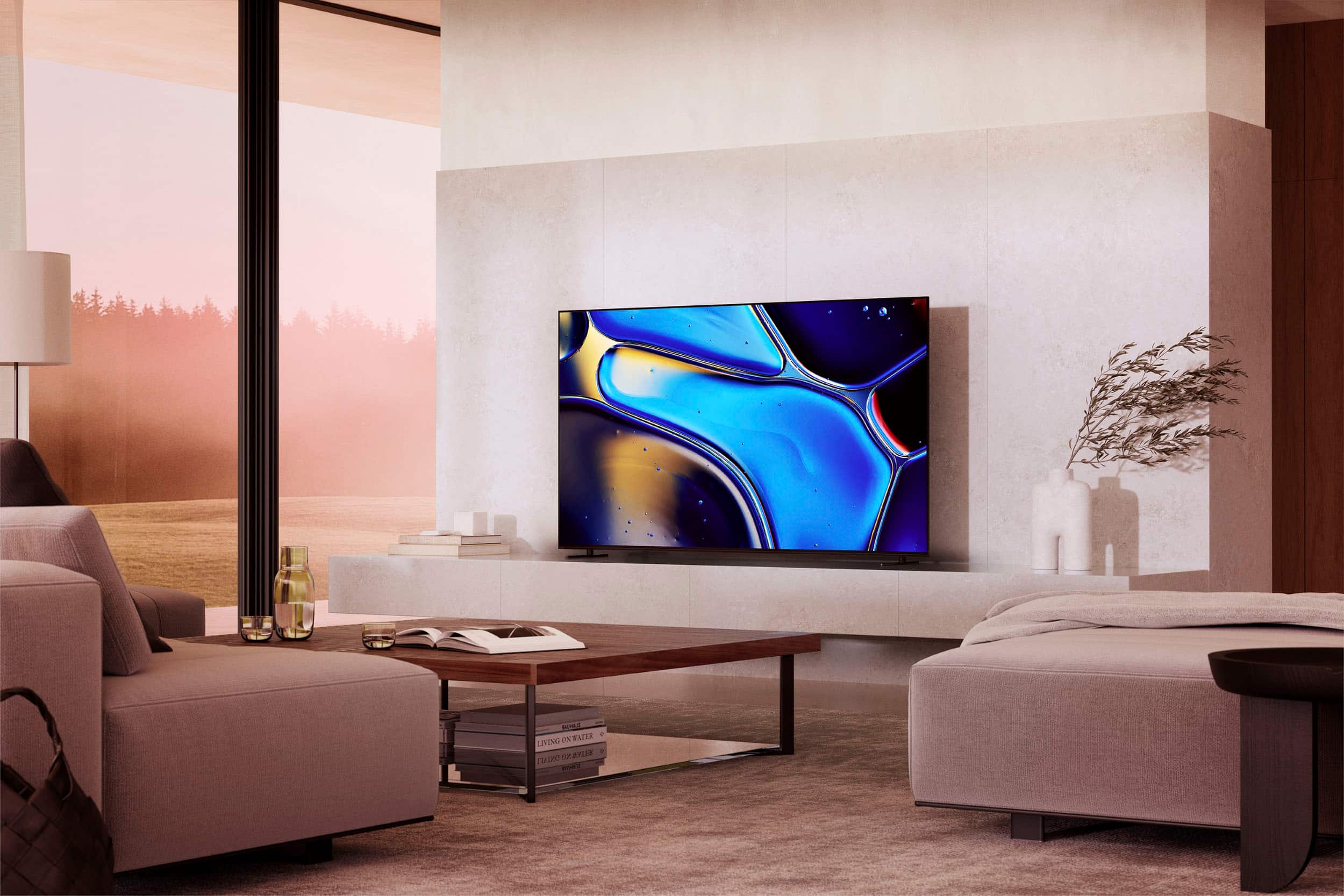
With a sleek design, cinematic audio, and stunning visuals, the Sony BRAVIA 8 K65XR80 65" 4K HDR Smart OLED TV makes the perfect centerpiece for your main TV viewing area. An incredibly accurate picture is created by millions of self-lit pixels, precisely controlled to produce pure black, with high brightness, and billions of shades of color.
Regards,
Sam
A:AnswerHello there, Thank you for your interest in the Sony BRAVIA 8! The Sony BRAVIA 8 has several unique features and specifications such as:
XR Processor: This advanced processor enhances picture quality by delivering deep blacks, high contrast, and vibrant colors.
OLED Display: The OLED technology provides superior picture quality with perfect blacks and infinite contrast.
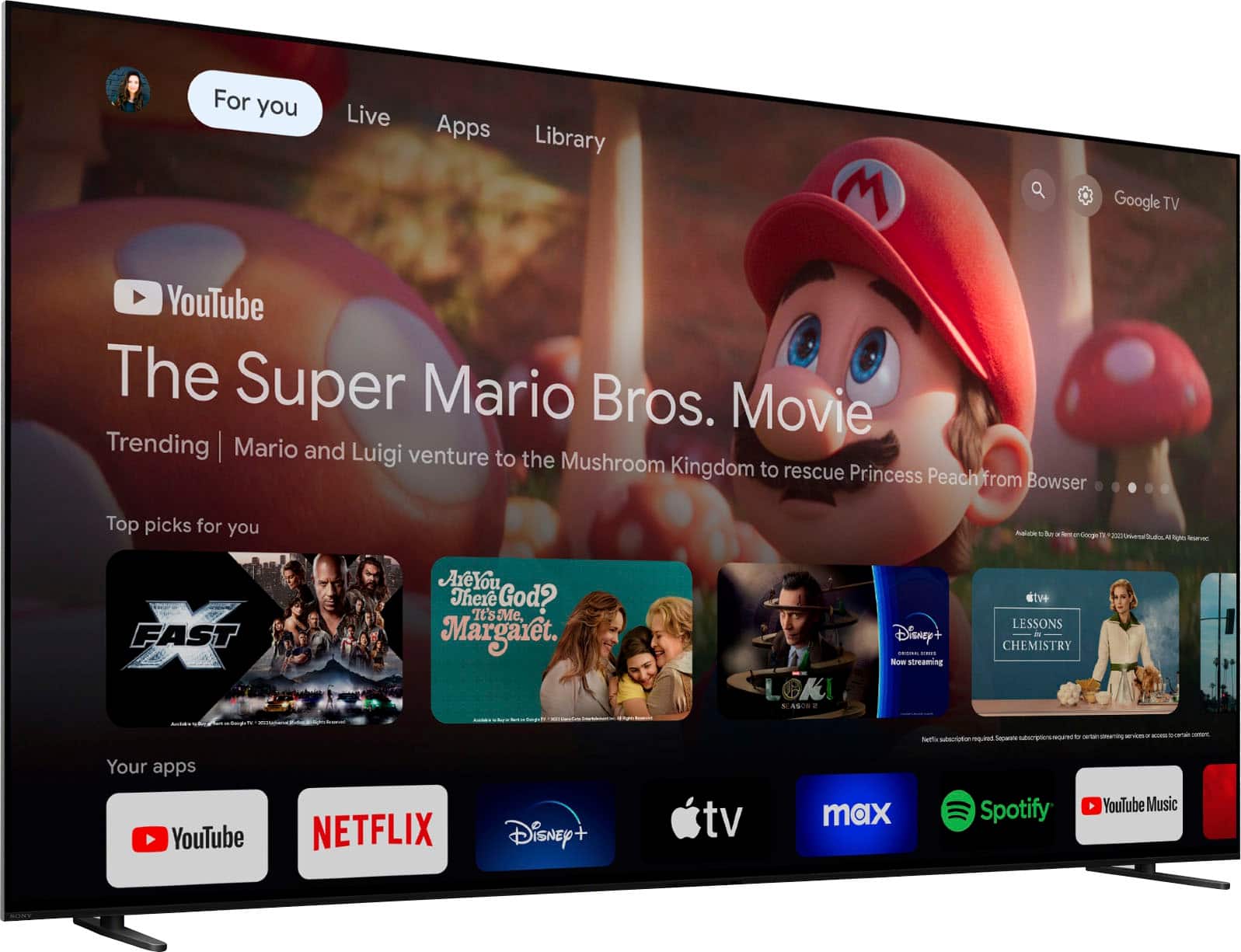
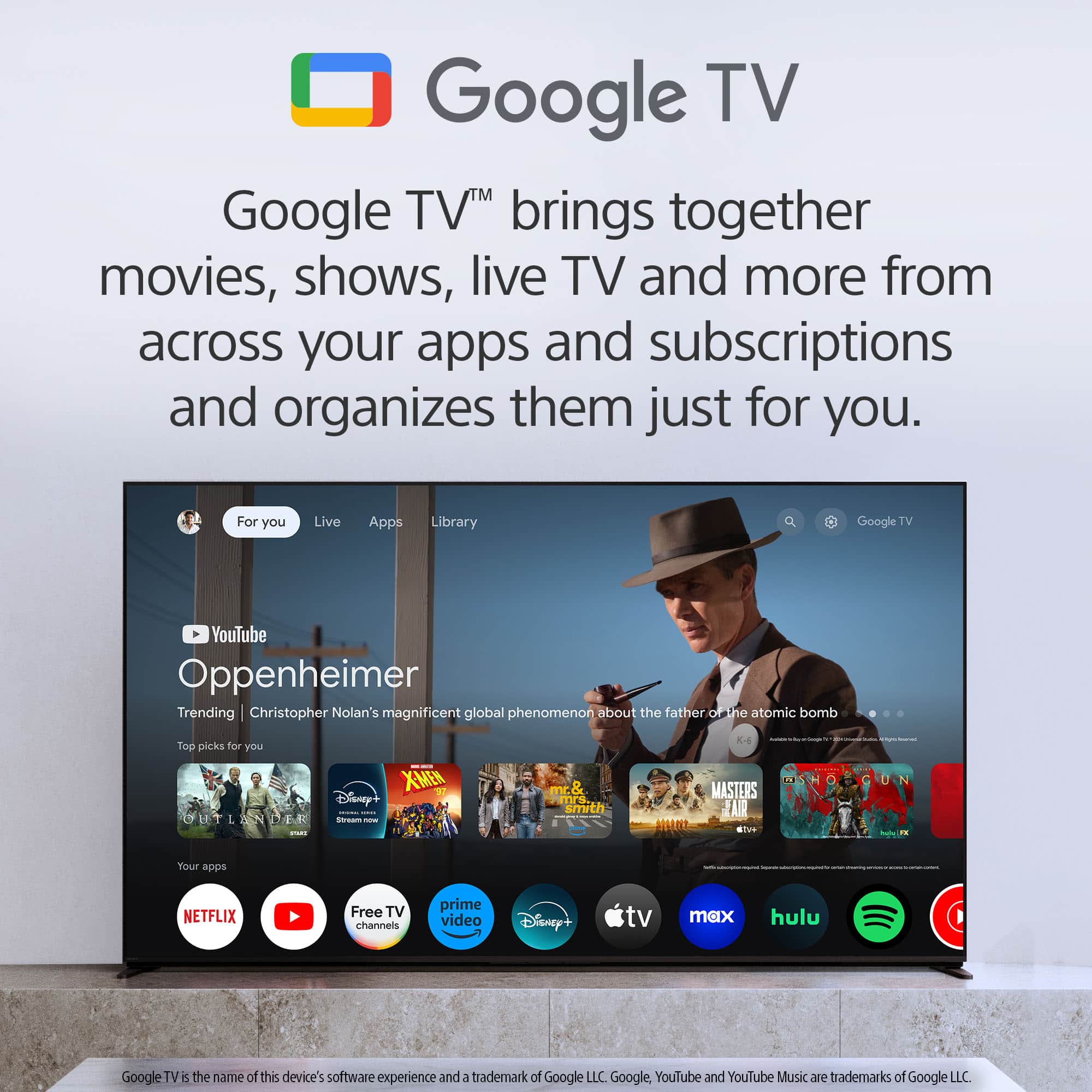
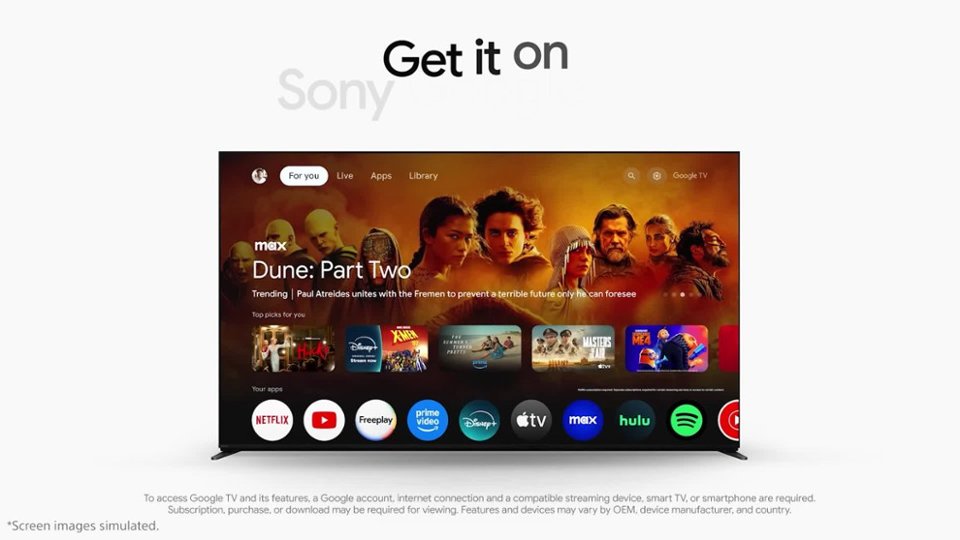
Smart TV (Google TV): Integrates Google TV, allowing access to a wide range of apps, streaming services, and voice control via Google Assistant.
Acoustic Center Sync: This feature synchronizes the TV's audio system with compatible Sony soundbars or home theater systems for an enhanced audio experience.
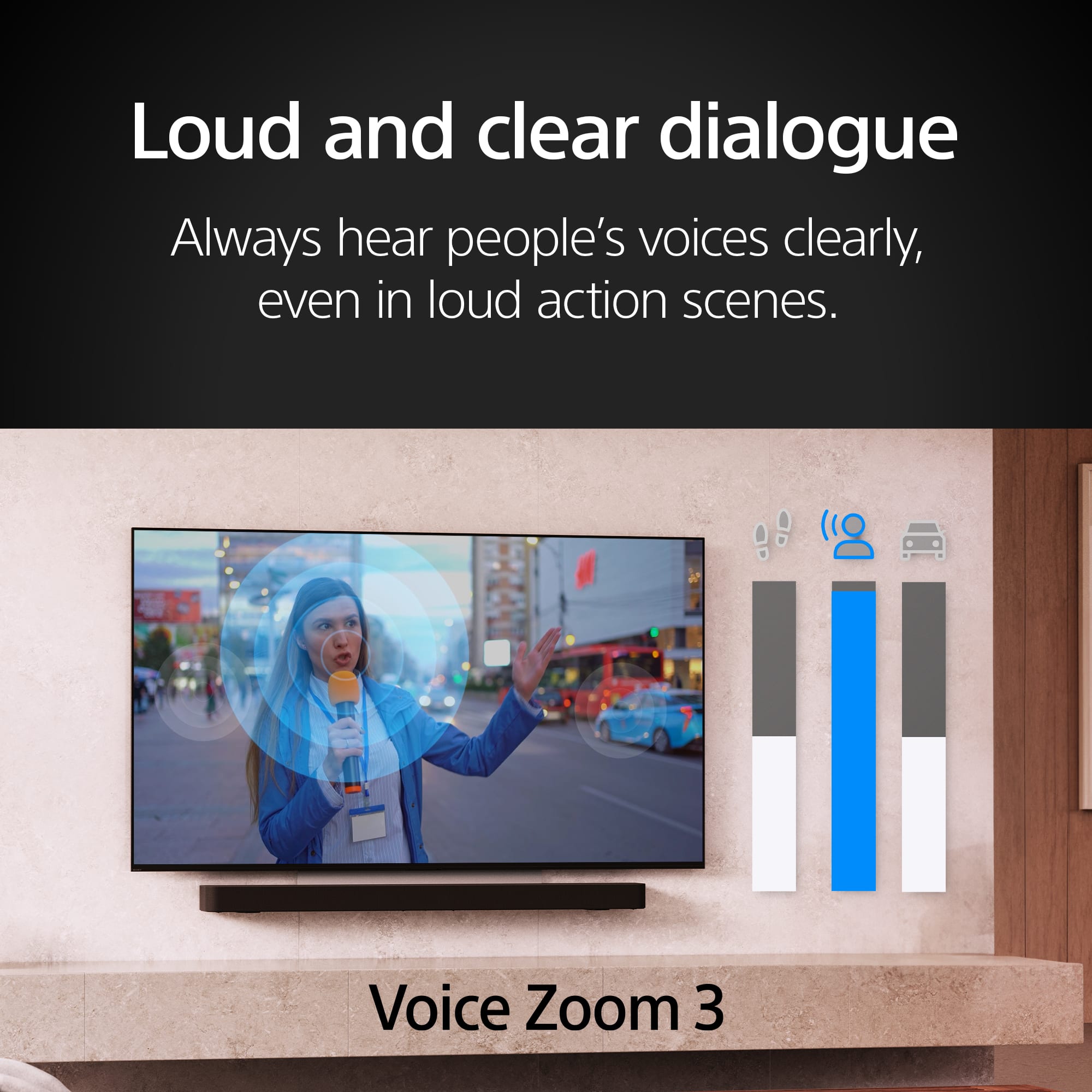
Voice Zoom 3: Works with compatible soundbars or home theater systems to improve dialogue clarity.
Living Decor: Allows the TV to display artwork, photos, or act as a clock when not in use, enhancing the aesthetic of your living space.
IMAX Enhanced: Optimized for viewing IMAX Enhanced content, providing a more immersive cinematic experience.
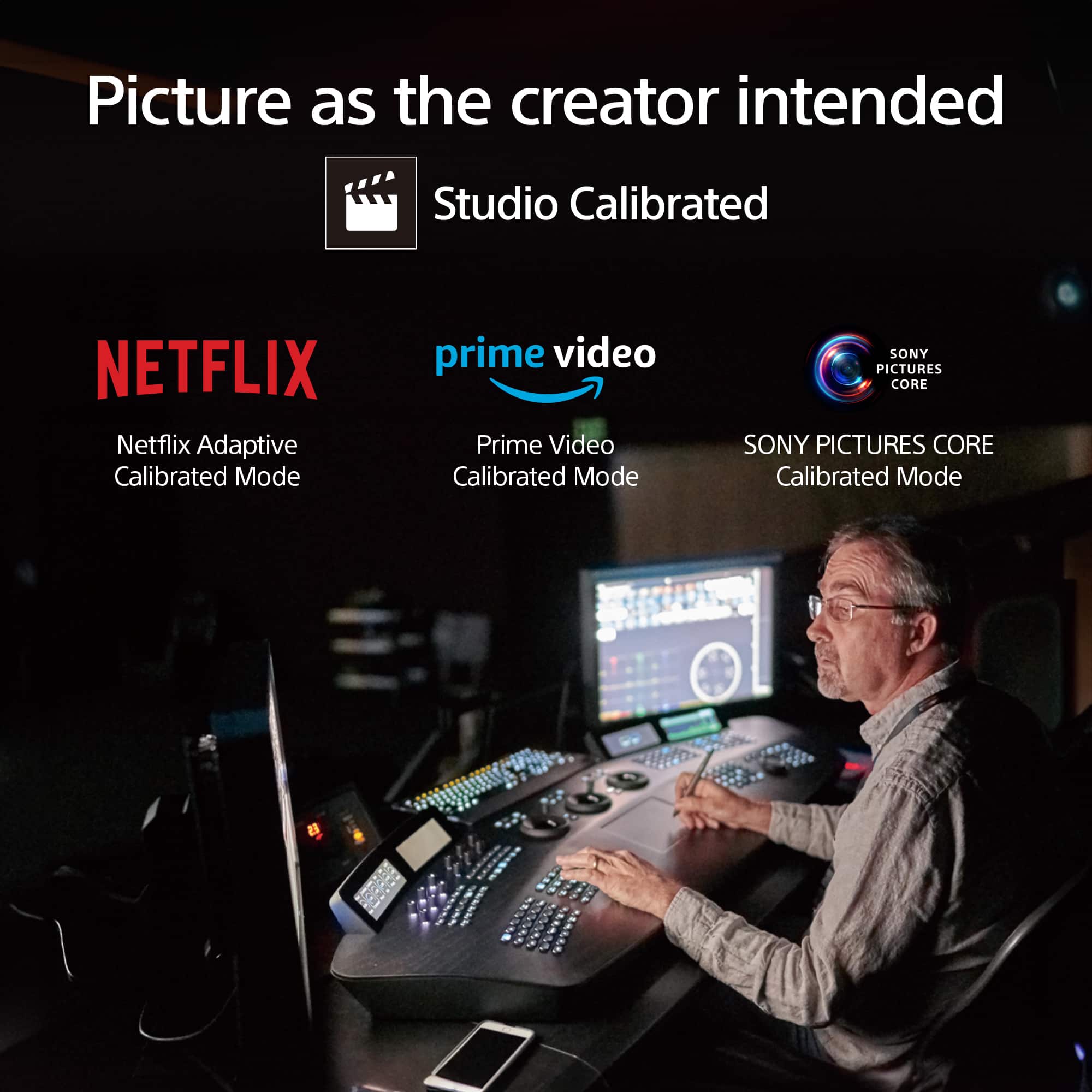
SONY PICTURES CORE: This app, included with eligible BRAVIA TVs, offers access to a range of new releases and classic catalog films, the largest IMAX Enhanced movie collection, and lossless UHD quality with Pure Stream.
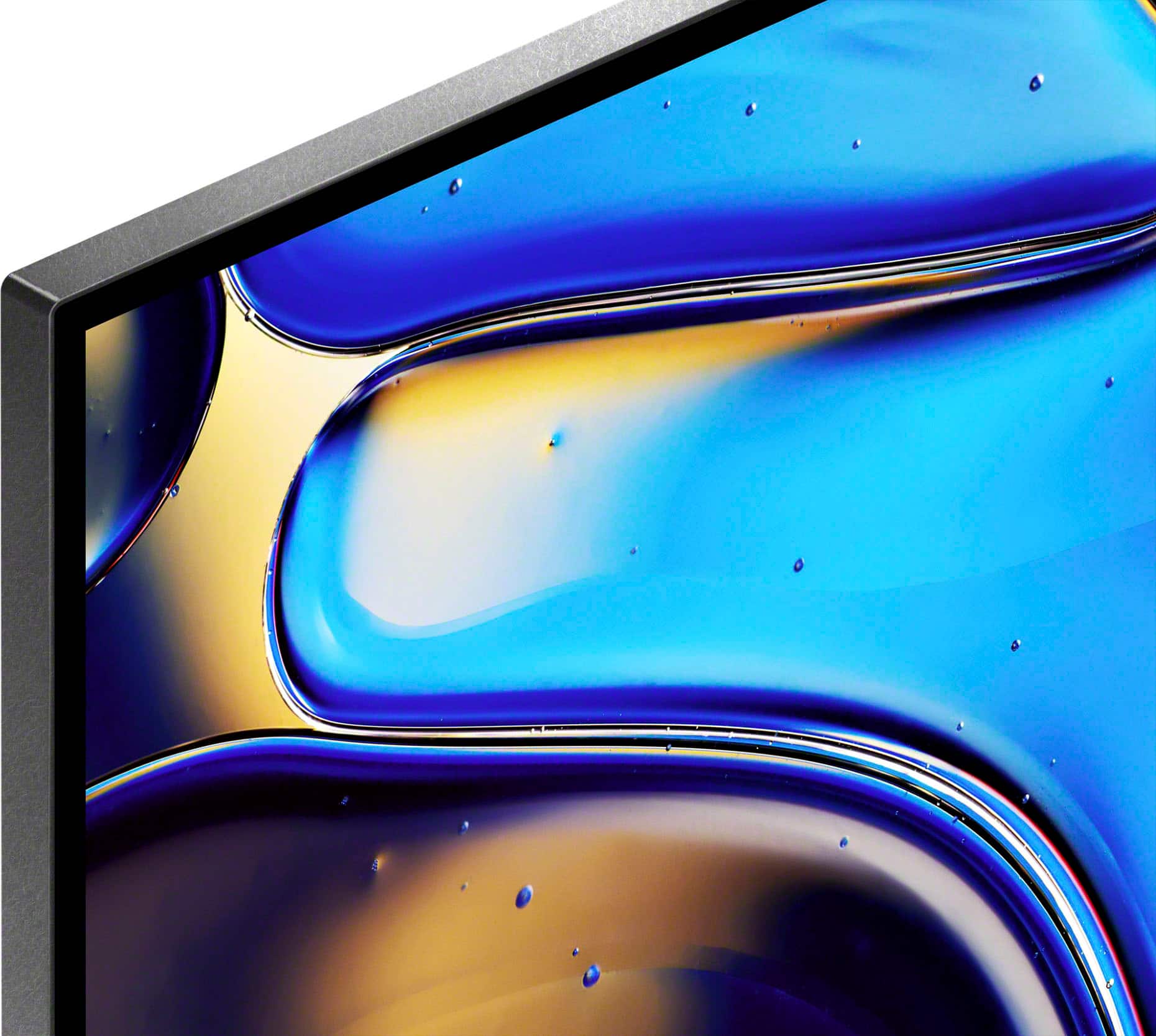
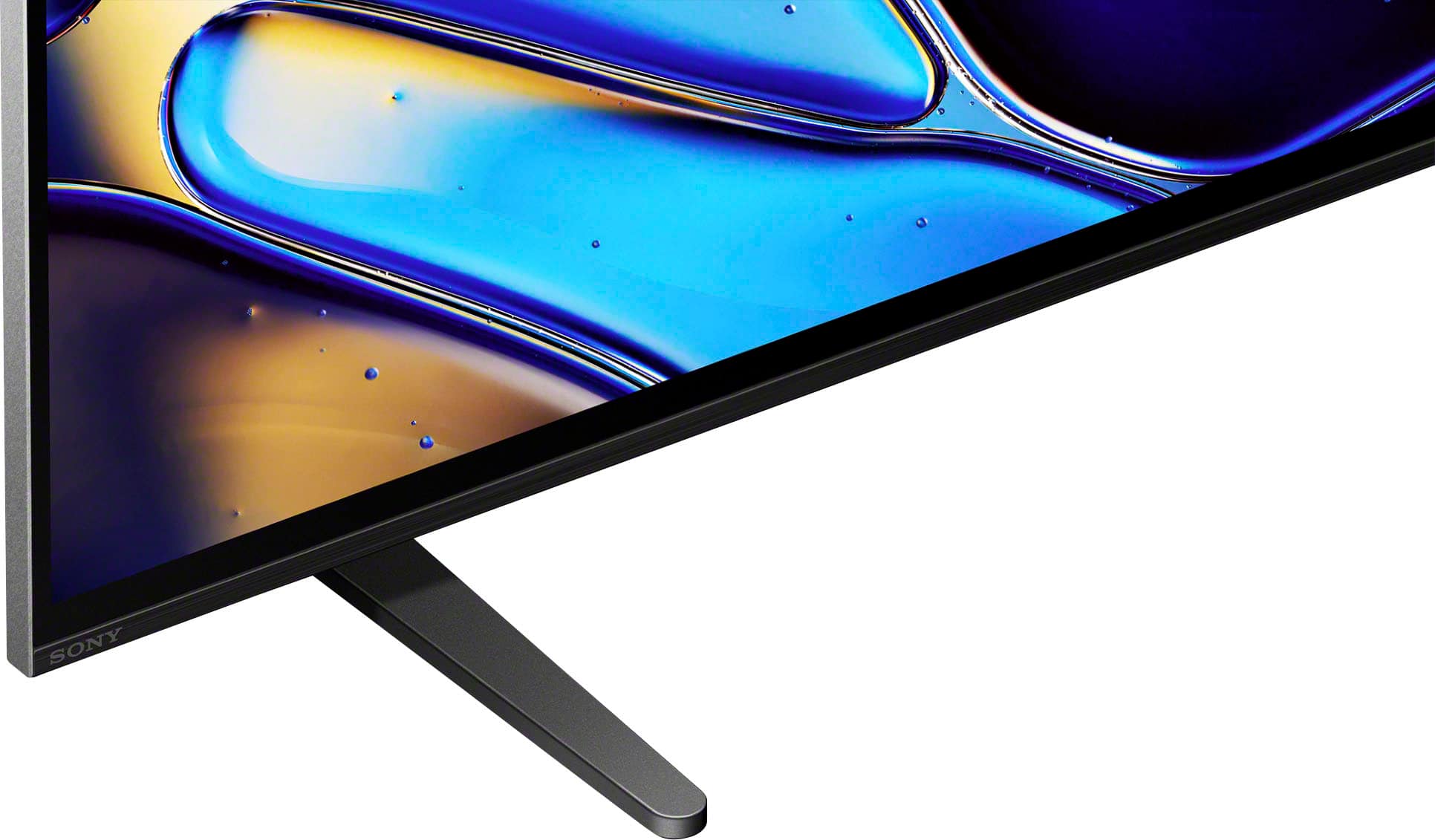
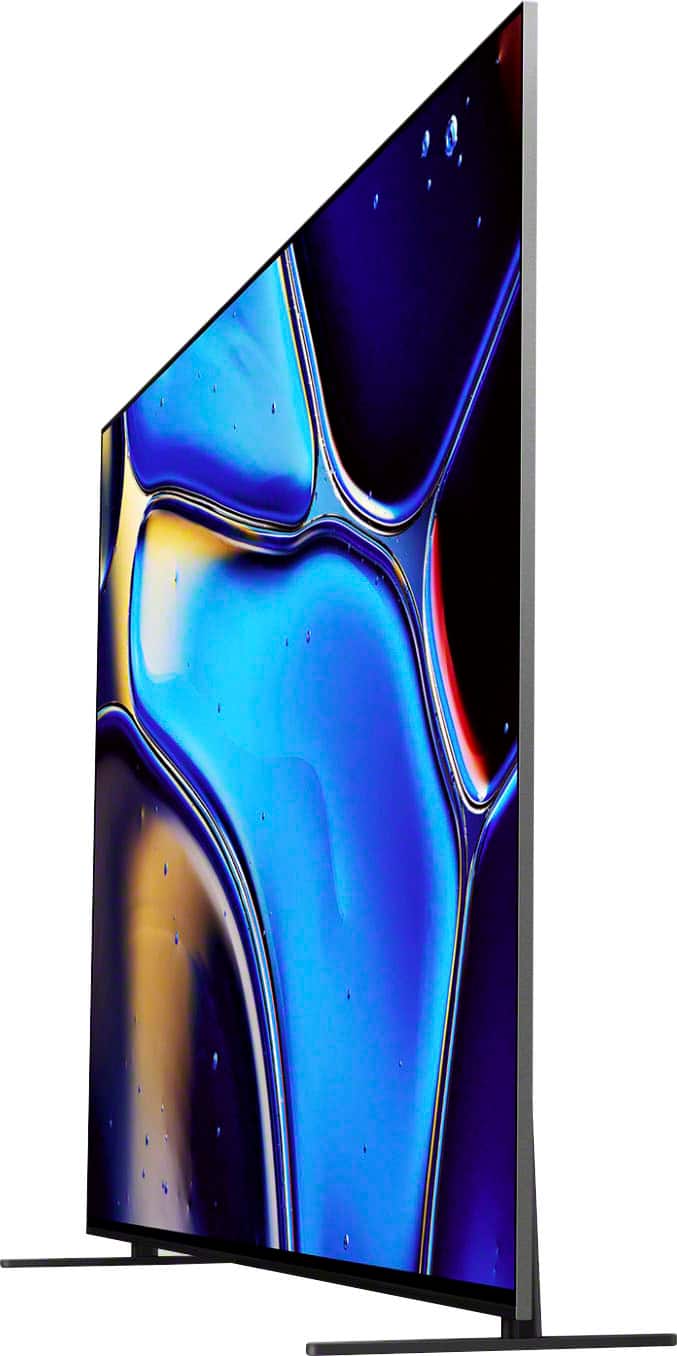
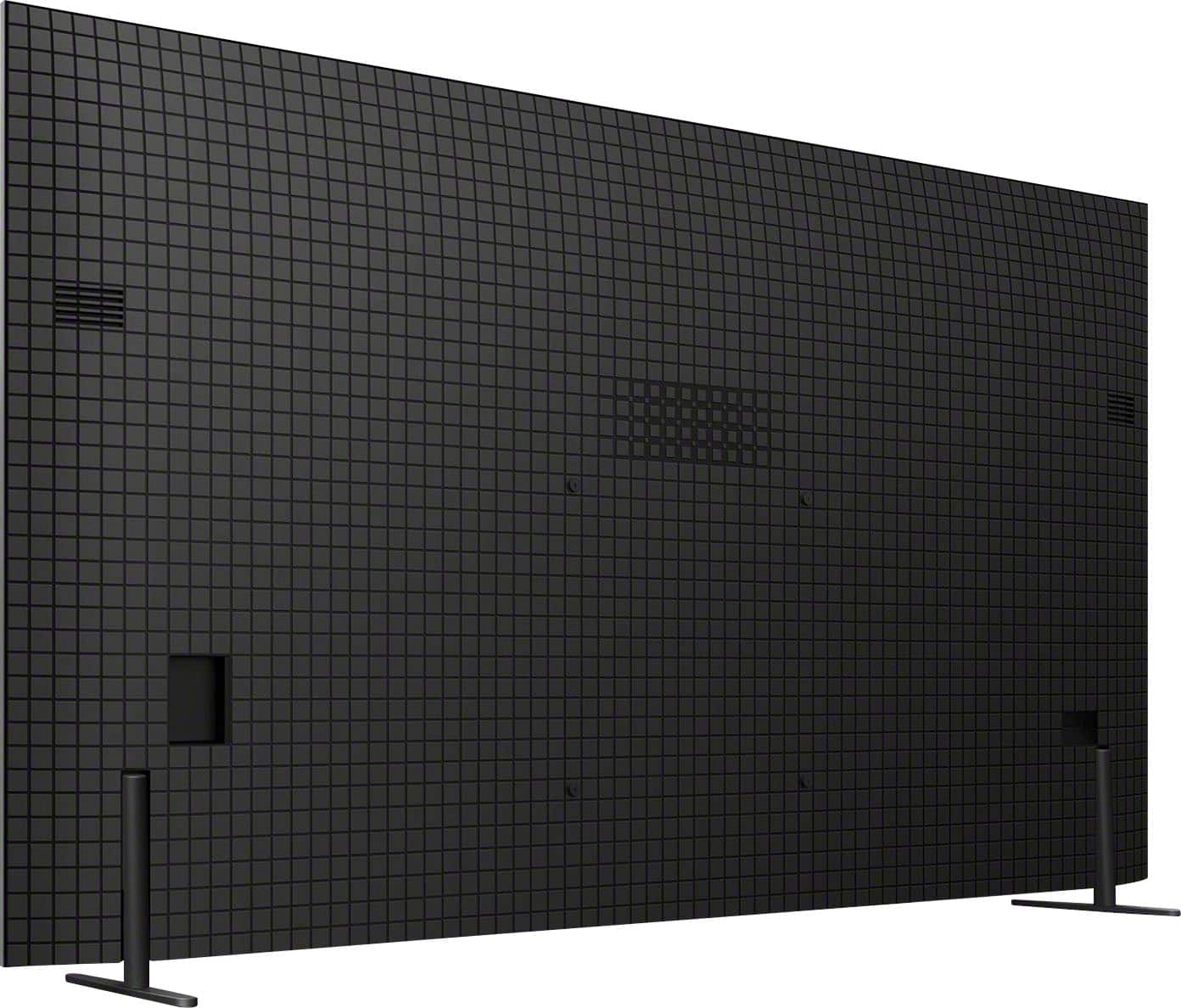
SLIM AND SLEEK DESIGN: Sleek and seamless. Our Slim One Slate concept fuses screen and bezel into a single slate, maximizing your experience. Its flush one-piece back accentuates the sleek lines and thin profile of the TV.
Hope this helps!
With a sleek design, cinematic audio, and stunning visuals, the Sony BRAVIA 8 K65XR80 65" 4K HDR Smart OLED TV makes the perfect centerpiece for your main TV viewing area. An incredibly accurate picture is created by millions of self-lit pixels, precisely controlled to produce pure black, with high brightness, and billions of shades of color.
Regards,
Sam
A:AnswerHi JohnP, Thank you for you inquiry. TV's for the North American Market are assembled in Mexico. Hope this information helps! With a sleek design, cinematic audio, and stunning visuals, the Sony BRAVIA 8 K65XR80 65" 4K HDR Smart OLED TV makes the perfect centerpiece for your main TV viewing area. An incredibly accurate picture is created by millions of self-lit pixels, precisely controlled to produce pure black, with high brightness, and billions of shades of color. Best regards, Maria
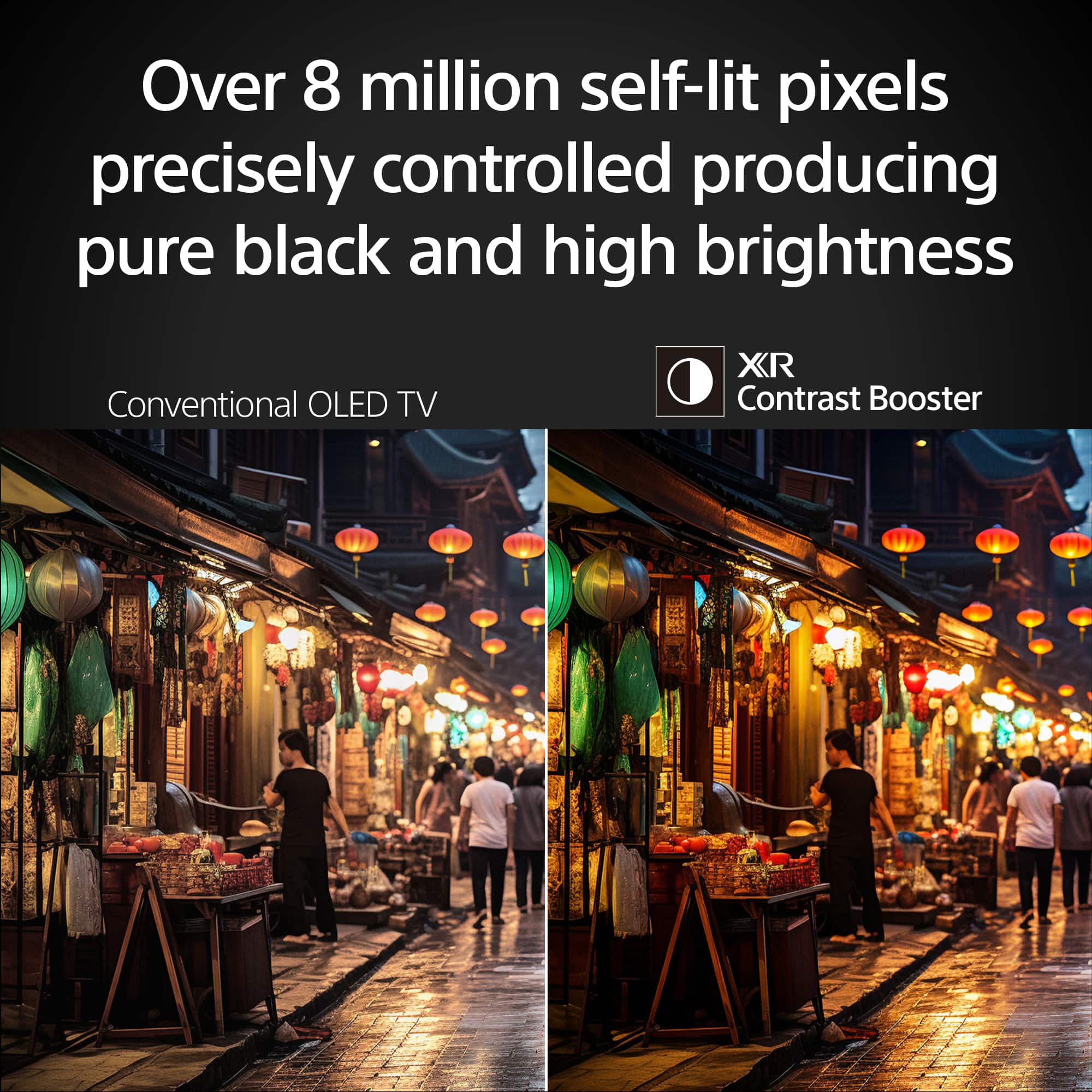
A:AnswerHi TheEdge1, Thank you for your inquiry. The Sony BRAVIA 8 Screen is constructed of multiple layers to create the most accurate picture possible, but it does not come with a peel off protective plastic cover. Do not try and peel off the screen. Hope this information helps! Over 8 million self-lit pixels are precisely controlled to produce pure black with high brightness. Enhanced by XR Contrast Booster 15, the K65XR80 produces contrast with deep, detailed blacks and dazzling highlights, allowing you to see movies and shows as the creators intended. Best regards, Maria
A:AnswerHi there,
Thank you for your question.
We apologize for the inconvenience you're experiencing. This is not the experience we want you to have. To assist you better with the issue, we'd like to know more information. Does this issue occur only when using external sources like a cable box, Blu-ray player, PlayStation, or other connected devices? Or does it also happen when using the TV’s internal apps or navigating through the settings?
In the meantime, you can try the following steps to turn off the audio description:
1. Press the HOME button on your remote.
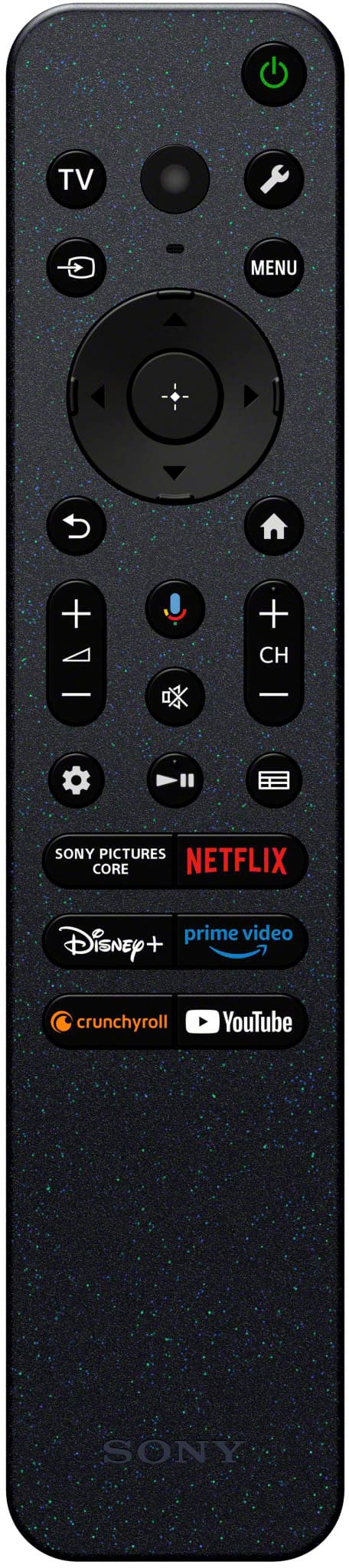
2. Go to [Settings] > [Accessibility]. Here, you can turn off features like text-to-speech or other user assistive options. Alternatively, you can quickly toggle the accessibility features by pressing and holding the Muting button on your remote for 3 seconds.
https://www.sony.com/electronics/support/articles/00232484?utm_source
Hope this helps!
If you need further assistance, may we contact you directly? If so, please email the following information to socialsupport@am.sony.com. Apologies if you've already shared this information with customer service — we just want to ensure we have your most accurate details:
Full Name:
Best Buy Username:
Telephone Number:
Additional Information regarding your experience with the K65XR80
Please let us know if the issue continues, and we’ll be happy to assist further.
Sincerely,
Maria
A:AnswerHi Jack. Thank you for your question. You can hook up the HT-CT800 to the Bravia 8 since the soundbar has an HDMI and Optical connections.
The sleek design and cinematic audio and visuals make BRAVIA 8 the perfect centerpiece for your living space. Pure OLED black and vibrant color brings out vibrant textures and astonishing realism in everything you watch. The screen is the speaker, delivering a totally unique and immersive theater-like sound that keeps you on the edge of your seat.
Hope this helps.
Regards,
Erin
A:AnswerThis problem is well documented online. This isn't a Sony issue but a broadcast issue. You will see two options in the channel show/hide part of the menu. Please pick the other option and hide the other selection.
A:AnswerHi Sal,
Thanks for the question! The BRAVIA 8 TV has two HDMI 2.1 ports on HDMI 3 and 4. Features specified in HDMI 2.1 4K120, eARC, VRR, and SBTM are supported on HDMI 3 & 4. ALLM is supported on HDMI 1, 2, 3, & 4. For more information about the TV, please refer to our Sony official website.
Additional information: The sleek design and cinematic audio and visuals make BRAVIA 8 the perfect centerpiece for your living space. Pure OLED black and vibrant color brings out vibrant textures and astonishing realism in everything you watch. The screen is the speaker, delivering a totally unique and immersive theater-like sound that keeps you on the edge of your seat.
Hope this information helps! - Kris
A:AnswerHello boss,
Thank you for choosing Sony.
We sincerely apologize for the inconvenience you're facing with the Wi-Fi connectivity issue on your Sony K65XR80 TV. We highly recommend trying the following steps to resolve the problem:
Restart Your TV: Go to HOME → Settings → About → Restart → Restart.
Check Network & Internet Settings: From your remote, go to Settings → Network & Internet. See if your TV detects your Wi-Fi network and check for messages like "Wi-Fi is not connected" or "No internet connection."
Optimize Router Placement: Ensure your router is close to the TV (at least 3 feet or 1 meter away) to improve signal strength. Try to minimize interference from other electronic devices.
Try the 5GHz Band: If your router supports both 2.4GHz and 5GHz, try connecting your TV to the 5GHz band. This can often provide a more stable and faster connection.
For more detailed troubleshooting, please visit our support article: https://www.sony.com/electronics/support/articles/00127011
If you continue to encounter Wi-Fi connectivity issues despite following the suggested steps, please reach out to us via email at socialsupport@am.sony.com. We kindly request that you include the following information in your message:
- Name:
- BestBuy Username:
- Model Number:
- Description of the Issue:
- Telephone Number:
We sincerely appreciate your patience and understanding as we work to resolve this matter.
Best regards,
-Fred
A:AnswerHi Satishh,
Thank you for your inquiry! This TV operates within a power range of 110-240 V. Sony TV models purchased in the US and Canada have a power requirement of 120 V AC, 60 Hz and 110-240 V AC, 50/60 Hz for other countries. If you plan to use this TV in a different country or with a 220 V outlet, you may need a transformer or power converter to ensure safe operation.
Note: Sony does not produce transformers/converters. You may wish to check with your local Dealer for further assistance.
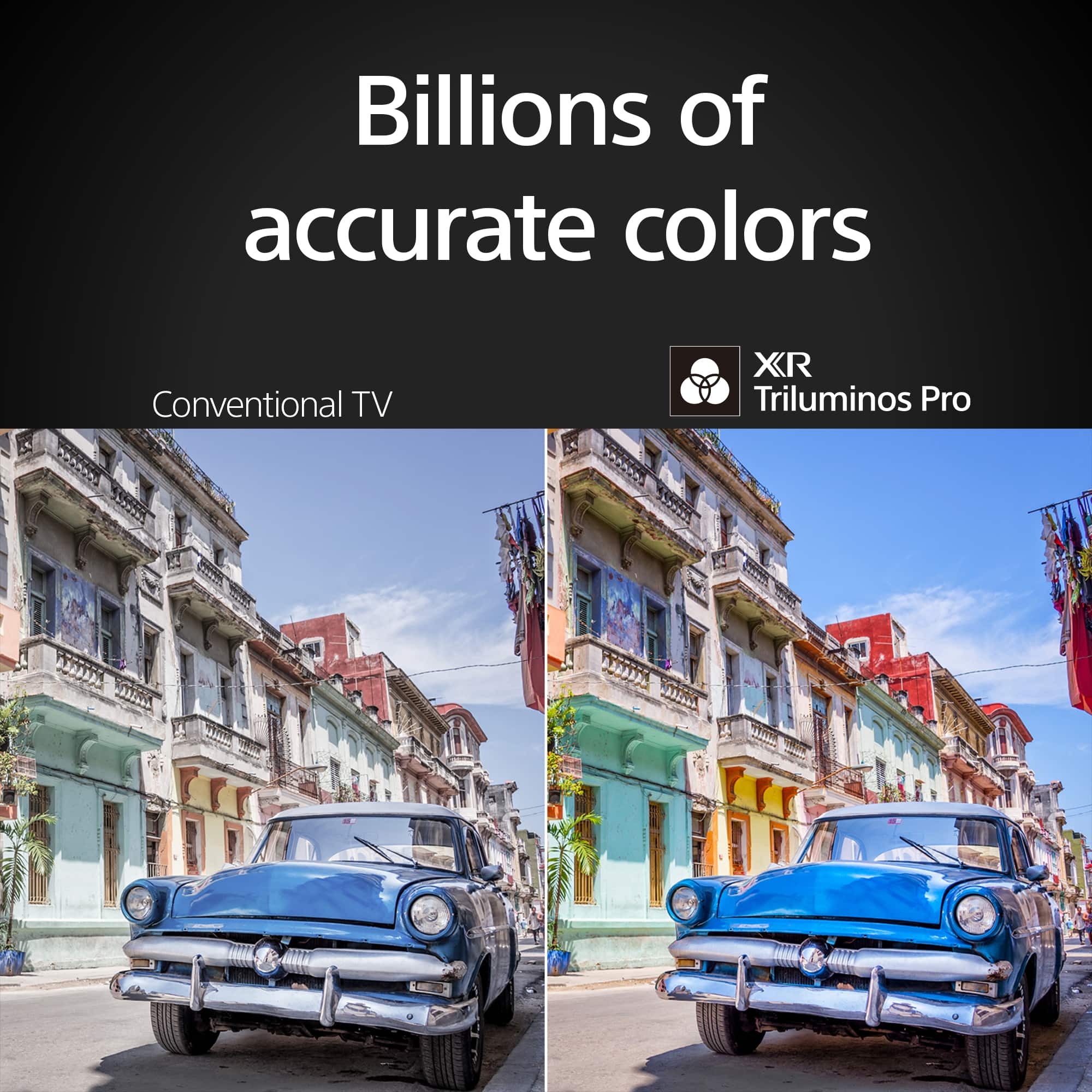
Enjoy viewing over 8 million self-lit pixels that are precisely controlled to produce pure black imaging, with high brightness, while accessing billions of accurate real-world colors with XR Triluminos Pro™ technology.
Regards,
Jess
A:AnswerHi Pat,
Thank you for reaching us with your concern with your Sony BRAVIA 8 TV and its brightness level auto adjusting.
Due to the characteristics of the materials used to achieve high-definition imaging, an Sony BRAVIA 8 OLED TV screen may experience image retention if an image is continuously displayed for long periods or when the same image is displayed repeatedly. We have equipped the TV screen with functions that automatically adjust the screen conditions to protect it from image retention. These functions automatically run according to your TV’s condition, or you can run them manually. For more information about this feature, you may find this link helpful: https://www.sony.com/electronics/support/articles/00173479?utm_source
Hope this information helps!
If you need further assistance, may we contact you directly? If so, please email the following information to socialsupport@am.sony.com. Apologies if you've already shared this information with customer service — we just want to ensure we have your most accurate details:
Full Name:
Best Buy Username:
Telephone Number:
Additional Information regarding your experience with the BRAVIA 8
Thank you for your patience, and we look forward to making this a better experience!
Best regards,
Maria
A:AnswerHi Serge, Thank you for your interest with Sony BRAVIA 8 TV! Regarding your question, BRAVIA 8 has a speaker configuration: Actuator x2, Tweeter x2, Subwoofer x1. Unfortunately, we are unable to disclose specific information about the speaker wattage. For more detailed specifications and comparisons, you may refer to third-party websites that specialize in electronics reviews and specifications. Thank you for your understanding.
With a sleek design, cinematic audio, and stunning visuals, the Sony BRAVIA 8 K65XR80 65" 4K HDR Smart OLED TV makes the perfect centerpiece for your main TV viewing area. An incredibly accurate picture is created by millions of self-lit pixels, precisely controlled to produce pure black, with high brightness, and billions of shades of color. Regards, Sam