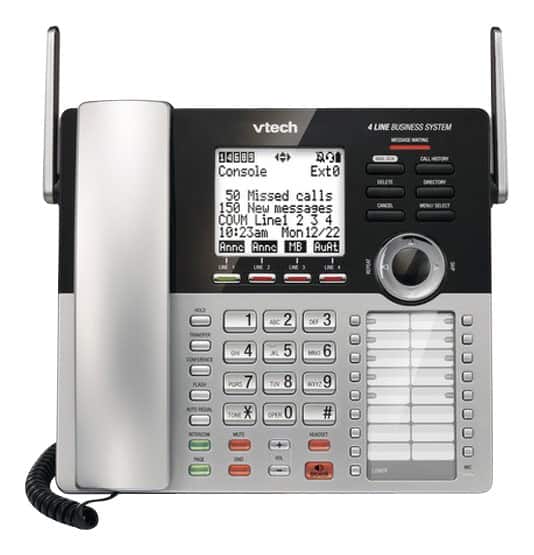
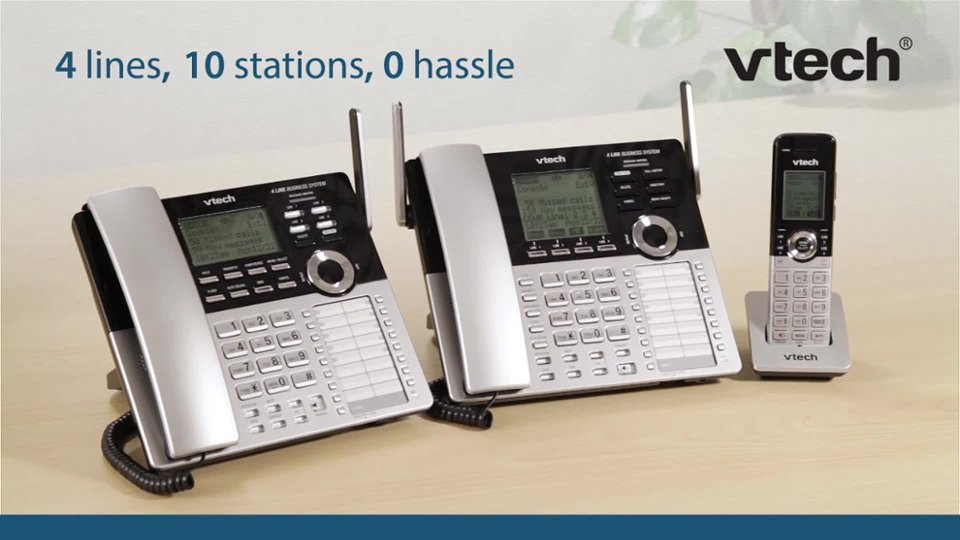
A:AnswerJenn - we are sorry to hear that you are hearing interruptions when you receive an incoming call waiting call. The CM18445 does not have a setting to mute the beep on the incoming call waiting call. Thank you!
A:AnswerHello. The CM18445 has no ability to load in a music file directly (there are no ports that allow a data connection). We would recommend using a speaker placed close to the base playing the message for recording. Thank you.
A:AnswerIt’s working really good. The Cox people were asking for lot of money every month for their phones but these phones are awesome for small businesses where you have 3-4 lines. I am happy
A:AnswerHello - The VTech CM18445 automatically assigns an extension number to each cordless device. If you need assistance in re-assigning extension numbers, or have additional questions, please contact our support team at 1-800-595-9511. Thank you!
A:AnswerHi - We are sorry to hear that you are having issues with the VTech CM18445. The built in answering system of the unit is not capable of picking up if the line is already in use. You can subscribe to a Voicemail service from your telephone service provider to serve as a back up when the line is in use. You just need to make sure that the Voicemail is setup to only pick up the call if the line is already on a call.
Thank you,
-VTech Support
A:AnswerHi - Due to the nature of your inquiry, we recommend that you contact our Customer Support at 1-800-595-9511. We are open from 9:00 AM to 3:00 PM, Mondays through Fridays. When calling, please have your model number handy: CM18445. Thank you! - VTech Support
A:AnswerHi - Here's how you can turn off the mailbox of the VTech CM18445.
Step 1: Press the Menu/Select button when the console is not in use.
Step 2: Press the arrow down button to scroll to Line mode, then press Menu/Select button.
Step 3: Press the the arrow down button to select the desired line or all lines, then press Menu/Select button.
Step 4: Press the the arrow down button to select No answer then press Menu/Select button.
Thank you,
-VTech Support
A:AnswerHello Tin - The actual operating range of the VTech CM18445 may vary depending on the environmental conditions and other interferences such as walls, doors and other obstructions.
Thank you,
-VTech Support
A:AnswerWinster - The VTech CM18445 has an auto hold feature wherein the line that is currently on an active call is put on hold automatically when you press another line button. It does not disconnect the call automatically if you switch to a different line. The auto hold feature allows you to switch back and forth easily on different lines by just pressing the line buttons. If you have other inquiries, please contact VTech Customer Support for further assistance at 1-800-595-9511. We are open from 9:00 AM to 3:00 PM, Mondays through Fridays. When calling, please have your model number handy: CM18445. Thank you! - VTech Support
A:AnswerAnna - We are sorry to hear that you are having issues with the VTech CM18445. Please contact our Consumer Sales and Service Center between the hours of 9:00 AM and 5:00 PM Monday through Friday at 1-800-595-9511.
Thank you,
-VTech Support
A:AnswerMaria - No, the VTech CM18445 does not have call blocking feature. You have to subscribe to a call blocking service from your local service provider. Thank you for your interest!
A:AnswerHello. The VTech CM18445 does play messages audibly when they are being left on the phone itself. However, you are definitely able to disable the answering system on the phone entirely, and allow the voicemail from your telephone company to answer the calls. This feature in this phone is listed as the "COVM" setting. Thank you!
A:AnswerDear customer, I'm not sure if you are actually referring to recording of an announcement.
An announcement plays when calls are answered by the general mailbox.
The system has a default announcement, “Hello. This is the general mailbox.
Please leave a message after the tone.” You can use this announcement or
record your own.
You can record an announcement up to 90 seconds.
To record the general mailbox announcement:
When the console is idle, press MENU/SELECT.
Press or to scroll to Ans sys setup, then press MENU/SELECT or
/SKIP.
Press MENU/SELECT or /SKIP to select Gen MB setup.
Press or to choose Anncment setup, then press MENU/SELECT or
/SKIP.
The pointer (>) indicates whether the default or user-recorded
announcement is used currently. Press or to scroll to User anncment,
then press MENU/SELECT or /SKIP.
If you have recorded your own announcement before, press or to
scroll to Change, then press MENU/SELECT or /SKIP.
6. Press MENU/SELECT to start recording. Lift the handset or face the console
to record your announcement.
7. Press MENU/SELECT again to stop recording. You hear the playback of the
recording.
8. Press or to choose OK to save the recording, or choose Change to
record again if desired. Press MENU/SELECT or /SKIP.
A:AnswerAlyssa - The CM18445 is capable of call forwarding as long as you are subscribed to the service from your telephone service provider. You need to contact your service provider to get assistance on how to go about it. Thank you.
A:AnswerHello, Yes, if your telephone company has Call Forwarding service, then you should be able to forward calls using the VTech CM18445 series phones. Thank you!
A:AnswerDear Mac, to answer your question, the steps will be different based on two assumptions. 1. That you have registered the headset to the main console AND you have linked it to a specific system extension. If this is the case, go to the steps on "Making a call with the cordless headset" at the end of the info below. 2. That you have registered the headset to the main console BUT have not linked it to a specific system extension. If this is the case, follow below steps:
De-register the cordless headset:
On Console, press "MENU">>"Registration" >> "Deregistration" >> then select the Headset you want to remove >> Press SELECT >> Select "Yes" >> Press SELECT.
Register and Link the headset to the extension:
1. Place the headset or speakerphone in the charger and allow it to charge for at least five minutes before beginning registration. Make sure the headset or speakerphone is out of the charger before you begin registration.
2. On the console, press MENU/SELECT.
3. Scroll to Registration, then press MENU/SELECT.
4. Press MENU/SELECT again to select Register Ext.
5. Place the headset or speakerphone in the charger. It may take up to 60 seconds to complete the registration. The console shows HDST/SPK X registered. (X represents the extension number [9-1]) and beeps when the registration is successful.
6. The console shows Link HDST/SPK X to extension?. If you want to link the headset or speakerphone with an extension, scroll to Yes. Otherwise, choose No and then skip to Step 8. Press MENU/SELECT to confirm.
7. Scroll to select a desired extension to be linked with
the headset or speakerphone. Press MENU/SELECT to confirm.
8. Lift the headset, then press on the headset; or press PHONE on the speakerphone. If you hear a dial tone, the registration was successful.
If you linked the headset or speakerphone with an
extension, the extension screen displays the extension
number along with the line number it is using.
Making a call with the cordless headset:
1. Press the on/off key to turn on the cordless headset. The linked extension display the extension number of the cordless accessory and the line it is using.
2. Enter the phone number on the linked extension.
3. Press the corresponding line key (Line1 to Line4) to dial.
4. Hang up the call on the linked extension. You can now have a private conversation with the external party using the headset.
5. To end the call, press the on/off key on the cordless headset.