A:AnswerHi Mandie,
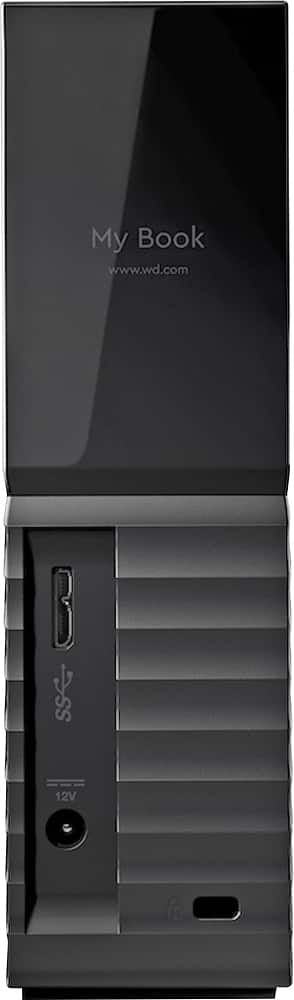
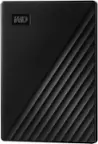
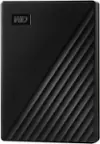
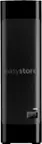
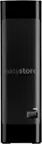
Thank you for showing your interest in WD My Book external drive. Please know the WD My Book drive comes with USB 3.0. You can use this drive per your need by connecting via adopter.
Please note this may affects the transfer rate.
Need Help? Please see our "'Contact Us" page for information
A:AnswerThe drive can only be used with a USB connection. I'm pretty sure it must be connected to your computer to use. If you can access your computer remotely you can access this HDD if it's connected to your computer.
A:AnswerWe usually replace them every couple of years before they start acting up, we've held on to them longer but would start having problems and now we don't wait and regret it because of losing our backed up files
A:AnswerBased on reviews from tech knowledgeable Amazon reviewers it's 5400 rpm. I've looked at a few benchmark specs but for me the drive is more than fast enough. Sometimes there's a lag time when it comes out of what I think is sleep mode before I can access files, but I had that same problem with my previous 2TB My Book. But once the drive is online it's fast and it has a huge storage capacity. It suits my purposes just fine.
A:AnswerI use my backup to save all importanat files including my Pictures. This drive is very easy to install and backup your pictures and other files.
A:AnswerHad the same problem with a ASUS desktop . I opened the BOIs and checked my boot settings .. The internal drive was set first followed by the DVD drive then the external drives ... I reset the boot to first DVD drive then internal drive then external drive and it worked for me .. you might try this fix on your problem ..
A:AnswerUSB port power consumption is negligible, just enough for data transfer. That's why I opted for this drive instead of others that get all their power from the port.
A:AnswerYes you can. You can simply plug it in a USB port on the router and access it via your File Explorer (if you're talking MS-Windows) and via the Internet or locally. You will have to enable remote connection on your PC and access files from a remote location as if you were sitting in front of your PC. To access it locally launch your File Explorer and select your Network name. Just google MS remote connection. There's two choices: Remote Desktop from within your HOME network or via the Internet. You'll identify the option you want.