Customer Ratings & Reviews

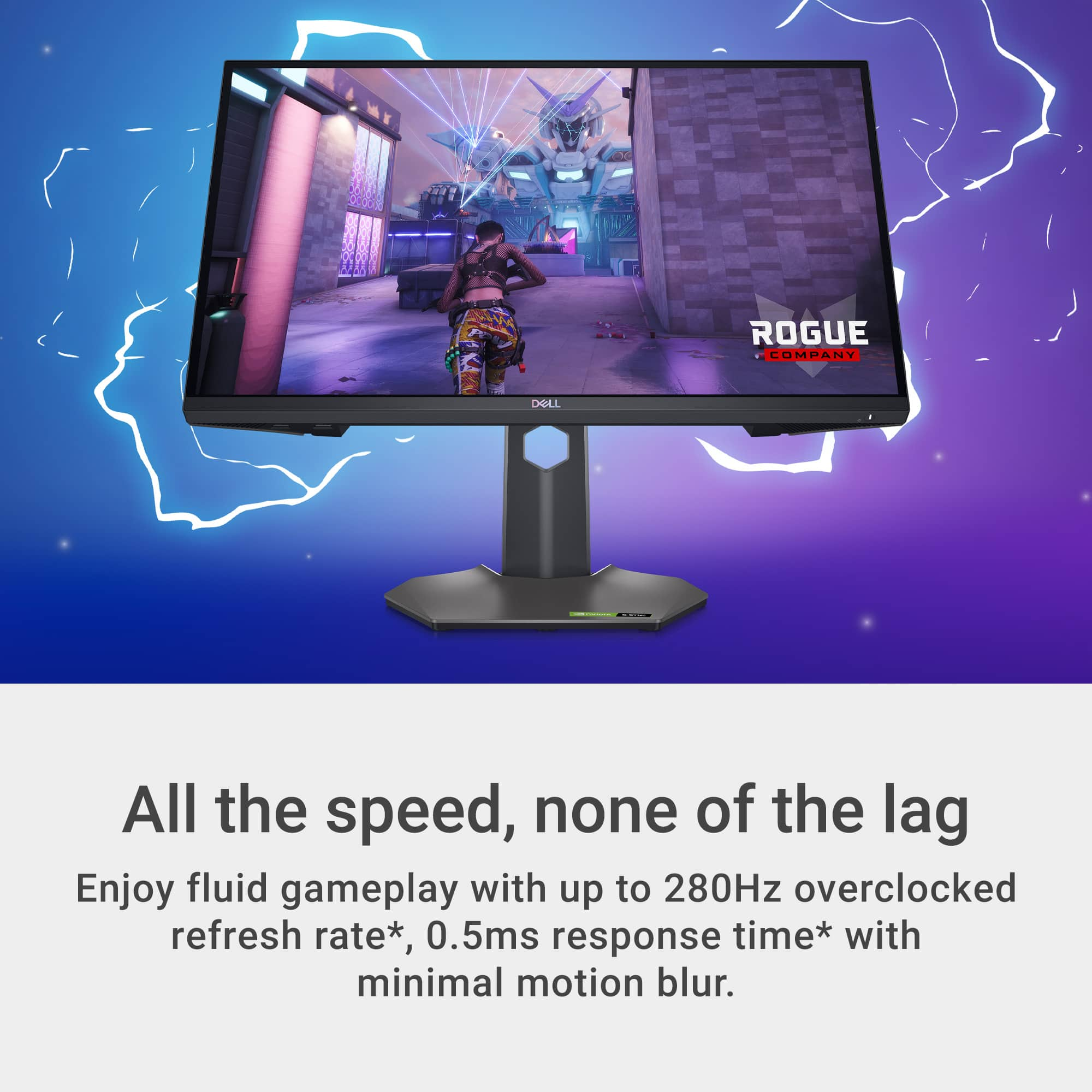
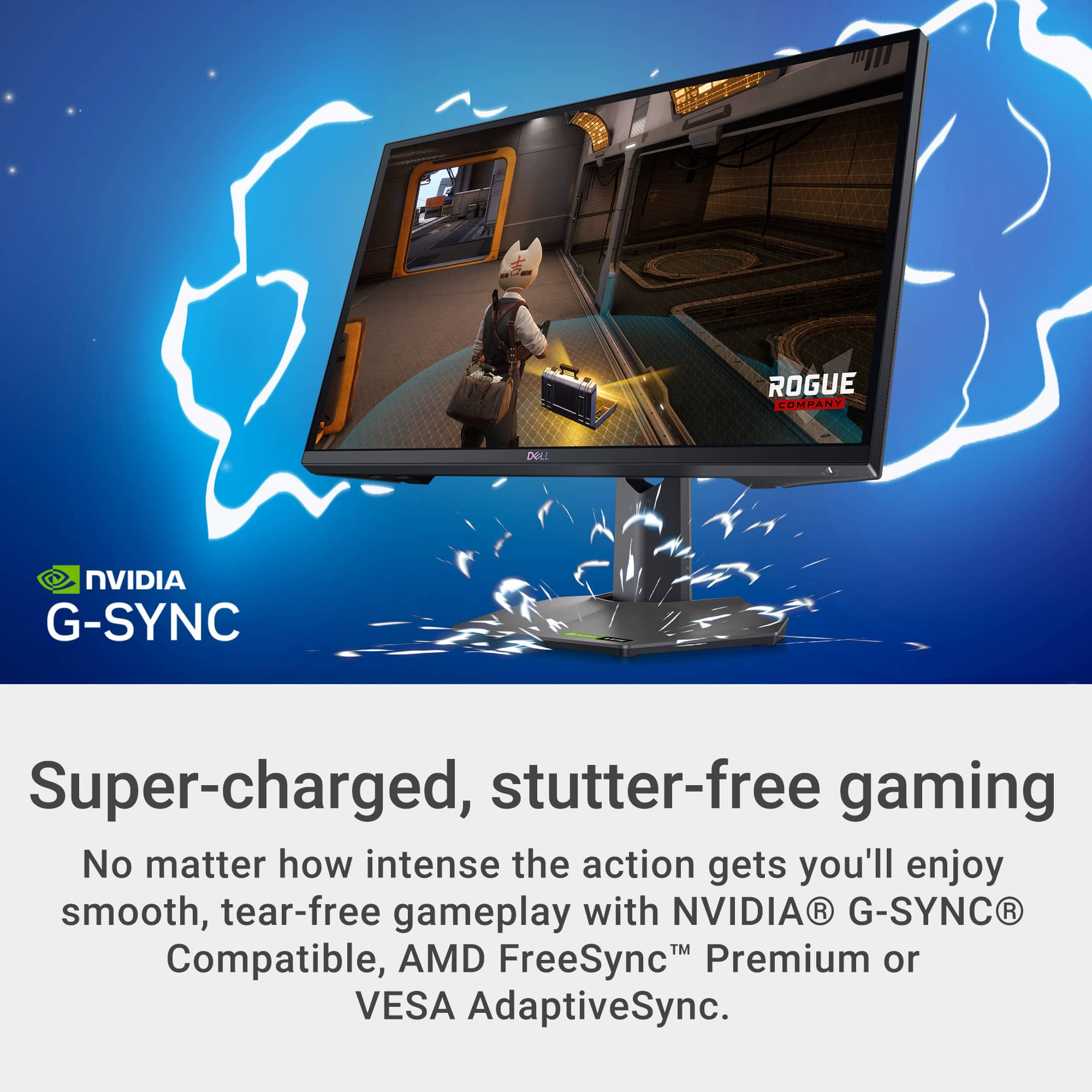
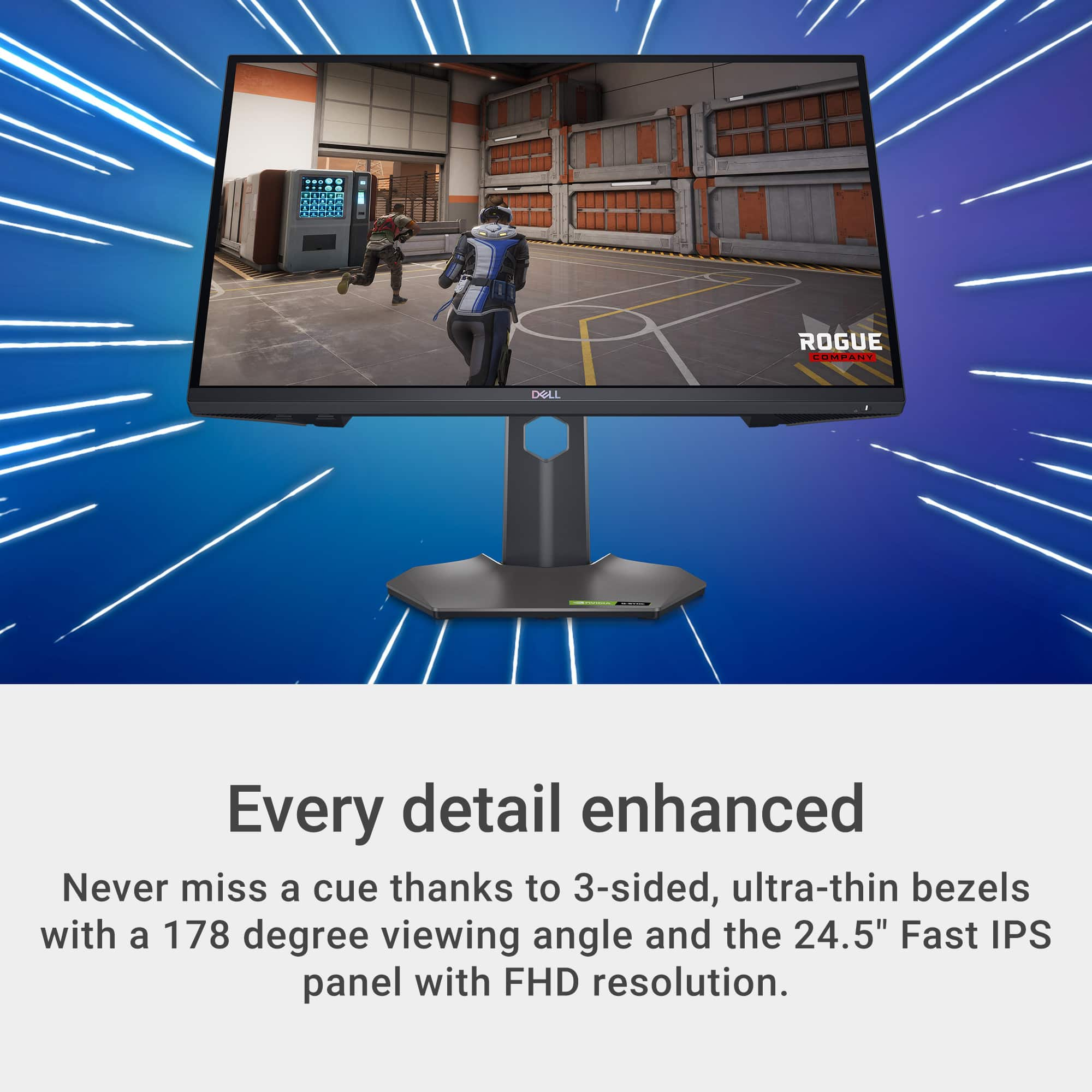






- Model:
- G2524H
- SKU:
- 6567509
Rating by feature
- Display Quality
Rating 4.7 out of 5 stars
- Ease of Use
Rating 4.8 out of 5 stars
- Features
Rating 4.6 out of 5 stars
Customers are saying
Customers are pleased with the G2524H 24.5" gaming monitor's overall performance and high refresh rate, making it a great value for the price. The monitor also offers good connectivity options and an adjustable stand for comfortable viewing. Some customers noted the absence of speakers and that the resolution and color may not be the best. A few users also found the button layout a little difficult to use initially.
This summary was generated by AI based on customer reviews.
- Pros mentioned:Overall performance, Refresh rate
So worth it!
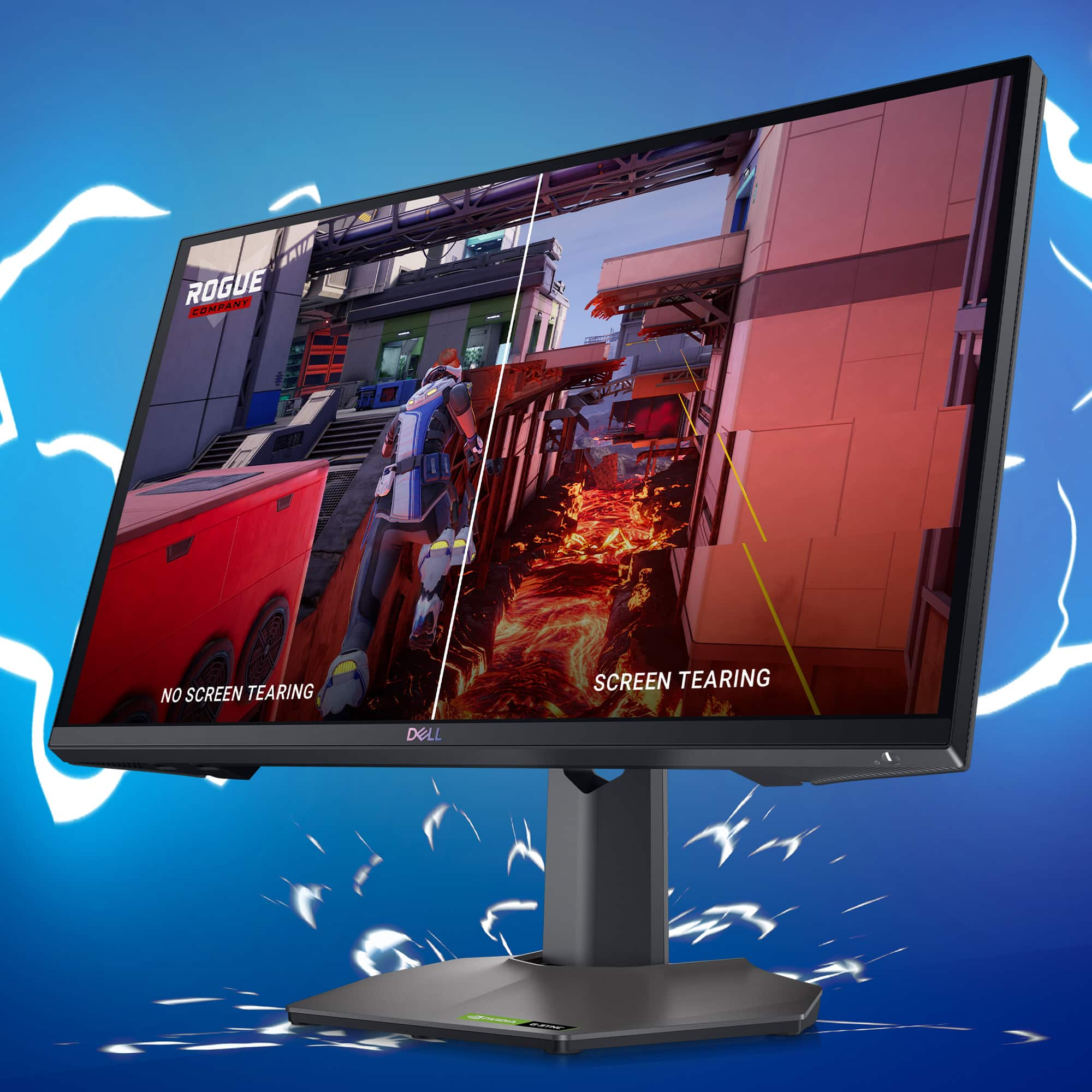
||Posted . Owned for 1 month when reviewed.This reviewer received promo considerations or sweepstakes entry for writing a review.Phenomenal monitor. I’ve been really impressed with my Dell 24.5" monitor. The 240Hz refresh rate and 1ms response time make everything feel incredibly smooth, especially during gaming. The Full HD resolution delivers sharp, vibrant visuals, and with FreeSync support, there’s no screen tearing. It’s been perfect for gaming!
I would recommend this to a friend Best bang for buck gaming monitor
||Posted . Owned for 3 weeks when reviewed.This reviewer received promo considerations or sweepstakes entry for writing a review.The most perfect, most affordable gaming monitor on the market. You won't get 280hz, .5ms response, and g-sync for a better price and quality. 10/10.
I would recommend this to a friend- Pros mentioned:Overall performance, Refresh rate
Great monitor
||Posted . Owned for 2 months when reviewed.This reviewer received promo considerations or sweepstakes entry for writing a review.Refresh rate fast the picture is really worth the price. The colors are outstanding really brings out the quality in your games.
I would recommend this to a friend - Pros mentioned:Overall performance, Refresh rate
Really good monitor!
||Posted . Owned for 1 month when reviewed.This reviewer received promo considerations or sweepstakes entry for writing a review.Great monitor! Can be overclocked to 280hz, has worked great since i bought it. Definitely worth the money, get one before they go out of stock.
I would recommend this to a friend - Pros mentioned:Refresh rate
Great for price
||Posted . Owned for 3 weeks when reviewed.This reviewer received promo considerations or sweepstakes entry for writing a review.Great price for an IPS screen & fps of 240+. Haven’t had any issues with color or the build quality. Only gripe is that it says 1ms response and it’s visually higher. The amount of ghosting and trailing you get is noticeable in games like CoD & Rocket League, but I still recommend to anyone.
I would recommend this to a friend - Pros mentioned:Overall performance
Awesome Monitor Highly recommend
||Posted . Owned for 3 weeks when reviewed.This reviewer received promo considerations or sweepstakes entry for writing a review.This is a great monitor. The picture and resolution are great. I purchased for gaming . This has definitely met and exceeded expectations
I would recommend this to a friend - Pros mentioned:Overall performance
Best 3rd monitor
||Posted . Owned for 1 month when reviewed.This reviewer received promo considerations or sweepstakes entry for writing a review.Such a great monitor. It made for the perfect 3rd monitor for my setup.
I would recommend this to a friend - Pros mentioned:Connectivity, Overall performance, Refresh rate

1080p FPS/Racing Gaming Monitor King
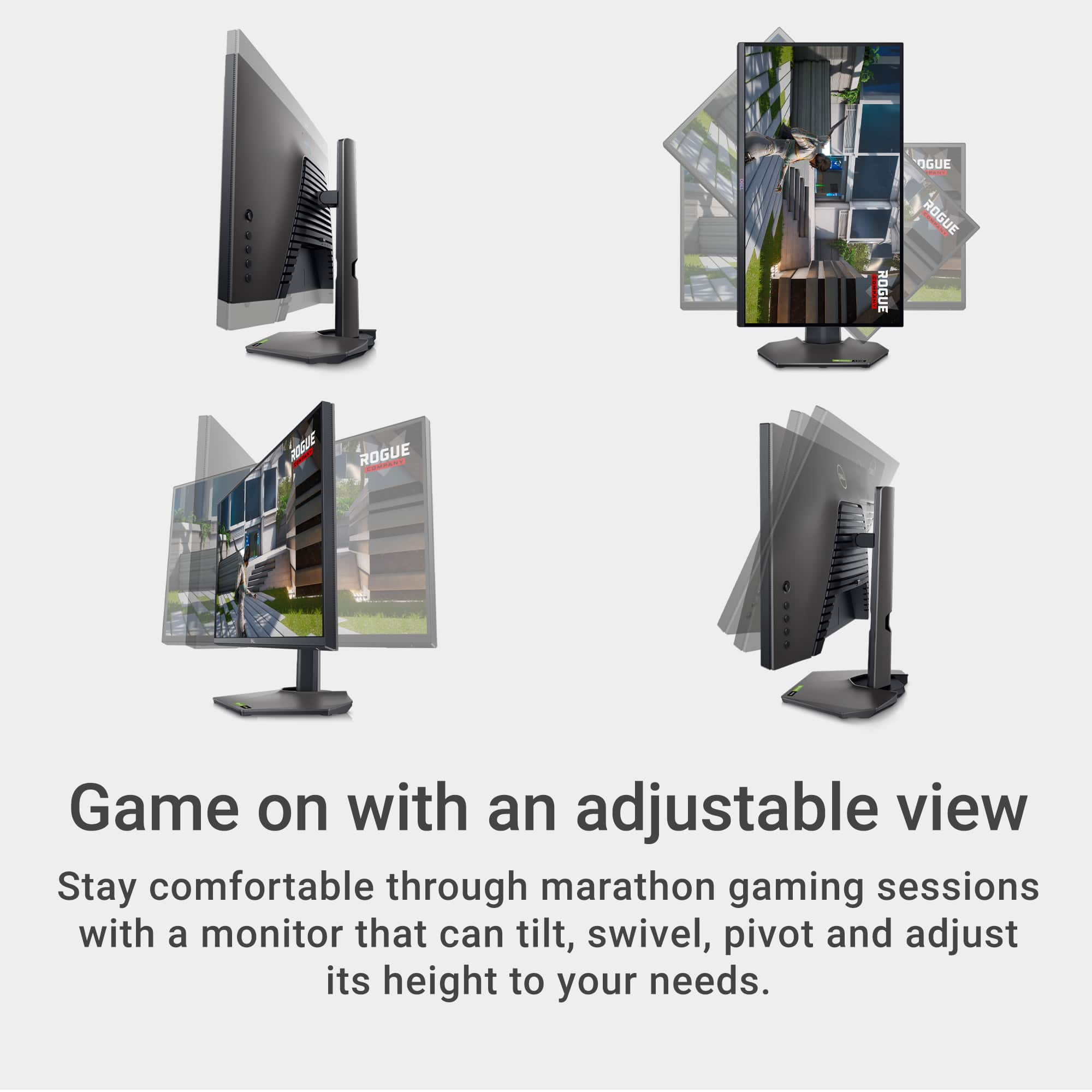
|Posted .This reviewer received promo considerations or sweepstakes entry for writing a review.I've got a 34" 165Hz Curved 1440p monitor but 2 years later it just feels big and bulky. I was looking forward to getting my hands on this Dell 25" highlighted by a 280Hz refresh and a super fast response time. I've heard good things about Dell gaming monitors and this one did not disappoint. Keep in mind this is a Full HD 1920x1080 resolution but it still looks beautiful and bright. I've gamed for about 36 years and the older I get, the more portable I want to be. My current gaming laptop is 14.5" and this 25" Dell monitor fits my setup. My overall impression is the screen, at 400 nits, is bright with vivid detail. It's an outstanding choice for a budget gaming monitor. It has a high refresh rate, super fast response time, and gives you an external screen that's just the right size for gaming. Bigger is not always better and this Dell monitor hits the sweet spot. I ran the UFO test and saw very minimal blur. Detail, contrast and color were outstanding on the games that I tested. I personally played Overwatch 2, Forza Horizon 5, and Far Cry 6. Every game looked really good. The adaptive sync technologies included are both Nvidia G-Sync and AMD Freesync Premium. I didn't witness any screen tearing, no light bleed, no ghosting and almost no blur. I have an Nvidia RTX 4060 so I was dialed in to G-Sync. The monitor shipped with cables, thank you. (1) 6 ft Display Port Cable (1) 3.3 ft USB-C to Display Port Cable (1) 6 ft USB 3.2 Gen 1 upstream cable USB Type A to B (This gives you power to the USB ports if you plan on plugging in. Here are the ports. They have changed from previous models: 1 x HDMI (HDCP 1.4) 120Hz (might be a good idea for an Xbox Series S/X) 2 x Display Port 1.4 (HDCP 1.4) 2 x USB 3.2 Gen 1 Downstream (5GB on all) (1 with Battery Charging) 1 x USB 3.2 Upstream (to power your USB ports) Kensington Security Slot A thumbscrew locks the base into the stand. 4 Tabs from the stand lock into the back of the monitor. No tools required. I'll note the base is nice and small relative to others that have the pointed legs sprawling from the base. This one easily fits in small spaces. There's a hard plastic body with a cable management slot in the middle of the stand. 3 ultra thin bezels on the right, left and top sides. With the base, stand, and monitor you're looking at about 12 pounds, 7 pounds and 13" tall if you're just mounting to the wall. With the stand, you're looking at a depth of about 8 inches. The monitor is about 22 inches wide and 24.8" diagonal. There are 5 buttons on the back with the top one being a joystick control. You can hot key the bottom buttons, but I found myself only using the joystick to navigate. It was easy enough. The monitor swivels 45 degrees in both directions and rotates 90 degrees left or right. The 90 degree rotation is great for a portrait setup containing reference material, spreadsheets, or documents. It also moves up and down about 5" in the y-axis if you need to adjust the height. It's about 20 inches tall extended, and 15" on the shortest setting. Lastly, it will tilt back between 5 and 21 degrees. So Dell covered about all the bases in terms of physical adjustments. This is a fast IPS monitor. Fast IPS generally have better colors than VA or TN while maintaining high frame rates (outstanding color accuracy and consistency.) We have a 24.8" viewable area and 16:9 aspect ratio. There is also an anti-glare coating to help protect you from those bright windows. Viewing angle is pretty good at 178 degrees. I calculated 84.6 pixels per inch. Generally gaming monitors begin around this ppi value. If you're looking at professional photography editing you will probably need to step up the resolution for a density around 140+ ppi. However, with 99% sRGB you can absolutely do your typical photo editing. For gaming, and especially FPS, Racing, or anything fast paced, this is absolutely what you want. 1ms Gray to Gray response rate is great for FPS shooters or fast moving visuals. I personally tried out Overwatch 2 and I was able to hit fairly close to the max refresh rate. The refresh rate is standard at 240Hz. If you want to step up to 250, 260, 270, or 280Hz you simply select the overclock option in the display menu. There's built in low-blue light to reduce eye strain without impacting color accuracy, a 1000:1 Contrast (I would venture to say it's even better than this), 400 nits brightness (plenty bright, I didn't even turn it up all the way, and a 99% sRGB Color Gamut (who's using Adobe RGB for gaming anyway?) I'll highlight a few of the display menu settings as well below: Preset Modes- FPS, Moba/RTS, RPG, Sports, 3 custom modes (allows adjustment to RGB) Game Enhance Mode allows FPS, Timer, or Display alignment Overclock allows 250 to 280hz Response time settings of fast, super fast, extreme Console Mode (120Hz HDMI?) Usual settings - Brightness, Contrast, Sharpness, Aspect Ratio My overall impression after running this monitor through its paces. It might be the best budget gaming monitor available and if you're playing any game with fast moving visuals, this is what you need. Dell did a good job here. We could nitpick a few things but it really excels in the areas that matter. Cons No Headphone Jack (I don't use it but I know some do) No HDR Only 2 USB Type A ports, No USB-C but we're on a budget here Pros Vivid, Bright Colors with great contrast and detail Fast Response and High Refresh Physical adjustments available in any direction No Ghosting, Minimal blur, No light bleed or pixel issues
I would recommend this to a friend - Pros mentioned:Overall performance
Monitor
||Posted . Owned for 5 months when reviewed.This reviewer received promo considerations or sweepstakes entry for writing a review.Love it use it all the time and no problems! Good picture output
I would recommend this to a friend Good monitor
||Posted . Owned for 1 week when reviewed.This reviewer received promo considerations or sweepstakes entry for writing a review.This monitor is perfect.it simply has a fast frame rate for cheap.
I would recommend this to a friend280hz?
||Posted .This reviewer received promo considerations or sweepstakes entry for writing a review.I brought this monitor 2 weeks ago and there’s not really alot of problem with it overall however the only reason I gave it a 4 star because the Best Buy website it says it’s 280Hz however the maximum Hz it could go is 240hz when I went to the display setting
I would recommend this to a friend- Pros mentioned:Overall performance, Refresh rate, Viewing angleCons mentioned:Resolution, Speakers
A Smooth Operator
|Posted .This reviewer received promo considerations or sweepstakes entry for writing a review.The Dell G2524H is a 25-inch FHD (1080p) LED-backlit LCD gaming monitor that boasts a 280Hz refresh rate and adaptive sync compatibilities. While it excels in delivering smooth visuals and vibrant colors, it comes with a few trade-offs that might not suit every gamer. I've been putting it through its paces for the past few days, and here's my breakdown of its PROS and CONS. Unboxing: Let’s start off with what is included in the box and the ports on the monitor. Ports: • HDMI 1.4 • 2 x DisplayPort 1.4 • 3 x USB 3.2 Gen 1 Included Cables: • 1 x DisplayPort cable - 6 ft • 1 x USB-C to DisplayPort cable - 3.3 ft • 1 x USB 3.2 Gen 1 upstream cable - USB Type A to B - 6 ft Blazing Speed and Smooth Gameplay: The G2524H's star feature is undoubtedly its 280Hz refresh rate. This translates to lightning-fast frame transitions, eliminating screen tearing and making fast-paced games feel incredibly responsive. Whether you're dodging bullets and enemy soldiers in an FPS or navigating tight corners in a racing game, the smoothness was undeniable. Although I was unable to reach the 280Hz rate, I did get pretty close on some of the FPS and racing that I tested the monitor out with. Adaptive Sync: Both AMD FreeSync Premium and Nvidia G-Sync compatibility ensure seamless synchronization between the monitor's refresh rate and your graphics card's frame rate. This eliminates screen tearing and stuttering, further enhancing the overall gaming experience. Vibrant Colors and Decent Viewing Angles: The IPS panel delivers accurate, rich and vibrant colors, covering 99% of the sRGB color gamut, and decent viewing angles with 178-degree viewing coverage. ComfortView Plus for Eye Care: Dell's ComfortView Plus technology reduces harmful blue light emissions without sacrificing color accuracy. This feature is a big plus for long gaming or even productivity sessions, helping to reduce eye strain and fatigue. Ergonomic adjustments: The monitor offers tilt, swivel, and height adjustments, allowing you to find the perfect viewing position. It also has VESA mount compatibility for added flexibility. Gaming Customization Option: There are a few features that are available in the options menu to enhance your gaming experience such as Night Vision, Clear Vision, Chroma Vision and Crosshair. Where it Falls Short: While the G2524H shines in its core performance aspects, it does have some drawbacks to consider: • Resolution: While the 280Hz refresh rate is impressive, the Full HD (1920x1080) resolution feels a bit low for a 25-inch screen. Some details might be less sharp compared to QHD or 4K monitors. • No Built-in Speakers Overall, the Dell G2524H is a solid choice for gamers who prioritize smooth performance and rich vibrant colors. Its fast refresh rate, low response time, and adaptive sync technology make it a dream for fast-paced games. While the resolution might not be for everyone, the overall performance and value are outstanding, would definitely recommend.
I would recommend this to a friend Awesome Dell
||Posted . Owned for 1 month when reviewed.This reviewer received promo considerations or sweepstakes entry for writing a review.Exceeds expectations. Great quality. Great job Dell
I would recommend this to a friend- Pros mentioned:Adjustability, Connectivity, Viewing angleCons mentioned:Button layout
A Decent First Gaming Monitor with One Major Flaw
|Posted .This reviewer received promo considerations or sweepstakes entry for writing a review.The Dell G2524H 1080p 280Hz monitor is a new entry in the sub $300 gaming monitor scene only a couple years removed when 360Hz monitors were launching for over $700. For your money you get a good-looking monitor with a real IPS panel with a drawback that might push you on to other monitors. This monitor is 25” 1080p display that is for gaming purposes but it doesn’t scream “GAMER!”. There aren't any crazy paint designs or any RGB to be found. Instead, you have a nice looking dark metallic gray that doesn't look cheap and will blend with most décor. The bezel around the panel is nice a slim that doesn’t distract from what you’re looking at on your screen. The base is a compact hexagon that doesn’t eat up your desk space like many other monitors that have a 3 or more foot design that stick out super wide and eat your desk alive. The factory stand also offers plenty of height, tilt, and rotation adjustment to all but guarantee you’ll find the position you need it to be in. The fact that it offers rotation makes it a breeze to plug in cables without having to balance the monitor in one hand. If you still feel the need to use monitor arms, the monitor comes with a standard 100x100mm VESA mount. Dell also included 4 very high-quality DisplayPort, HDMI, USB B, and power cables that are a soft flexible rubber that easily bend where you need them to. The G2524H includes your standard inputs you’d expect to find expect to find anymore. It includes 2 Display-Port 1.4 and a single HDMI. This will only be a problem if you are using more consoles than you are computers, in which case you will need an HDMI switcher to convert one of the DP to connect to your second console. Another caveat is that HDMI is limited to 120Hz, which shouldn’t be a deal breaker since consoles can’t get over 120Hz this generation anyway. Additional connectors include a USB B 3.2 gen 1 upstream port to provide power and data support the two USB A 3.2 gen 1 downstream ports located on the right side of the display to allow you to connect USB sticks, phones, etc. to your monitor instead of trying to reach the rear I/O of your PC. Unfortunately, Dell doesn’t list how much power they provide but I doubt its more than the typical 5w most phone charging bricks provide. The monitor has four buttons and a D pad on the right back of the display. The bottom one is power and the other 3 provide shortcuts to menus. There really isn't a whole lot to adjust so I’m not sure why they included so many buttons when the D pad would do just fine. You have your basic color, contrast, brightness, response time which are all easy to find. Then on the extreme side of things you have pro-grade setting such as gain, offset, hue and saturation which all seem needless on a display meant for gaming and many people won't have a colorimeter to take advantage of these settings anyway. Now to the display itself. At 1080p and 25”, it has a pixel density of 87ppi, which is low enough that individual pixels can be seen. This is one argument for having a 1080p screen under 23” as it allows for tighter pixels and makes them less noticeable. The flip side is E-Sports players crave speed (refresh rate) over clarity to give them a competitive edge. This is less and less true as graphics cars get faster and faster that they can push 1440p displays over 300Hz in Fortnite, CS2, etc. But those monitors and GPUs that can do that are still fairly expensive. If you’re looking at beginning your PC journey or getting something for your kids, then this is still a very valid place to start without breaking the bank. Image wise, the IPS panel provides great viewing angels with no shimmer or color changes happening if you move your head which is very common with the older TN panels. It also offers decent contrast, which is one area IPS panels can struggle in, but I had no problems getting it to look like I wanted it to. However, I did notice a slight yellow tinge that I don’t have the tools to adjust out. It's very slight and most people won't notice it. And maybe I just got an off sample, but I thought it as worth mentioning. This display also lacks any kind of HDR which really isn't needed. Most displays that even cost hundreds more only have HDR400 which may as well be HDR by name only. So, I’m glad Dell didn’t waste the R&D to put that on this monitor. Another plus to this monitor is Dell included both G-Sync and Free-sync technology to prevent screen tearing while playing fast paced games and the monitors max refresh rate. It was easily recognized by NVIDIA Control Panel and works great in every game I tried. There are very few reasons not to use this technology and sites like Blur Busters can show you how best to set it up if you have never done so before. Now the major caveat. This is subjective and your mileage may vary, but while playing, I noticed that during fast movement such as turning to line up a shot on an enemy there was a lot of smearing and the game looks much less sharp than it should, almost like Vaseline was on the screen. During slow to medium movement like sneaking around in single player games this didn’t seem to manifest. Again, I don’t have the tools to measure pixel response times, but it seems to me that the monitor struggles to refresh its pixels fast enough from one color to the next prevent these effects from happening. This can be distracting and even prevent you from putting your cross-hair where you want it to be depending on the game and situation, so this may be a deal breaker for everyone that knows what to look for in a monitor. No matter what I adjusted I couldn’t get rid of this. I went to the game menus to make sure motion blur, film grain, and vignette was turned off in the games that offer those and still no improvement. I even went so far to load up AimLabs and go back and forth between my 240Hz 1440p monitor and the Dell and I found myself missing shots on the Dell that I made on my 1440p monitor. Luckily G-Sync and Free-sync are here to prevent screen tearing but it can't tackle all the motion blur. Still, for the price, this can be a good first monitor for someone entering into computer or building/buying a first gaming PC for their kids. My daughter, who plays mostly Lego Star Wars and Disney Speedstorm, didn’t notice any of the problems I mentioned. She just noticed how much smoother everything moved and how much brighter and more vibrant the image was compared to her old 60Hz display. Dell has done a decent job here. If they could improve the pixel response times to be in line with what an IPS panel can produce, then this monitor would be an amazing buy. As is, if you know what to look for in your image quality, I can’t recommend it.
No, I would not recommend this to a friendBrand response from YourDellTeam
Posted .Hi There Bakut3n,
Thank you for taking the time to leave us your review. Feedback like yours helps us improve our current and future products and services. We're sorry to hear that you are not satisfied with the graphics performance of your Dell G2524H 1080p 280Hz Monitor. If you have not already done so, you can set the resolution to the maximum frame rate using the steps below. I am also including the user's guide where you can reference setting the maximum frame rate on your monitor on page 62 https://bit.ly/42uEgkB
To set the maximum frame rate for the monitor:
In Windows 10:
1. Right-click on the desktop and click Display settings.
2. Click Advanced display settings.
3. If you have more than one monitor connected, ensure to select G2524H.
4. Click the Display adapter properties link.
5. Click the Monitor tab.
6. Select 240 Hertz from the Screen refresh rate dropdown list.
7. Click OK.
In Windows 11:
1. Right-click on the desktop and click Display settings.
2. Click Advanced display.
3. If you have more than one monitor connected, ensure to select G2524H.
4. Select 240 Hertz from the Choose a refresh rate dropdown list.
5. Click Keep changes.
If you continue to experience issues, please reach out to our Support Team by using the information provided below.
Chat or call: https://bit.ly/DellSupportTeam
Phone number to Dell: 1-800-624-9896
Best,
Summer@Dell
- Pros mentioned:Connectivity, Refresh rateCons mentioned:Button layout, Resolution
High Refresh Rate
|Posted .This reviewer received promo considerations or sweepstakes entry for writing a review.I have always liked Dell Monitors for the quality and design and this monitor is no exception. When looking at gaming monitors you have to decide how large the display needs to be, the resolution FHD, QHD or 4k and how responsive it needs to be for your games. At FHD 1920 x 1080 the resolution on this monitor is not the best but on a 25 inch screen it still provides good detail. On the plus side the refresh rate is very high which allows the details to be less blurred in high movement games especially FPS or any type of fast moving action game. If you are into high speed action games the responsiveness of the display should be more appealing than one with a higher resolution. Overall I found this monitor provided good image quality on all my games while still being acceptable for watching movies or working on office work. I think the impact of the refresh rate is really going to depend on the type of games you play and the refresh rate of your current monitor. Naturally you need a gpu that can support the higher refresh rates to get the most out of this monitor. Features: This display is an ISP panel that supports FHD 1920 x 1080 with an overclocked refresh rate of 280hz. With this higher refresh rate and fast panel you can expect less motion blur and image drag. I was able to get the color and contrast I like for my games by using the presets and configuration options. Dell includes presets for Standard (default), FPS, MOBA/RTS, RPG, Sports, and three configurable presets. I use the Standard for office type work and general browsing, the FPS for shooter games and Sports for my racing sim games. To get the overclocking on the refresh rate you have to enable it and select the higher rate from the menu system. Note that HDMI only supports refresh rates up to 240hz. This monitor also includes Vision Engine options that enhance the visibility in the games. I highly recommend checking out the owners manual to better understand all the options which are many. The monitor comes with a HDMI port, two DP ports, a 3.2 USB upstream port and two 32. Downstream ports. They include one DP cable, one USB upstream cable and one DP to USB-C for connecting laptops for video. One of the main complaints I have about this monitor is that they put the joy stick control and function buttons on the back of the right side of the monitor so if you plan on using multiple monitors it’s a hassle to get to the buttons. Luckily you can do a lot of the configuration by using Dell’s Display manager app instead. Dell’s stands are great, they have a reasonably sized footprint and allow the monitor to be tilted, raised/lowered and swiveled to meet every possible requirement. Setup: Putting the monitor together is simple and straightforward and toolless. Once I powered up the monitor I ran it through several test to check for pixel issues and overall uniformity of the display. I didn’t find anything that I would not expect in an IPS panel and after adjusting the brightness, contrast and saturation to my liking I was quite pleased with the results. To access the main menu you have to access the buttons and joy stick on the back of the monitor. Using the joy stick I enabled the overclocking and set the refresh rate to 280 hz. Next I set the response time to Extreme and then started comparing the various preset modes. The presets are good general setting for game types but I found that I ended tweaking them to meet my expectations.
I would recommend this to a friend - Pros mentioned:Connectivity, Refresh rateCons mentioned:Button layout, Speakers
Great Monitor for new to Midrange gamer
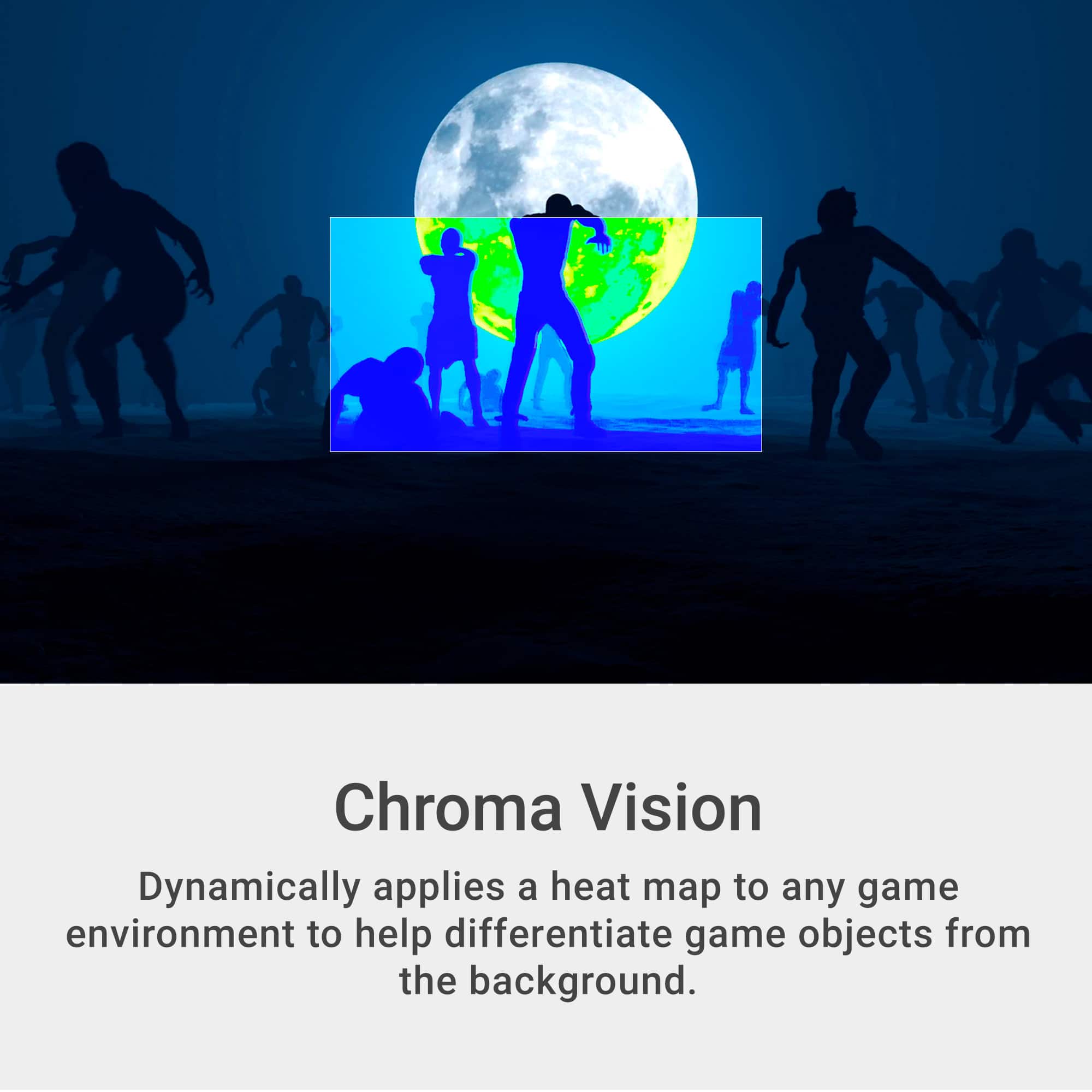
|Posted .This reviewer received promo considerations or sweepstakes entry for writing a review.The Dell G2524H is a new gaming monitor from dell that brings high quality gaming that will be difficult to beat at this price point. The Monitor mount is Vesa 100 compatible. The included stand is stable and has good height and tilt adjustment range. The monitor can be tilted up or down and rotated left and right compatible and can rotate to a portrait or landscape with the included stand. The monitor has a great modern look with a black bezel and a grey metallic body the stand also follows the same color pattern. Dell includes all the cables you will need to connect to the display port and a USB A to USB B cable to connect to the monitors built in USB 3.2 gen 1 hub that has 2 ports on the left bottom of the monitor. The USB port closers to the stand supports power charging as well. Dell does not include the HDMI cable probably because the 280HZ refresh rate is only supported on the display port inputs. There are 2 display ports (HDCP 1.4) and one HDMI 2.1 port (HDCP1.4) I was able to run the monitor from my USBC port to one of the display ports and achieved the advertised 280 hz. The monitor does not have speakers. Resolution is Full HD 1980 x 1080 @280 HZ using a 90 DPI 24.5 inch IPS panel with 1ms response time in extreme mode. The Blacks are really good with great brightness. There monitor does not support HDR. AMD Freesync and Nvidia G-sync are supported. The monitor has great response rate for gaming with little to no ghosting noted during gaming or testing. The monitor even includes four unique overlays to enhance gaming (Night vision for dark scenes, Clear vision for daytime scene detail enhancement Chroma vision that applies a heat map to any game to define game objects from the background and Crosshair to assist aiming). This is a great beginner to midrange gaming and will serve you well. It will also work well as a productivity or media consumption monitor. In order to get the 280 hz mode you will need to open the monitor menu choose the gaming menu and then overclock settings of 280 hz. You can tweak the image by adjusting the preset mode, the response time the dark stabilizer and turning the vision engine on or off. Although the colors were not great with standard out of box settings, I was able to get excellent colors by using the all the adjustments. The adjustments are made with buttons on the right back of the monitor and a joystick button at the top of the row. I found the controls a little difficult to use at first but you get used to them. One cool thing is you can display the current refresh rate in the upper right corner by turning the frame rate setting on in the gaming menu. I highly recommend this monitor for the new to mid-range gamer at this price point you get a great monitor with 280 hz refresh rate, bright ips panel with excellent viewing angles. Dell includes a fantastic warranty that will replace the panel even if 1 pixel is defective during the 3 year limited hardware Warranty period, even including Advanced Exchange service with next business shipping. This makes it a winner in my book.
I would recommend this to a friend - Pros mentioned:Connectivity, Overall performance, Viewing angle
Affordable Ultra Smooth & Detailed Gaming Graphics
|Posted .This reviewer received promo considerations or sweepstakes entry for writing a review.The Dell 25 Gaming Monitor is an outstanding simulation and FPS gaming graphics performer. Unpacking and Setup The monitor comes well-packed and includes a DisplayPort cable, USB-C to DisplayPort cable, USB 3.2 upstream cable, and a power cable. An illustrated guide sheet provides clear instructions for assembling and setting up the monitor. I had no problems inserting the mounting stand into the base with a single anchor bolt and attaching the stand to the back of the VESA mounting interface monitor. A quick-release button provides an easy detaching of the stand from the monitor. I connected the DisplayPort cable and the USB upstream cable to my desktop gaming computer and plugged in the power cord. The monitor power button is on the bottom right with a non-distracting LED light. A joystick control button and four push buttons are on the monitor's right lower back. The monitor can be switched between landscape and vertical portrait orientation, raised/lowered, and tilted for comfortable viewing. Configuration A push of the joystick on the back will display the monitor configuration menu. Moving the joystick will step through the menus. The Primary menus are: • Game - Preset and customizable gaming modes with color settings, Overclocking, Response Time, Dark Stabilizer, Console Mode, Hue, and vision engine settings (Night Vision, Clear Vision, Chroma Vision, Crosshair). • Brightness / Contrast • Input Source - To select which port is connected, auto-select and reset to factory defaults. • Display - For adjusting the Aspect Ratio, Input Color Format, Sharpness, or Reset to factory defaults. • Menu - For configuring the Language, Transparency, Timeout delay, or Reset to factory defaults. • Personalize - Provides the assignment of the three shortcut keys, Power Button LED settings, USB enable/disable during monitor standby, and Reset to factory defaults. • Others - Gives access to the DDC/CI for software control over the monitor, LCD Conditioning, Firmware version, Service Tag ID, Self-Diagnostics, Reset of Others defaults, and Factory Reset of all settings. Gaming For my specific gaming, I focus primarily on the maximum realism provided in Microsoft's Flight Simulator and No Mans Sky. Both games use full-screen depictions of movement through real-world and fictional world environments. I configured the monitor to use Overclocking to 280Hz, RTS mode, and Clear Vision. I run a desktop computer with a 12th Gen Intel Core i7 CPU, ASRock motherboard, Intel Arc A750 GPU, and a 1 TB SSD. My Flight Simulator configuration is set for Ultra graphics with high-resolution textures, shadows, lighting, and movement of generated and multi-player-controlled vehicles. The flying experience with realistic terrains, textures, clouds, and streaming rain across my windshield is absolutely beautiful with this monitor. There wasn't any ghosting, frame lagging, or stuttering of the graphics. The No Mans Sky configuration is also set to the Ultra settings for the best in resolution textures, terrain, on-planet environments, and space flight. The monitor kept up with this sci-fi environment game's smooth and action-packed graphics. Monitor Features • 25" diagonal, Fast IPS panel, LED-backlit LCD / TFT active matrix • HD 1080p, 1920x1080 at 280 Hz • 1 ms response time (gray-to-gray extreme) • 16:9 aspect ratio, 90 pixels per inch, 0.2832-pixel pitch • 400 cd/m2 brightness • 99% sRGB color, ComfortView Plus, low-blue light emission • VESA Adaptive-Sync • NVIDIA G-SYNC compatible • AMD FreeSync Premium • Selectable preset graphics modes for Standard, FPS, RTS, RPG, Sports • Joystick monitor controller, four shortcut keys, 3 are customizable • Adjustable refresh rate, response time, color, gamma, brightness, contrast, sharpness • HDMI (HDCP 1.4) • 2 DisplayPorts 1.4 • USB 3.2 upstream • USB 3.2 downstream with battery charging • USB 3.2 downstream • 178-degree viewing angle • Tilt, swivel, pivot, and height adjustable • VESA Mount Interface Summary I am highly impressed with the performance and graphics quality of the Dell 25 Gaming Monitor. Even though my desktop does not utilize AMD NVIDIA graphics, this monitor had no problem keeping up with my Intel Arc graphics card. When I'm not gaming, I love the ability to rotate the monitor for writing code.
I would recommend this to a friend - Pros mentioned:Connectivity, Refresh rate, Viewing angle
Full On Gaming at an Excellent Price!
|Posted .This reviewer received promo considerations or sweepstakes entry for writing a review.The Dell 25” Gaming Monitor is versatile and packs an impressive punch for the price point. Included in the box is the monitor itself, a 6ft DisplayPort, 3.3ft USB-C to DisplayPort cable, and 6ft USB 3.2 upstream cable. Was quite pleased to see the inclusion of DisplayPort cables as this monitor can be connected to most PCs or laptops out of the box. A step ahead of many other manufacturers which usually only include a single HDMI cable. Upstream USB cable allows for the 2 USB ports on the monitor to be connected to the host computer. Assembly is quick and straightforward with the stand locking into place on the monitor without tools. Features a large cable management hole. Stand allows for 5 inches of height adjustment, 45 degrees of swivel, and 90 degrees of rotation allowing for the display to be completely vertical. Monitor can also be VESA mounted. Very versatile in my opinion. Monitor has very straightforward on-screen display which is navigated using a combination of both a “nipple” controller and regular buttons on the rear of the monitor. This combination is odd as monitors usually only have one type of control, but getting used to the OSD was easy enough. Display settings, inputs, and gaming-specific settings are accessible through the OSD. Monitor has 2 DisplayPorts, an HDMI 1.4 port, as well as a USB upstream and 2 USB 3.2 downstream ports. The high-speed USB ports located on the bottom left of the display are a convenient addition when using flash drives, connecting peripherals, and even charging my phone. The 1920x1080 Fast IPS panel sports impressively wide viewing angles and very minimal ghosting. The Fast IPS technology also has a claimed max response time of 0.5ms. An important factor when fractions of a second count while gaming. Thin bezels and matte anti-glare coating on the panel is a huge plus as well. Refresh rate comes standard at 240hz and can be “overclocked” up to 280hz. Have tested the monitor at both 240 and 280hz with no noticeable differences in motion blur. Monitor also exhibits Nvidia Gsync and AMD Freesync Premium adaptive refresh rate technologies, further eliminating screen tearing and contributing to a buttery-smooth gaming experience. Am highly impressed with the panel’s in-game performance and near-perfect results on the Blur Busters UFO Test. Display also covers 99% of the SRGB color space. Although this display may not have pricey features such as HDR and an ultra-HD panel, it still overperforms and is the best display I have seen in its price point. If you want a no-nonsense gaming monitor with all the essentials for smooth, fast-paced gaming, the Dell 25” monitor is for you.
I would recommend this to a friend - Pros mentioned:Connectivity, Overall performance, Refresh rate
Great for gaming and most other needs
|Posted .This reviewer received promo considerations or sweepstakes entry for writing a review.This Dell monitor is exceptional in every possible way. It is easy to set up, comes with high-quality cables, and has a fantastic picture. Here are some details about my experience. Setup: The setup for the monitor is effortless. Dell provides all the necessary cables the user will need including a DisplayPort to USB-C cable, which is very helpful for Apple users. The monitor's stand is in two pieces - the base and the column. The column snaps into place on the back of the screen and then the base screws into the bottom of the column. There is a convenient thumb screw that makes securing the base to the column very simple. You also have the option to connect the screen to a VESA 100 x 100mm mount if preferred. Once the screen is attached to the assembled stand, you only have to plug the monitor into power and to your chosen video input/output option. I selected the DisplayPort/USB-C cable so that I could plug it directly into my MacBook Air and Dell XPS Laptop without the need for a dock. Once the cables were attached, I pressed the power button, which is very small and located in the bottom right-hand corner of the screen. At first, I did have trouble locating it because of its size and the fact that the menu buttons are located on the back of the screen. While I appreciate the extra effort for the ease of use with the menu buttons, I thought it was an odd choice to separate the power button from the others. My laptops automatically detected the connected monitor and displayed the main desktop on it. Overall Impression/Usage: I didn’t have any issues with the monitor communicating with the host computers. The colors were vivid and the images were crisp. Since this monitor features an extremely high refresh rate (280Hz) motion is smooth and there is no tearing or ghosting when gaming. While I’m not a professional competitive gamer, I do enjoy playing Call of Duty with my friends on a nightly basis. Competition is definitely at the forefront of our minds and we are constantly trying to find the best tools for our gaming activities. This Dell monitor provides up to 280Hz refresh rate, which is great for competitive gaming, but it is a bit excessive for other computing activities. This monitor supports Full HD (1920x1080) resolution with a 240Hz refresh rate natively. You can reach the 280Hz refresh rate with the monitor’s Overclock setting - provided your host device supports it. It’s great for fast-moving visuals, but to get that high refresh rate, your host device’s CPU and GPU need to support it. First-person shooter games look incredible and I definitely feel a competitive edge from using this monitor. I can detect movement from long distances fast-paced gameplay - like when I take the sniper role - seems effortless. I didn’t notice any drag or lag on the screen. Conclusion: I’m not sure what else you could want from a gaming monitor. It’s easy to set up and within a few minutes, you can be gaming with an edge over the other players. Just make sure that you have the computing power to support the refresh rate.
I would recommend this to a friend - Pros mentioned:Connectivity, Refresh rate
Great entry into the ultra high refresh rate scene
|Posted .This reviewer received promo considerations or sweepstakes entry for writing a review.I’m no stranger to a Dell gaming monitor. Back in the day, the S2716DG with it’s TN panel and no frills styling stole my heart. While I eventually left Dell for another mistress, it wasn’t for lack of features. Dell builds some solid monitors, and the G2524H is no exception. Packing a USB hub, full articulating stand, G-sync compatibility, dual DP 1.4 and a HDMI 2.1 ports, IPS panel, and claimed 0.5ms response time, Dell’s offering into the competitive budget gaming space is nothing to sneeze at. At a competitive MSRP, it’s panel and overall package to be reckoned with. The box is Dell’s usual affair. Inside is a good amount of packing protection. Dell’s never skimped on a box, mostly because they ship it in it. That said, inside the box you’ll find a DisplayPort cable, USB-C to DisplayPort, USB 3.2 type B (upstream), and a power cable. Yes, you heard that right, no HDMI cable. Dell includes only the important cables, as if you’re buying this to use with your Xbox or Playstation, then you’re wasting the monitor’s potential. No Dell wants you to use USB-C or good old fat displayport coming from your high end GPU. And yes, you’ll want a high end GPU to take care of duties with this display. Speaking of the display, you’ll find pretty standard 7mm bezels, and a solid plastic frame. The stand is weighted and angled enough that you know it’s a gaming monitor, without there being flashy lights. The Dell logo on the back is iridescent and gives a nice subtle flare to the monitor. It isn’t quite a sleeper as its granddaddy S2716G was, but it’s still subtle. On the bottom you’ll find all the ports. This includes 2xDP 1.4, 1xHDMI 2.1, 1xUSB3 uplink, IEC AC power port, and 2xUSB 3 downstream. Interestingly, there are only 2 ports, and their location is less hub, and more convenience for your pen drives or other intermittent USB needs. It wouldn’t make sense to plug a keyboard and mouse in here, unless you’re using slimline wireless receivers, which then make a ton of sense (the position gives them line of sight with the device, while remaining subtle). The enterprising of you may notice that in the list of ports, there is a missing link: an audio output jack. You’ll notice when you plug it in, the monitor won’t report an audio connection. That’s because there are no speakers, and no analog audio output jack. I feel like this is a missed opportunity, as the ability to have multiple computers and a console connected and swap inputs to speakers connected would have been great. However, the lack of an audio port means that this monitor expects you to headset it up. If that’s the case Dell, why not include a headset hook? As far as the panel goes, we have an IPS, which is far superior to the TN panel of old. Not only is it much faster response time, but the colors, viewing angles, and uniformity are all top notch. Gray uniformity was excellent, blacks were… about as black as you can expect from an IPS panel without any local dimming: dark grey. Glow is present, but the corners of my monitor weren’t any brighter than any other area of the screen. No dead or stuck pixels (which my original S2716G had 2 stuck to green). Playing with the settings, I found FPS to be the best day to day color profile (without tweaking), and Super Fast response time to be better than Fast - as it appeared to have less blurring and not a lot of overshoot. 280Hz is hidden in overclock the Game menu. As far as feature set: the DP 1.4 paired with a sufficiently powerful GPU (Nvidia 4090 in my case) can push the 1080p@280hz limit fairly well in most games these days. 1080p high fresh rate is obtainable by most mid-upper tier cards. Now, is 280hz appreciably different from 240hz, it’s hard to say. Is it very different from 120Hz? I’m actually not able to tell as much as I thought. I’ve been using 120hz for a long time and the difference over 60 is huge. 280hz is not that different on the desktop. Now gaming, I think it depends. I played counter strike and a few other FPS games. Compared to my previous 120Hz, I can’t say I played better, but aiming and landing shots felt a bit more solid. Again, I think it depends on how fast you are naturally. That said, would I go for a higher resolution monitor and lower refresh rate? I think that depends on your use case. 1080p at 25” isn’t bad at all. But 27” 1080p looks kinda not great. So if you want a larger display than this, consider a resolution bump. The G2524H however is a great sweet spot. You get a screen bigger than many 23-24” 1080p displays, but not too big that it looks crappy. If you’re looking for a 240-280Hz monitor, Dell’s G2524H is a great contender. You get G-sync compatibility, dual display ports, USB hub, subtle styling, and an overall great panel. The super fast refresh rate is real, and is fluid. Blurring is minimal, and the response time, colors, and uniformity are great. The lack of speakers or really an output stinks, but that’s the worst I could say about this display. There are no advanced features, like ULMB, but it has it where it counts. Definitely recommended for anyone that’s wanting that high refresh rate.
I would recommend this to a friend