Monitors For MacBook Pro
Compare monitors for MacBook Pro by screen size, resolution, and connection options to find an external display that fits your workspace. Consider how much screen space you need for documents, creative projects, or side-by-side apps. Check your MacBook Pro model’s display support and ports to confirm compatibility and determine whether you’ll need a cable or adapter.
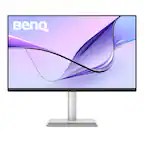
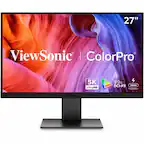
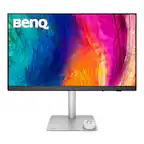

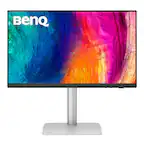
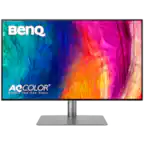


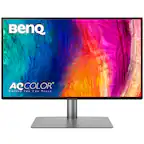


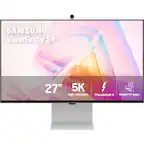

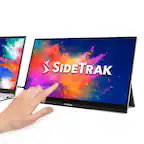
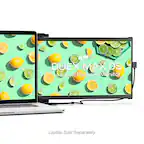
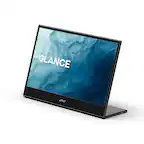


Monitors For MacBook Pro
FAQs
Depending on your MacBook Pro model, you can connect a monitor through HDMI or a Thunderbolt or USB-C port that supports video output. Match the monitor’s inputs to your laptop’s ports, and use a compatible video cable or adapter.
A monitor with USB-C Power Delivery can provide charging and carry video through one compatible cable. Check the monitor’s power output against your MacBook Pro’s charging requirements, since not every USB-C monitor supplies power or provides the same wattage.
After connecting the monitor, open System Settings and select Displays. You can extend your desktop for separate workspaces or mirror the built-in display to show the same content on both screens.
Look at color gamut coverage, factory calibration information, and available color presets. sRGB is commonly used for web content, while P3 coverage may be relevant for workflows that use a wider color gamut.
External display support varies by MacBook Pro model and chip, so check Apple’s specifications for your exact laptop. If you plan to use a dock, confirm its macOS display support and whether it requires additional software for multiple extended displays.