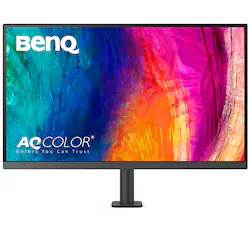
BenQ - AQCOLOR PD3205UA Designer 31.5" IPS LED 4K UHD Monitor with HDR10 and Ergo Stand (HDMI/DP/USB-C 90W/USB Type B) - Gray
- Key Specs
- Refresh Rate: 60Hz (The number of frames per second the device can produce natively without enhancement. Higher rates help produce smooth, seamless pictures.)
- Maximum Resolution: 3840 x 2160 (Maximum resolution refers to the highest number of pixels that a screen can process and display. Higher resolution signals produce more detailed images.)
- Panel Type: IPS (Technology that affects response time and image quality.)
- Synchronization Technology: Not Applicable (Generally, these technologies allow syncing between a computer/console game's frame rate and the device's refresh rate for a smoother display without tearing.)
- Screen Size: 31.5 inches (Size of the screen, measured diagonally from corner to corner.)
- Display Connector(s): 1 x DisplayPort 1.4, 1 x HDMI 2.0 (The number and type of connectors used to connect to an external display.)
- General
- Brand: BenQ
- Model Number: PD3205UA
- Product Name: AQCOLOR PD3205UA Designer 31.5" IPS LED 4K UHD Monitor with HDR10 and Ergo Stand (HDMI/DP/USB-C 90W/USB Type B)
- Color: Gray
- Operating System Compatibility: Windows, Mac
- Display
- Refresh Rate: 60Hz (The number of frames per second the device can produce natively without enhancement. Higher rates help produce smooth, seamless pictures.)
- Maximum Resolution: 3840 x 2160 (Maximum resolution refers to the highest number of pixels that a screen can process and display. Higher resolution signals produce more detailed images.)
- Contrast Ratio: 1000:1 (Measured difference between a displayed image's brightest whites and darkest blacks. The larger the first number, the more detail and color that can be displayed.)
- Display Type: LED
- Panel Type: IPS (Technology that affects response time and image quality.)
- Synchronization Technology: Not Applicable (Generally, these technologies allow syncing between a computer/console game's frame rate and the device's refresh rate for a smoother display without tearing.)
- Aspect Ratio: 16:9 (The measurement of the width of a screen compared to the height of a screen, expressed as a ratio.)
- Curved Screen: false
- Brightness: 350 candela per square meter (A measure of the total light output.)
- Screen Size: 31.5 inches (Size of the screen, measured diagonally from corner to corner.)
- High Dynamic Range (HDR): true (An HDR-compatible 4K TV or other HDR-compatible product displays HDR video content when it's available from sources like 4K Ultra HD Blu-ray Discs and 4K streaming services.)
- High Dynamic Range Format: HDR 10 (There are a few HDR formats that tell the TV or other HDR-compatible product how to best utilize its capabilities to display HDR content. HDR technology can support one or multiple formats, each with various benefits to picture quality.)
- Horizontal Viewing Angle: 178 degrees (The maximum angle at which the display can be viewed with acceptable visual performance from either side.)
- Connectivity
- Number of DisplayPort Inputs (Total): 1
- Number of HDMI Inputs (Total): 1
- Display Connector(s): 1 x DisplayPort 1.4, 1 x HDMI 2.0 (The number and type of connectors used to connect to an external display.)
- Number of USB Ports (Total): 7
- USB Ports: 3 x USB-A 3.2, 1 x USB-C 3.1 (The number and type of USB ports the product has.)
- Headphone Jack: true (The device features an interface that allows for the connection of headphones.)
- Compatibility
- Wall Mountable: true (The product is able to be secured to a wall. Some products are designed ready to mount, while others may require additional hardware/accessories for installation.)
- VESA Wall Mount Standard: 100mm x 100mm (VESA wall mount standards refer to the spacing of screw holes built into a TV in order to fit with standard TV wall mounts. These standards are implemented into most TVs and monitors.)
- Features
- Tiltable: true
- Adjustable Stand Height: true
- Anti-Glare: true (Product has features, such as a matte finish, that reduce the likelihood for screen glare.)
- Eye Relief Features: Anti-glare, Flicker free, Low blue light
- Built-In Webcam: false
- Integrated Speaker(s): true
- Dimensions
- Product Width: 28.1 inches (The out of box width of the item. Width is measured as the horizontal distance from one side of the item to the other as it would be primarily used or placed.)
- Product Weight: 22.3 pounds (The out of box weight of the item.)
- Stand Included: true
- Certifications Listings & Approvals
- ENERGY STAR Certified: false (Devices carrying the ENERGY STAR service mark, such as computer products and peripherals, kitchen appliances, and other products, generally use 20% to 30% less energy than required by federal standards.)
- EPEAT Qualified: false (The Electronic Product Environmental Assessment Tool (EPEAT) was designed to provide an environmental assessment tool for purchasers. In order to qualify for EPEAT, a product must meet all 23 required criteria.)
- Other
- UPC: 840046048686
Unleash your creativity and maximize your workspace with the DesignVue PD3205UA 31.5" 4K HDR Color Accurate Monitor. Its versatile Ergo stand, which easily clamps onto your desk's edge, allows for customized height and tilt adjustments, as well as the ability to rotate the screen 90° for portrait viewing. Get comfortable and productive with this innovative monitor.
- AQCOLOR Technology:: PD3205UA covers 100% sRGB/Rec.709 with Delta E ≤ 3 accuracy on an IPS panel, and Pantone, Pantone SkinTone Validated & Calman Verified
- Ergo arm:: PD Ergo Arm fully supports the flexibilities for swivel, height adjustment, pivoting, tilting, and the amazing cable management inside the arm
- 90W USB-C:: With 90W USB-C to synchronizes images, videos, data seamlessly, and charge your Mac devices all-in-one cable
- Keyboard video mouse (KVM) switch:: Display contents from two PC systems using one set of keyboard and mouse to save space and boost work efficiency
- BenQ ICCsync the P3 promptly:: BenQ ICCsync can be done within one second through the BenQ Display Pilot
Q: Does this monitor have built-in speakers?
A: Yes, the monitor has integrated speakers.
Q: What is the contrast ratio of this monitor?
A: This monitor has a contrast ratio of 1000:1.
Q: How many USB ports does this monitor have in total?
A: This monitor has a total of 7 USB ports.
Q: What is the maximum resolution supported by this monitor?
A: The maximum resolution supported is 3840 x 2160.
Q: What type of panel is used in this monitor?
A: This monitor uses an IPS panel.
Q: Does this monitor have an anti-glare feature?
A: Yes, this monitor comes with an anti-glare feature for eye relief.
Q: What is the difference between model U and UA?
A: undefined
Q: How tall is the mounting arm as measured from the desk.
A: The mounting arm is ~16.3 inches from desk to top of the post. The top of the monitor sits higher - nearly 24” at the highest position. The full product dimensions, including the mounting arm, can be found here: https://esupportdownload.benq.com/esupport/LCD%20MONITOR/CAD/PDF/PD3205UA/PD3205UA_Product%20Dimensions_V001_Others.pdf It’s a great monitor. I love it. (If you get it, use thinner cables when possible. Braided cords are durable, but take up a lot of space that this arm doesn’t really have room for.)





 ID 0217009883 DELL](https://pisces.bbystatic.com/image2/BestBuy_US/images/products/02b1baee-5e9e-4728-a97b-530b98976650.jpg;maxHeight=144;maxWidth=200?format=webp)