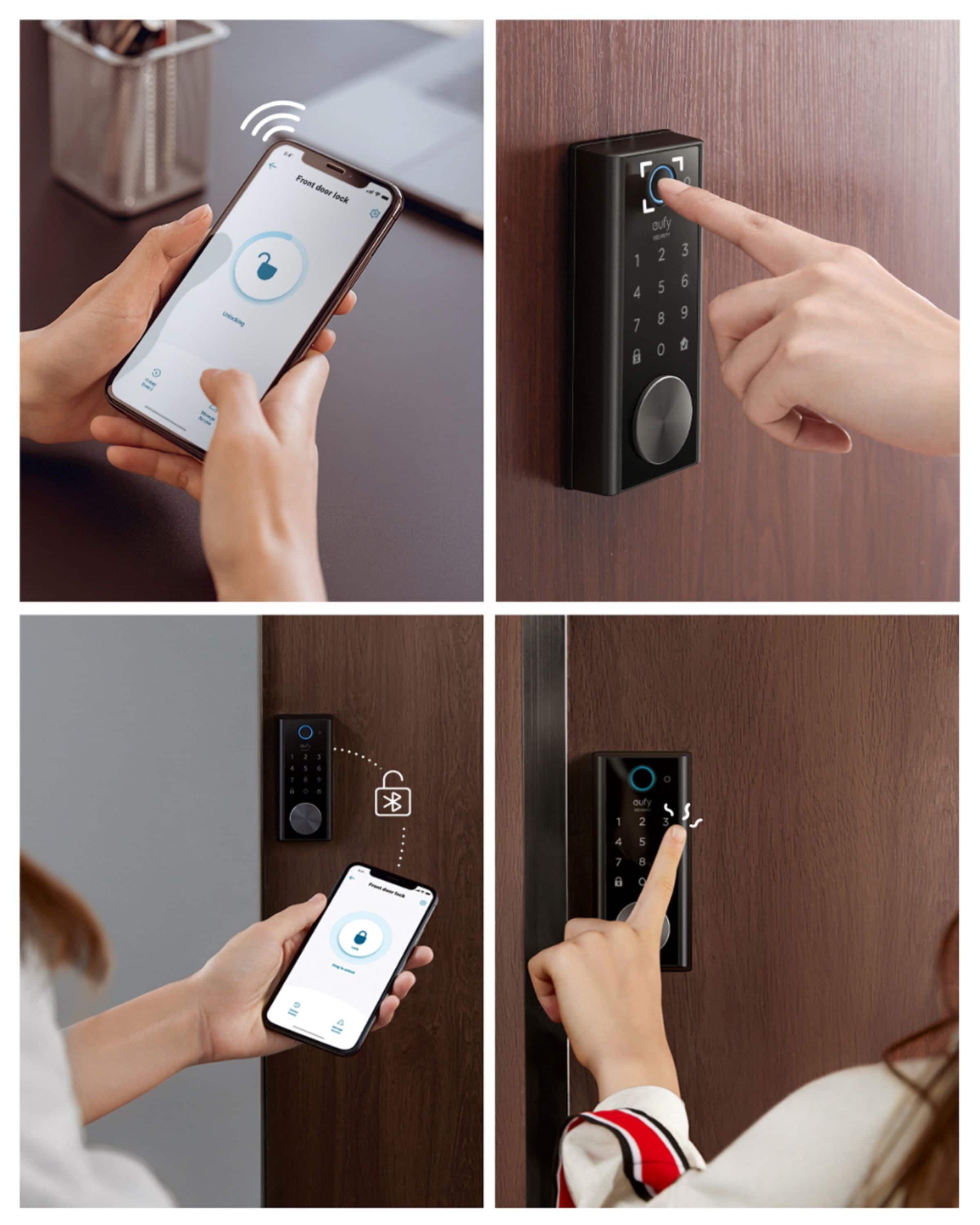
A:AnswerEach member would make their own account and then you can share the device. In our home only i have an account and the kids all have access. They cant unlock or lock the door via the app but have their own fingerprint and access code set up.
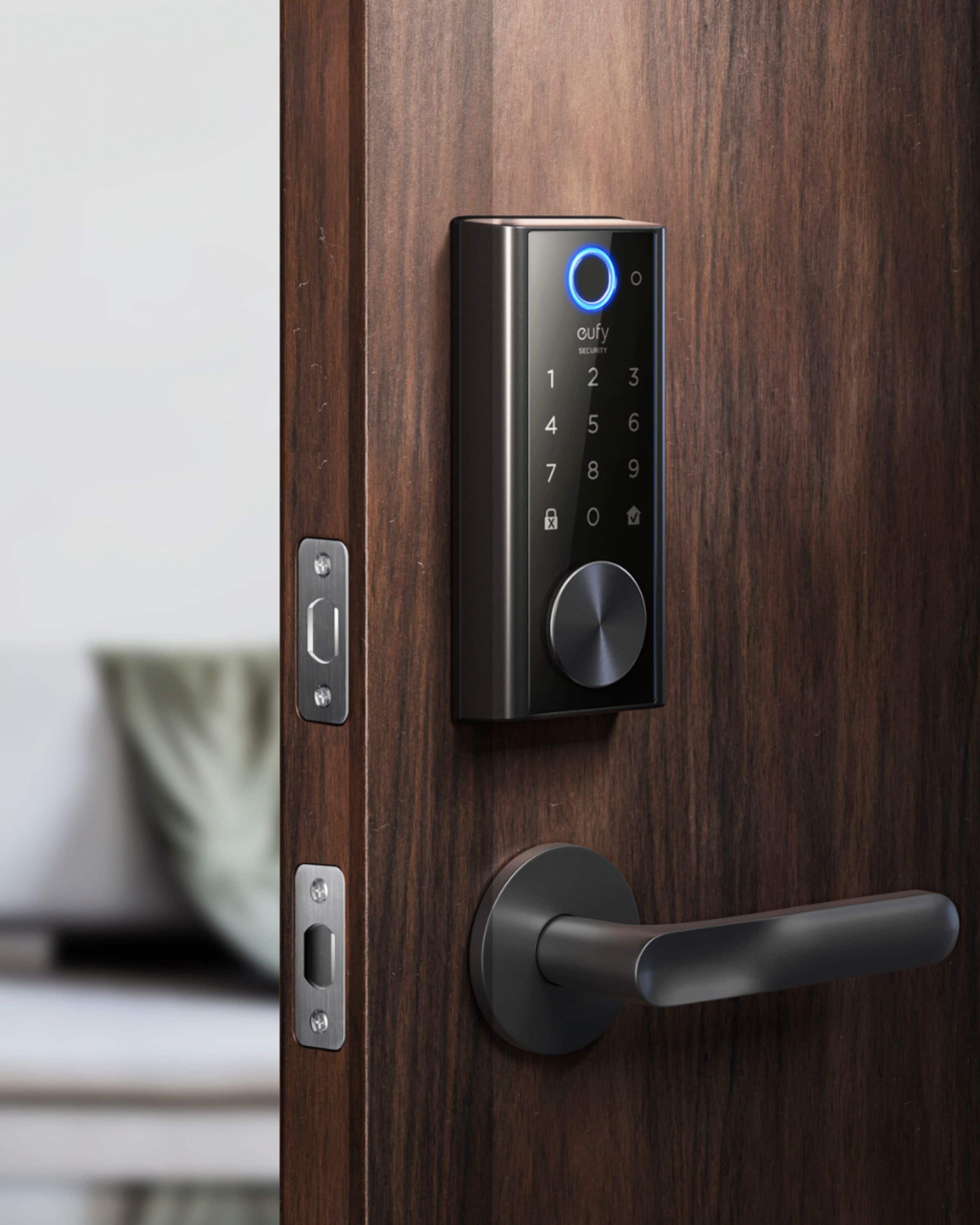
A:AnswerThe eufy Security Smart Lock is compatible with doors that are 1-3/8" to 2-1/8" (35mm to 55mm) thick. It does not officially support doors thicker than 2-1/8" (55mm), and there is no mention of an extension kit available for doors that are 2-1/4" thick.
You may need to check for third-party solutions or modifications, but these are not officially supported by eufy. Make sure your door fits within the specified dimensions for guaranteed compatibility.
A:AnswerMy keypad is sensitive as well however I like this. I would rather is register each touch then have to make multiple attempts just to get it to acknowledge the number I am pressing.
A:AnswerTo install the eufy Security Smart Lock, you need to ensure there is sufficient clearance for proper functionality. Specifically, the location of the handleset or bored deadlatch should be more than 150mm (5.91 inches) from the center of the deadbolt's cross bore hole. This is the vertical clearance needed between the deadbolt and any handle above it.
If your current setup aligns with this measurement, the eufy Smart Lock should fit appropriately.
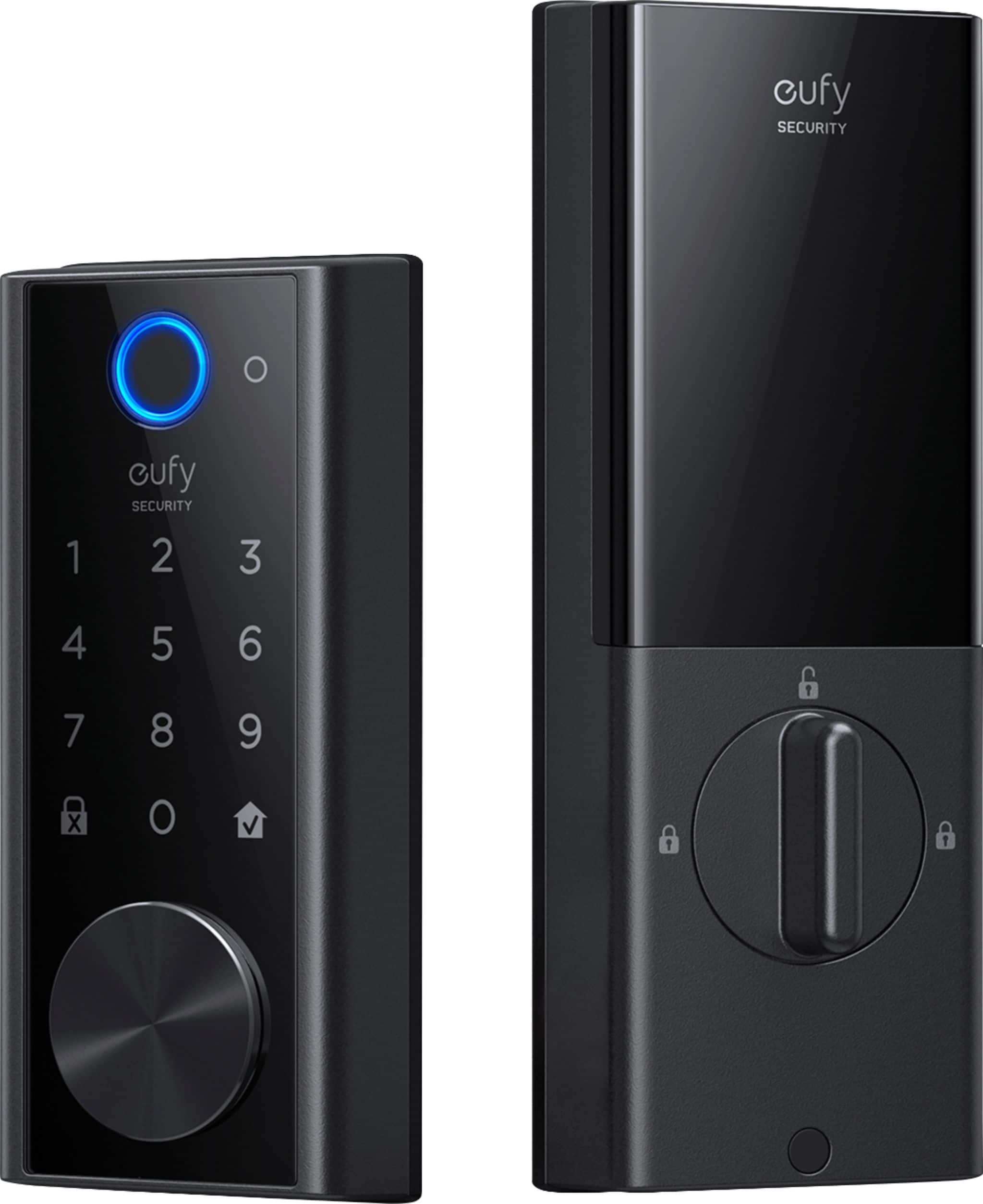
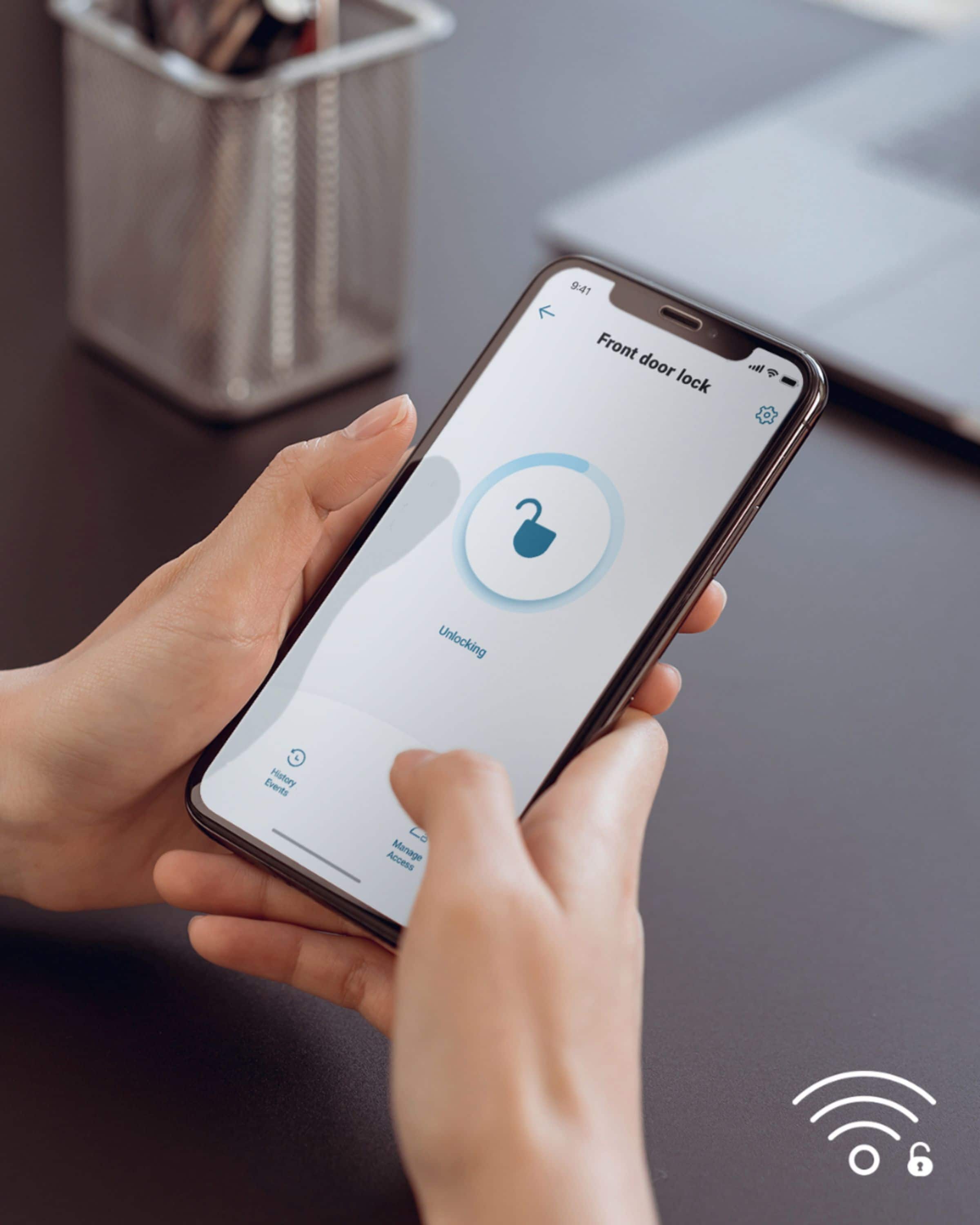
A:AnswerNo just wifi i used it away from home and it works perfectly i unlocked and let someone in and i locked it back and i was 5000 miles from home just download the app and you should be good
A:AnswerIf your eufy Security Smart Lock cannot reconnect to Wi-Fi after a network change, here are some steps you can follow to troubleshoot the issue before considering a full setup from scratch:
Reboot the Router and Check Signal Strength: Restart your router and, if possible, move it closer to the Smart Lock to ensure a strong and stable Wi-Fi connection.
Power Check: Ensure that the Smart Lock has sufficient power and is functioning properly.
Manually Wake the Lock: Try unlocking or locking the Smart Lock manually or touching the keypad to wake it up. This may prompt it to reconnect to Wi-Fi automatically.
Wi-Fi Password Check: Make sure there are no special characters or spaces in the Wi-Fi password, as these could interfere with the connection.
Connect Through the App: Go to the app, navigate to lock settings > general > connection, and attempt to reconnect to the correct Wi-Fi network or try connecting via a hotspot.
Reset and Reconnect:
Restart the lock by pressing the reset button located at the bottom of the lock to see if this resolves the issue.
If necessary, disconnect the wire plug between the exterior and interior assembly of the lock, reconnect them firmly, and retry.
Remove and Re-add the Device: As a last resort, you may need to remove the device from the app and set it up as a new device. To do this:
Press and hold the "SYNC" button on the lock for 10 seconds to reset it (for some models, this may vary, so confirm based on your lock model).
Resume the setup process through the app.
These steps should help you reconnect your Smart Lock to the updated Wi-Fi network without requiring the complete disassembly of the lock.
A:AnswerIn the app there is a lock and unlock history section. That will show who locked and unlocked. Assuming they use their own finger print or code designated to them.
A:AnswerThe eufy Security - Smart Lock models are designed for compatibility with wooden doors, as mentioned in the knowledge base. However, whether it can replace a Yale Nest lock without reconfiguring the interior bolt catch depends on the specific dimensions and fitting requirements of your door and the original lock mechanism.
To check whether your door/frame dimensions meet the requirements for a eufy Smart Lock, you can refer to the eufy Smart Lock Compatibility and Requirements. This will provide detailed guidance on installation requirements.