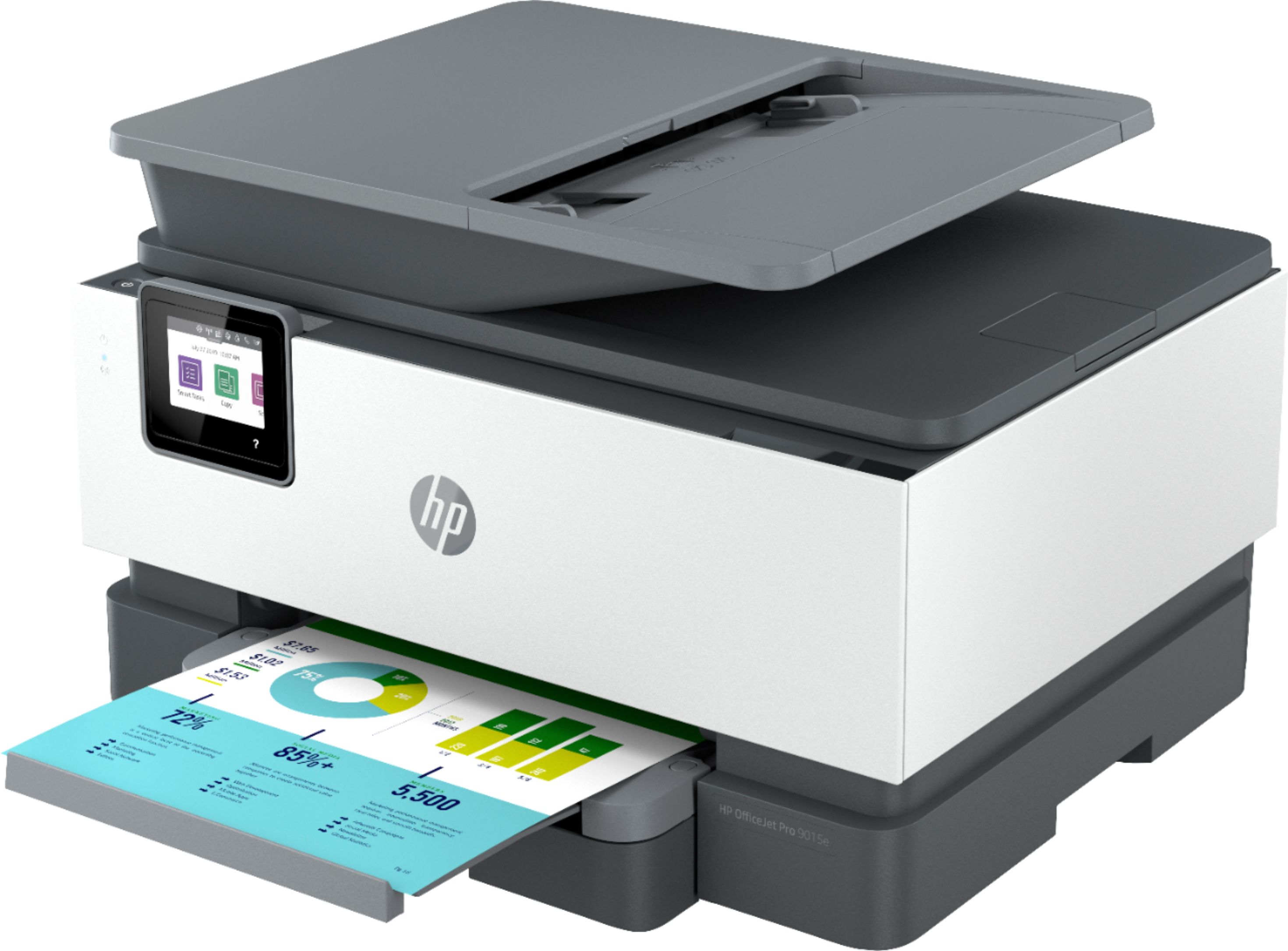
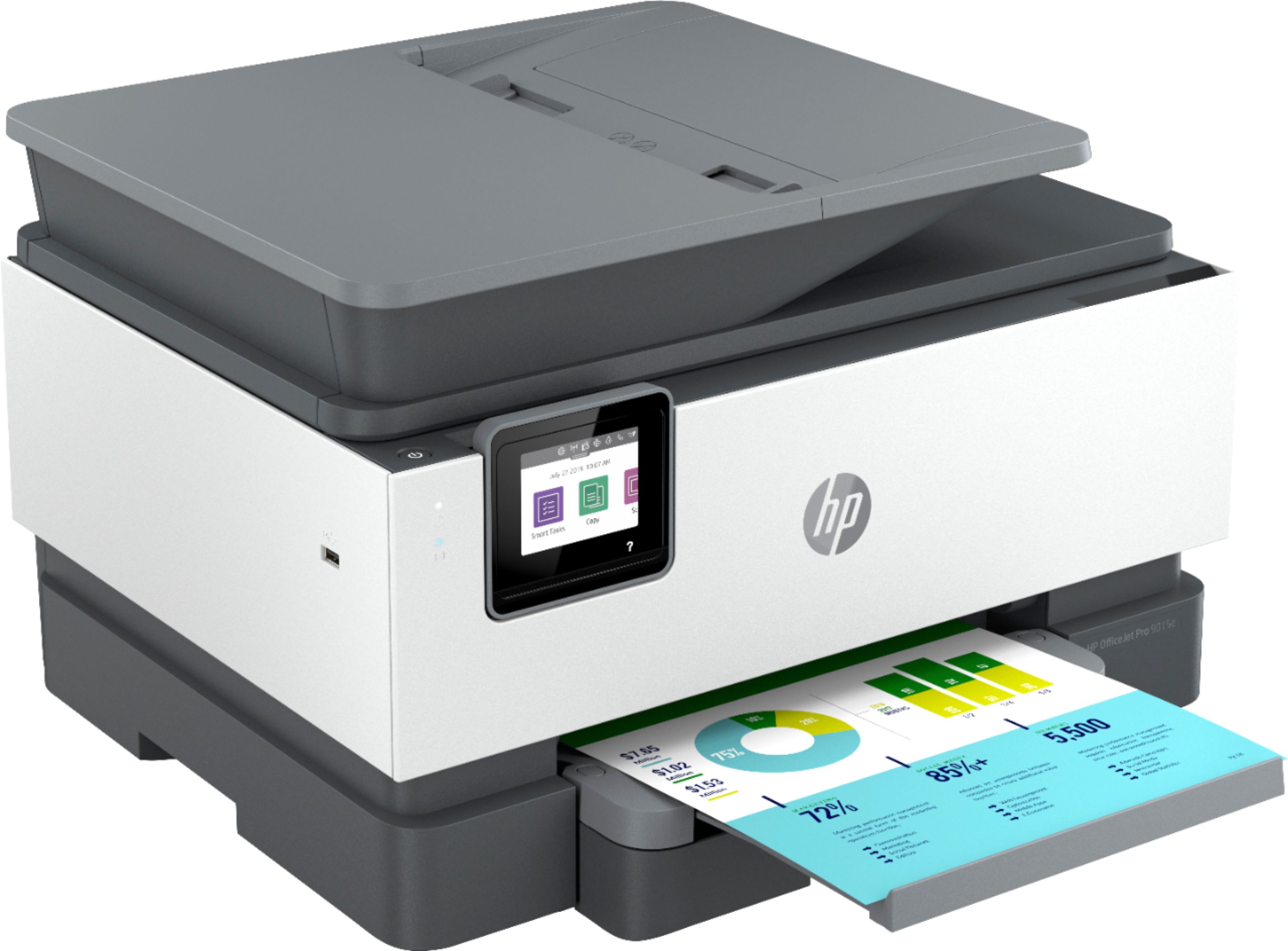
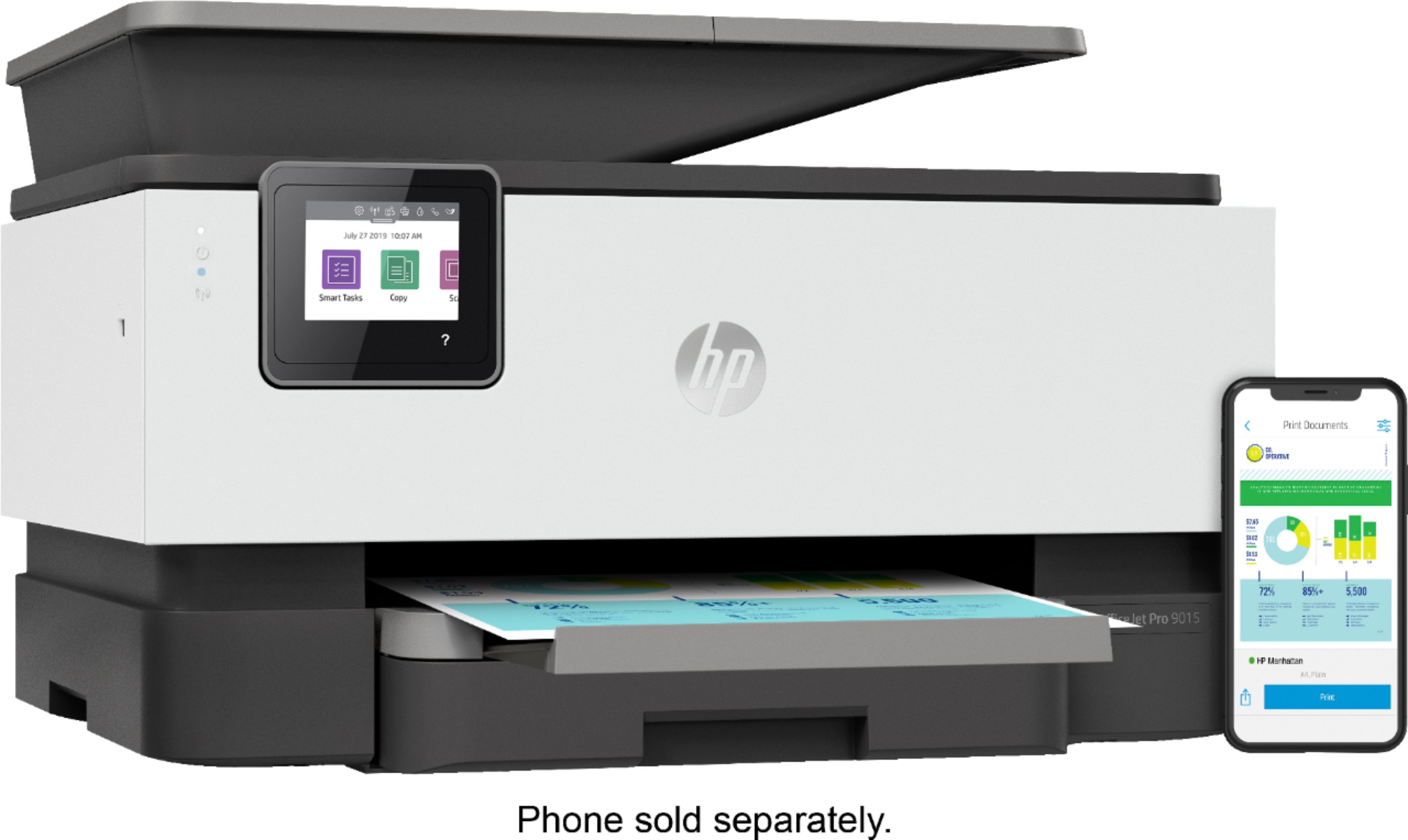
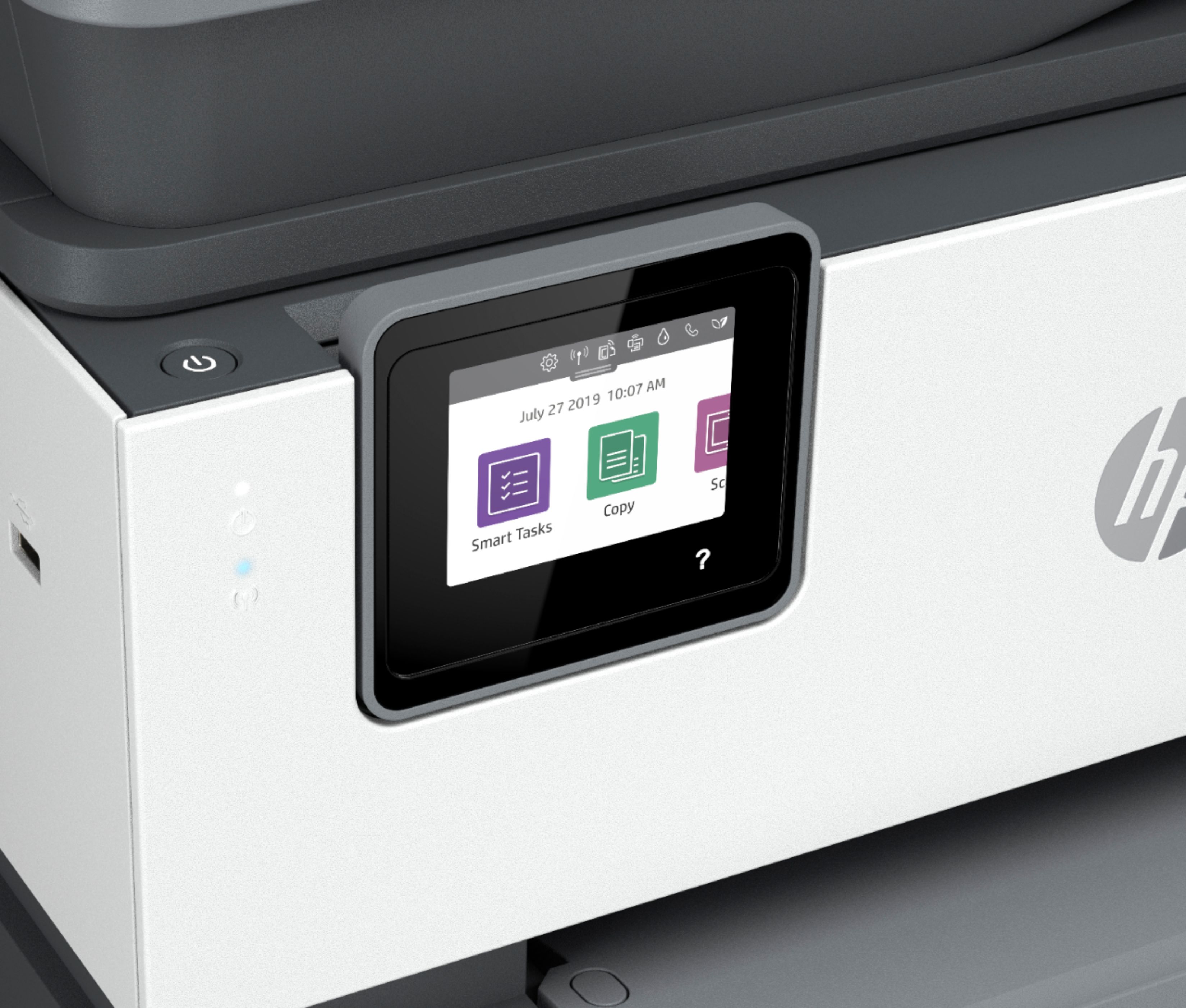
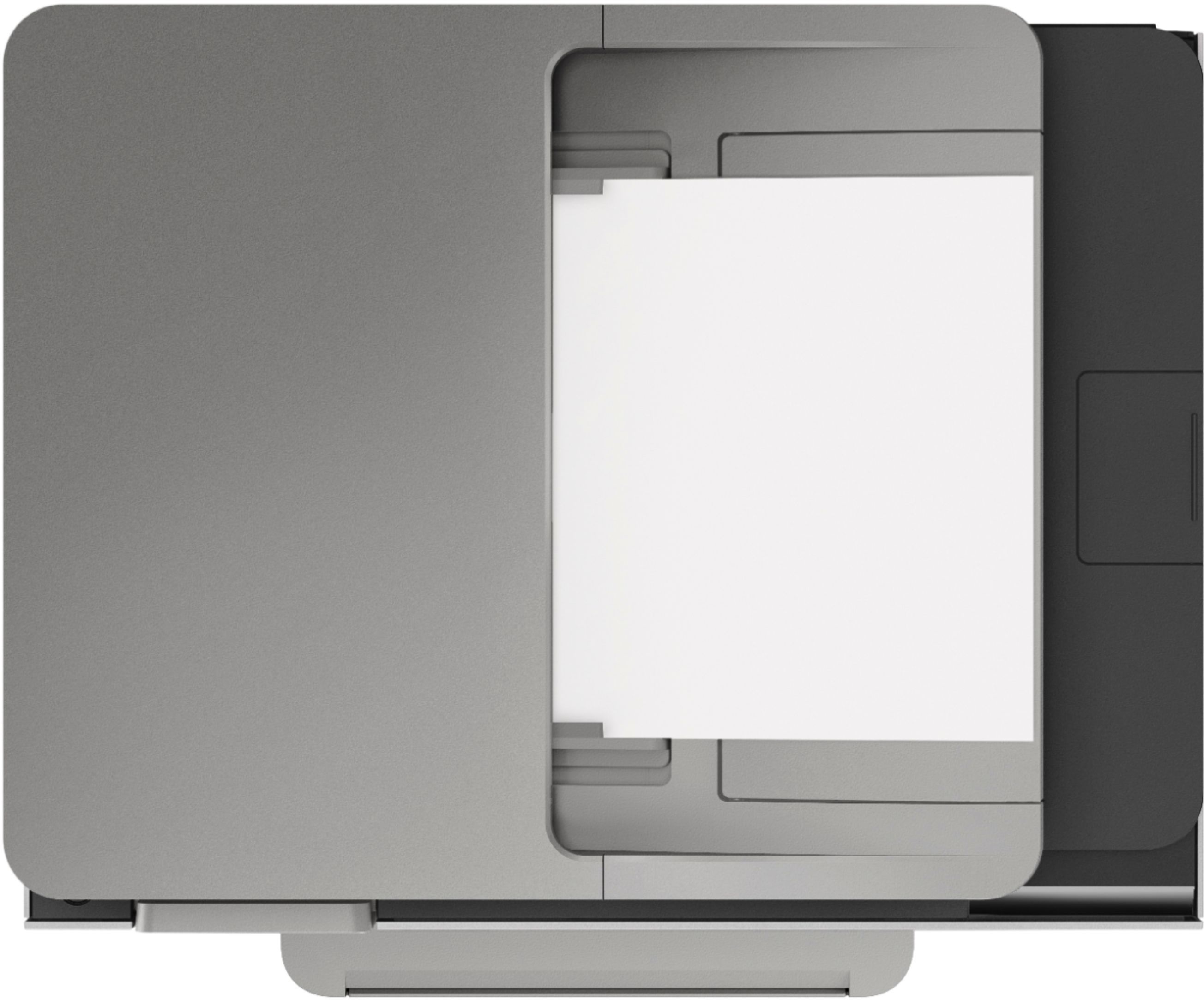
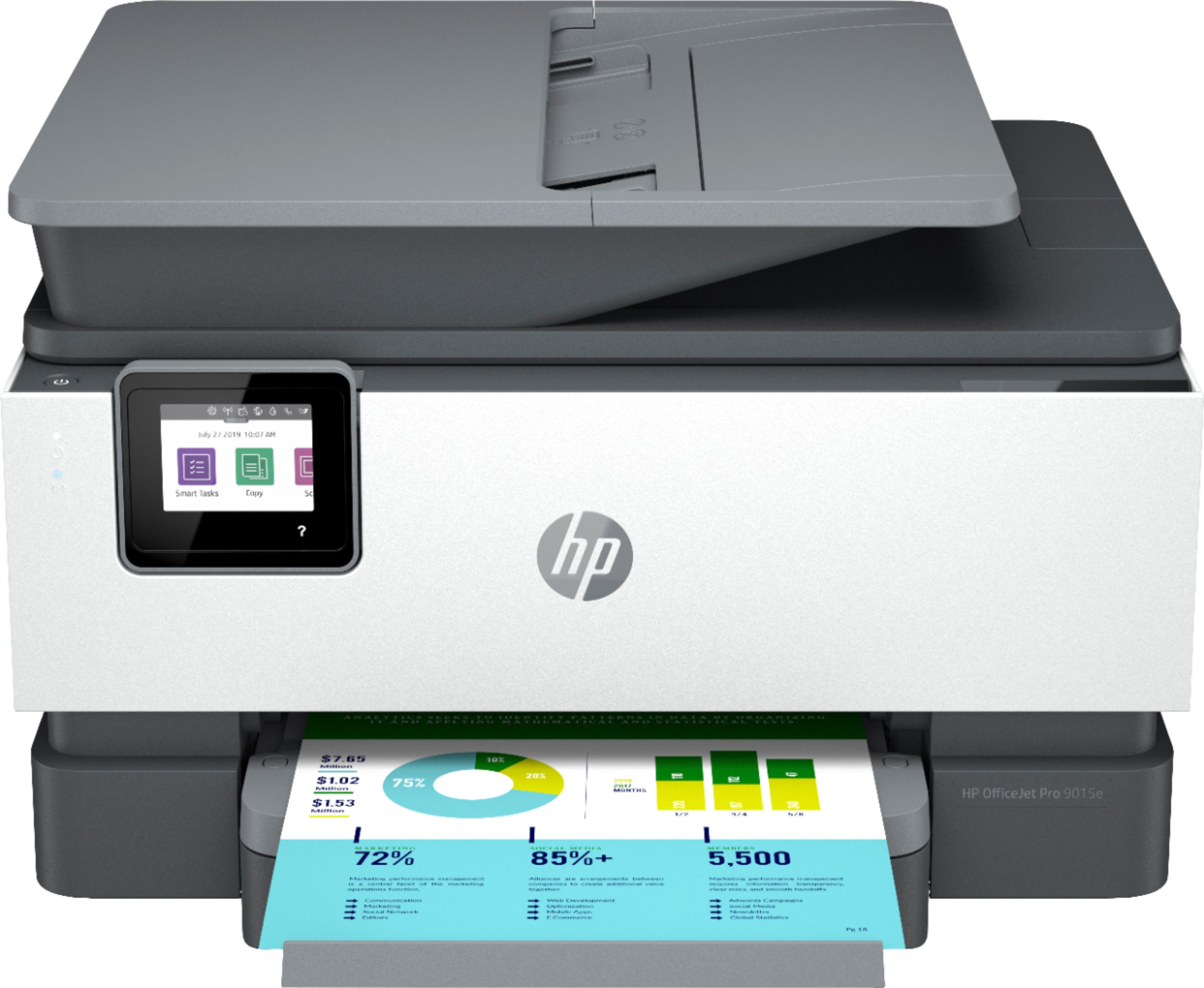
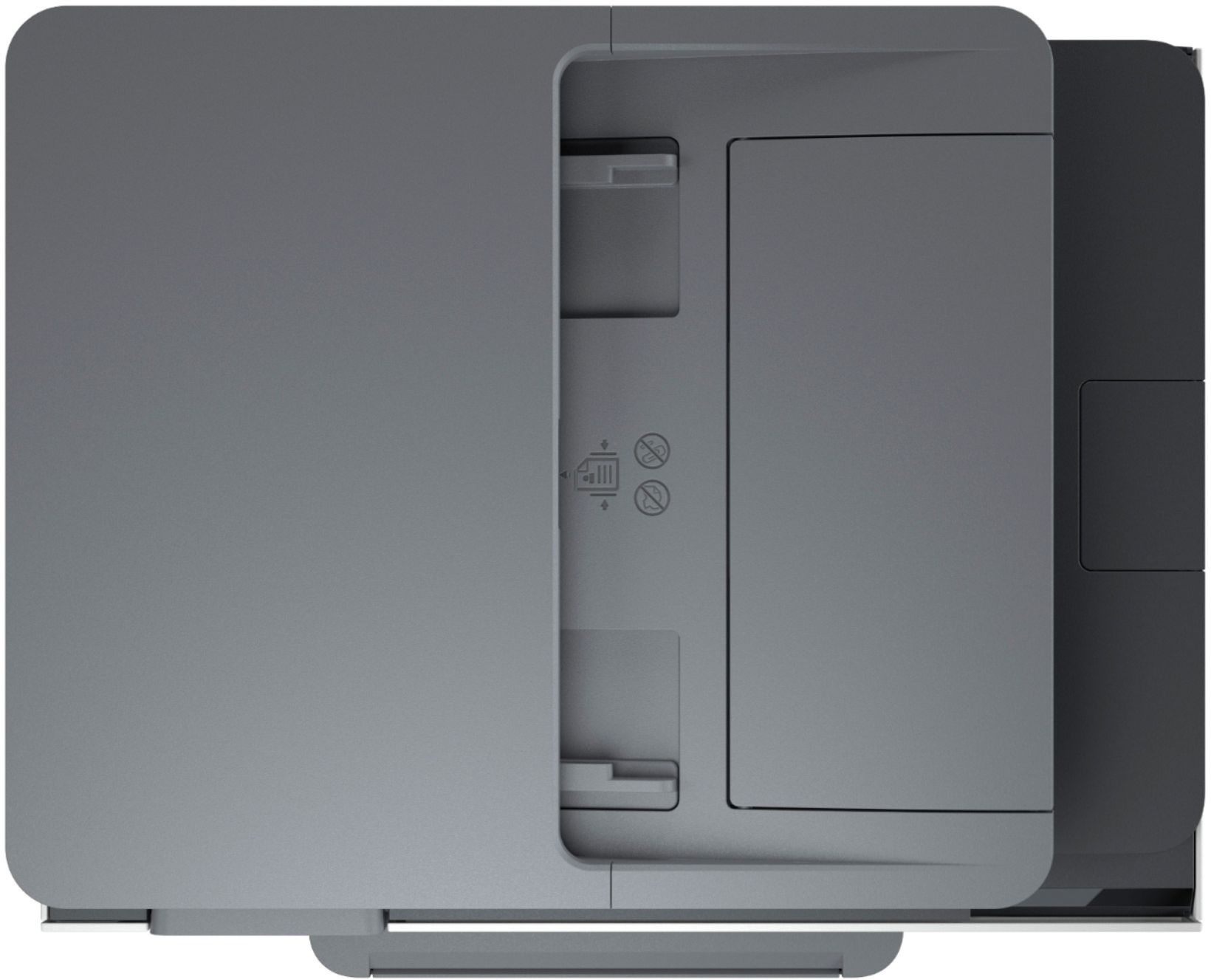
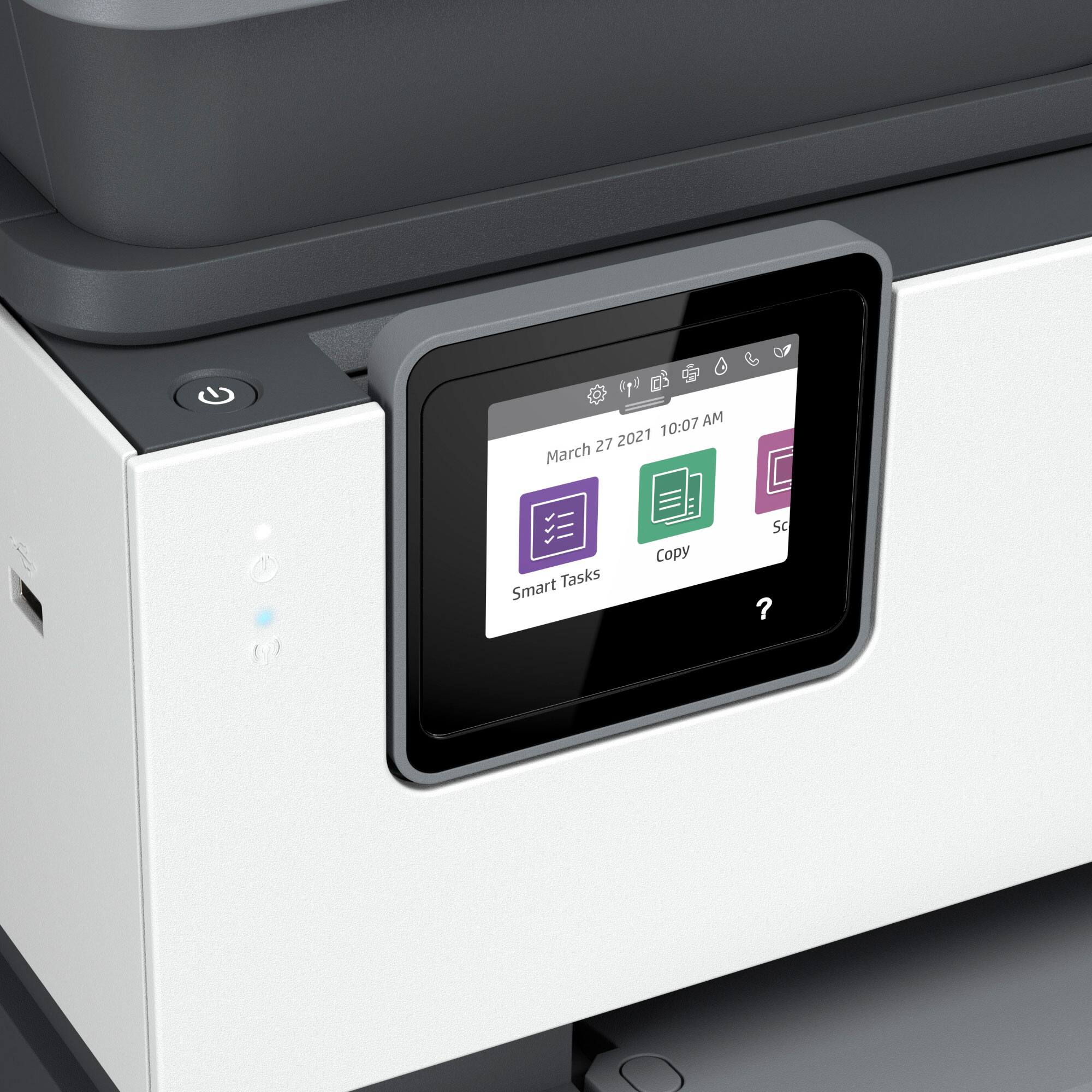
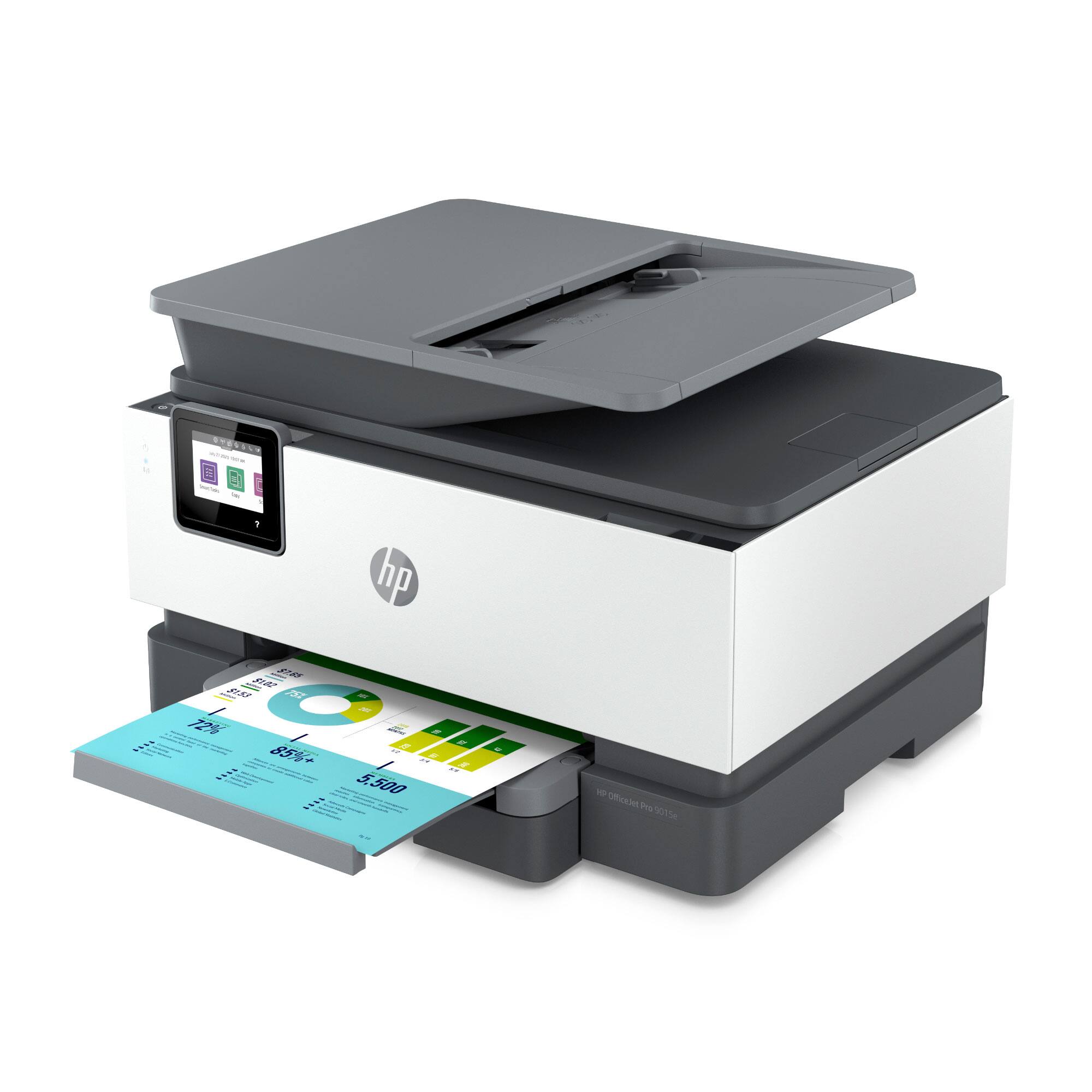
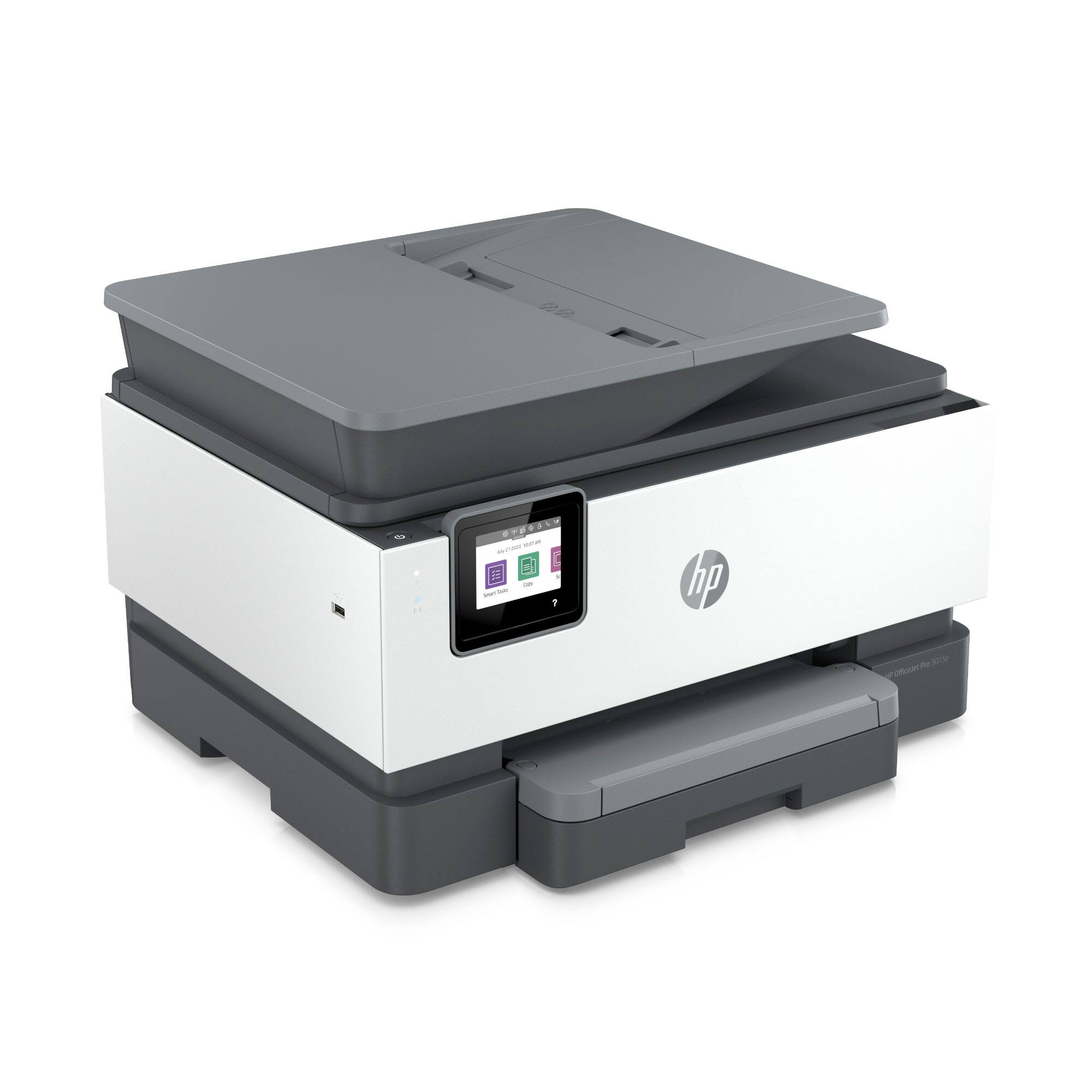
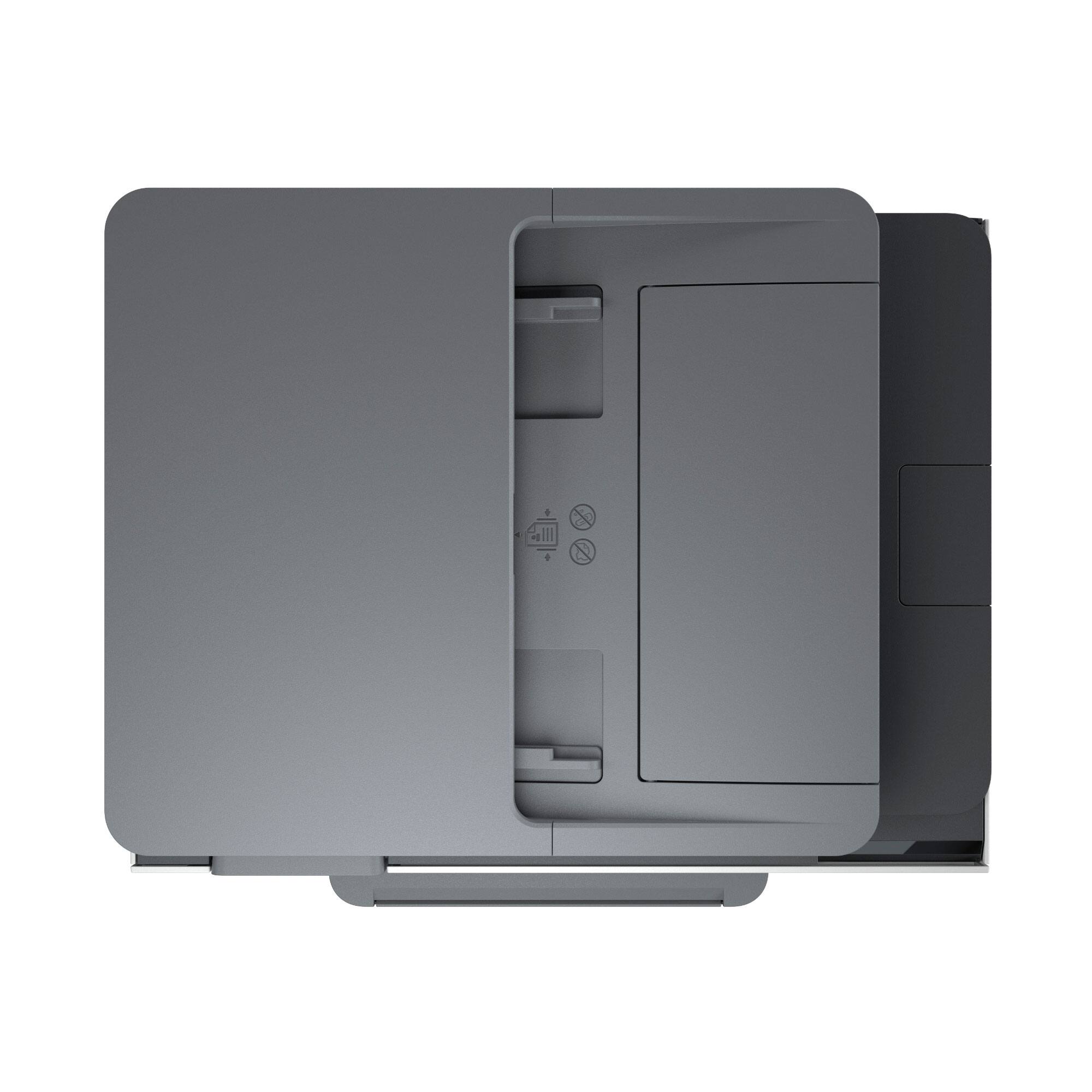
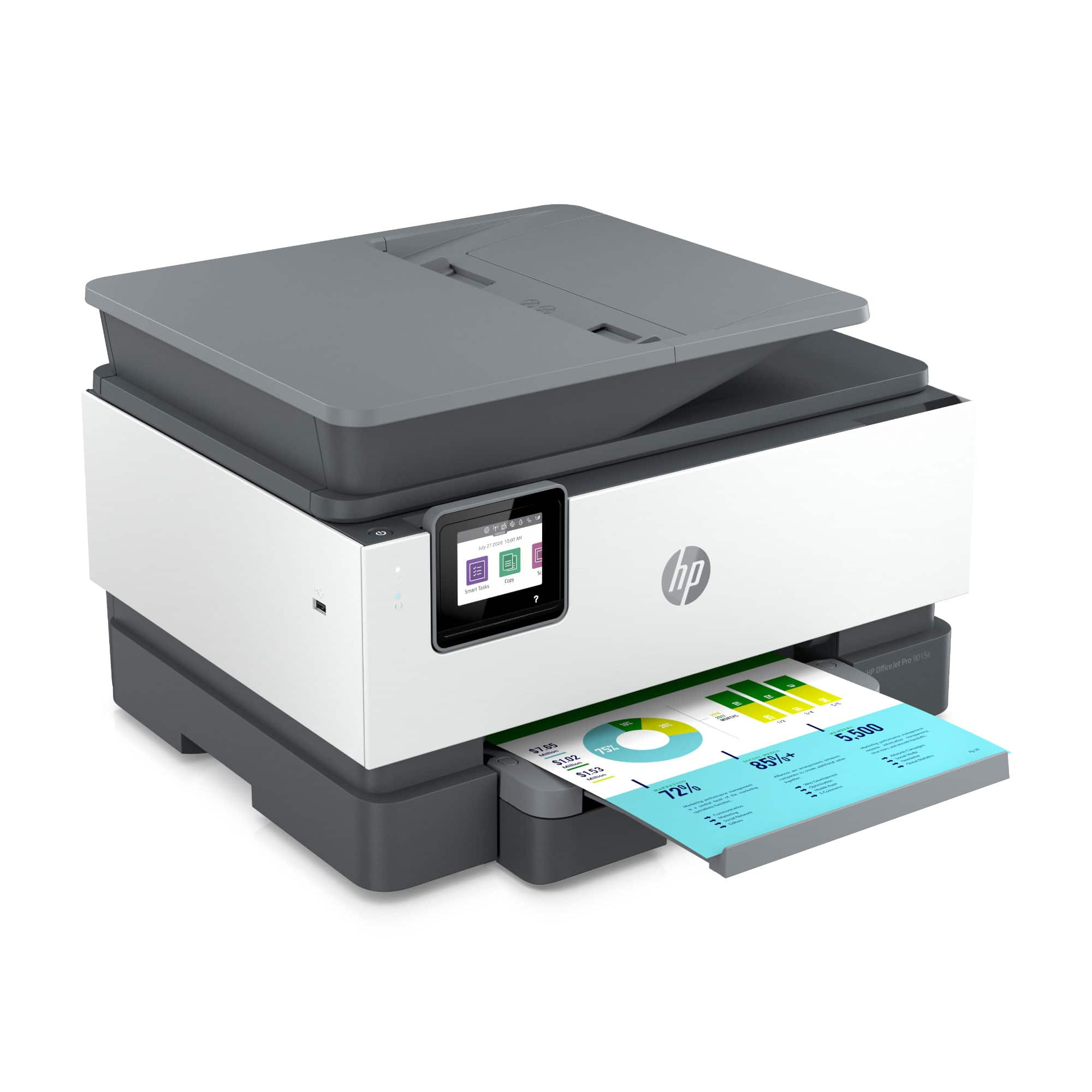
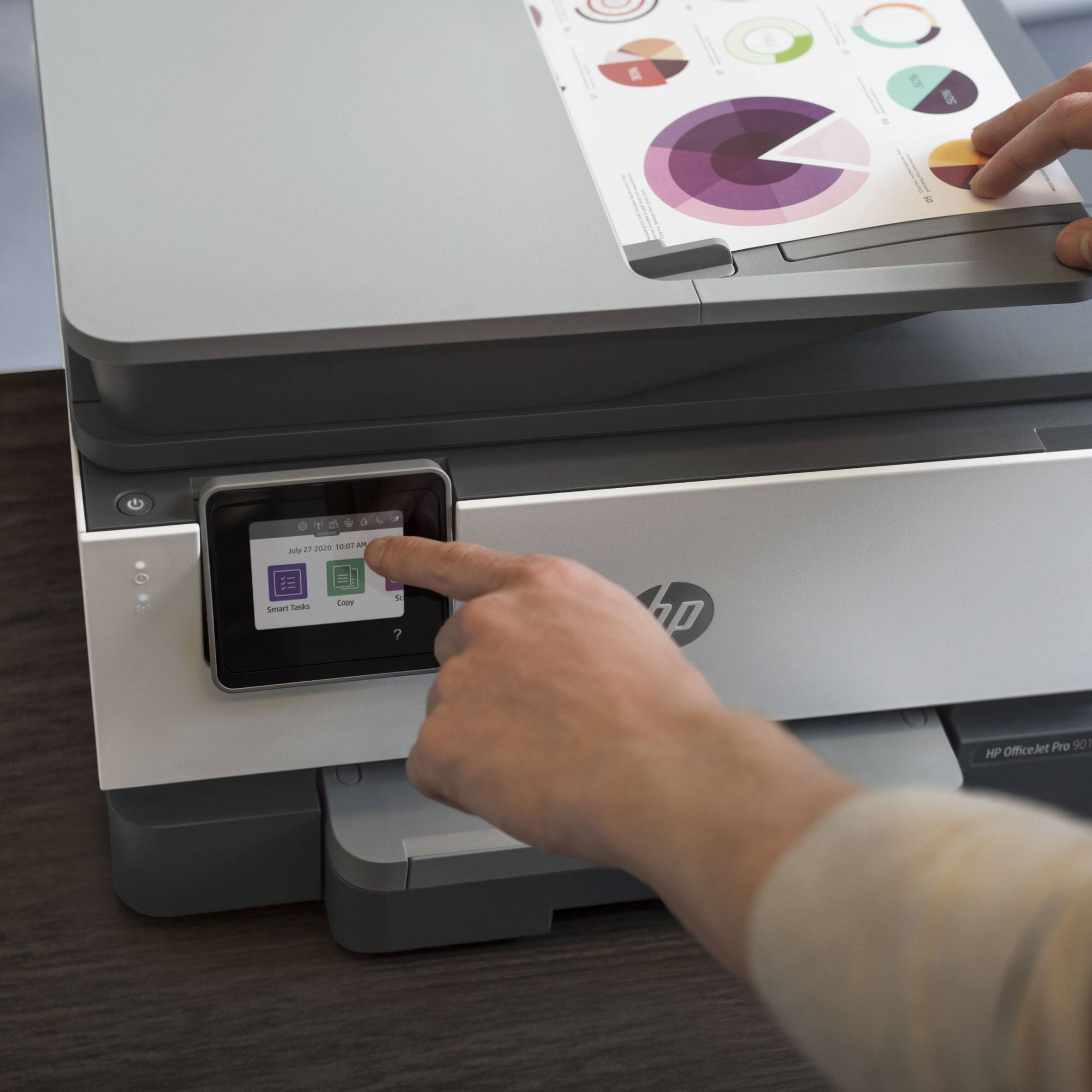
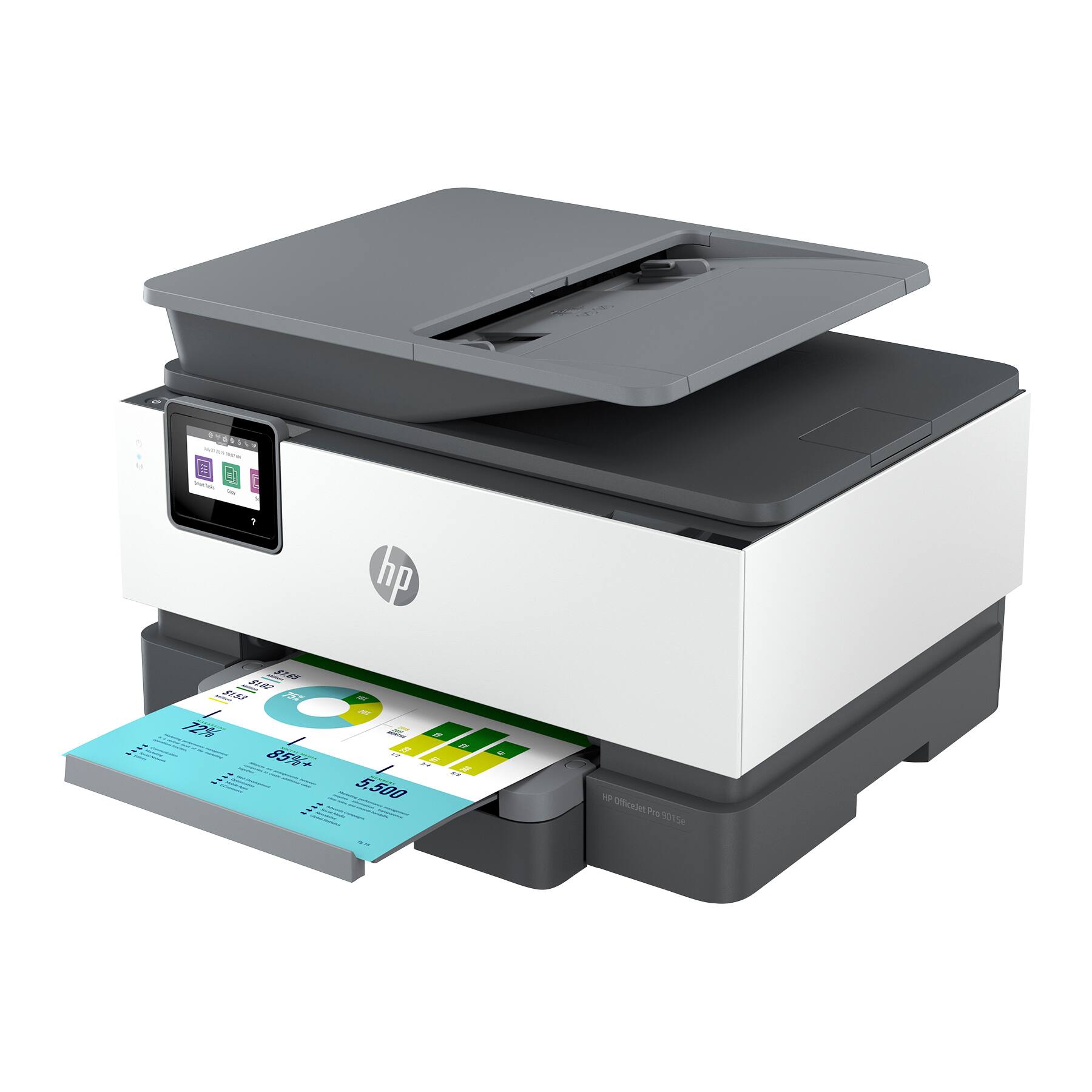
A:AnswerYes. It has a scanner glass that will take documents up to 8.5x11. You can scan up to 8.5x14 inch documents using the document feeder on the top of the printer.
A:AnswerSorry, but I do not know. Good luck! I find this printer is much more noisy than my 8000 series printer that just died! I am hoping that what they said about ink usage will make up for that!
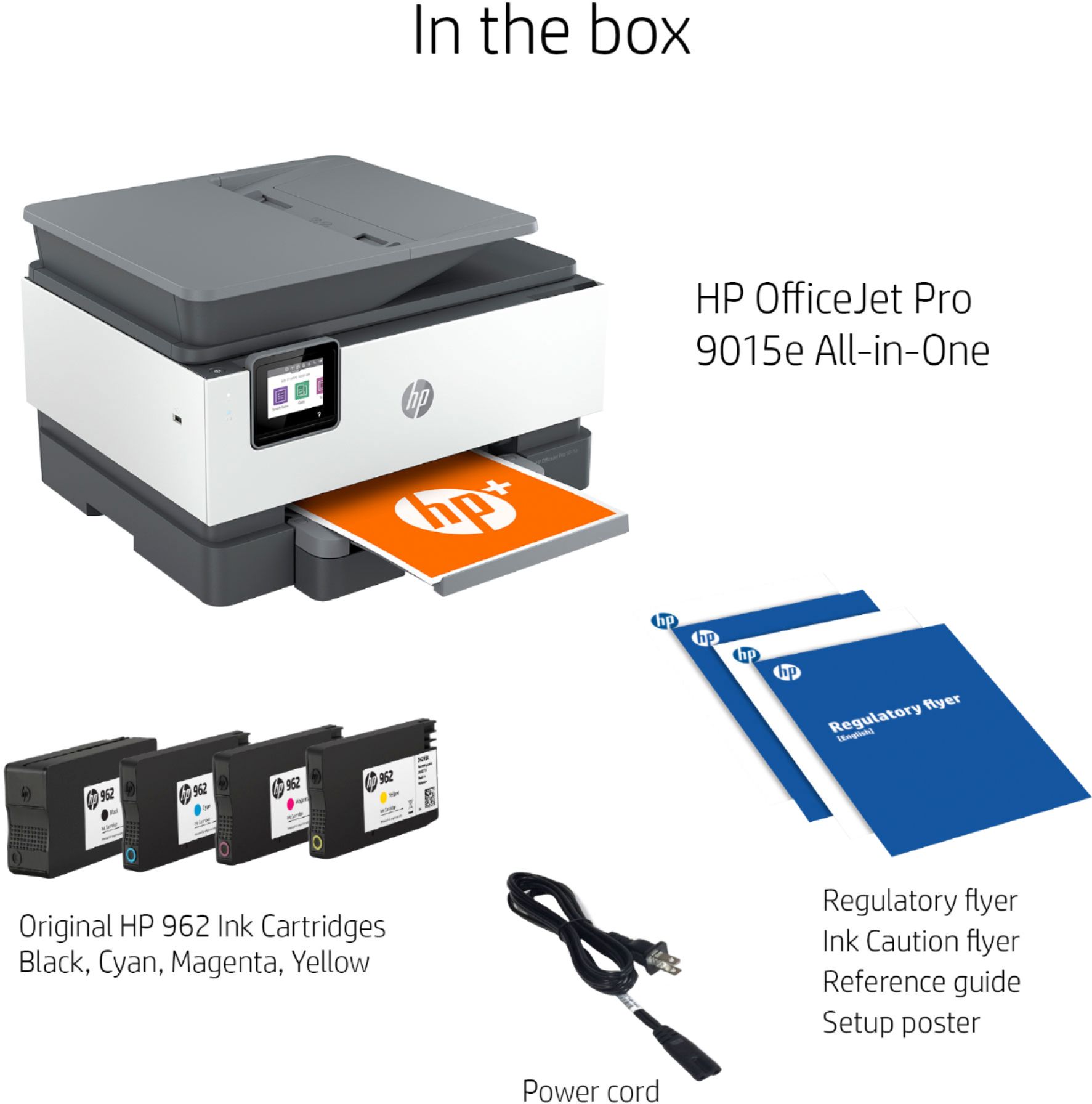
A:AnswerIt comes with ink and a setup sheet. There's no CD/DVD for setup, because the computer will grab whatever files it needs during setup from the HP driver website.
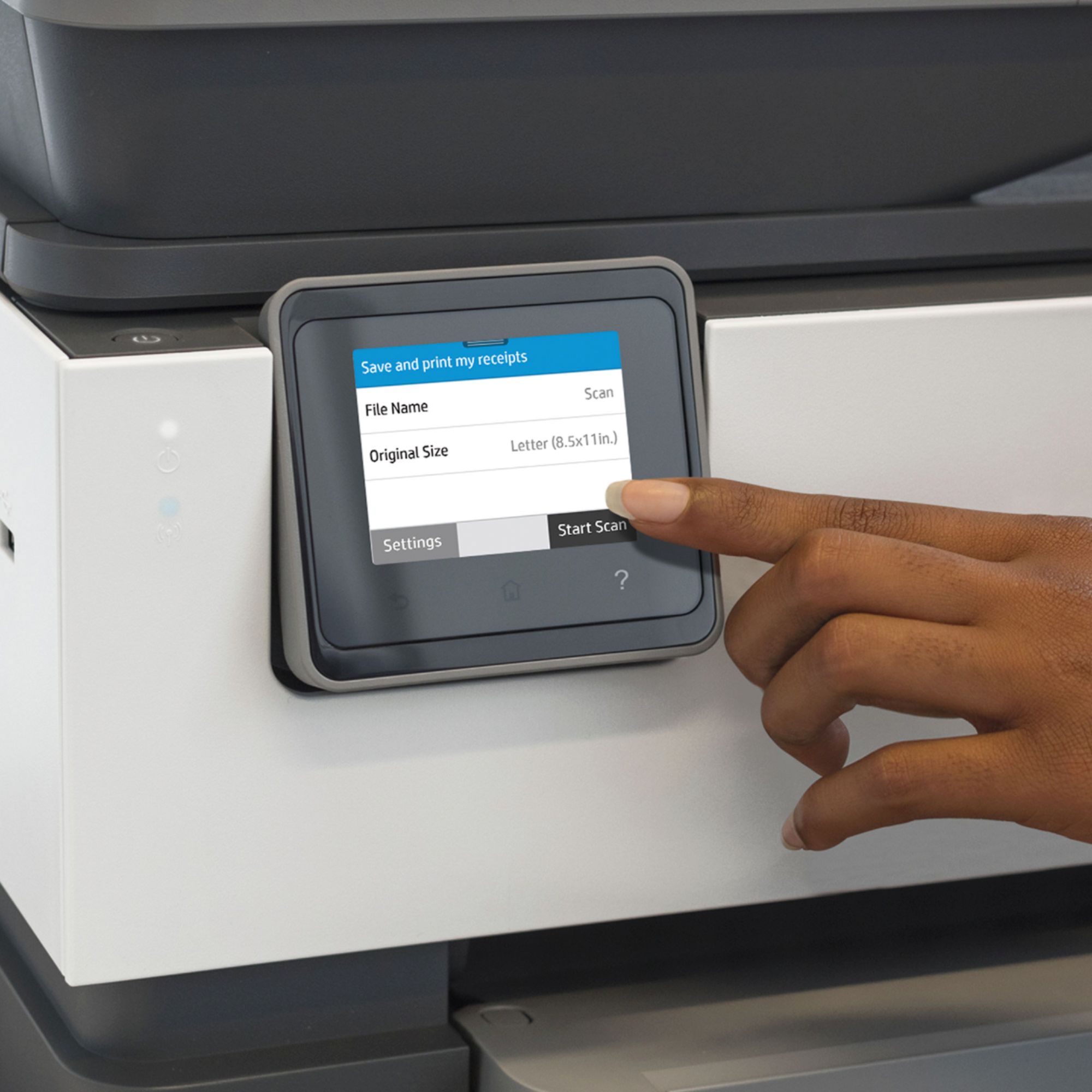
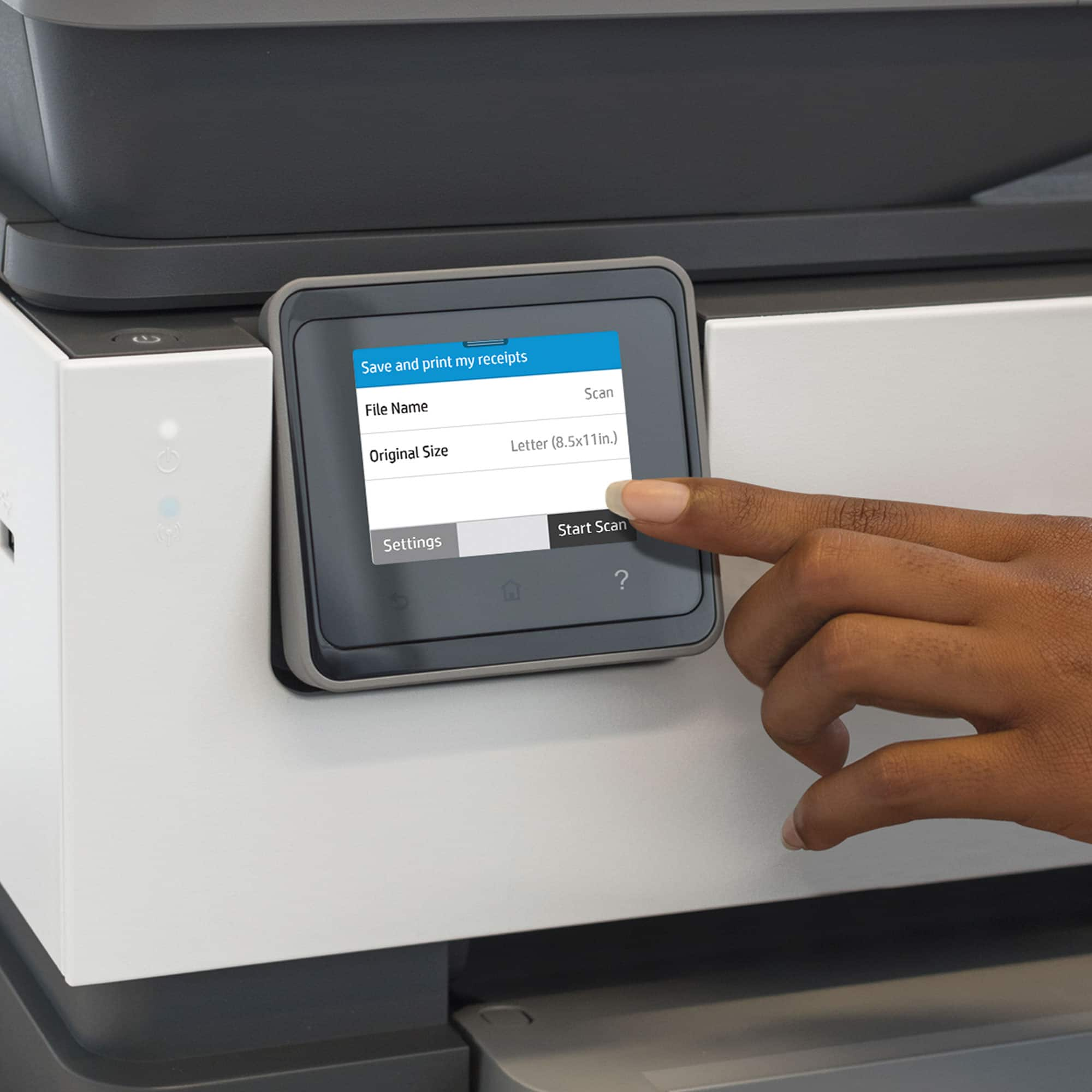
A:AnswerYes it can. HP printers have an embedded web server. You'll need to use the printers menu to find your network settings, and specifically the IP address. Once you have the IP address of your HP printer, launch Google Chrome on your Chromebook and type that IP address into the URL address field. You'll see the main menu for your printer. Select the Scan tab. Under Webscan, if you've never used this feature before, you will likely see an error message that the feature has been disabled. If this is the case, select the Settings tab. Then, in the left menu under Security, select Administrator Settings. Select the checkbox to enable the Webscan feature. Select Apply when you're done. Now, when you return to the Scan tab, you'll see the scan settings where you can adjust the output document type, resolution, quality, and other settings. Select Start Scan to have your printer scan the document you've placed on the scanner bed.This will open a new tab in your browser where you'll see the image of the scan appear. When the scan is finished, you can right-click the image and select Save image as to save it to your Chromebook or Google Drive account.
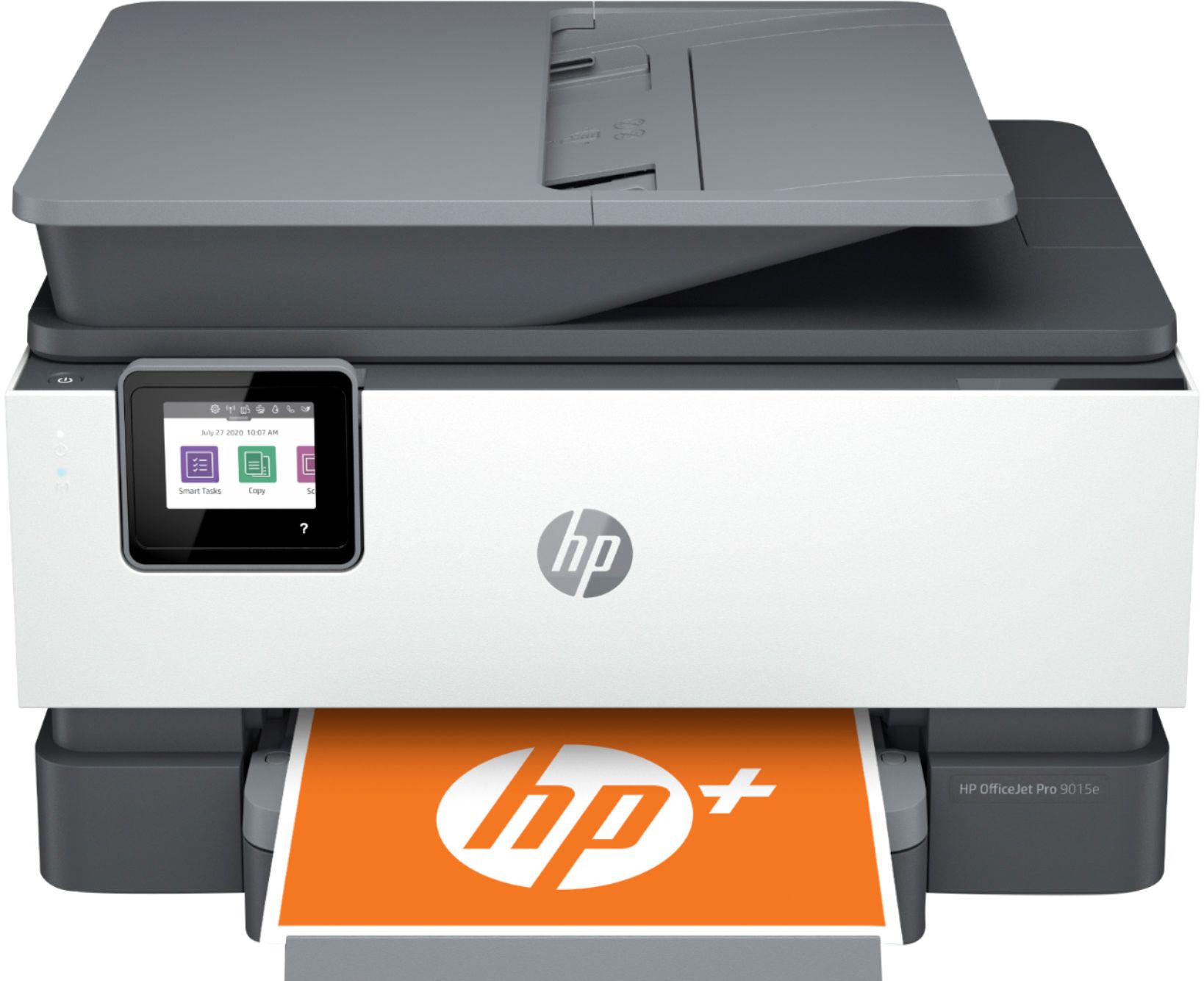
A:AnswerYou may have problems printing from negatives. To reproduce properly, they need light to pass through them, and the scanner on this printer works by reflecting light off of the item.
A:AnswerOpen your hp smart app, choose scan, see picture, make sure you have the document in the printer ready for it to scan. A window should open and you shoos how to Savin.
The other option is to use ms word and just save as .pdf.
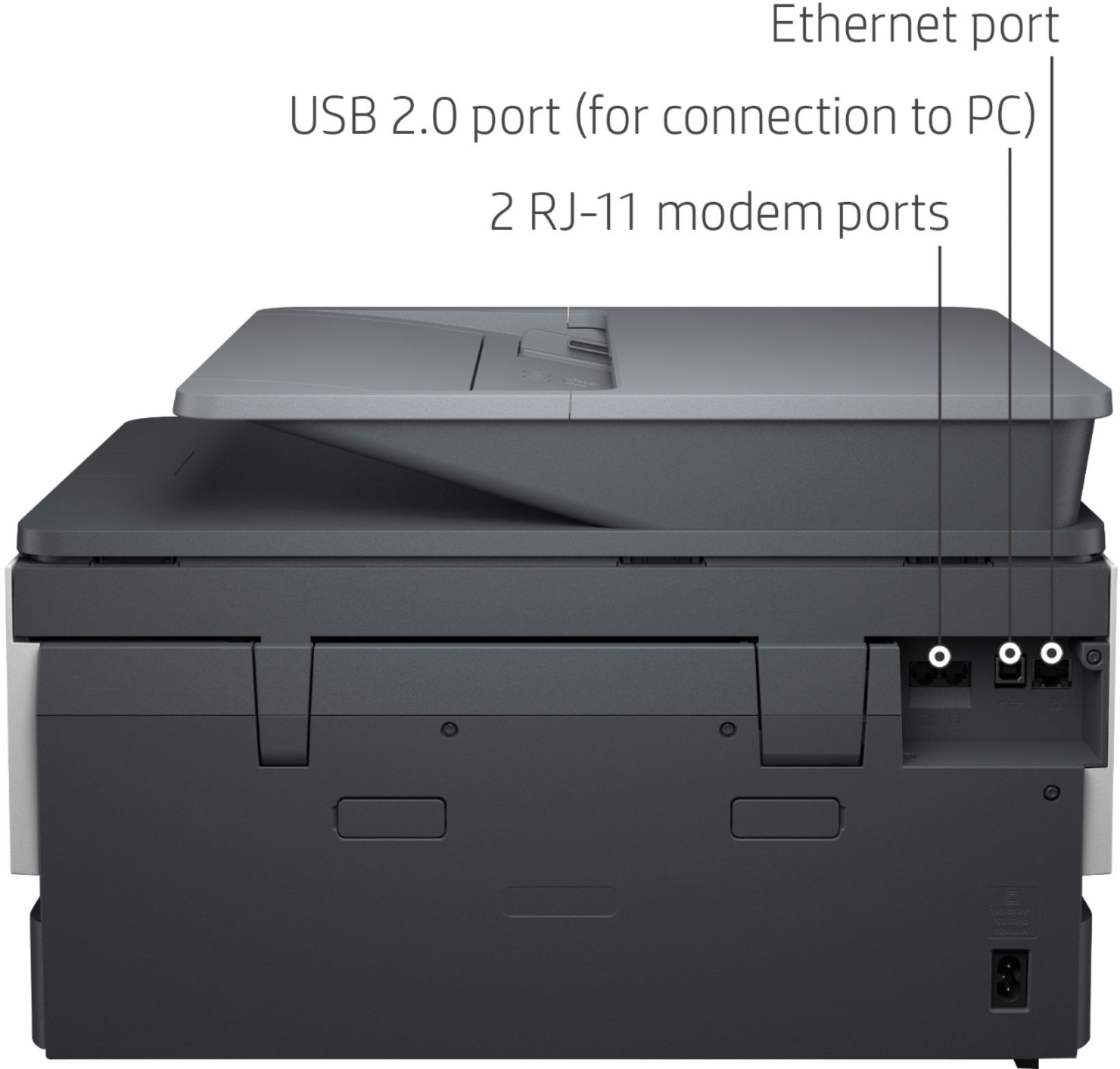
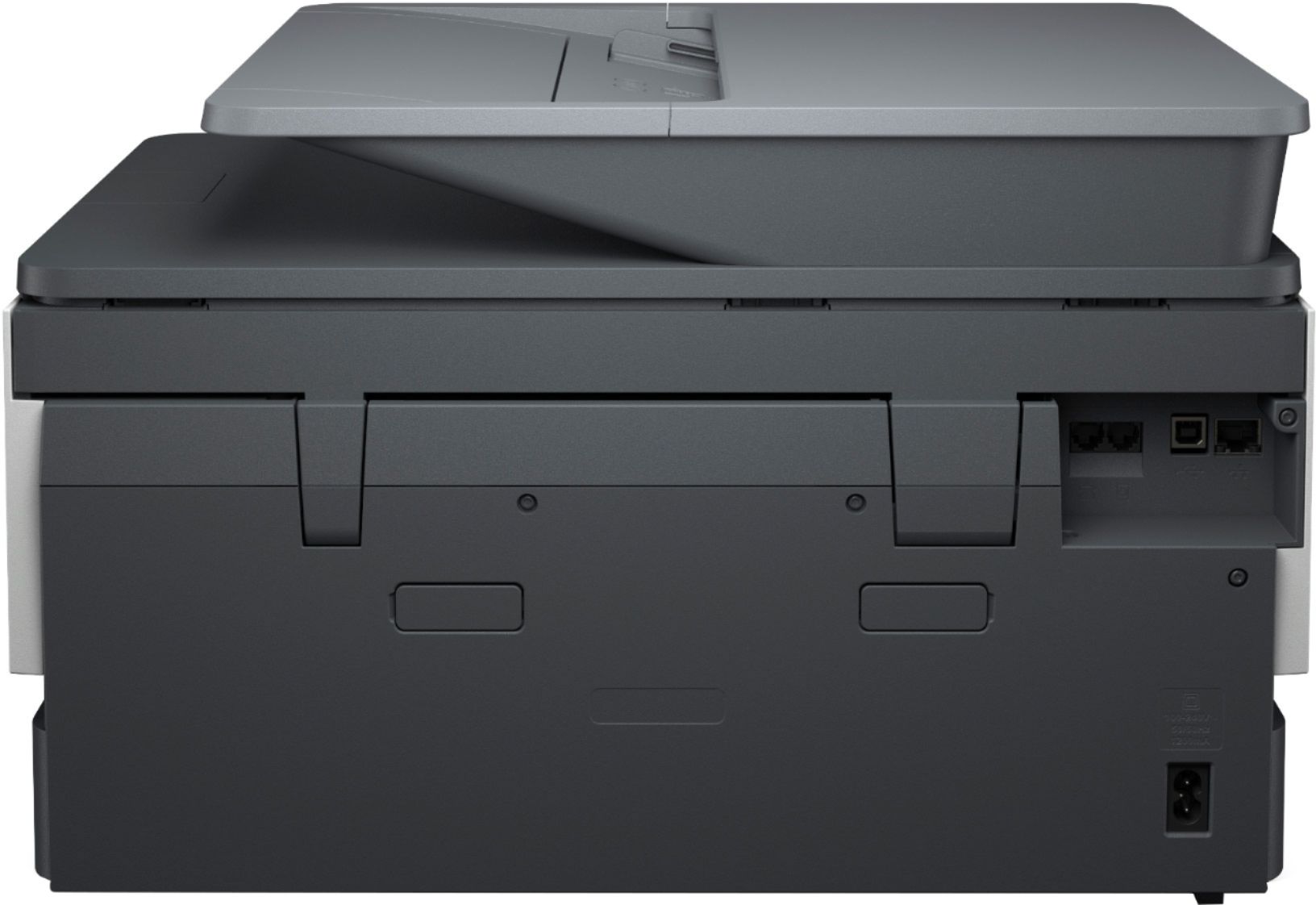
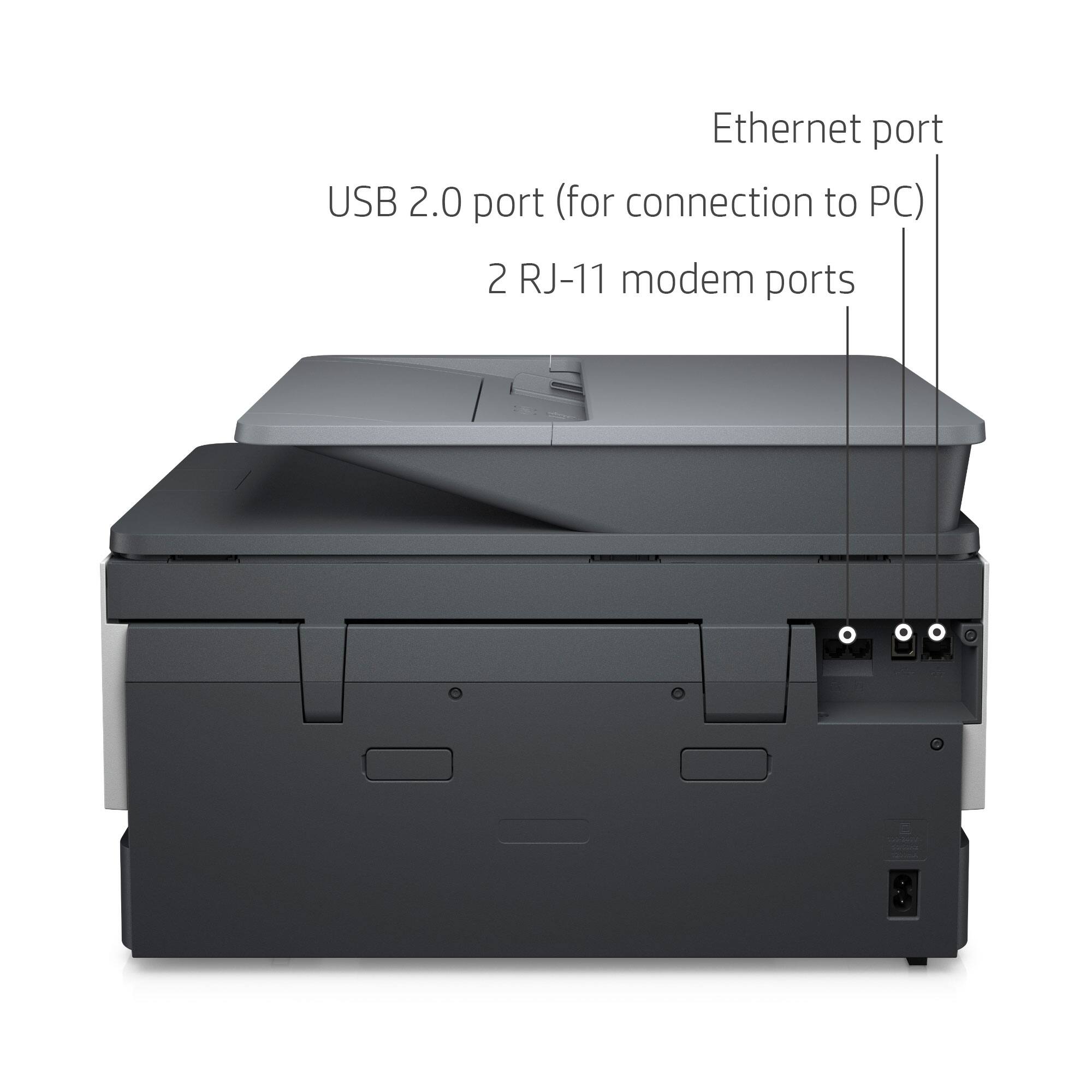
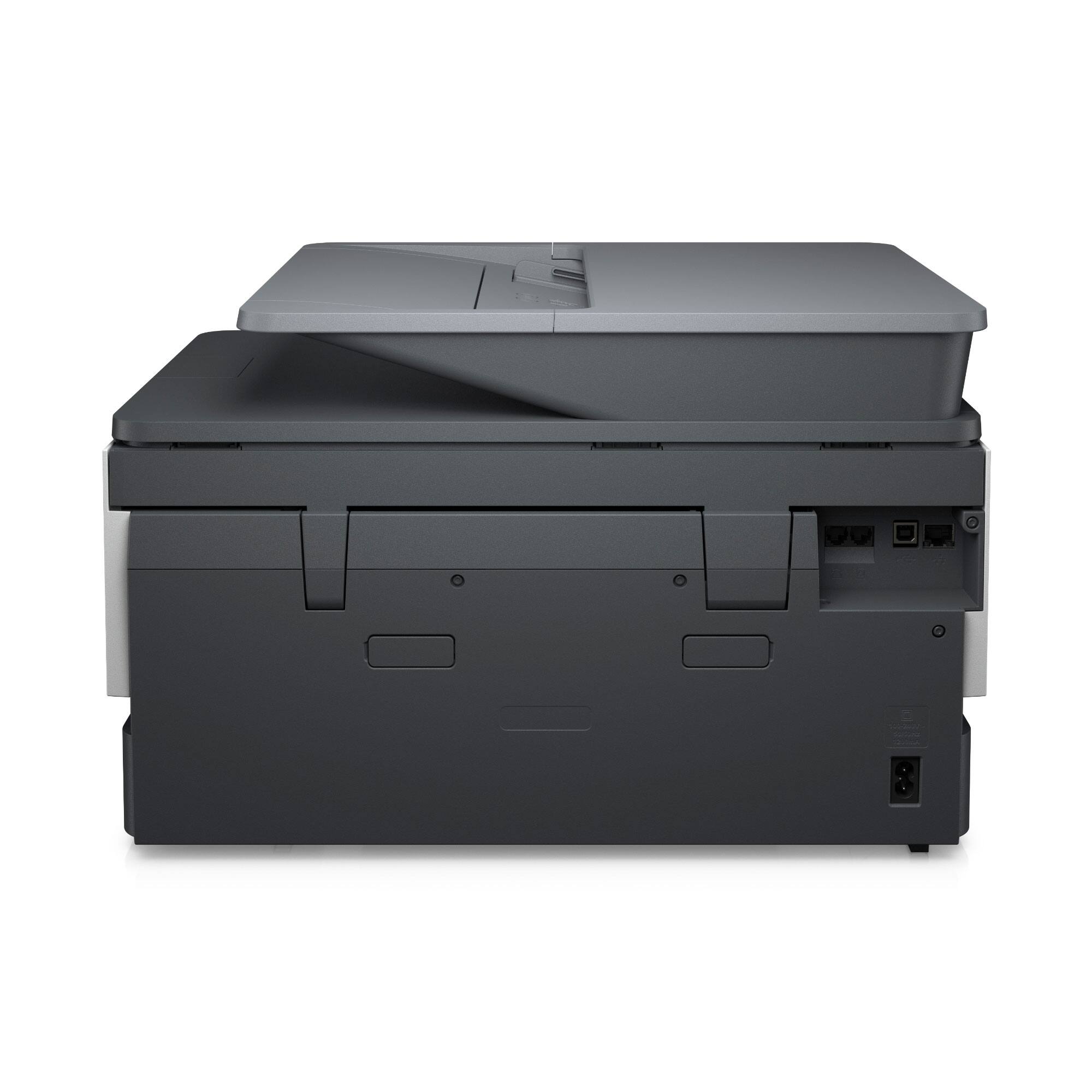
A:AnswerIt can connect either wirelessly or via a standard USB printer cable.
Here are the Windows operating system requirements. If you have Windows 10, 8, or 7 it will work.
Recommended system requirements for Windows
Windows 10,8, 7: 1 GHz 32-bit (x86) or 64-bit (x64) processor, 2 GB available hard disk space, CD-ROM/DVD drive or Internet connection, USB port, Internet Explorer
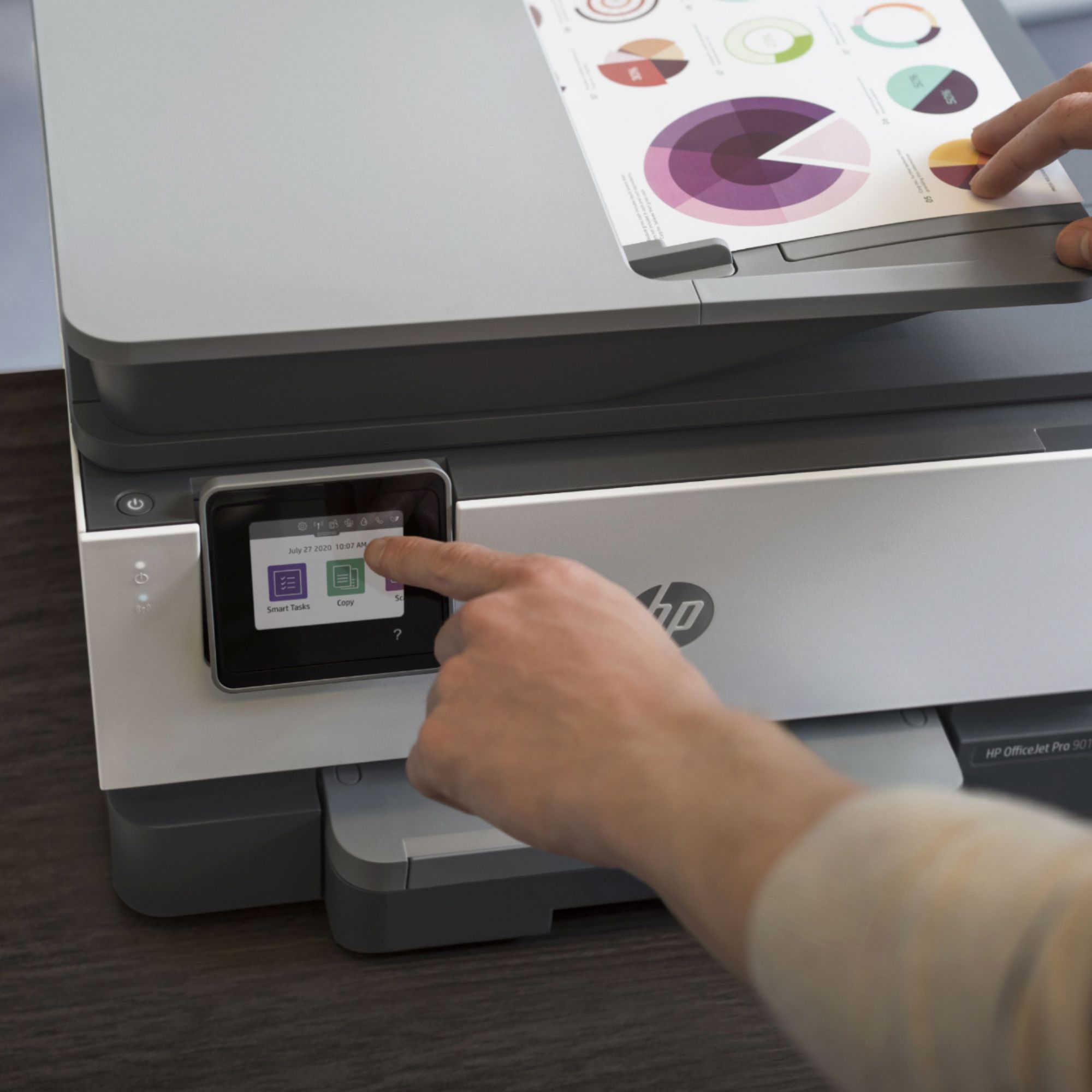
A:AnswerNot entirely sure I understand your question. But if you are referring to the tray where you can feed in multiple pages, then the answer is YES it can. I've already used that feature and it was quick and easy.