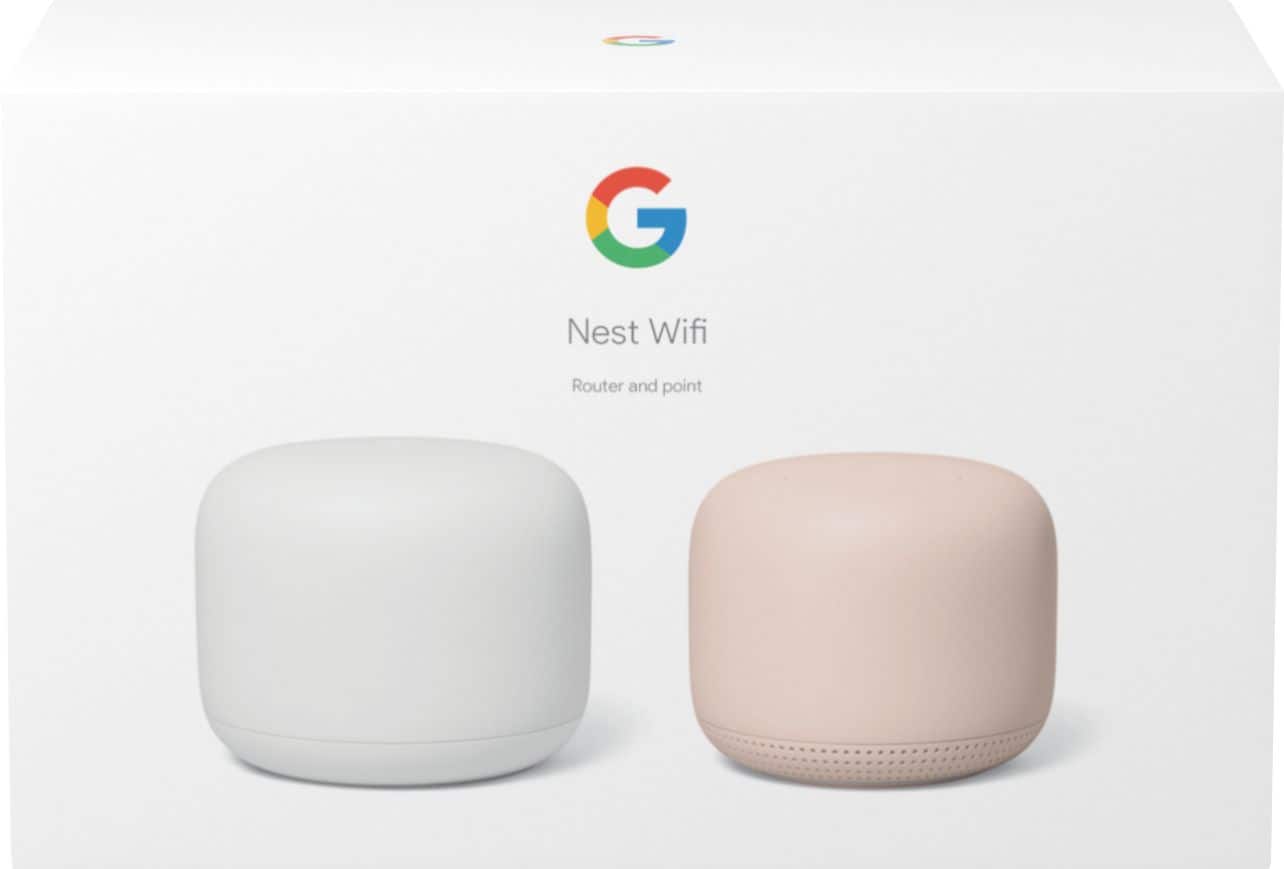
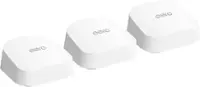
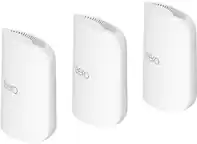
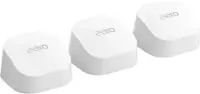
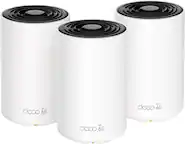
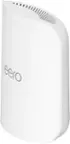
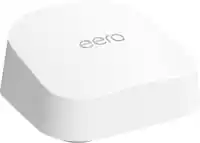
A:AnswerNest Wifi replaces your current router to provide reliable Wi-Fi coverage throughout your home. It needs to be connected to your modem via the WAN port with an Ethernet cable. You can visit this link for where to place your Wifi devices: https://support.google.com/googlenest/answer/7183150
A:AnswerNest Wifi is not really compatible with other modem/router combos. You may need to put it in Bridge mode or disable its Wi-Fi functionality to avoid double NAT connection issues. You can learn more about Bridge Mode here: https://support.google.com/googlenest/answer/6240987
A:AnswerAs a general rule, Wifi points work best when they’re no more than two rooms away from each other. All points are connected to each other wirelessly and receive signal from the wifi point that is within range. Check out this article for where to place your Wifi devices: https://support.google.com/googlenest/answer/7183150?hl=en&ref_topic=7216602
A:AnswerNest Wifi router can cover up to 2,200 sq.ft. but where it's placed, the layout of your house, and physical obstructions like furniture can impact the total coverage. Adding additional Wifi points will extend Wi-Fi coverage. Each Nest Wifi point can cover up to 1,600 sq ft. For an estimate of how much Wi-Fi coverage you’ll get with Nest Wifi and a guide to how many Wifi points you need check here: https://support.google.com/googlenest/answer/7182840
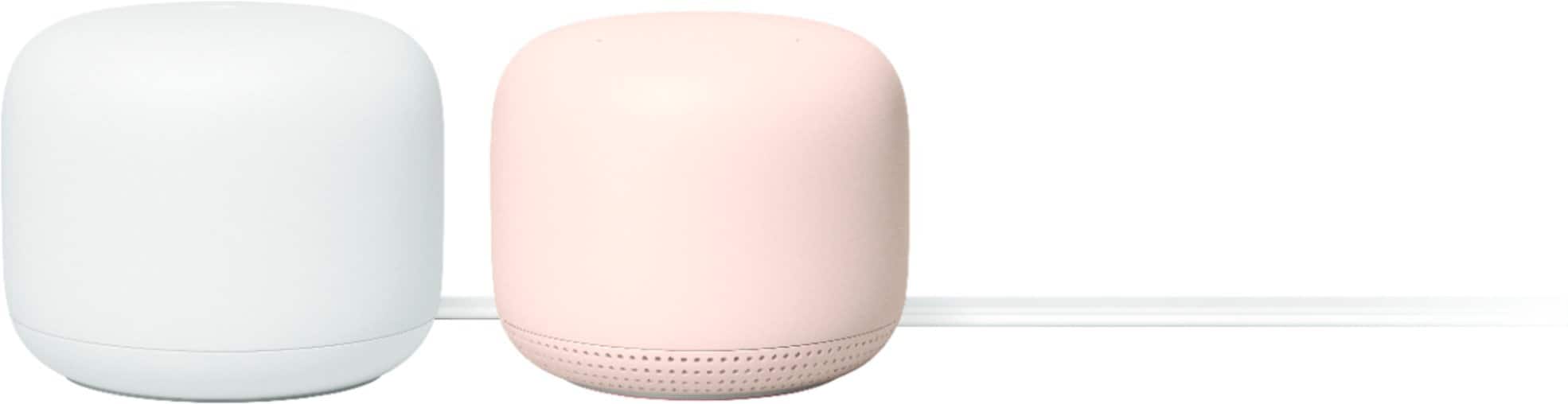
A:AnswerNest Wifi is not really compatible with 3rd party routers and modem/router combos. It might cause a Double NAT where both Nest Wifi and your combo broadcast their own private networks which can cause connectivity issues. You can still use use your existing router by putting it in Bridge mode or disable its Wi-Fi functionality to avoid connection issues. You can learn more about Bridge Mode here: https://support.google.com/googlenest/answer/6240987
A:AnswerYes, you can plug the Nest Wifi with your Internet cable if it's just a modem. If your current modem is a modem/router combo, we recommend putting your combo in Bridge mode to avoid a Double NAT which can cause connection issues. You can check out this support article for details about Bridge mode and Double NAT: https://support.google.com/googlenest/answer/6240987
A:AnswerNest Wifi is not compatible with some modem/router combos. It might cause a Double NAT where both Nest Wifi and your combo broadcast their own private networks which can cause connectivity issues. If you want to create a bigger Wi-Fi Mesh network, you can put your modem/router combo in Bridge mode or disable its Wi-Fi functionality to avoid connection issues.
You can learn more about Bridge Mode here: https://support.google.com/googlenest/answer/6240987
A:AnswerNest WiFi is required to be connected to a modem with internet service. If your Gateway is a modem/router combo, you can put it in Bridge mode to avoid connection issues. You can learn more about Bridge Mode here: https://support.google.com/googlenest/answer/6240987
A:AnswerI believe it will. The Google Nest Mesh system has a long list of google items that it works with. your Nest doorbell should have the website. it has great help.
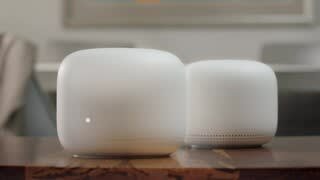
A:AnswerCorrect, the Nest Wifi router is wired to the modem. While Nest Wifi points are wireless and don't have Ethernet ports, Nest Wifi points plug into an outlet. You can add them as Wi-Fi points to create your Wi-Fi mesh in the Google Home app.
You can find more information here: https://support.google.com/wifi/answer/9548301
A:AnswerI have upgraded to the 2200 Google Nest from the 1st generation and am using my previous points as additional coverage. I am very pleased with compatiblity and my increased WiFi coverage and strength. The extra strength is awesome!
A:AnswerYes. You can. It will take you step-by-step through what you need to do and when you should do it. Once that is done, you are ready to go. I do hope that this information helps.
A:AnswerYes, you can monitor the sites your kids visit with Family Wi-Fi. You can automatically block sexually explicit websites from their devices. Find out more information on blocking sites here: https://support.google.com/wifi/answer/7455888
And yes, you can set time limits with Pause Wi-Fi. You can pause the internet for a group of devices or for specific devices through Wi-Fi pause in the Google Home/Google WiFi App. Once you create a Family Wi-Fi group, you can create a scheduled pause. Simply select the groups to apply the schedule to, and the devices you choose will go offline and come back online according to your schedule. Find more details on how to create a scheduled pause here: https://support.google.com/wifi/answer/7535858
A:AnswerOf course! Nest Wifi is built on mesh Wi-Fi technology to extend your Wi-Fi internet connection. The router and point work together to ensure your devices stay on the clearest channel for a strong Wi-Fi signal throughout your house, not just next to your router.
If you have a modem + router combo from your internet service provider (ISP) that broadcasts their own private network, it can create a Double NAT. We recommend disabling the Wi-Fi function of the combo to avoid possible connectivity issues. You can find out more on Double NAT and how to fix it here: https://support.google.com/googlenest/answer/6240987
A:AnswerYes, Nest Wifi mesh system can work with your Nighthawk router, but having both routers broadcasting their own private networks with the same SSID and password will cause a Double NAT. Double NAT can cause connectivity issues with your devices while gaming online and port-forwarding. To prevent this, you would need to put one of the routers in Bridge mode by disabling its Wi-Fi functionality. We recommend putting your Nighthawk router in Bridge mode since Nest Wifi router needs to broadcast Wi-Fi to form the Wi-Fi mesh with the points.
A:AnswerShould work with just about any modern. My Spectrum WiFi modern still works. No need to disable it. Just tell your devices to forget the Spectrum WiFi if you want to use just the Google WiFi.
A:AnswerYes, Google Nest Wifi router can work just like your current FIOS router. It will still let you watch TV on your iPad using the FIOS app. Just make sure to put your current router combo in bridge mode or disable its Wi-Fi functionality in order to set up Nest Wifi router as your primary router and create a mesh Wi-Fi system throughout your home.