Best Buy Tech Fest SaleEnds Sunday. Limited quantities. No rainchecks.Shop now

Skip to contentGo to Product Search
Main Content

Customer Ratings & Reviews
Loading...

Customer reviews

Rating 4.8 out of 5 stars with 810 reviews

Rating Filter

Rating by feature

  • Picture Quality

    Rating 4.8 out of 5 stars

  • Sound Quality

    Rating 4.6 out of 5 stars

  • Brightness

    Rating 4.8 out of 5 stars

Pros mentioned filter

Cons mentioned filter

96%would recommend to a friend

Customers are saying

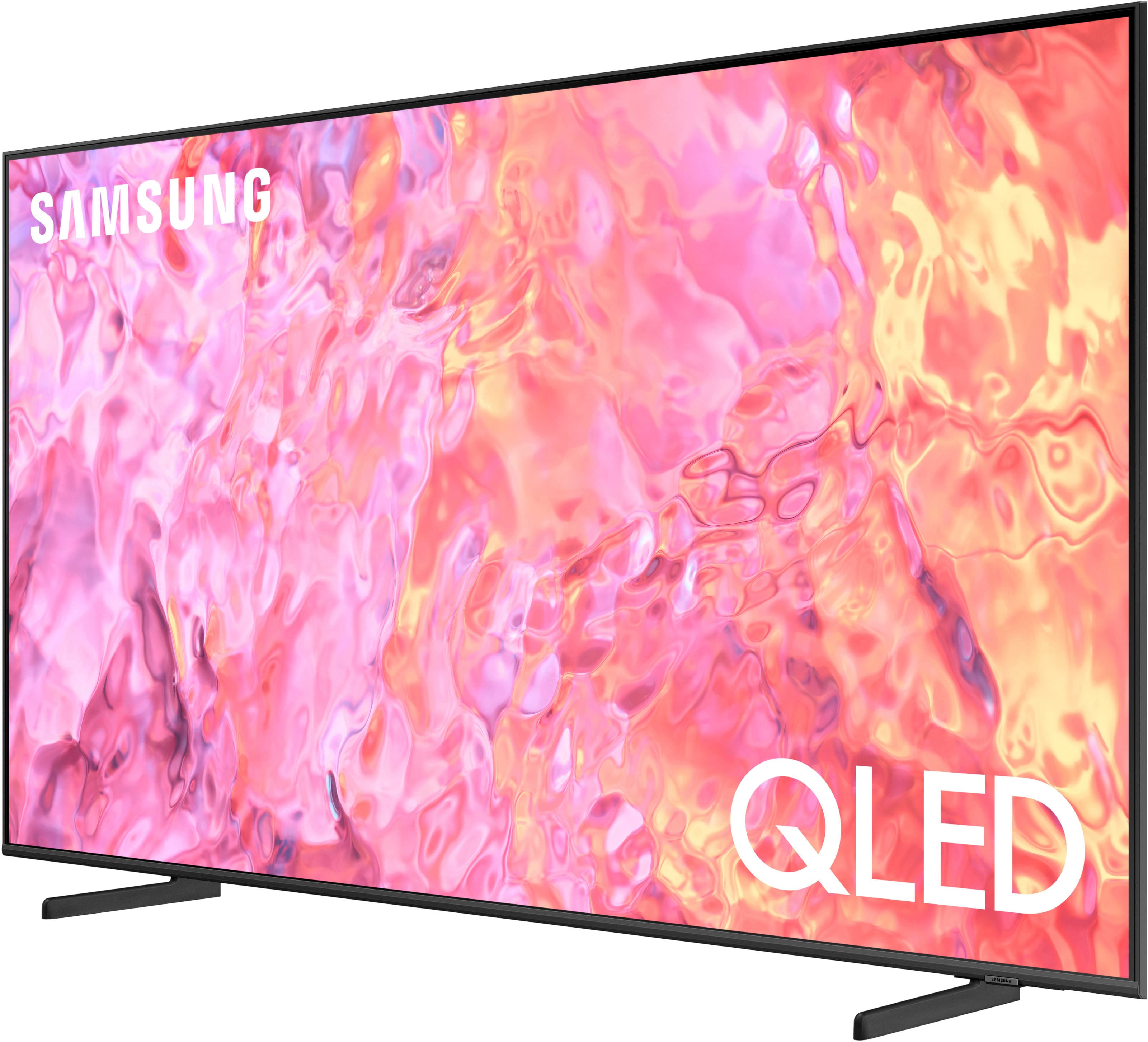
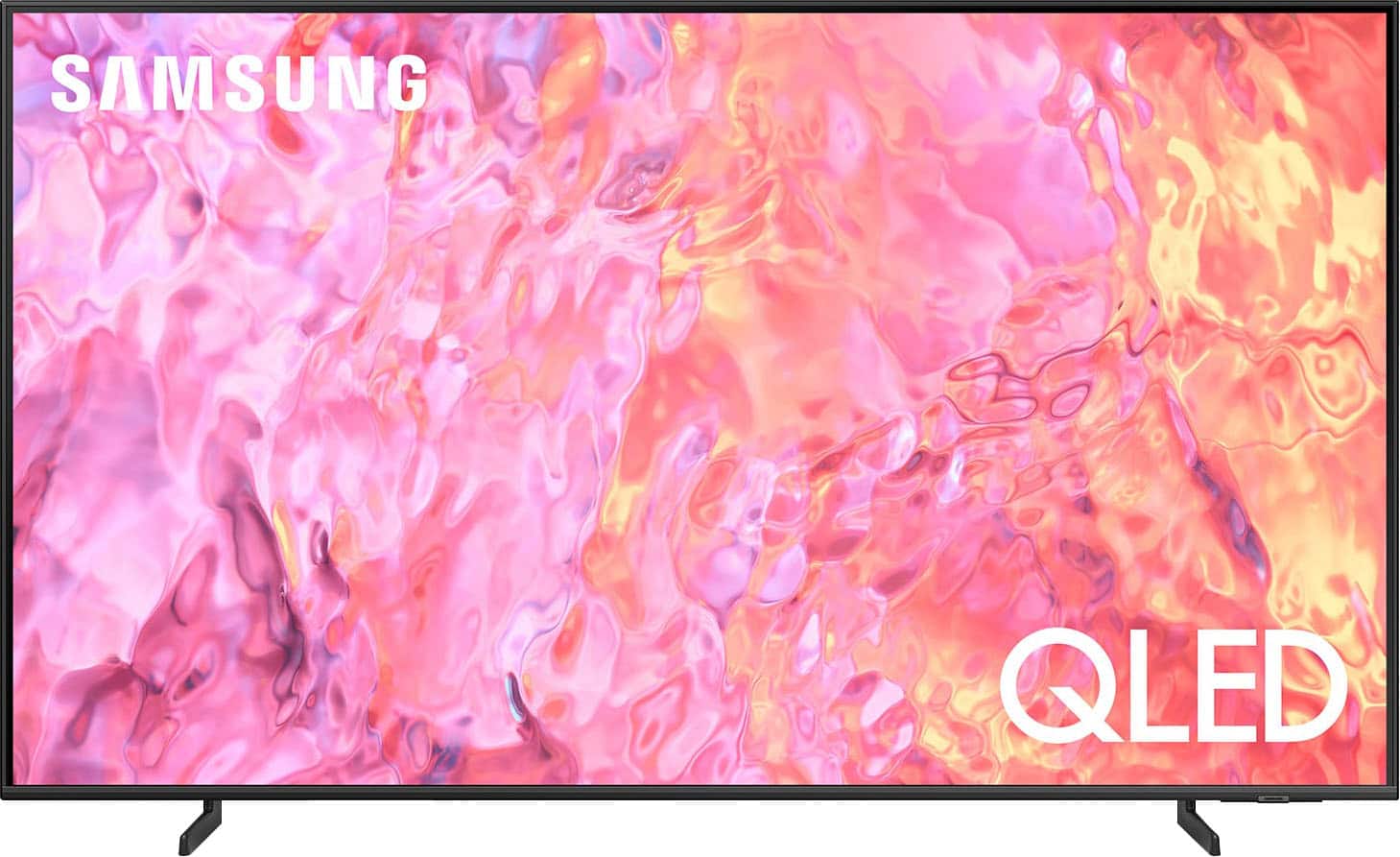
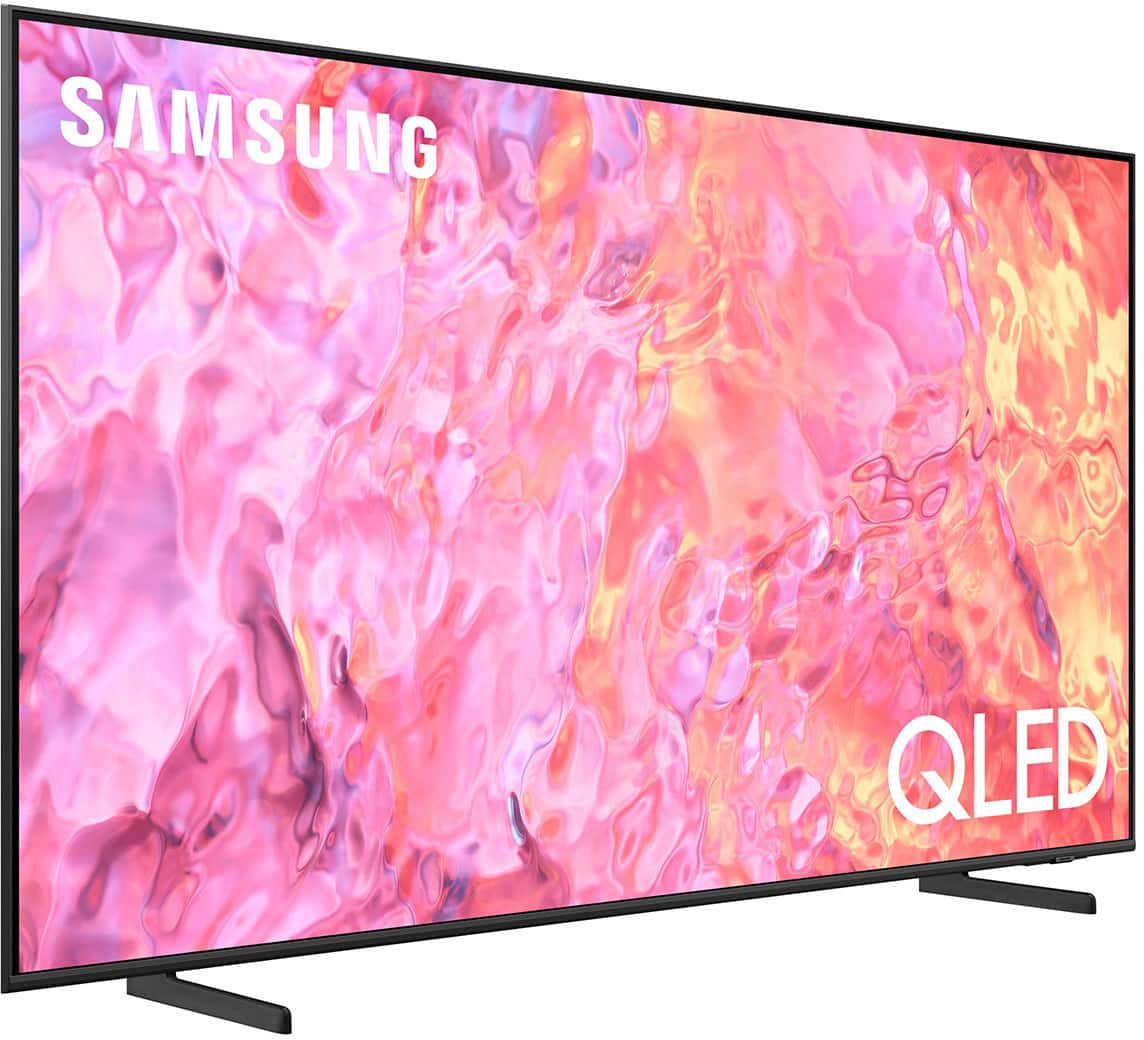
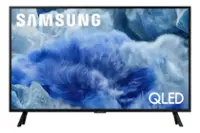
Customers frequently mention the excellent picture quality, ease of use, and vibrant colors of the 55" Class Q60C QLED 4K UHD Smart Tizen TV (2023). Many also appreciate the value for the price and the convenient features of the smart TV platform and rechargeable remote. A few customers noted that the volume could be improved, and some experienced minor issues with motion clarity in fast-paced scenes. Overall, the positive feedback significantly outweighs the negative comments.

This summary was generated by AI based on customer reviews.

The vast majority of our reviews come from verified purchases. Reviews from customers may include My Best Buy members, employees, and Tech Insider Network members (as tagged). Select reviewers may receive discounted products, promotional considerations or entries into drawings for honest, helpful reviews.
Applied Filters:
Page 1 Showing 1-20 of 24 reviews
  • Pros mentioned:
    Picture quality
    Cons mentioned:
    Refresh rate, Volume

    Rated 3 out of 5 stars

    good picture, but issue with sound

    |
    |
    Posted . Owned for 1 week when reviewed.
    This reviewer received promo considerations or sweepstakes entry for writing a review.

    Good picture, but the 60 hz refresh rate comes up short on some faster moving scenes. We had a volume issue with our set; Best Buy took it back and we upgraded to a different model. Every time we turned the set on the volume was much lower than when we had shut it off. The only remedy was to unplug for a few seconds or turn off and then wait a few seconds before turning on again. We decided that having this issue with a brand new set wasn't worth taking a chance down the road.

    No, I would not recommend this to a friend
    • Brand response from Samsung
      Posted .

      JohnS,

      We appreciate you sharing the issues you’ve initially experienced with Samsung’s Q60C TV. Thank you for your patience in having to deal with the inconvenience of an exchange.

      Should you need help with your new unit, please contact Samsung Customer Support at 1-800-SAMSUNG, 8AM - 12AM EST, 7 days a week. Or visit us on the Samsung website and click on the ‘Support’ link for:
      • LiveChat
      • Manuals, Software, & Warranty Info

      ~ Samsung Specialist Samsung

  • Pros mentioned:
    Picture quality
    Cons mentioned:
    Refresh rate

    Rated 3 out of 5 stars

    overall average

    |
    |
    Posted . Owned for 3 weeks when reviewed.
    This reviewer received promo considerations or sweepstakes entry for writing a review.

    Good Picture when watching regular shows, it lacks on motion such as football or more moving type items as refresh rate is only 60 hz

    I would recommend this to a friend
    • Brand response from Samsung
      Posted .

      btjinx,

      We appreciate your feedback on your Q60C TV’s picture when watching fast motion. For optimal motion image performance, you may want to adjust the picture clarity setting by going to: Menu > Settings > All Settings > Picture > Expert Settings > Picture Clarity Settings

      - Off: Picture Clarity Settings will always be off
      - Auto: Picture Clarity Settings will automatically activate and deactivate based on the type of program being watched
      - Custom: Allows custom adjustments and settings to be used. By selecting the Custom option, you can access these advanced settings for Judder Reduction, LED Clear Motion, and Noise Reduction.

      Should you need further assistance with features or other product usage, please reach out to Samsung Support at 1-800-SAMSUNG, 8AM - 12AM EST, 7 days a week. Or visit us on the Samsung website and click on the ‘Support’ link for:
      • LiveChat
      • Manuals, Software, & Warranty Info

      ~ Samsung Specialist Samsung

  • Pros mentioned:
    Color

    Rated 3 out of 5 stars

    Color and sound

    |
    |
    Posted . Owned for 1 month when reviewed.
    This reviewer received promo considerations or sweepstakes entry for writing a review.

    it’s a great product... color and sound is great. easy transport and customer service was great which in this day and time can by the breaker if you buy or not. Please train your customer service that they are important to buyers and make sure you know: management that those that are on floor are only as good as you or those you place to train them: if you want to know why sales are down … look at who you have training. The END

    I would recommend this to a friend

    • Brand response from Samsung
      Posted .

      twbbailey,

      We appreciate you sharing your in-store purchase experience with us. You may want to consider providing feedback directly to the Best Buy store where you made your purchase.

      Should you have questions on the Q60C TV itself, Samsung is here for you. You can reach us at 1-800-SAMSUNG, 8AM - 12AM EST, 7 days a week. Our LiveChat agents are also available by clicking on the ‘Support’ link on our website.

      ~ Samsung Specialist Samsung

  • Pros mentioned:
    Ease of use, Picture quality

    Rated 3 out of 5 stars

    Me and my tv.

    |
    |
    Posted . Owned for 1 month when reviewed.
    This reviewer received promo considerations or sweepstakes entry for writing a review.

    I love my new tv! The picture quality is decent and it's user friendly.

    I would recommend this to a friend
    • Brand response from Samsung
      Posted .

      KashayaKreations,

      Thanks for taking a moment to review Samsung’s Q60C TV. If you’re experiencing specific issues which caused you to give this a 3-star negative rating, please know Samsung Customer Support is here to help.

      Please call us at 1-800-SAMSUNG, 8AM - 12AM EST, 7 days a week. Our LiveChat agents are also available by clicking on the ‘Support’ link on our website.

      ~ Samsung Specialist Samsung

  • Pros mentioned:
    Picture quality

    Rated 3 out of 5 stars

    WiFi strength

    |
    |
    Posted . Owned for 4 months when reviewed.
    This reviewer received promo considerations or sweepstakes entry for writing a review.

    The TV keeps dropping the signal. Or freezing. The solution per help that I can find is to get a Roku to assist in the wifi connection. Every other piece of technology I have in the house does not have this issue. Great picture, neat features. No chromecast so a little more difficult to cast to.

    No, I would not recommend this to a friend
    • Brand response from Samsung
      Posted .

      MarlaM,

      Thank you for sharing your experience with Wi-Fi connectivity on your Q60C TV. This may be caused by a network issue. You might want to go through these steps to check your network connection:

      1) Minimize interference by not using or turning off wireless devices. Also, verify that there are no obstacles between the TV and the modem or access point. (Wi-Fi strength can be decreased by appliances, cordless phones, stone walls/fireplaces, etc.)

      2) If the wireless connection fails, connect the TV to the access point via a LAN cable. If the TV can connect to the Internet normally via the wired connection, there might be a problem with the access point. In this case, try using a different access point.

      3) Perform a network test to check if there is a network problem. Press the Home button on your remote. Navigate to Settings > Support > Device Care > Self Diagnosis> Smart Hub Connection Test

      4) Try a cold reboot of your TV by pressing and holding the power button for 5+ seconds until the TV turns off and on again.

      5) Please also be sure you have the latest firmware update. You may want to enable automatic updates for convenience. Select Settings > Support > Software Update, then select Auto Update.

      For further assistance or service, please contact us at 1-800-SAMSUNG, 8AM - 12AM EST, 7 days a week. Or visit us on the Samsung website and click on the ‘Support’ link for:
      • LiveChat
      • Manuals, Software, & Warranty Info

      ~ Samsung Specialist Samsung

  • Cons mentioned:
    Refresh rate

    Rated 3 out of 5 stars

    Good budget TV

    |
    |
    Posted . Owned for 2 months when reviewed.
    This reviewer received promo considerations or sweepstakes entry for writing a review.

    Decent budget tv but not the best. If you have extra in your budget for a higher quality tv I would make the jump to something high quality. There was some noticeable lag in quicker action scenes or sports due to the lower refresh rate

    I would recommend this to a friend
    • Brand response from Samsung
      Posted .

      ChrisA,

      We appreciate your feedback on your Q60C TV’s picture when watching fast motion. For optimal motion image performance, you may want to adjust the picture clarity setting by going to: Menu > Settings > All Settings > Picture > Expert Settings > Picture Clarity Settings

      - Off: Picture Clarity Settings will always be off
      - Auto: Picture Clarity Settings will automatically activate and deactivate based on the type of program being watched
      - Custom: Allows custom adjustments and settings to be used. By selecting the Custom option, you can access these advanced settings for Judder Reduction, LED Clear Motion, and Noise Reduction.

      Should you need further assistance with features or other product usage, please reach out to Samsung Support at 1-800-SAMSUNG, 8AM - 12AM EST, 7 days a week. Or visit us on the Samsung website and click on the ‘Support’ link for:
      • LiveChat
      • Manuals, Software, & Warranty Info

      ~ Samsung Specialist Samsung

  • Pros mentioned:
    Picture quality

    Rated 3 out of 5 stars

    new tv

    |
    |
    Posted . Owned for 3 weeks when reviewed.
    This reviewer received promo considerations or sweepstakes entry for writing a review.

    The picture is great but the sound is awful. Worst I have ever had on a TV - muddy and unclear. The sound comes from the back of the tv and never seems to make it around to the front where people are sitting.

    No, I would not recommend this to a friend
    • Brand response from Samsung
      Posted .

      MarthaT,

      Thank you for sharing your thoughts on the sound quality of your Q60C TV. To ensure you’ve got the latest audio quality updates, please confirm that your TV is up to date with the latest firmware version. You can check by going to: Home > Menu > Settings > Support > Software Update.

      There are several sound settings you can adjust to suit your personal sound preferences.

      Change the Sound Mode by going to: Settings > All Settings > Sound > Sound Mode

      You can also customize sound by going to: Settings > All Settings > Sound > Expert Settings

      To assist you with possible sound settings adjustments for a better audio experience, or choosing a Samsung Soundbar to complement your viewing enjoyment, please reach out to us at 1-800-SAMSUNG, 8AM - 12AM EST, 7 days a week. Or visit us on the Samsung website and click on the ‘Support’ link for:
      • LiveChat
      • Manuals, Software, & Warranty Info

      ~ Samsung Specialist Samsung

  • Pros mentioned:
    Picture quality

    Rated 3 out of 5 stars

    Sound did not work

    |
    |
    Posted . Owned for 1 week when reviewed.
    This reviewer received promo considerations or sweepstakes entry for writing a review.

    Excellent picture but the sound didnt work. Ran self diagnostics and still didn’t work. TV ccst to much for sound not to work,

    No, I would not recommend this to a friend
    • Brand response from Samsung
      Posted .

      Mike,

      I’m sorry to hear you’re not fully satisfied with Samsung’s Q60C TV. Please give us the opportunity to look into this for you so we can provide additional settings adjustments or troubleshooting assistance specific to your usage and setup scenario.

      You can reach Samsung Support at 1-800-SAMSUNG, 8AM - 12AM EST, 7 days a week. Our LiveChat agents are also available by clicking on the ‘Support’ link on our website.

      ~ Samsung Specialist Samsung

  • Pros mentioned:
    Picture quality

    Rated 3 out of 5 stars

    Good tv

    |
    |
    Posted . Owned for 2 weeks when reviewed.
    This reviewer received promo considerations or sweepstakes entry for writing a review.

    Great tv with a great picture but lacks clarity when it comes to action or sports.

    I would recommend this to a friend
  • Pros mentioned:
    Picture quality

    Rated 3 out of 5 stars

    Samsung

    |
    |
    Posted . Owned for 1 month when reviewed.
    This reviewer received promo considerations or sweepstakes entry for writing a review.

    I recommend this TV, it is very good, it has everything I needed, good quality

    I would recommend this to a friend
    • Brand response from Samsung
      Posted .

      GersonB,

      Thanks for taking a moment to review Samsung’s Q60C TV. If you’re experiencing specific issues which caused you to give this a 3-star rating, please know Samsung Customer Support is here to help.

      You can reach us at 1-800-SAMSUNG, 8AM - 12AM EST, 7 days a week. Our LiveChat agents are also available by clicking on the ‘Support’ link on our website.

      ~ Samsung Specialist Samsung

  • Pros mentioned:
    Picture quality

    Rated 3 out of 5 stars

    Nice TV

    |
    |
    Posted . Owned for 2 weeks when reviewed.
    This reviewer received promo considerations or sweepstakes entry for writing a review.

    Great TV but bigger is better. For a small room type scenerio I do reccomend quality

    I would recommend this to a friend
    • Brand response from Samsung
      Posted .

      Oscar,

      Thanks for taking a moment to review Samsung’s Q60C TV. If you’re experiencing specific issues which caused you to give this a 3-star rating, please know Samsung Customer Support is here to help.

      You can reach us at 1-800-SAMSUNG, 8AM - 12AM EST, 7 days a week. Our LiveChat agents are also available by clicking on the ‘Support’ link on our website.

      ~ Samsung Specialist Samsung

  • Rated 3 out of 5 stars

    Somewhat nice

    |
    |
    Posted . Owned for 3 weeks when reviewed.
    This reviewer received promo considerations or sweepstakes entry for writing a review.

    Very good picture however, the picture quality is not as good as i expected. This is my first QLED and I've had better picture quality on the regular class led

    No, I would not recommend this to a friend
    • Brand response from Samsung
      Posted .

      TooMuch,

      Thank you for sharing your thoughts on the picture quality of your Q60C TV. To ensure you’ve got the latest image quality updates, please confirm that your TV is up to date with the latest firmware version. You can check by going to: Home > Menu > Settings > Support > Software Update.

      If the picture you’re seeing is still not to your liking after updating firmware, there are several picture settings you may want to try adjusting.

      Go to Home > left direction button > Settings > All Settings > Picture > Picture Mode
      ...and select the mode that best fits your usage:
      1. Standard: Is the default mode suitable for general viewing environments
      2. Dynamic: Makes the picture brighter and clearer in bright viewing environments
      3. Eco: Provided to save energy
      4. Movie: Suitable for watching TV or movies in a dark room
      5. Filmmaker Mode: Provides source content just as the creators intended. If the image is defined as Filmmaker Mode, it’ll automatically switch to Filmmaker Mode while watching.

      You can also fine-tune your picture with expert settings such as brightness, contrast, sharpness and more (All Settings > Picture > Expert Settings).

      For further assistance with settings adjustments, please contact Samsung Customer Support at 1-800-SAMSUNG, 8AM - 12AM EST, 7 days a week. Or visit us on the Samsung website and click on the ‘Support’ link for:
      • LiveChat
      • Manuals, Software, & Warranty Info

      ~ Samsung Specialist Samsung

  • Rated 3 out of 5 stars

    It's ok

    |
    |
    Posted . Owned for 3 weeks when reviewed.
    This reviewer received promo considerations or sweepstakes entry for writing a review.

    It's ok. Don't see much difference from our 10 year old tv

    No, I would not recommend this to a friend
    • Brand response from Samsung
      Posted .

      LarrylW,

      Thank you for sharing your thoughts on the picture quality of your Q60C TV. To ensure you’ve got the latest image quality updates, please confirm that your TV is up to date with the latest firmware version. You can check by going to: Home > Menu > Settings > Support > Software Update.

      If the picture you’re seeing is still not to your liking after updating firmware, there are several picture settings you may want to try adjusting.

      Go to Home > left direction button > Settings > All Settings > Picture > Picture Mode
      ...and select the mode that best fits your usage:
      1. Standard: Is the default mode suitable for general viewing environments
      2. Dynamic: Makes the picture brighter and clearer in bright viewing environments
      3. Eco: Provided to save energy
      4. Movie: Suitable for watching TV or movies in a dark room
      5. Filmmaker Mode: Provides source content just as the creators intended. If the image is defined as Filmmaker Mode, it’ll automatically switch to Filmmaker Mode while watching.

      You can also fine-tune your picture with expert settings such as brightness, contrast, sharpness and more (All Settings > Picture > Expert Settings).

      For further assistance with settings adjustments, please contact Samsung Customer Support at 1-800-SAMSUNG, 8AM - 12AM EST, 7 days a week. Or visit us on the Samsung website and click on the ‘Support’ link for:
      • LiveChat
      • Manuals, Software, & Warranty Info

      ~ Samsung Specialist Samsung

  • Rated 3 out of 5 stars

    Not bad but expensive

    |
    |
    Posted . Owned for 3 weeks when reviewed.
    This reviewer received promo considerations or sweepstakes entry for writing a review.

    Works good but a little expensive, i might go for OLED next time

    No, I would not recommend this to a friend
    • Brand response from Samsung
      Posted .

      Sandip,

      Thank you for sharing your thoughts on the price point of Samsung's Q60C. Your feedback is appreciated.

      Should you need further assistance or have questions, please contact Samsung Customer Support at 1-800-SAMSUNG, 8AM - 12AM EST, 7 days a week. Or visit us on the Samsung website and click on the ‘Support’ link for:
      • LiveChat
      • Manuals, Software, & Warranty Info

      ~ Samsung Specialist Samsung

  • Rated 3 out of 5 stars

    Bad wifi connection

    |
    |
    Posted . Owned for 2 weeks when reviewed.
    This reviewer received promo considerations or sweepstakes entry for writing a review.

    I dont like the product has some isuue with the wifi connection, it lose some signal often

    No, I would not recommend this to a friend
    • Brand response from Samsung
      Posted .

      SebasDark,

      Thank you for sharing your experience with Wi-Fi connectivity on your Q60C TV. This may be caused by a network issue. You might want to go through these steps to check your network connection:

      1) Minimize interference by not using or turning off wireless devices. Also, verify that there are no obstacles between the TV and the modem or access point. (Wi-Fi strength can be decreased by appliances, cordless phones, stone walls/fireplaces, etc.)

      2) If the wireless connection fails, connect the TV to the access point via a LAN cable. If the TV can connect to the Internet normally via the wired connection, there might be a problem with the access point. In this case, try using a different access point.

      3) Perform a network test to check if there is a network problem. Press the Home button on your remote. Navigate to Settings > Support > Device Care > Self Diagnosis> Smart Hub Connection Test

      4) Try a cold reboot of your TV by pressing and holding the power button for 5+ seconds until the TV turns off and on again.

      5) Please also be sure you have the latest firmware update. You may want to enable automatic updates for convenience. Select Settings > Support > Software Update, then select Auto Update.

      For further assistance or service, please contact us at 1-800-SAMSUNG, 8AM - 12AM EST, 7 days a week. Our LiveChat agents are also available by clicking on the ‘Support’ link on our website.

      ~ Samsung Specialist Samsung

  • Rated 3 out of 5 stars

    Average quality.

    |
    |
    Posted . Owned for 3 weeks when reviewed.
    This reviewer received promo considerations or sweepstakes entry for writing a review.

    Average picture. Average sound. Horrible tiny remote. Can hardly see the buttons on it.

    No, I would not recommend this to a friend
    • Brand response from Samsung
      Posted .

      Jj52,

      We appreciate your feedback on the SolarCell Remote, as well as the image and sound quality of your Q60C TV. To ensure you’ve got the latest updates, please confirm that your TV is up to date with the latest firmware version. You can check by going to: Home > Menu > Settings > Support > Software Update.

      If the picture you’re seeing is still not to your liking after updating firmware, there are several picture settings you may want to try adjusting.

      Go to Home > Menu > Settings > All Settings > Picture > Picture Mode
      ...and select the mode that best fits your usage:

      1. Standard: Is the default mode suitable for general viewing environments
      2. Dynamic: Makes the picture brighter and clearer in bright viewing environments
      3. Eco: Provided to save energy
      4. Movie: Suitable for watching TV or movies in a dark room
      5. Filmmaker Mode: Provides source content just as the creators intended. If the image is defined as Filmmaker Mode, it’ll automatically switch to Filmmaker Mode while watching.

      There are also several sound settings you can adjust to suit your personal sound preferences.

      Change the Sound Mode by going to: Settings > All Settings > Sound > Sound Mode

      You can also customize sound by going to: Settings > All Settings > Sound > Expert Settings

      To assist you with possible sound settings adjustments for a better audio experience, or choosing a Samsung Soundbar to complement your viewing enjoyment, please reach out to us at 1-800-SAMSUNG, 8AM - 12AM EST, 7 days a week.

      Our LiveChat agents are also available by clicking on the ‘Support’ link on our website.

      ~ Samsung Specialist Samsung

  • Rated 3 out of 5 stars

    Average Product

    |
    |
    Posted . Owned for 1 month when reviewed.
    This reviewer received promo considerations or sweepstakes entry for writing a review.

    Picture and sound is not of the quality it appeared in Best Buy.

    No, I would not recommend this to a friend
    • Brand response from Samsung
      Posted .

      CarolJ,

      Thank you for sharing your thoughts on your Q60C TV. To ensure you’ve got the latest image and sound enhancements, please confirm that your TV is up to date with the latest firmware version. You can check by going to: Home > Menu > Settings > Support > Software Update.

      If the picture you’re seeing is still not to your liking after updating firmware, there are several picture settings you may want to try adjusting.

      Go to Home > left direction button > Settings > All Settings > Picture > Picture Mode
      ...and select the mode that best fits your usage:
      1. Standard: Is the default mode suitable for general viewing environments
      2. Dynamic: Makes the picture brighter and clearer in bright viewing environments
      3. Eco: Provided to save energy
      4. Movie: Suitable for watching TV or movies in a dark room
      5. Filmmaker Mode: Provides source content just as the creators intended. If the image is defined as Filmmaker Mode, it’ll automatically switch to Filmmaker Mode while watching.

      You can also fine-tune your picture with expert settings such as brightness, contrast, sharpness and more (All Settings > Picture > Expert Settings).

      There are also several sound settings you can adjust to suit your personal sound preferences.

      Change the Sound Mode by going to: Settings > All Settings > Sound > Sound Mode

      You can also customize sound by going to: Settings > All Settings > Sound > Expert Settings

      To assist you with possible sound settings adjustments for a better audio experience, or choosing a Samsung Soundbar to complement your viewing enjoyment, please reach out to us at 1-800-SAMSUNG, 8AM - 12AM EST, 7 days a week.

      Our LiveChat agents are also available by clicking on the ‘Support’ link on our website.

      ~ Samsung Specialist Samsung

  • Rated 3 out of 5 stars

    My last Samsung was much better.

    |
    |
    Posted . Owned for 3 weeks when reviewed.
    This reviewer received promo considerations or sweepstakes entry for writing a review.

    The picture quality is somewhat disappointing and the audio is very disappointing.

    No, I would not recommend this to a friend
    • Brand response from Samsung
      Posted .

      JohnR,

      Thank you for sharing your thoughts on the picture and sound quality of your Q60C TV. To ensure you’ve got the latest updates, please confirm that your TV is up to date with the latest firmware version. You can check by going to: Home > Menu > Settings > Support > Software Update.

      If the picture you’re seeing is still not to your liking after updating firmware, there are several picture settings you may want to try adjusting.

      Go to Home > Menu > Settings > All Settings > Picture > Picture Mode
      ...and select the mode that best fits your usage:

      1. Standard: Is the default mode suitable for general viewing environments
      2. Dynamic: Makes the picture brighter and clearer in bright viewing environments
      3. Eco: Provided to save energy
      4. Movie: Suitable for watching TV or movies in a dark room
      5. Filmmaker Mode: Provides source content just as the creators intended. If the image is defined as Filmmaker Mode, it’ll automatically switch to Filmmaker Mode while watching.

      You can select a sound mode that you prefer for a content type or your listening environment. Go to: Home > Menu > Settings > All Settings > Sound > Sound Mode

      You can also customize balance and equalizer settings by going to: Home > Menu > Settings > All Settings > Sound > Expert Settings

      If you’d like more help with settings, please give us a call at 1-800-SAMSUNG, 8AM - 12AM EST, 7 days a week. Or visit us on the Samsung website and click on the ‘Support’ link for:
      • LiveChat
      • Manuals, Software, & Warranty Info

      ~ Samsung Specialist Samsung

  • Rated 3 out of 5 stars

    tv

    |
    |
    Posted . Owned for 1 month when reviewed.
    This reviewer received promo considerations or sweepstakes entry for writing a review.

    it is ok does not support resolution remote is too little

    No, I would not recommend this to a friend
    • Brand response from Samsung
      Posted .

      KimberlylB,

      Thank you for your review. So we can better understand the issues you’re experiencing and provide you with troubleshooting assistance, please reach out to Samsung Customer Support at 1-800-SAMSUNG, 8AM - 12AM EST, 7 days a week.

      Our LiveChat agents are also available by clicking on the ‘Support’ link on our website.

      ~ Samsung Specialist Samsung

  • Rated 3 out of 5 stars

    Not so happy

    |
    |
    Posted . Owned for 1 week when reviewed.
    This reviewer received promo considerations or sweepstakes entry for writing a review.

    Resolution is not as well as an older Samsung purchased.

    I would recommend this to a friend
    • Brand response from Samsung
      Posted .

      Kech,

      Thank you for sharing your thoughts on the picture quality of your Q60C TV. To ensure you’ve got the latest image quality updates, please confirm that your TV is up to date with the latest firmware version. You can check by going to: Home > Menu > Settings > Support > Software Update.

      If the picture you’re seeing is still not to your liking after updating firmware, there are several picture settings you may want to try adjusting.

      Go to Home > left direction button > Settings > All Settings > Picture > Picture Mode
      ...and select the mode that best fits your usage:
      1. Standard: Is the default mode suitable for general viewing environments
      2. Dynamic: Makes the picture brighter and clearer in bright viewing environments
      3. Eco: Provided to save energy
      4. Movie: Suitable for watching TV or movies in a dark room
      5. Filmmaker Mode: Provides source content just as the creators intended. If the image is defined as Filmmaker Mode, it’ll automatically switch to Filmmaker Mode while watching.

      You can also fine-tune your picture with expert settings such as brightness, contrast, sharpness and more (All Settings > Picture > Expert Settings).

      For further assistance with settings adjustments, please contact Samsung Customer Support at 1-800-SAMSUNG, 8AM - 12AM EST, 7 days a week. Our LiveChat agents are also available by clicking on the ‘Support’ link on our website.

      ~ Samsung Specialist Samsung