Docking Stations For Multiple Monitors
Docking stations for multiple monitors provide a seamless way to expand your workspace and boost productivity. Whether you’re setting up a home office or upgrading your professional environment, these versatile solutions make it easy to connect several screens to your laptop or desktop. Explore a wide selection of docking stations for multiple monitors designed to support efficient multitasking and streamline your workflow. Find the ideal option to help you stay organized and get more done, all while keeping your devices connected and powered.
Read More-
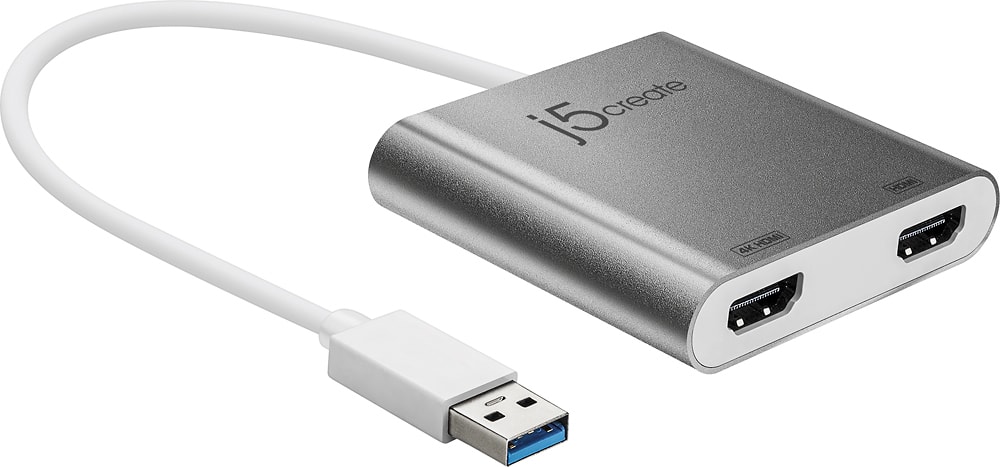
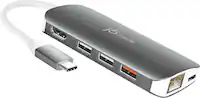
j5create - USB 3.0 to Dual HDMI Multi-Monitor Adapter - Silver
SKU: J36445RCFQGreat quality and product...Best Buy always has great quality and warranty!!!!...Adapter worked great. Best Buy came through as always.
See all Monitor & Video AdaptersProduct Description
A silver USB 3.0 adapter that adds two HDMI displays, supporting up to 4K resolution for multitasking.$59.99 Your price for this item is $59.99 -
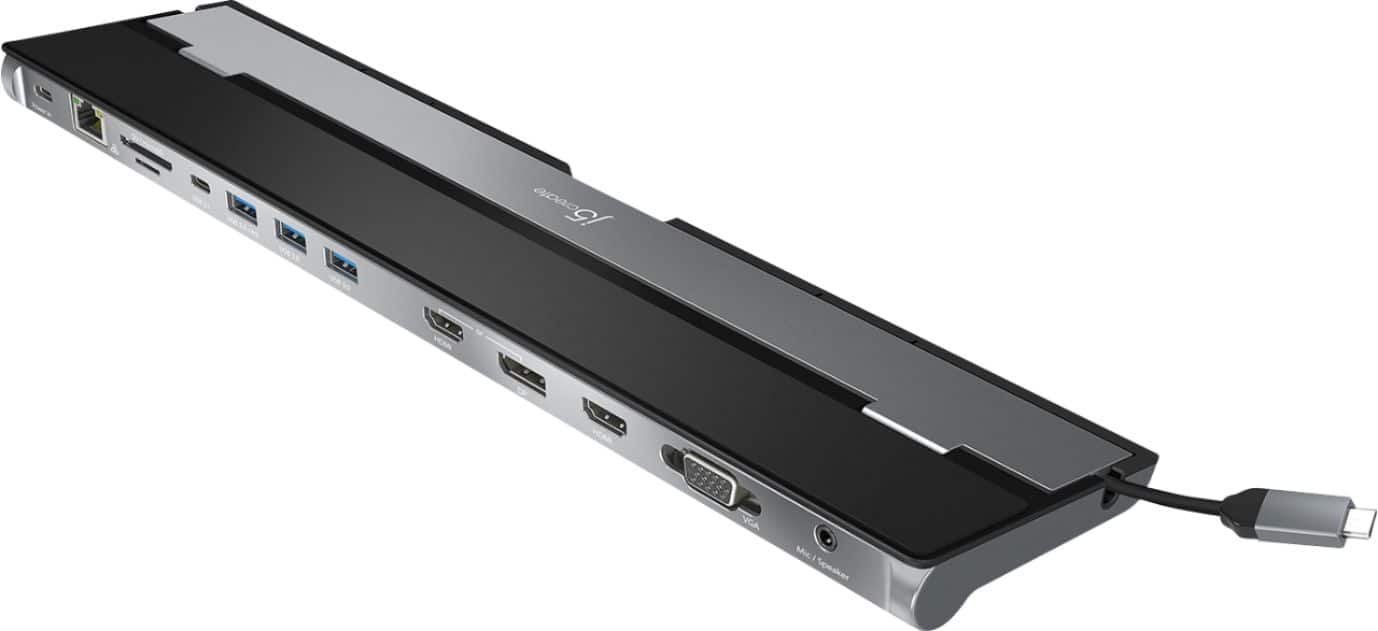
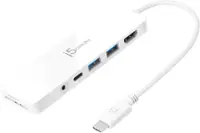
j5create - USB-C Triple Display Docking Station - Black
SKU: J36445R3Y6Works great. Plenty of connectivity options. Best value in docking stations....Thank you Best Buy for helping me pick this out. I love this...Great Dock....Great gear
See all Docking StationsProduct Description
A versatile black docking station offering triple display support, 100W Power Delivery, and 13 essential ports.$99.99 Your price for this item is $99.99 -
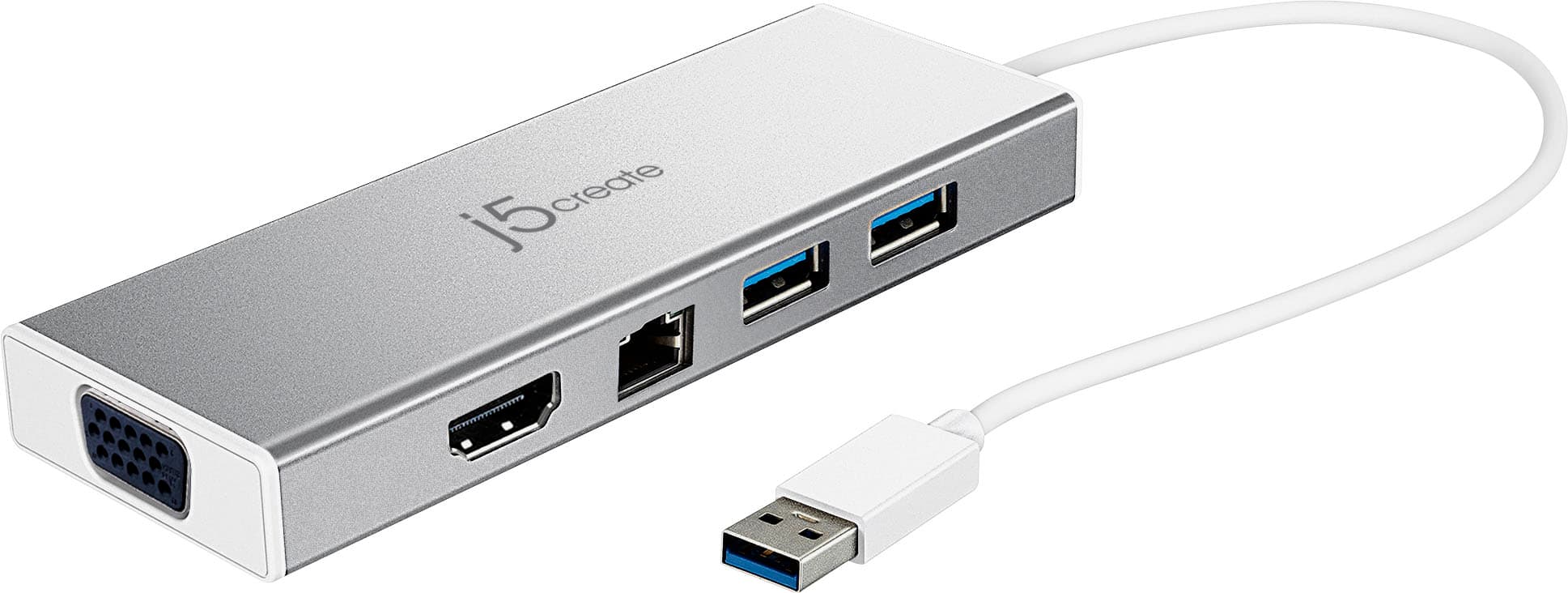
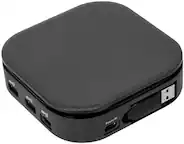
j5create - USB 3.0 Mini Dock - Silver
SKU: J36445R2CGSee all Docking StationsProduct Description
A compact silver aluminum mini dock with dual-monitor support, HDMI, VGA, Ethernet, and two USB 3.0 ports.$79.99 Your price for this item is $79.99 -
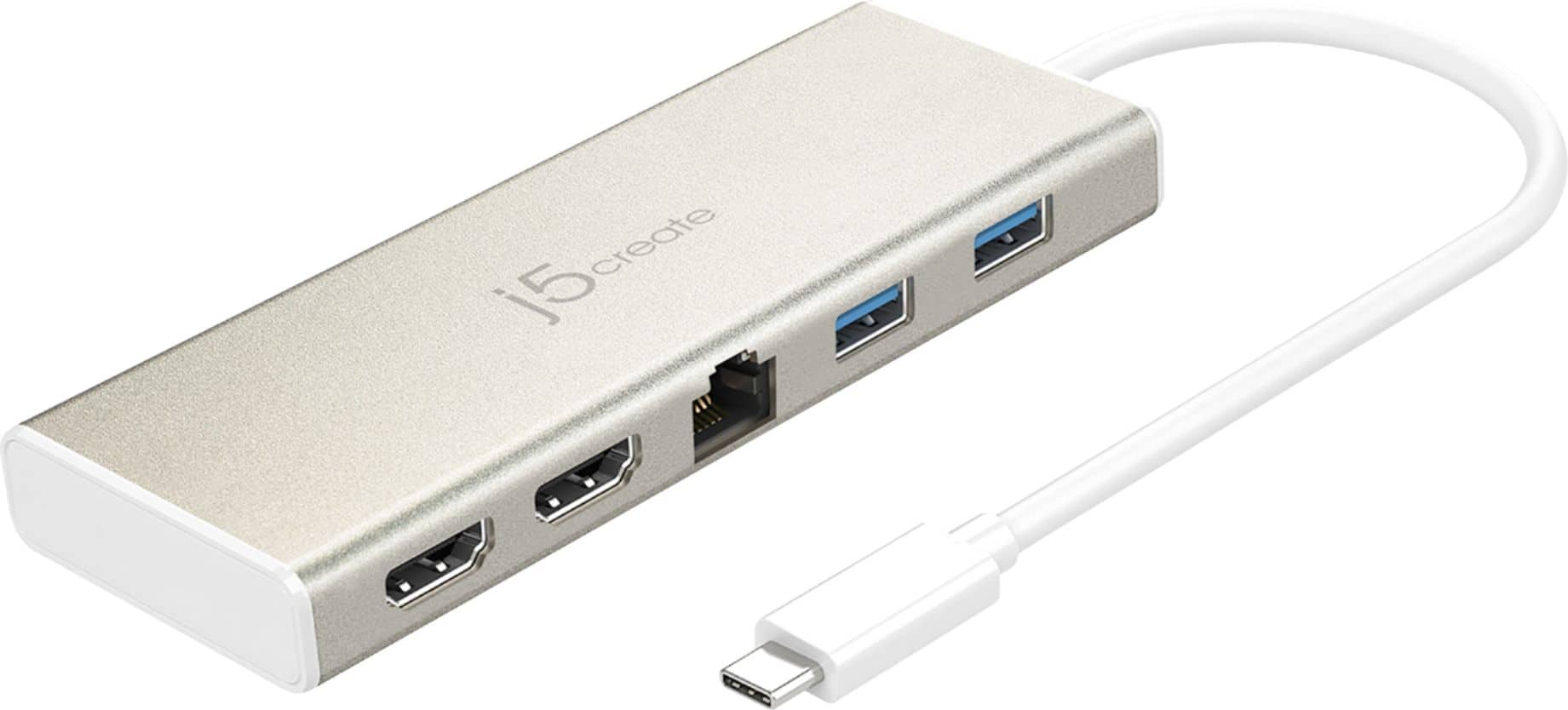
j5create - USB-C Dual HDMI Mini Dock - Gold
SKU: J36445R2WPGreat hub, just what I needed. Compact and fast. Best choice to fit my requirements....Great Product at Best BUY!...Great Item! It has all ports for USBs, Ethernet, and USB-C Inputs.
See all Docking StationsProduct Description
A compact gold mini dock offering dual HDMI, three USB ports, and Gigabit Ethernet connectivity via USB-C.$79.99 Your price for this item is $79.99 -
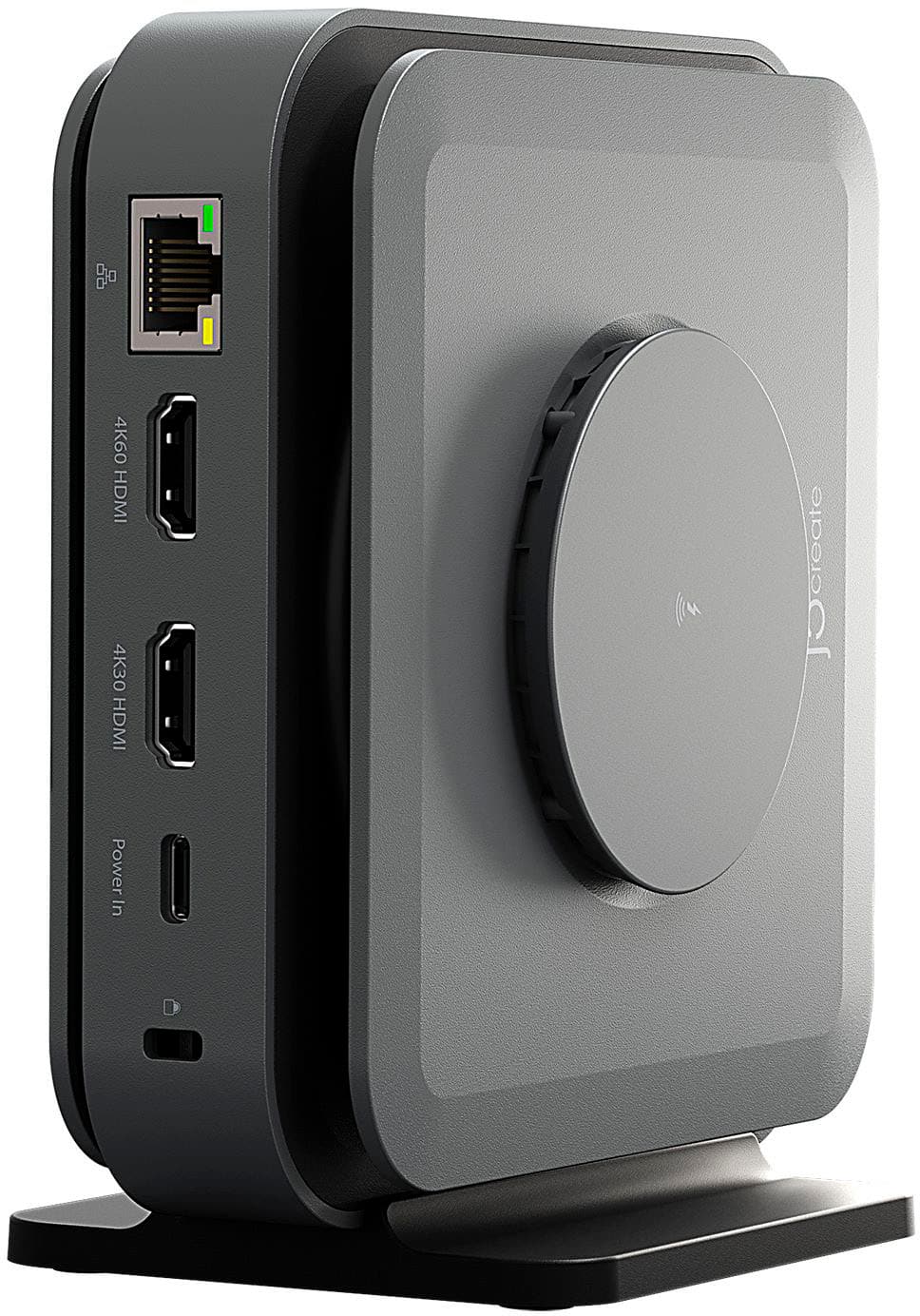
j5create - USB-C Dual 4K HDMI Docking Station with 15W Wireless Charging - Space Gray
SKU: J36445RPTTBest Dock ever...Great Dock
See all Docking StationsProduct Description
A versatile space grey aluminum dock with dual 4K HDMI, USB ports, and 15W wireless charging.$119.99 Your price for this item is $119.99Save $10Was $129.99The previous price was $129.99 -
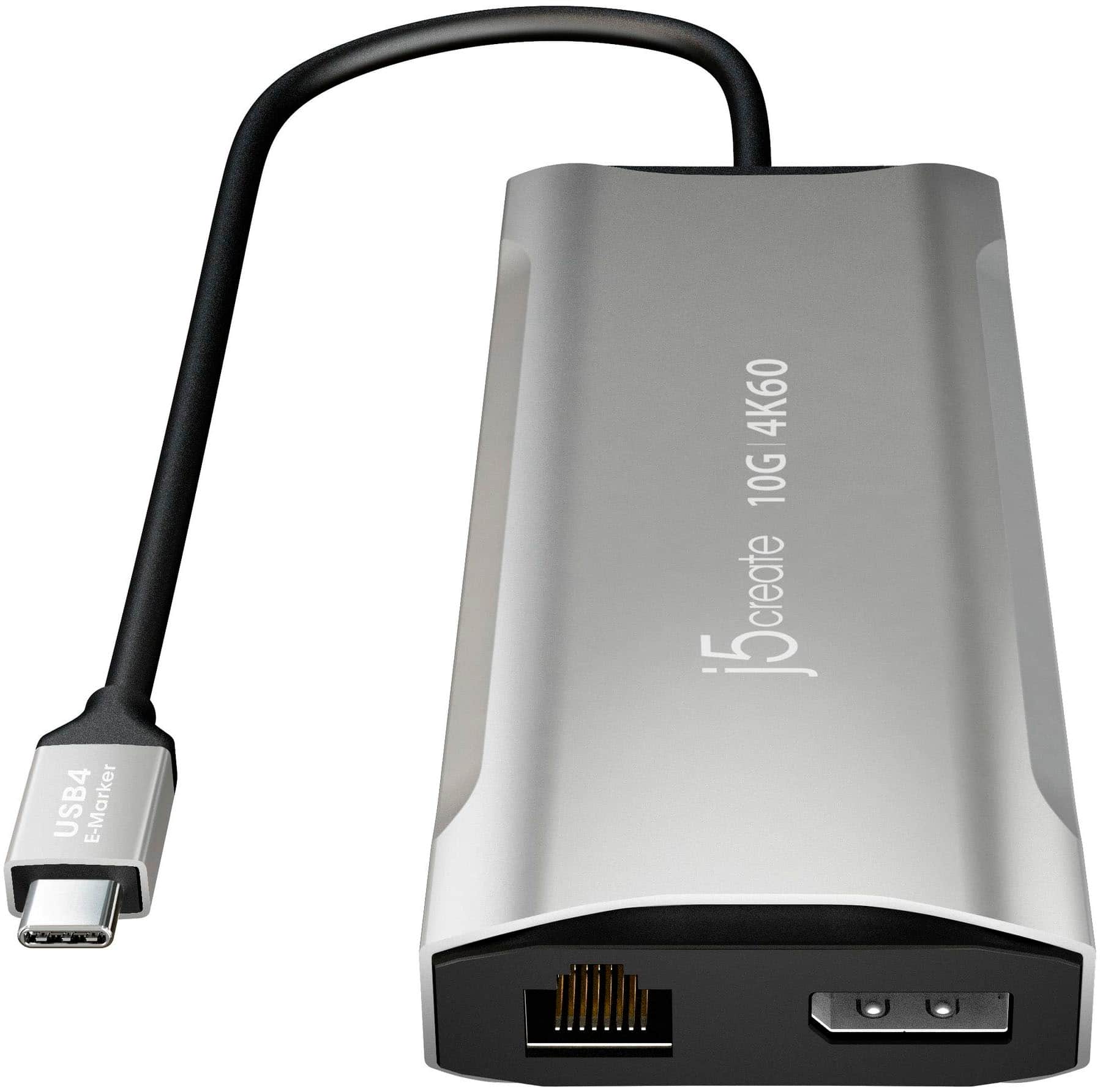
j5create - 4K60 Elite USB-C Triple-Monitor 10Gbps Mini Dock - Space Gray
SKU: J36445RYG7Best easy to use computer device ever purchased from best buy. works real good....Great Buy...I love it, works like it was intended and would love to purchase another.
See all Docking StationsProduct Description
An aluminum space grey mini dock enabling triple 4K monitor support, 10Gbps USB ports, and 100W charging.$119.99 Your price for this item is $119.99 -
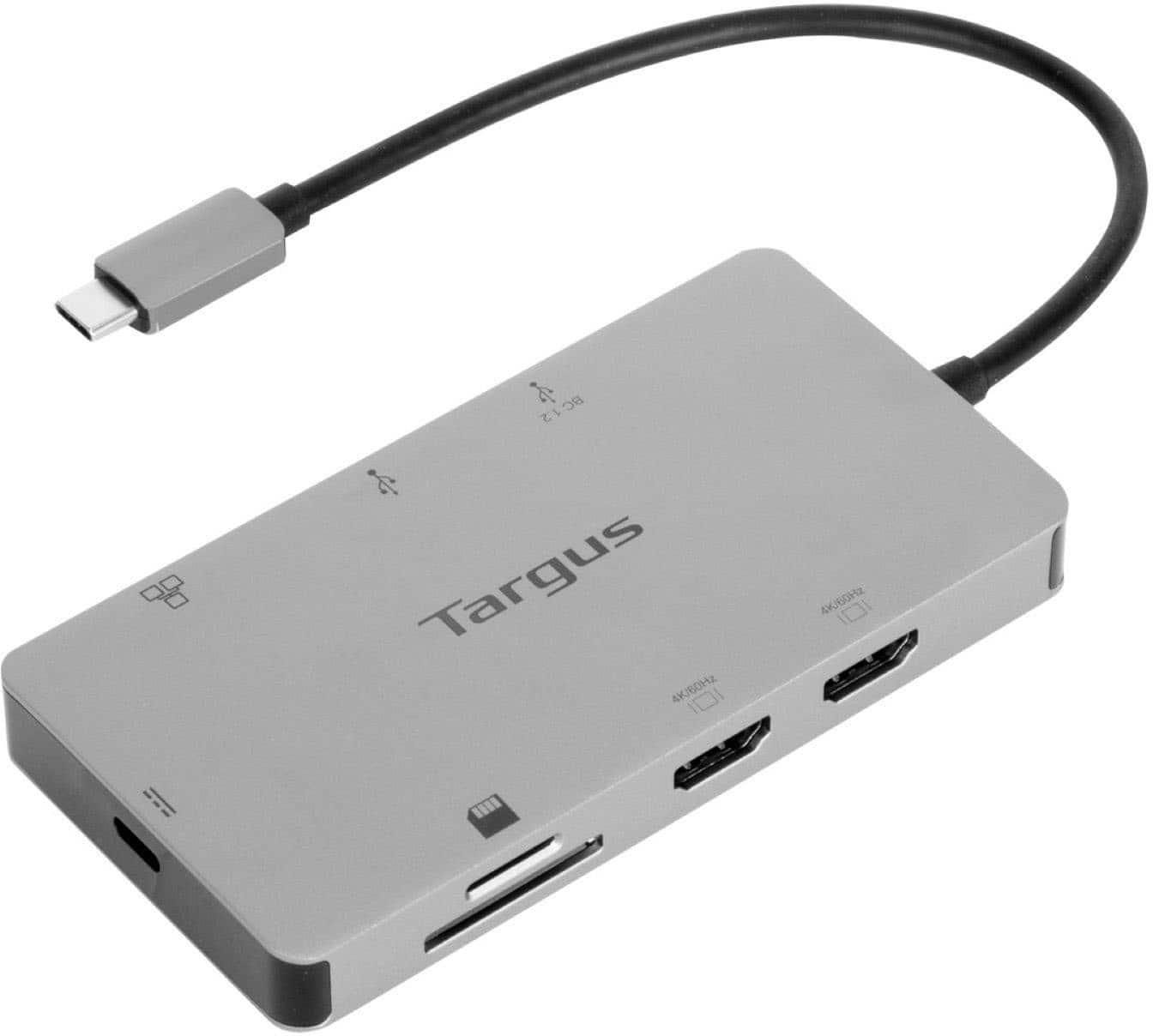
Targus - USB-C Dual HDMI 4K Docking Station with 100W PD Pass-Thru - Silver
SKU: J7QXPVJ4RZLOVE...We love it....Love it
See all Docking StationsProduct Description
A sleek silver docking station enabling dual 4K HDMI displays, 100W PD pass-thru, and versatile connectivity.$79.99 Your price for this item is $79.99Save $20Was $99.99The previous price was $99.99 -
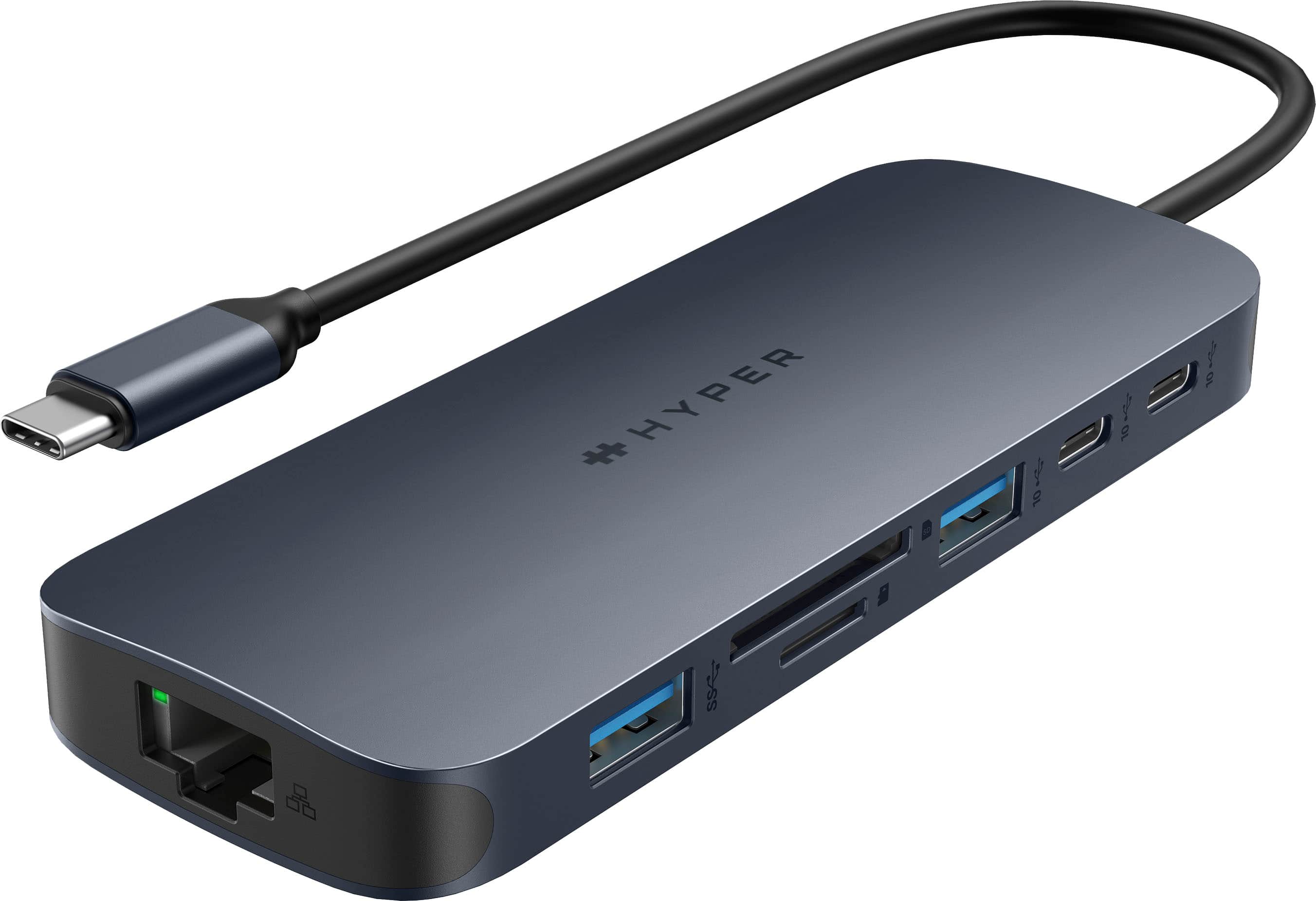
Hyper - HyperDrive Next 11 Port USB-C Hub, dual 4K HDMI, Ethernet, 2 USB-C, 2 USB-A, microSD/SD, travel dock for PC/Chromebook - Midnight Blue
SKU: J3L45JHCYRGreat add...Great add to your PC. Love it! Definitely a good add to your PC for additional ports....Love this port, and it has so many uses....I love an all in one unit highly recommend and I love that...
See all USB HubsProduct Description
An 11-port midnight blue USB-C hub offering dual 4K HDMI, Ethernet, and ultra-fast data transfers.$95.99 Your price for this item is $95.99Save $24Was $119.99The previous price was $119.99 -
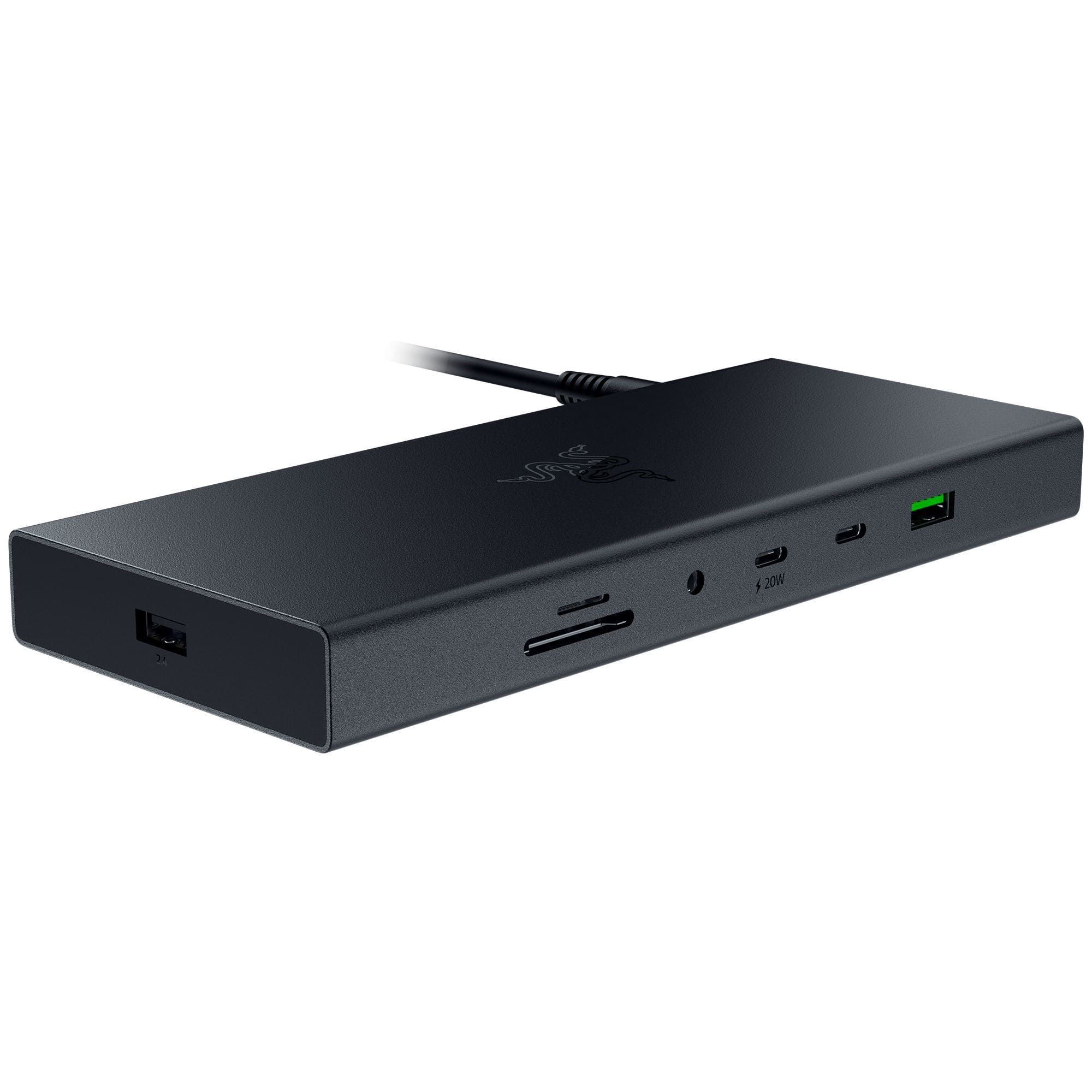
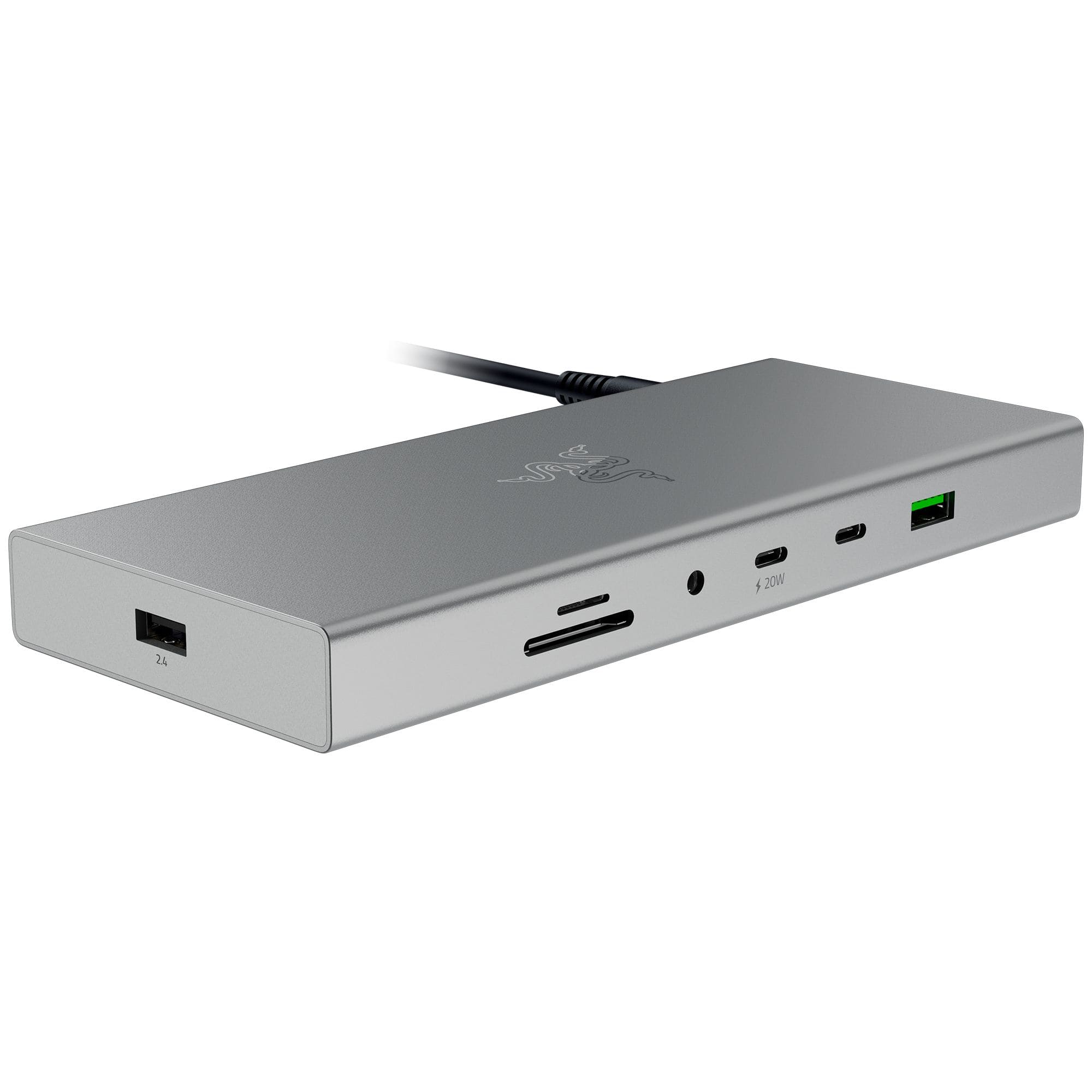
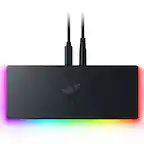
Razer - USB 4 Dock Station with 14 Ports for Windows 10 or later (PC with USB‑C); macOS 10.13 or later (Mac) - Black
SKU: J39HWFH94Fgreat product. abhorrent purchase experience at Best Buy...Best budget docking station...At under $300, i think this is the best usb docking station for office/gaming uses....Whats not to love?
See all Docking StationsProduct Description
A sleek black aluminum dock offering 14 ports, dual display support, and ultra-fast USB 4 connectivity.$189.99 Your price for this item is $189.99Save $70Was $259.99The previous price was $259.99 -
Razer - USB 4 Dock Station with 14 Ports for Windows 10 or later (PC with USB‑C); macOS 10.13 or later (Mac) - Mercury
SKU: J39HWFH95XSee all Docking StationsProduct Description
A versatile silver dock station offering 14 ports, dual display support, and ultra-fast USB 4 connectivity.$259.99 Your price for this item is $259.99
- 1
- 2
- ...
- 20
A docking station for multiple monitors can turn a laptop into a more capable desktop workspace with one central connection. Instead of plugging a display, keyboard, mouse, storage drive, network cable and other accessories into separate ports, you can connect many of them to the dock and run a single USB-C or Thunderbolt cable to your computer. This setup is useful for professionals who keep several documents, spreadsheets or communication tools visible at once, students managing research and notes, home office users balancing work and personal tasks, and creative users who need more screen space for timelines, editing panels or reference material. A second monitor can make everyday work feel less cramped, while three or more displays may help users compare information across windows without constantly minimizing and reopening them. During the warmer months, a compact laptop-and-dock arrangement can also make it easier to move between a home office, a shared workspace and another room, while a permanent monitor setup remains ready when you return. During cooler months, it can provide a comfortable, organized workstation for longer stretches of study, work or creative projects. Multiple-monitor docking stations can also be thoughtful gifts for college students, remote workers, freelancers, photographers, programmers or anyone who uses a laptop as their primary computer but wants the comfort and productivity of a larger desktop setup. Before choosing one, start with the computer rather than the number of ports on the dock. Check whether the laptop has USB-C with DisplayPort Alt Mode, Thunderbolt support or another video-capable connection; a standard USB-C port may handle charging and data without sending a display signal. Windows laptops with compatible USB-C or Thunderbolt hardware can often support two or three external monitors, but the exact number, resolution and refresh rate depend on the computer’s processor, graphics hardware and operating system. Mac compatibility also varies by model, especially among laptops with Apple silicon, so users looking for a model-specific selection can explore Docking Stations For Macs. A computer’s specifications should be compared with the dock’s specifications and the monitors’ requirements before purchasing. It is also important to determine whether the dock supports mirrored displays, in which every screen shows the same image, or extended displays, which provide separate desktop areas for multitasking. Extended mode is generally the reason shoppers choose a multiple-monitor dock, but support can vary by operating system and connection type.
Video outputs are another key consideration. HDMI and DisplayPort are common choices, but a dock may offer one type, a mix of both or video output through USB-C. Make sure the outputs match the inputs on the monitors, or plan for compatible adapters that preserve the desired resolution and refresh rate. If the displays have different capabilities, the dock and laptop may default to the limits of the connection, cable or monitor in use. A dock rated for high-resolution output does not automatically guarantee the same performance across every computer, and running several high-resolution screens may place additional demands on the laptop’s graphics system. DisplayLink-enabled docking stations can provide a flexible way to add more displays, including in situations where a laptop’s native graphics hardware has limited external-monitor support. They typically require software or driver installation, and performance can depend on the computer’s processor, available memory and the type of work being displayed. Native USB-C DisplayPort Alt Mode and Thunderbolt connections generally rely on the computer’s built-in display capabilities and may offer a more direct, plug-and-play experience, but they cannot bypass the laptop’s own monitor limitations. Read the compatibility information carefully, particularly when connecting multiple screens to a Mac, a work-managed computer or a laptop with security restrictions that may prevent driver installation. Beyond video, consider how the dock will support the rest of the workspace. Count the USB-A and USB-C ports needed for a webcam, headset, printer, external storage, keyboard, mouse or card reader, and check whether those ports support the speeds required by data-heavy accessories. A wired Ethernet port can provide a steady network connection for video calls, large downloads and cloud-based work, while an audio jack may simplify headset access when the laptop is positioned beneath a monitor stand. Power Delivery is especially valuable because one cable can carry data, video and charging at the same time. Compare the dock’s charging output with the laptop’s requirements; higher-power models may offer roughly 85W to 140W or more, while smaller docks may provide less and may not keep every performance laptop fully charged under heavy use. Cable length, dock placement and heat management also affect daily convenience. A short, sturdy host cable keeps the desk tidy, while a dock with a stable base is easier to reach without shifting monitors or unplugging accessories. With the right match between laptop, dock, monitors and peripherals, a multiple-monitor docking station can create a clean, adaptable command center that feels at home in a dedicated office, a dorm room, a family workspace or a compact apartment desk.
Best Sellers
Related Pages

FAQ
When choosing a docking station for multiple monitors, consider the number and type of video outputs (such as HDMI, DisplayPort, or VGA), compatibility with your laptop or desktop, supported resolutions, available USB ports, charging capabilities, and whether it supports dual or triple monitor setups.
Many docking stations are designed to be compatible with both Windows and Mac computers, but it's important to check the manufacturer's specifications. Some models may require specific drivers or have limited functionality depending on the operating system.
Yes, most docking stations allow you to connect monitors with different resolutions. However, the maximum supported resolution for each display may vary depending on the docking station's capabilities and your computer's graphics card.
The type of cable you need depends on the video output ports available on your docking station and the input ports on your monitors. Common cables include HDMI, DisplayPort, DVI, or VGA. Make sure your cables match the ports on both devices for optimal performance.
Using a docking station generally does not significantly impact your computer’s performance. However, running multiple high-resolution displays can increase demand on your computer’s graphics card and processor. Ensure that your device meets the recommended specifications for multi-monitor setups.