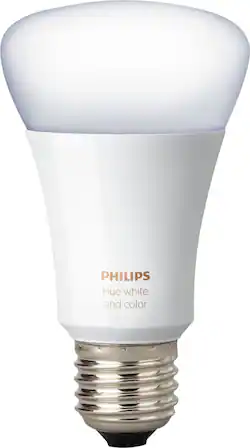
Philips - Hue A19 Smart LED Bulb - White and Color Ambiance
- Key Specs
- Brightness: 800 lumens (A measure of the total light output.)
- Wattage Equivalent: 60 watts
- Bulb Shape Code: A19
- Bulb Base Code: E26
- Works With: Amazon Alexa, Apple HomeKit, Cortana, Google Assistant, Nest, SmartThings, Wink (Compatible with or able to be connected to other smart devices or applications.)
- Indoor or Outdoor Use: Indoor
- General
- Brand: Philips
- Model Number: 464487
- Product Name: Hue A19 Smart LED Bulb
- Color: White and Color Ambiance
- Lighting
- Bulb Type: LED
- Brightness: 800 lumens (A measure of the total light output.)
- Light Color: Adjustable white, Multicolor
- Bulb Shape: Standard
- Bulb Finish: Frosted
- Number of Bulbs Included: 1
- Wattage Equivalent: 60 watts
- Beam Spread: 180 degrees
- Bulb Base Type: Screw-in
- Compatibility
- Bulb Shape Code: A19
- Bulb Base Code: E26
- Works With: Amazon Alexa, Apple HomeKit, Cortana, Google Assistant, Nest, SmartThings, Wink (Compatible with or able to be connected to other smart devices or applications.)
- App Compatible: true (The product can be connected to a program or software application on a mobile device, which then receives collected data from the product.)
- Features
- Dimmable: Yes - via app
- Performance
- Maximum Life Hours: 25000 hours
- Indoor or Outdoor Use: Indoor
- Power
- Bulb Wattage: 10 watts
- Voltage: 110 volts (Amount of power needed to support an electrical current.)
- Certifications Listings & Approvals
- ENERGY STAR Certified: false (Devices carrying the ENERGY STAR service mark, such as computer products and peripherals, kitchen appliances, and other products, generally use 20% to 30% less energy than required by federal standards.)
- Certification Type: None
- Dimensions
- Bulb Diameter: 2.4 inches
- Product Length: 2.4 inches (The out of box length of the item. Length is measured as the longest dimension of the item.)
- Product Height: 4.3 inches (The out of box height of the item. Height is measured as the vertical distance from the bottom of the item to the top as it would be primarily used or placed.)
- Product Weight: 0.2 pounds (The out of box weight of the item.)
- Warranty
- Warranty - Parts: 2 years
- Warranty - Labor: 2 years
- Other
- UPC: 046677464486
Set a beautiful mood with this Philips hue white and color ambiance bulb that works with your existing hue system. The soft flattering colors set a tone, and you can sync your lights depending on your activities through the corresponding app. This Philips hue white and color ambiance bulb offers 16 million choices in both warm and cool for versatility.
- Hue is your personal, customizable wireless lighting system: With wireless control on your smartphone or tablet, choose the perfect light setting for any mood or activity such as reading or relaxing, concentrating, or energizing.
- Pair with Hue Bridge for streamlined customization: Requiring the Hue Bridge (sold separately) for the full Hue experience, this bulb fits standard-size table lamps.
- Dimming and brightening features at your fingertips: Variable lumen output lets you adjust light's output without having to adjust the dimmer switch.
- Quick, easy installation: Install the LED light as you would install ordinary bulbs, pairing them with the Hue Bridge, which allows you to control smart-bulb-equipped lamps and overhead lights via the Philips Hue App.
- LED light bulb: Designed to provide longer, more energy-efficient illumination.
- Add Hue products to unlock enhanced lighting experiences: Easily expand your lighting system with accessories (sold separately), such as a Hue Dimmer Switch, Hue Tap, or Hue Motion Sensor.
Whats Included
- Hue White and Color Ambiance A19 Smart LED Bulb
- Owner's manual
Q: How many calories me in a pack
A: These contain no calories since this is NOT a food product.
A: You will need the Phillips Hue Hub. The bulb itself will not connect to the amazon echo.
A: You have to have the philips hue bridge while purchasing any philips hue product. The only instance in which you do not have to have the bridge is with the Amazon Echo Plus / Show second gen. They have it built in. If you don’t want to have to use a bridge, you will have to purchase C by GE lightbulbs!
A: You can set up each bedroom with a name. Like “ Kevin’s room”. Then say “ Alexa turn on Kevin’s room lights”.
A: I have the Hue GU10 colors in my vanity, and a Hue A19 color in my ceiling fixture near the bathtub/shower and have not had a problem. (My smoke alarm has gone off a couple times due to the steam, but the Hue has held strong. Never blinked shorted or changed colors on it's own.) I really like that I can set the vanity to teals and the over head to a rich blue and have a relaxing start to my day.[I also have a friend that has the strips over his shower!!]
Q: Will these bulbs worked in 4" recessed cans? The PAR16 bulbs are only 300 lumens
A: If a regular bulb fits then these will too. Actually a little shorter than a standard bulb.
A: The difference is the size of the piece that screws into the socket. One is standard and the other is candelabra. Both need a bridge or other smart item to control it.
Q: How do i add new lightbulds to the kit?
A: I've been able to add additional Hue bulbs to my Hub via the Hue app for Android. I imagine iOS/Apple products are similar. Put the new Hue bulb in the socket, turn the light on (manually). In the Hue app for Android, there is a gear icon in the upper-left corner of the main screen. This brings up a menu where I see an option "Light setup". Click that, and you should see a Plus (+) button in the lower-right corner. Again, click the button and you should now be on the "Add lights" page. Finally, click "Search" to begin finding the new lights. Not sure if there's a faster way to get to the above section but I hope this helps.