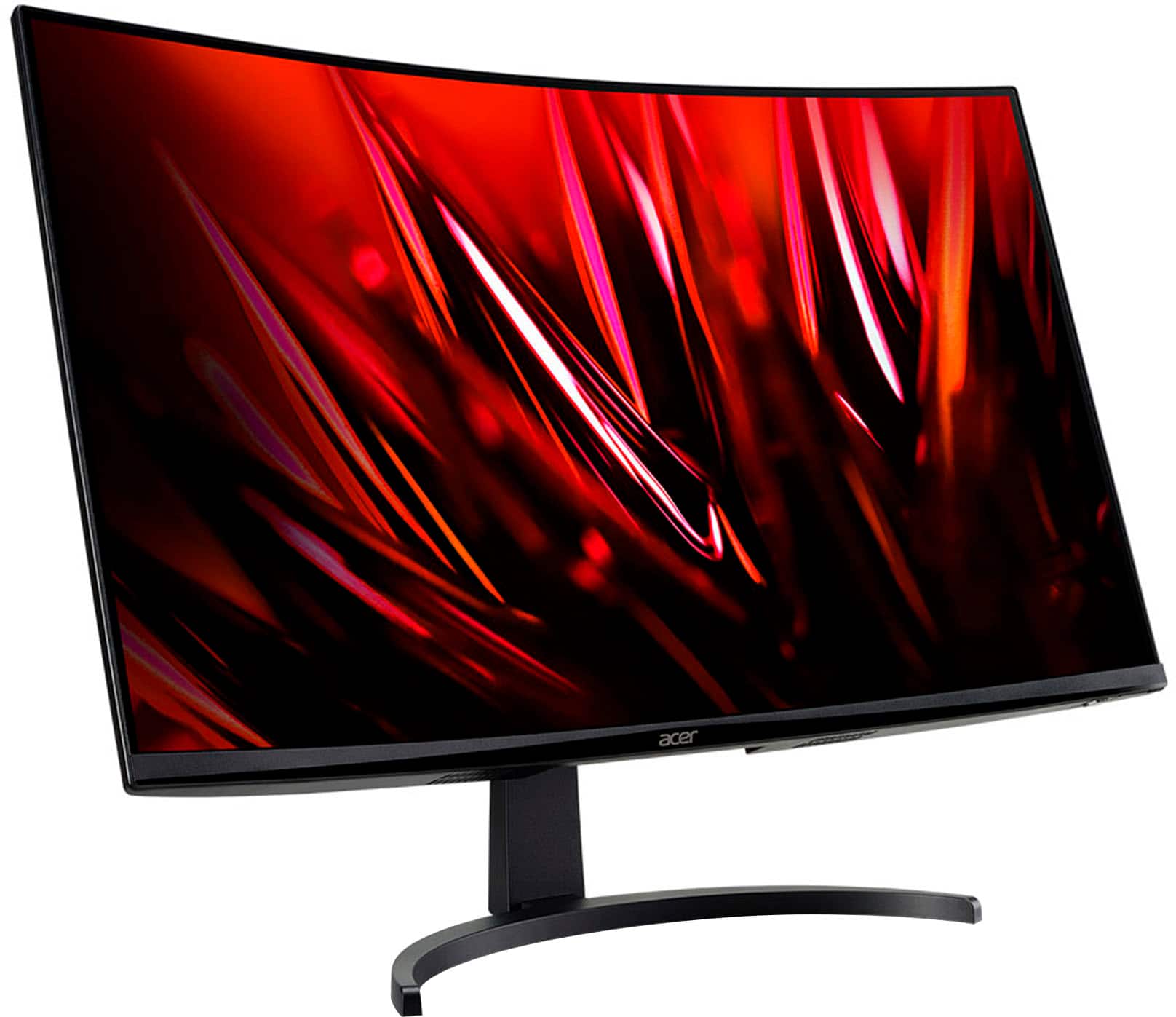
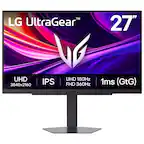
A:AnswerI purchased it for gaming, but it also doubles as my main work display, and it has been great for me. If you are looking at a curved display for work, this would suit just fine.
A:AnswerThey do this because they now allow third party sellers (scalpers) to sell on the Best Buy site and try to normalize the scalping behavior (price gouging) that these sellers do
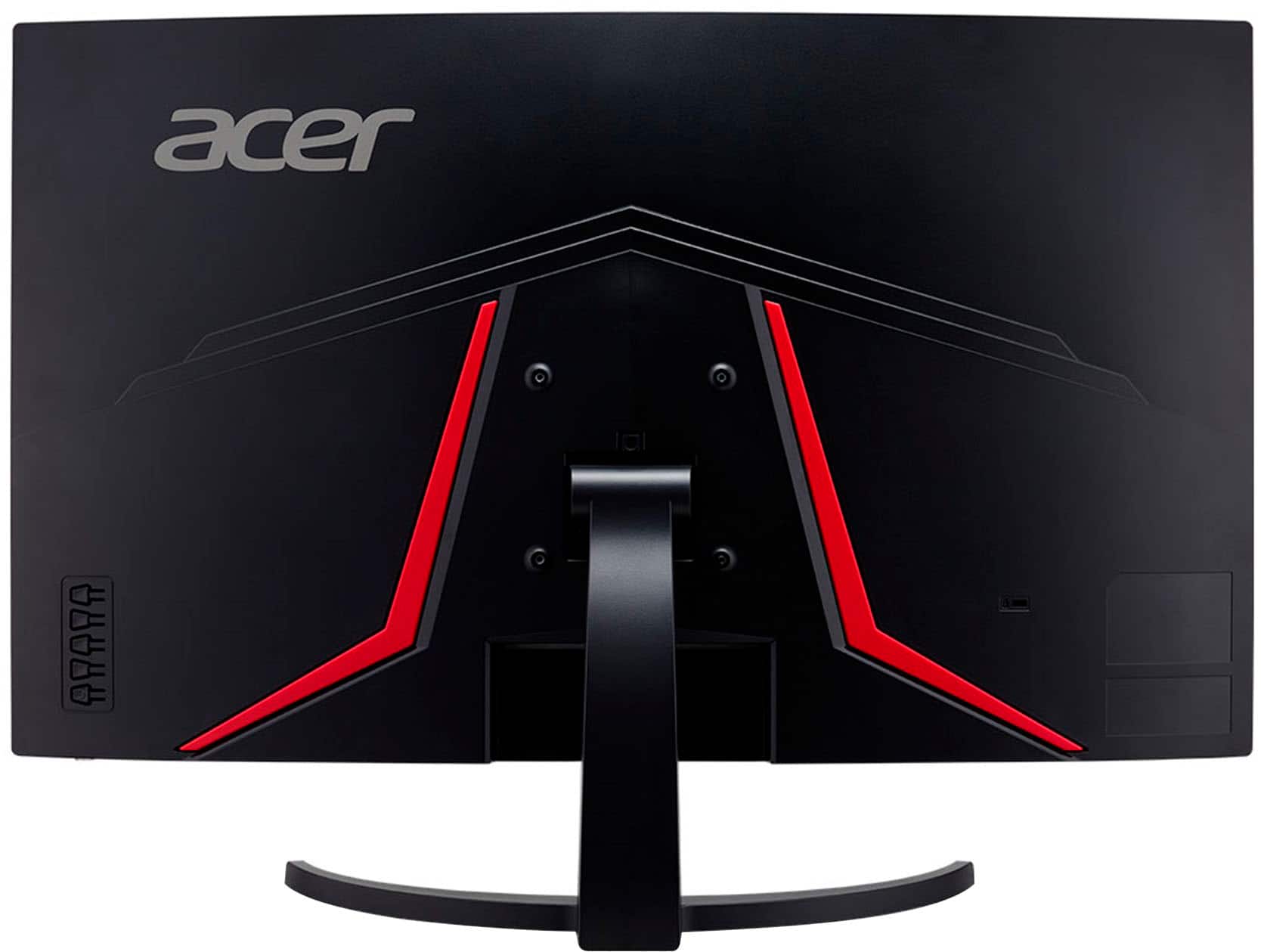
A:AnswerAcer does not offer a different monitor stand for the monitor products, but this monitor is VESA mountable, 100mm x 100mm if using a VESA mount.
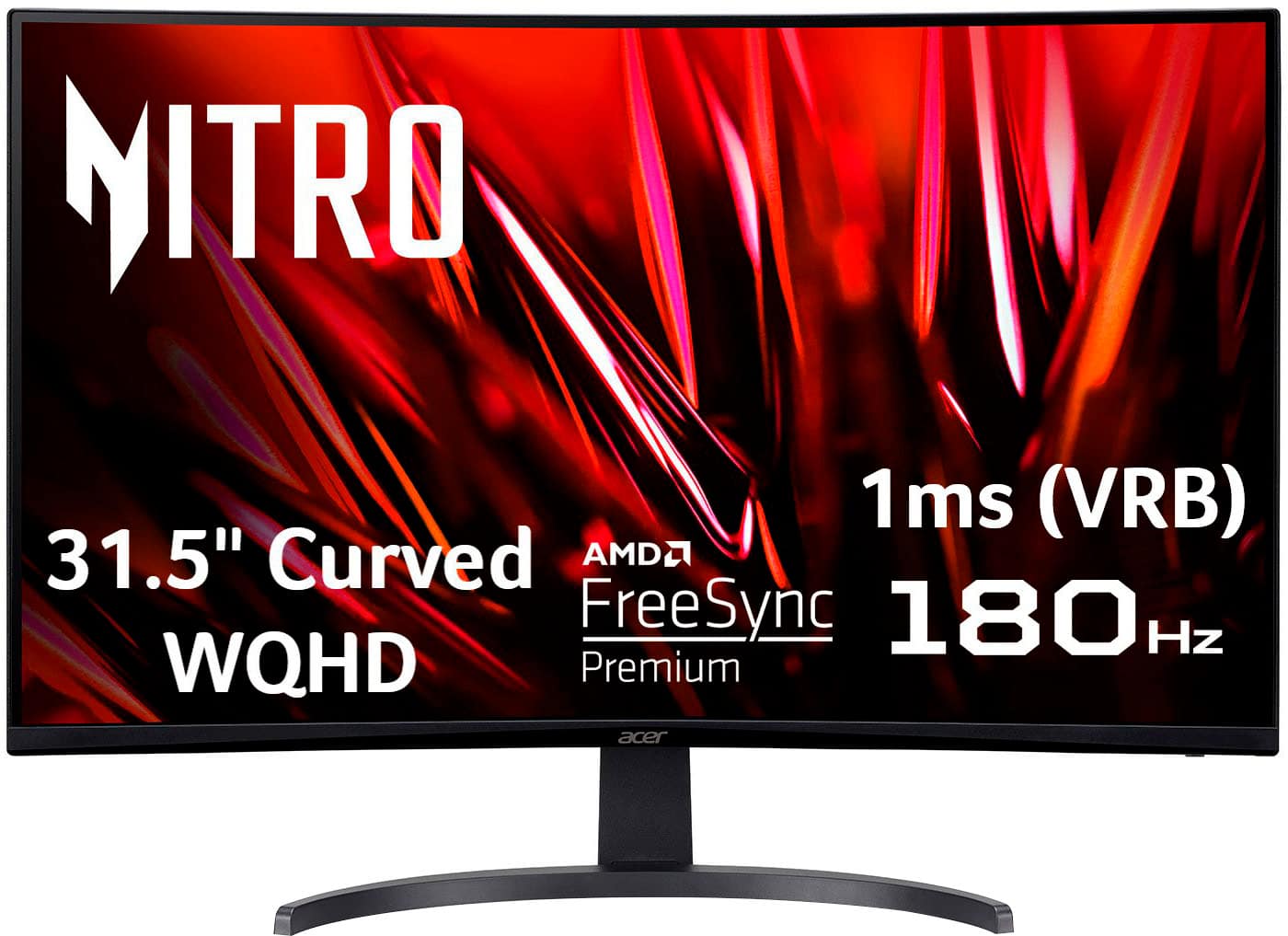
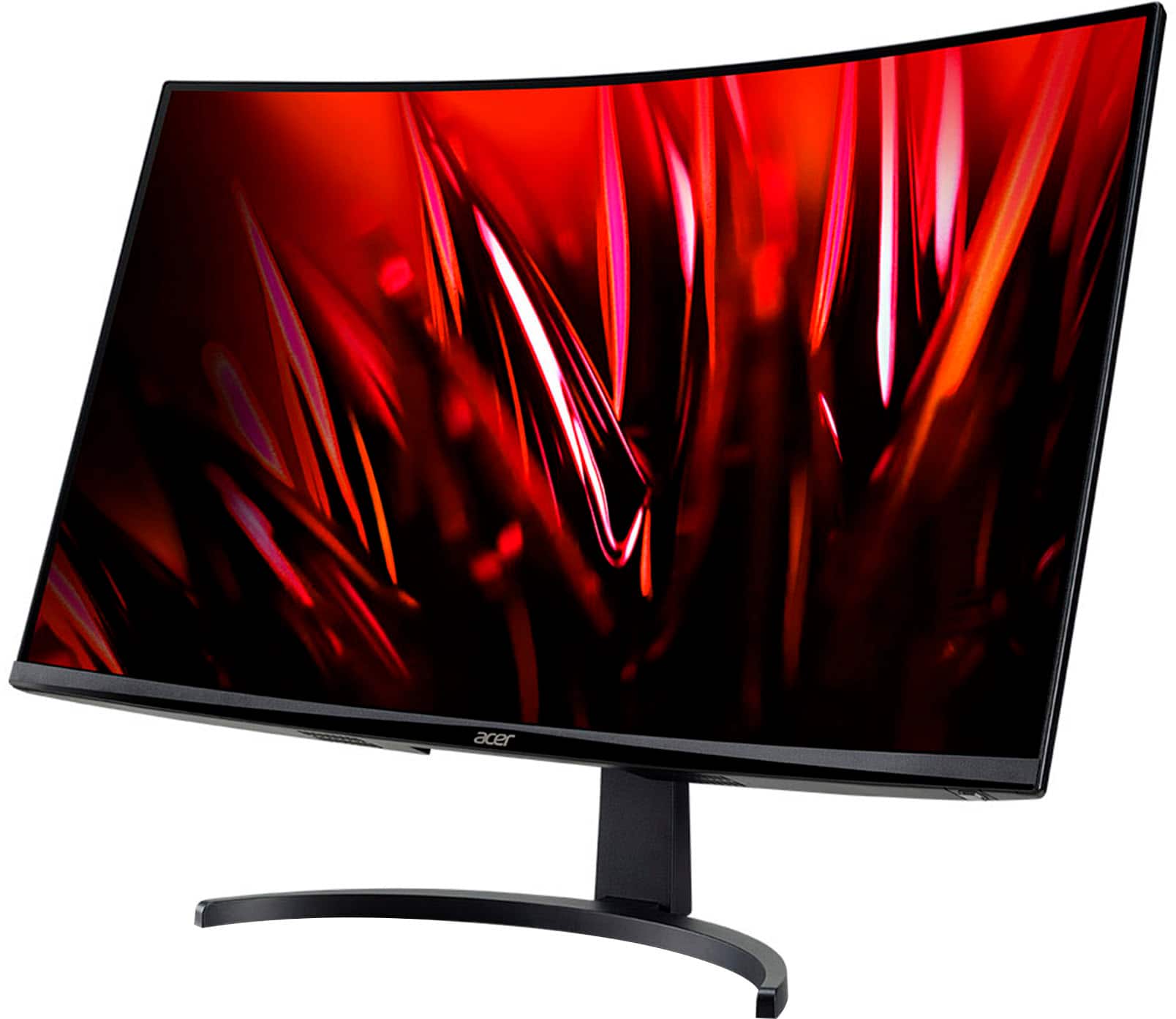
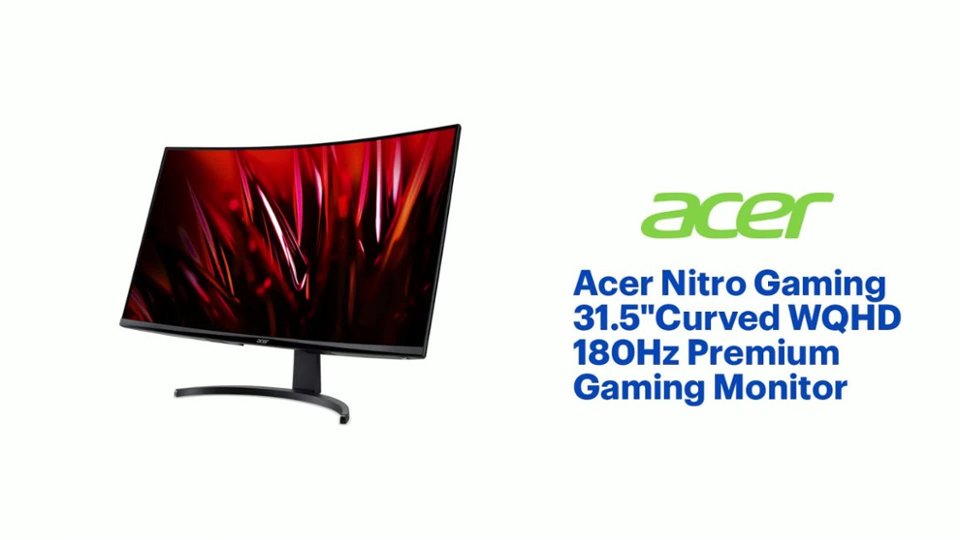
A:AnswerWe own this exact monitor: Acer - Nitro Gaming 31.5" Curved WQHD 180Hz 1ms FreeSync Premium Gaming Monitor (DisplayPort, HDMI x2) - Black
and we can confirm that YES it can be mounted. It is VSEA compatible - just look for a VSEA compatible stand.
Also - if you will be playing PS5 on this monitor - see our comment about the monitor looking washed out when you first try to use it. Like black is grey instead of black and red is orange. It isn't the monitor. You have to fix the settings in your gaming console. On PS5 you have to disable the HDR.
This is what we typed to help anyone who ran into this issue. Hope this helps.
"We had this *same* issues with washed out colors when we first starting using the monitor. After doing a google search we found out it isn't the monitor. It was the settings on the PS5. Try this and you should have perfect intense color:
Especially if you are going from a TV to a monitor to play on a PlayStation. You will think there is something wrong with this monitor because the display will look grey-ed or grayed out. It is not the monitor. Go into your PS5 or other device and adjust the settings.
IF you have a PS5 you are trying to use with this monitor - You MUST go into the PlayStation settings and "DISABLE HDR" on the PS5.
Go to Settings> Screen and Video > Video Output> HDR
Change this to OFF.
You may have to fix the settings on the PS5 where you see the black box and gray cogs wheel and the white box with the gray cogs wheel to make sure your contrast and brightness weren't adjusted prior due to your television settings.
If you are not using a PS5 and are using another device - it would be the same on another gaming device. Look for HDR settings on the settings in your console. You can google your exact device say for example "XBOX Acer Nitro washed out display. What settings should I fix?" Google should walk you through which settings to adjust for your exact device.
I hope this helps you like it helped us! Just trying to pay it forward.
We thought the monitor was to blame at first and almost went back to the store with the monitor. It isn't the monitor. It takes two minutes to fix the settings."
A:AnswerWe have this same monitor - Acer - Nitro Gaming 31.5" Curved WQHD 180Hz 1ms FreeSync Premium Gaming Monitor (DisplayPort, HDMI x2) - Black
Model: EDB323QU
and we also wanted a remote control. Sadly, the monitor cannot work with a remote as it doesn't have infrared or a way for the remote to communicate with the monitor. We tried researching everywhere we could to find some way to use a remote. This is what we found:
The easiest way to add remote control to a computer monitor is by using a smart plug ($10–$15). Plug the monitor into the smart plug to turn it on/off via a smartphone app or voice command. Alternatively, configure the PC to sleep automatically, or use a wireless relay system for hard-wired control. There are youtube videos out there showing how to do this.
Smart Plug (Easiest - $10-$15): Plug your monitor into a Wi-Fi-enabled smart plug (e.g., Kasa, Meross). You can turn the power on/off using a smartphone app or via Amazon Alexa/Google Assistant.
Smart Power Strip: If you want to turn off the monitor and computer peripherals (speakers, light) together, use a smart power strip to control all power at once.
HDMI/DisplayPort Switch with Remote: If the monitor is for multiple devices, a third-party HDMI switch with its own infrared remote can turn the screen off by cutting the input signal.
Computer Sleep Settings (Free): Instead of shutting down the monitor, use Windows power settings to have the monitor sleep after 1–2 minutes of inactivity. You can use a Bluetooth remote or a keyboard shortcut to wake it instantly.
Wireless Relay Module (Advanced DIY): You can purchase a wireless relay switch, which can be spliced into the monitor's power cable, turning it into a remote-controlled device.
Acer Display Widget: Install the Acer Display Widget software on your PC. This allows you to control monitor settings like brightness, contrast, and input source directly from your mouse and keyboard instead of using the physical button.
Monitor Arm/Stand: If access is the issue, using a VESA-compatible monitor arm or a more adjustable stand can make the rear joystick easier to reach.
HDMI CEC: While not standard on all gaming monitors, check your OSD menu for "HDMI CEC" settings. If supported, your computer or console controller might be able to wake the monitor.
-------
Also we had this issue you may or may not be having. I am trying to let those who are going from a TV to a monitor to play video games know as you may think something is wrong with the monitor - when it is just a difference in the settings and an easy fix.
We had issues with washed out colors when we first starting using this same monitor. The black wasn't black it was grey. Red wasn't red it was orange, etc.
After doing a google search we found out it isn't the monitor. It was the settings on the PS5 console. Try this below and you should have perfect intense color and great graphics:
Especially if you are going from a TV to a monitor to play on a PlayStation. You will think there is something wrong with this monitor because the display will look grey-ed or grayed out. It is not the monitor. Go into your PS5 or other device and adjust the settings.
IF you have a PS5 you are trying to use with this monitor - You MUST go into the PlayStation settings and "DISABLE HDR" on the PS5.
Go to Settings> Screen and Video > Video Output> HDR
Change this to OFF.
You may have to fix the settings on the PS5 where you see the black box and gray cogs wheel and the white box with the gray cogs wheel to make sure your contrast and brightness weren't adjusted prior due to your television settings.
If you are not using a PS5 and are using another device - it would be the same on another gaming device. Look for HDR settings on the settings in your console. You can google your exact device say for example "XBOX Acer Nitro washed out display. What settings should I fix?" Google should walk you through which settings to adjust for your exact device.
I hope this helps you like it helped us! Just trying to pay it forward.
We thought the monitor was to blame at first and almost went back to the store with the monitor. It isn't the monitor. It takes two minutes to fix the settings.
A:AnswerWe have this same monitor - Acer - Nitro Gaming 31.5" Curved WQHD 180Hz 1ms FreeSync Premium Gaming Monitor (DisplayPort, HDMI x2) - Black
Model: EDB323QU
This is how you adjust the volume settings on the Acer EDB323QU monitor:
The volume is adjusted using a control button located on the back of the monitor in the bottom right corner.
There are youtube videos out there if this is difficult to understand with what I am typing - just put "Acer Nitro monitor volume" in the search and it will come up with video.
How to adjust the volume:
Access the Menu: Press the button on the back-right side to open the On-Screen Display (OSD) menu.
Navigate to Audio: Use the joystick to navigate to the "Audio" section (often indicated by a speaker icon).
Change Volume: Move the joystick left or down to decrease the volume, or right/up to increase it.
Hope this helps!
A:AnswerThe speakers are not good at all. That being said, the video quality is absolutely beautiful. I am thinking about buying another so my dual monitors are the same. Visually it’s well worth the price.
A:AnswerWe had this *same* issues with washed out colors when we first starting using the monitor. After doing a google search we found out it isn't the monitor. It was the settings on the PS5. Try this and you should have perfect intense color:
Especially if you are going from a TV to a monitor to play on a PlayStation. You will think there is something wrong with this monitor because the display will look grey-ed or grayed out. It is not the monitor. Go into your PS5 or other device and adjust the settings.
IF you have a PS5 you are trying to use with this monitor - You MUST go into the PlayStation settings and "DISABLE HDR" on the PS5.
Go to Settings> Screen and Video > Video Output> HDR
Change this to OFF.
You may have to fix the settings on the PS5 where you see the black box and gray cogs wheel and the white box with the gray cogs wheel to make sure your contrast and brightness weren't adjusted prior due to your television settings.
If you are not using a PS5 and are using another device - it would be the same on another gaming device. Look for HDR settings on the settings in your console. You can google your exact device say for example "XBOX Acer Nitro washed out display. What settings should I fix?" Google should walk you through which settings to adjust for your exact device.
I hope this helps you like it helped us! Just trying to pay it forward.
We thought the monitor was to blame at first and almost went back to the store with the monitor. It isn't the monitor. It takes two minutes to fix the settings.