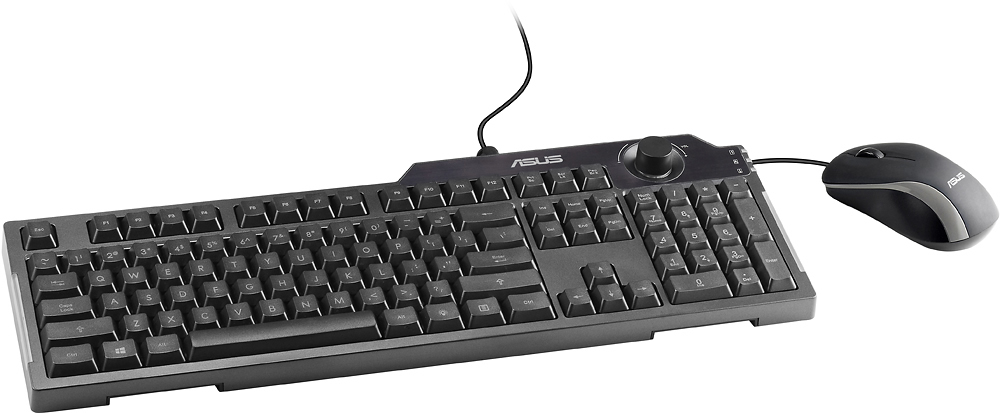
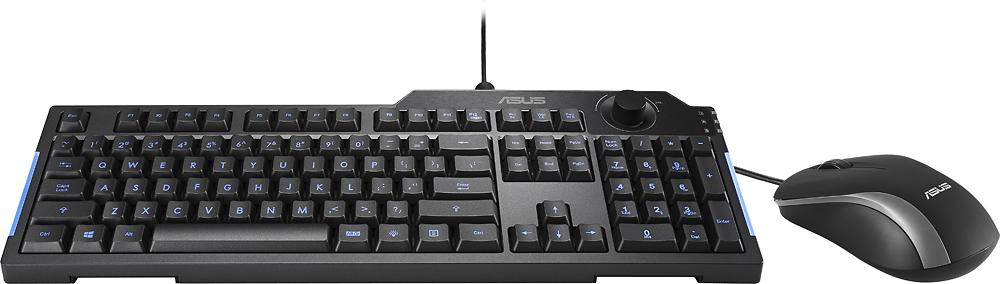
A:Answer On the keyboard, there is a key with a lightbulb icon to the right of the spacebar. Press that to turn the keyboard backlights on and off.
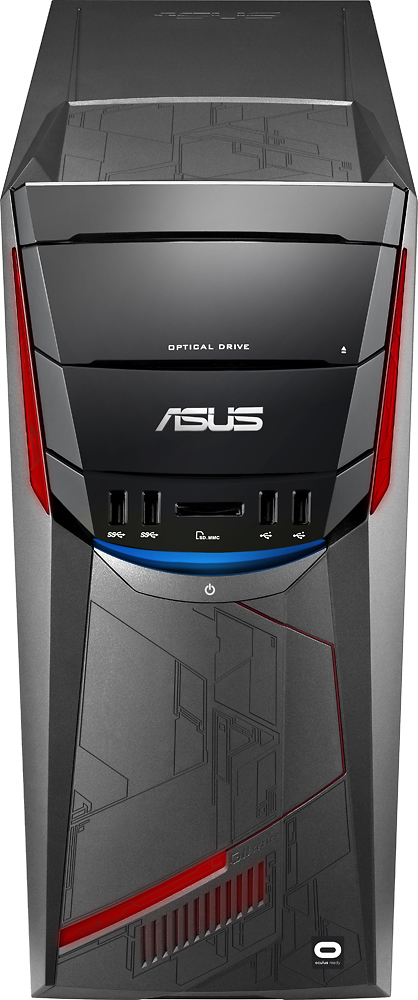
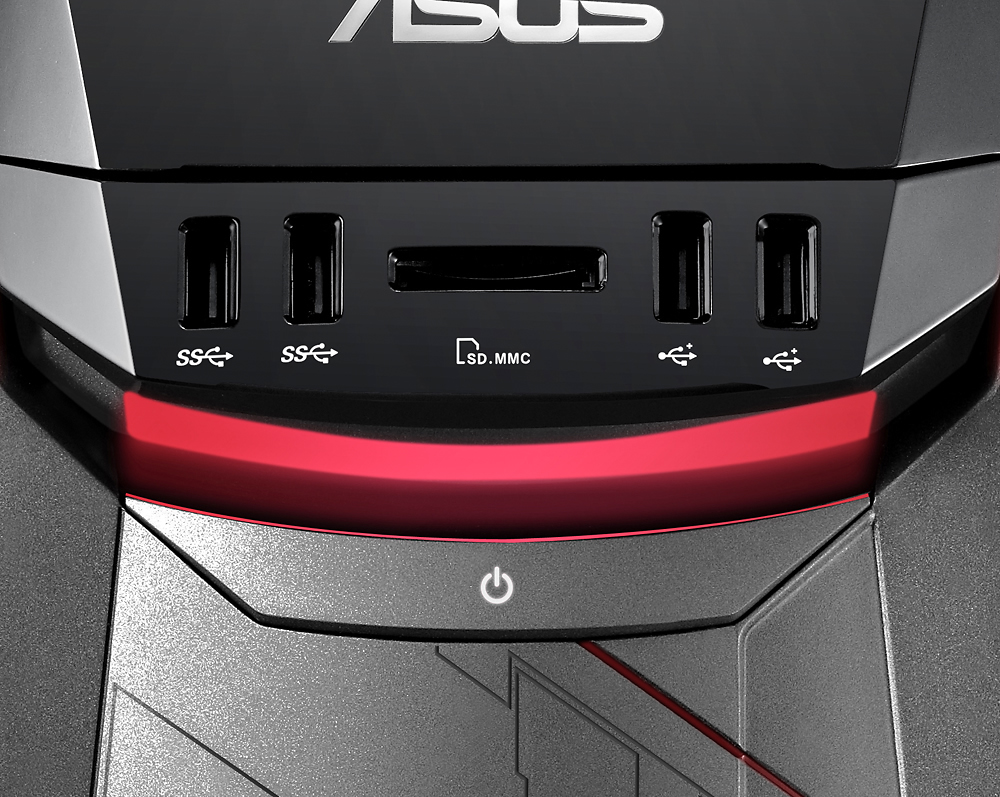
On your taskbar, you will find a program called ASUS DT AEGIS II (looks like an upside-down red triangle). Click it and the program will open in the upper right corner. Scroll through the options until you get to TOOL and click "Lighting". You'll be presented with a color wheel and you can choose which color you want Zone 1 on your computer to display, or TURN IT OFF if you so wish. Zone 1 is the light bar above the power button; Zone 2 is the remaining lights and they are always red, though you can adjust their brightness or shut them off.
There is also an option for a pulse effect which essentially dims the computer case lights every 5 seconds.
If you set up your computer to go to sleep after a specified amount of time, the keyboard lights and case lights will shut off when the system goes to sleep.