A:AnswerIIRC the R is simply to differentiate between those sold thru retailers with brick and mortar front ends as opposed to online exclusive retailers.
There should be no difference.
Anecdote confirms as Windows recognized this monitor as a S2716DG despite the additional R on the box.
I would guess that the addition of the R also allows BestBuy to subvert pricematching with online retailers as the R is still technically a different model and therefore not subject to being pricematched with a model without an R. But this is just a guess
A:AnswerIPS is a panel type, not a setting. THis is a TN panel monitor. To adjust image settings I started with the suggestion of another reviewer and it worked for me,.
Brightness 50%
Contrast 50%
Gamma 0.72
Digital Vibrance 70%
Hue 0
Dell S2716DG menu
Brightness 43%
Contrast 75%
Set a custom color and play with it, this is what I have.
R 97% G 99% B 96%
A:AnswerYou have to go to your desktop, right click on it, display settings, advance display settings,then hit display adapter properties, then hit monitor and go to the drop down box and hit 144.
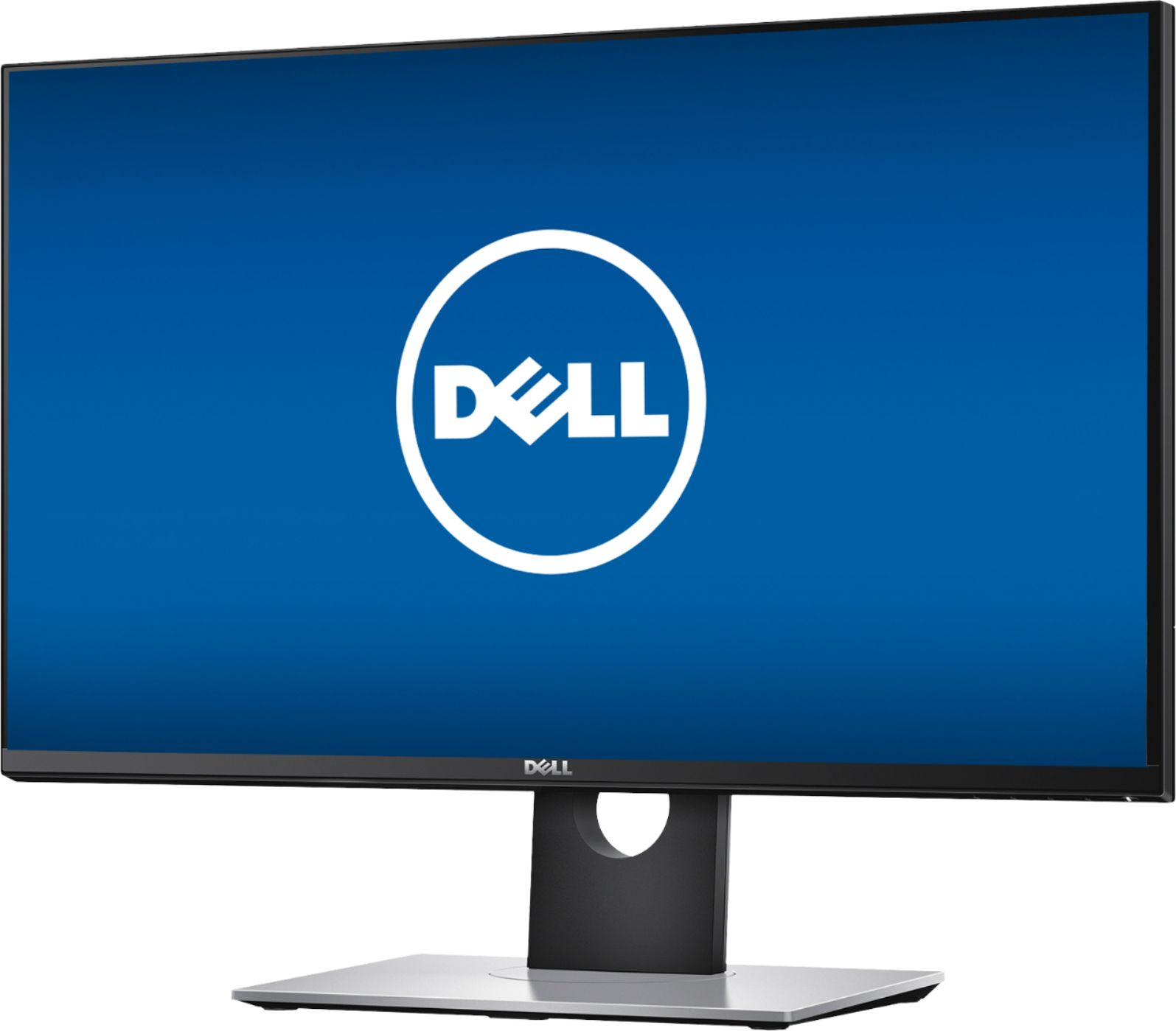
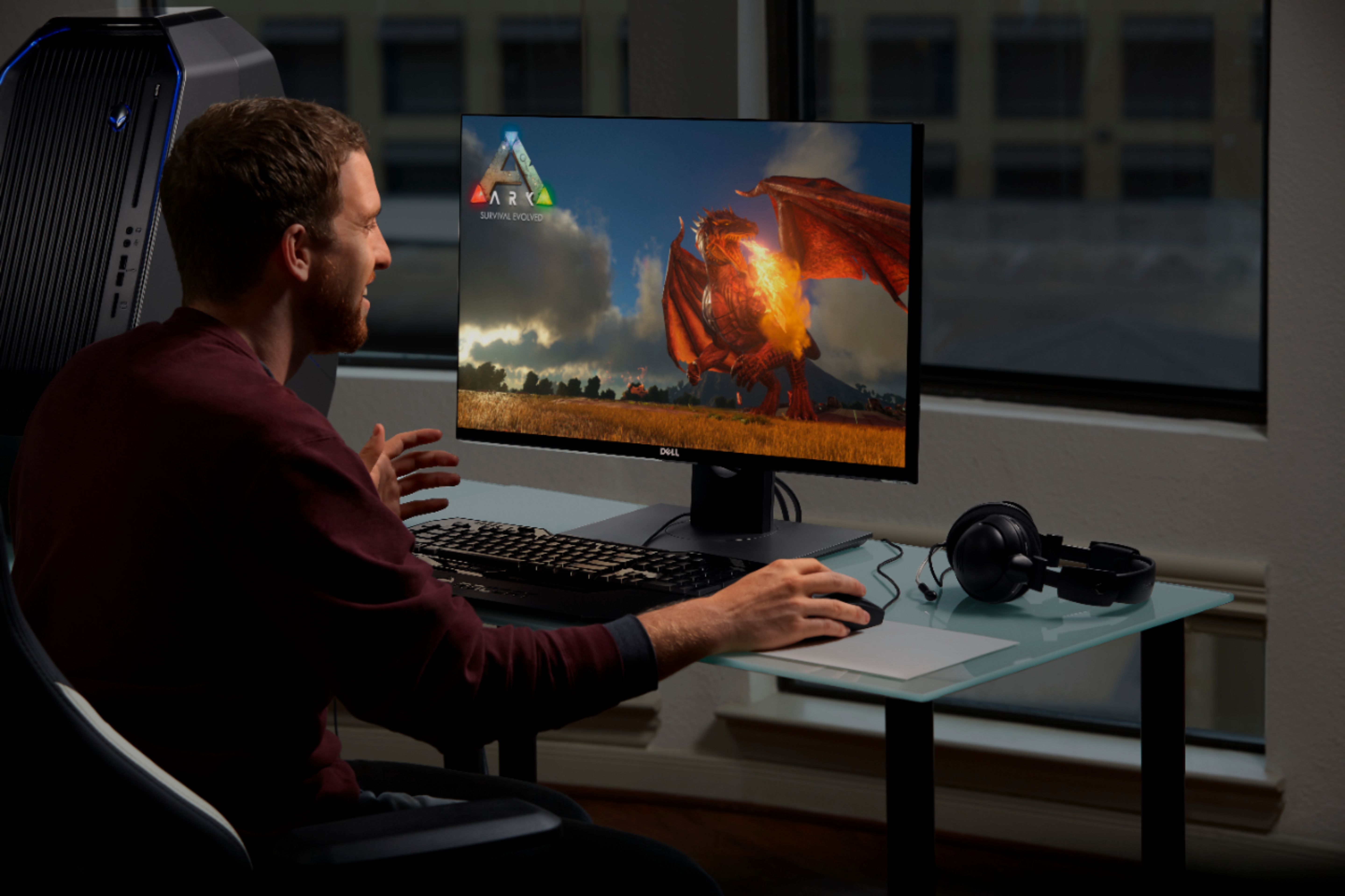
A:AnswerThis monitor is great for gaming. It has GeSync technology which when added to a GeForce GPU will eliminate screen tearing and is an alternative to VSync. I play Destiny 2, GTAV, Far Cry 5, and many other games on this monitor and it looks gorgeous.
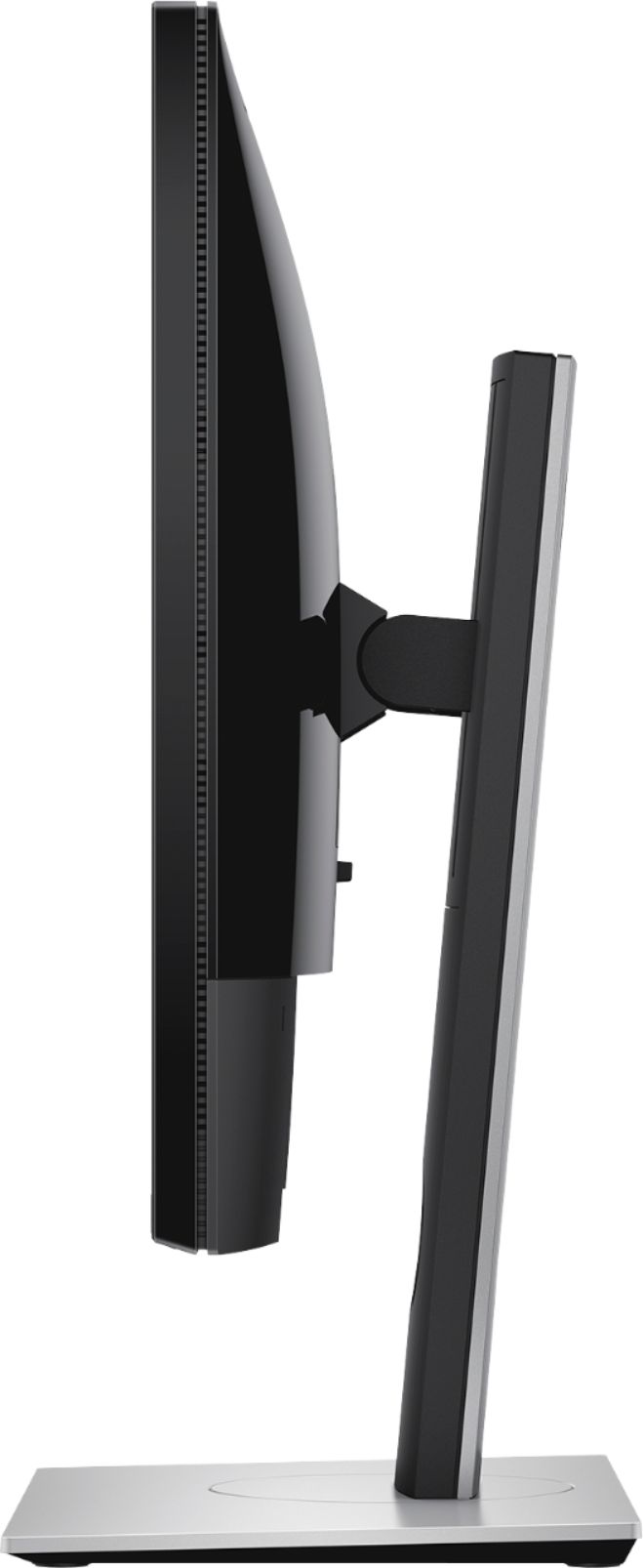
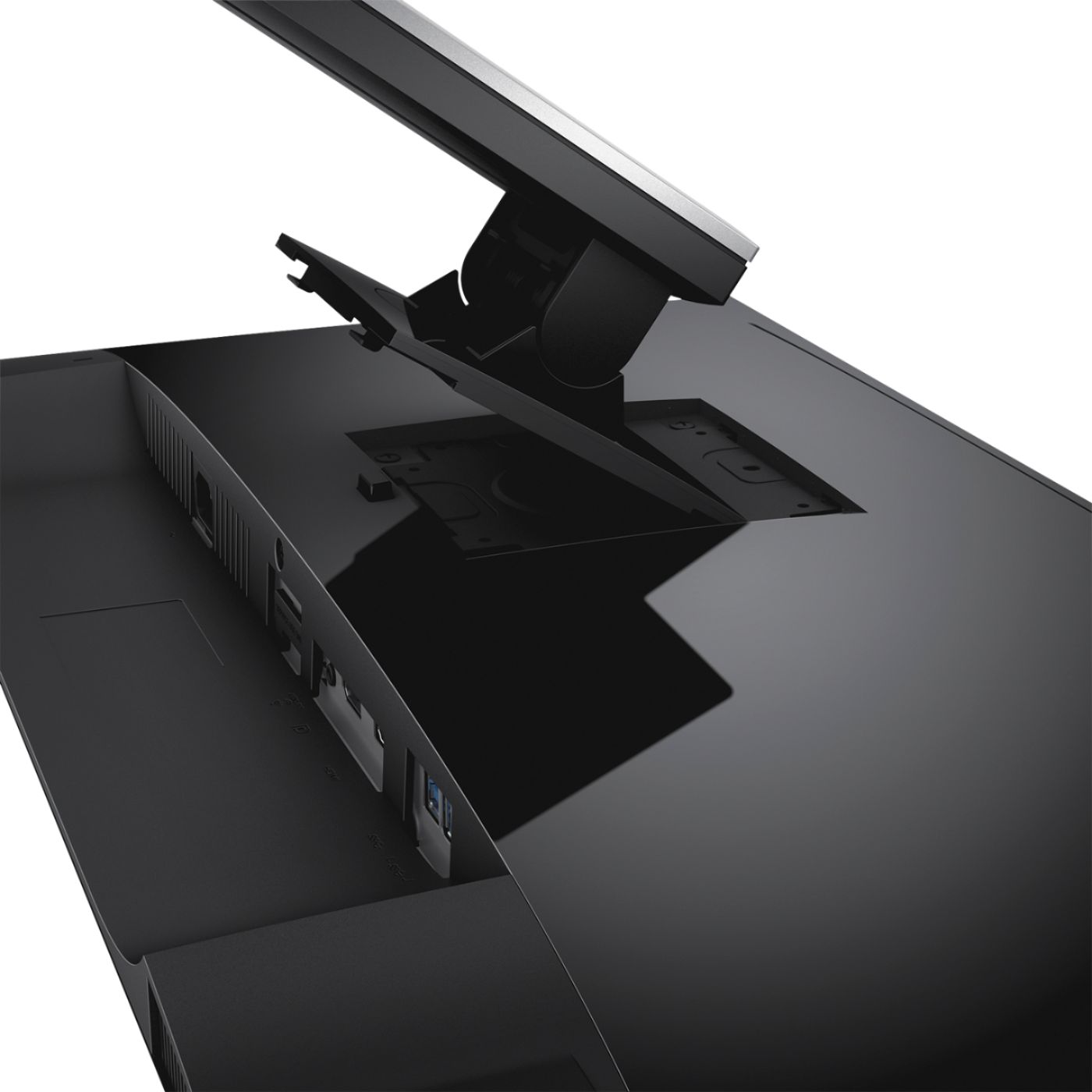
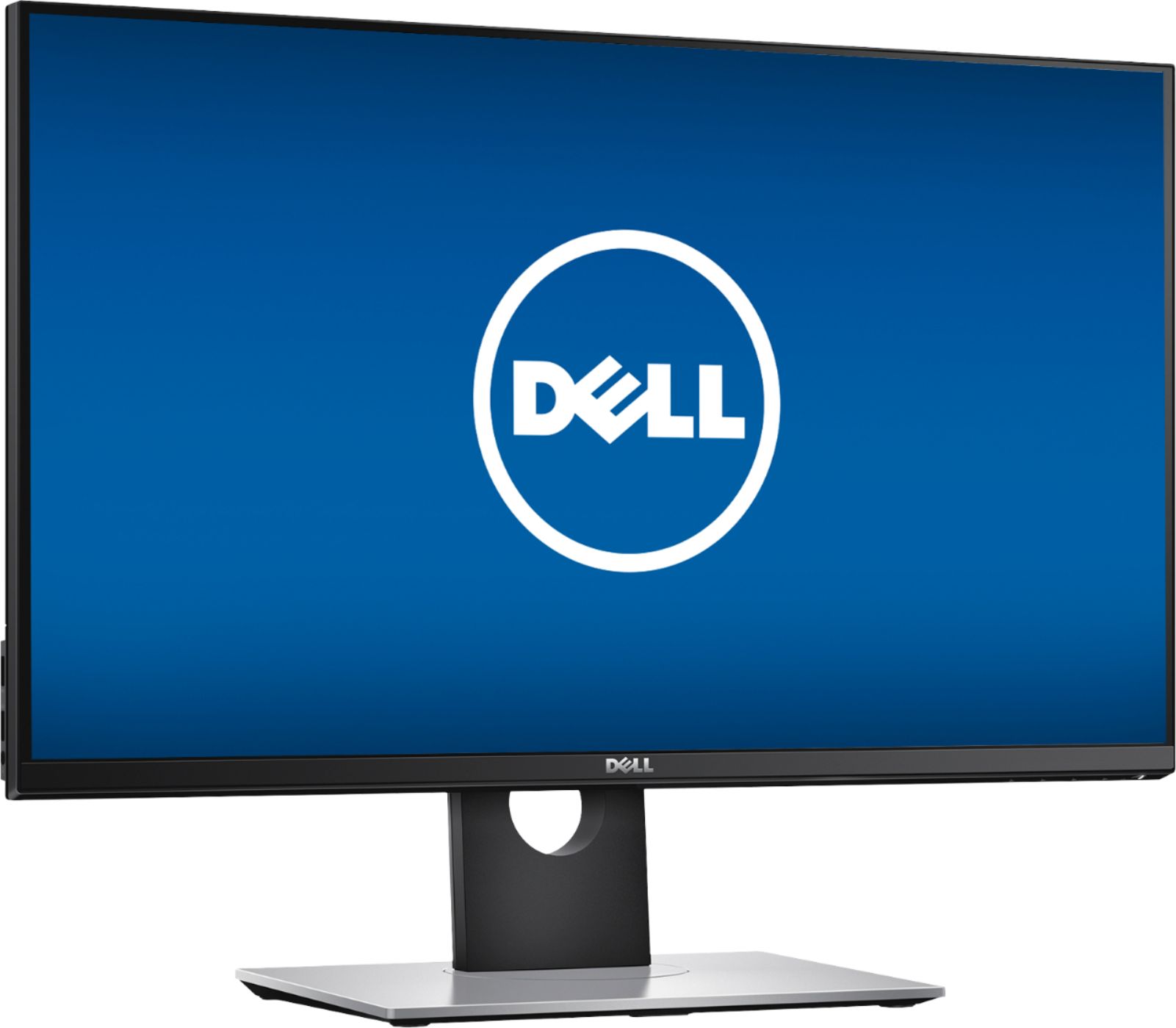
A:AnswerAbsolutely! Apart from height adjustment, you can pivot the monitor left and right (as if you were moving your head left and right) and even up and down (if the monitor is below you or above you). You can even change its orientation to and from landscape/portrait. High quality stand.
A:AnswerYes - this is a 8bcp, for gaming is decent, not the best, unfortunately I bought it for 699 and a few days later went to 499 (not sure if the best buy promo is still there but if it is, go for it)
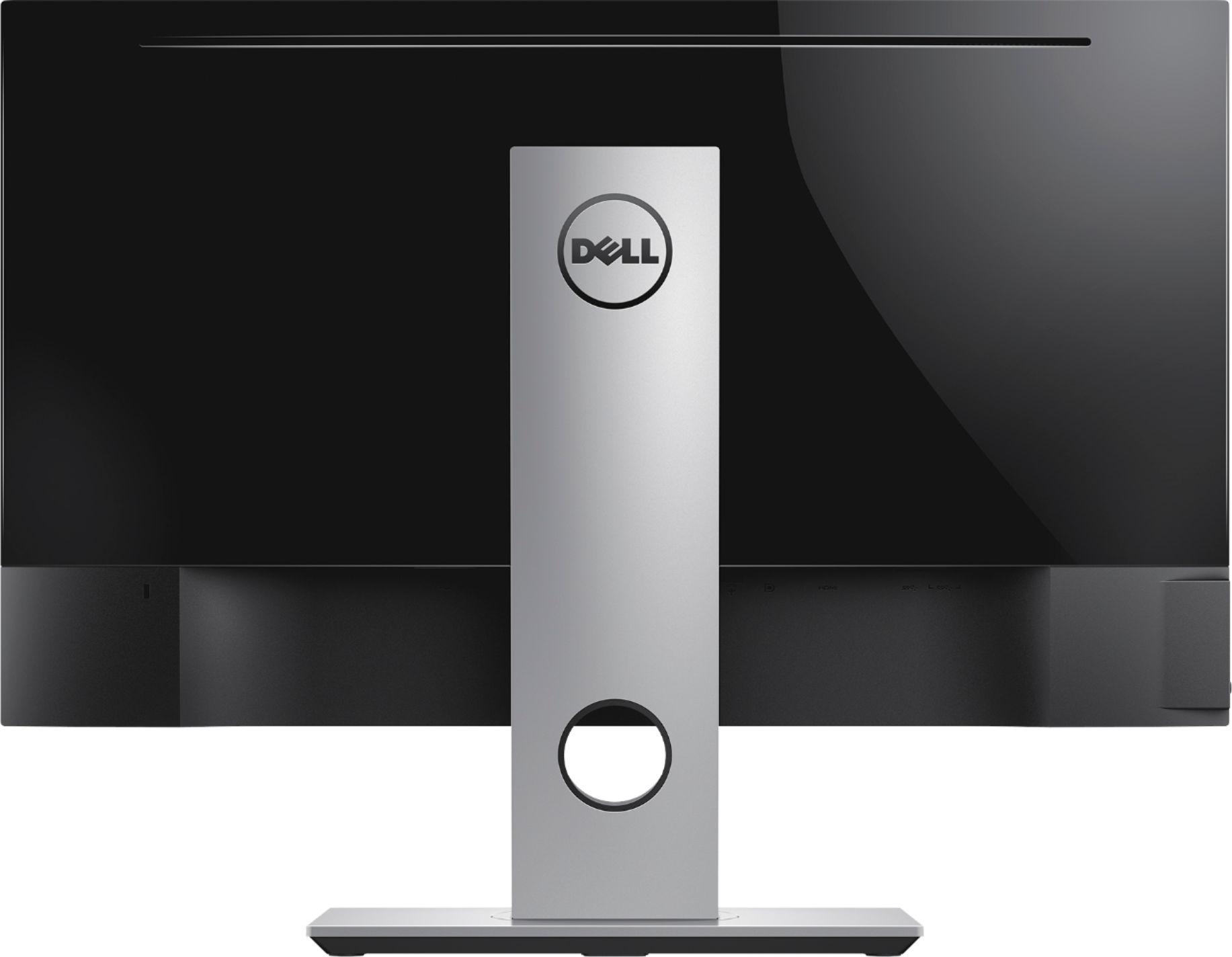
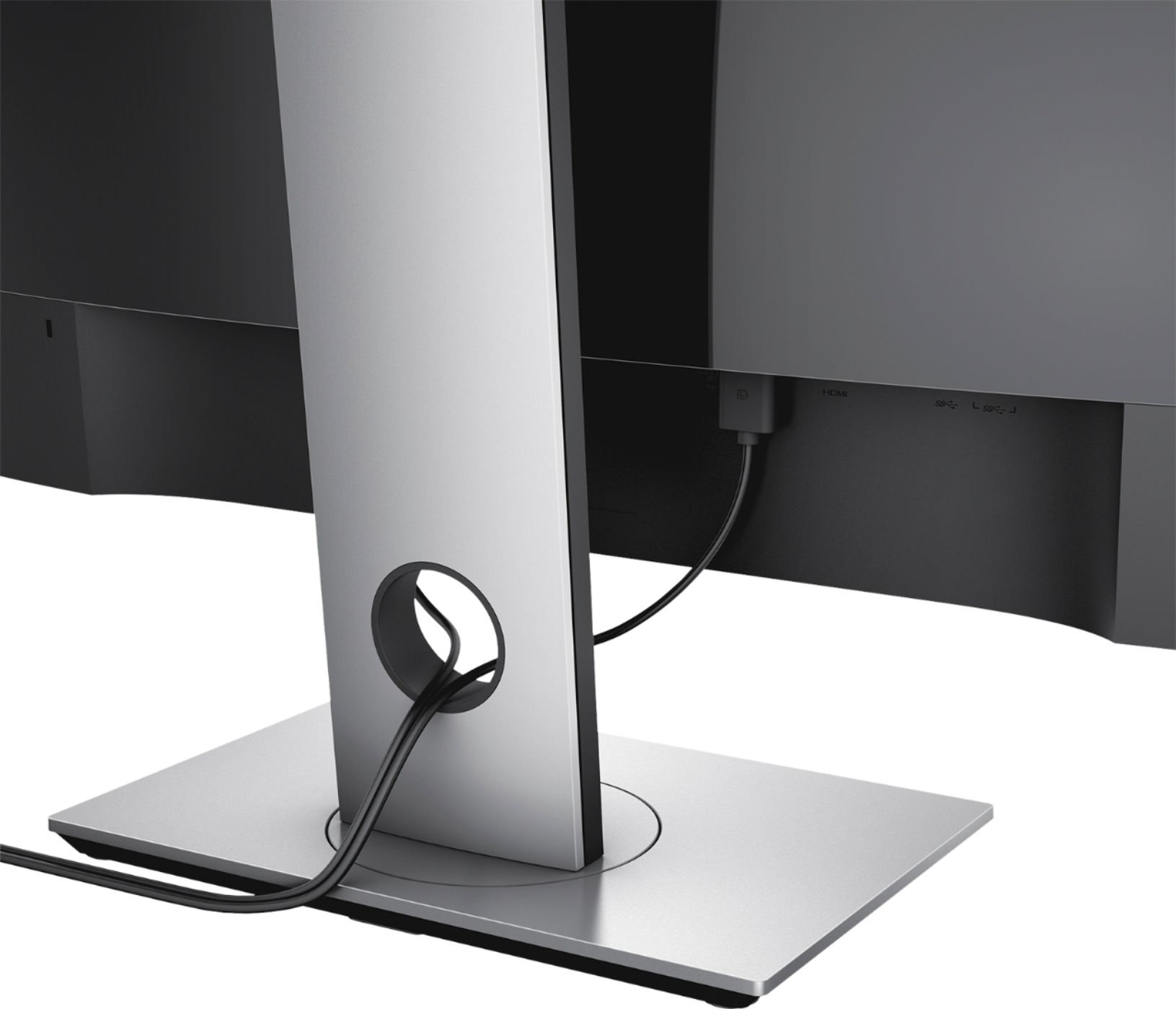
A:AnswerThe HDMI port on the monitor is HDMI 1.4 and does not support 1440p @ 144hz. Your laptop has HDMI 2.0 and USB type C that supports 1440p @ 144hz. I suggest getting a USB type C to display port to connect to the monitor.