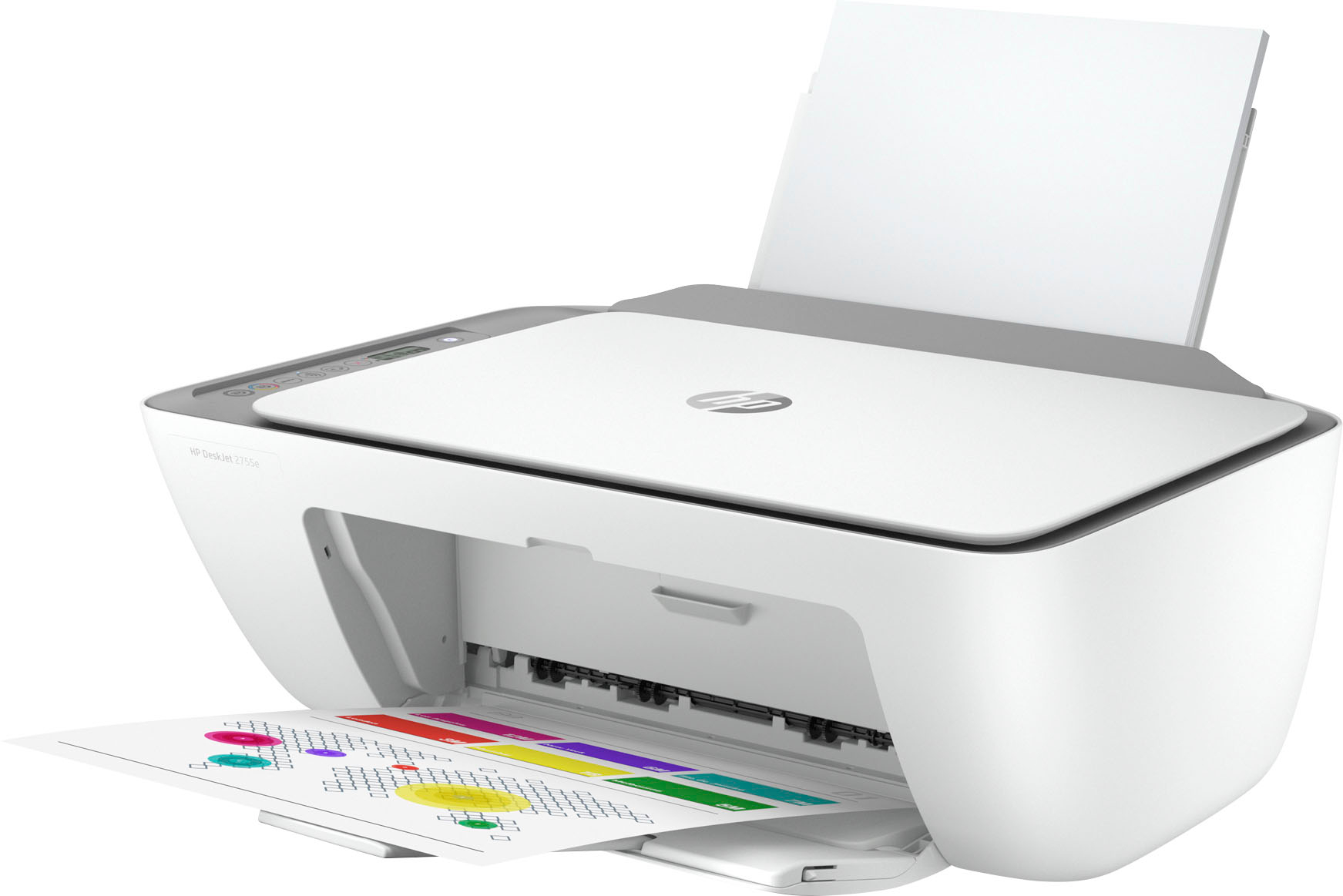
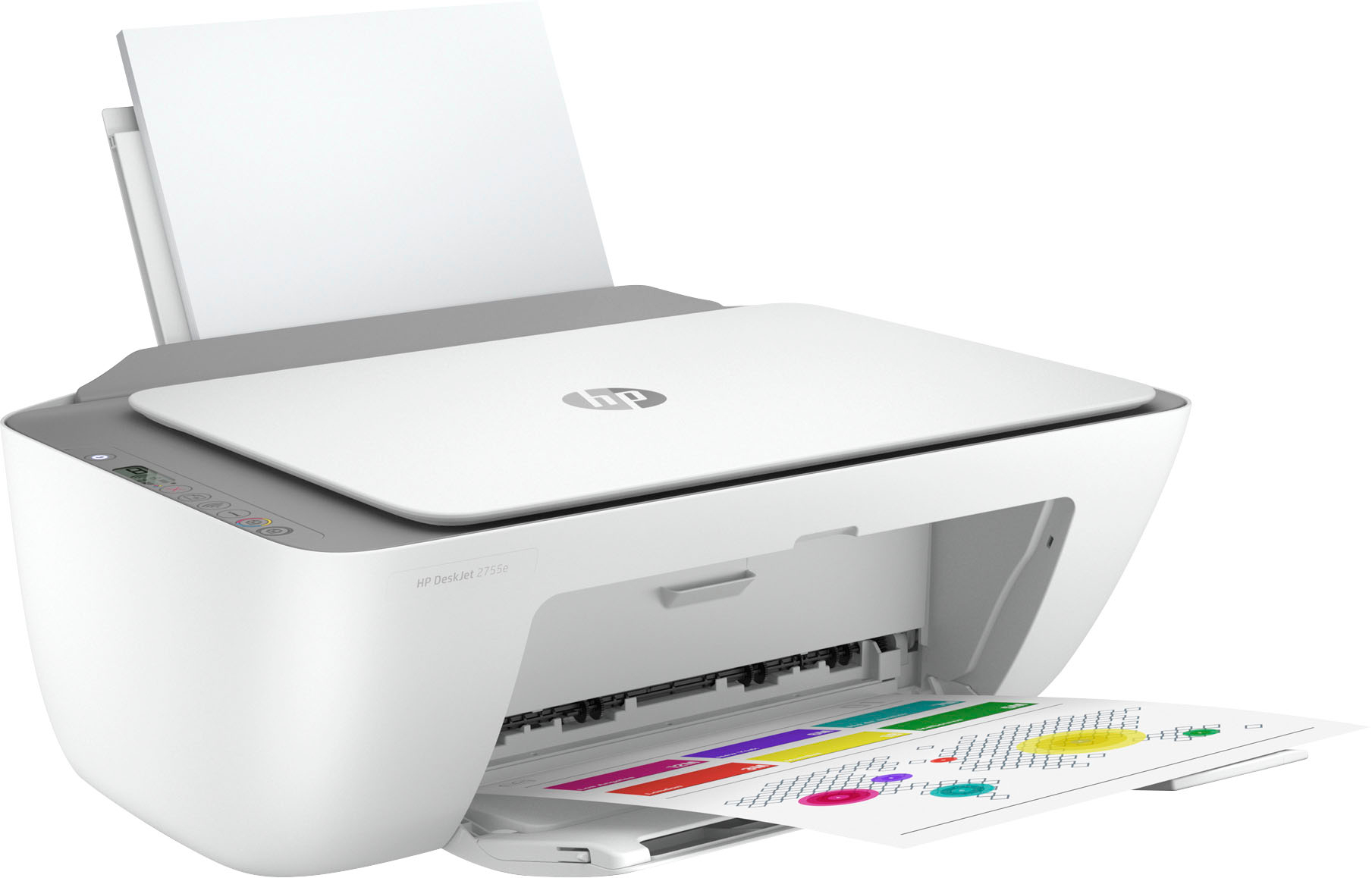
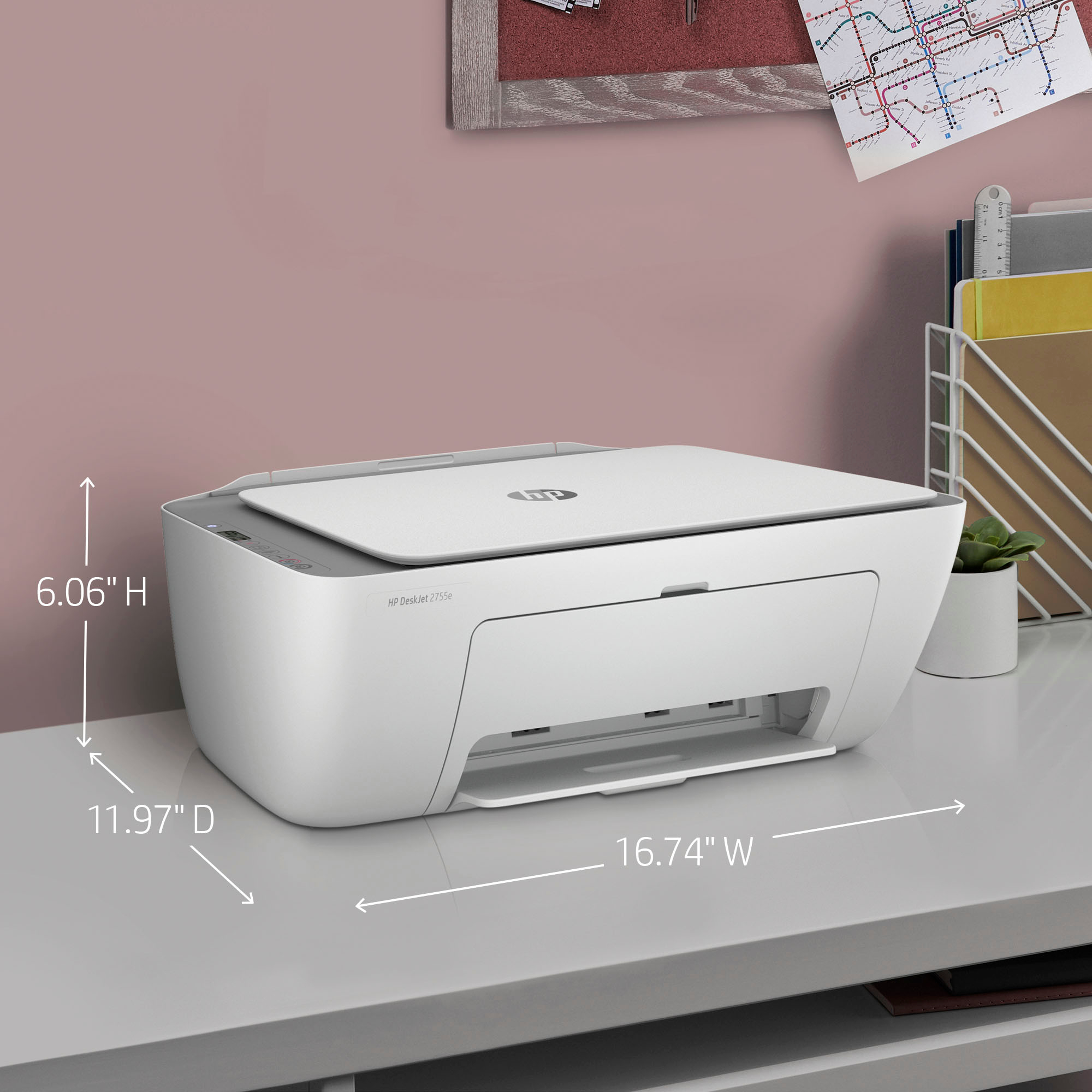
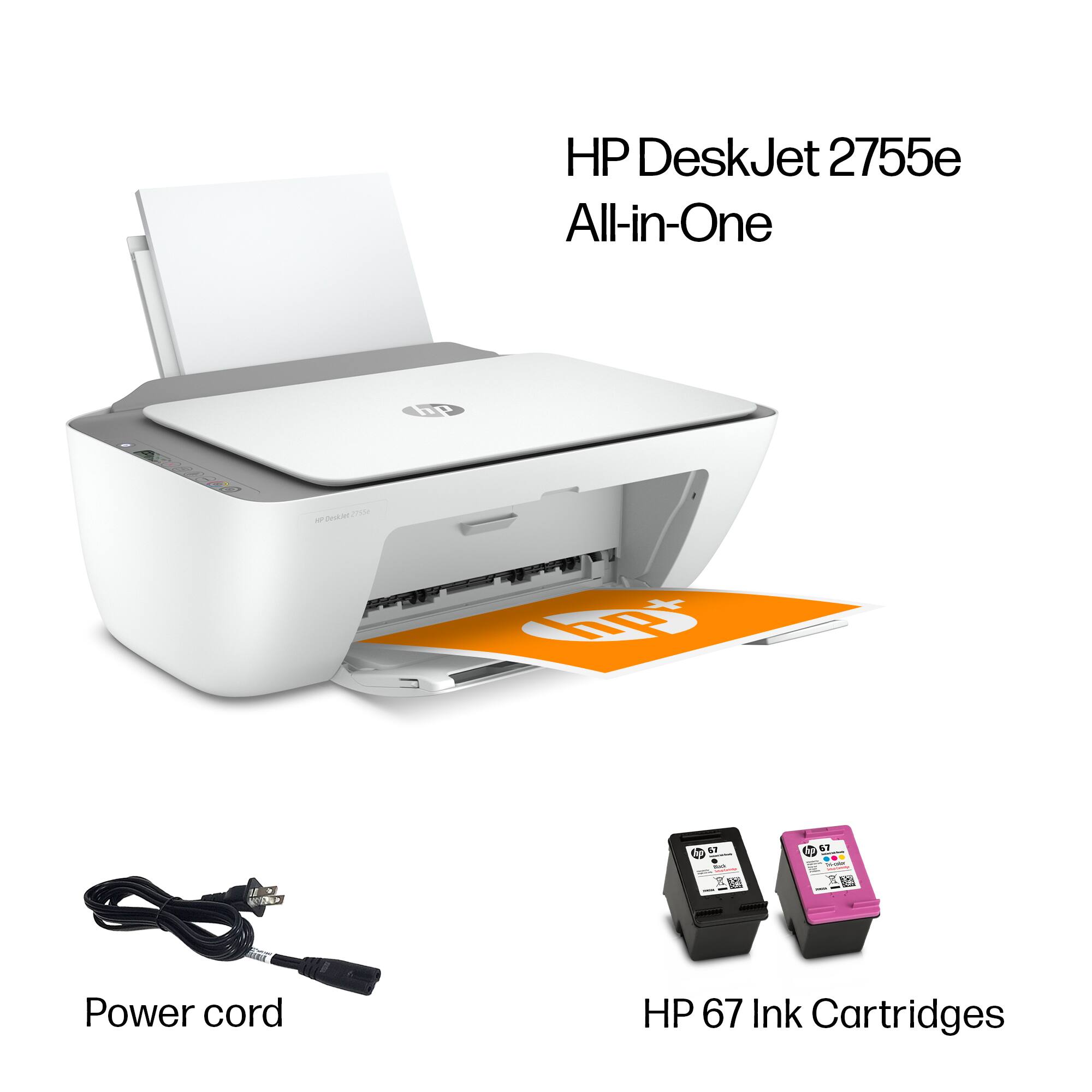
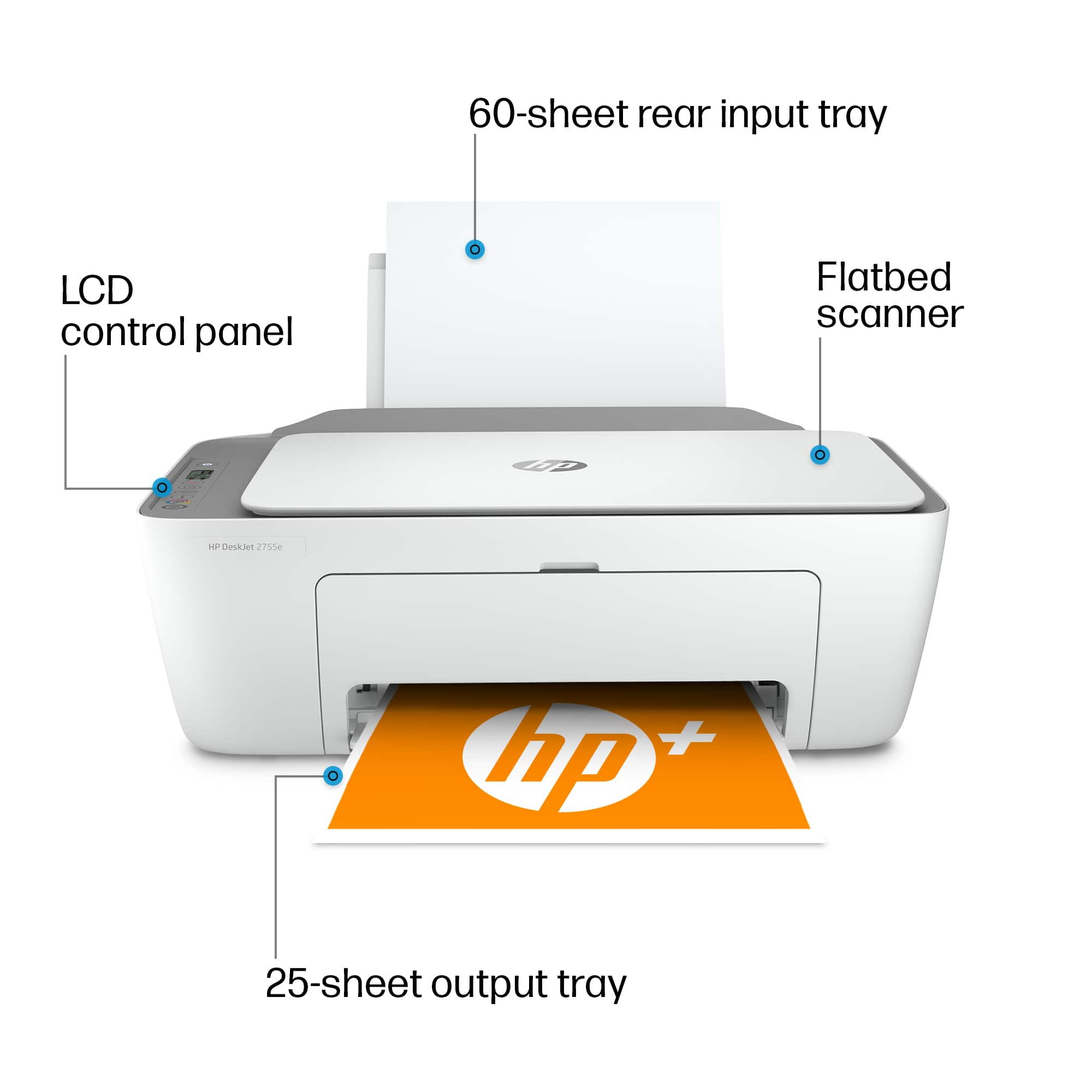
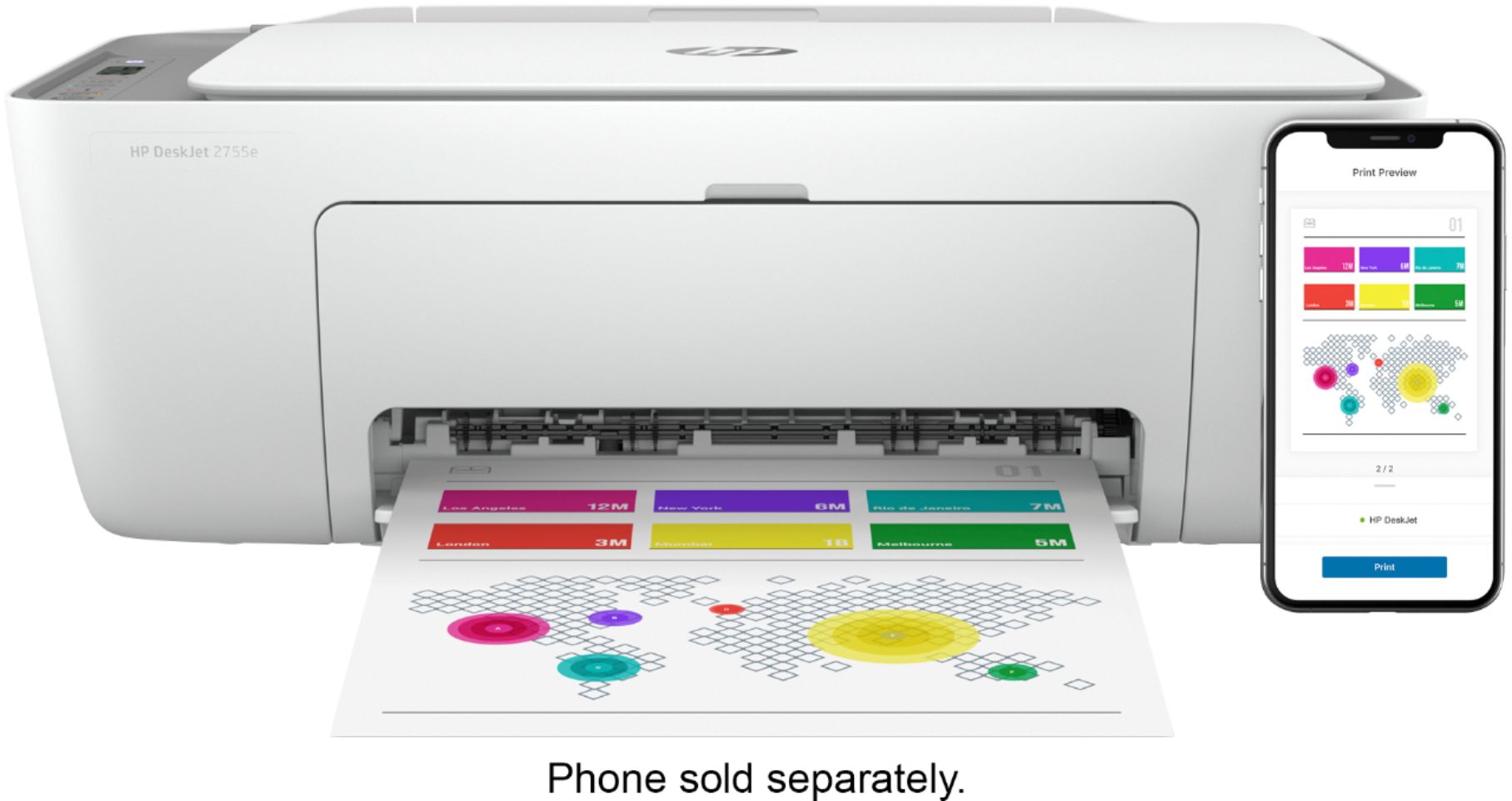
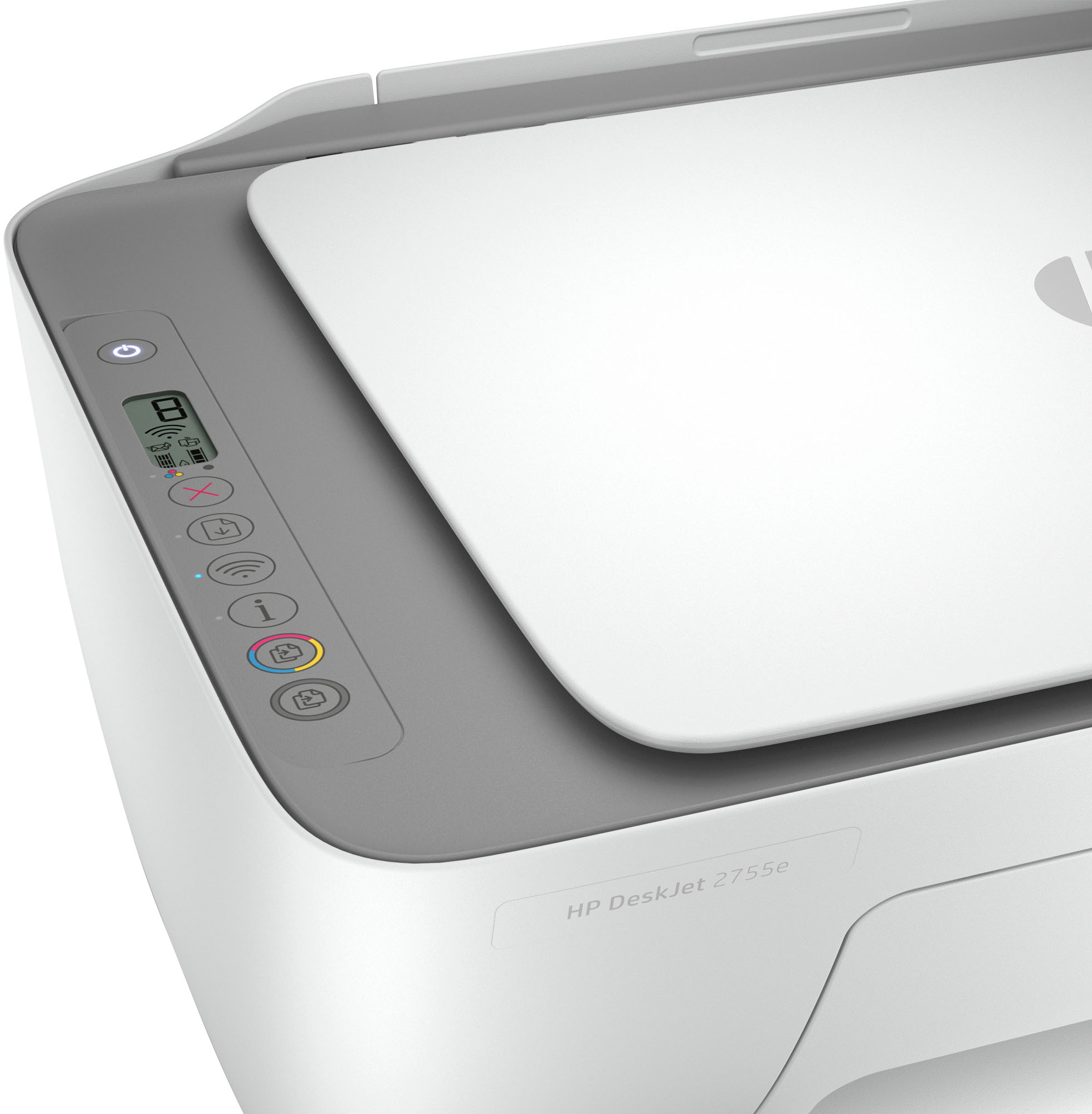
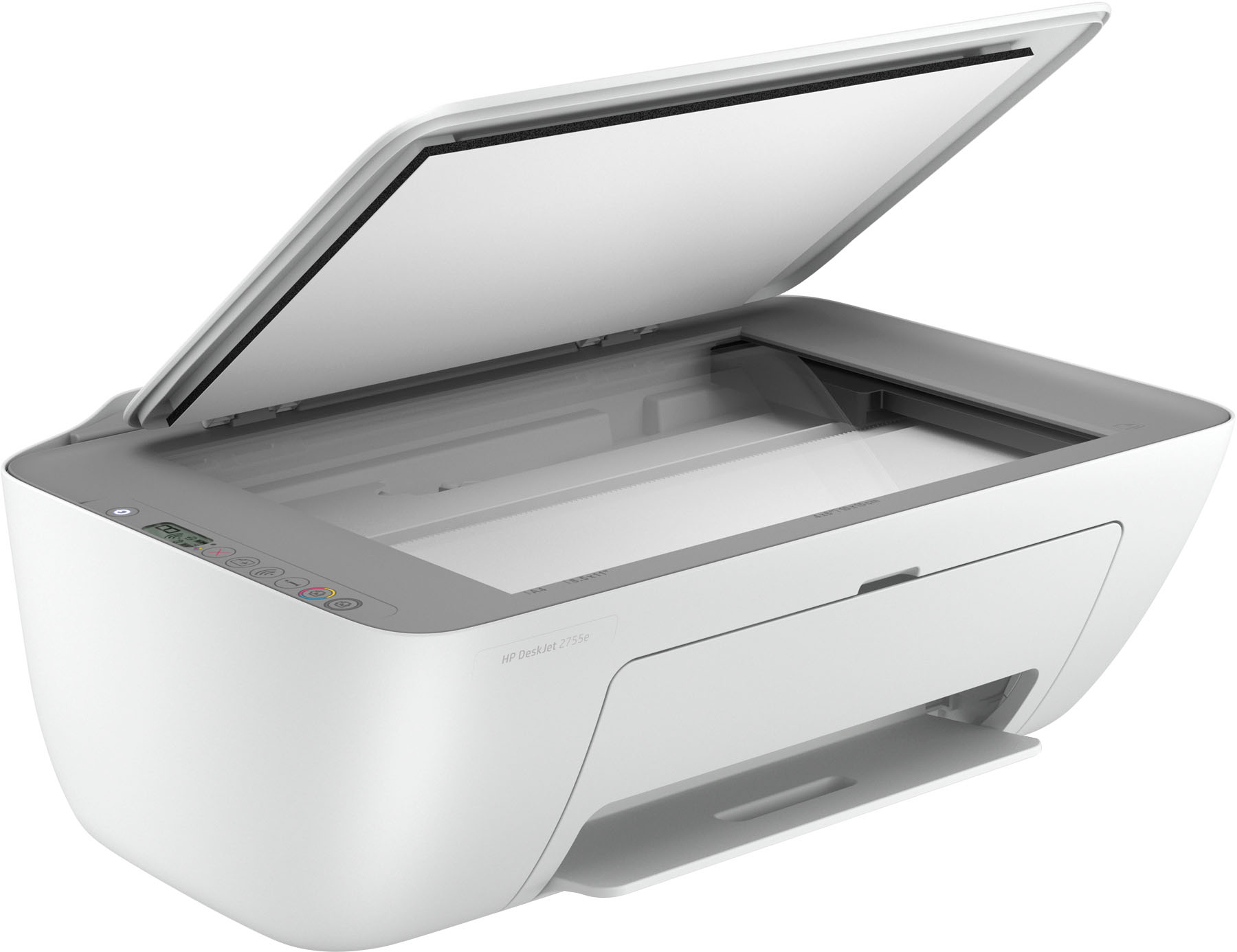
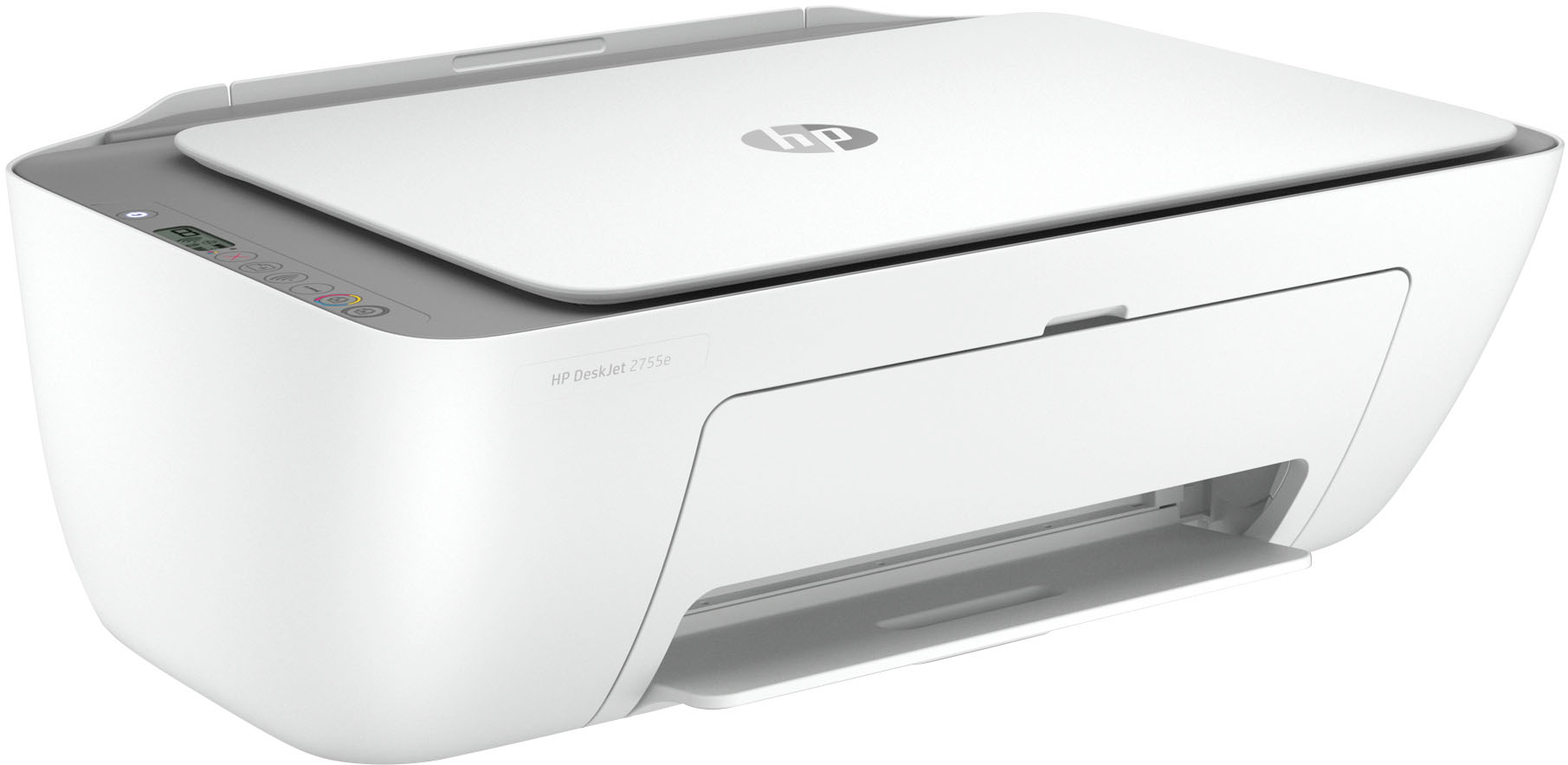
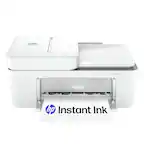
A:AnswerWe are sorry to hear about the challenges you are experiencing. We recommend going to this website, https://123.hp.com/setup, to install the HP Deskjet 2755e printer on your Windows 7 computer. If you need further assistance, visit https://support.hp.com
A:AnswerHello. Thanks for your question. No. This HP Deskjet 2755e printer does not have a fax function. We recommend looking at the HP HP Officejet Pro 8025e, 8035e, 9015e, and 9025e printers, which have the fax function.
A:AnswerHi Ron, apologies for what you're experiencing. The OfficeJet 2755e (and all printers in the 2700 series) can be more easily installed using the HP Smart App with your Smartphone or from your computer, in a guided process.
See the HP Support set up video here: https://www.youtube.com/watch?v=-fIcwEtoQXg.
See the set-up guides and other helpful information here: https://support.hp.com/us-en/printer-setup/hp-deskjet-2700-all-in-one-printer-series/29378157/model/29378213.
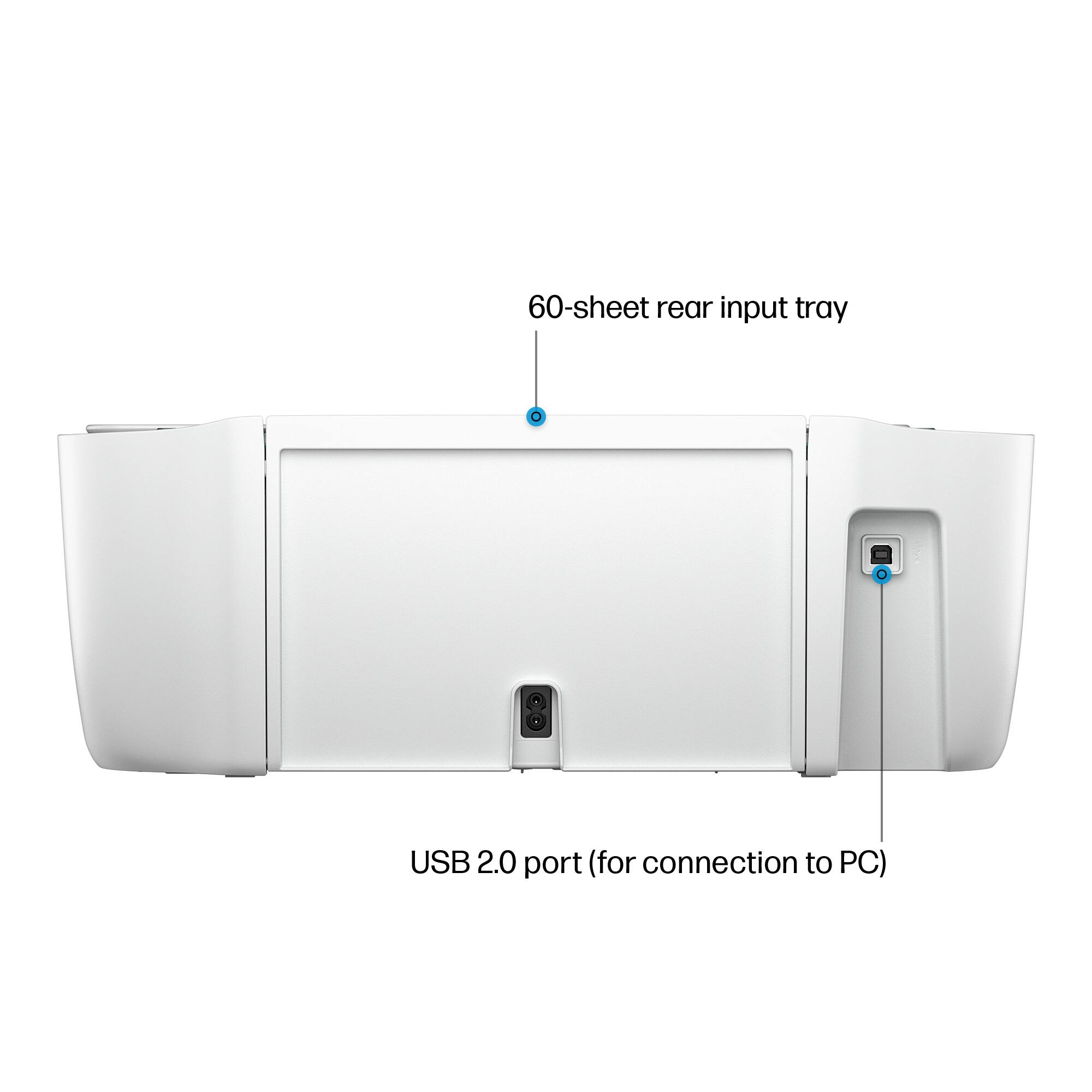
Note that to connect the printer directly to your computer (instead of wifi), you'll need a USB-A to USB-B cable, also known as a printer cable. The square end of the cable connects to the port on the printer, and the flat end of the cable connects to the USB port on you computer.
If you continue to have problems, please reach out to Support.hp.com for assistance or call 800-474-6836.
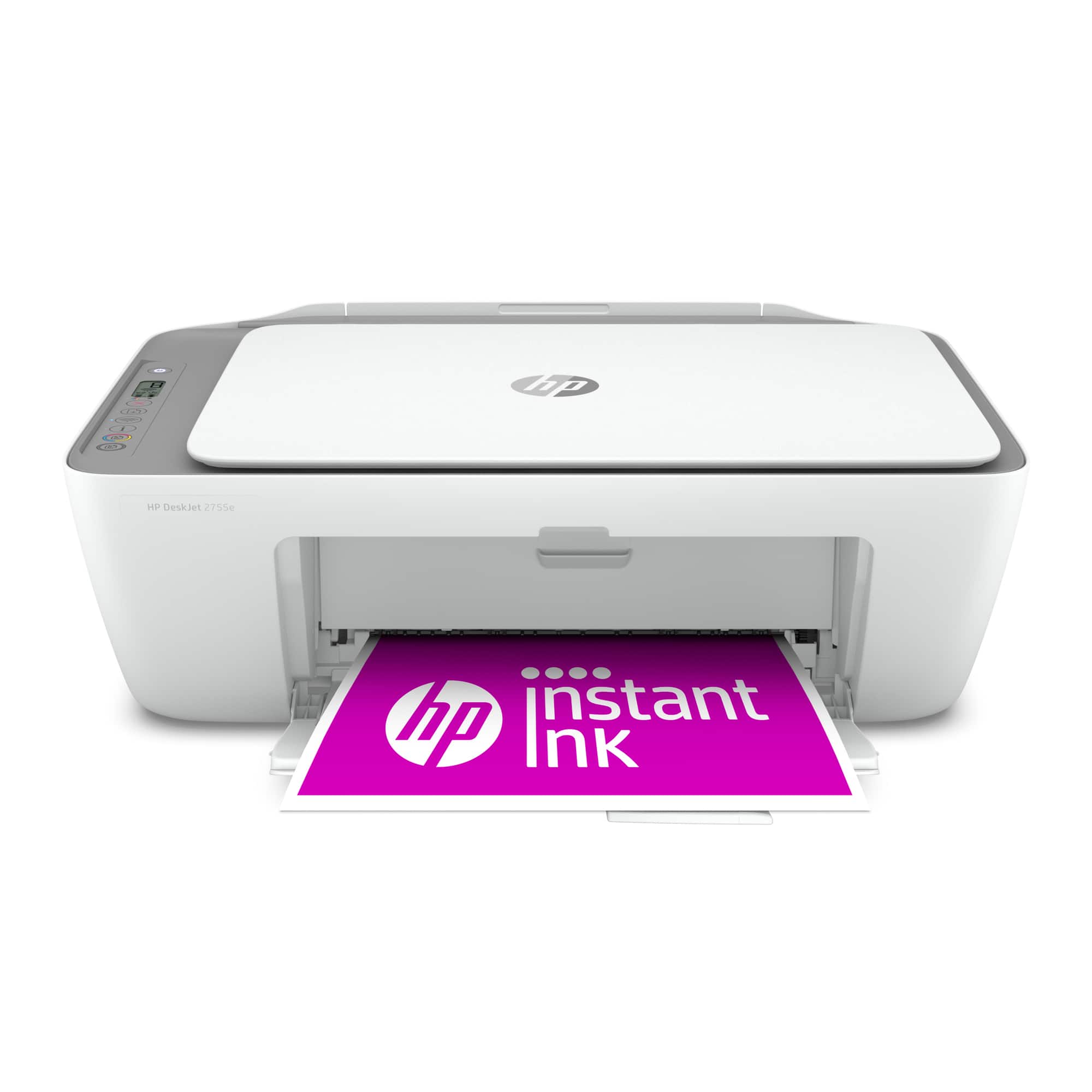
A:AnswerHello. Thanks for your question. We recommend looking for HP 67 or 67XL black and tricolor ink cartridges here on Best Buy's website for the most current prices.
A:AnswerHello, Mike. This HP Deskjet 2755e printer does not have a fax function. You can use the Mobile fax option in the HP Smart app. Mobile fax is where you can send faxes through the mobile fax option on the HP Smart app on your smartphone, tablet or computer. If you need to send or receive faxes, you can use a service like eFax. Here are more details about the mobile fax: https://www.hpsmart.com/us/en/mobile-fax Here is a video: https://www.youtube.com/watch?v=NvDAYa1nZzw
A:AnswerThe printer is a device that is available on my Wi-Fi and is available to all of my devices which are connected to the WiFi including my I-Pad. I have not tried connecting it in absence of a WiFi system
A:AnswerYes, it's pretty simple. You'll need the free HP Smart app on your computer or mobile device to control the setup, and when it asks if you want to set up a wireless connection, pick the network that the laptop is on.