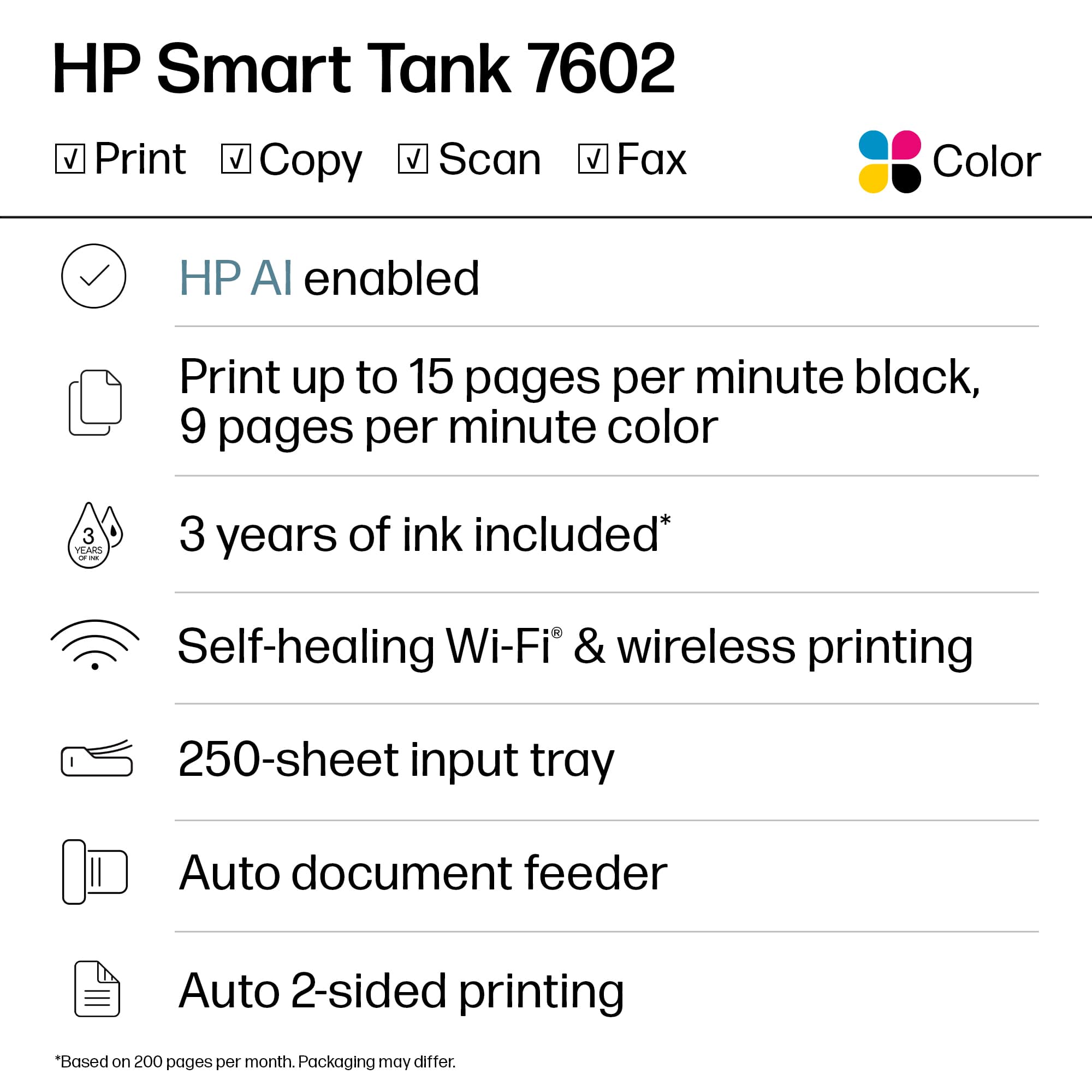
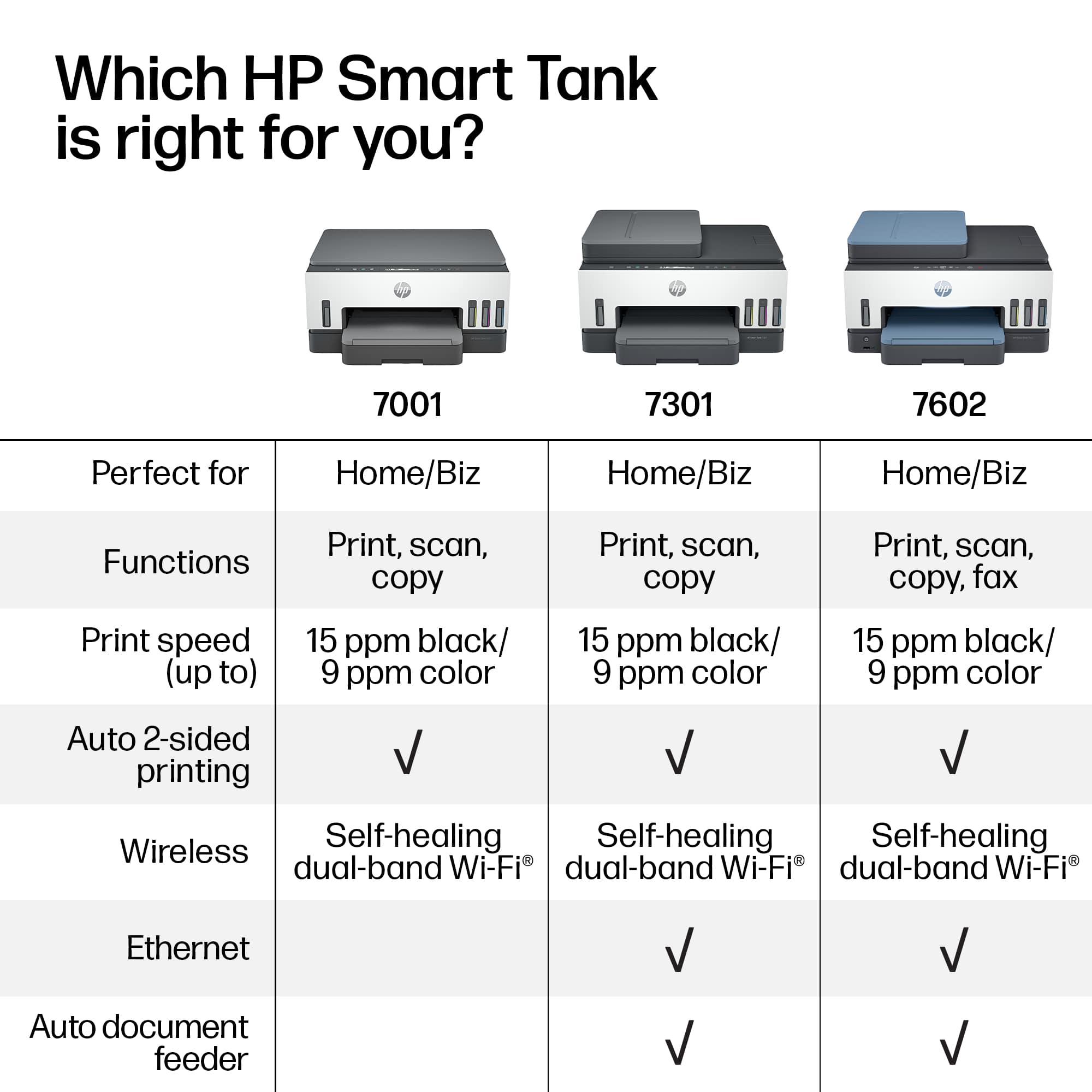
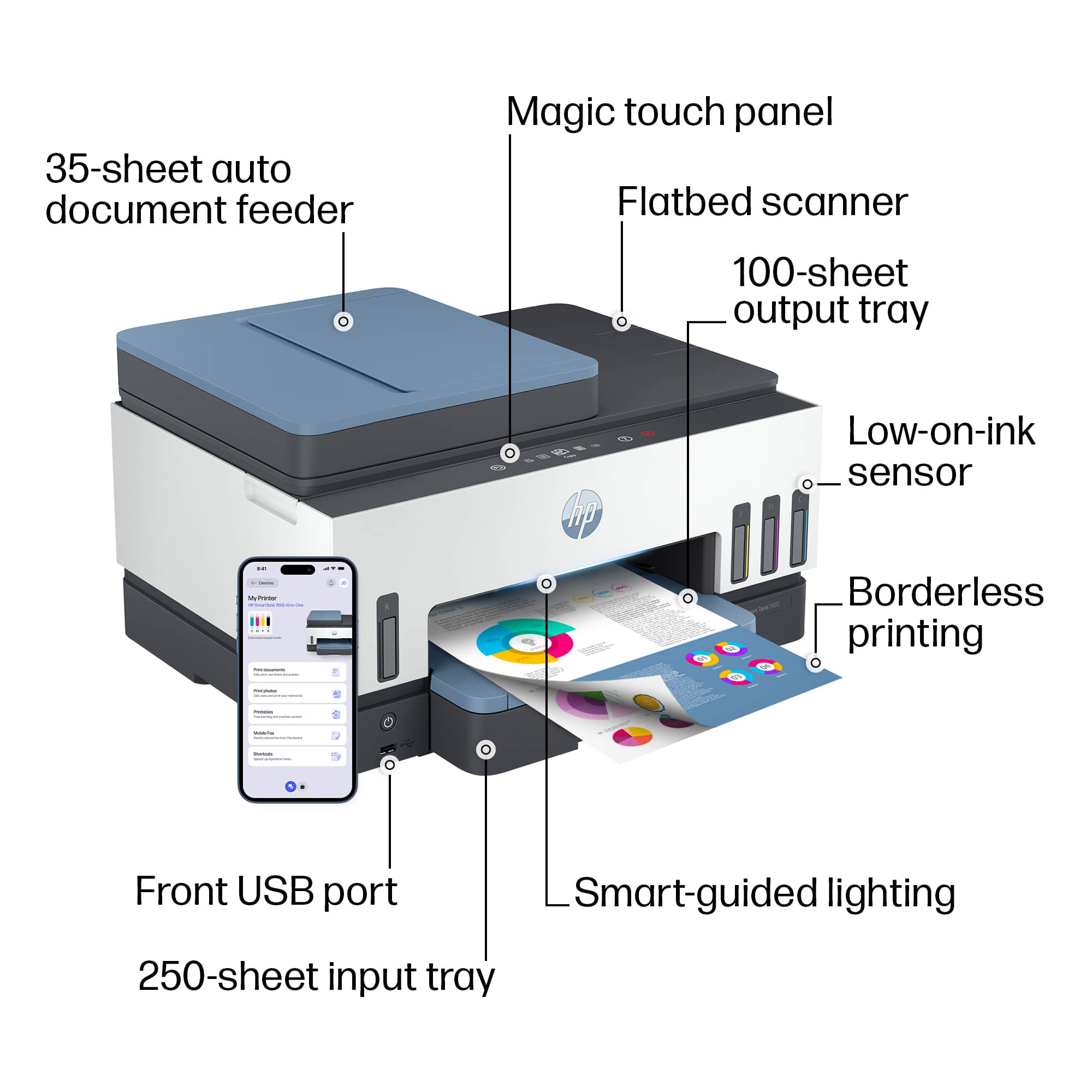
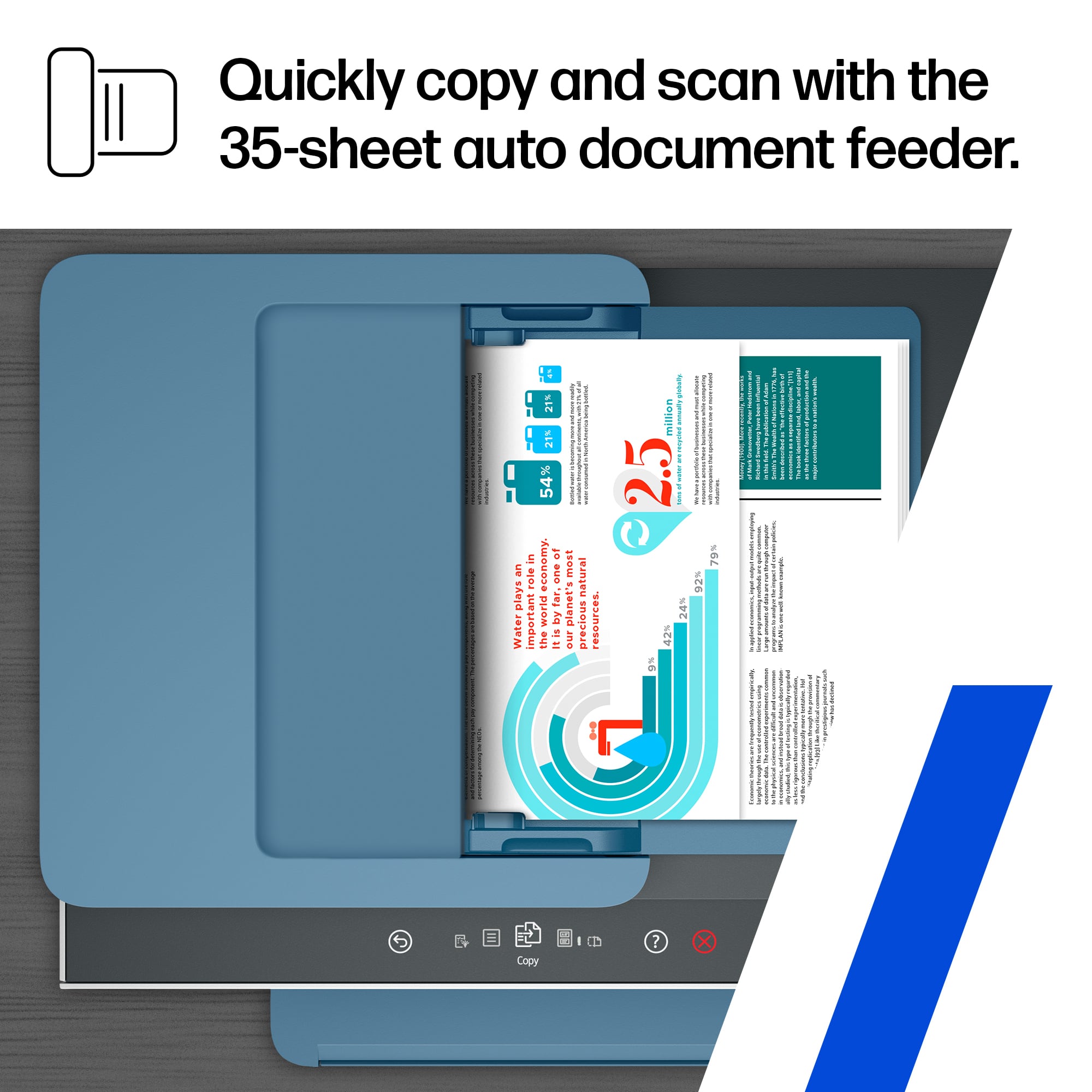
A:AnswerThe Document feeder does not support double sided (Duplex) scanning or copying. It will require you to feed the page in again manually.
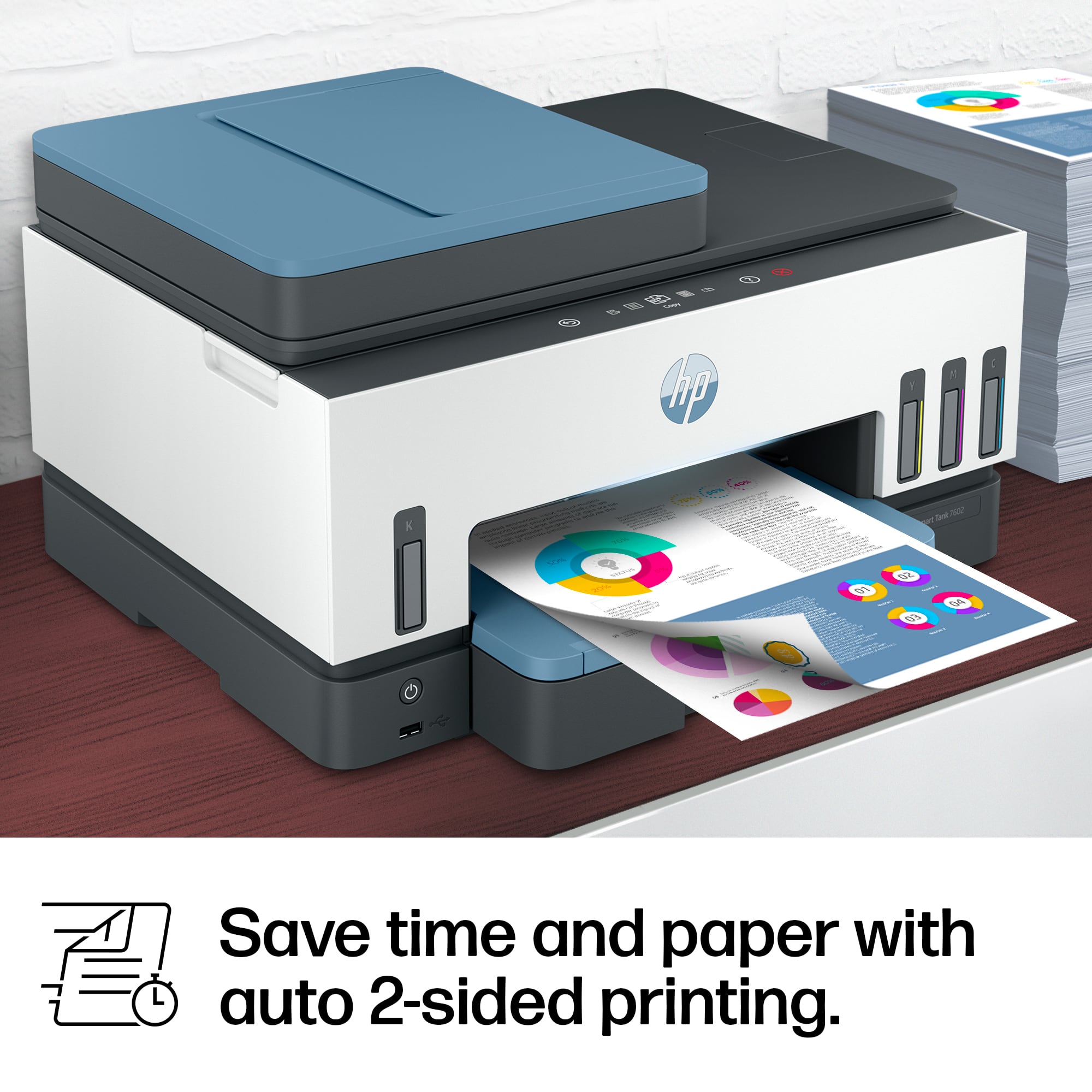
It DOES support printing on both sides (Duplex).
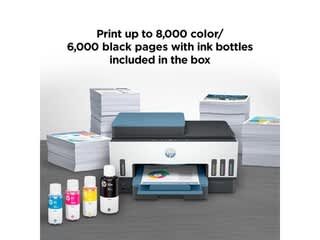
A:AnswerThe HP Smart Tank 7602 Wireless All-In-One Supertank Inkjet Printer uses a supertank system with liquid ink stored in large, refillable tanks, which is less prone to drying out compared to traditional inkjet cartridges. However, if the printer is left unused for extended periods (e.g., several months), there is still a risk of ink drying in the printhead, potentially causing clogs. Here’s a concise breakdown:
Low Risk with Occasional Use: The printer’s design, including sealed ink tanks and automatic maintenance cycles, minimizes drying. If you print even once every few weeks, the built-in cleaning cycles should keep the printhead clear.
Long-Term Inactivity: If unused for 3-6 months or more, ink in the printhead may dry, leading to clogs. HP’s maintenance system circulates ink periodically, but this requires the printer to be powered on occasionally.
Mitigation Tips:
Run a test print or cleaning cycle (via the HP Smart app or touchscreen) every 2-4 weeks to keep ink flowing.
Keep the printer powered on to allow automatic maintenance.
Store it in a cool, dry environment to reduce evaporation.
User Experiences: Some Best Buy reviews note no issues with ink drying after months of light use, but others report clogs after long inactivity, requiring cleaning cycles or, in rare cases, professional servicing.
To prevent issues, print a small document or run a maintenance cycle monthly. If clogs occur, the HP Smart app’s cleaning function usually resolves them, though severe cases may need multiple cycles or HP support.
25.1s
A:AnswerYes I get best results, setting photo paper and on my computer put the setting to photo paper as well. I use glossy sticker paper and photo flyer paper from Amazon I love it if you have questions u can email me [email protected] I run a small business using these printers
A:AnswerThanks for your question. The HP Smart Tank 7602 supports legal size printing, but only Letter and Executive size duplex printing. You would want to look at the HP OfficeJet Pro 9135e for duplex legal size printing.
A:AnswerThe HP Smart Tank 7602 printer supports the following media types and weights: Plain paper: 16 to 28 lb; Envelopes: 20 to 24 lb; Cards: up to 110 lb; Photo paper: up to 66 lb.
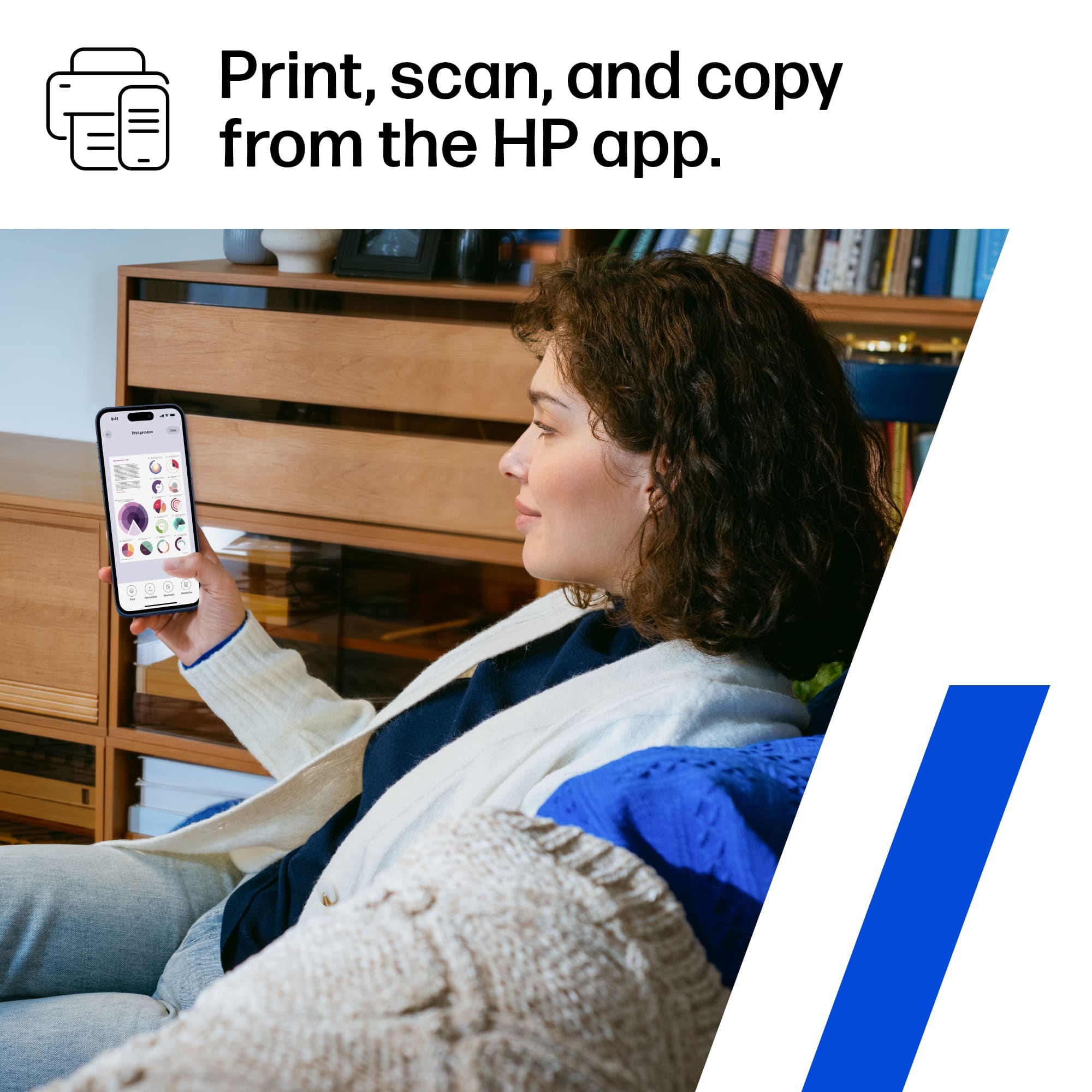
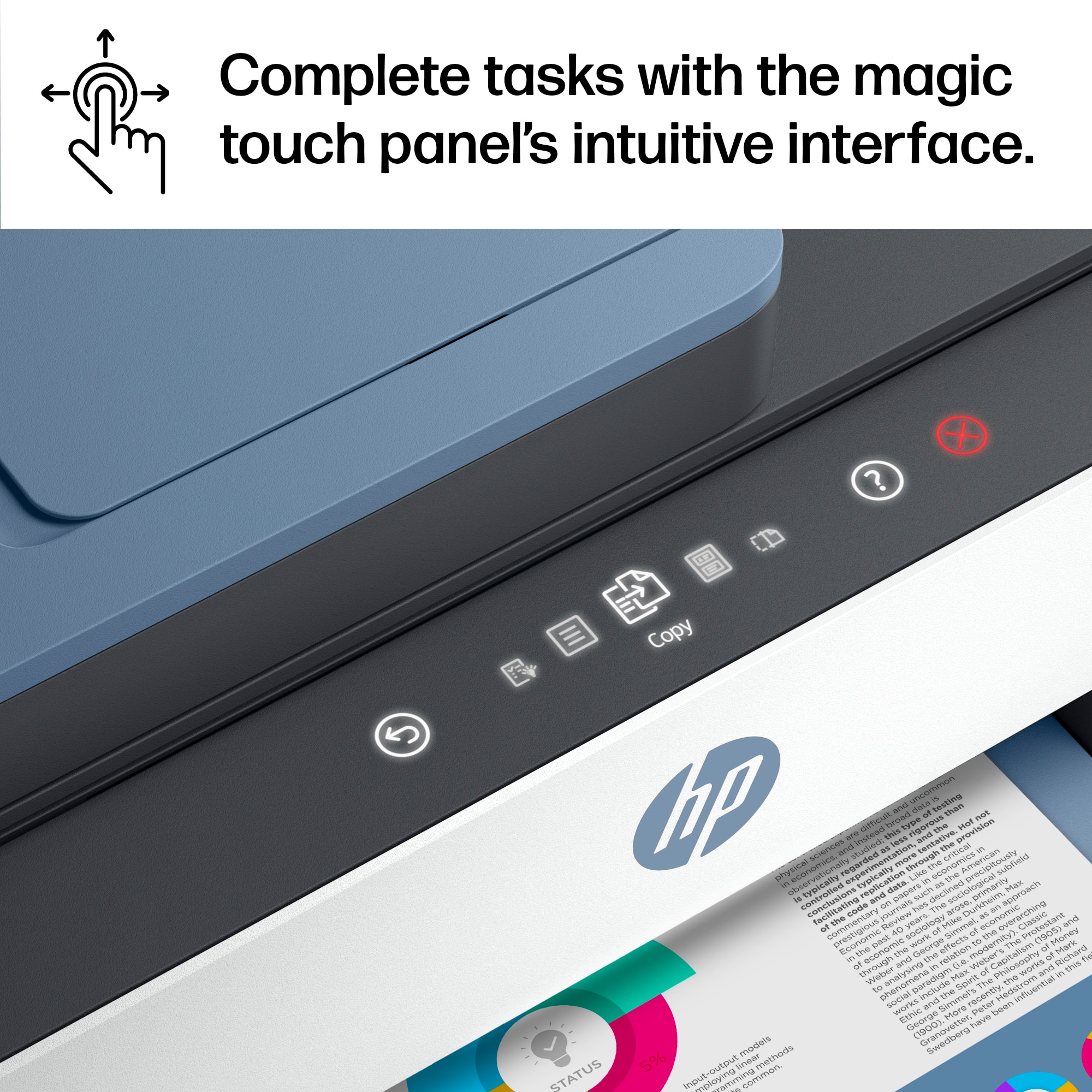
A:AnswerThank you for the question. Place the original face-up in the document feeder, or face-down on the glass. Press the copy button. You can also use advanced options with the HP Smart App on your PC or smartphone.
A:AnswerHello, Chuck. Thanks for your question. We recommend using the HP Smart app to scan to email. You would use the scan option on the HP Smart app to share via email. To make it easier the next time, we recommend using Shortcuts. It allows you to make a Shortcut, i.e. a scanned item to be emailed to this email address.
Here is the info on the HP Smart app: https://support.hp.com/rs-en/document/ish_1716406-1413451-16 and on the HP Shortcuts: https://support.hp.com/us-en/document/ish_4129352-4129404-16
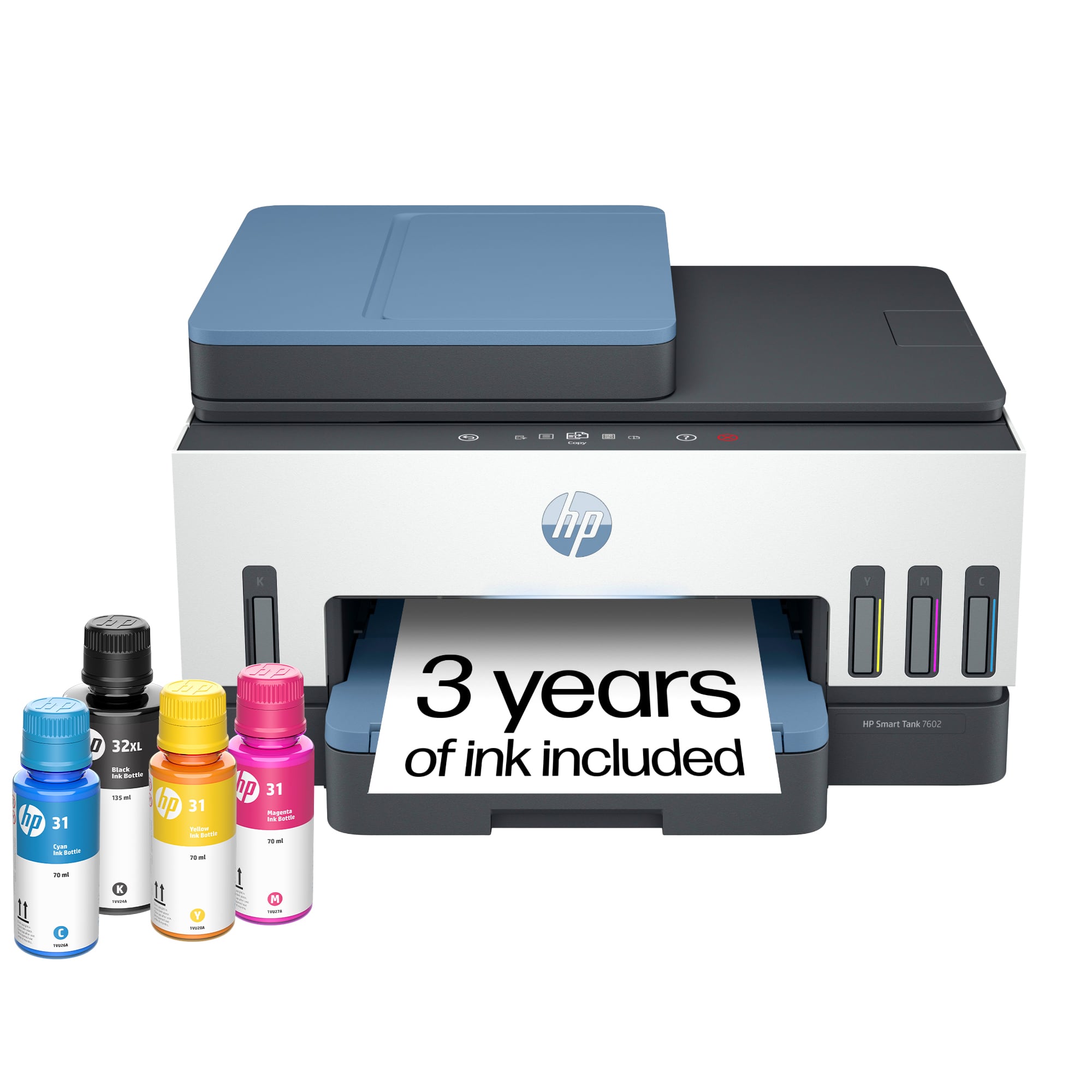
A:AnswerThank you for asking. You can find setup instructions here: https://support.hp.com/us-en/printer-setup/hp-smart-tank-7600-series/2100178738/model/2100178921?sku=28B98A
A:AnswerYes…. Any Microsoft program can print to this printer. I really don’t know what you mean otherwise. A printer is installed on the operating system of your computer… not into a particular program on the computer. So if you have windows 10 or 11 this printer will install just fine. I am sure older versions will work as well…. But if you have something older than 10, you need to upgrade!
A:AnswerHello,
I print pics all of the time and have found the quality to be quite good! I prefer printing on matte photo paper, in my opinion, this prints the best photo !!
Hope this information was useful!
HP products are truly a “Best Buy”!
A:AnswerHi there. Thank you for your question! The HP Smart Tank 7602 does not support automatic double-sided scanning, but it will support manual double-sided scanning. You would be able to scan one side of a document, and then manually flip the page over, and scan the other side.
A:AnswerThe HP 7602 can enlarge or reduce the size of a document when copying. Just select the resize option under the copy function. Resizing can be between 25 and 400 %.