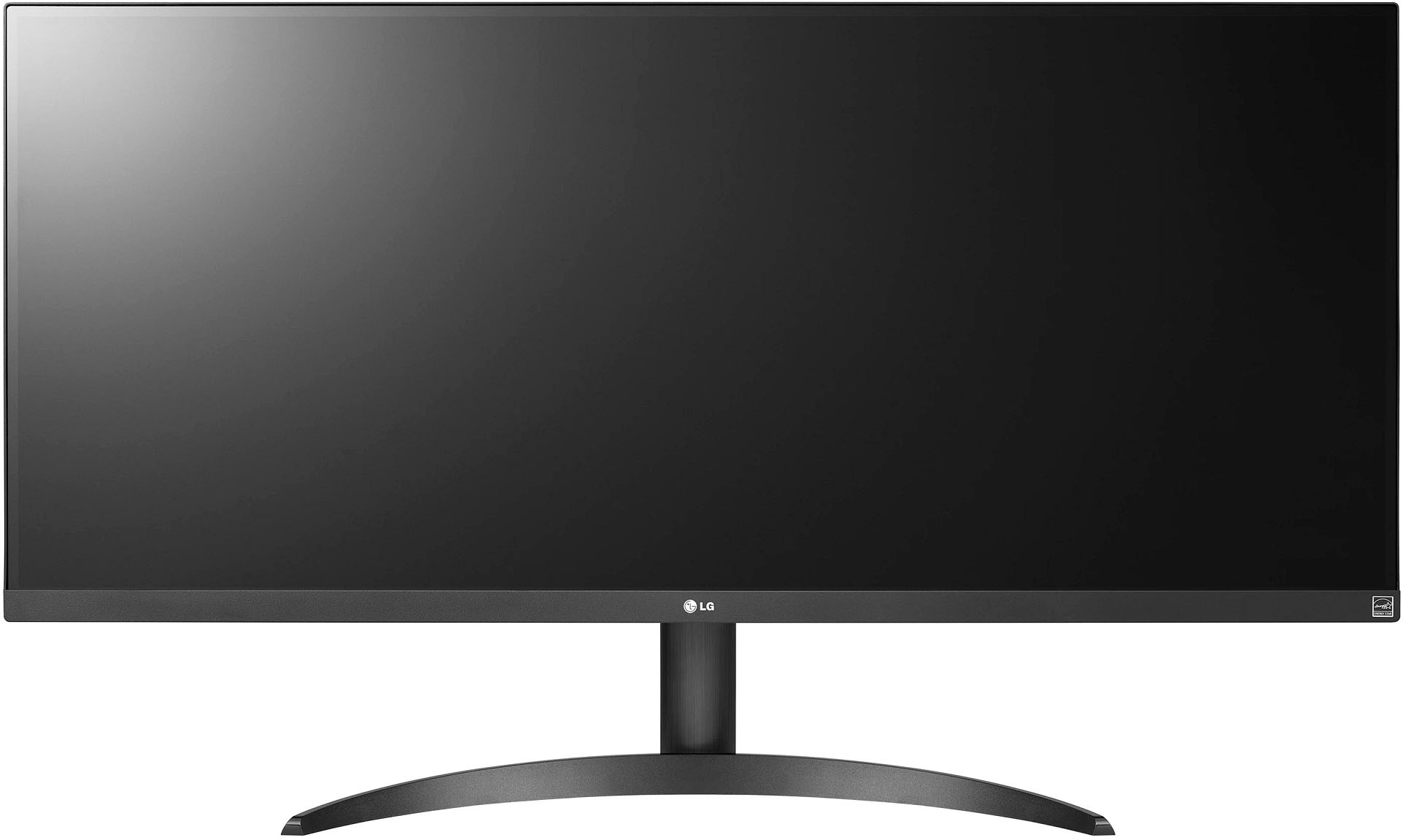
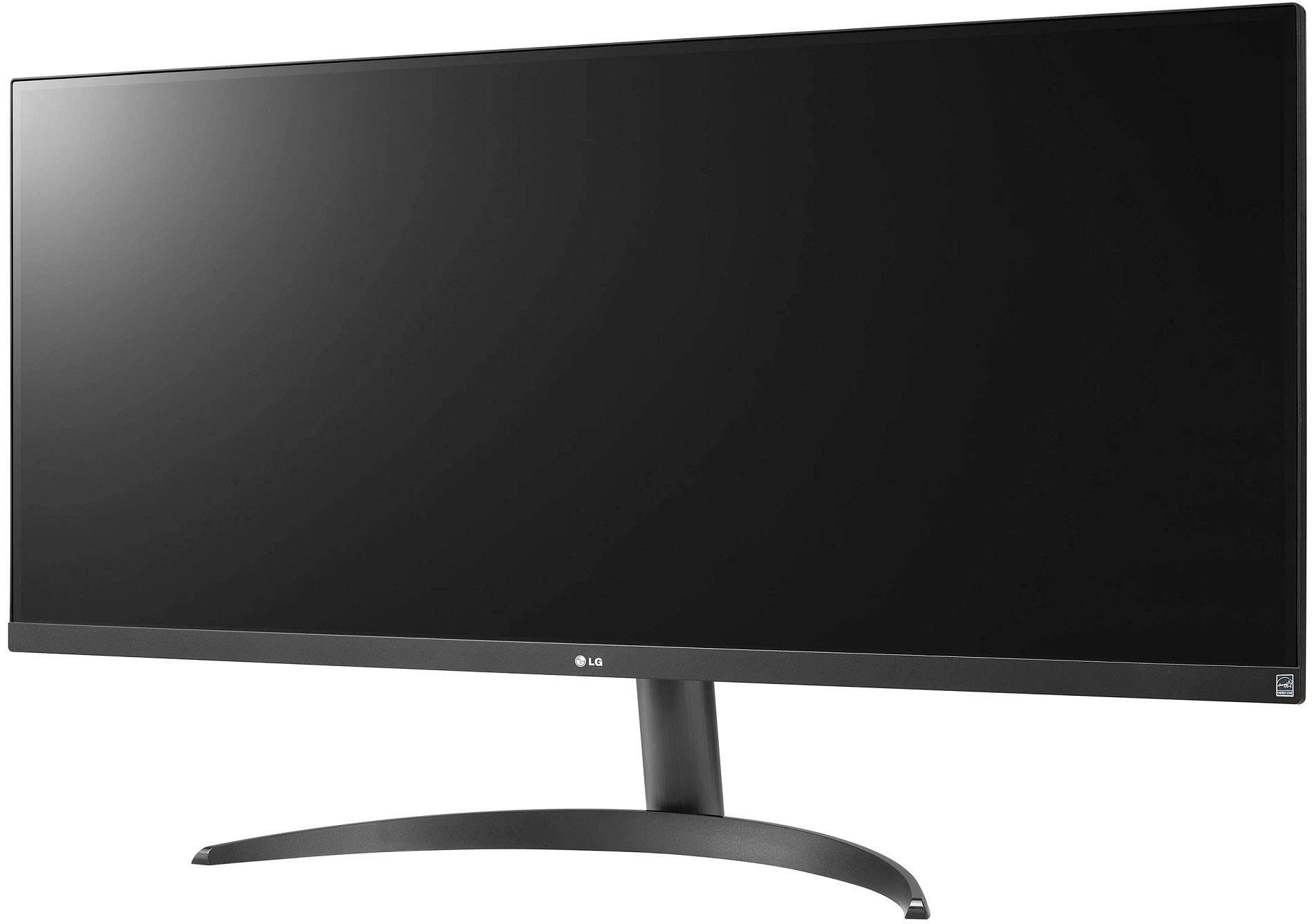
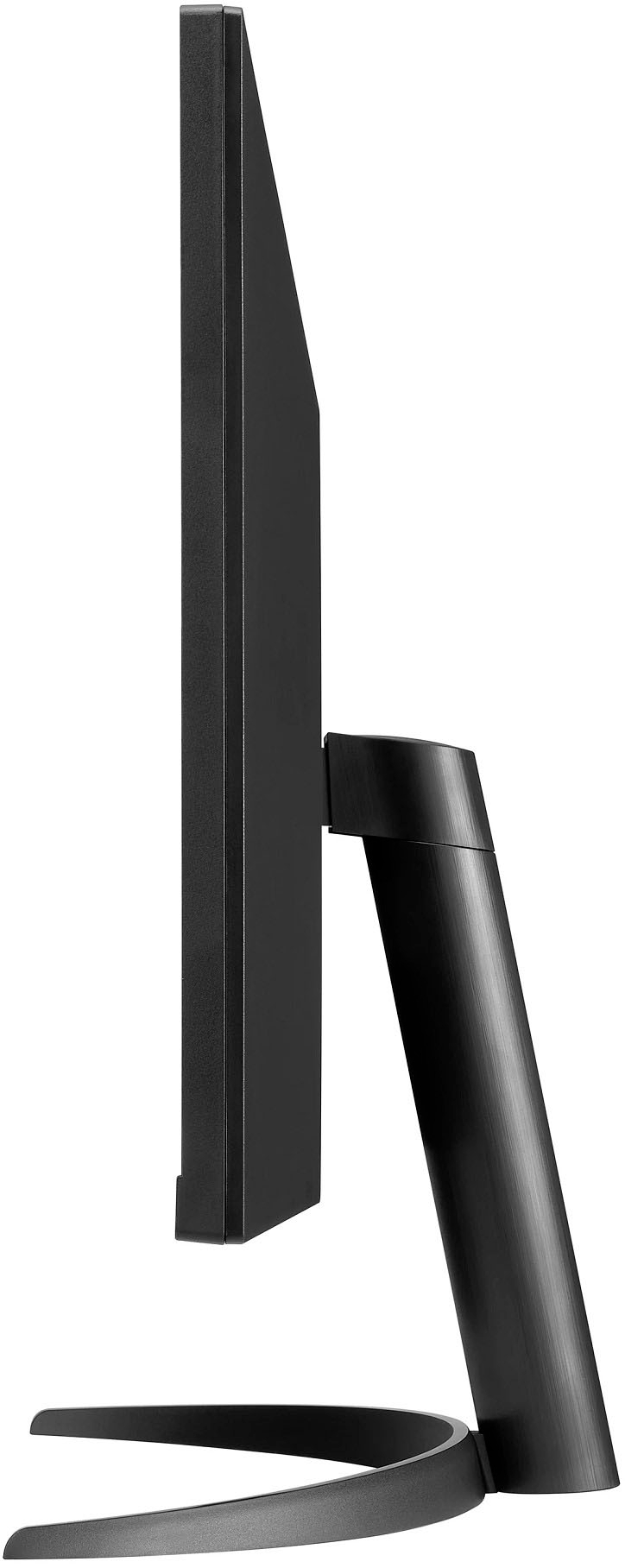
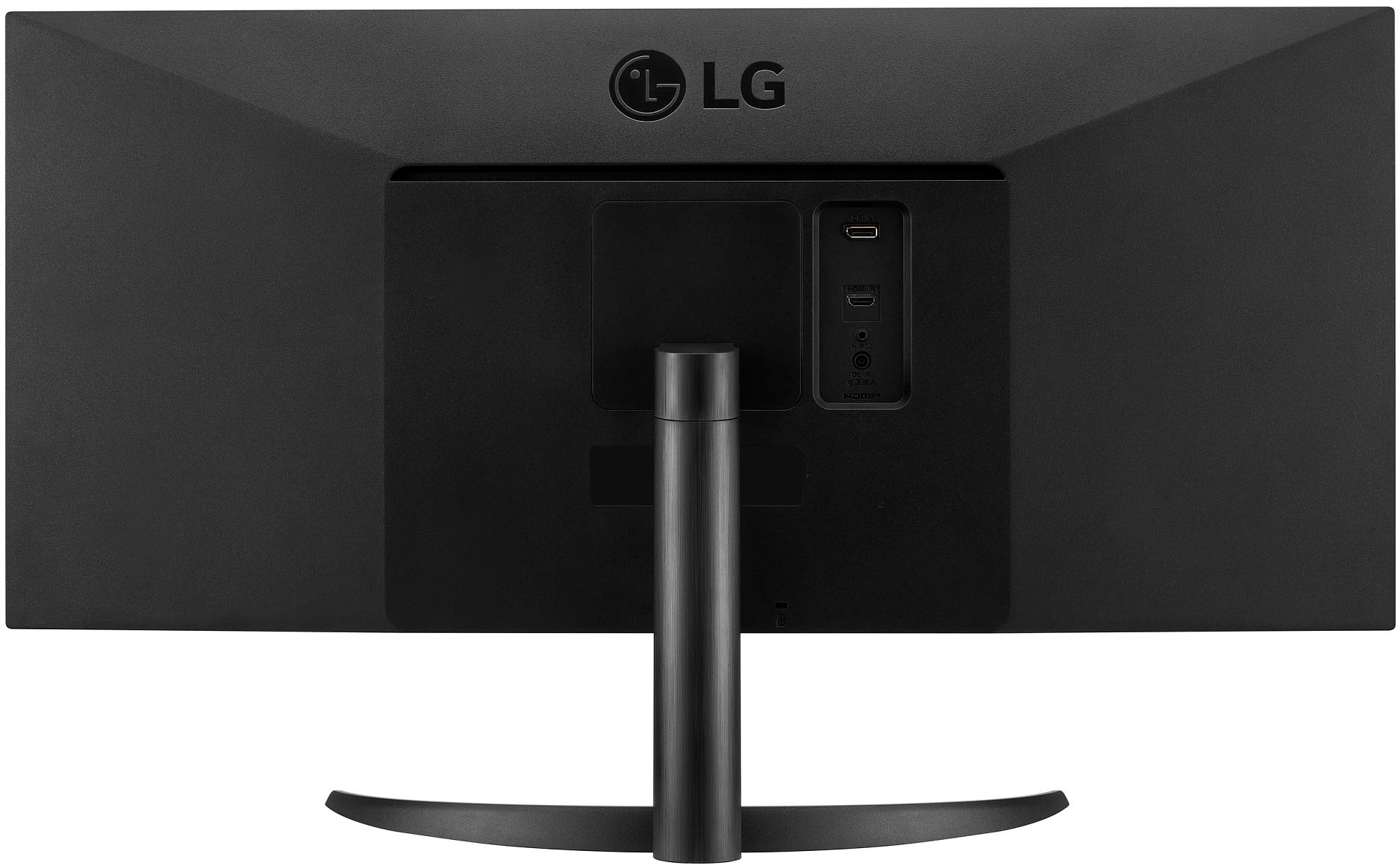
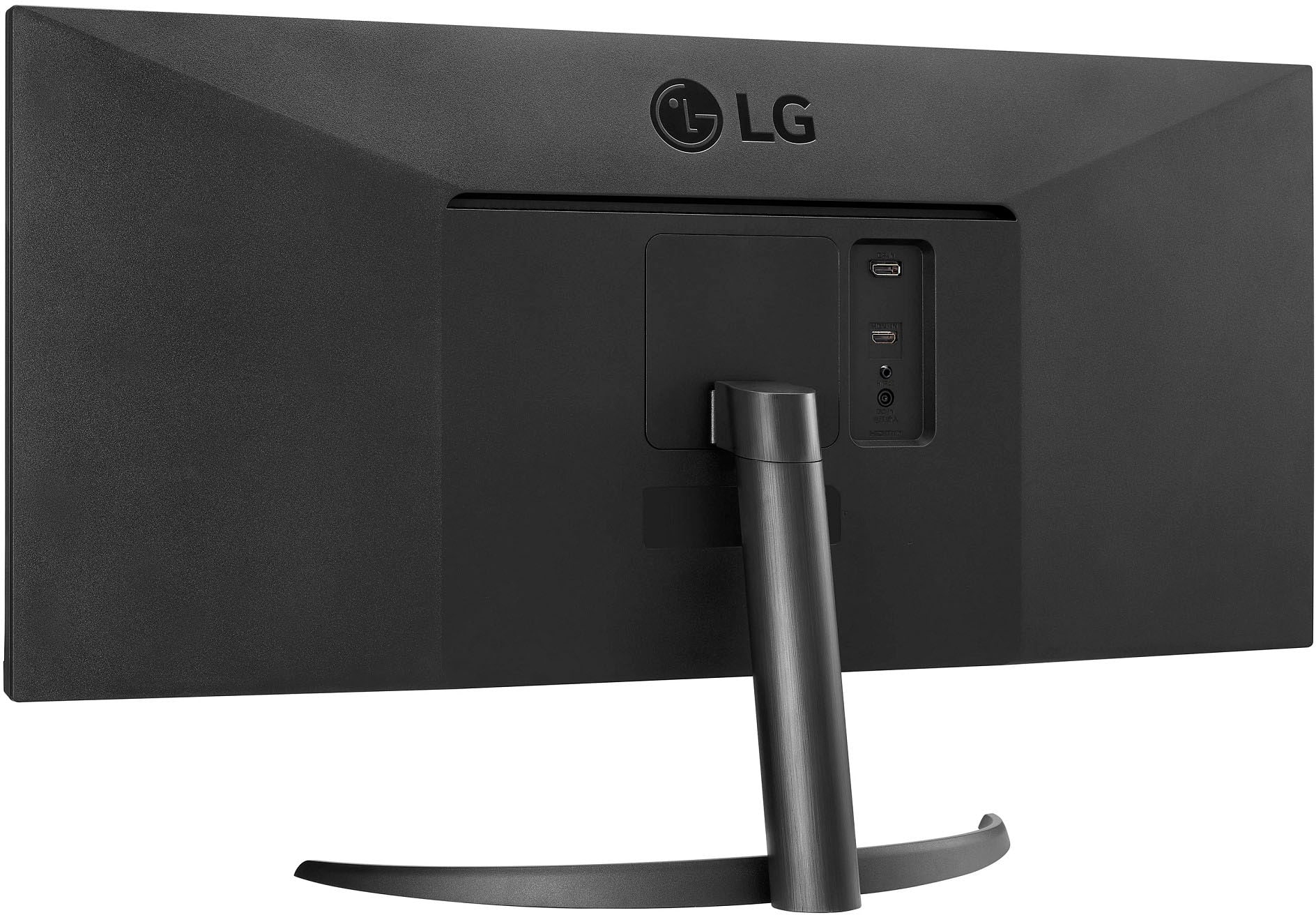
A:AnswerHey there, Jason! This LG 34" UltraWide monitor is only compatible with the Windows operating system. Feel free to contact our LG customer care department at 800-243-0000 (Mon. to Sun. 8AM – 9PM EST), chat with us through our LG website, send us an email at our email support team through our website or by sending us a DM at our LG social media platforms (Twitter, Facebook, etc). We're always a click away for help, for further information! Here from LG ^Anthony
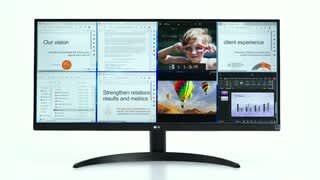
A:AnswerHi there! Thank you for your question about the 34WQ500-B monitors. These monitors can display multiple video feeds, including security cameras, as long as the video source supports multiple inputs or has a compatible software solution for managing the feeds.
To ensure optimal performance, check that your security camera system supports the resolution and aspect ratio of the monitor. If you need more detailed assistance or have further questions, please feel free to reach out to us in a private message on Social Media @LGUSSupport. We’re here to help!
—Avril
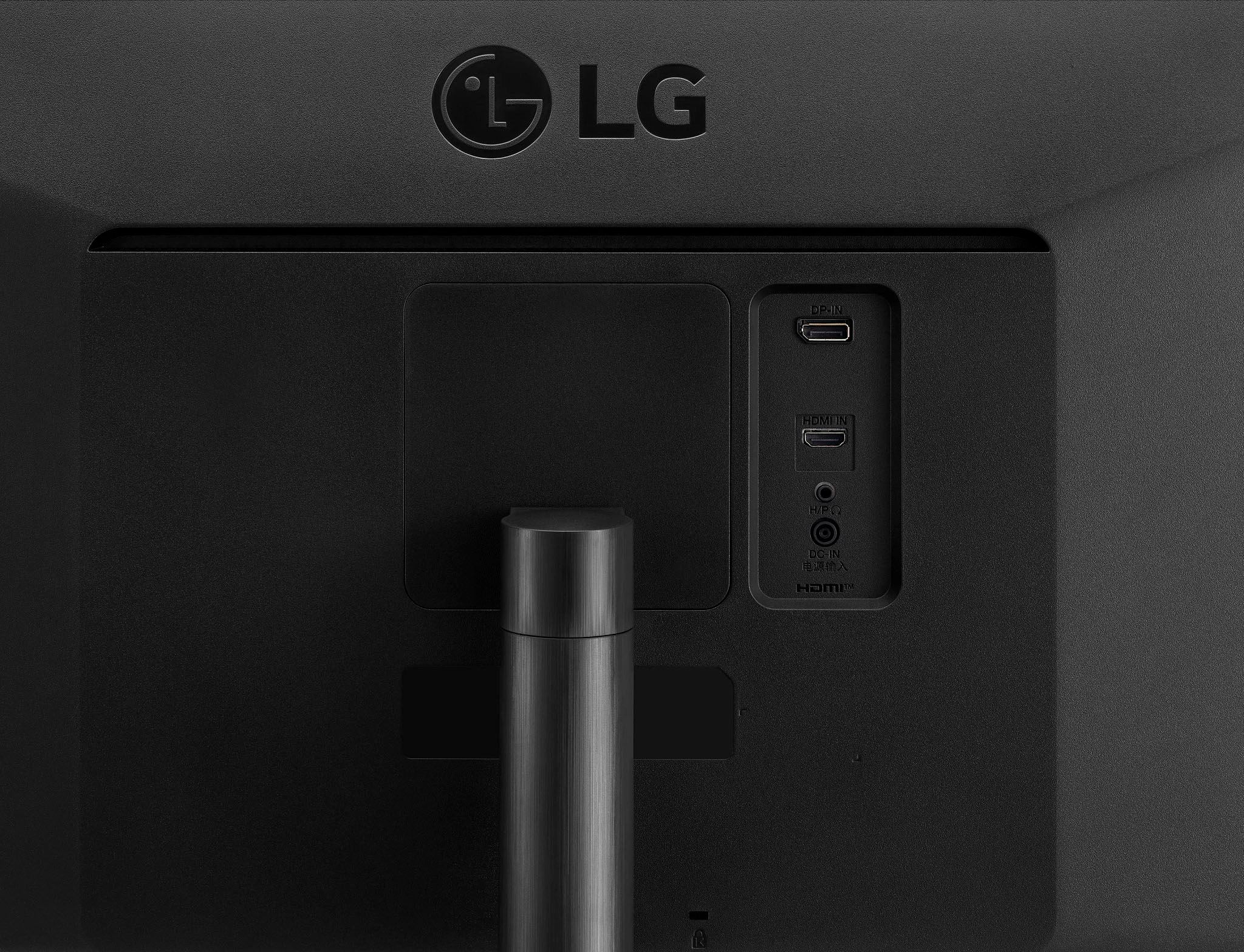
A:AnswerHello Edgar. What refresh rates and resolutions does the graphics card in your iPad Pro 11-inch 3rd Gen support and what connectivity does it have? The LG 34” UltraWide FHD VESA DisplayHDR™ 400 IPS Monitor with AMD FreeSync™, Model # 34WQ500-B has a native refresh rate of 100 Hz and a native resolution of 2560 x 1080 (Aspect Ratio of 21:9). Connectivity for the monitor includes 2 x HDMI ports and a DisplayPort...^Ivan
A:AnswerHi there, Quin! Thank you for your question about the 34WQ500-B monitor. Yes, this monitor allows you to connect multiple devices, including one via HDMI and another via DisplayPort (DPI). You can easily switch between the two sources using the monitor's on-screen menu.
To select which source to view from, simply access the monitor's settings menu and look for the input source option. From there, you can choose between HDMI and DisplayPort, allowing you to view the desired computer. If you have any more questions or need further assistance, please feel free to reach out via private message on Social Media @LGUSSupport. We’re here to help! —Avril
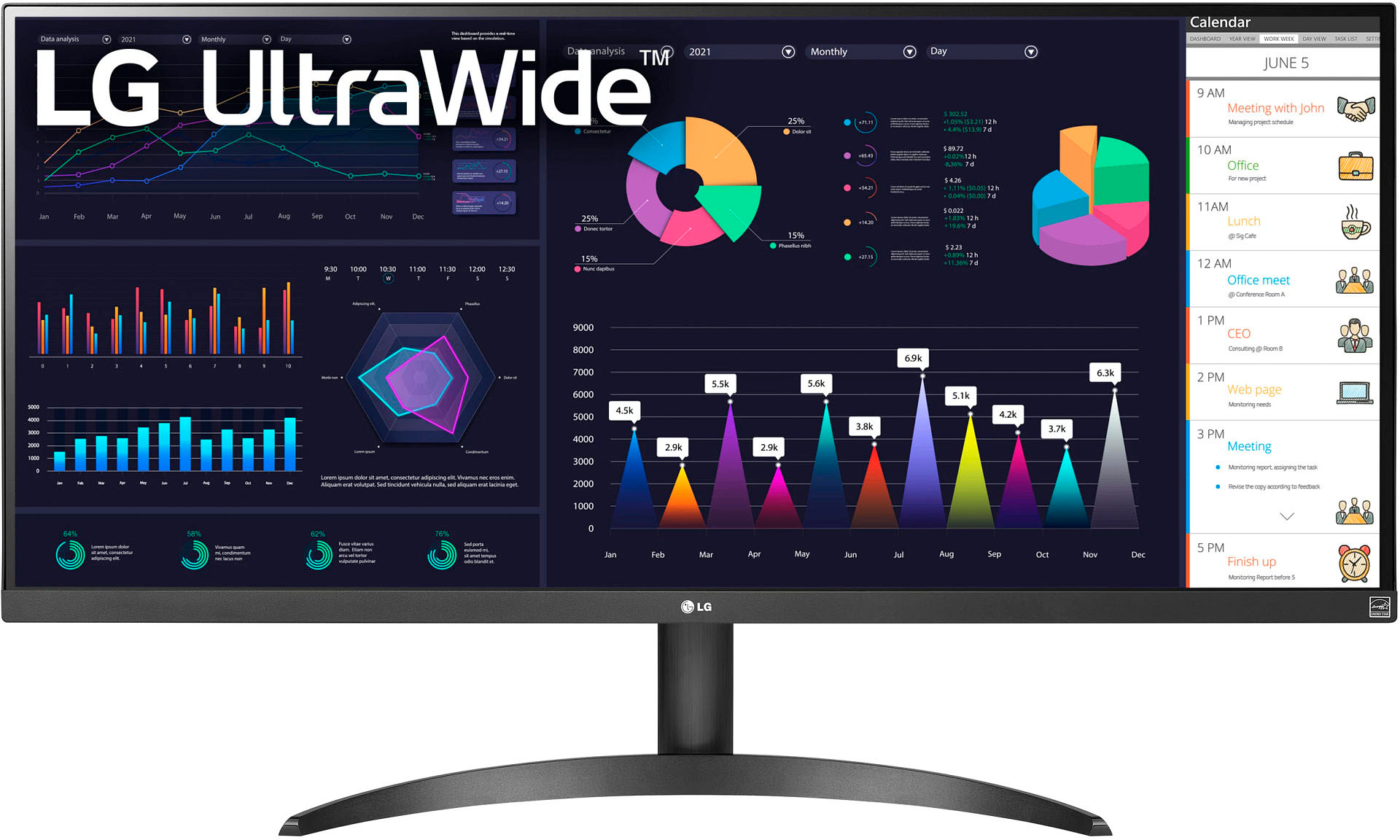
A:AnswerHi there! Thank you for your question about the 34WQ500-B monitor. The on/off button for this model is typically located on the back or underside of the monitor, near the power input. If you’re having trouble locating it, please refer to the user manual for specific details or a visual guide.
If you have any more questions or need further assistance, please don’t hesitate to send us a private message on Social Media @LGUSSupport. Our team is here to help you with any inquiries you may have. We appreciate your interest in our products! —Avril
A:AnswerThe only way I've managed to is to set the display settings in windows to 1980x1080. But when the PC is in BIOS/POST, it stretches the screen too wide.
A:AnswerAffirmative, provided video signals from different sources.
FYI, I use 2 of the LG 34” monitors in 2 different rooms, that monitors 8 4K camera inputs in 8 split screen sections.
They work in unison perfectly.