A:AnswerI have an HP Spectre X360 13-4196ms, and was hoping this would work, but it DOES NOT work with my laptop either. Of course, it pairs fine with Bluetooth and the button works, but it does not write anything. I'm very disappointed that it does not support my top of the line laptop from 2016.
A:AnswerYes it does. I own the Yoga 730 and it works perfectly and has multiple features to improve drawing or note taking online. I highly recommend it.
A:AnswerThe side buttons are programmable via the Wacom Feel driver, but this will only work on Wacom-equipped devices like the Lenovo Yoga 720. Microsoft Pen Protocol devices like the Surface Pro 3 and upwards will not run the driver. The buttons are pre-configured to erase and right click on MPP devices.
A:AnswerI found this on the Bamboo Ink's FAQ section on Wacom's site: "The number of pressure levels depends on your hardware and how the Bamboo Ink sensors and the system software are implemented. Pressure levels can range depending on the device and app used. The devices can support up to 4096 pressure levels."
A:AnswerI just bought one and I can tell you IT DOES NOT WORK for the Toshiba Satellite E45W-C4200x. I need to go return it. :( I am not sure of any stylus that works for this laptop.
A:AnswerShort answer, no. Long answer, even though the Dell Inspiron 13 7353 does have touch capability AND windows ink installed, this particular stylus requires additional hardware that the computer does not have. The only compatible stylus Bamboo offers is the Bamboo Solo, which only has a capacitive tip and no battery. If you wanted the bells and whistles of the Bamboo Ink, you're out of luck.
A:AnswerI'm fairly certain the still unreleased Active Pen 2 does not have a backend eraser.
This pen does not either, it's got the Bluetooth quicklaunch button on the end, and two side switches. So no physical eraser, but thru Wacoms feel driver, you should be able to reprogram one of the side buttons to function as an eraser
A:AnswerI believe that MPP stands for Microsoft Pen Program. If this is the dual protocol pen that Wacom announced some time ago, it should be compatible with the Surface. http://surfaceproartist.com/blog/2017/1/4/wacom-putting-final-touches-on-dual-protocol-pen
A:AnswerUnfortunately, the 5000 series doesn't support active stylus. I had to reach out to Dell directly to get this as I was misled by a sales associate.
A:AnswerHello Kell,
Wacom's compatibility chart for this product goes as next:
Made for Windows 10 devices
ASUS Transformer Pro T304UA/ TransBook T304UA
ASUS Transformer Mini T102HA/ TransBook Mini T102HA
Dell™ Venue 10 Pro™ 5000 Series (5055)
Dell™ XPS 13 2in1
Fujitsu LIFEBOOK® P727
Fujitsu LIFEBOOK® T937
HP EliteBook x360 1030 G2
HP Elite x2 1012 G1
HP Elite x2 1012 G2
HP ENVY 8 Note Tablet
HP Pro x2 612 G2
HP Spectre x360 13-ac000
Lenovo™ ThinkPad X1 Tablet
Lenovo™ ThinkPad Yoga 260
Lenovo™ ThinkPad® X1 Yoga™
Lenovo™ ThinkPad® P40 Yoga™
Lenovo™ ThinkPad® 10 (2nd Gen)
Lenovo™ Miix 510
Lenovo™ Miix 720
Lenovo Yoga 720 (13")
Microsoft® Surface® 3
Microsoft® Surface® Pro 3
Microsoft® Surface® Pro 4
Microsoft® Surface® Book
Toshiba dynabook V62/B
Toshiba dynabook V42/B
Toshiba dynaPad N72
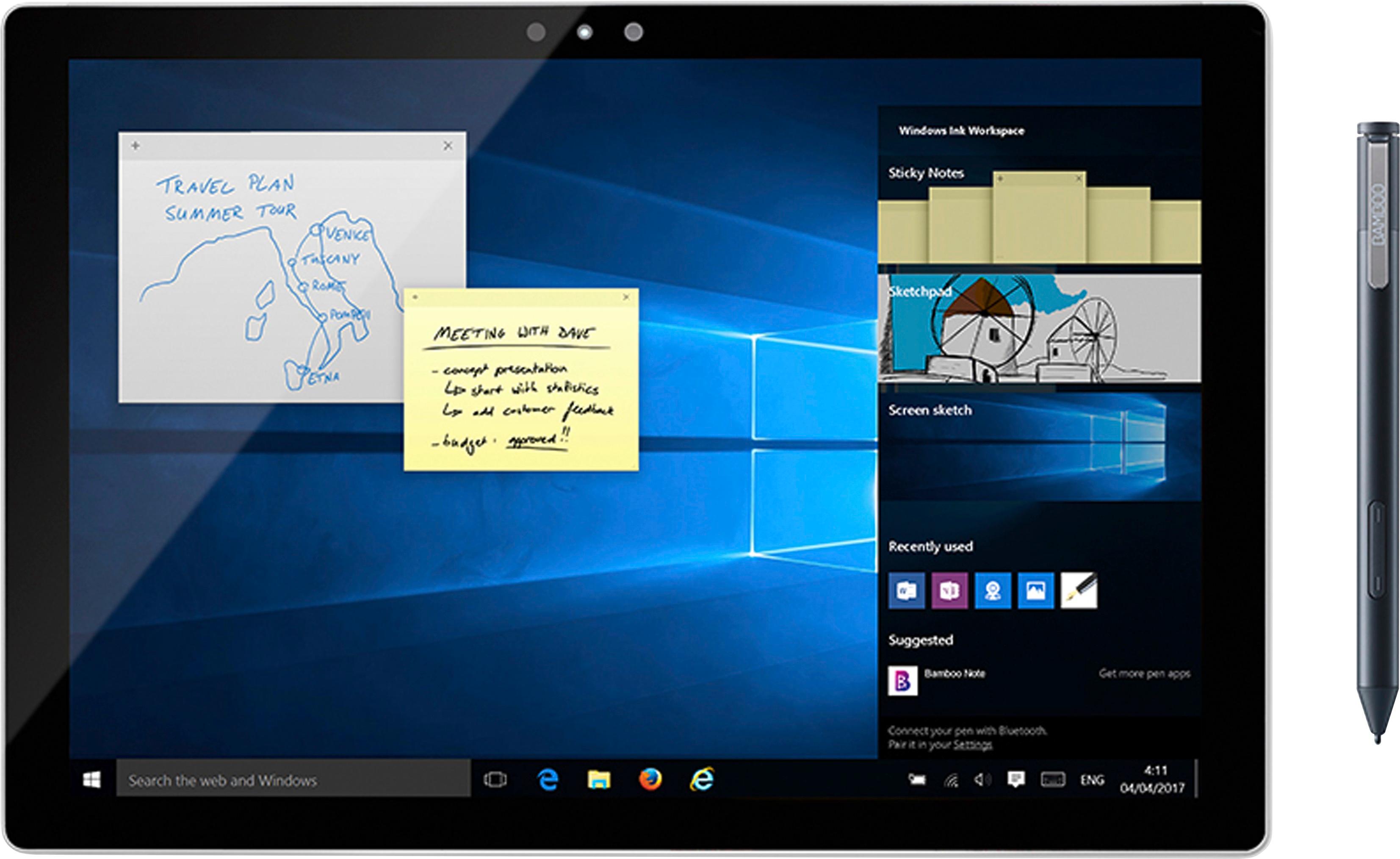
*Note: To take advantage of the quick access to the Windows Ink Workspace by clicking the top button, please use Windows 10.
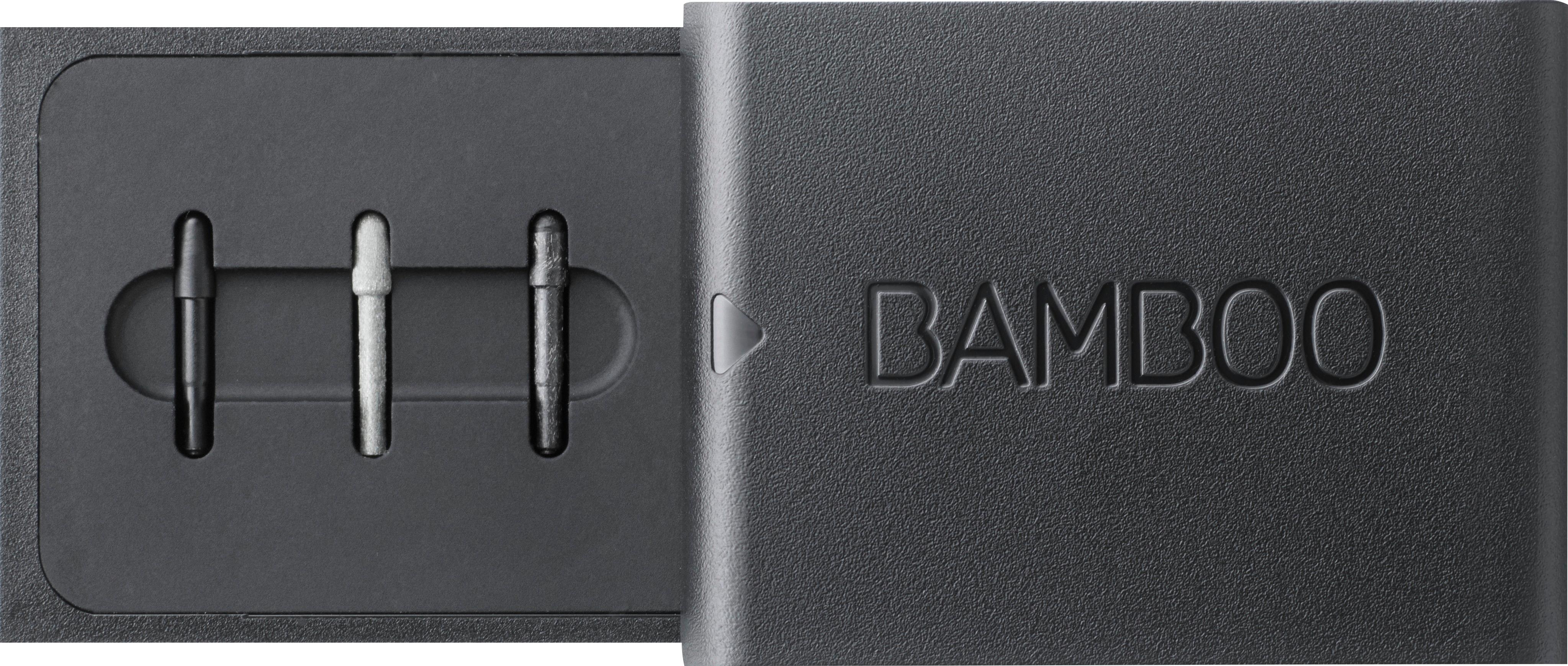
If you want to have different feel on the screen, please change to the different nibs which is in nib kit.
You may need to update the driver in your device, please check here
-------------
Aside of this list, your model may still be compatible if the manufacturer of your device had included Microsoft Pen Protocol or Wacom AES technology. One or the other is needed to make the necessary connection. The Bluetooth side of it will still work and the top button with it.
Hope that answers your question.
Regards
A:AnswerAccording to the Bamboo website, the Bamboo Ink is only compatible with Dell™ XPS 13 2in1 (9365). That's really sad because I just bought mines without realizing as well.
A:AnswerThank you for asking. Your model is not inside of the tested supported ones nor we have driver support for Chrome OS. If your device is a 2in1 type and has built in technologies of either MPP (Microsoft Pen Protocol) or AES (Active Stylus) then you may give Bamboo Ink a try. If you are not sure, I suggest to reach out to the manufacturer of your device directly and confirm the Pen input capabilities of your device. Hope that helps. Best.
A:AnswerWhen I am at home, In simply leave it on my mouse pad, next to my mouse. Since I transport my HP Envy quite frequently, I purchased a sleeve to carry it. This sleeve has two exterior pockets for accessories, which will accommodate the stylus. If you have a sleeve that has no external pockets, simply slip the stylus into the same compartment as the computer/tablet.
A:AnswerHello there, thanks for asking. Bamboo Ink won't work for iOS devices in general. You will want to explore Bamboo Sketch as a great option for your device. Hope that helps!, best
A:AnswerHello there, thank you for asking. This model is not listed inside the tested devices, that said all you need to make sure of is that your model has either MPP (Microsoft Pen Protocol) or AES (Active ES Stylus) built-in into the hardware, for this you may want to reach out to the Manufacturer of your 2-in-1 device (Lenovo in your case).
Also, have in mind the pen is an input device, (just like a keyboard, trackpad or mouse), so if your 2-in-1 device has the mentioned, then you can use it all around.
Hope that helps. Best