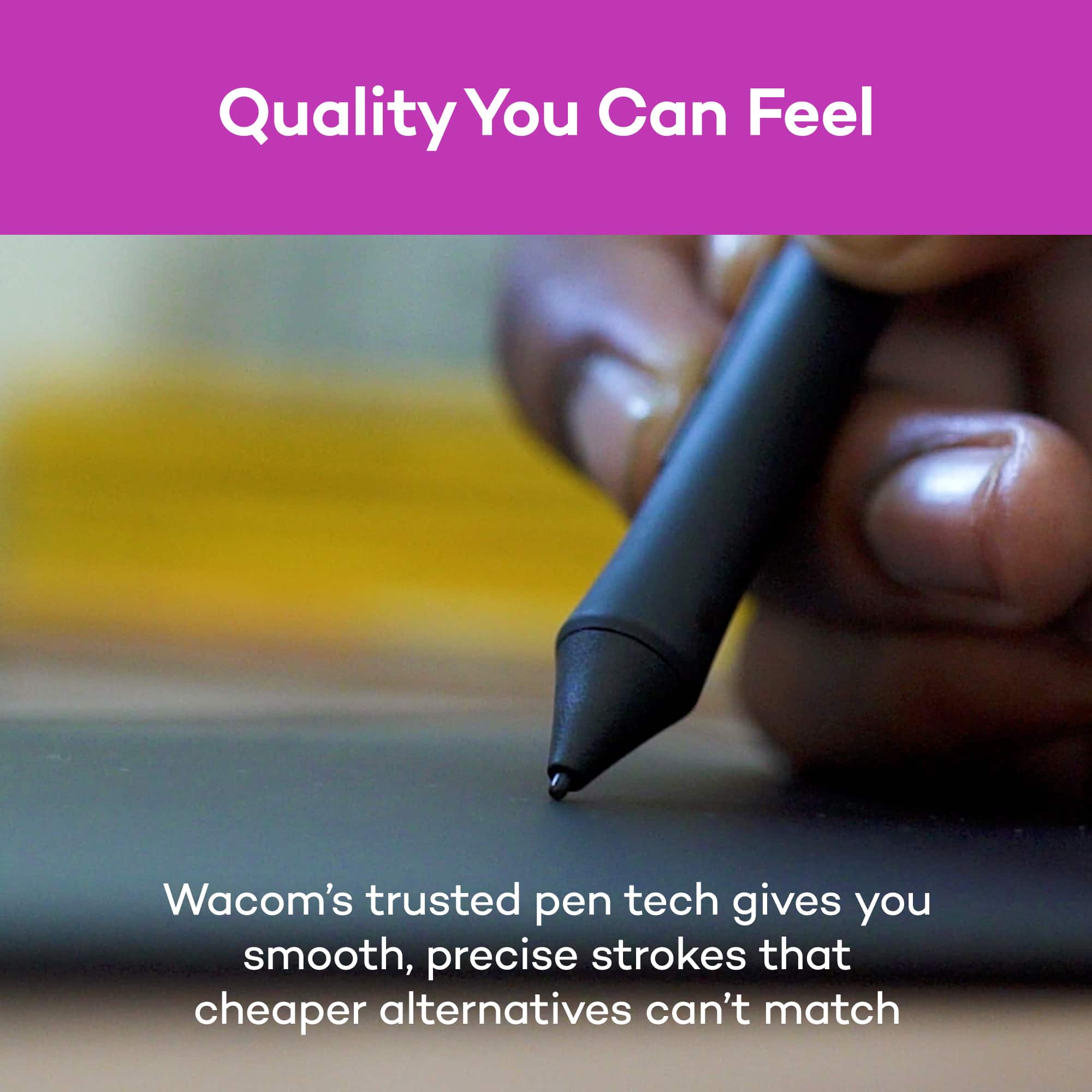
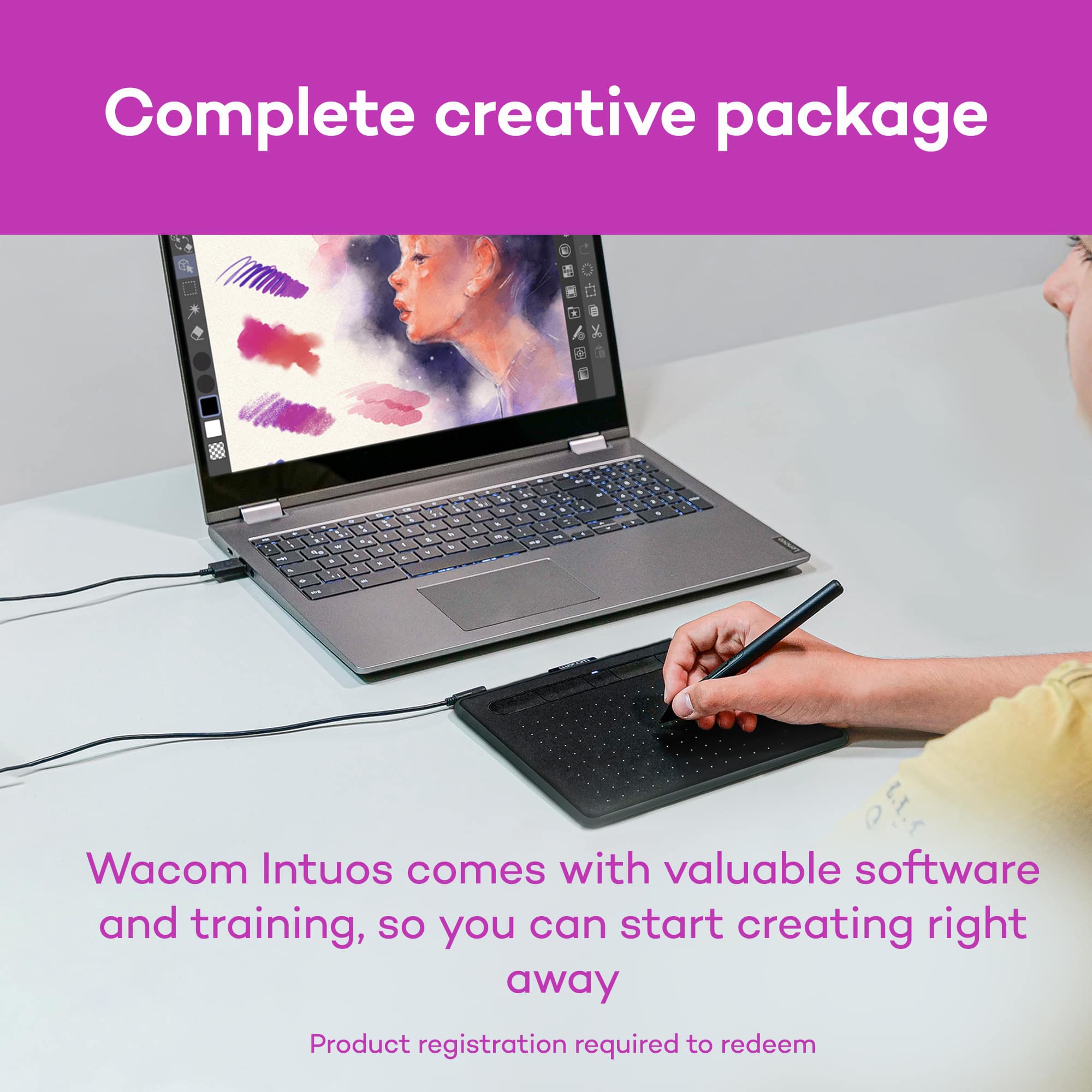
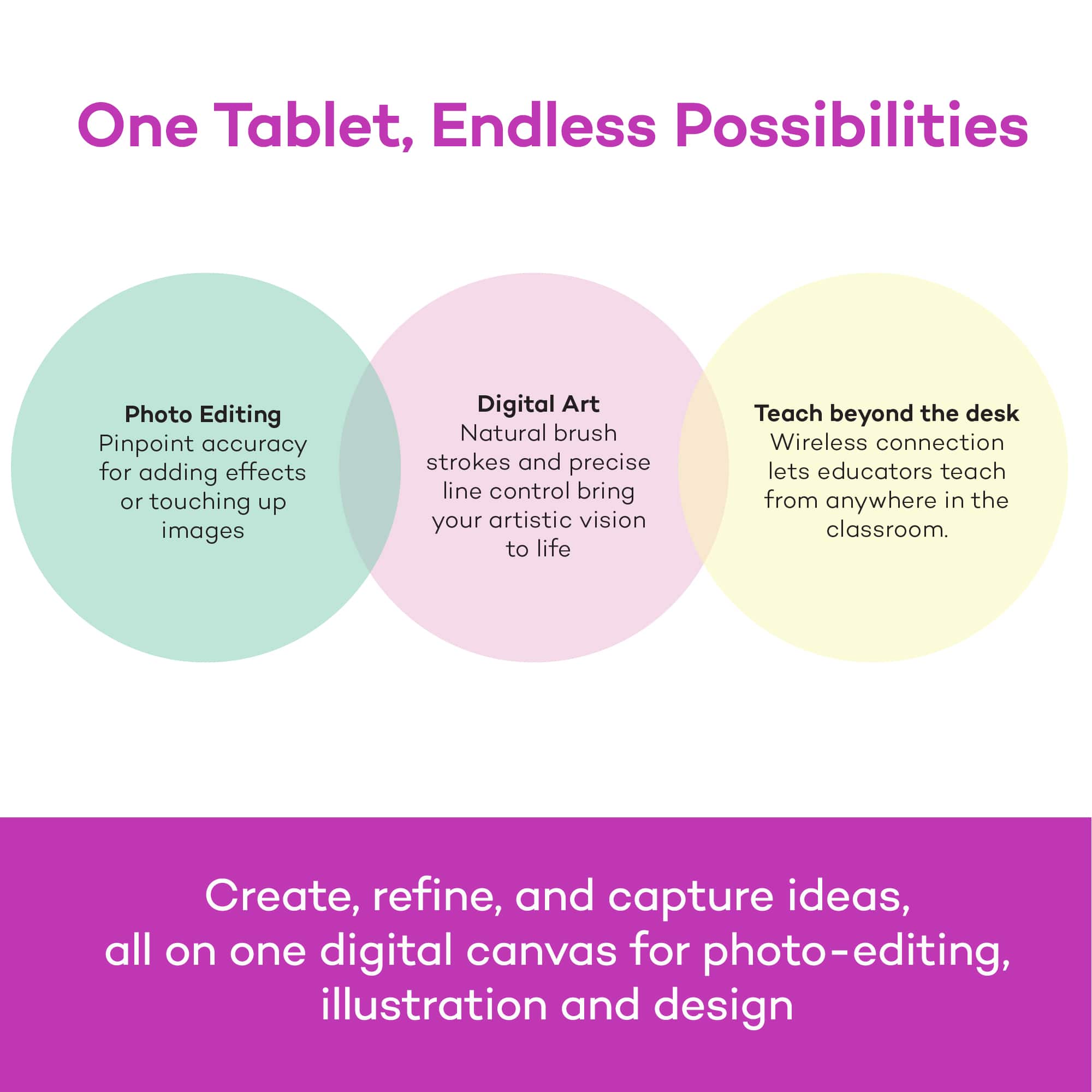
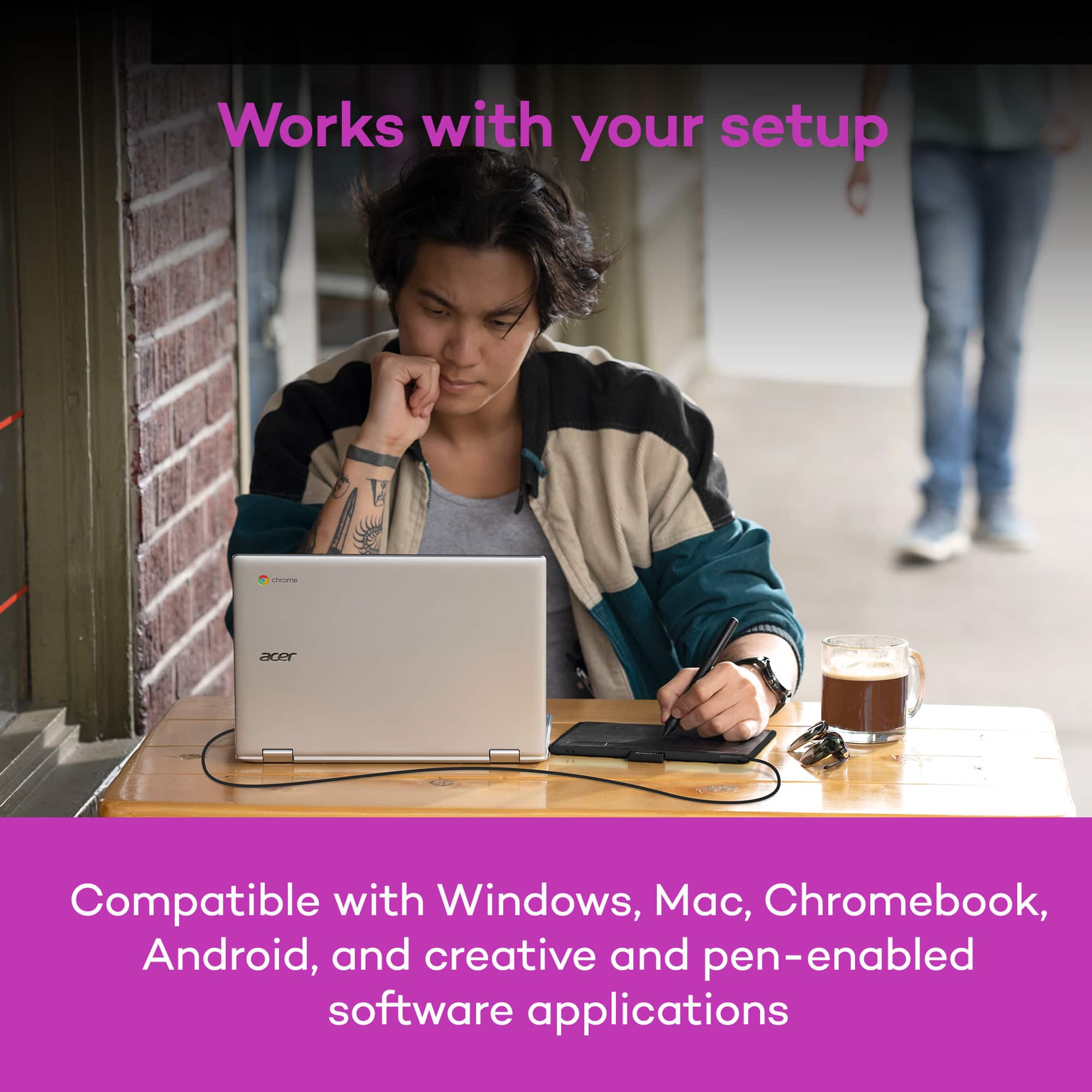
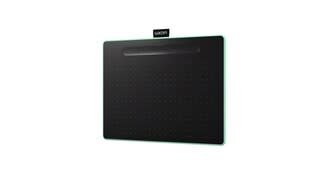
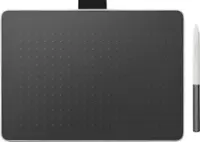
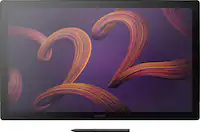
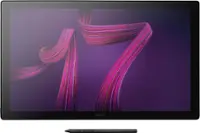
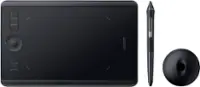
A:AnswerYes, the Wacom Intuos will work with essentially any application on your PC, Mac, or supporting Android OS device. If the application supports pen pressure, such as most creative applications, then you will be able to take advantage of this to control your brush size, opacity, or other variable.
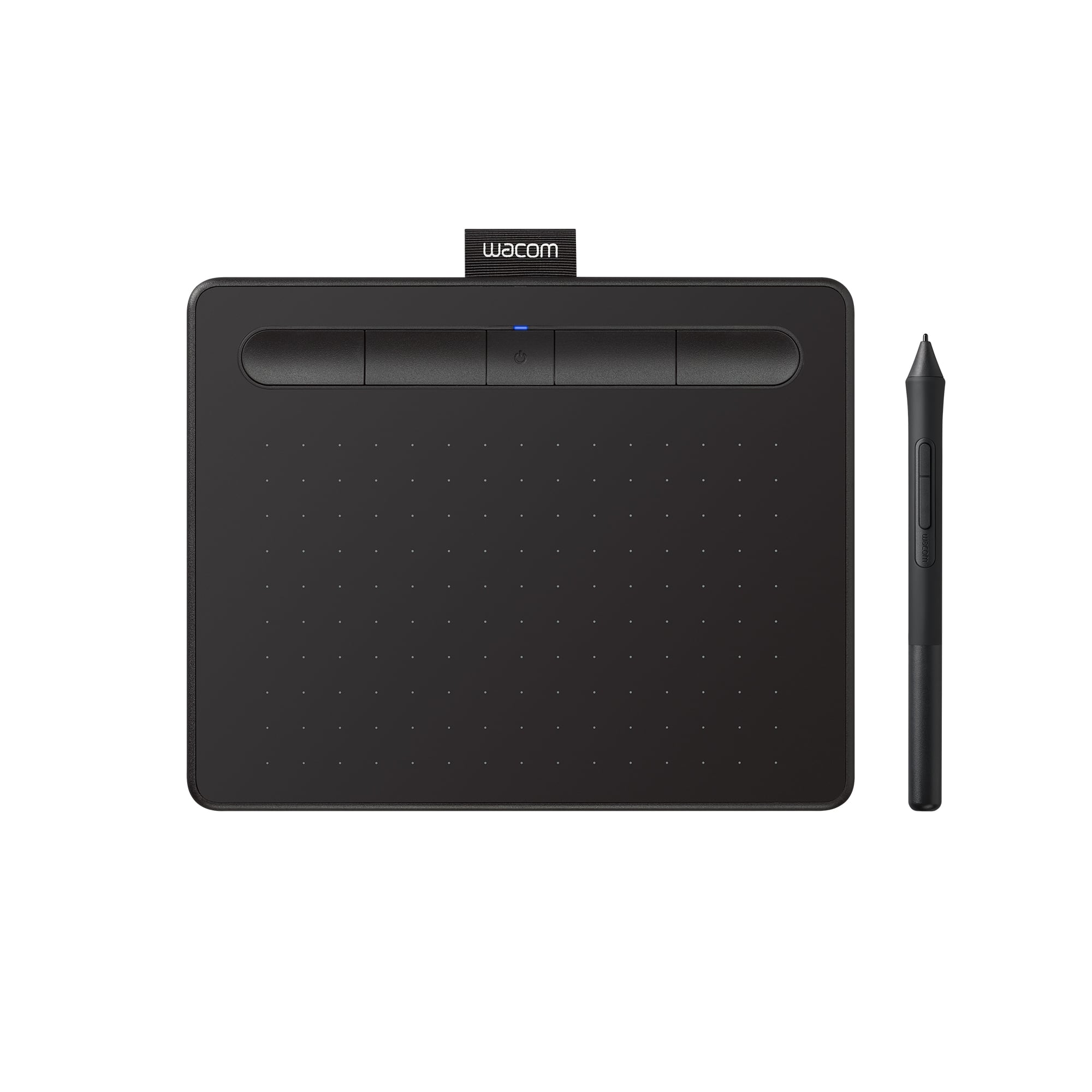
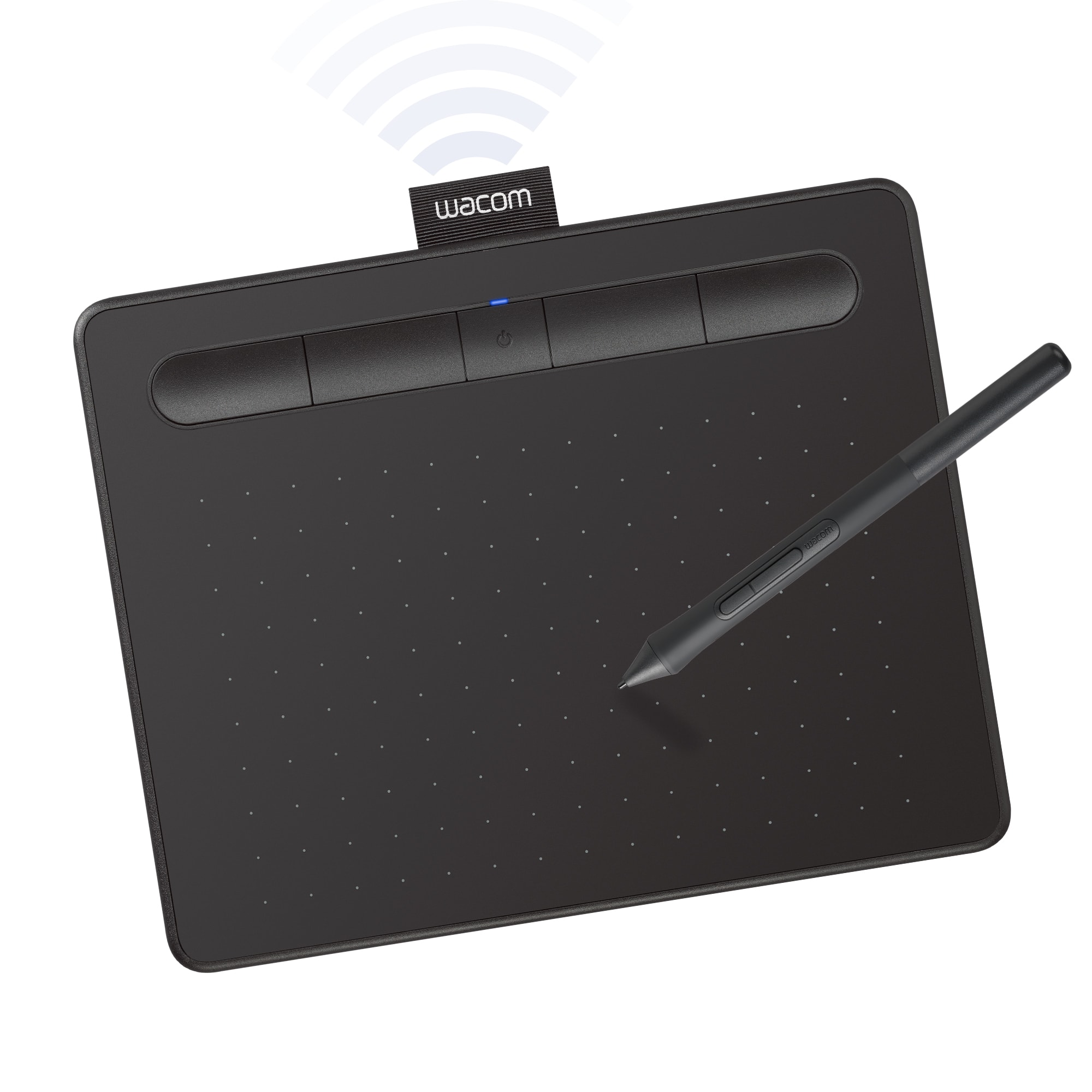
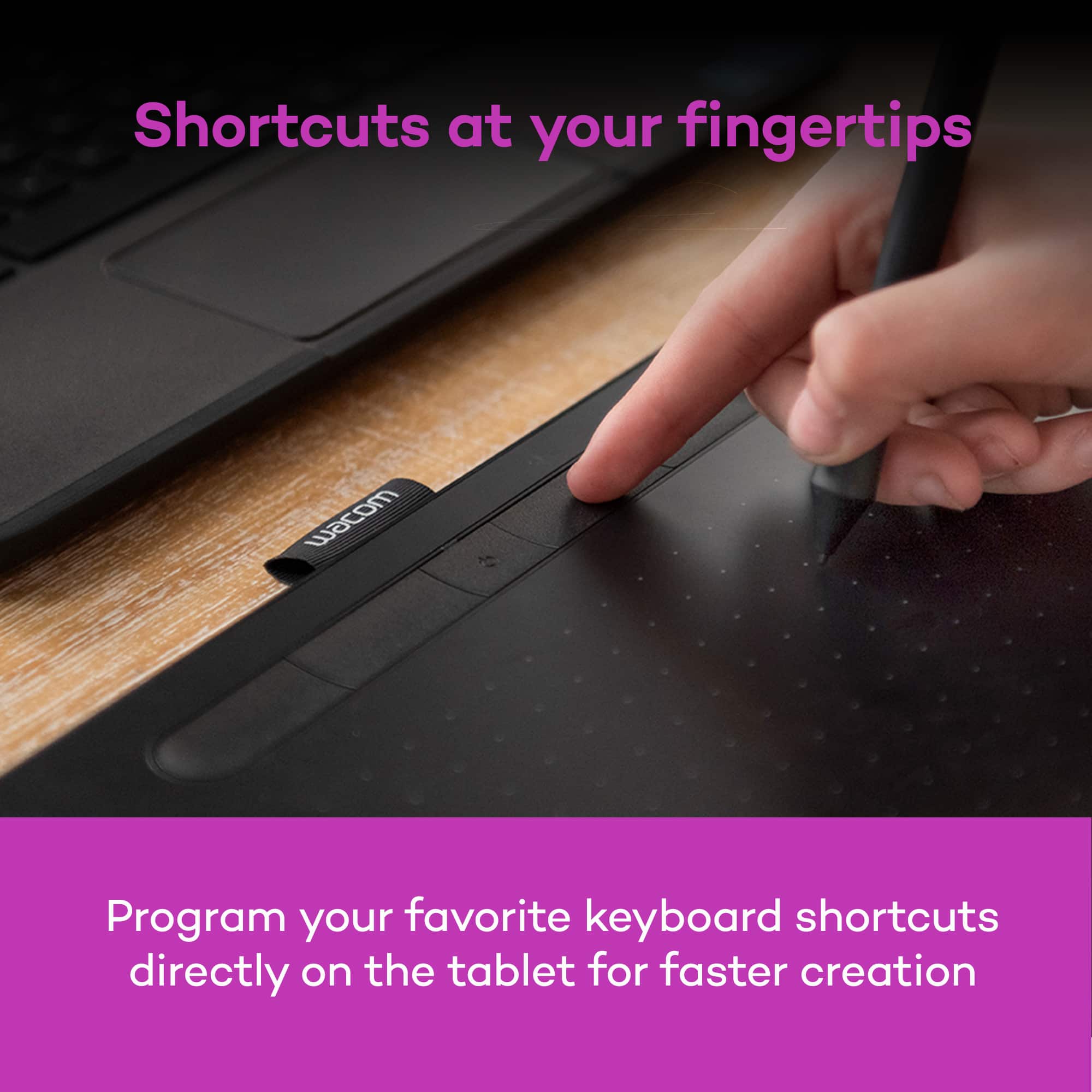
A:AnswerThe Wacom Intuos works great as a mouse replacement. When you hover the pen over the surface of the tablet it will control your cursor on-screen. Touching the pen to the surface performs a 'click'. This mimics the behavior of using a pen on paper, in that touching the pen to the paper begins writing. The buttons on the pen can be configured to perform other actions as well, including right-click, scroll, double-click, etc.
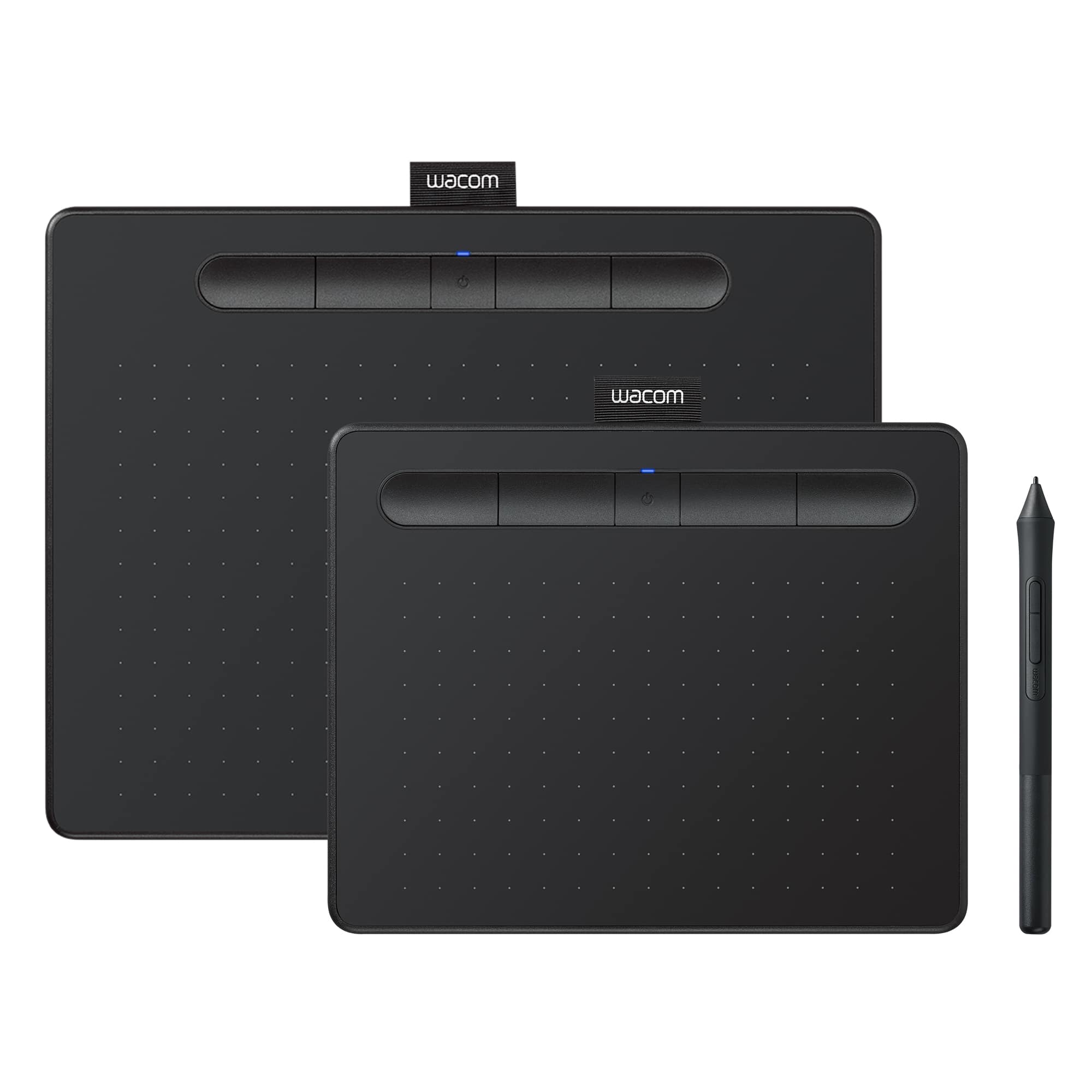
A:AnswerI assume you obtained your answer by now but the main difference is the connections. The more expensive version does not have to be connected to the computer via usb. The lower priced models require a physical connection. There are some other differences in the buttons and some functions but the connection is the main difference.
A:AnswerI'm unsure about which software is best but you can write with your own handwriting and draw pictures and animation with this tablet.
Personally I use it for hand drawn animation.
A:AnswerThank you for the question. The Mobile Studio Pro units have cameras in them. Cameras can be used for many things outside of selfies. The rest of the Wacom products do not. Regards
A:AnswerYes the, Wacom - Intuos drawing pad can be used in Adobe Photoshop and/or Illustrator. There are appearantly 13 different "gestures" you can utilize with Wacom Intuos and Cintiq for Photoshop.
A:AnswerIt's not really a multipurpose tablet. It's for creative pursuits like drawing and painting. It works with apps like Photoshop and Corel Painter. You need a different kind of tablet such the ones made by Apple or Samsung that can run apps like Excel and Word.