Customer Ratings & Reviews
- Model:
- 6HF11A#B1H
- SKU:
- 6390493
Rating by feature
- Value
Rating 3.9 out of 5 stars
- Quality
Rating 4.1 out of 5 stars
- Ease of Use
Rating 3.9 out of 5 stars
Customers are saying
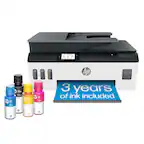
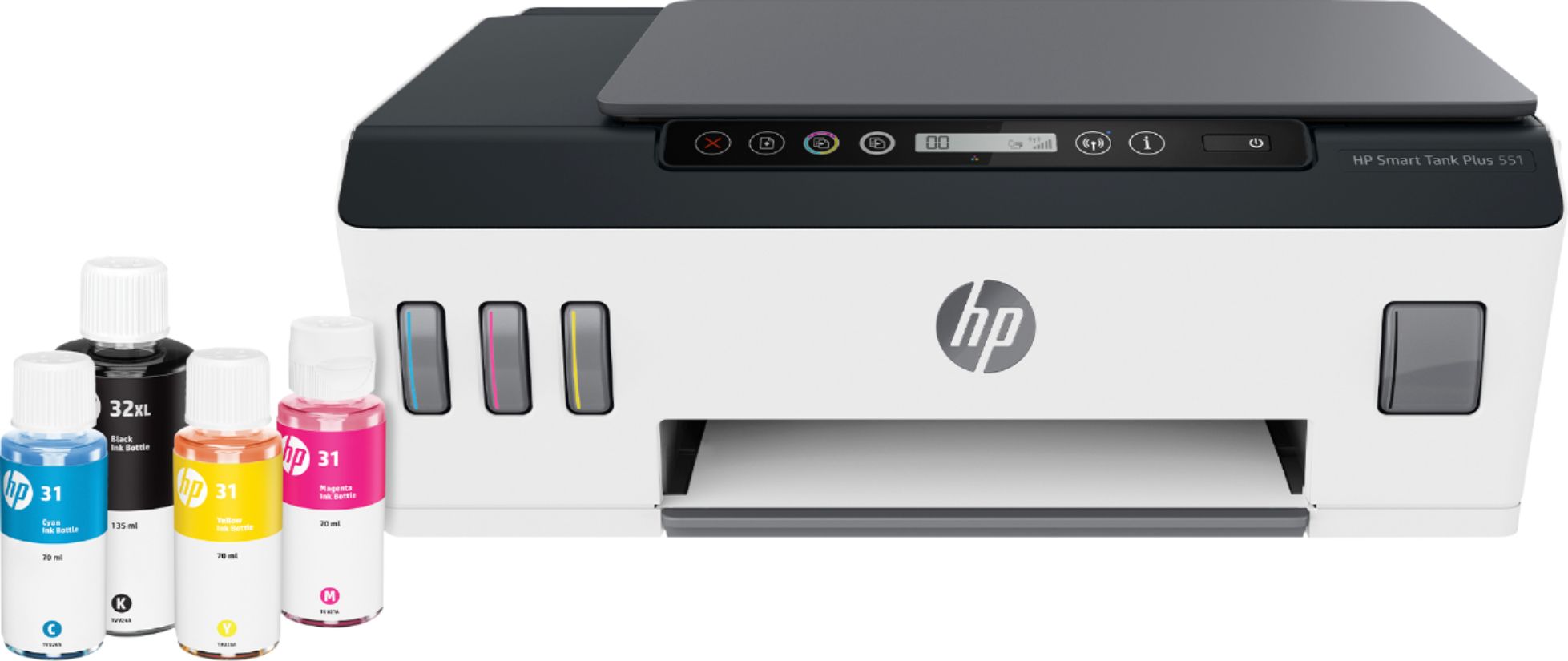
Customers are enthusiastic about the Smart Tank Plus 551 Wireless All-In-One Inkjet Printer's print quality, ease of use, and straightforward setup. Many appreciate its compact size and reliable wireless connectivity, enabling convenient printing from anywhere in the home. However, some customers find the price to be relatively high and express concerns about the printer's small paper tray and occasional paper jams. Overall, the positive feedback on printing and ease of use outweighs the negative comments regarding cost and paper handling.
This summary was generated by AI based on customer reviews.
- Cons mentioned:Paper tray
Warning: Does not show paper feed & HP Smart (bad)
||Posted . Owned for 3 weeks when reviewed.This reviewer received promo considerations or sweepstakes entry for writing a review.I had bought but did not open box. After careful review I found out there is no paper tray. The feed of paper was from a paper feed tray slot at the top of printer. Makes it difficult to position in a area that had of overhanging shelf. I would hope that HP would have pictured this feature more prominently. I ended up with HP 6075 which seems to have a bad cartridge and used HP Smart to diagnose and fix. You end up in an endless prompt loop. Went thru level 1, level 2 and 30 minute wait. Still is not printing with Blue and Cyan (see photo). When you attempt to call in you end up getting transferred around around and around. It is even worst than trying to get airline support to remedy a ticket issue. Support has been bad and I will probably explore a Brother printer and return the HP 6075. Sad; I've been an HP Printer user for over 30 years.
No, I would not recommend this to a friend - Pros mentioned:Print quality
Love it!
||Posted . Owned for 1 month when reviewed.This reviewer received promo considerations or sweepstakes entry for writing a review.Awesome printer! Woks super fast and is perfect for mi kids school.
I would recommend this to a friend - Pros mentioned:Wireless connectivityCons mentioned:Paper tray

Stepping away from the past
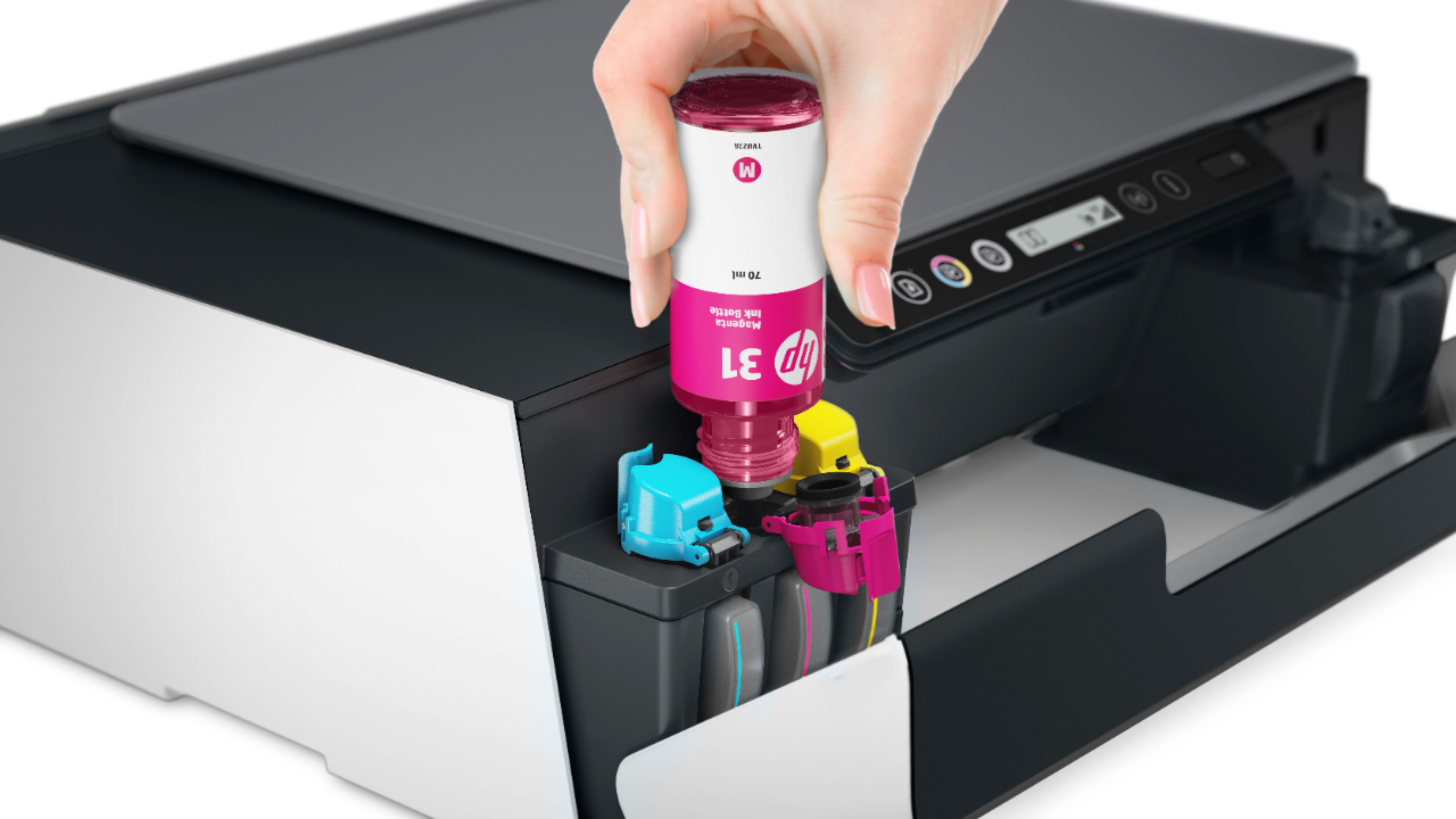
|Posted .This reviewer received promo considerations or sweepstakes entry for writing a review.The ink cartridge curse is near its end! Inkjet printers with separate cartridges for each color were the best thing in hardcopy technology since color ink. Now, we've advanced to saying good-bye to those pesky (expensive) cartridges entirely: Enter the tank. Printers where all you need to do is pour more ink in from a plastic bottle. Unboxing: don't be like me (ignoring safety "suggestions"). Do NOT use a knife to open the box. I was lucky. The ink bottles are RIGHT INSIDE. [see photo] The initial setup was a bit more involved than most modern printer setups I've done. Fortunately, HP provided a link to a very good setup video that covered two models of the printer. I elected to follow that instead of the printed instructions, especially since there was at least one place where the printed instructions didn't realize that I had the lesser of the two models it was intended to cover. The print heads (one black and one color) had to be unpacked and installed according to proper steps, and it didn't work the first time. It worked fine on the second attempt. HP really didn't want anything moving around during shipping, so you'll need to remove a plastic support from the print head carriage. [photo] This must be done as they describe in the video. I thought about the mechanical engineer who spent the time to design it. Telling his dad his latest design must have been somewhat anticlimactic. The print heads had matching little orange inserts, but it was unclear why. [photo] Later, I realized that you should save the ones for the print heads to prevent getting ink all over should you take the print heads out. I don't know why you'd want to do that, unless they need periodic cleaning or...replacement (like ink cartridges?!? I hope not...) The best thing about this printer is of course the ability to purchase bulk ink, eliminating ink cartridges. The second best thing is the set of four windows clearly visible on the front of the unit. You can actually see how much of each color ink you still have. [photo] The worst thing about this printer is the tiny paper tray. I really miss the first small office printer I bought for home use - it held a full ream of paper. Just crack open the paper and set the whole thing in there at once. This printer is like so many others, requiring you to come up with a staging area for the rest of the paper. I expected somewhat faster print speed, but it's not agonizing. Wireless printing is a big plus. Since the last three printers I've owned have been wireless, I no longer need to keep a print server running. I usually shy away from manufacturer's specialized software, even though it promises all manner of nifty features. The last Lexmark printer required theirs, and it was horrible. The Windows drivers usually work just fine for most printers. In this case, the HP Smart app for the iPhone is handy and makes it possible to do useful things like checking the printer status, getting the printer's email address (you can email to the printer), etc. It isn't super obvious what your ink level is (might be nice to know if you are traveling and want to check remotely). The Windows version is unobtrusive, and can be handy at times. You can still print to this printer as with any other installed on your Windows computer. The only truly troubling thing is that, at the time of writing this review, there were NO sources for replacement ink, including HP! I am reluctant to sign up for HP's Instant Ink program, mostly because I don't want a surprise shipment (and charge!) for whatever HP feels like charging at that moment.
I would recommend this to a friend - Pros mentioned:Print quality, Wireless connectivity
Brilliantly colorful photos; a practical inkjet
|Posted .This reviewer received promo considerations or sweepstakes entry for writing a review.HP Smart Tank 551 Wireless All in One Printer The color inkjet printer is being re-introduced to those of us who print lots of color pictures or other color print projects. The resulting photographs are brilliant. Colorful. Fairly fast. And, the mechanism feels like it will last awhile, which is important considering that this printer encourages printing. Lots of printing. If you’re like me, you may have given up on printing photos at home. I found everything about the previous generation color inkjets to be aggravating. Expensive, low capacity cartridges, that never actually seemed empty until one depleted ink compartment required you to replace them all. Or, the heads dried out as you tried to keep usage low. You didn’t dare buy 3rd party replacements because they might not be compatible. The HP SMART 551 and the rest of HP’s large tank printer family are doing inkjets right. Comparatively huge ink bottles are each replaced independently, as needed, at a reasonable cost. Even the heads appear to be replaceable, and the persistent priming from the large reservoirs should prevent drying problems. The overall low cost of supplies will encourage everyone in your family to print pictures, embrace color print projects and concentrate on having fun. It’s a nice change. SETUP: HP’s instructions offer very nice, large diagrams accompanied by the fewest words possible. Follow the diagrams carefully. The bottle mates snuggly with the reservoir keeping the ink where it belongs. The installation of the 2 “ink head/cartridges” requires careful repositioning, alignment and some serious push to get them into the right place. All of this is accomplished while reaching into the body of the printer through the limited view entrance. No hints. I had to repeat some actions to get the printer ready for the next step. I predict more than the usual number of support calls. Connecting to Wireless: This started a little ugly, but ended very well. I wanted to first connect to my XR phone, so I downloaded the HP Smart App and followed the directions (to the extent I could understand them) to get the printer onto my home wireless network, I have no doubt it was me, not fully understanding when it was HP’s temporary network or my home network that I was joining. And, of course, I have 3 networks in my home, and using the mobile setup, it was impossible to know to which one the printer was attempting to connect. No matter. I gave up on this approach and moved on to connecting to my Mac Powerbook using the HP “123” site. Laptop wireless connections: Now the process was greatly simplified and instructions were precisely matched to what I was seeing. HP really understands the intricacies of Mac setup, directing me to the correct system or network settings. I was ready to print in a few minutes. From there, the HP guidance got my mobile connection up and running. Once the printer was online, I didn’t even have to load software onto my wife’s phone or tablet because they recognized and easily printed without fuss. I eventually installed HP Smart Print App for more control. Like I said, it was probably my problem. Paper handling was reliable. This is my preferred “gravity” feed design. Paper capacity seems low although this is rarely a problem for photo printing with frequent size or finish changes being typical. Minimal space is needed from the rear, close to vertical feed, and overall weight is less than I’m used to. CONCLUSIONS: My first printing efforts were on letter sized glossy photo paper. This printer creates brilliantly colorful photos when your images are rich with color. Get premium glossy paper to fully appreciate the color intensity and sharpness. Compared to the local photo processor I found the HP prints to be superior, with clean, pure colors. Color brochures were reasonably colorful and printed quickly. All efforts to connect wirelessly after the setup are flawless. The printer is always ready. Expenses for replacement ink should be reasonable. Whether you are need a color printer for an office or a classroom, or you’re a budding photographer, this is a great printer choice. Recommended.
I would recommend this to a friend It even worked
||Posted . Owned for 1 month when reviewed.This reviewer received promo considerations or sweepstakes entry for writing a review.Not too difficult to follow the instruction, although not without hiccups.
I would recommend this to a friend- Pros mentioned:Print quality, Setup
Very easy to set up and get going
|Posted .This reviewer received promo considerations or sweepstakes entry for writing a review.I own a number of printers and as you may know, they can either be really easy to set up or a pain. This was the easiest one I've ever set up. I just followed the steps and it worked in less than 5 minutes. No updates or patches or whatever. It even connected to wireless without entering my password...should I be worried??? Anyway, like I said, follow the steps. I removed all the blue tape and filled the ink from left to right. Powered up the unit and connected a USB cable (not included). All the tanks seem to fill up except an air bubble in the cyan just at the top and black which seemed like it could have used another 1/8". I could see a tad bit of empty container. After that, the unit printed a page automatically and stated at the bottom to put it on the page scanner. I did so and press the color copy button. It didn't print anything, but made a bunch of noise and said ready. Then I went to 123hp.com, entered the model number and it was there under the 550 series. I already had the app installed on my laptop from the Windows store, so I launch the app. A few clicks and I was at the Windows settings to add a printer. It saw the printer within seconds and I clicked it. It saw the USB cable and asked if I wanted to install it that way or wireless. I chose wireless and it did a few steps and asked me to remove the cable. Then I clicked continue (didn't have to start all over) and it finished the install. I saw ready on the app and the printer. I found a raw photo I took in my photography courses back in 2014-16 and opened it with the Photo viewer in Windows. I printed it using regular ink jet paper and the factory settings from HP. It's a photo of the Summit Inn sign that sits at the top of Cajon Pass on Interstate 15 (the 15 if you're from So Cal) The Summit Inn burned to the ground in a wildfire a few years ago, but this was taken before that tragic event. Since it's regular paper, not photo, it's a bit rolled up on the edges, but color and print quality are really good, so I've added a photo. Also a photo of the unit, loaded with paper. If there's one thing I dislike is the paper feed not being in a drawer, but that's easy enough to live with. All in all, it looks like a great little printer and if ink life lasts like advertised, it'll be great. They state about 2 years! I like the HP app too for Windows. I don't know if it does, but it would be great if all HP printers could work through the app. I'd recommend this to a friend or anyone that has issues with adding a printer. No network or connection issues on my install..woohoo.
I would recommend this to a friend - Pros mentioned:Print quality, Size
Eco friendly printing
|Posted .This reviewer received promo considerations or sweepstakes entry for writing a review.This HP product is an excellent high-quality inkjet tank printer; right out of the box, you will have the capability to a tone of prints, both black/white and color. The primary feature is that it has the ink tanks integrated inside the printer and not on the sides taking space. The ink reservoir tanks are still visible, but now they are in the front, and the printer is more aesthetically pleasing. What I like about the design is that it is a standard size printer, not bulky and that the paper tray is on the back topside, which allows me to access a blank/scratch paper whenever I need one very quick. The menu display screen is not a touch screen, and all the necessary buttons are on both sides of the screen — the flatbed functions as expected. Setup: The printer comes with easy to read quick start-up guide; it includes many well-drawn illustrations. I did not have any issue unboxing and refilling the ink tanks with the provided ink bottles. The only non-major error I encounter was after installing the print heads, the printer screen displayed E3, which means error 3. I read the Reference Guide for the solution, and all I needed is to press the resume or cancel buttons. After performing a print and also an alignment test, I did the final step, which was connecting the printer to my computer. I downloaded the free HP Smart app/software, and it connected the printer to the Wi-Fi. Within a few minutes, I was able to print and scan from my computer or mobile device. Both the computer and mobile have an HP Smart app that comes loaded with many exciting features, not just print and scan. With the app, a user can check and print photos from Facebook. Also, the user can select the setting for each task (print/email/scan/etc.), such as sending scan documents to an email or file it to a cloud drive (e.g., Google Drive or Dropbox). All your HP printers and scanners can be controlled with the mobile app and make any changes to preset settings. Smart Tasks has other features, but this review is about the printer. With this new printer, now I don’t have to worry about last-minute going to the store to buy cartridges. I am more relaxed when my kids print since the printer has a continuous ink system. This printer is environmentally friendly because it reduces the number of cartridges that end up in landfills. Overall, I highly satisfied with the tank system, the quality of the print, and the Smart app.
I would recommend this to a friend - Pros mentioned:Print quality
Fantastic Mobile Device Printing - High Demand Use
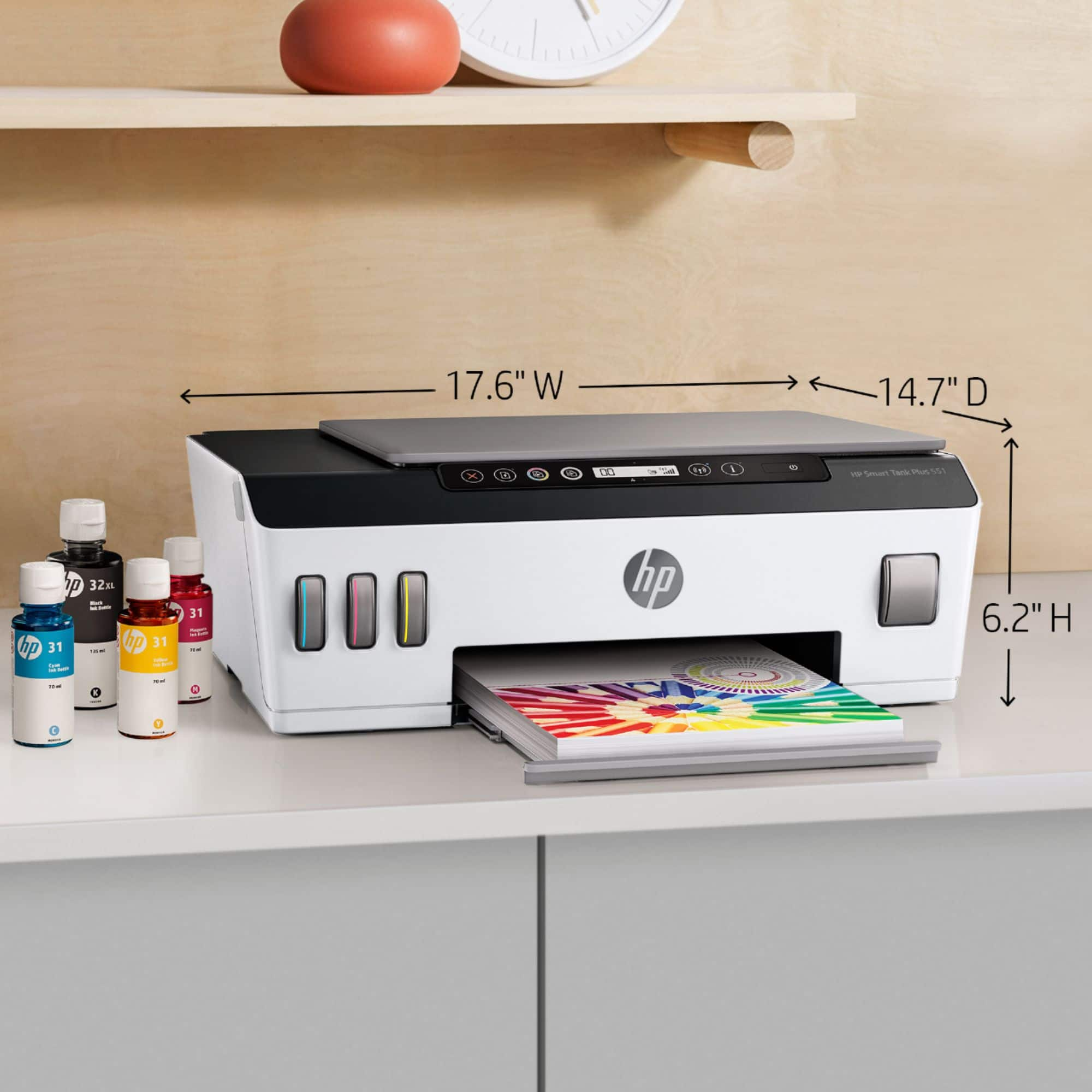
|Posted .This reviewer received promo considerations or sweepstakes entry for writing a review.HP has established the future of all All-In-One Printers for Home, Family, and High Demand uses. I was thrilled for the opportunity to select this HP Smart Tank Plus 551 Wireless All-In-One Inkjet Printer in exchange for an honest review. I have an existing home-office laser jet printer, which does a creditable job for pumping out the numerous documents I create for my monthly construction reports. However, it is NOT able to print out any colored kinds of documents or pics to the chagrin of my wife and Grand Kids. So when I found out this HP Smart Tank Plus 551 can deliver up to two years of ink to include up to 8,000 color pages or up to 6,000 black pages I did a 'Happy Dance'. This printer is a super 'upgrade' from my monochrome printer and provides me with low-cost, increased volume printing. WooHoo! After using this Smart Tank Plus 55 for over three weeks these are the features, I think, are significant: * Print Quality – This is notably the most important reason to choose a printer in the first place. The HP Smart Tank Plus 551 excels at producing sharp, richly-detailed, and clear documents. I printed out several color photos (see pics) from my smart phone and laptop and they were awesome. The added surprise was the outstanding color rendering while using just plain copy paper. WoW! This printer uses the standard types of copy paper, photo papers, card stocks, and envelopes. This HP printer works with letter, legal, 3 x 5 in, 4 x 6 in, 5 x 7 in, 8 x 10 in, and no. 10 envelopes. The stand-up paper feeder holds up to 100 sheets of copy paper. HP states that I can get up to 8,000 color pages or 6,000 black pages with the ink bottles included in the box. YooHoo! * Set-Up – HP includes a 'Start Here' set of illustrated instructions, which includes easy-to-read and follow set-up illustrations and drawings. HP also provides a super-helpful link to a set-up video, which I would highly recommend anyone installing this printer to view. The hardware set-up was a little challenging for me when it came to installing the 'printheads' because I have large hands. I had to reach inside the printer housing, which is approximately 4 inches high, to remove the protective shipping pieces and install the two separate printheads. It is very important to follow the instructions to the letter in this step. It is essential NOT to touch the electronic contact strip after removing the protective tape, or the ink nozzles while installing both printheads. For me this was the most difficult and tedious step. Once the ink wells are filled and the printheads are installed correctly the hardware set-up is complete. * HP Smart App – This App is available for FREE at the Google Play or Apple App Stores. It is designed for mobile devices like my smart phone, tablet, or laptop. It will not download to a desktop computer. This App essentially controls the many features of this HP Smart Tank Plus 551. It also guided me through the software set-up of this printer. An HP account is necessary, but one can be created during the software set-up procedures. To print any document or photo file this App has to be installed on the mobile device being used. I am on the road frequently so I downloaded the HP Smart App on my phone and laptop. I can send files to this printer from any location I am at. How cool is that? Additionally, there are on-board buttons to turn the printer ON or OFF, manually print Color or Black only copies, Wireless ON or OFF button, Information button, and a Control Panel Display, which gives the status of the various printer functions. The HP Smart App walked me through the Wi-Fi connection to my home's router. It is dual band (802.11b/g/n) and supports either the 2.4 GHz or 5 GHz radio frequencies. The HP Smart App has many features, which allows me to print any document or photo from any of my files, or, even from my social websites. I can copy a document, resize it, lighten or darken, enhance, and specify the paper size. It shows me the status of my ink reservoir levels. It allows me to scan pics and documents from my phone's camera, or any files or photos I have scanned to print out. I can go to 'Help & Support' for information and re-order ink supplies when I need to. * Small Footprint – The dimensions are 17.6 x 14.7 x 6.2 inches. It takes up less space on my desk then my old monochrome laserjet. It weighs under eleven and a half pounds. It does require approximately 12 inches or more of space in front of the printer so the printed material can exit the printer properly. * Other Features – This HP Plus 551 Ink Jet Printer is ENERGY STAR® qualified with HP Auto-Off Technology. It is quiet compared to my older monochrome laserjet. Faxing documents for FREE setting up the Mobile Fax tile to my HP Smart App. I do NOT need a land line. Yipee! Two-sided printing is available. However, I must remove all the sheets printed on one side and re-insert them into the paper feeder by hand to print on both sides. Smart Tasks, which are basically shortcuts to repeated tasks and customizable and easy to create. Wi-Fi Direct, which is a great way to keep this printer off of my home network and make it only available to my device, yet allow me internet connection. * Summary – I now use this printer as my home-office printer and for the rest of the family to enjoy also. Since it holds a two-year supply of ink,and the refills are cost-effective, this is my favorite 'Go-To' printer. I love the fact that everyone in my family can download the HP Smart App on their mobile device. This is what drives all our printing chores now. The printing quality is outstanding. The photo printing is impressive because the colors are dynamic and crisp. I highly recommend this HP Smart Tank Plus 551 Wireless All-In-One Inkjet Printer. I'd give it six stars if I could. It is not an inexpensive piece of hardware, but because of its high volume capabilities, and lower costs per printed page – It is a bargain for the quality it delivers.
I would recommend this to a friend - Pros mentioned:Print quality
Print the pictures and forget the cartridges
|Posted .This reviewer received promo considerations or sweepstakes entry for writing a review.At long last, HP has a refillable ink printer “smart tank” model in its line of products. I have used the company’s competitor product that uses refillable ink and high capacity tank and I think HP Smart Tank 551 is better in terms of print quality. You’re getting large bottles of ink that could last you two years according to HP. I’ve been printing pages and pages of letter size pictures in the best quality setting and it does not seem that the line in the ink tank dropping even a bit. Initial setup is a bit long but fairly easy. This is not the kind of printer that you think you could do the setup all by yourself without reading the user guide. There is a printed publication that will take you every step of the way to make the printer up and running. Calibration is very easy, you just need to scan the test page, that’s it. There is also an app for android and iOS that is useful to print pictures from your phone or tablet. Unfortunately, the app does not allow you to change some specific setting such as the type of paper you want to use for letter size document i.e. using photo paper. That will require you to connect directly through printer, which will bring up web-based interface that provide deeper setting options. The printer also features Bluetooth LE and Wifi, which are useful to connect the printer to your devices and network. Connecting the device to your gadget is easy when using the app, the Bluetooth LE works as it should to identify and connect the printer to your gadget. I use the printer mainly to print documents and even more so to print pictures. The printer cannot do automatic duplex, which may be important to some people, but you can do manual duplex as needed. I use glossy photo paper for printing pictures and the quality of the print is great just be sure to set the option for the best quality. The app provides option if you want to adjust the picture before you print. Colors pop up great. When reading the spec, I initially thought print resolution of 4800 x 1200 optimized dpi color would result in somewhat noticeable quality degradation when printing letter size photos. I was wrong. I have printed photos up to letter size and have no complaint for the photo resolution. The photos look sharp enough. I use the best quality photo paper so that probably helps a lot in bringing the most out of the printer. When comparing picture from a wide gamut display, the print out seems to produce noticeably over-washed white color. Not really a big deal for most uses. This printer is an AiO model meaning it also has a built-in scanner. The scanner works okay but it does not have Automatic Document Feeder (ADF) feature so you have to scan each page manually when using the scanner. The built-in scanner is very useful as you can make copy of documents. Overall, this is a great printer. Not without small flaws but a very solid option for those want to get into the world of refillable ink printer. The quality of the print is good enough for home uses to save you from making the trip to photo labs. And yes, print those pictures right from your home without the need to constantly order print cartridges. I would rate this as a 4,5 stars and rounded to full 5.
I would recommend this to a friend - Pros mentioned:Print quality, Setup
New tech, same quality
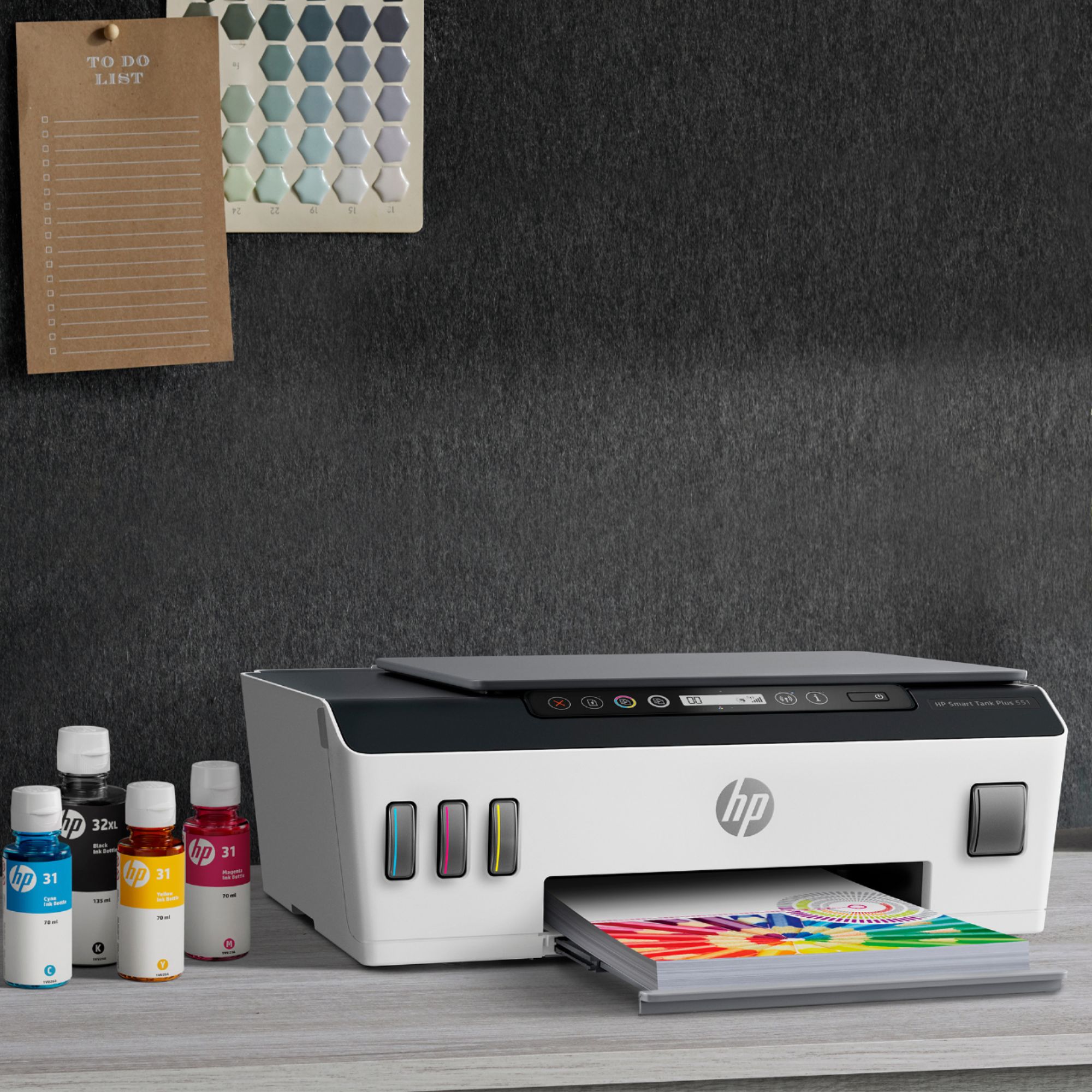
|Posted .This reviewer received promo considerations or sweepstakes entry for writing a review.This Smart Tank Printer is just what we needed. I had been hesitant at first about the thought of tank printers, but the Ink filling couldn't have gone any smoother or been any easier. Knowing that this will last much longer and be more cost effective, is a huge plus, as we print a lot around our household. The wireless option is a big bonus, as my wife has her computer downstairs and our other is upstairs. The added features are also nice, as scanning and copying will be something we will no longer need to run to the local office store to do for our kids school projects. I like the design and the setup, as I noted earlier, was very easy. It looks pretty slick, and seems sturdy. It is not huge, but not small either, so just keep that in mind when purchasing. It will sit on most desks, but may have a hard time on a more narrow bookshelf. The phone app and setup tutorial are really nice features to help during that process as well. I am a visual learner. As for the quality of the prints, they seem very vibrant and bright and not at all washed out. It also prints faster than I was expecting, which is great. As you can see in the picture, the printer comes with 3 colored bottles of ink and a large black bottle. You fill up the tanks inside - colors on the left and big black tank on the right side. All in all, due to the ease of use I am very happy with this printer so far, and would highly recommend picking one up.
I would recommend this to a friend - Pros mentioned:Ease of use, Print quality
Well Done HP!
|Posted .This reviewer received promo considerations or sweepstakes entry for writing a review.This printer set up in a snap . Out of the box and fully set up with 5 devices in less than an hour. I just had to install hp smart and hp plug in on my devices which were the following: Pixel 3 phone 3 Chromebooks 1 Microsoft Desktop running Windows 10. Scanning via mobile device and desktop was a breeze. Printing was a breeze on desktop and mobile. Ink was bountiful. I printed 2 photos and about 20 pages of mixed black and white and color and the levels did not drop. Quality of photo prints was decent for ink jet... I would highly recommend this product.
I would recommend this to a friend Ink-tank based quality all-in-one inkjet printer
|Posted .This reviewer received promo considerations or sweepstakes entry for writing a review.All-in-one inkjet printers are super convenient and offers good quality printouts, however usually the cost of the ink cartridges with their small quantity of ink included is a major drawback. HP’s Smart Tank 551 circumvents the issue by using “ink tanks” included in the printer itself (instead of getting a 3rd part tank kit). The printer itself has a very compact footprint, and setup is easy and straigh-forward. The kit includes two cartridges/print-heads - one for black and the other for the CMY colors. The ink is given in bottles that needs to be put in the tanks in the printer. The interface is minimalist, with some buttons and small LCD display. There’s not a lot of things that need to be configured, so the lack of a bigger display is not a very big drawback (and also there’s the HP Smart App that allows some more controls). The print and scan quality of the printer is commendable, and the speed is fast. However, if you’re looking for automatic duplexing, you have to look elsewhere - you can only scan one page at a time, and if you want to print on both sides of the page, you have to do it manually. Overall, the printer is a good package for the footprint, and the smart tank feature is very convenient. The smartphone app is also nice to use.
I would recommend this to a friend- Pros mentioned:Print quality, Setup
Pretty good
||Posted . Owned for 1 month when reviewed.This reviewer received promo considerations or sweepstakes entry for writing a review.The printing quality is excellent and the setup isn’t too tough either. The connection to internet and devices is sporadic, but that could be a connection issue. Overall a little expensive, but good quality
I would recommend this to a friend - Pros mentioned:Ease of use, Print quality
So far it’s pretty good
||Posted . Owned for 1 month when reviewed.This reviewer received promo considerations or sweepstakes entry for writing a review.I purchased this printer when I realized we weren’t going back to the office anytime soon due to Covid. I chose it based on the reported print speed. Black and white printing is very fast, but color printing is not. To be fair, I am used to the color printer in my office at work, so maybe I have unrealistic expectations for a home office printer but it takes 40-45 seconds to print a single page color word document which seems slow given the price and overall review of this model. I will say set up was fairly easy and I like that I won’t have to worry about refilling the ink cartridges any time soon. Print quality is very good with sharp text and edges but I haven’t printed a photo yet.
I would recommend this to a friend - Pros mentioned:Ease of use, Print quality
Love no more Ink Cartridges!
||Posted . Owned for 1 month when reviewed.This reviewer received promo considerations or sweepstakes entry for writing a review.I love the fact that this ink really does last a long time, have been using this printer for about a month now and do a fair amount of printing for small business and the ink levels have really not moved at all which is great. Super easy to set up, my only issue is that about every other day I get a cartridge error and have to open up and unclick and reclick the cartridge back down to finish printing. Not quite sure why it is doing this, but other then this little issue, the printer is great!
I would recommend this to a friend - Pros mentioned:Ease of use
On my second one
||Posted . Owned for less than 1 week when reviewed.This reviewer received promo considerations or sweepstakes entry for writing a review.I'm on my second Smart Tank 551 now as the first one stopped printing black at all after 275 4x6" photos. The story of the first 551...… Setup in my case was very simple and fast. Windows 10 wifi. I was printing photos on a mixture of glossy 4x6 paper (the best available from HP and 3 other well known companies). Interestingly, photo quality was exactly the same no matter the paper brand despite all the on-line hype over paper. No mechanical issues at all. No paper jams & every sheet fed without problems. I also did not notice any difference in photo quality whether the quality setting was "Normal" or "Best", so I'm using "Normal" to possibly conserve ink with no downside. No matter the quality setting, photos come out just a bit muted compared to what I see on my laptop and phone, but not a deal breaker. Still great quality. Only way to get better photos would be using a professional inkjet printer using 6-7 color cartridges & I don't feel like dealing with cartridges anymore. More on a cartridge printer coming up. At the end of printing the 275 4x6s, I noticed a little horizontal whitish streaking, so I did the print head cleaning utility. I had done this a couple times during the printing, but the streaking on the test printout never went away completely even though the photos were coming out pretty good. After the last print head cleanings, nothing black was printing. The ink reservoirs were still about 3/4 full. More head cleaning procedures were fruitless. No black & streaky colors on the test page following the head cleaning. So, back it went to Best Buy. A friendly salesman explained to me that photos would always come out better using a cartridge-type printer rather than a tank printer as the ink didn't have to travel all the way from the tanks. Armed with that knowledge, I took home a HP 7855 photo printer (cartridge type). Cartridge printer better than tank? Not true. The slight muting was exactly the same as the 551 tank printer & even with setting for glossy paper correct, the ink on the photos could be smudged with my finger after a half our. Back to Best Buy to return the 7855 & get a new 551 tank again as I really want to love the 551 & so far, so good. Haven't printed much on the new one yet, but hoping for the best.
I would recommend this to a friend - Pros mentioned:Print quality
Supe printer
||Posted . Owned for more than 2 years when reviewed.This reviewer received promo considerations or sweepstakes entry for writing a review.Best printer I ever bought. I used to buy printer ink every 3 months, Its been more than a year and I still haven't bought an ink. Great if you have kids who like to print everything.
I would recommend this to a friend - Pros mentioned:Ease of use
Ink Saver
||Posted . Owned for 1.5 years when reviewed.This reviewer received promo considerations or sweepstakes entry for writing a review.The HP-Smart Tank Plus, is easy to you and trouble free. The best part is it’s cost effective use of ink, best said it uses less ink than any color printer that I have ever owned.
I would recommend this to a friend - Pros mentioned:Ease of use, Print quality
Great printer for the whole family
||Posted . Owned for 1 month when reviewed.This reviewer received promo considerations or sweepstakes entry for writing a review.I am enjoying my printer. So far so good had little problem setting it up but after that everything was ok. I like the ink tank,and speed of printer.
I would recommend this to a friend - Pros mentioned:SetupCons mentioned:Price
Gib
||Posted . Owned for 1 month when reviewed.This reviewer received promo considerations or sweepstakes entry for writing a review.Hook up was very simple. The printer all in all works fine. I would have given a 5 star rating if it wasn't so expensive!
I would recommend this to a friend